How to Fix Transparent Screenshots in Chrome Extensions
Find why captureVisibleTab returns transparent or blank images and fix permissions, timing, PNG handling, canvas code, and retry logic.
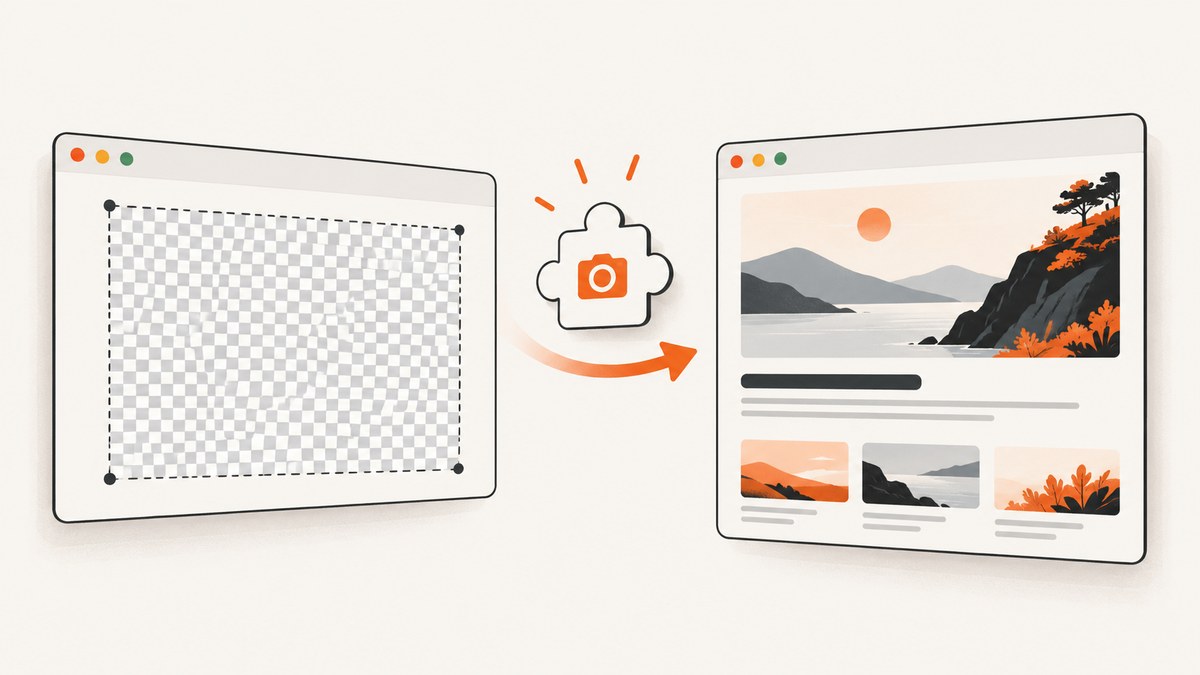
Direct answer: first render the exact data URL returned by chrome.tabs.captureVisibleTab() in a plain <img>. If it displays, Chrome captured the tab and your CSS, canvas, Blob conversion, or download code is making the image appear transparent. If it does not, check activeTab/all_urls permissions, file URL access, the active window, capture timing, format, and the two-calls-per-second limit.
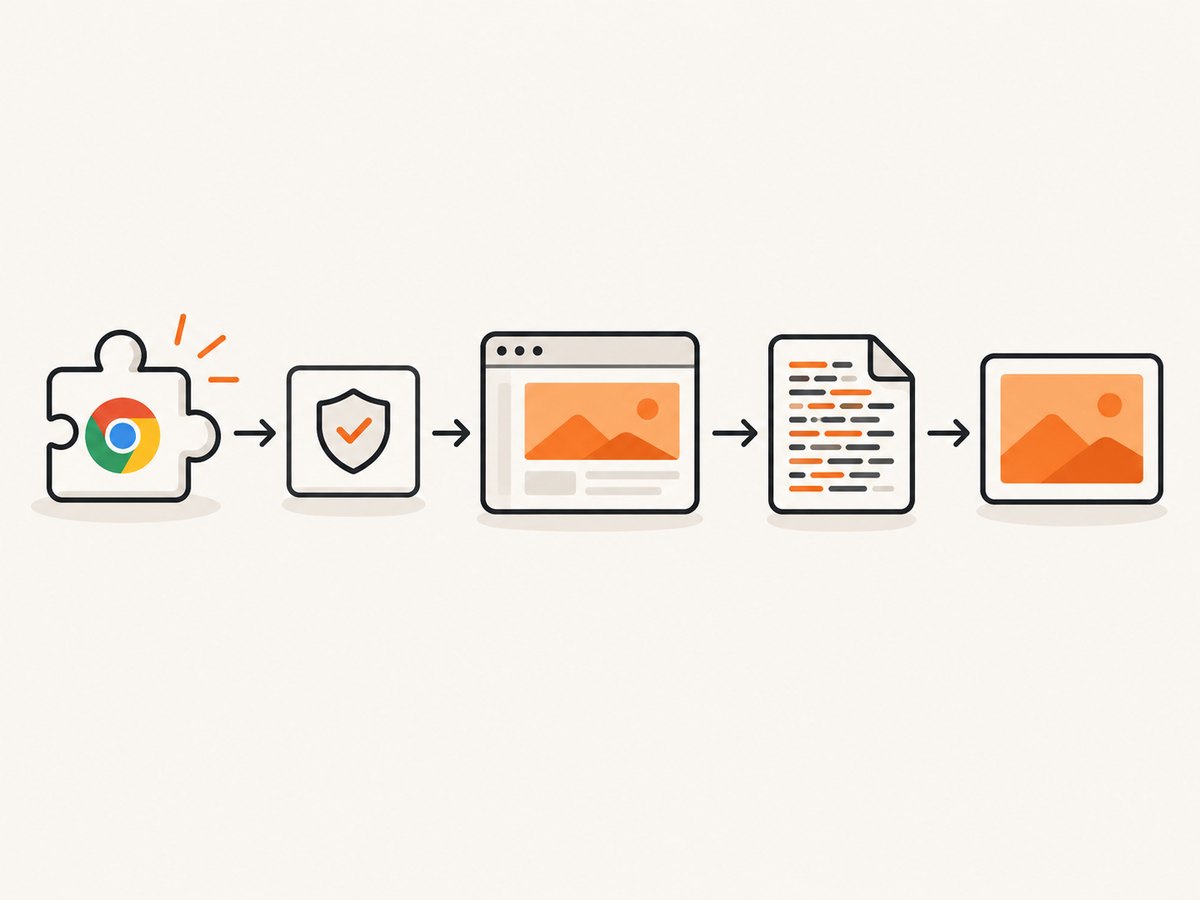
captureVisibleTab captures the visible area of the active tab and returns an image data URL. Chrome documents the API and its permission requirements in the tabs API reference.
1. Verify the raw capture before changing anything
Use this minimal diagnostic. It avoids canvas, object URLs, image libraries, and download code.
const dataUrl = await chrome.tabs.captureVisibleTab(undefined, { format: 'png' });

console.log(dataUrl.slice(0, 32));
console.log('characters:', dataUrl.length);

document.querySelector('#preview').src = dataUrl;
<img id="preview" alt="Captured tab preview" style="max-width:100%; background:#fff">A successful value starts with data:image/ and renders in the plain image element. That means the capture succeeded; inspect your extension UI, canvas compositing, Blob conversion, or download path next. This is an engineering inference from Chrome’s documented data-URL contract.
2. Use the smallest working Manifest V3 extension
Create these files and load the directory at chrome://extensions with Developer mode enabled.
manifest.json
{
  "manifest_version": 3,
  "name": "Capture diagnostic",
  "version": "1.0.0",
  "action": { "default_popup": "popup.html" },
  "permissions": ["activeTab", "tabs"]
}
popup.html
<!doctype html>
<html>
  <body style="width:360px">
    <button id="capture">Capture visible tab</button>
    <p id="status"></p>
    <img id="preview" alt="Capture preview" style="max-width:100%;background:#fff">
    <script src="popup.js"></script>
  </body>
</html>
popup.js
const button = document.querySelector('#capture');
const status = document.querySelector('#status');
const preview = document.querySelector('#preview');

button.addEventListener('click', async () => {
  button.disabled = true;
  status.textContent = 'Capturing…';

  try {
    const dataUrl = await chrome.tabs.captureVisibleTab(undefined, {
      format: 'png'
    });

    console.log(dataUrl.slice(0, 32), dataUrl.length);
    preview.src = dataUrl;
    status.textContent = 'Capture succeeded';
  } catch (error) {
    console.error(error);
    status.textContent = `${error.name}: ${error.message}`;
  } finally {
    button.disabled = false;
  }
});
In Manifest V3, the API can be awaited as a Promise. Chrome’s official tabs screenshot sample is a useful known-good comparison.
3. Check permissions and tab context
| Situation | Manifest/configuration | What to check |
|---|---|---|
| User clicks the extension and captures the current page | activeTab |
The capture must happen as part of the user action and target the intended active tab. |
| Capture pages without a direct user gesture | all_urls |
Request the required host access and capture the correct window. |
Target is a file:// URL |
Extension file access enabled | Turn on “Allow access to file URLs” on the extension details page. |
| Several windows are open | Pass the intended window ID | Do not assume the focused window is the one your workflow selected. |
The API captures the visible area of the currently active tab in the specified window. A permission error, an inactive tab, or missing file access can therefore look like a blank-image bug. See Chrome’s tabs permissions documentation.
Capture a specific window
const [tab] = await chrome.tabs.query({ active: true, lastFocusedWindow: true });
if (!tab?.windowId) throw new Error('No active tab found');

const dataUrl = await chrome.tabs.captureVisibleTab(tab.windowId, {
  format: 'png'
});
4. Compare PNG and JPEG deliberately
ImageDetails.format accepts png or jpeg. The quality option applies to JPEG and is ignored for PNG, as documented in the ImageDetails reference.
const png = await chrome.tabs.captureVisibleTab(undefined, {
  format: 'png'
});

const jpeg = await chrome.tabs.captureVisibleTab(undefined, {
  format: 'jpeg',
  quality: 0.9
});
If the JPEG displays while the PNG looks transparent, inspect alpha handling in your canvas or image-processing path. That diagnosis is a troubleshooting inference; it is not a guarantee that Chrome itself changed the pixels.
5. Avoid alpha and canvas compositing mistakes
A transparent-looking result is often a valid image drawn onto a transparent canvas or viewed against a transparent background.
Set an explicit canvas background
const image = new Image();
image.onload = () => {
  const canvas = document.createElement('canvas');
  canvas.width = image.naturalWidth;
  canvas.height = image.naturalHeight;

  const context = canvas.getContext('2d');
  context.save();
  context.globalCompositeOperation = 'destination-over';
  context.fillStyle = '#ffffff';
  context.fillRect(0, 0, canvas.width, canvas.height);
  context.restore();
  context.drawImage(image, 0, 0);

  const output = canvas.toDataURL('image/png');
  document.querySelector('#preview').src = output;
};
image.src = dataUrl;
Prefer JPEG when transparency is not needed
const dataUrl = await chrome.tabs.captureVisibleTab(undefined, {
  format: 'jpeg',
  quality: 0.9
});
Do not treat a white page as proof that the source is opaque. Test the raw data URL, then inspect the canvas pixel values and the viewer background.
6. Wait for navigation, tab switches, and scrolling to settle
Capture after the page has painted. A capture immediately after activating a tab, navigating, or scrolling can be blank or stale. A historical Chromium Extensions report describes blank output after switching tabs before re-rendering; use it as a diagnostic lead rather than a universal Chrome rule.
const wait = (milliseconds) => new Promise(resolve => setTimeout(resolve, milliseconds));

await chrome.tabs.update(tab.id, { active: true });
await wait(250);

const dataUrl = await chrome.tabs.captureVisibleTab(tab.windowId, {
  format: 'png'
});
For a stronger readiness check, have a content script report that the document is complete and a known selector exists, then add a short paint delay:
// content.js
chrome.runtime.onMessage.addListener((message, _sender, sendResponse) => {
  if (message === 'ready') {
    sendResponse({
      ready: document.readyState === 'complete',
      hasMain: Boolean(document.querySelector('main'))
    });
  }
});
7. Throttle retries and full-page capture loops
Chrome documents MAX_CAPTURE_VISIBLE_TAB_CALLS_PER_SECOND as two calls per second for Google Chrome 92 and later. Debounce retries and queue scroll-and-stitch passes instead of calling the API in a tight loop.
const captureQueue = [];
let running = false;

function enqueueCapture(task) {
  captureQueue.push(task);
  void drainQueue();
}

async function drainQueue() {
  if (running) return;
  running = true;
  try {
    while (captureQueue.length) {
      const task = captureQueue.shift();
      await task();
      await new Promise(resolve => setTimeout(resolve, 550));
    }
  } finally {
    running = false;
  }
}
For a stitched full-page image, wait after each scroll, capture one viewport, restore the original scroll position, and clean up on errors. Keep the number of captures bounded by the page height and avoid retrying indefinitely.
8. Debug the post-processing path
- Log only the data URL prefix and length; do not print the entire image.
- Assign the complete value directly to an
<img>. - If that works, remove canvas code and add transformations back one at a time.
- When using
fetch(dataUrl), check the response status and Blob type before creating an object URL. - Call
URL.revokeObjectURL()only after the image has loaded. - Check CSS:
opacity:0, a zero-sized container, a transparent background, or a white image on a white viewer can all look empty.
const response = await fetch(dataUrl);
if (!response.ok) throw new Error(`Data URL fetch failed: ${response.status}`);
const blob = await response.blob();
if (!blob.type.startsWith('image/')) throw new Error(`Unexpected type: ${blob.type}`);

const objectUrl = URL.createObjectURL(blob);
const preview = document.querySelector('#preview');
preview.onload = () => URL.revokeObjectURL(objectUrl);
preview.src = objectUrl;
9. Common errors and fixes
| Symptom | Likely cause | Fix |
|---|---|---|
This extension does not have permission |
Missing activeTab or host permission |
Add the narrowest required permission, reload the extension, and repeat the user action. |
| File URL fails | File access is disabled | Enable “Allow access to file URLs” in the extension details. |
Raw <img> is clear but download is transparent |
Canvas or Blob conversion changed alpha | Save the original data URL, set a canvas background, and verify Blob MIME type. |
| Intermittent blank image after tab switch | Capture ran before paint completed | Activate the tab, wait a bounded delay, then capture once. |
| PNG looks empty but JPEG works | Alpha handling or viewer background | Inspect alpha pixels and canvas compositing; use JPEG if transparency is not required. |
| Repeated calls start failing | Two-calls-per-second quota exceeded | Queue calls and space them at least 500 ms apart. |
| Only part of a long page appears | captureVisibleTab captures one viewport |
Scroll, wait, capture each viewport, and stitch with a bounded queue. |
| Capture is of the wrong page | Wrong active tab or window | Query the active tab and pass its windowId explicitly. |
10. Performance, reliability, and cost considerations
- Prefer one capture: a visible-tab capture is cheaper and simpler than stitching many viewports.
- Choose the output deliberately: PNG preserves lossless pixels; JPEG can reduce size when quality loss is acceptable.
- Bound every retry: use a maximum attempt count and a delay so a failed page does not create an infinite loop.
- Keep the raw result: retain the original data URL until validation succeeds, then transform or upload it.
- Measure image size: the data URL length is a quick signal for unexpectedly empty or unexpectedly large output.
- Respect the quota: queue work at no more than two calls per second in Chrome 92 and later.
Or skip the browser setup
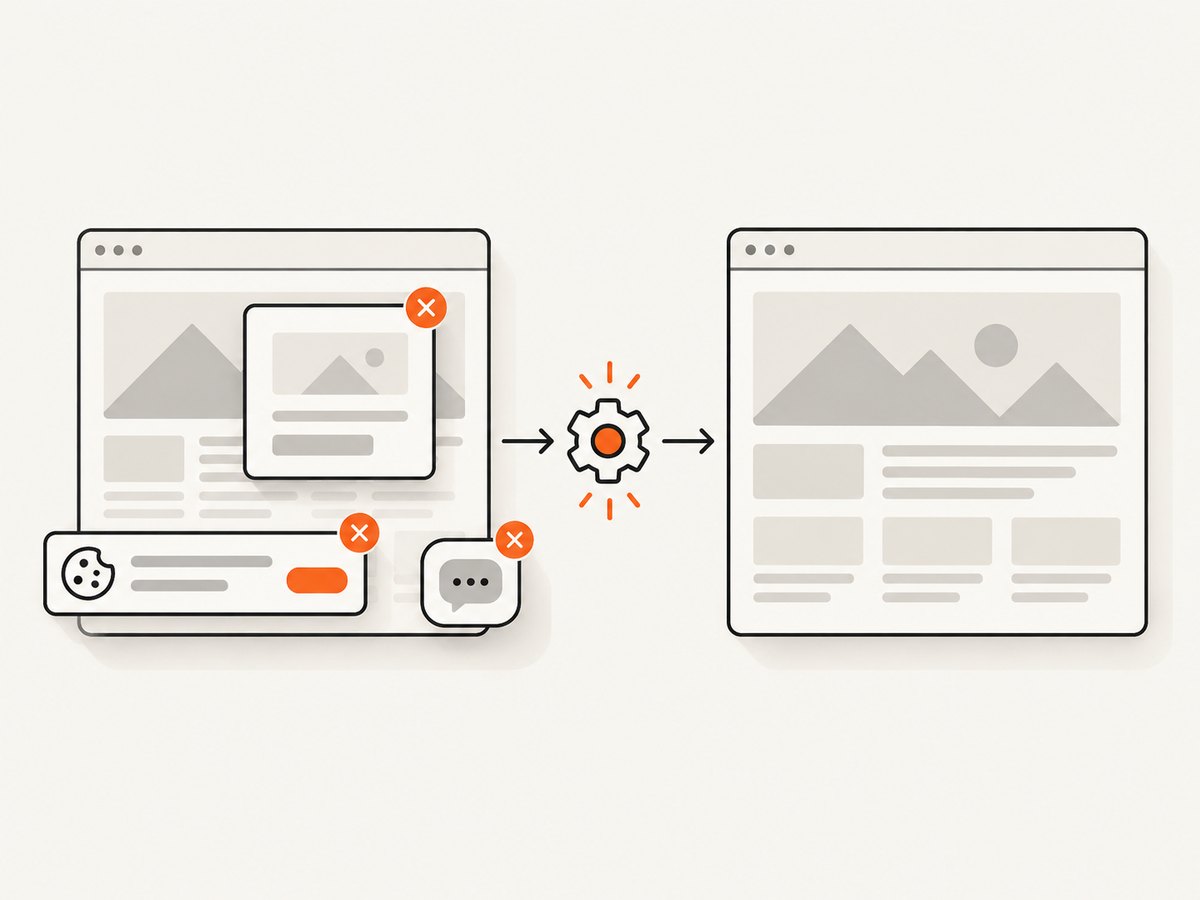
ScreenshotNeo provides a website screenshot API when you do not need to maintain extension permissions, tab focus, canvas code, or scroll stitching. Cookie banners, newsletter popups, and chat widgets are removed before the shot. Bot checks, blank pages, failed loads, timeouts, and cache hits are not billed, and the response identifies the result with X-Page-Verdict and X-Billed headers. Its MCP server lets Claude, Cursor, and other MCP clients call take_screenshot, get_page_info, and capture_pdf.
See the ScreenshotNeo API documentation for all options. A one-call request looks like this:
curl -G "https://api.screenshotneo.com/v1/shot" -d access_key=YOUR_API_KEY --data-urlencode url=https://stripe.com -o shot.webpimport requests
r = requests.get(
"https://api.screenshotneo.com/v1/shot",
params={"access_key": "YOUR_API_KEY", "url": "https://stripe.com"},
timeout=90,
)
open("shot.webp", "wb").write(r.content)const q = new URLSearchParams({ access_key: 'YOUR_API_KEY', url: 'https://stripe.com' });
const res = await fetch(`https://api.screenshotneo.com/v1/shot?${q}`);ScreenshotNeo includes full-page capture, element selectors, device presets, custom viewports, retina scale, dark mode, PDF output, custom CSS and JavaScript, clicks, waits, blocked resources, headers, cookies, user agents, authorization, timezone, geolocation, transparent backgrounds, resizing, TTL caching, signed links, asynchronous jobs, webhooks, bulk capture, usage data, and an OpenAPI specification.
There are 1,000 free screenshots each month with no card. Paid plans start at $5 for 3,000 screenshots, and every feature is available on every plan. Create a free ScreenshotNeo account.
FAQ
Does captureVisibleTab capture the whole page?
No. It captures the visible viewport. Full-page output requires a scroll-and-stitch workflow or a separate capture service.
Can a content script call captureVisibleTab directly?
Place the call in an extension context with the required tabs permission, then message the content script if it needs the resulting data URL.
Why does the screenshot look transparent only in my image viewer?
The PNG may contain alpha pixels or the viewer may display transparency against a similar background. Render the raw data URL on a white test surface and inspect canvas compositing.
Should I always use PNG?
Use PNG for lossless output or when alpha matters. Use JPEG with an explicit quality when a smaller opaque image is sufficient.
Where should I start when the bug is intermittent?
Record the active tab and window, wait after navigation or activation, test the raw data URL, and throttle calls before changing image-processing code.


