How to Fix Transparent Chrome Windows with Chromium WebDriver –no-sandbox
Fix transparent Chromium windows by checking user privileges, removing --no-sandbox, matching ChromeDriver versions, and isolating headless and display issues.
Start here: run Chromium as your regular user, remove --no-sandbox, and verify that your ChromeDriver major version matches your Chromium major version. In the reported case, those changes fixed a WebDriver window that was interactive but transparent and visually corrupted. This is a useful first diagnostic, not a guaranteed fix for every rendering problem.
ChromeDriver’s official guidance says running Chrome as root on Linux is a common cause of startup failures. It also describes --no-sandbox as an unsupported, highly discouraged workaround and recommends running Chrome as a regular user. Read the ChromeDriver troubleshooting guidance.
What “transparent” means in this problem
There are two different behaviors that are often confused:
- Headful but transparent: a platform window exists, accepts clicks or keystrokes, but its contents are invisible, click-through, flickering or badly rendered.
- Headless: Chrome intentionally displays no platform window. Automation can still load pages and produce screenshots.
Headless mode is not a repair for a broken visible window. If you need a desktop window, debug the headful launch. If you only need automation output, use Chrome’s documented Headless mode intentionally. Chrome Headless documentation explains the current unified implementation and the standalone chrome-headless-shell available since Chrome 132.
1. Record the environment before changing it
Write down the exact conditions that reproduce the issue. This prevents a later change from hiding the actual cause.
- Operating system and display stack: desktop Linux, X11, Wayland, WSLg, container or virtual machine.
- Chromium or Chrome version and the full executable path.
- ChromeDriver version and Selenium version.
- The account that launches the script, including whether
sudois involved. - Every Chrome argument, especially
--no-sandbox, headless flags and profile arguments. - The profile directory. A reused profile can add state to the reproduction, so record it and later test with a fresh temporary profile.
2. Run WebDriver as a regular user
Do not invoke the Selenium program with sudo. If a service starts it as root, configure the service to use a normal account with access to the display and a writable temporary directory.
Remove --no-sandbox when the process can run normally. The flag is commonly added to make root or restricted environments start, but ChromeDriver documents it as unsupported and highly discouraged. Disabling the sandbox should not be your routine rendering fix.
Minimal Python reproduction
from selenium import webdriver
from selenium.webdriver.chrome.options import Options

options = Options()
# Keep this test headful: do not add a headless flag.
# Do not add --no-sandbox when running as a regular user.

driver = webdriver.Chrome(options=options)
try:
    driver.get("https://example.com")
    print(driver.title)
    input("Press Enter to close the browser...")
finally:
    driver.quit()
If this works, add your original options back one at a time. The first option that reintroduces the transparent window is the most useful lead.
3. Verify Chrome and ChromeDriver compatibility
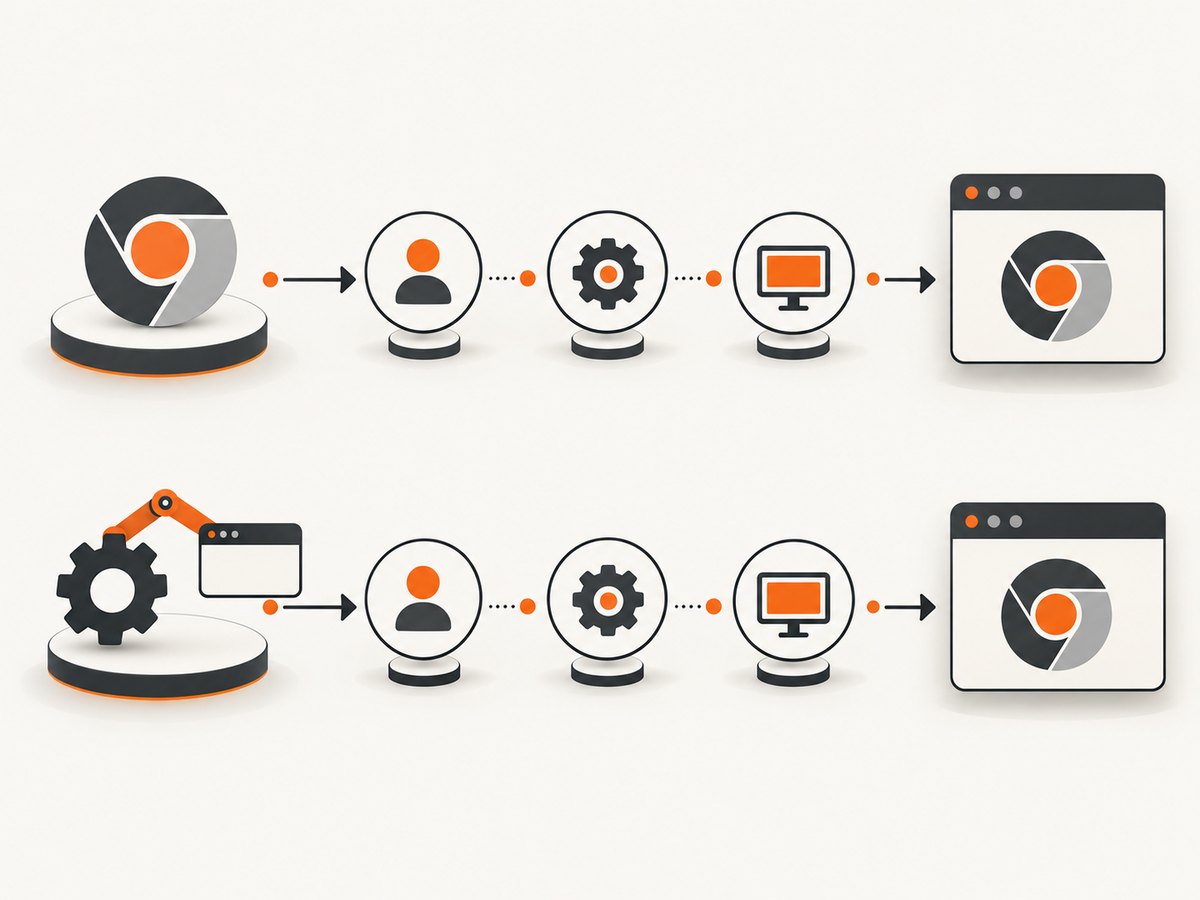
Selenium’s Chrome documentation says the Chrome and ChromeDriver major versions should match. Check the actual binaries used by the script rather than a different installation on your PATH.
which chromium
which chromium-browser
which google-chrome
which chromedriver

chromium --version
chromium-browser --version
google-chrome --version
chromedriver --version
python -c "import selenium; print(selenium.__version__)"
Use the executable path explicitly if multiple browsers are installed:
from selenium import webdriver
from selenium.webdriver.chrome.options import Options

options = Options()
options.binary_location = "/usr/bin/chromium"
driver = webdriver.Chrome(options=options)
try:
    driver.get("https://example.com")
finally:
    driver.quit()
Do not assume that the Chromium binary launched by a desktop shortcut is the one launched by WebDriver. Capture the paths and versions in your bug report.
4. Compare direct Chrome launch with WebDriver
ChromeDriver recommends isolating the browser from the WebDriver harness. Launch the same binary with the relevant arguments outside Selenium:
/usr/bin/chromium \
  --user-data-dir="$(mktemp -d)" \
  https://example.com
Interpret the result as follows:
| Result | Next step |
|---|---|
| Direct launch is also transparent | Investigate the Chromium installation, display server, account permissions and graphics environment. |
| Direct launch works, WebDriver fails | Reduce Selenium options, enable ChromeDriver logging, and compare the exact arguments and profile paths. |
| Only the old profile fails | Repeat with a fresh temporary profile. Treat this as an isolation result, not proof that profiles always cause transparency. |
5. Test one configuration variable at a time
Use a small matrix rather than changing several flags together:
| Variable | Test A | Test B |
|---|---|---|
| User | Regular account | Root or sudo account |
| Sandbox | No --no-sandbox |
With --no-sandbox only for diagnosis |
| Launch path | Direct Chromium | ChromeDriver and Selenium |
| Versions | Matching major versions | Mismatched major versions |
| Display mode | Headful | Intentional Headless mode |
| Profile | Fresh temporary directory | Reused profile |
The available evidence does not establish a universal GPU, compositor, X11, Wayland or profile fix for this symptom. Avoid adding unrelated flags such as --disable-gpu until a controlled comparison shows that they matter in your environment.
6. Keep headful and headless tests separate
For a visible window, omit headless arguments. For automation that does not need a window, choose Headless explicitly:
from selenium import webdriver
from selenium.webdriver.chrome.options import Options

options = Options()
options.add_argument("--headless=new")
driver = webdriver.Chrome(options=options)
try:
    driver.get("https://example.com")
    driver.save_screenshot("example.png")
finally:
    driver.quit()
A successful headless screenshot does not prove that the desktop compositor can render a visible window. It only confirms that the browser can load and render without a displayed platform window.
7. Capture diagnostics when the problem remains
Reduce the case to one URL and one script. Include:
- OS, display server and whether the process runs in WSLg, a container or a virtual machine.
- Browser binary path and version.
- ChromeDriver version and Selenium version.
- User account and whether
sudowas used. - Complete Chrome arguments and profile directory.
- Whether direct launch reproduces the transparency.
- A screenshot or screen recording showing the visual symptom.
ChromeDriver’s troubleshooting page recommends filing a reproducible issue after this kind of isolation. A related WSLg report describes a similar click-through symptom, but it does not establish a confirmed fix for WSLg, so do not assume that this procedure resolves every WSLg setup.
Troubleshooting common errors
| Symptom or error | Likely cause | Fix |
|---|---|---|
Chrome starts only with --no-sandbox |
The process is running as root or in a restricted environment. | Run as a regular user and remove the flag. Treat root execution and sandbox changes as environment problems to solve, not permanent options. |
session not created: This version of ChromeDriver only supports Chrome version ... |
Chrome and ChromeDriver major versions differ. | Check the actual binary paths and install matching major versions. |
| Window exists but is blank or transparent | Headful display or browser configuration issue. | Compare direct launch, use a fresh profile, remove custom arguments, and check the display environment. |
| No window appears | Headless mode, missing display access or a startup failure. | Confirm whether a headless flag is present, then test direct launch and inspect ChromeDriver logs. |
| Clicks pass through the window | Compositor or display-stack behavior, sometimes reported under WSLg. | Record the display stack and reproduce with a minimal script. The available report does not identify a universal fix. |
| Works manually but fails in a service | Different user, DISPLAY/WAYLAND_DISPLAY, permissions or profile directory. |
Compare the service environment with an interactive regular-user shell and set a writable profile directory. |
| Only one reused profile fails | Profile state may be involved. | Test a new temporary profile and migrate only required settings after the cause is understood. |
Performance, reliability and cost considerations
- Performance: direct launch and minimal WebDriver options reduce startup variables. Reusing a profile can preserve useful state but also makes reproductions less deterministic.
- Reliability: pin and record browser and driver versions, run under a consistent regular account, and keep a minimal reproduction that can be rerun after upgrades.
- Security:
--no-sandboxweakens a browser security boundary and is officially discouraged. Do not add it merely because a container recipe includes it. - Headless workloads: when you need screenshots rather than a visible desktop, a screenshot API can remove browser installation and display-stack maintenance from your application.
Or skip the browser setup
ScreenshotNeo is a website screenshot API and MCP server. It accepts one GET request and returns a PNG, JPEG, WebP or PDF. Before capture it accepts cookie and consent banners and removes more than 60 known consent platforms, newsletter popups and chat widgets. Bot checks, blank pages, timeouts, failed loads and cache hits are not billed, and response headers identify the page verdict and billing result.
See the ScreenshotNeo API documentation for the complete option list.
cURL
curl -G "https://api.screenshotneo.com/v1/shot" \
  -d access_key=YOUR_API_KEY \
  --data-urlencode url=https://stripe.com \
  -o shot.webp
Python
import requests

r = requests.get(
    "https://api.screenshotneo.com/v1/shot",
    params={"access_key": "YOUR_API_KEY", "url": "https://stripe.com"},
    timeout=90,
)
r.raise_for_status()
open("shot.webp", "wb").write(r.content)
Node.js
const q = new URLSearchParams({
  access_key: 'YOUR_API_KEY',
  url: 'https://stripe.com'
});
const res = await fetch(`https://api.screenshotneo.com/v1/shot?${q}`);
if (!res.ok) throw new Error(`${res.status} ${res.statusText}`);
const fs = await import('node:fs/promises');
await fs.writeFile('shot.webp', Buffer.from(await res.arrayBuffer()));
ScreenshotNeo also provides full-page capture with lazy images loaded, element capture by CSS selector, dark mode, device presets, custom viewports, retina scale, PDF controls, HTML/CSS rendering, custom JavaScript and CSS, clicks, waits, request blocking, headers, cookies, user agents, authorization, timezone, geolocation, transparent backgrounds, resizing, configurable caching, signed links, asynchronous jobs with signed webhooks, bulk capture, usage reporting and an OpenAPI specification. An MCP server provides take_screenshot, get_page_info and capture_pdf for Claude, Cursor and other MCP clients.
There is a free plan with 1,000 shots per month and no card. Paid plans start at $5 for 3,000 shots; yearly billing gives two months free. Create a free ScreenshotNeo account.
FAQ
Is --no-sandbox the direct cause of every transparent window?
No. One reported case was fixed after reinstalling Chromium, checking versions, avoiding sudo and removing the flag. ChromeDriver’s official guidance discourages the flag, but the evidence does not prove it causes every transparent-window problem.
Should I add --disable-gpu?
There is no topic-specific evidence here that it fixes this case. Test one variable at a time and first compare regular-user execution, the sandbox flag, versions and direct launch.
Does a successful headless run prove the visible window is fixed?
No. Headless mode intentionally avoids displaying a platform window, so it tests a different path.
What is the fastest safe first attempt?
Run the minimal headful script as a regular user with matching browser and driver major versions, no --no-sandbox, and a fresh profile.


