How to Fix Lines Between Transparent Elements in Puppeteer PDFs
Learn why hairline seams appear in Puppeteer PDFs and how to diagnose media styles, scaling, backgrounds, transparency, and viewer artifacts.
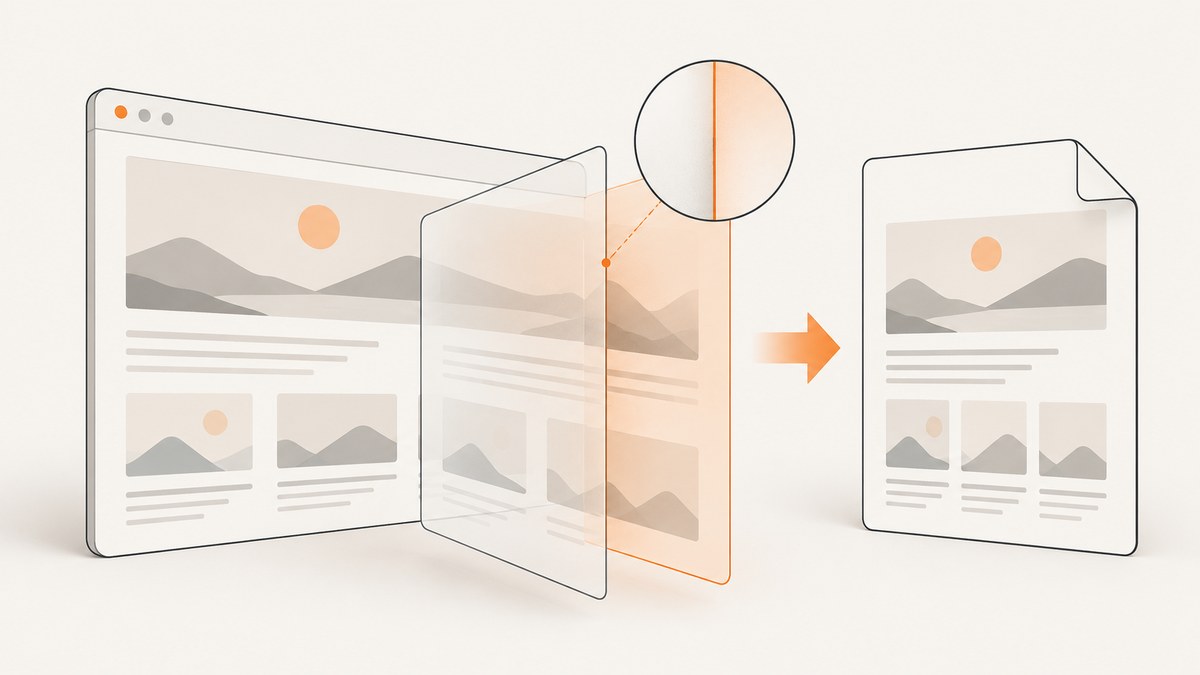
Thin white or dark lines can appear between adjacent transparent elements in a PDF generated with Puppeteer. The line may be caused by print-specific CSS, page-size scaling, background or transparency settings, fractional layout dimensions, or only the PDF viewer’s display at a particular zoom. Puppeteer’s documentation does not identify one universal transparent-seam fix.
Start by proving whether the line exists in the PDF content, then compare print and screen media, make page dimensions explicit, and verify background settings. Change one variable at a time and compare the output in more than one PDF renderer.
What Puppeteer changes when it creates a PDF
page.pdf() uses the print CSS media type by default. That means your page can have different layout rules, colors, borders, and visibility from the screen version. Puppeteer documents calling page.emulateMediaType('screen') before PDF generation when you want screen media instead. See the official Page.pdf() API documentation.
Print rendering can also modify colors. The documentation describes -webkit-print-color-adjust for forcing exact colors, but this is a color-control feature, not a guaranteed cure for seams. Likewise, printBackground controls whether CSS backgrounds are included, while omitBackground removes the default white page background and allows PDF transparency. Neither option is documented as a general fix for lines between transparent objects.
Diagnostic sequence
1. Confirm that the line is in the PDF
- Open the PDF at several zoom levels. A seam that appears only at one zoom may be a viewer rasterization boundary.
- Open the same file in another PDF renderer.
- Print or rasterize a page at the intended output resolution if the PDF is going to print.
- Compare the PDF with a screenshot of the same page. A screenshot difference does not prove that the PDF is wrong, because the two paths use different media and compositing rules.
Treat viewer-only hairlines as a diagnostic possibility rather than a confirmed explanation. The reviewed Puppeteer sources do not independently document this behavior.
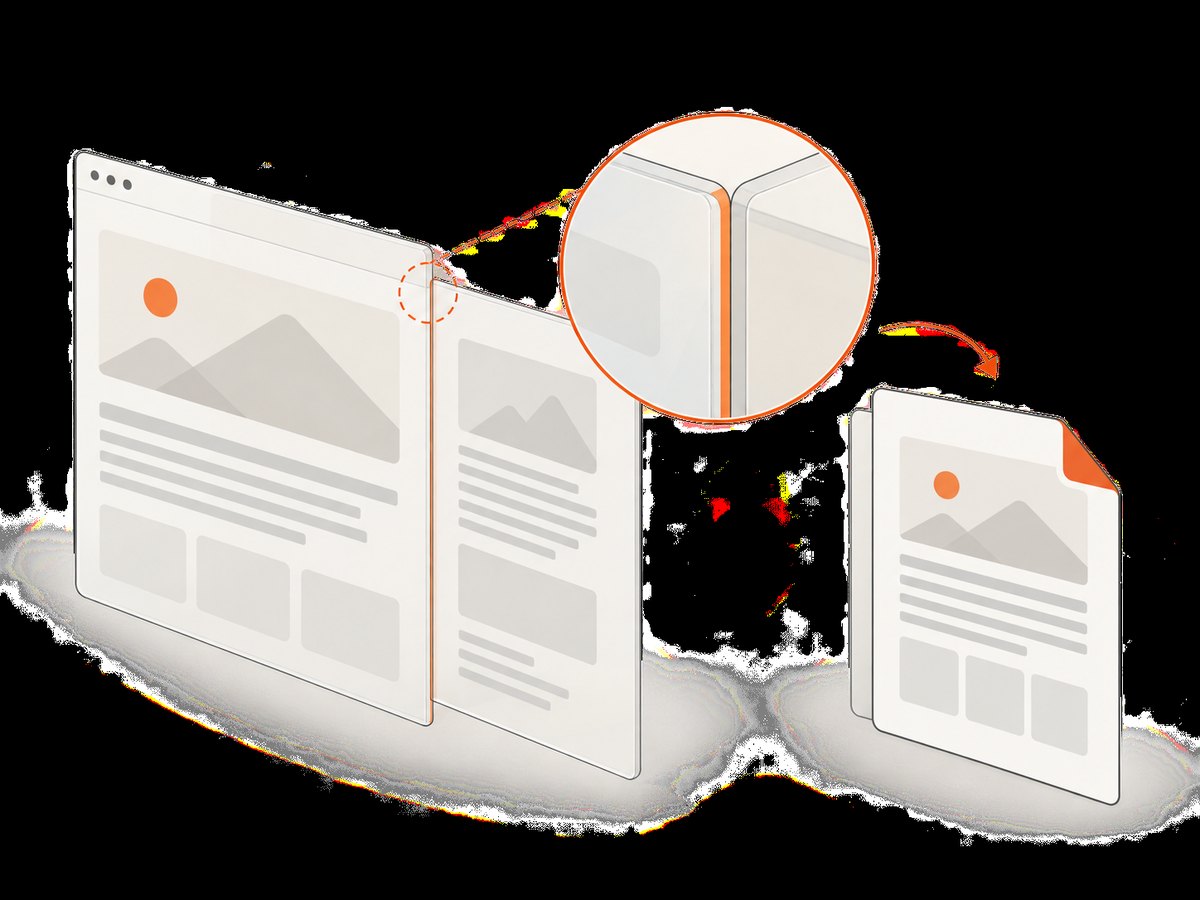
2. Inspect print CSS and the generated DOM
Look for @media print rules that alter dimensions, opacity, borders, transforms, overflow, or positioning. Adjacent transparent elements are especially sensitive to fractional coordinates and transformed edges. Log the computed values immediately before PDF generation:
const boxes = await page.$$eval('.panel', nodes => nodes.map(node => {
  const rect = node.getBoundingClientRect();
  const style = getComputedStyle(node);
  return {
    rect: { x: rect.x, y: rect.y, width: rect.width, height: rect.height },
    opacity: style.opacity,
    transform: style.transform,
    background: style.backgroundColor,
    border: style.border,
    overflow: style.overflow
  };
}));
console.log(JSON.stringify(boxes, null, 2));
Run this after selecting the media type you intend to use. A layout that touches perfectly in screen CSS can acquire a fractional gap after print rules or page scaling are applied.
3. Check page dimensions and scaling
The PDFOptions interface lets you choose a paper format, explicit width and height, margins, scale, and preferCSSPageSize. With preferCSSPageSize: true, CSS @page dimensions take priority. Otherwise, content may be scaled to fit the selected paper size. Compare your CSS page size with the options passed to Puppeteer and avoid arbitrary offsets intended to hide a seam.
4. Match background behavior to the intended document
- Use
printBackground: truewhen CSS background graphics must appear. - Use
omitBackground: trueonly when a transparent page background is actually required. - Do not assume either setting fixes internal edges between transparent elements.
5. Build a minimal reproduction
Reduce the page to two adjacent translucent boxes over a solid background. Record the Puppeteer version, Chromium version, operating system, PDF viewer, page dimensions, media type, and zoom level. Change only one of media type, page sizing, scale, background options, or CSS geometry per run. No reviewed source supplies a confirmed version-specific seam fix, so a reproducible comparison is more reliable than a universal recipe.
A complete Puppeteer reproduction and comparison script
Install Puppeteer with npm install puppeteer. The script below writes PDFs for print media, screen media, CSS page sizing, and a transparent page background so you can compare them.
const puppeteer = require('puppeteer');

(async () => {
  const browser = await puppeteer.launch();
  const page = await browser.newPage();

  await page.setViewport({ width: 1200, height: 800, deviceScaleFactor: 1 });
  await page.setContent(`
    <!doctype html>
    <html>
      <head>
        <style>
          @page { size: 1200px 800px; margin: 0; }
          * { box-sizing: border-box; }
          html, body { margin: 0; padding: 0; }
          body { background: #203040; }
          .row { display: flex; width: 1200px; height: 800px; }
          .panel { width: 600px; height: 800px; background: rgba(255,255,255,.35); }
          .panel + .panel { background: rgba(100,180,255,.35); }
          @media print {
            .row { width: 1200px; height: 800px; }
          }
        </style>
      </head>
      <body>
        <div class="row"><div class="panel"></div><div class="panel"></div></div>
      </body>
    </html>`, { waitUntil: 'load' });

  await page.emulateMediaType('print');
  await page.pdf({ path: 'print-default.pdf', width: '1200px', height: '800px', printBackground: true, margin: { top: 0, right: 0, bottom: 0, left: 0 } });

  await page.emulateMediaType('screen');
  await page.pdf({ path: 'screen-media.pdf', width: '1200px', height: '800px', printBackground: true, margin: { top: 0, right: 0, bottom: 0, left: 0 } });

  await page.pdf({ path: 'css-page-size.pdf', preferCSSPageSize: true, printBackground: true, margin: { top: 0, right: 0, bottom: 0, left: 0 } });

  await page.pdf({ path: 'transparent-page.pdf', width: '1200px', height: '800px', omitBackground: true, printBackground: false, margin: { top: 0, right: 0, bottom: 0, left: 0 } });

  await browser.close();
})();
These files are comparison points, not promised remedies. If one output looks better, inspect why: media rules, dimensions, backgrounds, and scaling may have changed together.
Choosing the relevant PDF options
| Option | Use it for | What it does not prove |
|---|---|---|
emulateMediaType('screen') |
Keeping screen media rules when the print stylesheet changes the design | It is not documented as a transparent-seam fix |
printBackground |
Including CSS background images and colors | It does not repair compositing edges |
omitBackground |
Making the page background transparent | It does not remove lines between transparent objects |
preferCSSPageSize |
Giving @page size priority |
It can expose scaling or sizing differences if CSS dimensions are wrong |
format, width, height |
Defining paper or page dimensions | Arbitrary values can introduce fit-to-page scaling |
scale |
Adjusting overall PDF rendering scale | No reviewed source identifies a particular scale as a universal solution |
-webkit-print-color-adjust: exact |
Reducing print color adjustment | It addresses colors, not guaranteed seam removal |
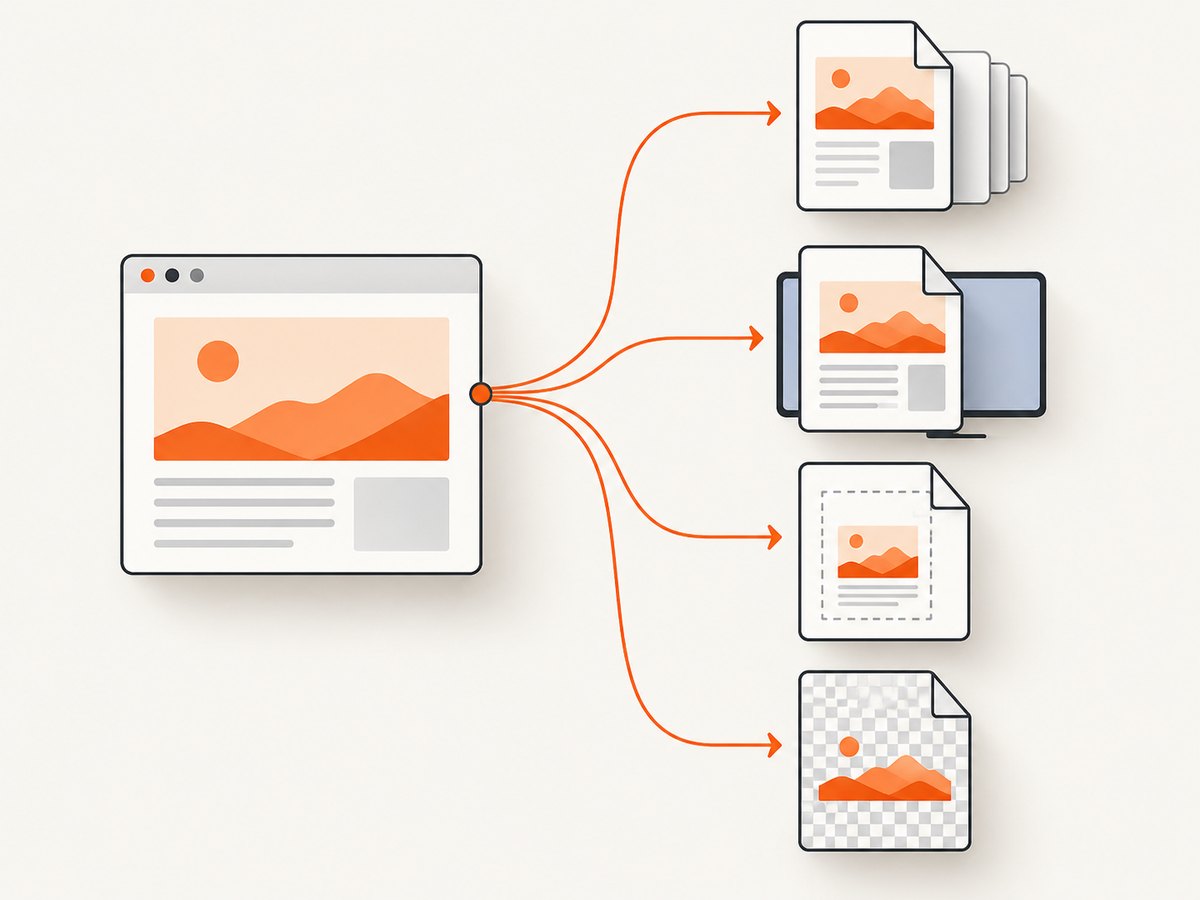
Use the option that matches the document contract. For example, choose CSS page sizing when the CSS defines the authoritative paper dimensions; choose explicit dimensions when your application controls the page size externally.
Safe CSS checks before changing PDF settings
- Remove unintended borders and outlines from adjacent elements.
- Check whether a transform places an edge on a fractional pixel.
- Compare flex and grid tracks whose calculated widths contain fractions.
- Confirm that print rules do not alter opacity, clipping, or overflow.
- Check pseudo-elements that extend exactly to an edge.
- Use a solid test background to distinguish a transparent page from a transparent component.
- Wait for fonts, images, and other assets before capture so late layout shifts do not change edge coordinates.
Do not silently add overlaps, arbitrary one-pixel offsets, or enlarged boxes to production output until you have verified the result across viewers and at print resolution. Such changes can hide the symptom while changing the intended geometry.
Common errors and fixes
“The PDF has a line, but the browser screenshot does not.”
Cause: PDF generation uses print media by default, or print color adjustment changes compositing.
Fix: Inspect @media print rules, then generate a comparison with page.emulateMediaType('screen'). If exact colors matter, evaluate -webkit-print-color-adjust: exact. Neither change should be described as a guaranteed seam repair.
“The line appears only at one zoom level.”
Cause: It may be a viewer display boundary rather than content in the PDF.
Fix: Open the file in another renderer and inspect a rasterized or printed version.
“Changing printBackground made the page look worse.”
Cause: Background graphics were omitted or the design depended on a page background.
Fix: Set printBackground: true when those graphics are part of the intended output. Use omitBackground only for an intentionally transparent page.
“The page is the wrong size and edges look shifted.”
Cause: CSS @page dimensions conflict with format, width, or height, causing fitting or scaling.
Fix: Pick one authoritative sizing strategy and compare it with preferCSSPageSize: true. Check margins and scale at the same time.
“The output changes between machines.”
Cause: Different Puppeteer or Chromium versions, fonts, operating systems, or viewers can affect layout and rendering.
Fix: Record those versions in the minimal reproduction, package the required fonts, and compare PDFs produced by the same browser build.
“A GitHub issue mentions white borders.”
Puppeteer issue #11172 discusses an anecdotal white border around a downloaded PDF and a reported paper-size mismatch. It concerns page borders and should not be treated as a verified explanation or fix for internal transparent seams.
Performance and reliability considerations
PDF rendering cost is affected by page complexity, asset loading, fonts, full-page dimensions, and the number of pages. Keep diagnostic runs small, wait for the assets your document requires, and reuse a browser process when your service captures many documents. Record the exact options with each artifact so a visual difference can be reproduced.
For reliability, use deterministic page dimensions, explicit margins, stable browser versions, and a test fixture containing overlapping transparent elements. Compare output in multiple viewers before shipping a change. A successful single render does not establish a universal Chromium behavior.
Or skip the browser setup
If you need a clean screenshot or PDF without maintaining Puppeteer, ScreenshotNeo provides a website screenshot API and MCP server. It accepts one GET request and returns PNG, JPEG, WebP, or PDF output. Its capture options include full-page rendering with lazy images loaded, element selection, dark mode, device presets or custom viewports, retina scale, PDF paper size, margins, landscape mode, page ranges, custom CSS and JavaScript, click actions, selector or network-idle waits, request blocking, headers, cookies, user agents, authorization, timezone, geolocation, transparent backgrounds, resizing, caching, signed links, asynchronous jobs, webhooks, bulk capture, usage data, and an OpenAPI specification.
Before capture, ScreenshotNeo accepts cookie or consent banners and removes more than 60 known consent platforms, newsletter popups, and chat widgets; each step can be disabled. Bot checks or CAPTCHAs, blank pages, timeouts, failed loads, and cache hits are not billed, and the response identifies the page verdict and billing result with X-Page-Verdict and X-Billed headers. Its MCP server exposes take_screenshot, get_page_info, and capture_pdf for Claude, Cursor, and other MCP clients.
One-call example
See the ScreenshotNeo documentation for the complete API reference.
curl -G "https://api.screenshotneo.com/v1/shot" -d access_key=YOUR_API_KEY --data-urlencode url=https://stripe.com -o shot.webpimport requests
r = requests.get("https://api.screenshotneo.com/v1/shot", params={"access_key": "YOUR_API_KEY", "url": "https://stripe.com"}, timeout=90)
open("shot.webp", "wb").write(r.content)const q = new URLSearchParams({ access_key: 'YOUR_API_KEY', url: 'https://stripe.com' });
const res = await fetch(`https://api.screenshotneo.com/v1/shot?${q}`);The free plan includes 1,000 screenshots each month with no card. Paid plans start at $5 for 3,000 shots, and every feature is available on every plan. Create a free ScreenshotNeo account.
FAQ
Does Puppeteer have a documented transparent-seam option?
No. The official references document media, color, backgrounds, transparency, sizing, margins, and scale controls, but do not prescribe a universal fix for lines between transparent elements.
Should I always use screen media for PDFs?
No. Use print media when your print stylesheet is authoritative. Use screen media only when the PDF should match the screen design and you have checked its page size, backgrounds, and colors.
Will making the page background transparent remove white lines?
No. omitBackground changes the page background. It is not documented as a repair for internal edges between transparent objects.
What information should I include in a bug report?
Include a minimal HTML file, Puppeteer and Chromium versions, operating system, PDF options, page dimensions, media type, fonts, the PDF, and screenshots from more than one viewer and zoom level.
Can I use ScreenshotNeo for PDFs as well as images?
Yes. ScreenshotNeo supports PDF capture with paper size, margins, landscape mode, and page ranges, alongside PNG, JPEG, and WebP screenshots.
Checklist
- Verify the line in multiple viewers and zoom levels.
- Inspect print CSS and computed element geometry.
- Compare print and screen media deliberately.
- Match
@page, dimensions, margins, scale, andpreferCSSPageSize. - Set background options only for the intended output.
- Capture a minimal reproduction and record versions.
- Validate any apparent fix at print resolution before release.
For the documented controls, consult Puppeteer’s Page API, PDFOptions reference, and PDF generation guide.


