How to Fix Transparent PNGs When Capturing HTML
Learn why HTML screenshots turn transparent areas white, how to fix them in Playwright, Puppeteer and html2canvas, and how to verify the PNG alpha channel.
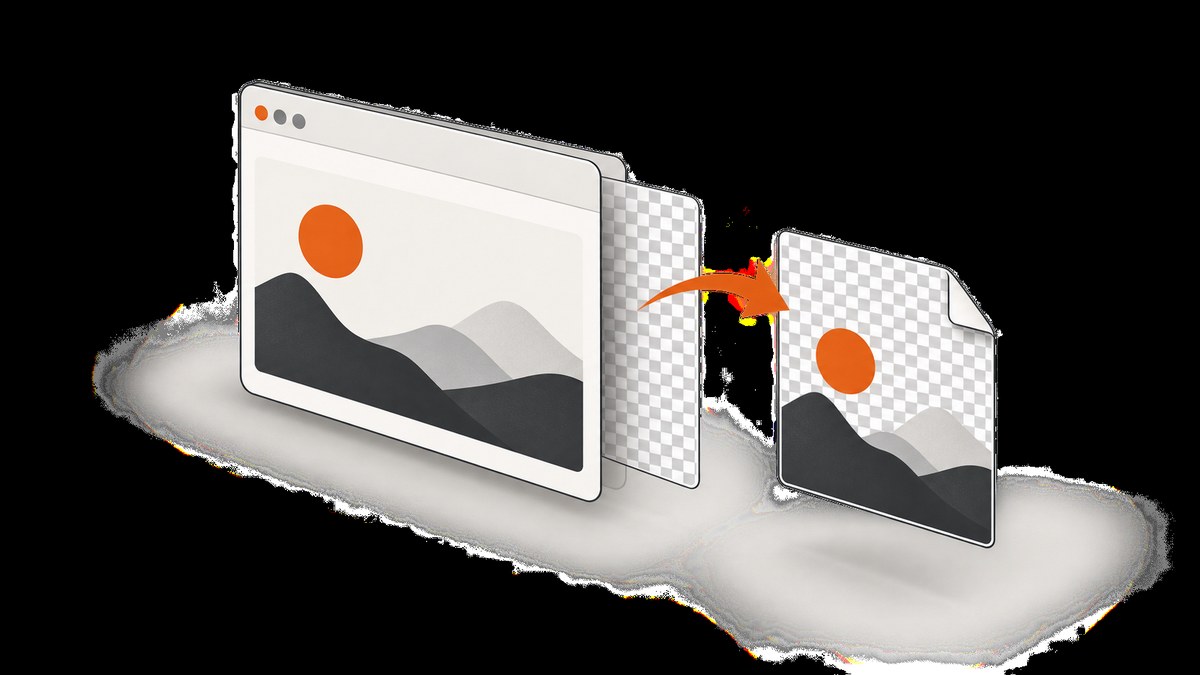
A transparent PNG capture needs two things: a format that supports transparency and a capture option that preserves it. In Playwright and Puppeteer, save a PNG with omitBackground: true. In html2canvas, set backgroundColor: null. Then inspect the backgrounds of the element, its ancestors, and the page: transparency in one element does not make an opaque page behind it disappear.
JPEG cannot store an alpha channel. A filename ending in .png also does not prove that the image contains transparency; open it over both light and dark backgrounds or inspect its alpha channel. The examples below show complete capture flows and explain what to check when the result still looks white.
1. Choose the capture method
| Method | Transparency setting | Good fit | Key limitation |
|---|---|---|---|
| Playwright | omitBackground: true |
Browser automation and faithful browser rendering | Requires a browser runtime and its dependencies |
| Puppeteer | omitBackground: true |
Chrome or Chromium automation in Node.js | Requires a browser runtime and its dependencies |
| html2canvas | backgroundColor: null |
Client-side DOM-to-canvas output | Reconstructs the page from DOM and CSS; rendering can differ from the browser |
If matching what a browser actually rendered is the priority, use Playwright or Puppeteer. html2canvas says its output is built from information available in the DOM and is not an actual screenshot; unsupported CSS, cross-origin content, and iframe boundaries can therefore affect the result. Read the html2canvas documentation for those limitations.
2. Capture a transparent PNG with Playwright
Install Playwright and its Chromium browser, then run this Node.js script. The explicit PNG type and omitBackground option make the intent clear.
npm install playwright
npx playwright install chromium
// capture.mjs
import { chromium } from 'playwright';
const browser = await chromium.launch({ headless: true });
try {
const page = await browser.newPage({ viewport: { width: 1440, height: 900 } });
await page.goto('https://example.com', { waitUntil: 'networkidle' });
await page.evaluate(() => document.fonts.ready);
await page.screenshot({
path: 'capture.png',
type: 'png',
omitBackground: true,
fullPage: true,
scale: 'css'
});
} finally {
await browser.close();
}Run it with node capture.mjs. Replace the example URL with the page you control or are authorized to capture. The documented Playwright screenshot options define omitBackground as hiding the default white background to allow transparency; it does not apply to JPEG. PNG is the default type, but specifying it helps prevent a later format change from silently removing alpha.
Capture only an element
For a transparent component or logo, locate the element and take an element screenshot. The rest of the page is outside the captured bounds.
const card = page.locator('.export-card');
await card.screenshot({
  path: 'card.png',
  type: 'png',
  omitBackground: true
});
Element capture does not neutralize a background painted by the target itself. If the element has background: white, that white is part of the rendered element and remains opaque. Adjust the component’s styles or use capture-only CSS if you intend the background to be transparent.
3. Capture a transparent PNG with Puppeteer
Install Puppeteer and run a Node.js script. Its screenshot options use the same omitBackground behavior.
npm install puppeteer// capture-puppeteer.mjs
import puppeteer from 'puppeteer';
const browser = await puppeteer.launch({ headless: true });
try {
const page = await browser.newPage({ viewport: { width: 1440, height: 900 } });
await page.goto('https://example.com', { waitUntil: 'networkidle2' });
await page.evaluate(() => document.fonts.ready);
await page.screenshot({
path: 'capture.png',
type: 'png',
omitBackground: true,
fullPage: true
});
} finally {
await browser.close();
}Run node capture-puppeteer.mjs. Puppeteer’s ScreenshotOptions reference documents omitBackground and notes it does not apply to JPEG. The API accepts options such as fullPage, clip, quality, and type; use PNG when alpha matters. quality is relevant to JPEG and WebP, not PNG.
4. Capture with html2canvas
html2canvas renders a DOM node into a canvas. Its backgroundColor defaults to #ffffff; set it to null for a transparent canvas. Here is a browser-side example that waits for fonts and images before rendering a selected element.
<script src="https://html2canvas.hertzen.com/dist/html2canvas.min.js"></script>
<script>
async function exportElement() {
  const node = document.querySelector('#export-card');
  if (!node) throw new Error('Capture target #export-card was not found');

  await document.fonts.ready;
  await Promise.all([...node.querySelectorAll('img')].map(img => {
    if (img.complete) return Promise.resolve();
    return new Promise(resolve => {
      img.addEventListener('load', resolve, { once: true });
      img.addEventListener('error', resolve, { once: true });
    });
  }));

  const canvas = await html2canvas(node, {
    backgroundColor: null,
    scale: window.devicePixelRatio || 1,
    useCORS: true,
    onclone(clonedDocument) {
      clonedDocument.querySelector('#export-card')
        ?.classList.add('capture-mode');
    }
  });

  const link = document.createElement('a');
  link.download = 'capture.png';
  link.href = canvas.toDataURL('image/png');
  link.click();
}
</script>
The relevant configuration is documented in the html2canvas configuration reference. backgroundColor: null removes the renderer’s default background. scale affects output density and dimensions, not whether the background is transparent. onclone lets you alter the cloned document used for rendering without changing the live page. useCORS attempts cross-origin image loading when the remote server permits it; it cannot override another server’s CORS policy. The documented proxy option can be used with a suitable image proxy you operate.
For a page-wide canvas, pass document.documentElement instead of a selected node. Very large canvases may hit browser memory or maximum-dimension limits, so prefer a specific element or a smaller scale when possible.
5. Check the complete background chain
omitBackground removes the browser’s default backdrop. It does not make CSS backgrounds, images, or painted pixels transparent. Work through this list if the capture still appears white:
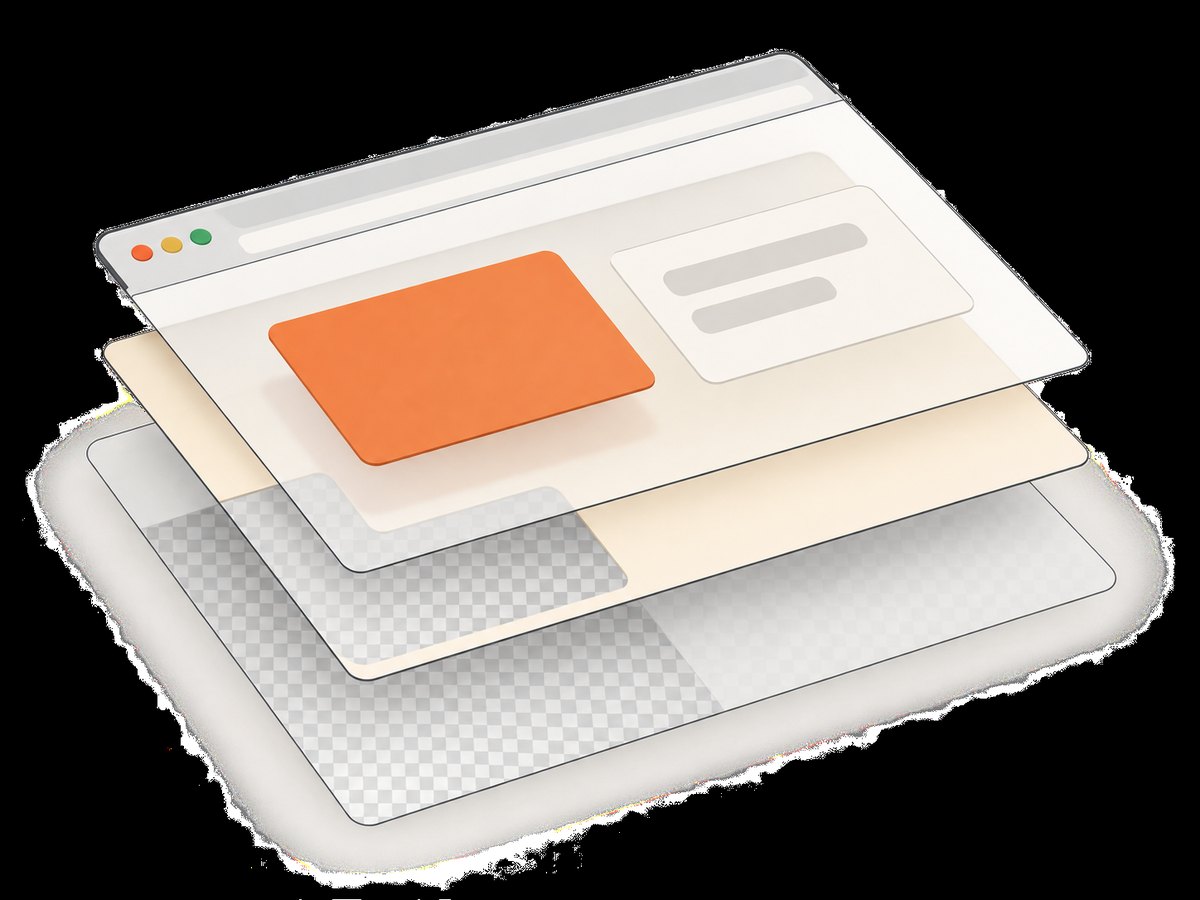
- Inspect the capture target for a background color, gradient, background image, shadow, or pseudo-element.
- Inspect each ancestor, including wrappers,
body, andhtml. An opaque ancestor behind the target stays visible. - Check styles applied only at the capture viewport or through media queries.
- For html2canvas, inspect the cloned DOM too;
onclonemay add or preserve a background. - Check whether the white area is actually transparent by placing the PNG over dark and light test backgrounds.
Use capture-only CSS if the page should stay unchanged for visitors. In Playwright, screenshot style can apply a stylesheet during capture. For example, style: 'html, body { background: transparent !important; }' clears only those page backgrounds. Add selectors for wrappers only when you have confirmed which layer is painting the unwanted color. In html2canvas, apply a class in onclone and define capture styles for that class.
6. Understand format, geometry, and image density
- PNG: use this for lossless pixels and alpha transparency.
- JPEG: opaque only. A white background is expected when converting transparent content to JPEG.
- WebP: can support alpha, but check the exact encoder and downstream workflow. PNG is the simplest diagnostic format.
- Full page: expands the captured height; it does not enable or disable alpha.
- Scale: changes pixel density and output size; it does not enable or disable alpha. Higher scales use more memory.
- Viewport and clip: determine what is rendered and included. Set them deliberately when layout depends on viewport width.
Keep transparency enabled when changing full-page or scale settings. For repeatable output, set a fixed viewport, wait for fonts and relevant images, and decide whether animations should be allowed to continue or suppressed. A screenshot taken before assets load may have transparent gaps where content should be; that is a readiness problem, not an alpha-channel problem.
7. Troubleshooting common failures
| Symptom | Likely cause | Fix |
|---|---|---|
| White background in PNG | Transparency option omitted, or CSS paints white | Set omitBackground: true or backgroundColor: null; inspect target through page backgrounds |
| White background in JPEG | JPEG has no alpha channel | Capture as PNG, or intentionally flatten against a chosen background |
| Checkerboard is absent in an image viewer | Viewer displays transparency as white | Open over contrasting backgrounds or inspect alpha with an image editor |
| Images are missing in html2canvas | Cross-origin restrictions, failed loading, or unsupported content | Check the browser console and image response headers; use a CORS-enabled origin or a configured proxy |
| Iframe contents are blank in html2canvas | Cross-origin iframe boundary | Render the content in an allowed same-origin context or use browser automation; html2canvas cannot render cross-origin iframe contents |
| Shadows, filters, masks, or blend modes differ | html2canvas does not implement every browser CSS feature | Check its supported CSS features; simplify styles or use a real browser screenshot |
| Text or images are clipped | Capture bounds, viewport, or assets were not ready | Set viewport and clip intentionally; wait for fonts and images before capturing |
| Output is unexpectedly huge | Full-page capture or high scale multiplied pixel dimensions | Capture an element, reduce scale, or use viewport capture; keep in mind that pixel memory grows with width × height |
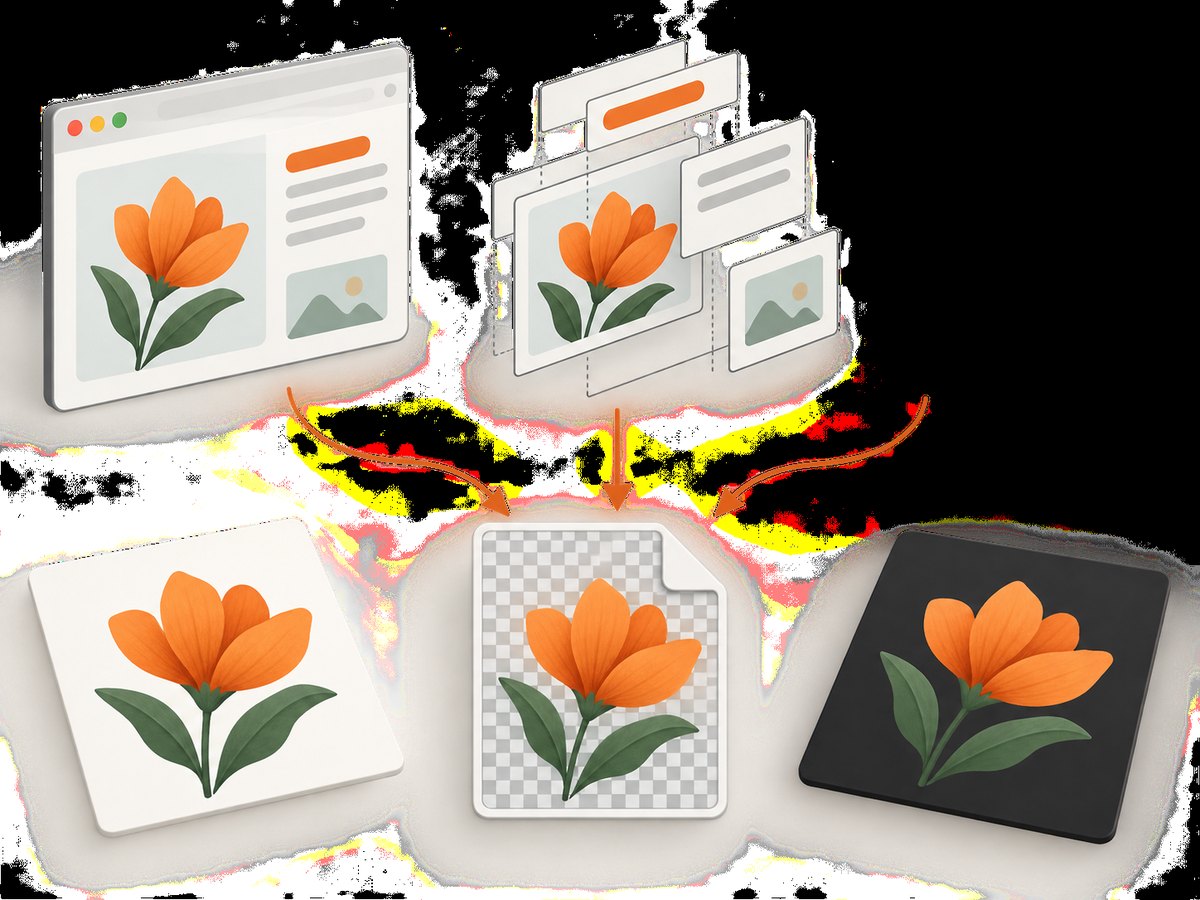
When diagnosing, first establish whether the file contains alpha. If it does, the remaining white appearance usually comes from a viewer’s display or from opaque content painted into the captured pixels. If it does not, check the format and the transparency option before investigating CSS.
8. Performance, reliability, and cost
Browser automation offers fidelity to browser layout, but it requires launching and maintaining a browser process. Reuse a browser across multiple captures where your application architecture allows it, close pages and browsers in error paths, and avoid capturing more pixels than the output needs. Full-page images and high device scale increase memory use and file size. Waiting for networkidle can be useful for stable pages, but pages with ongoing requests may never become idle; use a bounded wait or a specific selector when that is more reliable.
html2canvas runs in the browser and can avoid a separate browser-automation service, but it inherits client-side CORS and CSS-support constraints. Treat remote images, fonts, and iframes as failure points and provide a useful fallback when the export cannot include them. For any method, wait for the assets the output depends on and handle navigation, timeout, and missing-target errors explicitly.
DIY captures have infrastructure costs in browser compute, storage, retries, and maintenance; actual cost depends on where and how often you run them. A managed API trades that setup for a per-plan allowance. ScreenshotNeo’s published plans are 1,000 shots/month free with no card, then $5 for 3,000, $15 for 15,000, $39 for 60,000, $99 for 250,000, and $249 for 1,000,000; yearly billing gives two months free. It states every feature is available on every plan. See ScreenshotNeo for the product overview.
Or skip the browser setup
ScreenshotNeo’s API documentation describes a one-request screenshot API. This example saves a PNG response:
curl -G "https://api.screenshotneo.com/v1/shot" \
  -d access_key=YOUR_API_KEY \
  --data-urlencode url=https://stripe.com \
  -d format=png \
  -o shot.png
ScreenshotNeo removes cookie banners, newsletter popups, and chat widgets before capture; each cleanup step can be turned off. Bot checks, blank pages, timeouts, failed loads, and cache hits are not billed, and response headers report the page verdict and billing status. Its MCP server gives AI agents tools for screenshots, page information, and PDF capture. The free plan includes 1,000 screenshots a month with no card; paid plans start at $5 for 3,000. If you need a transparent PNG, request PNG output and verify the returned image’s alpha against your target page and workflow.
Create a free ScreenshotNeo account for 1,000 screenshots a month, with no card.
Frequently asked questions
Can I make a screenshot transparent after it has already been saved?
Only if the unwanted background is a uniform region you can identify and remove without damaging foreground pixels. A capture made with an opaque white backdrop does not retain the original transparent pixels, so recapturing with the correct setting is usually cleaner.
Why does a transparent element look white on the live page?
Transparency reveals whatever is behind the element. That may be the page’s white background. The same transparent pixels can reveal a different color when the PNG is placed over another design.
Does a transparent PNG mean every visible pixel is translucent?
No. A PNG can contain an alpha channel while most or all of its pixels are fully opaque. The alpha channel allows transparency; it does not require it.
Should I use html2canvas for a production export?
Use it when client-side rendering fits your requirements and you have checked its CSS and cross-origin limits on representative pages. For browser-accurate output, use browser automation and test the real page at the intended viewport.


