How to Fix Undefined Button Selections in Puppeteer
Fix Puppeteer button selections that return undefined: check the browser context, selector matches, control type, frames, and timing.
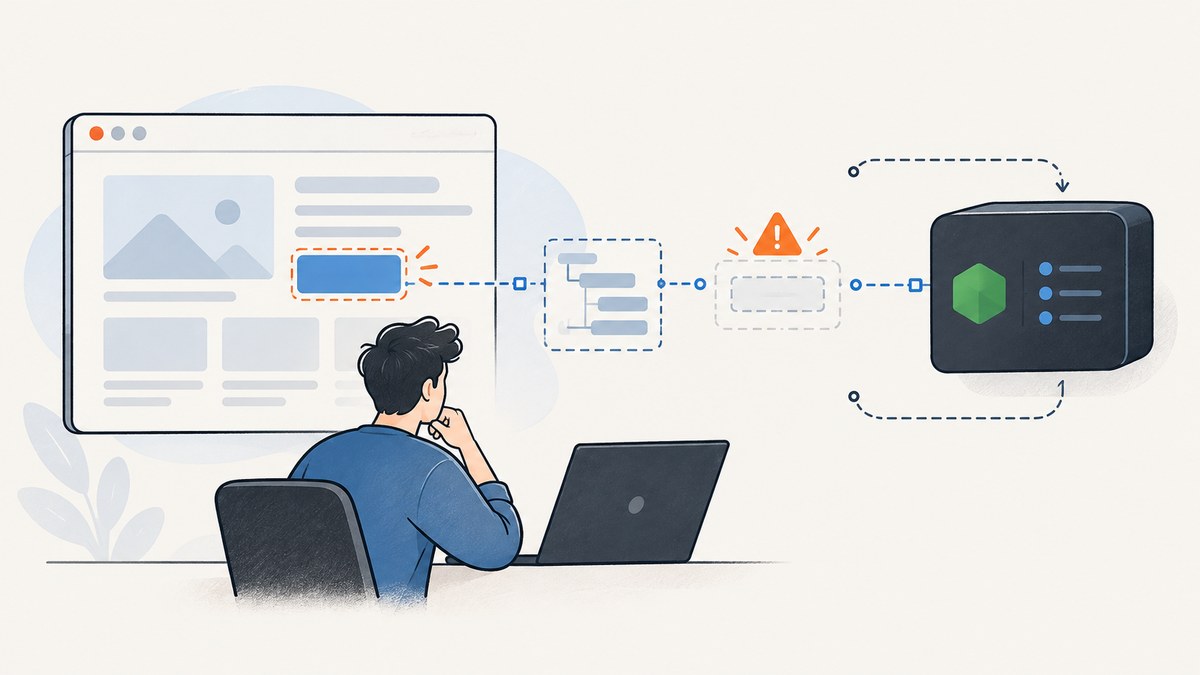
If Puppeteer gives you undefined for a button, check three things first: whether you returned a DOM node from page.evaluate(), whether your selector matched anything, and whether you are using the right action for the control. A DOM node is not a usable Node.js value; an empty array has no [0]; and page.select() is for native <select> elements, not buttons.
For an ordinary button, use page.click(selector) or a locator. Wait until the actual rendered control is available, and check the correct frame if the page uses an iframe. If the click navigates, start waiting for navigation at the same time as the click.
1. Find which kind of “undefined” you have
“Undefined button selection” can describe several different failures. Identify the line that produces the value before changing selectors:
| Symptom | Likely cause | First fix |
|---|---|---|
button is undefined after page.evaluate() |
A DOM element was returned across the browser-to-Node boundary. | Return text or another serializable value, or use a Puppeteer click/handle. |
buttons[0] is undefined |
The selector or filter produced an empty list. | Check the count, rendered text, URL, and frame before indexing. |
button.click() throws |
The value is missing, or a selection API was used on the wrong control. | Use page.click() or a locator after waiting for a match. |
| The selector works headed but fails headless | Timing, viewport, page state, or selector assumptions differ. | Wait for the rendered control and inspect the page and frame. |
| The click runs but the page does not advance | The control is not a navigation link, or the click missed the expected handler. | Wait for the page’s actual state change, not an assumed navigation. |
Keep the distinction clear: page.evaluate() runs in the page’s browser context; the code that awaits its result runs in Node.js. Values crossing that boundary need to be serializable. Puppeteer’s evaluate API documents the returned value as a serialized result.
2. Use a minimal, runnable button click
Install Puppeteer in a Node.js project with npm install puppeteer. This complete example opens a page, waits for a visible button, clicks it, and closes the browser even if an error occurs. Change the URL and selector to match your page.
import puppeteer from 'puppeteer';

const browser = await puppeteer.launch({ headless: true });
try {
  const page = await browser.newPage();
  await page.goto('https://example.com', { waitUntil: 'domcontentloaded' });

  const selector = 'button#continue';
  await page.waitForSelector(selector, { visible: true, timeout: 10_000 });
  await page.click(selector);

  console.log('Clicked:', selector);
} finally {
  await browser.close();
}
page.click() finds the matching element, scrolls it into view if needed, and clicks its center. It throws if no element matches, which is useful: the failure is explicit instead of silently passing an undefined value onward. See the official Page API.
Prefer locators for ordinary interactions
A locator keeps selection and action together and automatically waits for the element and the state required for the action. This is often the clearest choice for a button selected by text:
await page.locator('button').filter({ hasText: 'Continue' }).click();Use a stable ID, a data-testid, or an accessible role/name where possible. A generated class can change between deploys, and broad selectors such as button may match several controls. Puppeteer’s page interactions guide describes locator waiting and interaction behavior.
3. Don’t return a DOM element from page.evaluate()
This looks plausible but does not give Node.js a normal browser element handle:
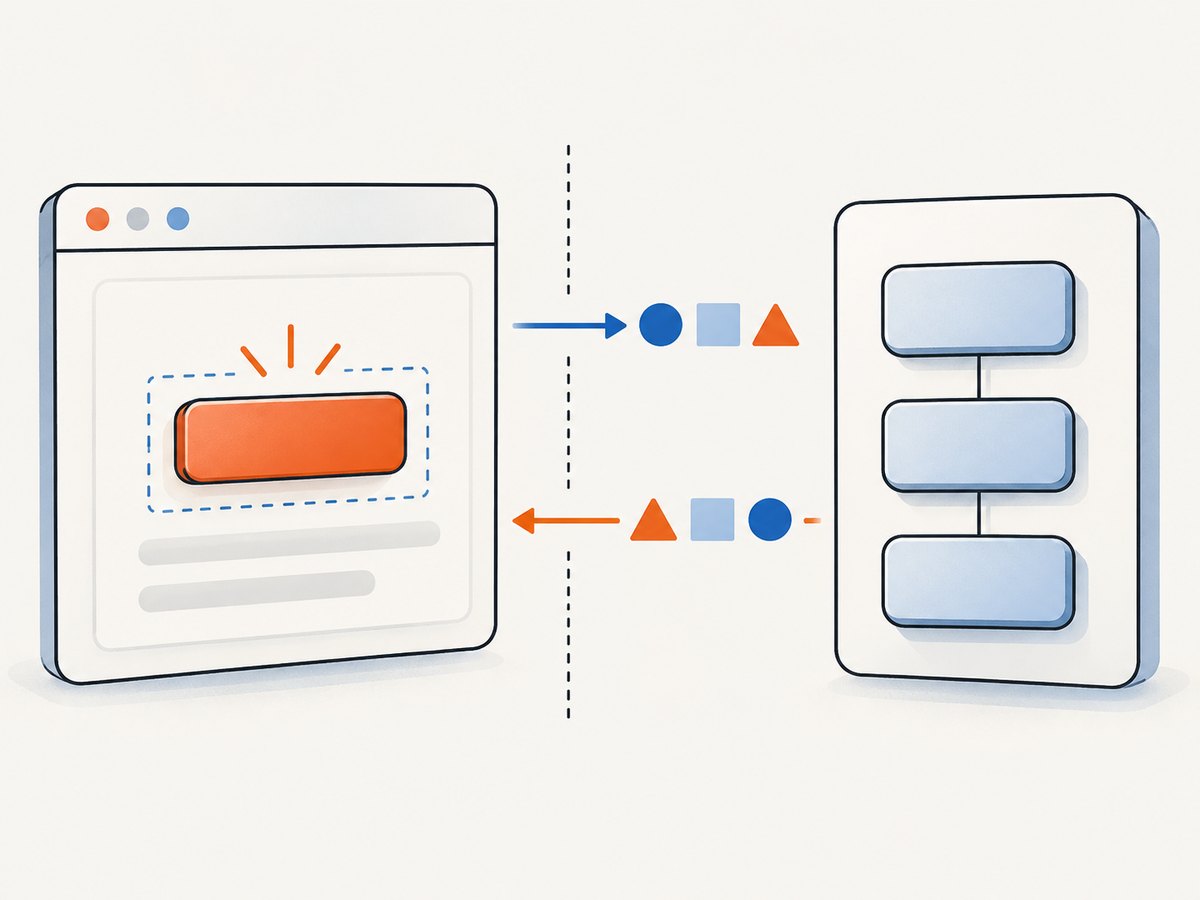
const button = await page.evaluate(() =>
  document.querySelector('#google-sign-in-button')
);
// button is not a usable Node-side DOM element
Return data you can serialize when you only need to inspect the page:
const buttonInfo = await page.evaluate(() => {
  const button = document.querySelector('#google-sign-in-button');
  if (!button) return null;
  return {
    text: button.textContent?.trim() ?? '',
    disabled: button.hasAttribute('disabled'),
    tag: button.tagName,
  };
});

if (!buttonInfo) throw new Error('Sign-in button was not found');
console.log(buttonInfo);
To interact, let Puppeteer locate the element or get an element handle:
const button = await page.$('#google-sign-in-button');
if (!button) throw new Error('Sign-in button was not found');
await button.click();
Use a handle when you need to keep a reference to a particular element. For a straightforward click, page.click() or a locator is shorter and makes the intended action clear.
4. Check for an empty selector result before indexing
Array indexing does not verify a match. If the selector finds nothing, matches[0] is undefined:
const button = await page.evaluate(() => {
  return [...document.querySelectorAll('.N3ewq')]
    .filter(el => el.textContent?.trim() === 'Switch')[0];
});
Prefer an explicit check that produces a useful error. For browser-context inspection, return a boolean or text, not the element:
const clicked = await page.evaluate(() => {
  const button = [...document.querySelectorAll('.N3ewq')]
    .find(el => el.textContent?.trim() === 'Switch');
  if (!button) return false;
  button.click();
  return true;
});

if (!clicked) throw new Error('Switch button was not found');
For actual automation, prefer an explicit wait and Puppeteer action:
const selector = 'button[data-action="switch"]';
await page.waitForSelector(selector, { visible: true });
await page.click(selector);
If the page has multiple similar controls, narrow the selection with a stable attribute or text. Do not assume that text matching is unique: a hidden menu, mobile layout, or duplicated header/footer can produce more than one candidate.
5. Use the API that matches the control
page.select(selector, ...values) is for a native HTML <select>. Puppeteer selects the given option values, triggers input and change, and returns the selected values. It throws if the selector does not match a <select>. The details are in the official Page API.
// Native select, whose options have value="blue"
const selected = await page.select('select#colors', 'blue');
console.log(selected); // e.g. ['blue']
A button, custom dropdown, or ARIA menu is not a native select. Click the control to open it, then choose the resulting option using a stable selector:
await page.locator('button[aria-haspopup="listbox"]').click();
await page.locator('[role="option"][data-value="blue"]').click();
Custom widgets vary. Some use listboxes, some use buttons or menu items, and some update application state without navigation. Inspect the rendered markup and accessible behavior rather than assuming the native select API applies.
6. Wait for the page state you actually need
A selector can be valid and still be absent at the moment you query it. Client-rendered pages often add controls after scripts run or after a network response. Wait for a visible element when visibility matters:
await page.waitForSelector('#google-sign-in-button', {
  visible: true,
  timeout: 15_000,
});
await page.click('#google-sign-in-button');
Or use a locator, which combines waiting and action:
await page.locator('#google-sign-in-button').click();Choose a wait condition that matches the page. domcontentloaded means the initial document was parsed; it does not guarantee that a single-page app finished rendering. Waiting for all network activity can be unhelpful on pages with analytics, polling, or persistent connections. Waiting for the target control or a meaningful result is usually more reliable than sleeping for an arbitrary number of milliseconds.
If the click navigates
Start the navigation wait and click together so the navigation cannot begin before the listener is attached:
const [response] = await Promise.all([
  page.waitForNavigation({ waitUntil: 'domcontentloaded' }),
  page.click('#submit'),
]);
console.log('Navigation response:', response?.status() ?? 'no document response');
Puppeteer specifically recommends pairing a navigation-triggering click with waitForNavigation() in Promise.all to avoid a race. See waitForNavigation. If the action updates a single-page application without a document navigation, wait for a URL change, confirmation message, or other result instead.
7. Check frames and headless differences
page.click() operates on the main frame. If the button lives in an iframe, a selector queried on the main page will not find it. List frames while debugging:
for (const frame of page.frames()) {
  console.log(frame.url());
}
Then select the intended frame and wait inside it:
const frame = page.frames().find(f => f.url().includes('/embedded-form'));
if (!frame) throw new Error('Embedded form frame was not found');

const selector = 'button[type="submit"]';
await frame.waitForSelector(selector, { visible: true });
await frame.click(selector);
When a failure only happens headless, first compare the URL, viewport, frame list, selector count, and visible text at the time of failure. Headless mode does not make a missing selector valid. Differences in viewport can select another responsive layout; slower rendering can expose a race; and the page may show a bot check or error state instead of the expected content. Avoid solving these by adding a long fixed delay before verifying what rendered.
8. A practical debugging checklist
- Log
page.url()and confirm you reached the intended page. - Check the selector count or wait for the selector before accessing an item.
- Read the matched button’s text, attributes, and disabled state.
- Confirm the element belongs to the main frame or identify its iframe.
- Check whether the control is a native
<select>, button, or custom widget. - Return strings, numbers, booleans, arrays, or plain objects from
page.evaluate(); use handles or Puppeteer APIs for elements. - Use a stable selector and narrow it when multiple matches are possible.
- If navigation is expected, wait for it concurrently with the click; otherwise wait for the application’s resulting state.
- On failure, capture a screenshot and relevant HTML in a controlled test environment to see what Puppeteer actually received.
9. Common errors and fixes
| Error or symptom | Cause | Fix |
|---|---|---|
Cannot read properties of undefined (reading 'click') |
An indexed or filtered result was empty. | Check the count, wait for the control, then throw a descriptive error if absent. |
Evaluation failed: ... after returning an element |
A DOM object was treated as a serializable return value. | Return its text/attributes or use page.$(), a locator, or page.click(). |
Element is not a <select> element |
page.select() was used on a button or custom dropdown. |
Click the button, then select the custom option through its rendered selector. |
| Timeout waiting for selector | Wrong selector, wrong route, delayed rendering, hidden element, or wrong frame. | Inspect URL and frames; verify rendered markup; wait for visible only when it should be visible. |
| Click succeeds but no expected result | Wrong match, disabled button, overlay, or application state change without navigation. | Check text/disabled state, use a narrower selector, and wait for the actual result. |
| Navigation wait hangs or races | Click does not navigate, or the wait was started too late. | Use Promise.all for real navigations; for SPA actions wait on a URL or page-state condition. |
10. Performance, reliability, and cost
For one click, there is little value in querying the DOM repeatedly or polling with a tight custom loop. One locator action or one explicit wait followed by a click is simpler and avoids unnecessary browser protocol traffic. Reuse a browser instance for a batch of pages when appropriate, but close pages and browsers in cleanup paths so a failed interaction does not leak processes.
Reliability comes from making failure visible: use stable selectors, meaningful timeouts, and checks for the expected state after the click. A timeout should help diagnose a page that never rendered the control; an explicit “button not found” error should distinguish that case from a click that ran but had no effect. Screenshots and concise logs can preserve evidence without dumping sensitive page contents into logs.
Local Puppeteer costs include the compute and memory for running Chromium and the engineering time to maintain browser dependencies, selectors, and waits. There is no fixed per-click API charge in this example, but infrastructure costs depend on where and how often the script runs. Keep browser versions and runtime environments consistent when diagnosing differences.
11. Or skip the browser setup
If your task is to capture a page rather than interact with its button, ScreenshotNeo is a website screenshot API and MCP server. One GET request returns a PNG, JPEG, WebP, or PDF. See the ScreenshotNeo API documentation for request options.
curl -G "https://api.screenshotneo.com/v1/shot" \
  -d access_key=YOUR_API_KEY \
  --data-urlencode url=https://stripe.com \
  -o shot.webp
import requests
r = requests.get(
"https://api.screenshotneo.com/v1/shot",
params={"access_key": "YOUR_API_KEY", "url": "https://stripe.com"},
timeout=90,
)
open("shot.webp", "wb").write(r.content)const q = new URLSearchParams({
access_key: 'YOUR_API_KEY',
url: 'https://stripe.com',
});
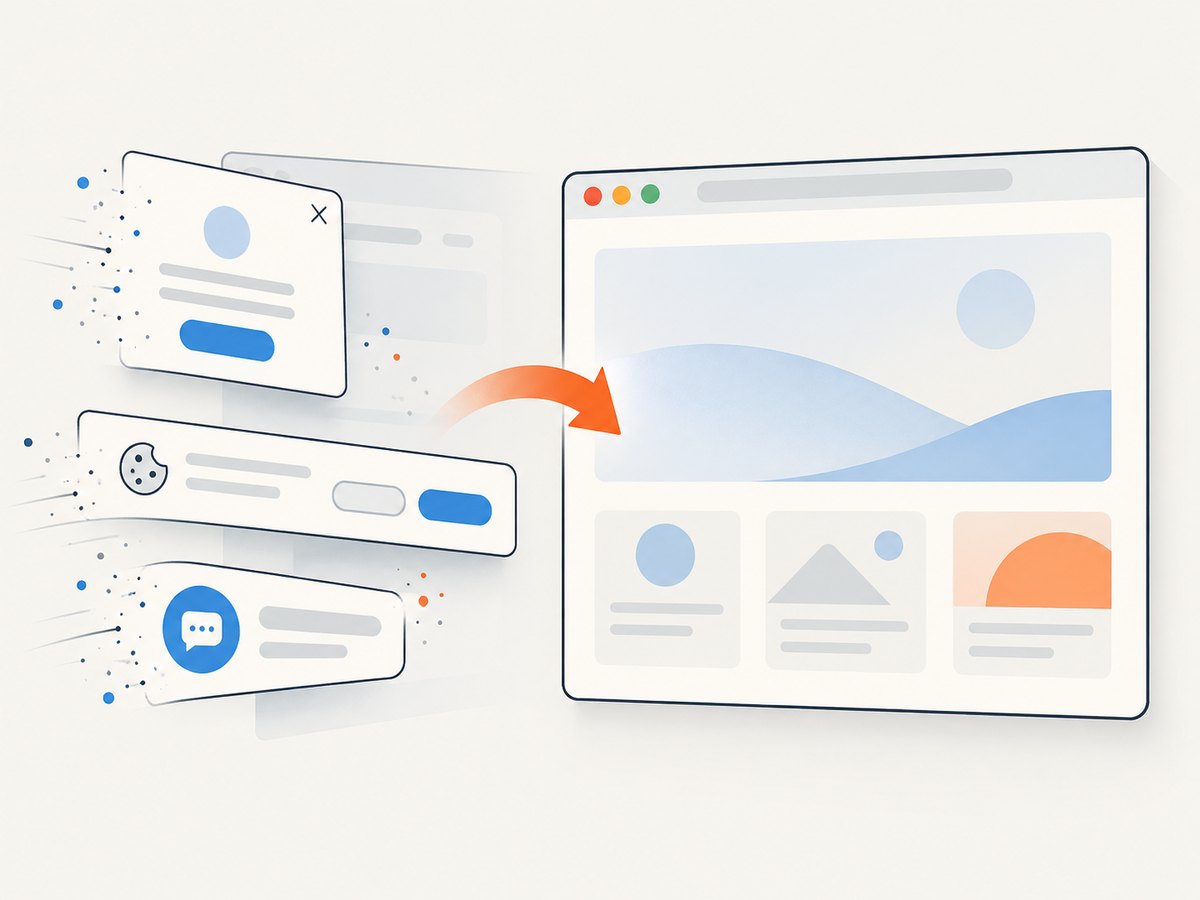
const res = await fetch(`https://api.screenshotneo.com/v1/shot?${q}`);ScreenshotNeo accepts cookie or consent banners and removes more than 60 known consent platforms, newsletter popups, and chat widgets before capture; each step can be turned off. Bot checks, blank pages, timeouts, failed loads, and cache hits are not billed, and response headers report the page verdict and billing status. Its MCP server provides take_screenshot, get_page_info, and capture_pdf tools for Claude, Cursor, and other MCP clients. The free plan includes 1,000 screenshots per month with no card; paid plans start at $5 for 3,000. Create a free account and get 1,000 screenshots a month with no card.
12. FAQ
Why does Puppeteer return undefined instead of an element?
Most often, the code returned a DOM node from page.evaluate() or indexed an empty selector result. Return serializable data for inspection; use Puppeteer’s element APIs for interaction.
Should I use page.click() or page.select()?
Use page.click() for buttons and custom controls. Use page.select() only for an HTML <select>.
Why does it fail only in headless mode?
Check whether the route, viewport, timing, frame, and rendered state match your headed run. A missing selector or a different page state still needs to be diagnosed directly.
Does clicking a button always trigger navigation?
No. Buttons often update the current document or application state. Wait for the result the control is meant to produce.


