How to Fix Unicode Issues in wkhtmltopdf PDFs
Missing glyphs, empty fields, or boxes in a wkhtmltopdf PDF? Trace the input encoding, font coverage, and rendering environment in that order.

Most Unicode problems in wkhtmltopdf come from one of three places: the input bytes are decoded incorrectly, the rendering machine lacks a font containing the needed glyphs, or its font fallback differs from the browser preview. Check those layers in that order. Start with a minimal UTF-8 HTML file, verify fonts on the host that actually runs wkhtmltopdf, then isolate headers and footers from body text. The flag --encoding utf-8 helps with input decoding; it cannot supply missing glyphs.
This distinction matters when diagnosing symptoms such as “Why are Unicode characters missing in my wkhtmltopdf PDF?”, “Why does wkhtmltopdf show boxes instead of Chinese/Japanese/Greek/Georgian characters?”, or “Why does HTML look correct in Chrome but wrong in the PDF?” The fixes reported by project users are tied to particular systems and builds, so validate the result in the same runtime that generates production PDFs.
1. Reduce the problem to a small reproduction
Make a small file that includes the exact failing characters and some known-good ASCII. Save it as UTF-8, preserve the CSS font declaration that causes the problem, and render it using the production binary. For example:
<!doctype html>
<html lang="zh">
<head>
  <meta charset="utf-8">
  <title>Unicode test</title>
</head>
<body>ASCII — 中文 — 日本語 — Ελληνικά — ქართული</body>
</html>
Run the same command you use in production, substituting the input and output paths:
wkhtmltopdf --encoding utf-8 unicode-test.html unicode-test.pdfKeep the resulting HTML, PDF, exact command, and version string together. A Debian report involving wkhtmltopdf 0.12.5 described UTF-8 succeeding only after the document included an explicit UTF-8 meta declaration, even though locale and encoding options were already set. Treat that as a useful reproduction, not a universal fix. See the UTF-8 issue report.
2. Verify the input bytes and document encoding
An encoding declaration tells a renderer how to interpret bytes. It does not repair bytes that were already converted incorrectly upstream. Check each hop:

- Confirm that the template, generated HTML file, or response body is actually UTF-8.
- Declare UTF-8 in the HTML head with
<meta charset="utf-8">. - If HTML comes from a server, check that its response charset agrees with the actual bytes.
- Look for an earlier conversion from another encoding, a lossy database export, or a command-line wrapper that changes text before wkhtmltopdf receives it.
- Render the saved HTML file directly to separate input handling from application logic.
Use --encoding utf-8 when appropriate for your input path, but do not treat it as a substitute for correct bytes and metadata. If ASCII is right but non-ASCII characters are blank or replaced, compare the exact failing text in the HTML source with what the renderer receives.
3. Check glyph coverage on the rendering host
If the input is intact and only certain scripts or symbols fail, investigate fonts next. A font that renders Latin characters may not include Chinese, Japanese, Greek, Georgian, Thaana, or emoji glyphs. Install or select a font with the required coverage on the machine or container that runs wkhtmltopdf, not just on your workstation.
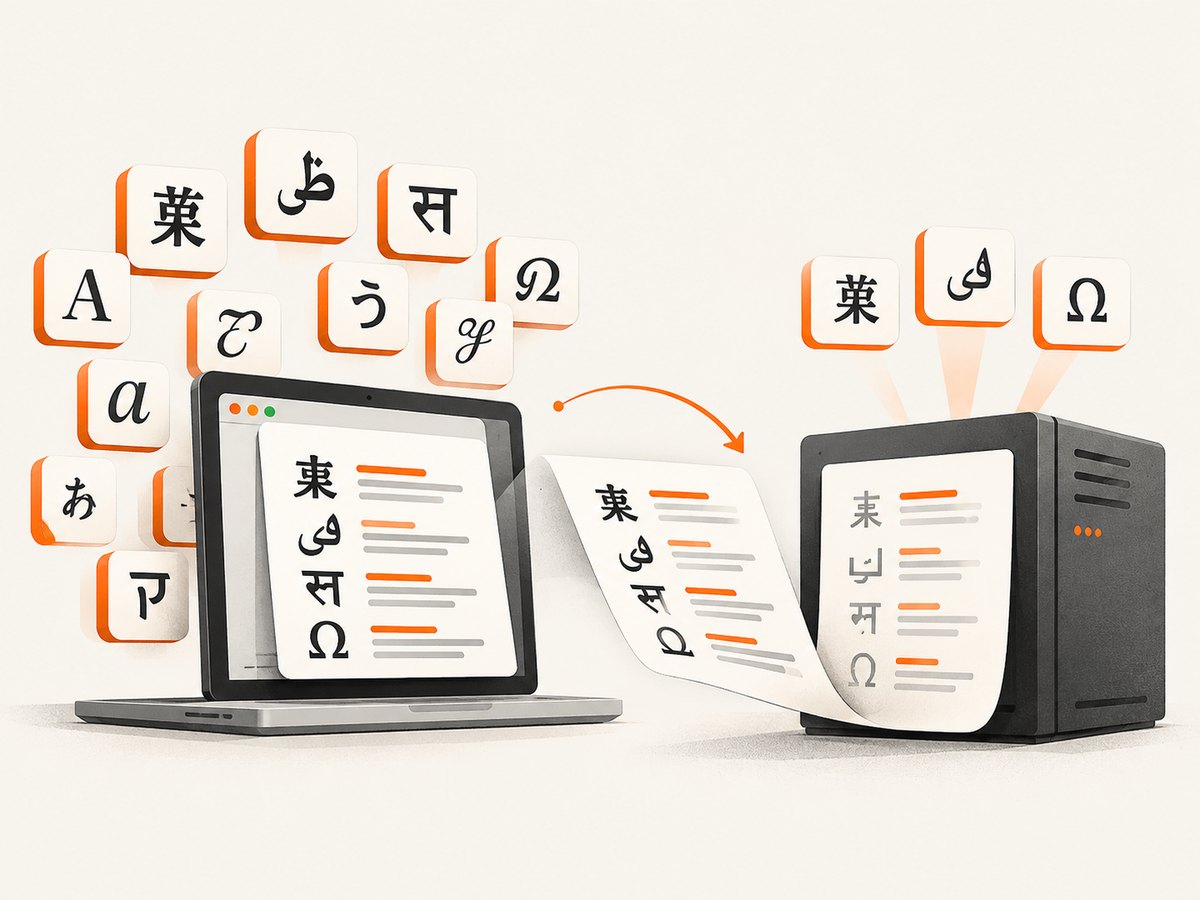
Project reports describe missing Georgian and Greek characters resolved by installing language fonts on CentOS, and missing Chinese characters addressed by installing fonts-wqy-zenhei on Ubuntu. Those package names are examples from particular distributions; check the font package available for your own OS and required script. A font installed on the host is useful only if it is present in the running image and visible to the same process and user that starts wkhtmltopdf.
The project download notes explain that runtime behavior depends on installed fonts and components including fontconfig and FreeType. They also recommend distribution-specific packages because library and runtime differences can affect generic builds. Review the project’s downloads and runtime notes.
Make the CSS font stack explicit
Test using an installed font known to cover the failing script. Then add a fallback family that exists in the target environment. Do not assume the browser on your laptop and wkhtmltopdf will choose the same fallback. A Windows report describes Chrome and Firefox selecting fonts that contained the missing characters while wkhtmltopdf did not. Another report describes a custom font without Japanese coverage and trouble getting fallback to behave as expected. Read the Windows fallback report.
<style>
  body {
    font-family: "Installed Script Font", "Noto Sans", sans-serif;
  }
</style>
Replace those example family names with fonts installed in your deployment image. If the output changes when you remove a custom font, that font or its fallback rules are part of the failure. Simplify @font-face and range-based font rules while debugging; an older project issue reports unexpected unicode-range behavior. That report is not proof that every build fails the feature, but simplifying the CSS helps identify whether it contributes.
4. Test headers and footers independently
When the body is correct but non-ASCII header or footer text disappears, the failure may occur along a separate path. Some applications pass header/footer strings through command-line arguments or a wrapper before wkhtmltopdf renders them. Inspect the value immediately before it is passed to the process, then test a minimal header/footer without application templating.
Compare three cases: the same characters in the body, in a standalone header/footer file if your setup uses one, and passed through your application’s command builder. If the characters vanish before the renderer starts, fix the wrapper’s encoding and argument handling. If the renderer receives intact text but still drops it, keep that minimal case for diagnosis. A project report documents non-ASCII header/footer characters being skipped.
5. Confirm the actual binary and runtime
Record the complete output of wkhtmltopdf --version, operating system, container image, and whether the build is distribution packaged or a standalone release. Repeat the reproduction inside the deployed image. A font available on a developer machine may be absent from a slim production container, and fontconfig or FreeType configuration may differ.
wkhtmltopdf --version
fc-list | head
The font listing is only a clue: it does not prove that the selected font contains every required glyph, that the process sees the same configuration, or that fallback and shaping work correctly. A project report describes black square glyphs despite a font installation and cache refresh. If installation appears correct, compare the exact code points, font choice, runtime build, and a smaller reproduction rather than repeating cache refreshes.
6. Troubleshooting checklist
| Symptom | Likely cause | Next action |
|---|---|---|
| All non-ASCII text is blank or corrupted | Wrong input bytes, missing charset declaration, or conversion before rendering | Save a minimal UTF-8 file, add the meta declaration, render it directly, and compare its bytes with the generated source. |
| ASCII works but Chinese, Japanese, Greek, Georgian, or other scripts show boxes | The selected font lacks those glyphs, or the host has no suitable fallback | Install/select a font with script coverage in the actual runtime and specify it explicitly. |
| Chrome looks right but the PDF does not | Browser and wkhtmltopdf use different fonts or fallback behavior | Test a font present on the renderer host; do not use the browser preview as proof of renderer font availability. |
--encoding utf-8 changes nothing |
Bytes or HTML metadata may be wrong, or the issue may be glyph coverage rather than decoding | Check source bytes and <meta charset>, then check font coverage separately. |
| Body text works but header/footer text is missing | Wrapper or command-line argument handling, or a separate header/footer rendering path | Render the same text in the body and isolate the header/footer input path. |
| Font is listed, but glyphs remain squares | Listing does not establish coverage, selection, or shaping; runtime configuration may differ | Use the exact failing characters in a minimal file, inspect the selected family, and capture build and OS details. |
| Local output works, container output fails | Fonts or fontconfig/FreeType dependencies are missing or configured differently in the image | Install and configure dependencies in the runtime image, then test as the same user that runs the job. |
7. Make the fix reliable in production
- Pin the runtime. Record the wkhtmltopdf build and OS/container image alongside the PDF generation code.
- Package fonts deliberately. Include approved font files or system packages in the image, and verify licensing and deployment requirements for your chosen font.
- Keep a regression sample. Include representative characters from every script your product promises to support, plus header/footer text when applicable.
- Validate output in the deployed environment. A workstation preview cannot establish production font behavior.
- Capture diagnostics. Keep the renderer version, exact command, input HTML/CSS, OS details, and resulting PDF for a reproducible failure.
There is no universal performance or cost fix specific to Unicode: installing fonts and validating output add deployment and maintenance work, while a correct font stack avoids repeated manual repair. Do not infer that a font-cache refresh alone solved the underlying issue. The relevant costs are operational: maintaining runtime dependencies and checking PDF output after image or package changes.
8. When to consider another renderer
wkhtmltopdf’s repository was archived on January 2, 2023, and its project status page discusses moving toward a more modern browser engine such as Puppeteer/Chrome. Consider a migration if the renderer cannot meet your font, HTML, CSS, or deployment requirements after the input and runtime are controlled. Compare the output and operational fit with representative documents before switching; migration alone is not established as a guaranteed Unicode fix. The project also warns against rendering untrusted HTML without sanitization. See the archived project repository and project status guidance.
Or skip the browser setup
If you need a screenshot of a web page rather than a PDF generated from your own HTML, ScreenshotNeo is a website screenshot API and MCP server. It does not repair wkhtmltopdf’s PDF output or replace a custom PDF-generation pipeline. For a clean web page capture, one GET request returns an image or PDF; see the ScreenshotNeo API documentation.
curl -G "https://api.screenshotneo.com/v1/shot" \
  -d access_key=YOUR_API_KEY \
  --data-urlencode url=https://stripe.com \
  -o shot.webp
import requests
r = requests.get(
"https://api.screenshotneo.com/v1/shot",
params={"access_key": "YOUR_API_KEY", "url": "https://stripe.com"},
timeout=90,
)
open("shot.webp", "wb").write(r.content)const q = new URLSearchParams({
access_key: 'YOUR_API_KEY',
url: 'https://stripe.com'
});
const res = await fetch(`https://api.screenshotneo.com/v1/shot?${q}`);
if (!res.ok) throw new Error(`Screenshot request failed: ${res.status}`);
const image = Buffer.from(await res.arrayBuffer());
await import('node:fs/promises').then(fs => fs.writeFile('shot.webp', image));ScreenshotNeo removes cookie banners, newsletter popups, and chat widgets before capture. Bot checks, blank pages, and failed loads are never billed. Its MCP server lets AI agents take screenshots. The free plan includes 1,000 screenshots a month with no card; paid plans start at $5 for 3,000. Sign up for 1,000 free screenshots a month, with no card required.
FAQ
Why do only a few characters fail?
A font can cover one script or subset of characters and lack another. Compare the exact missing characters with the font selected in the rendering environment.
Should I change the server locale?
Check it if your process depends on locale-sensitive input handling, but do not assume locale settings solve missing glyphs. Verify document bytes, charset declarations, and installed font coverage as separate layers.
What should I attach to a bug report?
Include the wkhtmltopdf version, operating system and version, exact command, minimal HTML/CSS/JavaScript reproduction, failing text, and whether a browser renders that same file correctly. This matches the project’s issue-reporting guidance.


