How to Fix Broken Unicode Characters in wkhtmltopdf PDFs
Fix mojibake, missing glyphs, and square boxes in wkhtmltopdf PDFs by checking the input encoding, font coverage, and the renderer’s runtime.
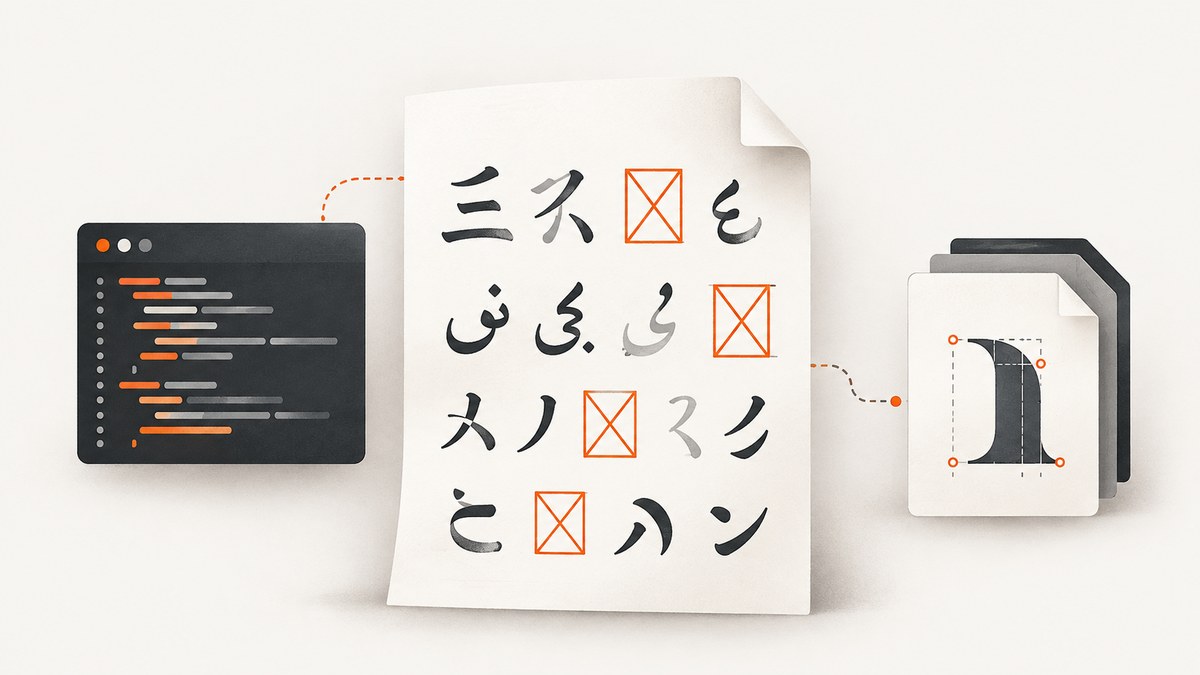
Broken Unicode in a wkhtmltopdf PDF usually has one of two causes: the input bytes are being decoded with the wrong character encoding, or the renderer cannot find a font with the affected glyphs. Start by distinguishing the symptoms. Mojibake—readable but wrong characters—points first to encoding. Empty spaces or square replacement boxes affecting only certain scripts or symbols point first to font coverage and font discovery. Adding --encoding utf-8 is not a universal fix: UTF-8 tells the renderer how to interpret bytes; it does not supply missing glyphs.
The fix must be verified with the same wkhtmltopdf binary, operating system or container, input path, and options used in production. A browser preview is not enough because the browser and wkhtmltopdf may resolve fallback fonts differently.
1. Identify the failure pattern
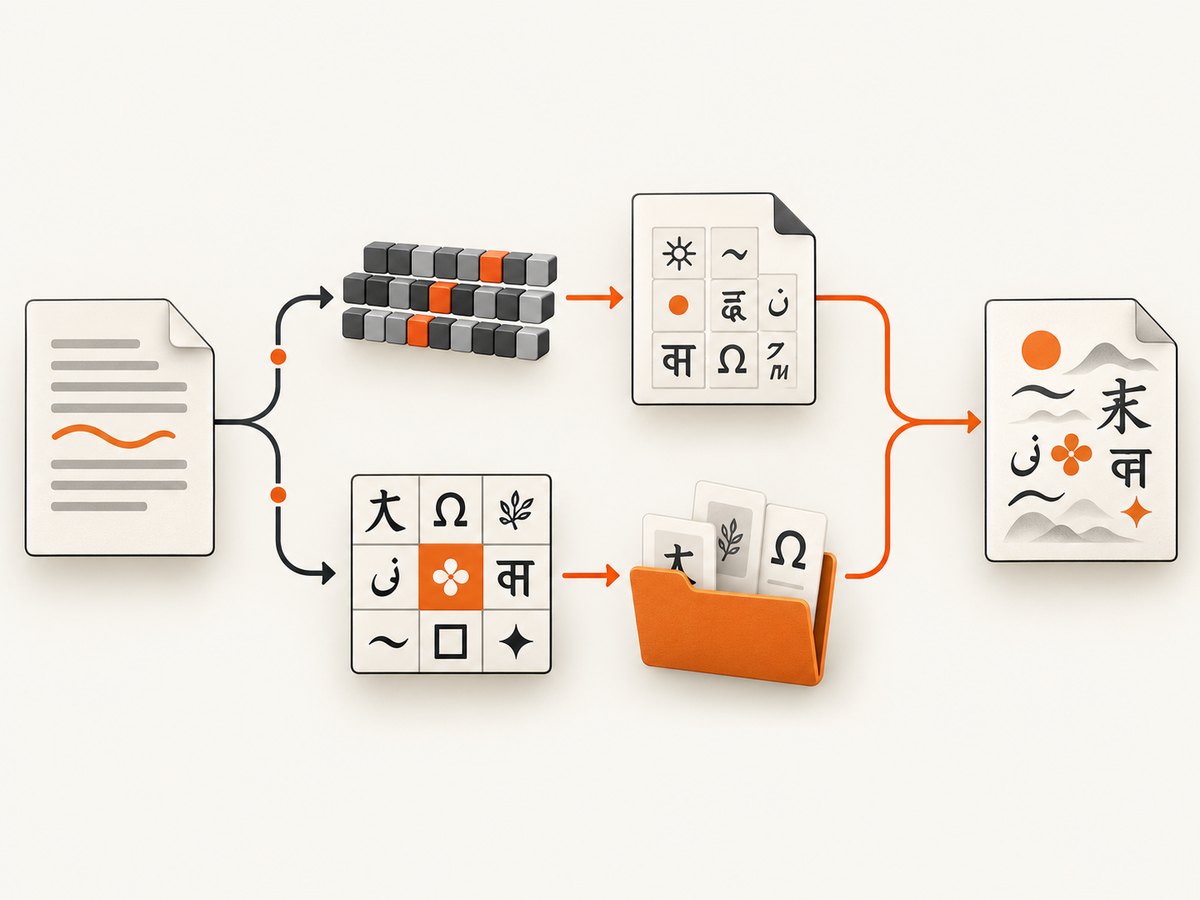
Before changing options, record exactly what is wrong. Is every non-ASCII character broken, or only Chinese, Japanese, Arabic, emoji, currency symbols, or another subset? Are characters replaced by unrelated symbols, rendered as squares, or absent? Does the problem affect local HTML, a URL, or both?
| PDF symptom | First thing to investigate |
|---|---|
| Text is mojibake across a broad range | Actual source bytes, declared charset, HTTP response charset, and default encoding |
| Latin text works; one script or symbol is missing or boxed | Font glyph coverage, font selection, and runtime font discovery |
| Browser looks right; PDF does not | Fonts visible to wkhtmltopdf in its own environment and fallback behavior |
| Local file works; URL fails, or the reverse | Compare each input’s encoding metadata, loaded resources, and execution environment |
These are diagnostic clues, not strict rules. A document can have both an encoding mismatch and incomplete font coverage, so fix and verify one cause at a time.
2. Check the bytes and charset
A charset declaration only works when it describes the bytes the renderer actually receives. For an HTML file, check its encoding in your editor or with your normal file-inspection tools, then make the document declaration agree. For URL input, inspect the HTTP response’s charset as well as the HTML declaration. For local-file input, check the file’s actual bytes; a meta tag cannot transform bytes that were saved in another encoding.
For a UTF-8 HTML document, use a declaration near the start of the document’s head:
<!doctype html>
<html lang="en">
<head>
  <meta charset="utf-8">
  <title>Unicode check</title>
</head>
<body>
  <p>Latin: café — Ελληνικά — 日本語 — 中文</p>
</body>
</html>
If the input does not specify an encoding correctly, wkhtmltopdf’s web setting defaultEncoding supplies the assumed encoding. The project binding documentation uses utf-8 as an example. The command-line form is:
wkhtmltopdf --encoding utf-8 input.html output.pdfThis option is appropriate when UTF-8 is the actual encoding and the input lacks a reliable declaration. It does not repair a file saved in a different encoding, correct an inaccurate HTTP header, or install a font. If the source uses another encoding, configure the matching encoding or, preferably when you control the source, convert it consistently to UTF-8.
3. Check font coverage and fallback
When only selected characters fail, identify the exact characters and script, then check whether the font actually selected for that text contains those glyphs. The requested font may cover Latin but not the script in question. Choose a font with the required coverage and make sure it is installed and discoverable by the wkhtmltopdf process.
Browsers can silently use fallback fonts that wkhtmltopdf does not locate or select in the same way. One Windows 10 report for wkhtmltopdf 0.12.5 described browser output using Yu Gothic UI, Nirmala UI, and SimSun alongside the requested font, while the PDF output lacked the expected characters. That is evidence of a possible environment-specific difference, not a rule for every Windows installation.
For a focused reproduction, explicitly set a suitable font in your test HTML. Replace the family name below with a font installed in the target environment and known to cover your affected script:
<style>
  .unicode-check {
    font-family: "Your Unicode-Capable Font", sans-serif;
  }
</style>
<p class="unicode-check">Latin: café — Ελληνικά — 日本語 — 中文</p>
If the explicit font fixes the output, configure that font in the application stylesheet and package or install it wherever the renderer runs. Do not assume a particular font package is right for every distribution or script. A CentOS 7 issue report, for example, described missing Unicode characters and a later resolution after additional fonts were needed; the correct font depends on the missing glyphs.
4. Verify the renderer’s runtime
wkhtmltopdf’s output depends on the fonts installed where it runs and on its font discovery stack, including fontconfig and freetype2. The machine where you preview HTML may have more fonts than a production server, container, or serverless runtime. Check the runtime image itself, not just the build host.
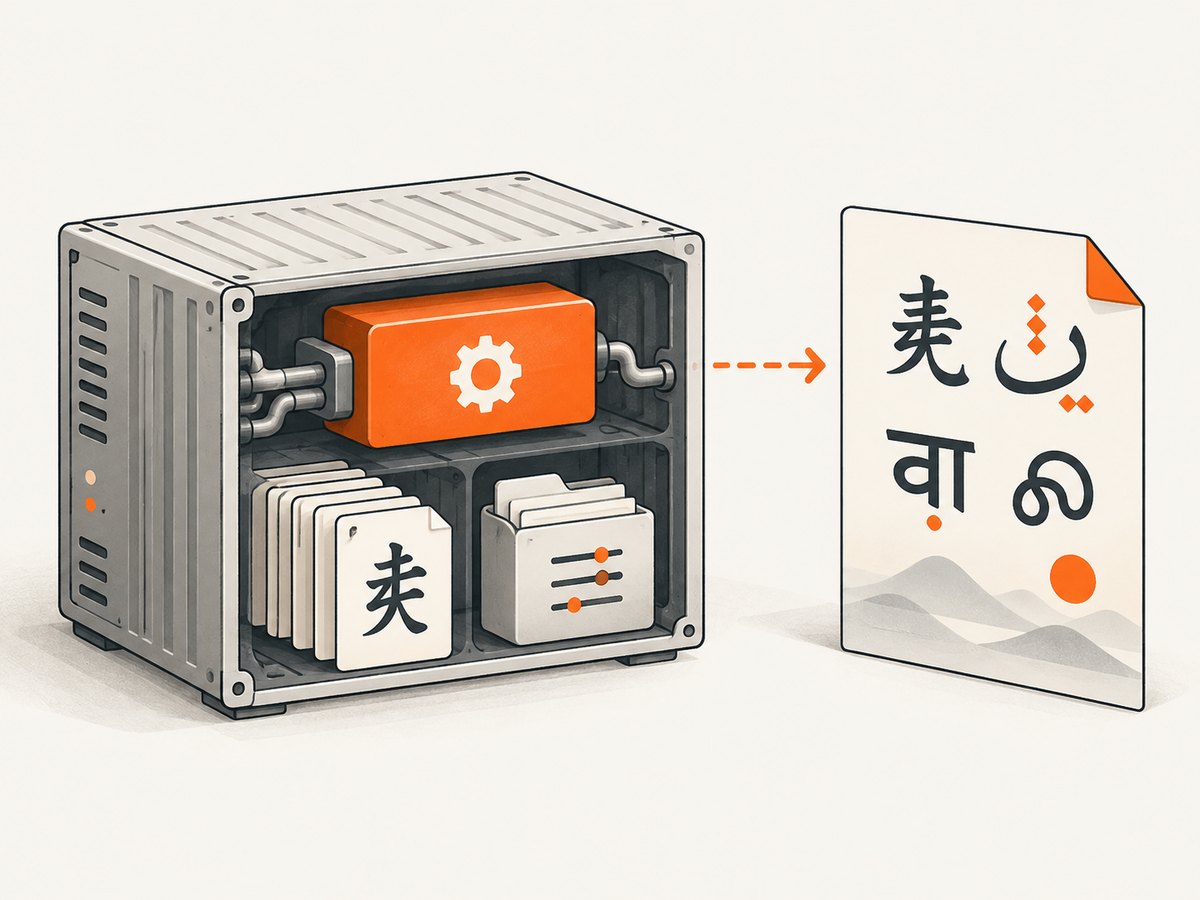
- Identify the exact wkhtmltopdf executable and version used by the failing job.
- Run a font inspection in that same container or machine and confirm the intended font is visible to its font configuration.
- Confirm the font file is present in the final deployed artifact, not only in an earlier build stage.
- For a bundled or serverless deployment, ship the required font files and configuration with the runtime and use the paths expected by that deployment.
- Generate the minimal reproduction PDF in that environment and inspect the PDF itself.
The project’s Lambda example sets FONTCONFIG_PATH=/opt/fonts. Treat that as an example of configuring the runtime’s font path, not a universal path for other platforms. Distribution package names and configuration paths vary.
5. Build a minimal reproduction and verify each change
Use a small HTML file containing a known Latin phrase and the exact characters that fail. Keep the source file, wkhtmltopdf binary, options, and execution environment fixed. Then change one variable per run:
- Make the file’s actual encoding and its charset declaration agree.
- Set the default encoding only if the input has no valid declaration.
- Set an explicit font with coverage for the affected characters.
- Install or configure that font in the runtime where wkhtmltopdf executes.
- Compare the newly generated PDF after every change.
This method separates decoding from glyph rendering and makes it easier to identify which change mattered. Keep a copy of the failing input and generated PDF when diagnosing a production-only issue.
Common errors and fixes
| What you see | Likely cause | What to do |
|---|---|---|
--encoding utf-8 is present, but characters are still wrong |
The input bytes are not UTF-8, or the URL response supplies conflicting metadata | Inspect the actual file bytes or response charset; make the source and declaration agree before changing renderer defaults |
| Only one script appears as boxes | The selected or fallback font lacks those glyphs | Choose and install a font with coverage for that script; verify it is discoverable in the renderer’s runtime |
| It works on a laptop but fails in a container | The deployed runtime has different fonts or font configuration | Check and package the needed font and configuration in the final runtime image |
| Browser preview is correct but PDF is not | Browser and wkhtmltopdf may use different fallback fonts | Set an explicit font and reproduce with the production binary and environment |
| UTF-8 meta tag added; output is unchanged | The declaration does not match the bytes, or the problem is glyph coverage | Determine whether the symptom is mojibake or missing glyphs, then follow the matching branch |
| One URL works but another does not | The pages may declare or serve different encodings, fonts, or resources | Inspect each response and reproduce with the same URL-loading path and options |
Version context
The official wkhtmltopdf downloads page identifies 0.12.6 as the stable series and gives June 11, 2020 as its release date. The usage documentation identifies its command-line reference as wkhtmltopdf 0.12.6 with patched Qt. The project repository is archived, so this article does not assume a newer official release or ongoing upstream maintenance. Confirm the binary and packaging you actually deploy, since the executable, Qt build, and system libraries can affect rendering behavior.
Performance, reliability, and cost considerations
For this problem, a useful troubleshooting run is the smallest document that still reproduces the missing characters. It reduces unrelated page loading and makes differences easier to inspect. In production, a consistent runtime image with known fonts and font configuration makes output more repeatable than relying on whatever fonts happen to be installed on each worker.
Changing fonts can affect line wrapping, glyph widths, and pagination, so inspect the whole PDF after a font change, not only the affected character. If documents are generated in multiple environments, reproduce in each supported runtime. The sources reviewed do not provide controlled performance measurements or a universal cost comparison for these fixes; runtime, page complexity, and deployment approach determine the operational impact.
Or skip the browser setup
If you need a clean image of a web page while separately troubleshooting PDF text rendering, ScreenshotNeo is a website screenshot API and MCP server. It does not replace wkhtmltopdf for generating Unicode PDFs. Its API returns a PNG, JPEG, WebP, or PDF from a URL, and its options include full-page capture, selector capture, custom CSS and JavaScript, waits, headers, cookies, and device settings. See the ScreenshotNeo API docs.
curl -G "https://api.screenshotneo.com/v1/shot" \
  -d access_key=YOUR_API_KEY \
  --data-urlencode url=https://stripe.com \
  -o shot.webp
Python:
import requests

r = requests.get(
    "https://api.screenshotneo.com/v1/shot",
    params={"access_key": "YOUR_API_KEY", "url": "https://stripe.com"},
    timeout=90,
)
open("shot.webp", "wb").write(r.content)
Node.js:
const q = new URLSearchParams({
  access_key: 'YOUR_API_KEY',
  url: 'https://stripe.com'
});
const res = await fetch(`https://api.screenshotneo.com/v1/shot?${q}`);
if (!res.ok) throw new Error(`Screenshot request failed: ${res.status}`);
await Bun.write('shot.webp', new Uint8Array(await res.arrayBuffer()));
Before capture, ScreenshotNeo accepts the cookie or consent banner like a visitor and removes 60+ known consent platforms, newsletter popups, and chat widgets; each step can be turned off. Bot checks or CAPTCHAs, blank pages, timeouts, failed loads, and cache hits cost nothing, and response headers report the page verdict and billing status. Its MCP server provides take_screenshot, get_page_info, and capture_pdf for Claude, Cursor, and other MCP clients. The free plan includes 1,000 screenshots a month with no card; paid plans start at $5 for 3,000 screenshots. Create a free ScreenshotNeo account.
FAQ
Does a PDF support Unicode if the HTML is UTF-8?
UTF-8 input lets the renderer decode characters correctly, but the selected font still needs glyphs for them. Check encoding and font coverage separately.
Should I add a UTF-8 meta tag to every HTML page?
For HTML you control, declare the encoding that matches the bytes. Also inspect HTTP charset metadata for URL input; a declaration cannot correct mismatched source bytes by itself.
Why do emoji still disappear?
Emoji need glyphs in a font available to the renderer, and support varies by font and runtime. Confirm the exact glyph is present in the chosen font and test in the deployed environment.
Which wkhtmltopdf version should I use?
The cited official downloads page lists 0.12.6 as the stable series, released in 2020. Check your deployed binary and its build details rather than assuming all packages behave identically.
Sources
- wkhtmltopdf downloads — stable-series version and release date.
- wkhtmltopdf usage documentation — command-line options and version reference.
- wkhtmltopdf project page — runtime font dependencies and deployment context.
- Issue report: missing Unicode characters on CentOS — an environment-specific font case.
- Issue report: Chinese text and encoding declarations — evidence that UTF-8 options alone may not settle diagnosis.
- Issue report: Windows Unicode font behavior — a reported browser and PDF fallback difference.


