How to Fix ERR_UNKNOWN_URL_SCHEME When Rendering JSTree with Capybara and Headless Chrome
Find the exact URL Chrome rejects, check JSTree’s rendered markup and data, and run JavaScript-dependent tests with Capybara’s Selenium Chrome driver.
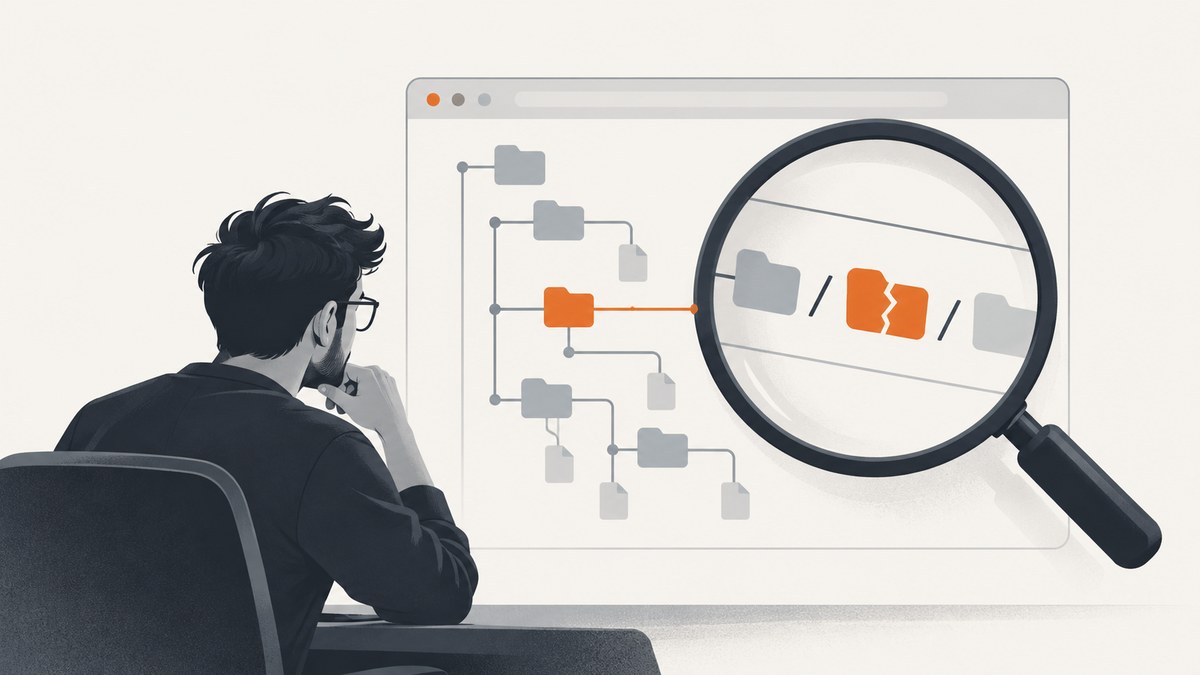
net::ERR_UNKNOWN_URL_SCHEME means Chrome tried to navigate to or load a URL whose scheme it does not recognize or cannot handle. The error alone does not identify which URL is responsible, and it does not prove JSTree itself is broken. Capture the complete Chrome error, find the exact rejected URL, then inspect the rendered tree and its input data. If the test depends on JSTree’s JavaScript, run it with Capybara’s Selenium-backed Chrome driver; RackTest does not execute JavaScript.
This guide shows a practical debugging sequence, runnable Capybara examples, URL checks for JSTree nodes, and ways to distinguish a driver problem from a malformed destination or unavailable resource.
1. Capture the URL Chrome rejected
Start with evidence from the failing run. Preserve the full browser console or network error, especially the URL that Chrome attempted to load. The scheme is the part before the first colon: in https://example.test/path, the scheme is https. A value such as htps://example.test, www.example.test when a full URL is required, or an application-specific string accidentally treated as a destination can lead to an invalid navigation attempt.
Do not change a CDN URL, JSTree option, or node link based only on the error name. A surfaced case report showed a JSTree setup with an older rawgit-hosted theme stylesheet, but the available report does not establish that this stylesheet caused the error or that it remains available. Check the failing URL itself and verify each resource independently.
- Reproduce the failure and copy the complete console/network message.
- Record the exact URL and identify which element or request initiated it.
- Inspect the final rendered tree markup and the data used to build it.
- Change only the URL or driver setting supported by that evidence, then rerun.
2. Inspect JSTree’s rendered links and source data
JSTree content may be generated from JSON or inline JavaScript data, so inspect both the original values and the DOM after the page initializes. Look at URL-bearing attributes such as href and src, and at any application-specific code that reads a node field and navigates to it. A string intended as a node label or action name should not be passed to browser navigation as a URL.
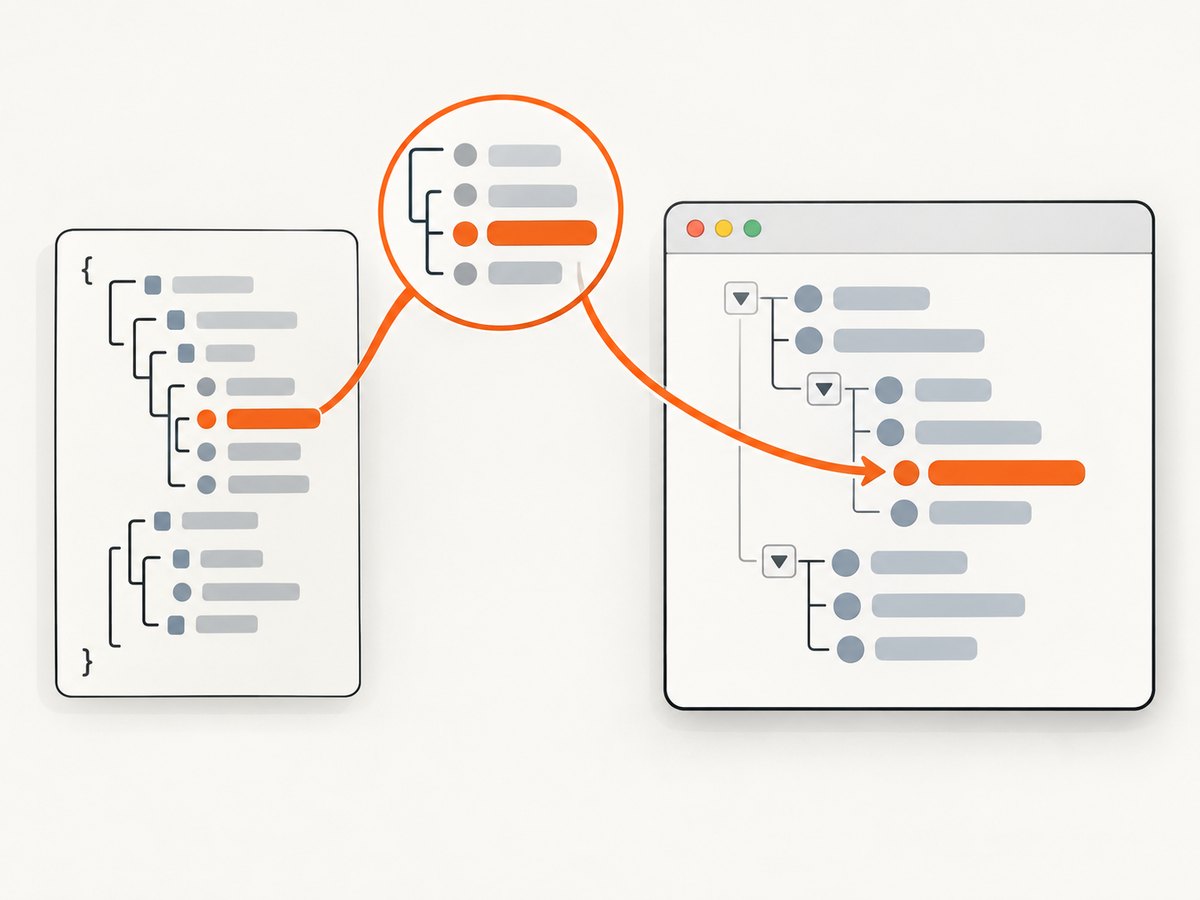
In browser developer tools, inspect the failing node and compare its destination with the source data. In a test, you can print the page and query the relevant anchors. For example:
puts page.html
puts page.all('#tree a', visible: :all).map { |link| link[:href] }.inspect
Adapt #tree to the selector used by your application. This is a diagnostic snippet: it reports the values present in the rendered document; it does not decide which destinations are correct for your application.
Choose the node behavior before changing its URL
- Navigation: if activating a node should open a page, provide the intended, valid application URL and verify the scheme and host.
- Action: if the node triggers an application operation rather than navigation, use the application’s intended event behavior. Do not create a fake or malformed destination just to make it look like a link.
- Label or identifier: keep display text and internal IDs out of URL fields unless your code explicitly converts them into a valid destination.
There is no universal one-line JSTree fix here: the available report does not identify the exact bad attribute. The correct change depends on what the rejected URL represents and what the node is supposed to do.
3. Run the scenario in a JavaScript-capable Capybara driver
Capybara’s default RackTest driver is useful for fast tests that do not need a browser, but it does not execute JavaScript. A JavaScript-rendered JSTree therefore cannot be faithfully tested with RackTest alone. Capybara documents Selenium-backed Chrome and headless Chrome options for browser-driven tests. Use the JavaScript-capable driver for the scenario that needs the tree, while keeping unrelated non-JavaScript specs on RackTest if that suits your suite.
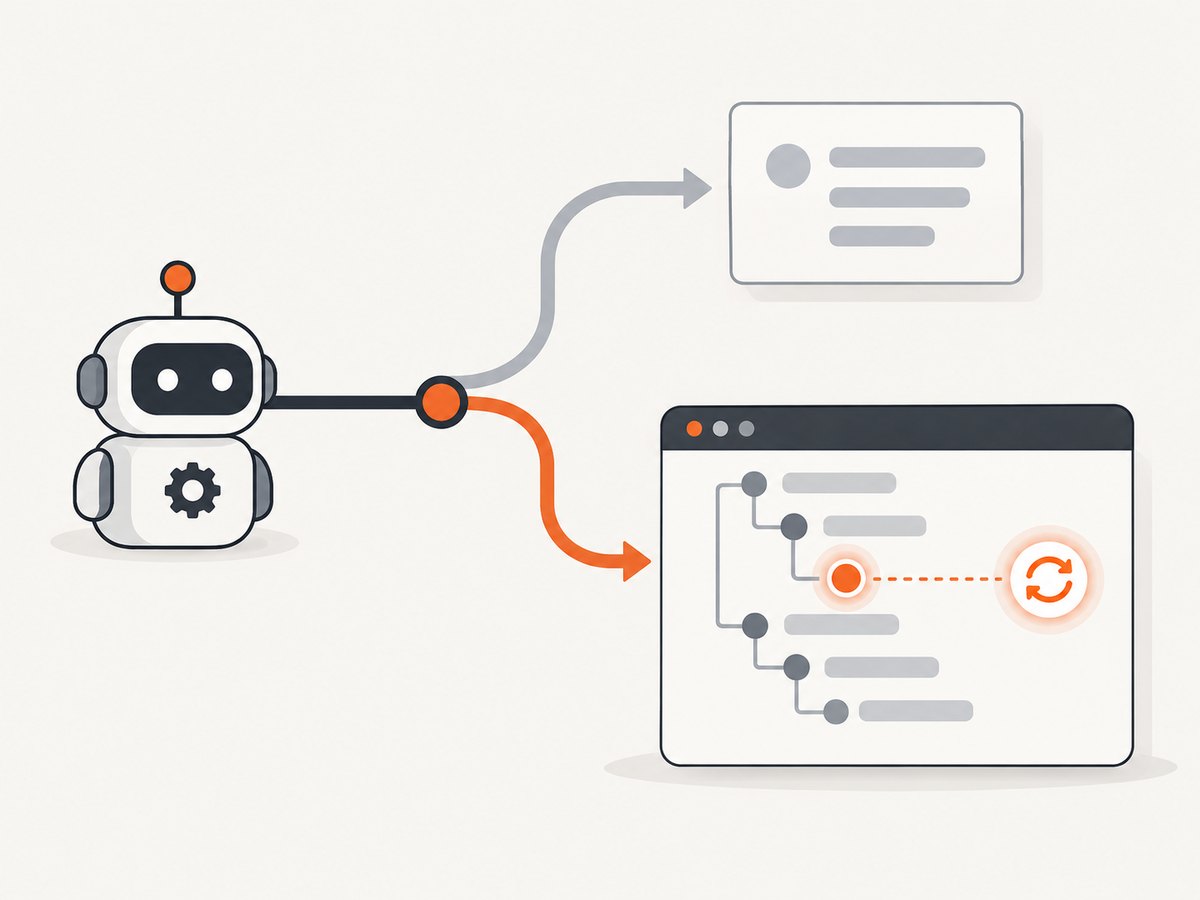
Install and configure the Selenium WebDriver dependency according to your application’s existing Ruby and Capybara setup. A minimal registration pattern is:
require 'capybara/rspec'
require 'selenium-webdriver'

Capybara.register_driver :selenium_chrome_headless do |app|
  options = Selenium::WebDriver::Chrome::Options.new
  options.add_argument('--headless')
  options.add_argument('--no-sandbox')
  options.add_argument('--disable-dev-shm-usage')

  Capybara::Selenium::Driver.new(
    app,
    browser: :chrome,
    options: options
  )
end
Use the registered driver for the spec that needs JavaScript:
RSpec.describe 'JSTree', type: :feature, js: true do
  it 'renders the expected node' do
    visit '/tree'

    expect(page).to have_css('#tree')
    expect(page).to have_text('Expected node label')
  end
end
Connect the metadata to your driver in your project’s RSpec configuration, for example:
RSpec.configure do |config|
  config.before(:each, js: true) do
    Capybara.current_driver = :selenium_chrome_headless
  end

  config.after(:each, js: true) do
    Capybara.use_default_driver
  end
end
Driver registration and metadata conventions can vary across app templates and Capybara versions. If your suite already has a JavaScript driver configured, use that configuration instead of registering a duplicate. Consult the Capybara project documentation for current driver setup and matcher behavior.
Wait for the tree instead of sleeping
JavaScript rendering is asynchronous. Capybara’s waiting matchers synchronize with preceding actions, so assert on the expected element or text with a matcher such as have_css or have_text. Avoid fixed sleeps as the default: they can waste time when rendering is fast and still fail when it is slower than the chosen delay.
visit '/tree'
expect(page).to have_css('#tree li', text: 'Expected node label')
find('#tree a', text: 'Expected node label').click
Use a selector and expected text that uniquely identify the node. If clicking it initiates navigation, assert the resulting page or URL according to the intended behavior.
4. Verify page assets and reproduce narrowly
Once the driver can execute JavaScript, verify that the page’s JSTree scripts and stylesheets load. A missing script can prevent initialization; a stale or unreachable stylesheet can create a separate rendering problem. Neither fact by itself proves the cause of ERR_UNKNOWN_URL_SCHEME, so compare each failed request with the original browser error.
Keep the reproduction small: visit the page, wait for the tree, inspect its nodes, and exercise only the action associated with the error. Then make one evidence-based change and run the same scenario again. This makes it clear whether the fix was the driver, a node destination, or a page resource.
5. Common errors and fixes
| Symptom | Likely explanation | What to check |
|---|---|---|
| Tree is absent in the test but visible in a normal browser | The spec uses RackTest or JavaScript initialization has not completed. | Run the spec with a Selenium-backed Chrome driver and wait for the expected tree node. |
net::ERR_UNKNOWN_URL_SCHEME appears after clicking a node |
The node’s destination or click handler may pass an invalid or unsupported scheme to Chrome. | Capture the exact attempted URL; inspect the rendered href and the source node data. |
| Error appears during page load | A page resource or script may contain the problematic URL. | Use the network log to identify the request and confirm which resource initiated it. |
| Changing the stylesheet URL does not help | The stylesheet may not be the source of the rejected navigation. | Return to the complete error and identify the initiating element or request before editing more URLs. |
| Test passes locally but fails in headless CI | Browser, driver, or environment setup may differ; timing can also expose an asynchronous assertion. | Preserve CI browser logs, confirm the configured Chrome driver, and use a waiting matcher for the rendered node. |
| Test times out waiting for the tree | The page may not have loaded the required JavaScript, initialization may have failed, or the selector may not match. | Inspect page errors and loaded assets, then verify the selector against the actual rendered DOM. |
6. Performance, reliability, and cost considerations
RackTest is generally the lighter choice for tests that do not need JavaScript because it avoids driving a real browser. Selenium Chrome adds browser startup and execution overhead, but it exercises actual browser behavior and is appropriate for checking a JavaScript widget such as JSTree. Keep browser-driven coverage focused on behavior that needs JavaScript, and use waiting matchers so the test waits for a condition rather than an arbitrary duration.
For reliability, record browser console and network evidence when a failure occurs, and keep the failing test narrow enough to identify the page action. Headless browser rendering also has limits beyond tests: Google says it uses headless Chromium to render eligible pages, while recommending server-side or pre-rendering for speed and for bots that cannot execute JavaScript. That is background about web rendering, not a diagnosis of this Capybara error; see Google’s JavaScript SEO guidance.
Test cost is mostly the compute time and maintenance burden of running browser-based specs in your environment. No benchmark or fixed runtime applies to every project. Avoid running the browser for specs that only need server-side behavior, and investigate repeated timeouts rather than increasing waits without evidence.
Or skip the browser setup
If your goal is to capture a page screenshot rather than test JSTree interaction, ScreenshotNeo is a website screenshot API and MCP server for developers. One GET request can return PNG, JPEG, WebP, or PDF. The DIY Capybara approach above remains the right path when you need to exercise your own app’s JavaScript behavior. For a screenshot capture, a single request can avoid browser setup in your code:
curl -G "https://api.screenshotneo.com/v1/shot" -d access_key=YOUR_API_KEY --data-urlencode url=https://stripe.com -o shot.webpSee the ScreenshotNeo API documentation for request options. Python:
import requests

r = requests.get(
    "https://api.screenshotneo.com/v1/shot",
    params={"access_key": "YOUR_API_KEY", "url": "https://stripe.com"},
    timeout=90,
)
open("shot.webp", "wb").write(r.content)
Node.js:
const q = new URLSearchParams({
  access_key: 'YOUR_API_KEY',
  url: 'https://stripe.com'
});
const res = await fetch(`https://api.screenshotneo.com/v1/shot?${q}`);
if (!res.ok) throw new Error(`Screenshot request failed: ${res.status}`);
await Bun.write('shot.webp', res);
ScreenshotNeo accepts cookie and consent banners as a visitor and removes more than 60 known consent platforms, newsletter popups, and chat widgets before capture; each of those steps can be turned off. Bot checks and CAPTCHAs, blank pages, timeouts, failed loads, and cache hits cost nothing, and response headers identify the page verdict and billing status. Its MCP server gives AI agents tools for screenshots, page information, and PDF capture. The free plan includes 1,000 shots a month with no card; paid plans start at $5 for 3,000 shots. Sign up for 1,000 free screenshots a month with no card.
FAQ
Does ERR_UNKNOWN_URL_SCHEME prove that a JSTree link is malformed?
No. It says Chrome could not handle a URL scheme, but the rejected URL may come from a link, a resource request, or application code. Capture the exact URL and identify what initiated it.
Can RackTest render JSTree?
RackTest does not execute JavaScript. Use a JavaScript-capable driver for a test that depends on the tree’s client-side rendering.
Should every Capybara spec use Selenium?
No. Use a browser driver for behavior that needs browser or JavaScript execution; non-JavaScript specs can continue using a lighter driver.
Is an old rawgit stylesheet necessarily the cause?
No. It appeared in a surfaced example, but the available report does not establish it as the cause. Verify current resource availability and correlate it with the exact browser error.


