How to Fix Wallaby Crashes with Headless Chrome
Troubleshoot Wallaby and headless Chrome crashes with a step-by-step checklist for browser setup, launch flags, caches, workers, and diagnostics.
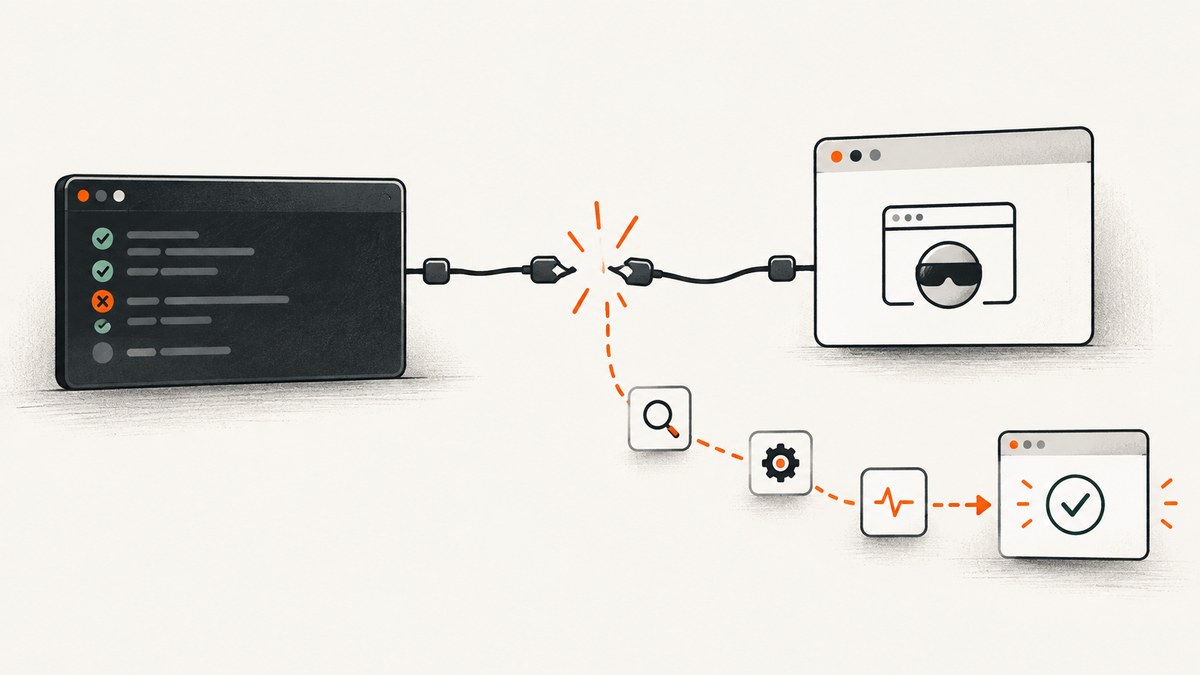
To fix Wallaby crashes with headless Chrome, first run the same tests outside Wallaby. If they pass, check that Node.js and Google Chrome are installed, point Wallaby at the intended Chrome executable, and review its launch flags. Then collect Wallaby diagnostics, reset relevant caches, and test with one worker or worker restarts if the problem is intermittent.
Wallaby’s browser runner uses local Google Chrome in headless mode by default. On Linux, its Chrome launch includes --no-sandbox and --disable-setuid-sandbox. You can configure the executable and add runner parameters in Wallaby’s configuration. See the Wallaby Chrome integration guide for the documented settings.
1. Determine whether Wallaby or the tests are failing
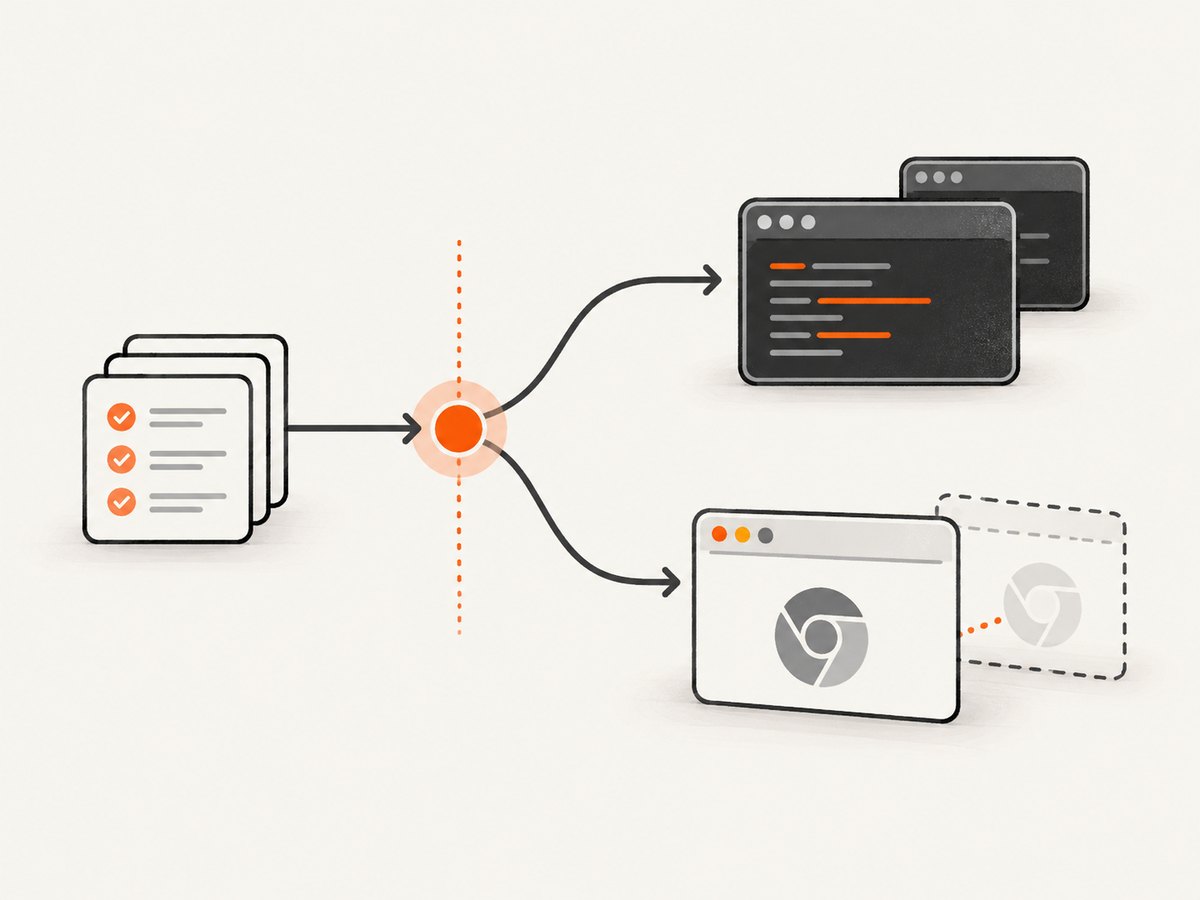
Run the same test command you normally use outside Wallaby. Use the project’s actual test script, such as npm test, npx jest, or the relevant Vitest, Mocha, or Jasmine command. Don’t change test configuration between runs.
# Examples only: use the command configured by your project
npm test
npx jest --runInBand
If the same test fails in the normal runner, investigate the test, application, or test environment before changing Wallaby’s browser configuration. If it passes there but fails only in Wallaby, focus on browser startup, the runner configuration, worker reuse, and Wallaby’s diagnostics.
This split saves time: a Chrome launcher change will not repair an assertion failure or application bug that reproduces independently of Wallaby. Wallaby’s troubleshooting documentation also recommends reproducing outside Wallaby as an early check.
2. Check Chrome and Node.js prerequisites
Browser-based Wallaby workflows require Google Chrome, and Wallaby installation requires Node.js. Confirm both are present in the environment where the editor and Wallaby run. A browser installed in a different container, remote host, or user environment may not be visible to Wallaby.
node --version
which google-chrome || which chromium || which chromium-browser
The which command is a Unix-style check. On Windows, locate Chrome through your installation or use the executable path available on that machine. The important point is that the configured runner must refer to an executable Wallaby can launch.
If Chrome is absent, install it using the supported method for your operating system. If Chrome exists but Wallaby reports a launch error, check the path and permissions before changing test code.
3. Configure Wallaby’s Chrome executable
Set the environment kind to Chrome and, if auto-detection selects the wrong executable, set env.runner to the intended Chrome binary. Use an absolute path when PATH resolution is uncertain. Wallaby’s Chrome integration guide documents the environment and runner configuration.
// wallaby.js — illustrative CommonJS configuration
module.exports = {
  env: {
    kind: 'chrome',
    runner: '/absolute/path/to/google-chrome'
  }
};
Replace the example path with the executable path on the machine running Wallaby. If Chrome is already available on PATH and the default works, a custom path is not required. For a path that differs by developer machine, use the configuration approach your project already uses to supply local environment-specific values; don’t commit a path that only exists on one workstation.
Wallaby documents other environment choices, including Electron/Node and PhantomJS. Choose a different environment only when it matches what the tests need. For tests that exercise browser rendering or browser APIs, changing to a Node-only environment changes what is being tested rather than fixing Chrome startup.
4. Review headless Chrome flags
Wallaby’s documented Chrome defaults include these flags:

--headless--disable-gpu--disable-translate--disable-extensions--disable-background-networking--safebrowsing-disable-auto-update--disable-sync--metrics-recording-only--disable-default-apps--no-first-run
Linux launches additionally include --no-sandbox and --disable-setuid-sandbox. If you suspect a launch or rendering issue, Wallaby allows extra runner parameters through env.params.runner. Add only a flag that addresses a specific diagnosis, and keep a note of the original configuration so you can remove experimental changes.
// Example: add a runner argument while retaining the Chrome environment
module.exports = {
  env: {
    kind: 'chrome',
    params: {
      runner: ['--some-diagnostic-flag']
    }
  }
};
Use the parameter shape expected by your installed Wallaby configuration and version; consult the integration guide if your existing config uses a different structure. Avoid copying a large flag set from an unrelated CI recipe. More flags can hide the cause, alter browser behavior, or make local and CI runs diverge.
5. Capture diagnostics before changing several things
When Chrome starts inconsistently or Wallaby exits without a clear test failure, collect a Wallaby Diagnostics Report first. Wallaby identifies this report as the first troubleshooting artifact. Also inspect the editor’s Wallaby output or log location for startup errors, a missing executable, or a process that exits before the test page loads.
- Reproduce the crash once and note whether it happens during startup, page loading, or a specific test.
- Generate the Diagnostics Report using the Wallaby command available in your editor.
- Review the editor’s Wallaby output/logs for the first error, not only the last crash message.
- If the page loads but browser-side behavior fails, inspect the local
localhosttest page in Chrome DevTools when available.
Keep the report and relevant log excerpt together with the exact test command and environment details. That makes it easier to distinguish an executable or launch failure from a page-level error.
6. Reset caches when results look stale or inconsistent
Reset the test framework’s cache when applicable—for example, Jest’s cache—and then run Wallaby’s Wallaby.js: Reset Wallaby Cache command from the editor. Retest before making unrelated configuration changes.
# Jest example
npx jest --clearCache
Cache reset is not normally needed, according to Wallaby’s troubleshooting guidance. If clearing it resolves the crash, record that result and include it when reporting the issue. Don’t treat repeated cache resets as a durable fix if the crash returns; investigate what state or dependency change makes the failure recur.
7. Isolate worker and process reuse problems
An intermittent failure can depend on shared test state or reuse of a process between runs. Try a single worker. If stability changes, inspect tests for shared files, global state, ports, or resources that are not cleaned up between tests. For a suspected process-reuse issue, try enabling workers.restart.
// Illustrative Wallaby configuration
module.exports = {
  workers: 1
};
// Illustrative configuration when testing worker restarts
module.exports = {
workers: {
restart: true
}
};Use the syntax supported by your Wallaby configuration and version. Test one change at a time: one worker can reveal order or shared-state problems, while worker restarts test whether a fresh process changes the outcome. These are diagnostic settings; they can affect run behavior and speed, so decide whether to keep them based on the result.
8. Check dependency changes after upgrades
If Wallaby began crashing after an upgrade, compare the lockfile and dependency changes with the last working revision. Look for conflicting versions or install drift, then reinstall from the project lockfile if appropriate. Wallaby’s troubleshooting guidance also describes temporarily returning to a previously working Wallaby core version as an isolation step.
Change one variable at a time and record the version that restores a stable run. A rollback can identify a regression window, but it does not establish which dependency caused the failure. Share the Diagnostics Report and reproduction details with Wallaby support if the issue remains specific to Wallaby.
Configuration choices at a glance
| Choice | Use it when | Tradeoff or check |
|---|---|---|
| Chrome, default runner | Chrome is on PATH and auto-detection works | Least configuration; confirm Wallaby sees the same PATH as the editor |
Chrome, explicit env.runner |
The wrong binary is selected or Chrome is outside PATH | Machine-specific paths need care in shared config |
| Electron/Node or another documented environment | The tests target that runtime | It changes the execution environment; browser-only behavior may differ |
| Default workers | Runs are stable and fast | Intermittent state or reuse issues can be harder to isolate |
| One worker / worker restart | Investigating shared state or process reuse | Use as a controlled diagnostic and check its effect on run time |
| Cache reset | Results appear stale or cache corruption is suspected | Not usually necessary; report a repeatable cache-related fix |
| Dependency rollback | A crash began after an upgrade | Use to identify a regression window, then narrow down the change |
Or skip the browser setup
If the task is capturing a website rather than running a browser test suite, ScreenshotNeo provides a screenshot API and MCP server for developers. One GET request can return a PNG, JPEG, WebP, or PDF. The API supports extensive capture options; see the ScreenshotNeo API documentation.
curl -G "https://api.screenshotneo.com/v1/shot" -d access_key=YOUR_API_KEY --data-urlencode url=https://stripe.com -o shot.webpimport requests
r = requests.get("https://api.screenshotneo.com/v1/shot", params={"access_key": "YOUR_API_KEY", "url": "https://stripe.com"}, timeout=90)
open("shot.webp", "wb").write(r.content)const q = new URLSearchParams({ access_key: 'YOUR_API_KEY', url: 'https://stripe.com' });
const res = await fetch(`https://api.screenshotneo.com/v1/shot?${q}`);ScreenshotNeo removes known cookie and consent banners, newsletter popups, and chat widgets before capture, and each step can be turned off. Bot checks, blank pages, timeouts, failed loads, and cache hits cost nothing; response headers identify the page verdict and billing status. Its MCP server offers take_screenshot, get_page_info, and capture_pdf tools for Claude, Cursor, and other MCP clients. The Free plan includes 1,000 screenshots per month with no card; paid plans start at $5 for 3,000 screenshots.
Create a free ScreenshotNeo account to get 1,000 screenshots a month with no card.
Troubleshooting quick reference
| Symptom | Likely area | Next action |
|---|---|---|
| Tests fail in Wallaby and normal runner | Test or application | Fix the reproducing failure outside Wallaby first |
| Chrome executable not found | Prerequisite or path | Confirm Chrome is installed and set env.runner if needed |
| Chrome exits at startup on Linux | Launch flags or environment | Check the documented Linux flags, executable, and Wallaby logs |
| Only some runs crash | Cache, shared state, or process reuse | Collect diagnostics, reset caches, try one worker, then worker restart |
| Crash began after an upgrade | Dependency drift | Inspect lockfile changes and isolate versions one at a time |
| Page loads but browser assertions fail | Page-level behavior | Inspect the local test page and browser console with DevTools |
Performance, reliability, and cost notes
For Wallaby, worker count and worker restarts are practical reliability-versus-speed settings: one worker can help isolate shared state, and restarting workers can help test process reuse, while both can change execution overhead. Measure your own suite after diagnosis rather than assuming a universal speed effect. The documented Wallaby materials here do not provide a benchmark or cost figure.
For a website screenshot API, capture configuration affects the work requested: full-page capture, waiting for a selector or network idle, and loading lazy images can take longer than a simple viewport capture. ScreenshotNeo offers caching with a chosen TTL, async jobs with signed webhooks, and bulk capture up to 100 URLs per call. Its billing rules exclude bot checks, blank pages, timeouts, failed loads, and cache hits; check each response’s X-Page-Verdict and X-Billed headers. Plans are Free (1,000/month), Starter ($5/3,000), Growth ($15/15,000), Pro ($39/60,000), Scale ($99/250,000), and Business ($249/1,000,000); yearly billing gives two months free, and every feature is on every plan.
FAQ
Why does Wallaby crash when Chrome runs headless?
Possible causes include a missing or incorrectly selected Chrome executable, a launch problem, intermittent test state, or process reuse. First establish whether the tests pass outside Wallaby, then collect diagnostics and isolate the runner and worker settings.
How do I fix Wallaby’s ChromeHeadless launcher?
Confirm Chrome is installed and visible to Wallaby, set env.kind to 'chrome', and set env.runner to the correct executable if needed. Review launch flags and the editor logs if it still fails.
Why does Wallaby work in Karma but crash in headless Chrome?
The runners can differ in browser executable, flags, and environment. Compare the actual Chrome path and launch configuration, then reproduce the test independently and inspect Wallaby’s Diagnostics Report.
What Chrome flags does Wallaby use on Linux?
Wallaby’s Chrome defaults include headless and several background-feature flags; Linux adds --no-sandbox and --disable-setuid-sandbox. The Chrome integration guide lists the documented defaults.
How do I reset Wallaby cache after a Chrome crash?
Use the editor command Wallaby.js: Reset Wallaby Cache. If your test framework has a relevant cache, such as Jest’s, clear that too and rerun to see whether the result changes.


