How to Fix Red or Orange Hues in WebDriver Screenshots
Diagnose red or orange color shifts in WebDriver screenshots by separating browser rendering, capture, and image-viewer issues. Includes a Firefox-specific readback diagnostic.
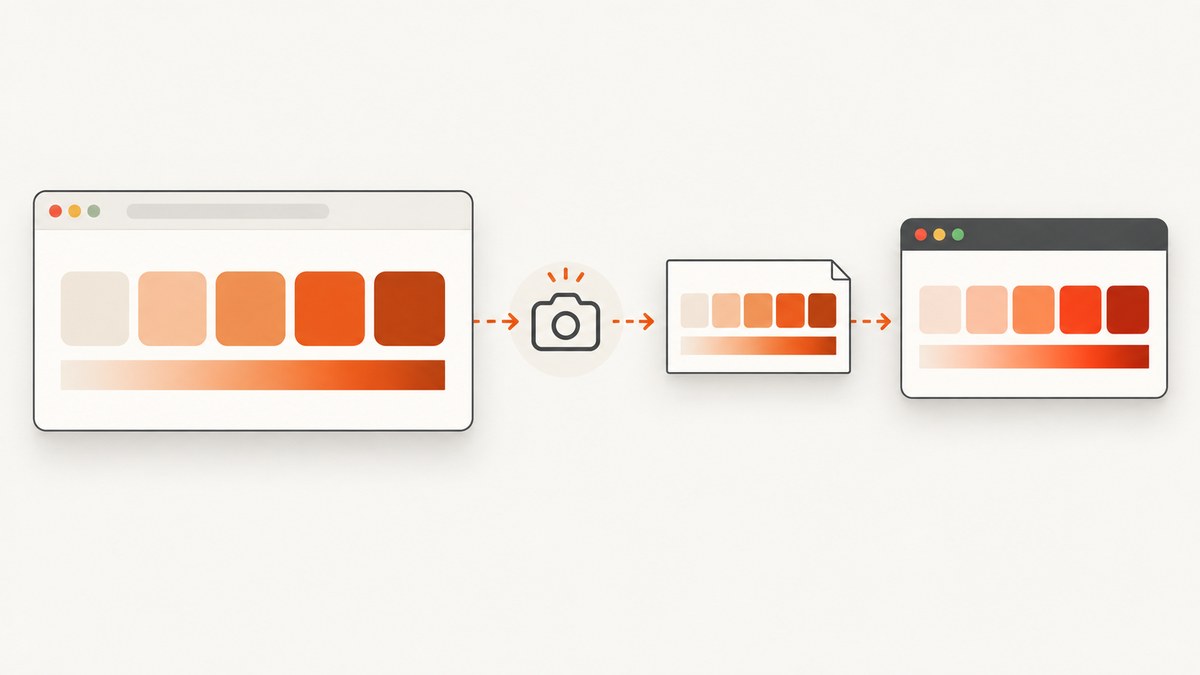
A red or orange hue in a WebDriver screenshot does not identify a single cause, and there is no verified universal color-correction flag that fixes it across browsers. First find out where the shift appears: in the browser itself, during screenshot capture, or only when the saved image is decoded or displayed. Keep the operating system, browser build, viewport, device pixel ratio (DPR), and image-viewing path fixed while you compare. If the issue is in Firefox and may involve WebRender, Mozilla documents a targeted diagnostic preference: remote.screenshot.use_readback. It has important limits and is not a general screenshot setting.
1. Identify which stage changes the color
A WebDriver screenshot is produced by a browser capture path and then encoded and handled as an image file. The pixels need not be a direct photograph of the physical monitor. Firefox’s usual automated screenshot paths can use software re-rendering rather than reading the final WebRender compositor output. That can make a screenshot differ from the displayed compositor result in specific cases. Separately, image metadata, decoders, viewers, or later processing can affect how the saved image looks. [Mozilla: Capturing WebRender screenshots for debugging] [Mozilla Bug 1635670]
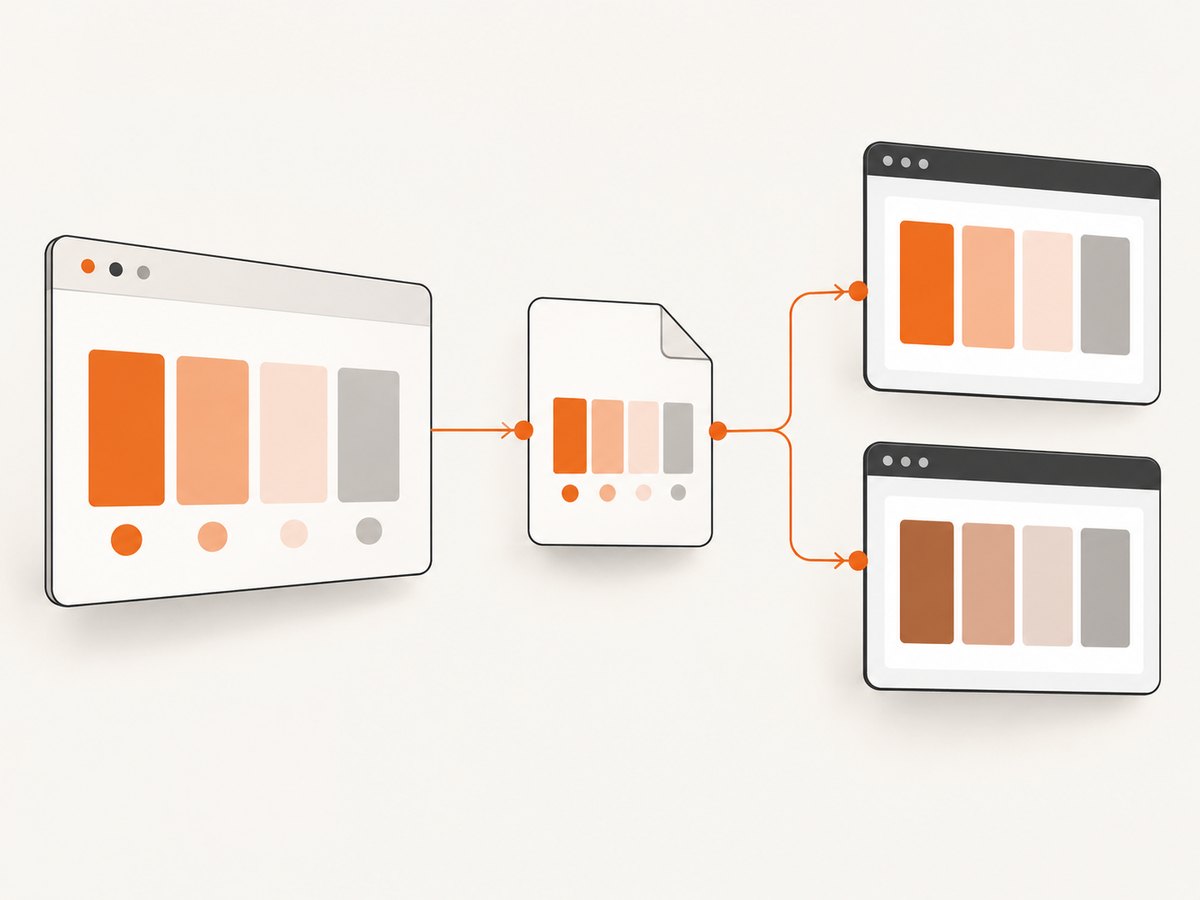
Before changing browser settings, classify the symptom:
- The page looks red/orange in the browser before capture. Investigate the page, its assets, CSS, browser rendering, and environment. A screenshot setting cannot fix a color shift already visible in the page.
- The browser display looks right, but the screenshot pixels differ. Investigate the browser’s capture mechanism, browser version, and platform.
- The screenshot looks right in one viewer but wrong in another. Investigate the image’s color profile or metadata handling, the decoder, and viewer color management.
- The file looks wrong only after a processing step. Compare the original PNG with the output after your image library, conversion, optimization, or visual-diff pipeline.
Mozilla Bug 1635670 records a historical Firefox concern about screenshot color tagging following full color management work. It shows that tagging has been a real issue; it does not establish that every current Firefox release has that defect. [Bug 1635670]
2. Make a controlled reproduction
A useful reproduction changes one variable at a time. Start with a minimal page that includes known CSS swatches and, if relevant, the same image or page content that shows the shift.
- Record browser name and exact version, operating system and version, WebDriver or automation framework, headed or headless mode, viewport width and height, and DPR.
- Record the capture method and any browser preferences, custom profile settings, CSS overrides, or image processing applied after capture.
- Capture the same page repeatedly in that unchanged environment. Save the original PNG bytes before any conversion or comparison tool modifies them.
- Inspect the page in the controlled browser session, then inspect the PNG in at least two color-managed viewers. If possible, sample the same pixels in the original file and compare their RGB values.
- Change one axis at a time: for example, headed versus headless, or one browser build versus another. Keep the rest fixed.
For visual baselines, compare captures from the same platform and browser configuration. WebdriverIO cautions against using screenshots from different platforms as direct visual baselines. [WebdriverIO visual testing]
3. Capture a baseline with Selenium
First capture without a special color setting. This gives you a baseline for comparison and avoids masking the actual cause. Selenium exposes screenshot methods that save browser screenshots as PNG files; the screenshot is encoded data returned from the browser capture flow. [Selenium WebDriver screenshots] [W3C WebDriver Recommendation]
Python
from selenium import webdriver
from selenium.webdriver.firefox.options import Options

options = Options()
# Leave the browser's normal screenshot behavior unchanged for the baseline.
driver = webdriver.Firefox(options=options)
try:
    driver.set_window_size(1280, 900)
    driver.get("https://example.com")
    driver.save_screenshot("baseline.png")
finally:
    driver.quit()
JavaScript with Selenium WebDriver
const { Builder } = require('selenium-webdriver');
const firefox = require('selenium-webdriver/firefox');
const fs = require('node:fs/promises');

(async () => {
  const options = new firefox.Options();
  const driver = await new Builder()
    .forBrowser('firefox')
    .setFirefoxOptions(options)
    .build();
  try {
    await driver.manage().window().setRect({ width: 1280, height: 900 });
    await driver.get('https://example.com');
    const pngBase64 = await driver.takeScreenshot();
    await fs.writeFile('baseline.png', Buffer.from(pngBase64, 'base64'));
  } finally {
    await driver.quit();
  }
})();
These examples use Firefox so the later diagnostic applies. For another browser, retain the same baseline method and record its exact driver and browser versions; the Firefox preference described below is not a Chrome setting.
4. Try Firefox compositor readback as a diagnostic
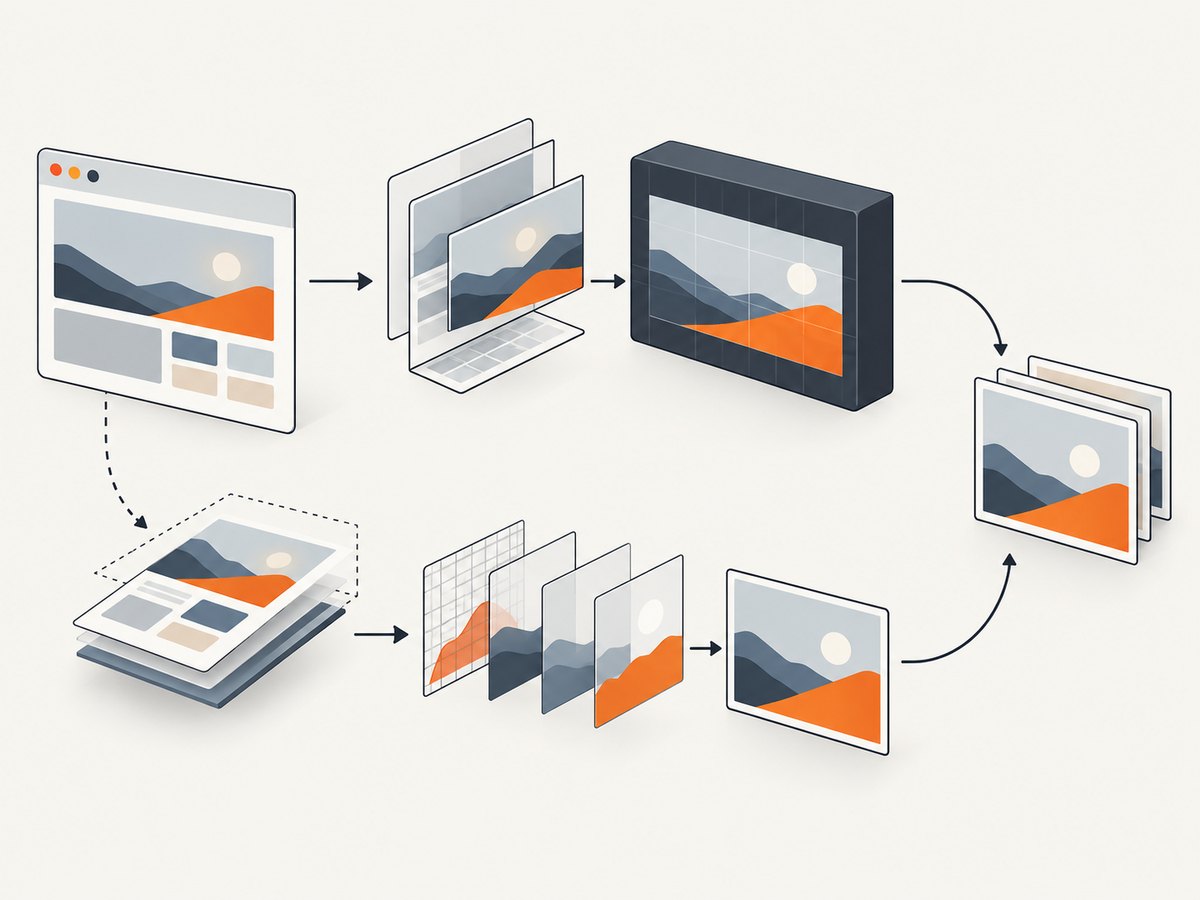
Mozilla documents the Firefox preference remote.screenshot.use_readback. When enabled, Firefox automated screenshots read back the WebRender-composited framebuffer. Compare this capture with the baseline only when your reproduction suggests a mismatch between WebDriver’s normal render path and the compositor output. The preference is intended as a debugging aid; Mozilla directs users to leave it at its default, false, for ordinary automation. [Mozilla Firefox Source Docs]
Python: temporary Firefox profile preference
from selenium import webdriver
from selenium.webdriver.firefox.options import Options

options = Options()
options.set_preference("remote.screenshot.use_readback", True)
driver = webdriver.Firefox(options=options)
try:
    driver.set_window_size(1280, 900)
    driver.get("https://example.com")
    driver.save_screenshot("readback-diagnostic.png")
finally:
    driver.quit()
Run the same page and viewport once with the preference enabled and once with it disabled. Do not treat a difference as proof that all screenshots should use readback: check that you are within its supported capture conditions, and reduce the reproduction before filing or escalating a browser-specific issue.
Readback limitations
- macOS is unsupported. Do not use this preference as a macOS fix.
- It returns the foreground viewport. Full-document, clipped, and element screenshot requests return the viewport rather than the requested region.
- It is Firefox-specific. Do not apply this preference to Chrome or infer that another WebDriver uses the same capture architecture.
- It is diagnostic, not a normal-mode recommendation. Leave it false for normal automation, consistent with Mozilla’s guidance. [Mozilla documentation]
5. Check color profiles, decoding, and visual comparisons
If the PNG’s sampled pixel values are stable but the displayed color varies by viewer, focus on interpretation rather than browser rendering. Preserve the original file and compare it in more than one color-managed viewer. Check whether your image pipeline strips or changes metadata, converts to another format, applies a profile, or resizes pixels. Compare raw pixel values when possible instead of relying only on visual appearance.
When making a visual regression baseline, keep the full comparison chain stable: browser and version, OS, headed/headless mode, viewport, DPR, input images, screenshot method, PNG decoder, and any resize or diff software. Different OS font rasterization and rendering environments can affect visual output, so platform-matched baselines are the practical starting point. WebdriverIO specifically advises against treating cross-platform screenshots as direct baselines. [WebdriverIO]
6. What about HDR, wide gamut, or a browser color flag?
Do not assume a WebDriver BiDi screenshot can request wide-gamut or HDR output. A W3C repository issue opened on 2026-04-24 proposes a color-space parameter because the existing capture path is effectively limited to sRGB SDR. That issue is open, so it is a proposal rather than a supported feature guarantee. [W3C WebDriver BiDi issue tracker]
The research for this guide does not establish a universal Chrome color-profile command-line switch or a red/orange-specific fix that works across browsers. Avoid adding a color flag based only on the symptom. Verify the exact browser release, operating system, and reproduction first.
7. Troubleshooting common outcomes
| Symptom | Likely area to investigate | Next action |
|---|---|---|
| Colors are shifted on screen and in the saved file | Page content, browser rendering, or environment | Use a minimal page with CSS swatches; compare the asset and CSS values in the same browser session. |
| Firefox display looks right but normal WebDriver capture differs | Possible WebRender compositor versus screenshot re-render difference | On a supported non-macOS setup, compare a temporary remote.screenshot.use_readback=true capture; retain normal mode for routine automation. |
| Screenshot appearance differs by image viewer | Color profile, metadata, decoder, or viewer management | Compare the original PNG in multiple viewers and sample pixel values before conversion. |
| Full-page or element capture becomes a viewport capture with readback enabled | Documented readback limitation | Disable the diagnostic preference for that capture, or use it only for a viewport-level comparison. |
| Problem appears only on macOS with readback enabled | Readback is unsupported on macOS | Return to the default setting and investigate the regular capture path and viewer. |
| Visual test fails only across different operating systems | Environment mismatch | Generate and compare baselines on the same OS and browser configuration. |
| Red looks orange only after converting PNG to JPEG or WebP | Image conversion or subsequent display path | Compare the original PNG and converted file, and inspect the conversion settings and decoder. |
| Enabling readback has no effect | The issue may not involve Firefox compositor readback | Confirm the preference is applied to the actual Firefox profile, then investigate page colors, platform, and image handling separately. |
8. Performance, reliability, and cost considerations
Keep this troubleshooting process cheap and repeatable: use one small reproduction page, save a baseline and a single diagnostic capture, and vary only one setting per comparison. The sources reviewed do not provide a benchmark for the performance cost of compositor readback, nor a quantified frequency for red/orange screenshot errors, so avoid assuming either. The documented capture limitations matter more than an unverified speed estimate.
For continuous visual tests, pin the browser and driver versions where your tooling permits it, keep the operating system and viewport consistent, and preserve original captures when a regression occurs. This makes failures reproducible and prevents viewer or conversion changes from being confused with browser changes.
Or skip the browser setup
If your goal is to capture a clean website image rather than debug a local WebDriver color pipeline, ScreenshotNeo is a website screenshot API and MCP server. Its single GET request returns PNG, JPEG, WebP, or PDF. For example, this cURL request saves a WebP capture:
curl -G "https://api.screenshotneo.com/v1/shot" -d access_key=YOUR_API_KEY --data-urlencode url=https://stripe.com -o shot.webpSee the ScreenshotNeo API documentation for request options. ScreenshotNeo accepts cookie or consent banners before capture and removes more than 60 known consent platforms, newsletter popups, and chat widgets; each step can be turned off. Bot checks, blank pages, timeouts, failed loads, and cache hits are not billed, and the response identifies the page verdict and billing result in headers. Its MCP server gives AI agents tools for screenshots, page information, and PDF capture. The free plan includes 1,000 screenshots a month with no card; paid plans start at $5 for 3,000 screenshots.
Sign up free for 1,000 screenshots a month, with no card required.
FAQ
Does a red/orange screenshot prove that my monitor is miscalibrated?
No. The symptom alone does not locate the cause. First compare the page, original screenshot pixels, and multiple viewers in a controlled environment. A monitor calibration tool addresses physical display calibration; the sources do not establish it as a fix for screenshot files.
Should I enable Firefox readback permanently in CI?
No. Mozilla describes it as a debugging preference and recommends leaving it false for ordinary automation. It also has platform and capture-scope limits.
Is the same fix available in Chrome?
The documented preference is specific to Firefox. The sources reviewed do not establish an equivalent universal Chrome setting for red/orange hues.
Can WebDriver screenshots guarantee HDR or wide-gamut color?
The cited W3C BiDi issue proposes color-space support; an open proposal does not guarantee that feature. Treat the current capture path as sRGB SDR for this guidance.


