How to Fix WebDriver Reporting the Wrong Resolution on a Bamboo Agent
Diagnose wrong WebDriver resolution on Bamboo by separating window, viewport and display settings, then apply the right fix.
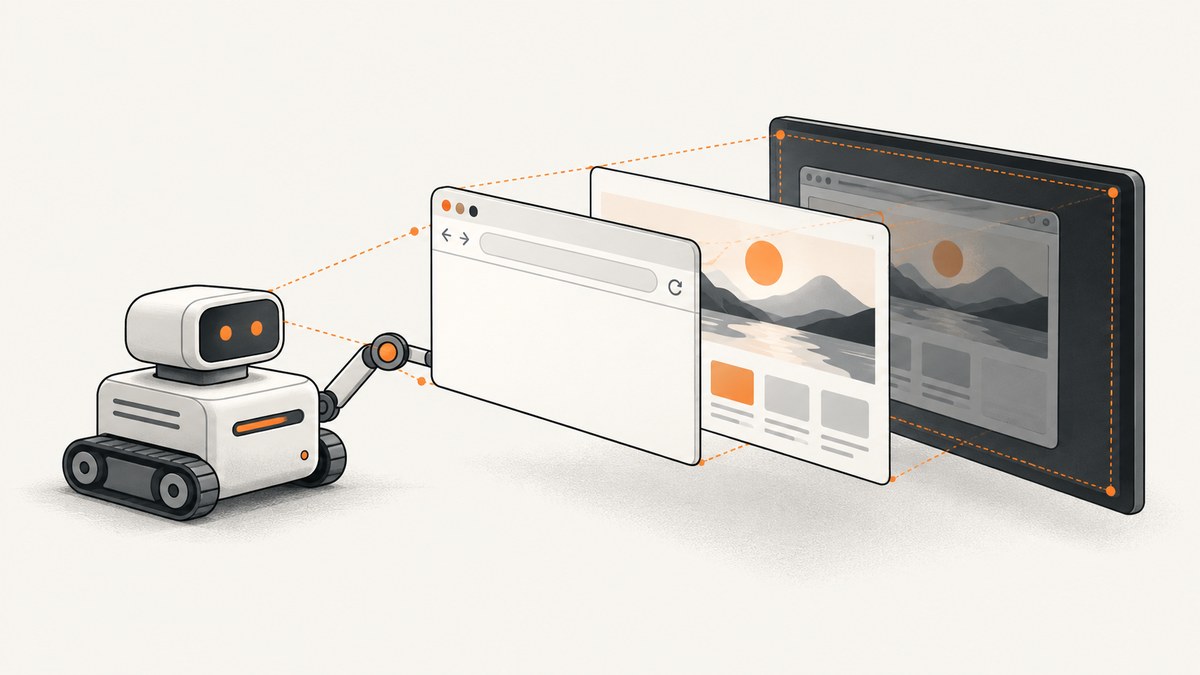
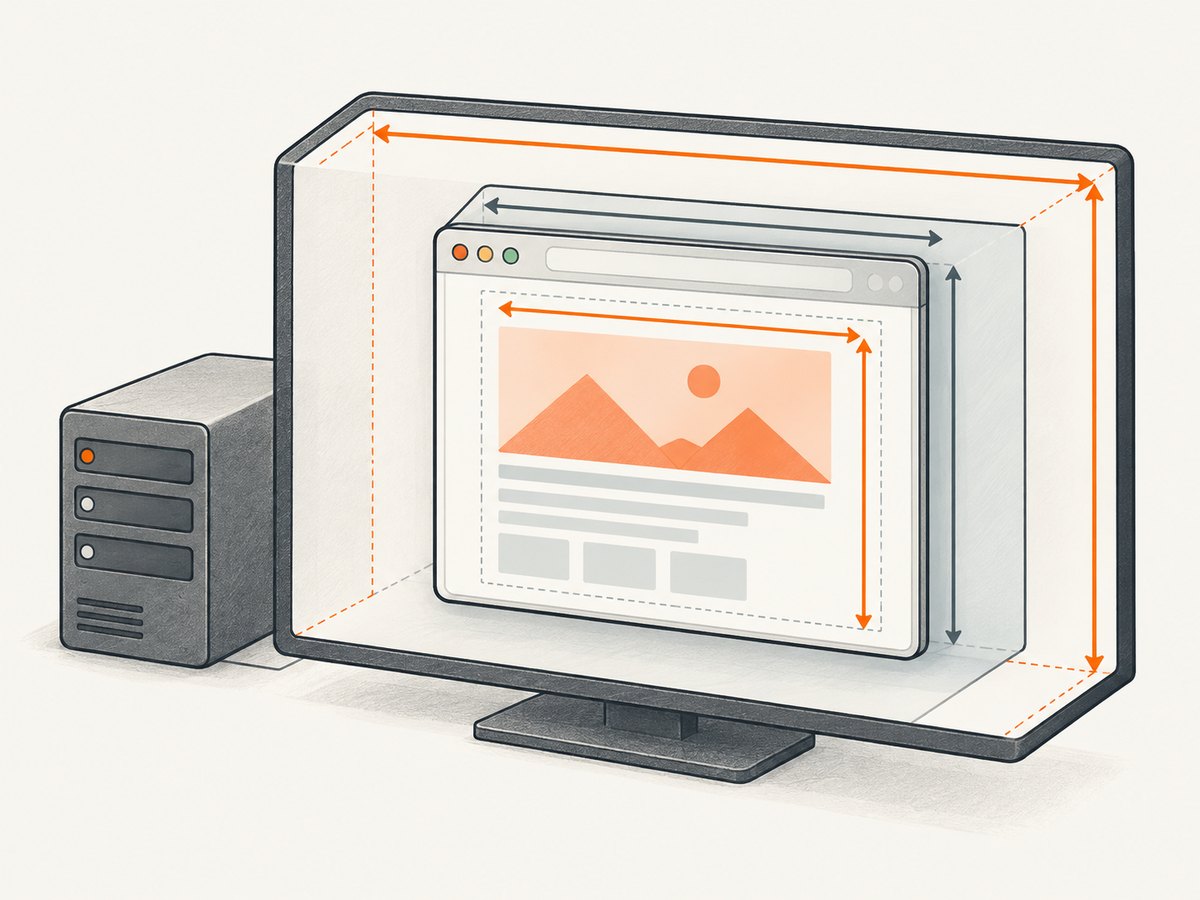
When WebDriver reports the wrong resolution on a Bamboo agent, first identify which resolution is wrong. A browser window rectangle, the web page viewport, and the operating system or virtual display are different measurements. A reliable fix starts by logging all three in the failing Bamboo job and comparing them with a local run.
Selenium’s documentation explains that screen resolution affects how an application renders and provides APIs to move and resize the browser window: Working with windows and tabs. Set the requested window size after creating the session, read the resulting size back, and inspect the page viewport. If those values are correct but the display layer is wrong, inspect Xvfb, DISPLAY, or the Selenium container configuration.
1. Record every resolution value before changing anything
Add diagnostics to the Bamboo test so the failing job records the browser, page and display values. Do not rely on a screenshot alone: an image can have the expected dimensions while the browser layout used a different viewport.
Python diagnostic example
from selenium import webdriver
from selenium.webdriver.chrome.options import Options

options = Options()
# Add your normal arguments here, for example --headless=new.
driver = webdriver.Chrome(options=options)

try:
    print("window_rect=", driver.get_window_rect())
    print("window_size=", driver.get_window_size())
    values = driver.execute_script("""
        return {
          innerWidth: window.innerWidth,
          innerHeight: window.innerHeight,
          outerWidth: window.outerWidth,
          outerHeight: window.outerHeight,
          devicePixelRatio: window.devicePixelRatio,
          screenWidth: screen.width,
          screenHeight: screen.height,
          availWidth: screen.availWidth,
          availHeight: screen.availHeight
        };
    """)
    print("page_values=", values)
    print("DISPLAY=", __import__('os').environ.get('DISPLAY'))
finally:
    driver.quit()
Java diagnostic example
Dimension requested = new Dimension(1920, 1080);
driver.manage().window().setSize(requested);
System.out.println("window=" + driver.manage().window().getSize());
Map<String, Object> page = (Map<String, Object>)((JavascriptExecutor) driver).executeScript(
    "return {innerWidth: window.innerWidth, innerHeight: window.innerHeight, " +
    "screenWidth: screen.width, screenHeight: screen.height, " +
    "devicePixelRatio: window.devicePixelRatio};");
System.out.println("page=" + page);
Capture these additional values in the Bamboo log:
- Agent operating system and image or VM identifier.
- Browser version and WebDriver or driver version.
- Selenium binding version.
- All headless, window-size and start-maximized flags.
- Whether the browser is local, on a remote Selenium server, or inside a container.
- The
DISPLAYvalue and the X server or window manager in use. - Requested dimensions, returned window dimensions, viewport dimensions and device-pixel ratio.
Run the same diagnostic locally and compare each field. The first field that diverges identifies the configuration layer to investigate.
2. Fix a wrong WebDriver window or viewport size
If the returned WebDriver rectangle or window.innerWidth/window.innerHeight is wrong while the display environment is otherwise healthy, set the size explicitly after session creation.
Python
from selenium import webdriver
from selenium.webdriver.chrome.options import Options

options = Options()
options.add_argument("--headless=new")
driver = webdriver.Chrome(options=options)
try:
    driver.set_window_size(1920, 1080)
    print(driver.get_window_size())
    driver.get("https://example.com")
    viewport = driver.execute_script(
        "return {width: window.innerWidth, height: window.innerHeight}"
    )
    print(viewport)
finally:
    driver.quit()
Java
ChromeOptions options = new ChromeOptions();
options.addArguments("--headless=new");
WebDriver driver = new ChromeDriver(options);
try {
    driver.manage().window().setSize(new Dimension(1920, 1080));
    System.out.println(driver.manage().window().getSize());
} finally {
    driver.quit();
}
JavaScript with Selenium WebDriver
const {Builder} = require('selenium-webdriver');
const chrome = require('selenium-webdriver/chrome');

(async function () {
  const options = new chrome.Options().addArguments('--headless=new');
  const driver = await new Builder().forBrowser('chrome').setChromeOptions(options).build();
  try {
    await driver.manage().window().setRect({width: 1920, height: 1080, x: 0, y: 0});
    console.log(await driver.manage().window().getRect());
  } finally {
    await driver.quit();
  }
})();
Window dimensions describe the browser window’s outer rectangle. The page viewport is smaller in headed mode because browser chrome consumes space, and browser implementations can interpret headless sizing differently. Always read back both the window rectangle and the viewport.
Why maximize is unreliable for CI
maximize() fills whatever space the window manager exposes. It is not a portable way to request a fixed viewport on a build agent. A Selenium issue opened on June 18, 2025, reported Chrome 137 headless returning 800×600 despite options requesting 1920×1080 and --start-maximized. That report is version-specific, but it shows why a CI job should set and verify dimensions instead of assuming maximize worked.
Use a fixed size argument supported by your browser, then verify the result:
options.addArguments("--window-size=1920,1080");Do not combine several competing sizing mechanisms until the baseline is known. Remove maximize, start-position and framework defaults temporarily, set one explicit size, and compare the logged values.
3. Fix Linux display and Xvfb settings on the Bamboo agent
If the browser uses headed mode, a window manager, GLX, or another display-dependent feature, the Linux display server may be the source of the mismatch. WebdriverIO’s Linux CI guidance says that when DISPLAY is set, its runner uses the existing X server by default; when no display exists or headless flags are supplied, it can use Xvfb. The practical checks are:
- Print
DISPLAYinside the Bamboo task, not only in your interactive shell. - Identify which process starts the Bamboo agent and which process starts Xvfb.
- Start Xvfb with the intended geometry and color depth.
- Export the same
DISPLAYvalue to the test process. - Log the display geometry immediately before launching WebDriver.
# Example diagnostic commands in a Linux Bamboo script
printf 'DISPLAY=%s\n' "$DISPLAY"
xdpyinfo | sed -n '/dimensions:/p;/resolution:/p' || true
ps -ef | grep -E '[X]vfb|[X]org' || true
A service account often has a different environment from an interactive login. A display configured in a user’s shell profile may therefore be absent from the Bamboo agent process. Configure the environment in the agent service or task definition that actually launches the tests.
Xvfb applies only when the browser is connected to that X display. Native headless execution may not use Xvfb at all, so changing Xvfb geometry will not correct a purely headless browser viewport.
4. Fix Selenium Docker node resolution
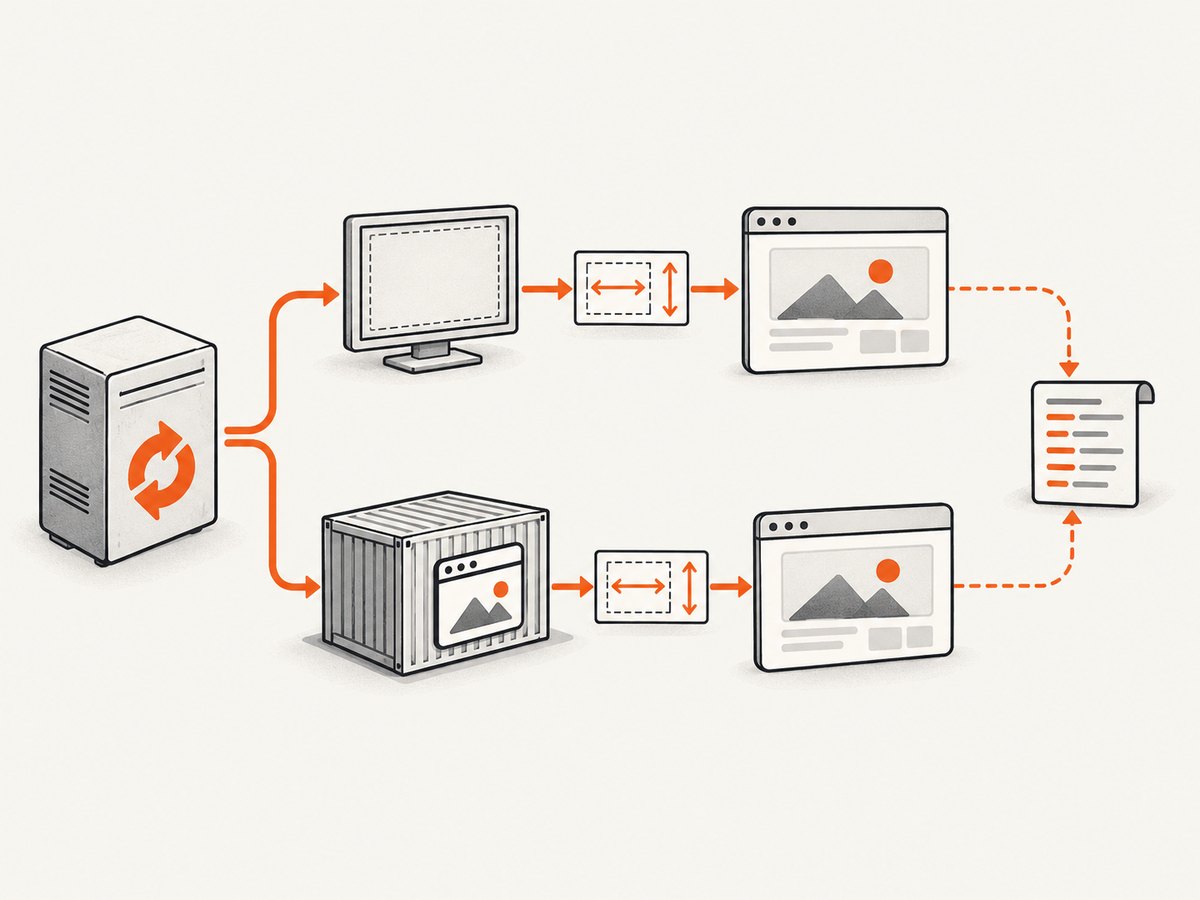
If Bamboo connects to SeleniumHQ Docker browser nodes, configure the node container rather than the host agent. Selenium’s docker-selenium documentation describes defaults of 1920 by 1080, 24-bit color and 96 DPI, and supports these environment variables:
SE_SCREEN_WIDTH=1920
SE_SCREEN_HEIGHT=1080
SE_SCREEN_DEPTH=24
SE_SCREEN_DPI=96
For Docker Compose, set them on the Selenium node service:
services:
  chrome:
    image: selenium/node-chrome:latest
    environment:
      - SE_SCREEN_WIDTH=1920
      - SE_SCREEN_HEIGHT=1080
      - SE_SCREEN_DEPTH=24
      - SE_SCREEN_DPI=96
These variables configure the Selenium container node. They do not automatically change a browser started directly on the Bamboo host or in an unrelated container. Confirm the session’s remote endpoint and inspect the node logs before changing container variables.
5. A repeatable Bamboo investigation sequence
- Run the diagnostic code in the failing job and save the complete log as a build artifact.
- Run the same browser, driver and test locally with identical flags.
- Classify the mismatch as window rectangle, page viewport, or display geometry.
- Change only the configuration layer that owns that value.
- Repeat the job and read the values back again.
- Once dimensions match, take a screenshot and verify layout-sensitive behavior such as responsive breakpoints and lazy-loaded content.
- Pin browser, driver, Selenium binding and container image versions so a future agent image update does not silently change headless behavior.
Older Bamboo documentation contains historical Xvfb examples for elastic agents. Treat those examples as background, not as current Bamboo Data Center configuration authority. Current deployments differ in service management, agent images and container topology.
6. Troubleshooting common errors
| Symptom | Likely cause | Fix |
|---|---|---|
| Returned window is 800×600 in headless Chrome | Browser-version-specific headless sizing or a later option overriding your size | Set size after session creation, remove maximize, verify the viewport, and capture browser and driver versions. |
set_window_size reports the target but layout is still wrong |
Outer window and page viewport are different measurements | Log innerWidth, innerHeight, browser chrome effects and device-pixel ratio. |
| Changing Xvfb geometry has no effect | The test is native headless or connected to another display | Inspect headless flags, DISPLAY, remote endpoint and process environment. |
DISPLAY is empty in Bamboo |
Agent service does not inherit the interactive user’s environment | Set and export DISPLAY in the agent or task launch configuration, then verify with xdpyinfo. |
| Container variables do nothing | Browser is not running in the Selenium node container | Confirm the remote session’s node and configure the container that owns the browser. |
| Screenshot has expected pixels but tests fail at responsive breakpoints | CSS viewport differs from physical or image dimensions | Assert window.innerWidth and devicePixelRatio in the page. |
| Window-size call throws an unsupported-command error | Remote driver, browser or protocol does not expose that operation | Check browser-driver compatibility and use supported browser arguments, then verify in-page dimensions. |
7. Performance, reliability and cost considerations
Collecting JavaScript dimensions adds negligible runtime compared with browser startup, but repeatedly restarting browsers to test configuration can make Bamboo jobs slow. Keep one diagnostic session per configuration variant, cache browser binaries in the agent image where appropriate, and avoid running headed browsers when the test does not need a display server.
Reliability improves when the job asserts dimensions instead of merely logging them. For example:
actual = driver.execute_script("return [window.innerWidth, window.innerHeight]")
assert actual == [1920, 941], f"Unexpected viewport: {actual}"
Choose the expected viewport deliberately; it may not equal the requested outer window size. If a browser or driver update changes the result, the assertion should fail close to the cause and preserve the diagnostic values.
The main cost is build-agent time: browser startup, Xvfb startup and remote-node allocation. A fixed, prebuilt agent image and a stable Selenium node reduce variance. Do not treat a larger virtual display as automatically better; use the smallest dimensions that cover the responsive states your test needs.
8. Or skip the browser setup
If the goal is to produce reliable website screenshots rather than maintain a Bamboo browser stack, ScreenshotNeo provides a single HTTP request for PNG, JPEG, WebP or PDF output. Its capture service handles the browser environment and exposes the result directly.
See the ScreenshotNeo API documentation for all options. Minimal calls:
cURL
curl -G "https://api.screenshotneo.com/v1/shot" -d access_key=YOUR_API_KEY --data-urlencode url=https://stripe.com -o shot.webpPython
import requests
r = requests.get("https://api.screenshotneo.com/v1/shot", params={"access_key": "YOUR_API_KEY", "url": "https://stripe.com"}, timeout=90)
open("shot.webp", "wb").write(r.content)
Node.js
const q = new URLSearchParams({ access_key: 'YOUR_API_KEY', url: 'https://stripe.com' });
const res = await fetch(`https://api.screenshotneo.com/v1/shot?${q}`);
ScreenshotNeo removes cookie and consent banners, newsletter popups and chat widgets before capture. Bot checks, blank pages, timeouts, failed loads and cache hits are not billed, and each response identifies the page verdict and billing state with X-Page-Verdict and X-Billed headers. An MCP server provides take_screenshot, get_page_info and capture_pdf tools for Claude, Cursor and other MCP clients. The Free plan includes 1,000 shots per month without a card; paid plans start at $5 for 3,000 shots. Create a free ScreenshotNeo account.
9. FAQ
Is screen resolution the same as viewport size?
No. Screen and virtual-display dimensions describe the display surface. The WebDriver window rectangle includes the browser window, while the page viewport is the area available to web content.
Should I always use 1920×1080?
No. Pick dimensions that represent the responsive states you need to test, then verify the resulting viewport in the page.
Does Xvfb fix every headless-resolution problem?
No. Xvfb matters when the browser uses an X display. Native headless sizing can remain independent of Xvfb.
Where do Selenium Docker screen variables belong?
They belong on the Selenium browser node container. They do not configure a browser running directly on the Bamboo host.
What should I preserve when opening a bug?
Include the Bamboo agent image and OS, browser and driver versions, Selenium version, flags, remote or local topology, DISPLAY, requested dimensions and all measured values.


