How to Fix WebDriverException with Headless Chrome in Python Selenium
Diagnose WebDriverException in Python Selenium by separating startup failures from page errors, then fix versions, paths, headless mode, and waits.
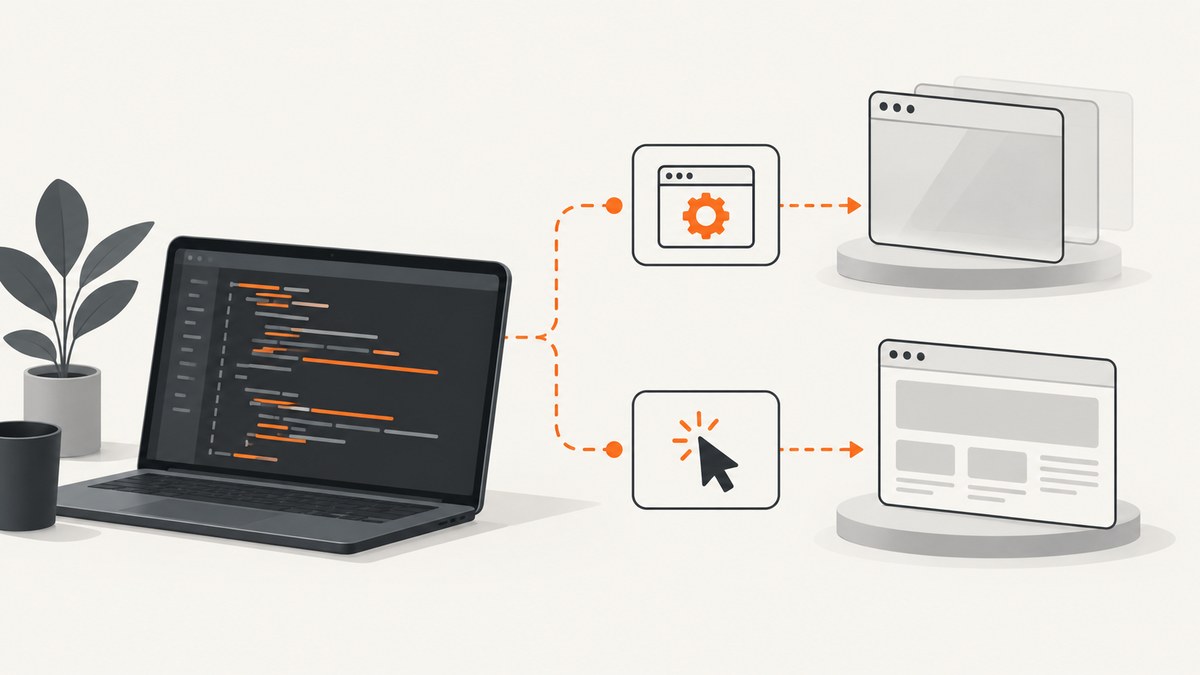
Short answer: WebDriverException is Selenium’s broad WebDriver error, not a single diagnosis. Read the complete message and traceback, then determine whether the failure happens while creating webdriver.Chrome() or after Chrome has started. Startup failures usually involve Chrome and ChromeDriver versions, binary paths, permissions, or operating-system restrictions. Failures after startup usually involve page state, selectors, navigation, or synchronization.
This guide answers: How do I fix WebDriverException with headless Chrome in Python Selenium? It covers “Chrome failed to start: crashed,” “session not created,” “ChromeDriver version mismatch,” and “Selenium headless Chrome not working” cases with runnable examples and a troubleshooting workflow.
1. Capture the exact failure before changing flags
Save the entire exception text and traceback. The final line alone is rarely enough. Record:
- Python version
- Selenium version
- Chrome version
- ChromeDriver version, if installed separately
- Operating system, container image, or CI runner
- The Chrome options and service configuration
- The exact line that raises the exception
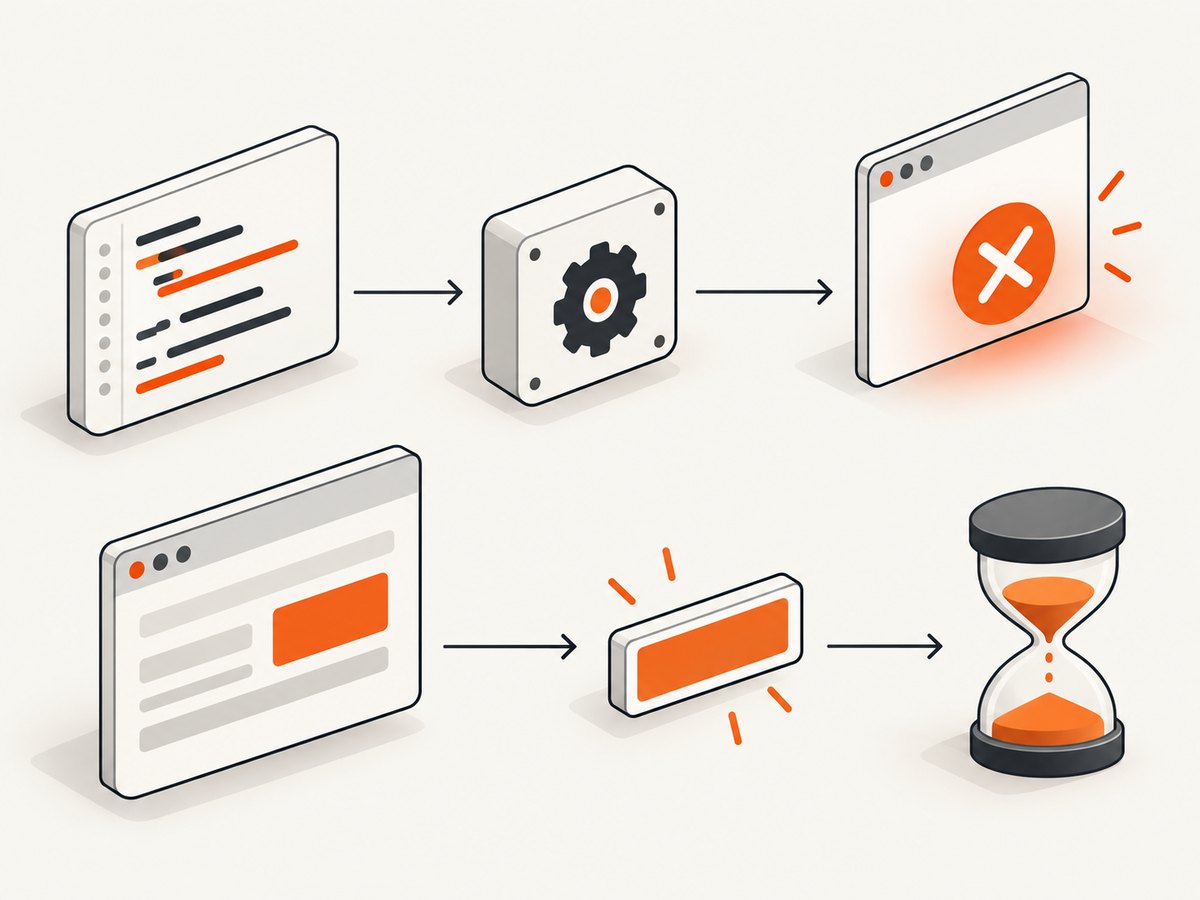
These two failures require different investigations:
| Where it fails | Typical evidence | First checks |
|---|---|---|
webdriver.Chrome(...) |
SessionNotCreatedException, Chrome exits immediately, driver cannot be reached |
Version match, executable paths, permissions, OS restrictions, logs |
get(), element lookup, click, script, or screenshot |
Browser session exists, then a command fails | Page URL, load state, locator, explicit waits, command traceback |
Selenium’s Python API defines SessionNotCreatedException separately from the base WebDriverException. Use the specific exception and message when classifying the failure. See the Selenium Python exceptions API and the project’s troubleshooting guide.
2. Check Chrome and ChromeDriver compatibility
For current Chrome, the browser and ChromeDriver major versions should match. A browser updated by an operating-system package can easily become newer than a driver left on PATH. Check both sides instead of assuming they were upgraded together.
google-chrome --version
# or, depending on your system:
chromium --version
chromedriver --version
python --version
python -c "import selenium; print(selenium.__version__)"
Chrome milestone 115 and later use an integrated Chrome for Testing release process. The official ChromeDriver version-selection documentation describes the matching process and JSON endpoints for versioned downloads. If your environment pins Chrome, pin a compatible driver too. If Chrome is managed by a base image, verify which driver executable is actually being found:
which google-chrome
which chromium
which chromedriver
ls -l "$(which chromedriver)"
Selenium 4.6 and newer includes Selenium Manager, which can obtain a needed driver in supported environments. Start with that built-in path before adding a manually downloaded driver:
from selenium import webdriver

options = webdriver.ChromeOptions()
options.add_argument("--headless")
driver = webdriver.Chrome(options=options)
try:
    driver.get("https://example.com")
    print(driver.title)
finally:
    driver.quit()
If Selenium Manager cannot use your environment’s network, package manager, or custom browser installation, configure the paths explicitly. Selenium’s driver installation guidance explains the alternatives.
3. Verify browser and driver executables
A correct version is not enough if the process cannot execute the binary. Confirm that:
- The configured Chrome binary exists.
- The ChromeDriver file exists and has execute permission.
- The user running the script can read and execute both files.
- Security policy, sandboxing, or a CI restriction is not terminating Chrome.
- The driver is not a stale copy earlier on
PATH.
For a custom Chrome location, use binary_location. For a custom driver, use Selenium’s Service object:
from selenium import webdriver
from selenium.webdriver.chrome.service import Service

options = webdriver.ChromeOptions()
options.binary_location = "/opt/google/chrome/google-chrome"
options.add_argument("--headless")

service = Service(executable_path="/opt/bin/chromedriver")
driver = webdriver.Chrome(service=service, options=options)
try:
    driver.get("https://example.com")
    print(driver.current_url)
finally:
    driver.quit()
Only set an explicit driver path when you need one. An incorrect path produces a misleading startup failure, while Selenium Manager can resolve the driver automatically in many normal installations.
4. Use the current headless configuration
Use Chrome’s supported headless flag through ChromeOptions:
from selenium import webdriver

options = webdriver.ChromeOptions()
options.add_argument("--headless")
options.add_argument("--window-size=1365,900")

driver = webdriver.Chrome(options=options)
try:
    driver.get("https://example.com")
    driver.save_screenshot("example.png")
finally:
    driver.quit()
Chrome’s current headless implementation was introduced in Chrome 112. Since Chrome 132, the old headless implementation is distributed separately as the chrome-headless-shell binary. Prefer --headless for current Chrome unless you have a documented reason to use legacy behavior. Selenium’s Chrome documentation also lists --headless=new; it can be useful when an older environment specifically expects that spelling.
Do not use the removed Python pattern options.headless = True in current Selenium. Add a command-line argument instead. Keep the headless choice separate from compatibility diagnosis: changing a flag cannot repair a mismatched driver or an inaccessible executable.
5. Turn on ChromeDriver logs
When Chrome exits during session creation, logs are more useful than guessing at flags. Selenium 4.11 and later supports log_output on the Chrome service:
from selenium import webdriver
from selenium.webdriver.chrome.service import Service

options = webdriver.ChromeOptions()
options.add_argument("--headless")
service = Service(log_output="chromedriver.log")

driver = webdriver.Chrome(service=service, options=options)
try:
    driver.get("https://example.com")
finally:
    driver.quit()
Preserve the log with the traceback. It can show that Chrome exited, a binary path was wrong, a command failed during session negotiation, or the driver could not bind to its local endpoint. The Selenium Chrome documentation and Python Service API document logging options.
6. If startup succeeds, investigate the command that failed
A successful webdriver.Chrome() call proves that a session was created. It does not prove that a page has loaded, that a selector is correct, or that an element is interactable.
Wait for a condition instead of sleeping blindly
from selenium import webdriver
from selenium.webdriver.common.by import By
from selenium.webdriver.support.ui import WebDriverWait
from selenium.webdriver.support import expected_conditions as EC

options = webdriver.ChromeOptions()
options.add_argument("--headless")
driver = webdriver.Chrome(options=options)

try:
    driver.get("https://example.com")
    heading = WebDriverWait(driver, 15).until(
        EC.visibility_of_element_located((By.TAG_NAME, "h1"))
    )
    print(heading.text)
finally:
    driver.quit()
If an element lookup fails, verify the current URL, page source, frame context, and locator. A no-such-element error can mean the element has not appeared yet, the page navigated somewhere unexpected, the element is inside an iframe, or the selector no longer matches.
Print state at the failure point
print("URL:", driver.current_url)
print("Title:", driver.title)
print("Ready state:", driver.execute_script("return document.readyState"))
print(driver.page_source[:1000])
Selenium’s troubleshooting documentation identifies synchronization as a common source of failures and recommends appropriate waits. If the same command works in another browser, that comparison can help isolate a driver or browser-specific problem.
7. Linux, containers, and CI environments
Headless Chrome is often run in a container or restricted CI process. Treat Linux-specific errors as evidence-driven environment problems. Check the actual ChromeDriver log for missing libraries, denied execution, a terminated process, or resource limits. Selenium’s common-errors guide lists incompatibility, system restrictions, and missing, inaccessible, or non-executable drivers as possible causes.
Do not add --no-sandbox, shared-memory workarounds, or a large collection of flags automatically. Those options change security and process behavior and may hide the real cause. First establish which process failed and why. Confirm the container includes a compatible Chrome binary, its required libraries, writable temporary directories, and enough memory for the page being loaded.
8. A complete diagnostic script
This script records versions, launches modern headless Chrome, writes a driver log, waits for a page condition, and reports whether failure happened at startup or later:
import platform
import sys
import traceback

import selenium
from selenium import webdriver
from selenium.common.exceptions import WebDriverException
from selenium.webdriver.common.by import By
from selenium.webdriver.chrome.service import Service
from selenium.webdriver.support.ui import WebDriverWait
from selenium.webdriver.support import expected_conditions as EC

print("Python:", sys.version)
print("Platform:", platform.platform())
print("Selenium:", selenium.__version__)

options = webdriver.ChromeOptions()
options.add_argument("--headless")
options.add_argument("--window-size=1365,900")
service = Service(log_output="chromedriver.log")

driver = None
try:
    try:
        driver = webdriver.Chrome(service=service, options=options)
    except WebDriverException:
        print("Chrome session creation failed")
        traceback.print_exc()
        raise

    try:
        driver.get("https://example.com")
        WebDriverWait(driver, 15).until(
            EC.presence_of_element_located((By.TAG_NAME, "body"))
        )
        print("Loaded:", driver.current_url)
        print("Title:", driver.title)
    except WebDriverException:
        print("A browser command failed after startup")
        traceback.print_exc()
        raise
finally:
    if driver is not None:
        driver.quit()
9. Common errors and fixes
| Error or symptom | Likely cause | Fix |
|---|---|---|
SessionNotCreatedException: This version of ChromeDriver only supports Chrome version ... |
Major-version mismatch | Install a matching driver, update the browser, or let Selenium Manager resolve the pair. |
WebDriverException: unknown error: cannot find Chrome binary |
Chrome is absent or installed outside the expected path | Install Chrome/Chromium or set options.binary_location to the real executable. |
| Driver executable cannot be found or executed | Wrong PATH, missing file, or permissions |
Run which chromedriver, inspect permissions, and use Service(executable_path=...) when necessary. |
| Chrome starts and then a command fails | Page state, selector, frame, or timing problem | Read the traceback line, print URL and ready state, and use an explicit wait for the required condition. |
| Headless works locally but fails in CI | Different browser version, image, user, permissions, or resource limits | Record versions in both environments and inspect ChromeDriver logs from the CI run. |
| Blank or incomplete page | Navigation is still in progress or the page depends on scripts/resources | Wait for a meaningful element or application condition rather than assuming get() means the UI is ready. |
| Changing flags does nothing | The root cause is compatibility, paths, or access | Return to the startup-versus-command split and verify versions and executable access. |
10. Local WebDriver or remote browser?
Local WebDriver is appropriate when you control the installed browser, driver, operating system, and dependencies. It gives direct control but makes version pinning, upgrades, and CI reproducibility your responsibility.
Remote WebDriver or hosted browser testing is useful when you need centrally managed browser versions, multiple operating systems, or repeatable remote sessions. Compare browser/version coverage, diagnostics, integration, reproducibility, and cost before choosing a service. Selenium documents remote sessions in its driver documentation; the sources for this article do not establish vendor pricing or a provider ranking.
11. Performance, reliability, and cost considerations
- Startup cost: Creating a new Chrome session is usually more expensive than reusing a session for related actions. Reuse only when isolation and state leakage are acceptable.
- Wait cost: Explicit waits return as soon as a condition is true. Long fixed sleeps slow successful runs and still fail when a page needs longer.
- Repeatability: Pin browser and driver versions in CI, record the image identifier, and preserve ChromeDriver logs for failed runs.
- Resource limits: A page with many scripts, images, or tabs needs more CPU and memory. Measure the failing environment rather than copying flags from an unrelated setup.
- Retries: Retry only errors that are plausibly transient, such as a temporary navigation failure. Repeating a deterministic version mismatch will not help.
- Cost: Local Selenium has no Selenium license charge, but your machine or CI minutes, browser maintenance, and debugging time still have costs. Hosted sessions add provider charges and can reduce environment-maintenance work.
Or skip the browser setup
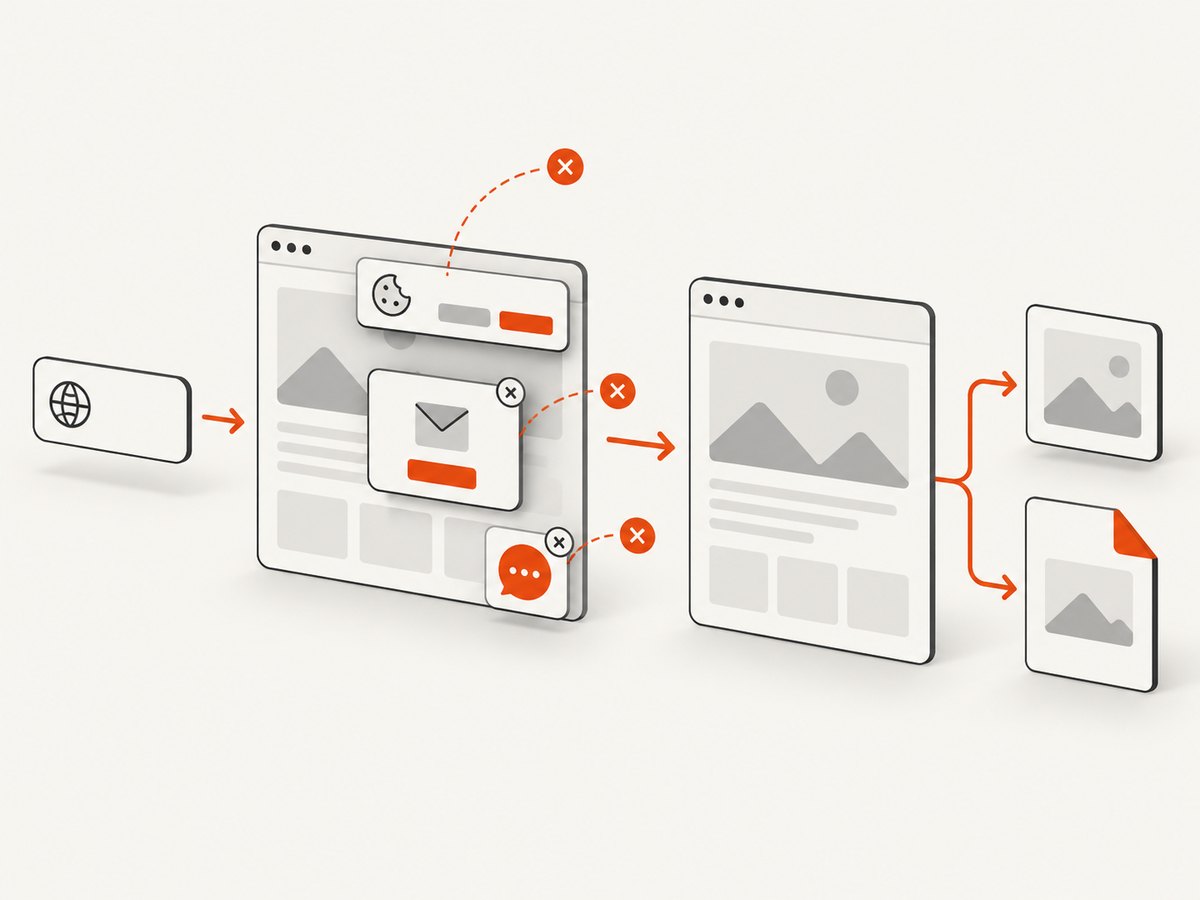
If your goal is a reliable screenshot rather than browser automation itself, ScreenshotNeo provides a website screenshot API and MCP server. One GET request returns a PNG, JPEG, WebP, or PDF. It handles the browser setup and can remove cookie banners, newsletter popups, and chat widgets before capture.
Use the ScreenshotNeo API documentation for all options. Minimal calls:
cURL
curl -G "https://api.screenshotneo.com/v1/shot" -d access_key=YOUR_API_KEY --data-urlencode url=https://stripe.com -o shot.webpPython
import requests

r = requests.get("https://api.screenshotneo.com/v1/shot", params={"access_key": "YOUR_API_KEY", "url": "https://stripe.com"}, timeout=90)
open("shot.webp", "wb").write(r.content)
Node.js
const q = new URLSearchParams({ access_key: 'YOUR_API_KEY', url: 'https://stripe.com' });
const res = await fetch(`https://api.screenshotneo.com/v1/shot?${q}`);
ScreenshotNeo supports full-page and element captures, dark mode, device presets, custom viewports, retina scale, PDF settings, custom CSS and JavaScript, clicks, waits, blocked resources, headers, cookies, user agents, authorization, timezone, geolocation, transparent backgrounds, resizing, caching, signed links, asynchronous jobs, webhooks, bulk capture, usage data, and an OpenAPI specification. Its MCP server exposes take_screenshot, get_page_info, and capture_pdf for Claude, Cursor, and other MCP clients.
Only clean shots are billed. Bot checks or CAPTCHAs, blank pages, timeouts, failed loads, and cache hits cost nothing, and each response reports the result with X-Page-Verdict and X-Billed headers. The free plan includes 1,000 shots per month with no card; paid plans start at $5 for 3,000 shots. Create a free ScreenshotNeo account.
12. FAQ
Is every WebDriverException a ChromeDriver problem?
No. It is a base WebDriver exception. The traceback and the command that failed determine whether the problem is session creation, navigation, synchronization, or another browser command.
Should Chrome and ChromeDriver have exactly the same full version?
Start by matching their major versions. For Chrome 115 and later, use the Chrome for Testing version-selection process or Selenium Manager rather than guessing at a download.
Is --headless=new required?
Usually no. Current Chrome guidance supports --headless for modern headless mode. Use the spelling required by your pinned environment and keep it separate from driver compatibility checks.
Why does a script fail only after driver.get()?
The session may be healthy while the page is still loading, the selector is wrong, a frame was not selected, or the site rendered different content. Print page state and add an explicit wait for the condition your command needs.
When should I use a remote browser?
Consider one when you need centrally managed versions, several browser environments, or repeatable remote execution. Compare coverage, diagnostics, integration, reproducibility, and cost for your workload.


