How to Fix WebdriverIO Chrome Headless Mode Not Running Headlessly
Fix visible Chrome windows in WebdriverIO with the right capability, Chrome flags, CI checks, and Xvfb guidance for Linux environments.
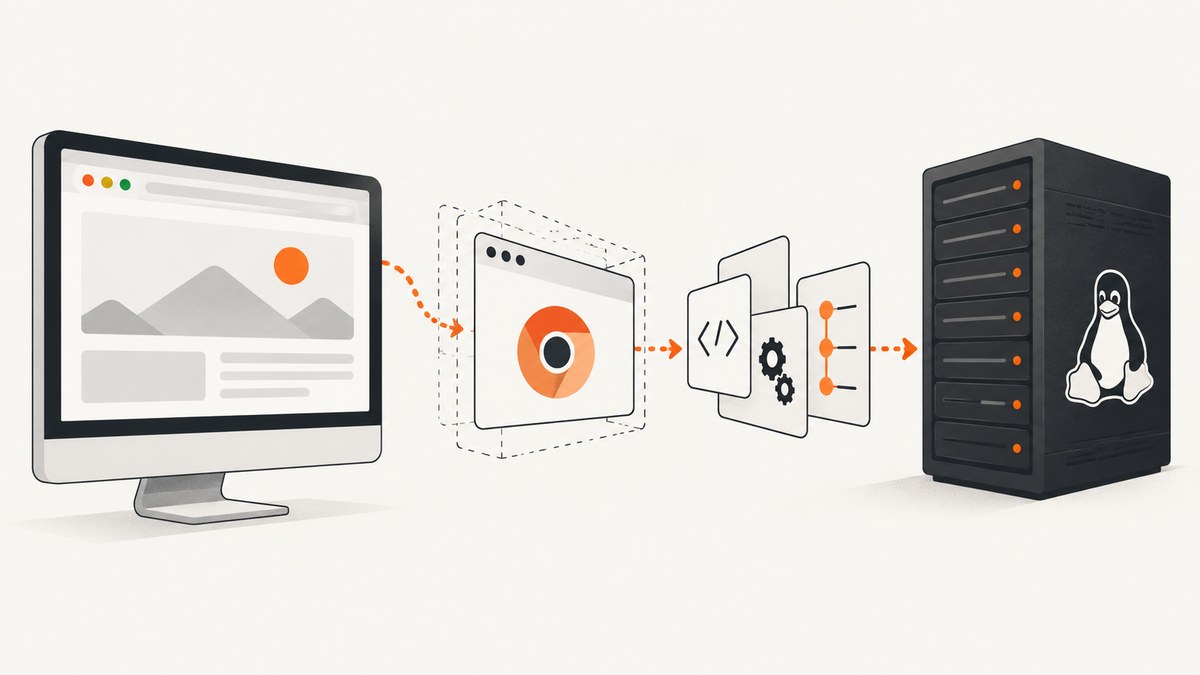
If WebdriverIO opens a visible Chrome window, put the headless argument in the Chrome capability that creates the session. The minimum working configuration is browserName: 'chrome' plus goog:chromeOptions.args containing headless (or --headless=new). Then verify that this exact capability object is selected by your local, CI, Docker, or multiremote setup.
export const config = {
  capabilities: [{
    browserName: 'chrome',
    'goog:chromeOptions': {
      args: ['headless', 'disable-gpu']
    }
  }]
};
WebdriverIO documents this capability shape in its Capabilities guide. Its headless and Xvfb guide also shows --headless=new with --no-sandbox for an Xvfb-backed setup. Native headless is usually the first choice; Xvfb is for environments that genuinely need a display server or desktop behavior.
1. Confirm which WebdriverIO configuration launches Chrome
A frequent cause is editing one configuration file while the test command loads another. WebdriverIO can select capabilities conditionally, and CI branches often differ from local branches. Start by finding the command and file that create the failing session.
- Check the npm script, CLI arguments, and
wdio.conf.*file used by the failing command. - Locate the active
capabilitiesarray, including values added by environment-specific code. - Confirm that the failing browser entry has
browserName: 'chrome'. - Confirm that
goog:chromeOptionsis nested inside that same capability object. - Print or inspect the final configuration in CI so you can see the branch actually used.
const isCI = process.env.CI === 'true';

export const config = {
  capabilities: [{
    browserName: 'chrome',
    'goog:chromeOptions': {
      args: isCI
        ? ['headless', 'disable-gpu']
        : []
    }
  }]
};
If the window appears only in CI, inspect the CI branch rather than assuming the local capability is reused. WebdriverIO’s setup examples demonstrate applying Chrome arguments conditionally for CI.
2. Use the correct Chrome argument
WebdriverIO’s capabilities example uses headless and disable-gpu. Chrome’s documentation describes native headless mode with the --headless flag. In JavaScript capability arrays, both headless and --headless are commonly passed as argument strings; use the spelling shown by your WebdriverIO and Chrome version documentation.
export const config = {
  capabilities: [{
    browserName: 'chrome',
    'goog:chromeOptions': {
      args: ['--headless=new', '--no-sandbox']
    }
  }]
};
The explicit --headless=new form appears in WebdriverIO’s Xvfb example. Do not mix up a Chrome argument with a top-level WebdriverIO option. This is correct:
{
  browserName: 'chrome',
  'goog:chromeOptions': {
    args: ['headless']
  }
}
This does not configure Chrome’s command line:
{
  browserName: 'chrome',
  headless: true
}
The second form places the value outside Chrome’s goog:chromeOptions extension, so it is not the capability structure documented for this purpose.
3. Understand Chrome’s current headless behavior
Chrome changed its unified headless implementation in version 112. In this mode, Chrome can create platform windows internally while displaying no user interface. Seeing no window is therefore the expected result, even though the browser still performs normal navigation and rendering work.
Chrome also documents that the old headless implementation became a separate chrome-headless-shell binary starting with Chrome 132.0.6793.0. If a project depends on behavior specific to the old implementation, check its browser and driver versions rather than assuming the old mode is still part of the regular Chrome binary. See the official Chrome Headless mode documentation.
4. Decide between native headless and Xvfb
| Approach | Use it when | What it provides |
|---|---|---|
| Native Chrome headless | The test does not require a display server, window manager, desktop environment, or GLX behavior. | Chrome runs without a visible UI through its headless argument. |
| Xvfb-backed Chrome | Linux tooling expects DISPLAY, or tests depend on desktop, window-manager, or GLX behavior. |
A virtual display for software that still expects graphical environment services. |
WebdriverIO recommends native headless where possible and documents Xvfb for cases that need a display server. Xvfb does not itself mean Chrome is in native headless mode; it supplies a virtual display. You can run Chrome with a virtual display and still have a browser process that behaves like a headed session inside that display.
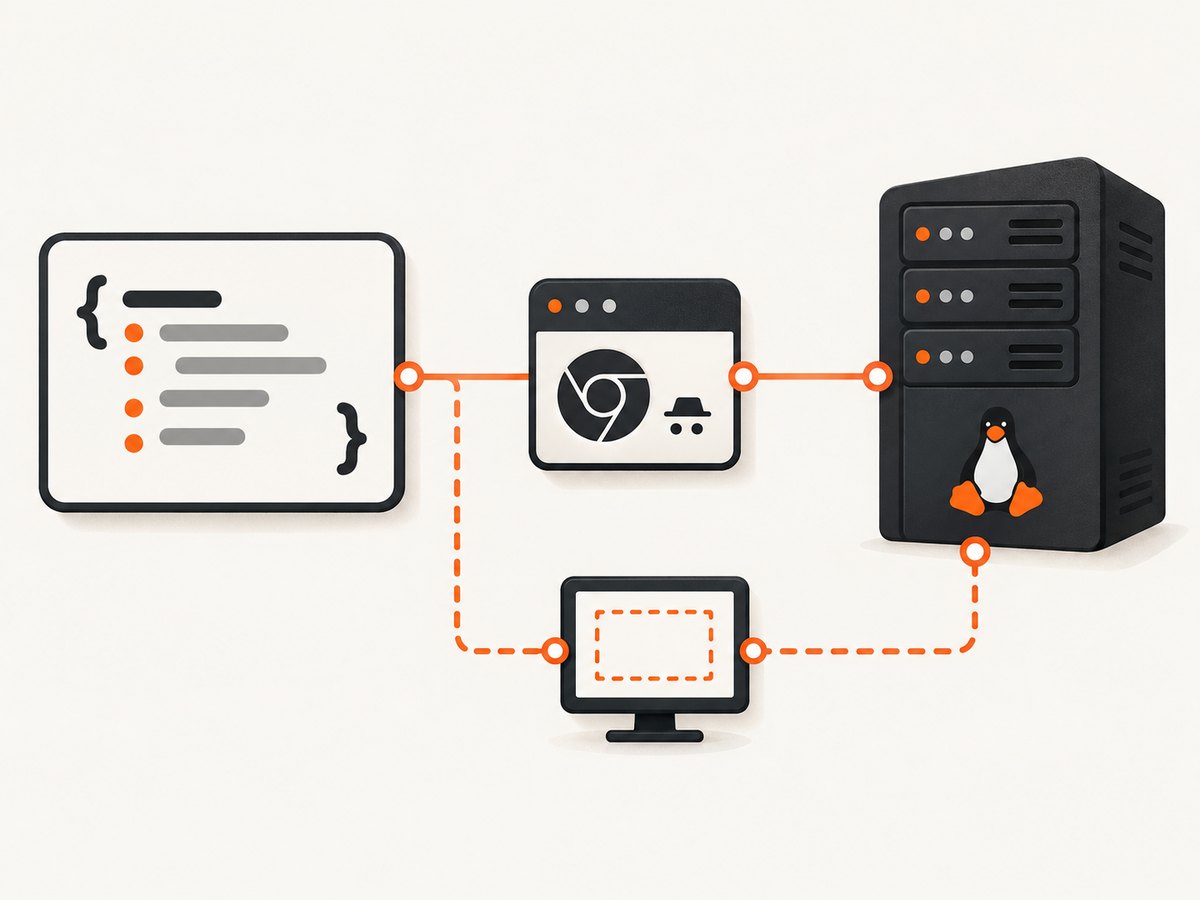
export const config = {
  capabilities: [{
    browserName: 'chrome',
    'goog:chromeOptions': {
      args: ['--headless=new', '--no-sandbox']
    }
  }]
};
Use Xvfb when a dependency fails because DISPLAY is missing or when a test explicitly exercises desktop integration. If the test is ordinary browser automation, remove that dependency and use native headless first.
5. Docker and CI checks
Container failures can look like a headless configuration problem. WebdriverIO’s Docker guide covers container setup and points users configuring Chrome toward headless capabilities. Apply that guidance to the image and runtime you actually use; there is no single Docker command that fits every image.
Check these items inside the failing job:
- The Chrome or Chromium executable exists in the container.
- The driver and browser versions are compatible with the project’s setup.
- The process has permission to write its temporary profile and shared-memory files.
- The command is using the intended WebdriverIO configuration file.
- No wrapper script removes or replaces
goog:chromeOptions.args. - If using Xvfb, the virtual display starts before WebdriverIO and
DISPLAYis exported.
Keep the final capability small while diagnosing. Add one argument at a time after a basic headless session starts.
6. A complete WebdriverIO example
This configuration runs Chrome headlessly in CI and visibly during local development, which makes debugging convenient while keeping automated runs unattended.
// wdio.conf.js
const isCI = process.env.CI === 'true';

exports.config = {
  runner: 'local',
  specs: ['./test/specs/**/*.js'],
  maxInstances: 1,
  capabilities: [{
    browserName: 'chrome',
    'goog:chromeOptions': {
      args: [
        ...(isCI ? ['headless', 'disable-gpu'] : [])
      ]
    }
  }],
  logLevel: 'info',
  framework: 'mocha',
  reporters: ['spec'],
  mochaOpts: {
    timeout: 60000
  }
};
For a Linux environment that needs a virtual display, use the Xvfb workflow described by WebdriverIO and retain the explicit Chrome arguments shown in its documentation. For a normal CI browser test, remove the Xvfb dependency and keep the native headless capability.
7. Troubleshooting common symptoms
Chrome opens a window
Cause: The selected capability lacks the headless argument, or a conditional configuration selected a different capability. Fix: Inspect the final capability list used by the session and place headless under that capability’s goog:chromeOptions.args.
The argument is present but has no effect
Cause: The option is at the wrong nesting level, misspelled, or attached to a different browser entry. Fix: Match the documented structure exactly: browserName beside goog:chromeOptions, with args inside the latter.
Chrome fails immediately with a sandbox error
Cause: Some container environments cannot use Chrome’s sandbox with their current user or permissions. Fix: Follow the container guidance for your image and, where appropriate, use the documented Xvfb example’s --no-sandbox argument. Treat this as an environment-specific workaround and keep the container permissions explicit.
The job reports a missing display
Cause: A dependency expects DISPLAY, even though Chrome itself could run natively headless. Fix: Either remove the desktop dependency or configure Xvfb and export its display before starting WebdriverIO.
Only one project in a multiremote run is visible
Cause: Each browser capability is independent. One entry may contain the flag while another does not. Fix: Check every Chrome capability object, not just the first entry.
Headless behavior changed after a browser upgrade
Cause: Chrome’s unified headless implementation and the separate old headless shell have changed over time. Fix: Record the installed Chrome version, driver version, and exact arguments, then compare them with current Chrome and WebdriverIO documentation.
Tests pass locally but fail in CI
Cause: Different configuration branches, browser binaries, permissions, or display services. Fix: Log the selected capability (without secrets), browser version, environment branch, and DISPLAY value. Reproduce with the same container or runner image.
8. Reliability and performance considerations
Native headless removes the need to start a desktop session, which usually simplifies CI startup and avoids failures caused solely by unavailable displays. It does not eliminate page-load time, JavaScript execution, network delays, or test synchronization problems. Keep WebdriverIO waits tied to application state rather than arbitrary sleeps.
Xvfb adds another process and another startup dependency. Use it when its virtual display solves a real compatibility requirement. If a test does not need desktop behavior, native headless reduces moving parts.
For reproducibility, pin the browser family used by CI, record browser and driver versions in job artifacts, and keep the Chrome argument list in one shared configuration function. When investigating a regression, first compare those values before changing test timeouts.
9. Capture screenshots without maintaining a browser runner
If your goal is a clean page image rather than interactive browser testing, ScreenshotNeo removes the browser setup. It is a website screenshot API and MCP server: one GET request returns PNG, JPEG, WebP, or a PDF. Cookie and consent banners, newsletter popups, and chat widgets are removed before capture. Bot checks, blank pages, timeouts, failed loads, and cache hits are not billed, and the response identifies the result with X-Page-Verdict and X-Billed headers.

Or skip the browser setup
Use the API directly when you need a screenshot in a build, documentation job, or content pipeline.
curl -G "https://api.screenshotneo.com/v1/shot" -d access_key=YOUR_API_KEY --data-urlencode url=https://stripe.com -o shot.webpimport requests
r = requests.get(
"https://api.screenshotneo.com/v1/shot",
params={"access_key": "YOUR_API_KEY", "url": "https://stripe.com"},
timeout=90,
)
r.raise_for_status()
open("shot.webp", "wb").write(r.content)const q = new URLSearchParams({
access_key: 'YOUR_API_KEY',
url: 'https://stripe.com'
});
const res = await fetch(`https://api.screenshotneo.com/v1/shot?${q}`);
if (!res.ok) throw new Error(`Screenshot failed: ${res.status}`);
const image = Buffer.from(await res.arrayBuffer());
require('node:fs').writeFileSync('shot.webp', image);See the ScreenshotNeo API documentation for request options. The service supports full-page captures with lazy images loaded, CSS-selector element captures, dark mode, device presets and custom viewports, retina scale, PDF paper and page controls, custom CSS and JavaScript, clicks, selector or network-idle waits, request blocking, headers, cookies, user agents, authorization, timezone, geolocation, transparent backgrounds, resizing, TTL caching, signed links, asynchronous jobs with signed webhooks, bulk capture for up to 100 URLs per call, usage reporting, and an OpenAPI specification. An MCP server provides take_screenshot, get_page_info, and capture_pdf for Claude, Cursor, and other MCP clients.
There are 1,000 screenshots per month free with no card. Paid plans start at $5 for 3,000 screenshots, and every feature is available on every plan. Create a free ScreenshotNeo account.
10. Cost and operational notes
WebdriverIO and Chrome run in your own environment, so their direct cost depends on your CI, machines, maintenance, and browser operations. You also own the work of handling browser upgrades, display services, retries, profiles, and artifacts.
ScreenshotNeo charges only for clean shots. Failed loads, bot checks, blank pages, timeouts, and cache hits cost nothing, which can make automated capture accounting easier. Choose a cache TTL when repeated URLs do not need a fresh render, and use asynchronous jobs or bulk capture when a pipeline has many URLs.
FAQ
Should I use headless or --headless=new?
Use the form shown in the WebdriverIO example for your setup. WebdriverIO’s capabilities example uses headless; its Xvfb example uses --headless=new.
Does Xvfb make Chrome headless?
No. Xvfb supplies a virtual display. Native Chrome headless is enabled by Chrome’s headless argument.
Why is there no screenshot window in headless mode?
Headless mode is designed to run without visible UI. Capture screenshots as test artifacts or use a screenshot API when you need image output.
Where should I look first after a Chrome upgrade?
Record the Chrome version, driver version, selected capability, and argument list, then compare them with the current Chrome Headless and WebdriverIO documentation.


