How to Fix WebElement.getScreenshotAs(OutputType.FILE) in Selenium
Fix Selenium element screenshot errors, temporary files, unsupported drivers, stale elements, paths, and reliable alternatives with runnable Java code.
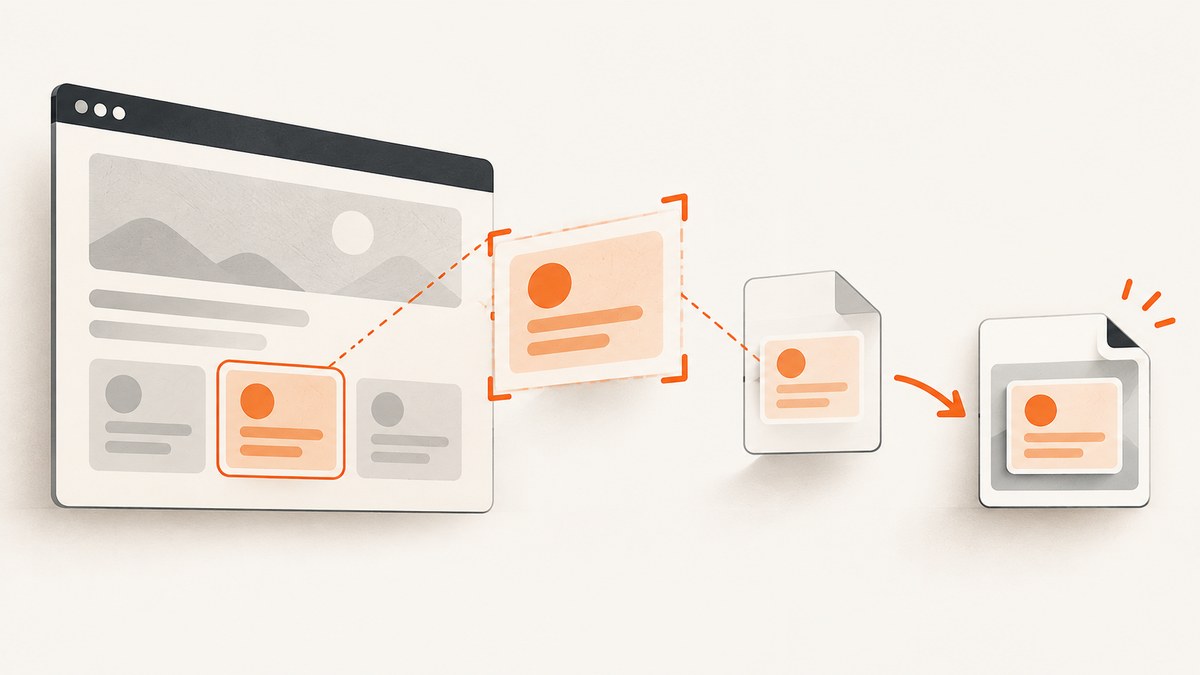
Direct answer: In Selenium Java, call getScreenshotAs(OutputType.FILE) on the WebElement you found, then copy the returned temporary file to a destination you control. The capture and the save are separate operations. If the method returns a File but the later copy fails, your screenshot worked and the problem is the destination path, permissions, or file handling.
WebElement element = driver.findElement(By.cssSelector("h1"));
File temporaryScreenshot = element.getScreenshotAs(OutputType.FILE);
FileUtils.copyFile(temporaryScreenshot, new File("./element.png"));
WebElement extends Selenium’s screenshot capability interface, but the concrete browser driver or remote implementation must support element screenshots. Selenium documents UnsupportedOperationException for an implementation that does not support the operation and WebDriverException when capture itself fails. See the TakesScreenshot Java API and WebElement Java API.
1. Use a complete capture-and-save program
This example opens a page, waits for an element to exist, captures that element, copies the temporary file, and always quits the driver.
import java.io.File;
import java.io.IOException;

import org.apache.commons.io.FileUtils;
import org.openqa.selenium.By;
import org.openqa.selenium.OutputType;
import org.openqa.selenium.WebDriver;
import org.openqa.selenium.WebElement;
import org.openqa.selenium.chrome.ChromeDriver;
import org.openqa.selenium.support.ui.ExpectedConditions;
import org.openqa.selenium.support.ui.WebDriverWait;

import java.time.Duration;

public class ElementScreenshot {
  public static void main(String[] args) throws IOException {
    WebDriver driver = new ChromeDriver();
    try {
      driver.get("https://example.com");

      WebDriverWait wait = new WebDriverWait(driver, Duration.ofSeconds(10));
      WebElement element = wait.until(
          ExpectedConditions.visibilityOfElementLocated(By.cssSelector("h1")));

      File temporaryScreenshot = element.getScreenshotAs(OutputType.FILE);
      File destination = new File("./artifacts/element.png");
      FileUtils.forceMkdirParent(destination);
      FileUtils.copyFile(temporaryScreenshot, destination);

      System.out.println("Saved: " + destination.getAbsolutePath());
    } finally {
      driver.quit();
    }
  }
}
The FileUtils class comes from Apache Commons IO. If it is not already in your build, add that dependency or use Java’s standard file-copy API:
import java.nio.file.Files;
import java.nio.file.Path;
import java.nio.file.StandardCopyOption;

Files.createDirectories(Path.of("artifacts"));
Files.copy(
    temporaryScreenshot.toPath(),
    Path.of("artifacts/element.png"),
    StandardCopyOption.REPLACE_EXISTING);
Selenium’s OutputType.FILE result is temporary. Copy it immediately. Do not assume the temporary file name is your final artifact or that it will remain after the Java virtual machine exits.
2. Check the receiver, argument, and scope
The receiver must be a WebElement
This is correct:
WebElement card = driver.findElement(By.id("pricing-card"));
File file = card.getScreenshotAs(OutputType.FILE);
A driver-level screenshot has a different scope:
File page = ((TakesScreenshot) driver).getScreenshotAs(OutputType.FILE);Use the element call for one element and the driver call for the current browsing context. A driver screenshot does not mean “capture the element I last found.”
Use Selenium’s OutputType
Import org.openqa.selenium.OutputType. An unrelated class with the same name, or a null argument, can produce confusing compilation or runtime errors.
Choose the output that matches your pipeline
| Output | Result | Use it when |
|---|---|---|
FILE |
Temporary file | You want to copy an image to a filesystem destination. |
BYTES |
Raw byte[] |
You will upload, hash, compare, or process the image in memory. |
BASE64 |
Base64 text | Your transport or storage format requires text. |
byte[] png = element.getScreenshotAs(OutputType.BYTES);
Files.write(Path.of("element.png"), png);

String encoded = element.getScreenshotAs(OutputType.BASE64);
System.out.println(encoded.length());
3. Diagnose the common failures
UnsupportedOperationException
Cause: The active driver, browser, or remote/Grid implementation does not expose element screenshot support.
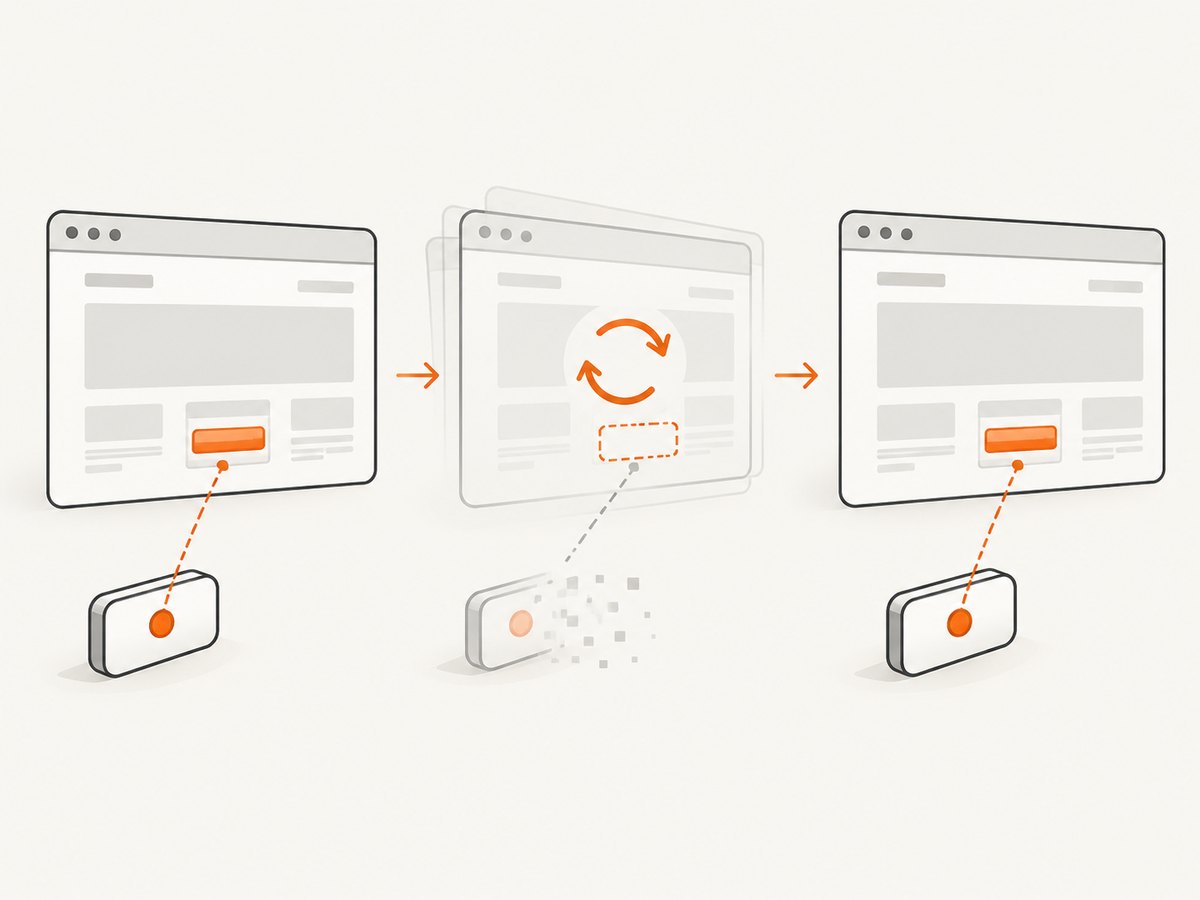
Fix: Check the concrete browser driver and Selenium versions, then try a driver-level screenshot to establish whether any screenshot capability is available. If the element operation remains unsupported, use a compatible local driver or capture the full page and crop it separately. Remote vendors and older driver combinations can implement the interfaces differently, so verify the versions actually running in the test environment.
WebDriverException during capture
Cause: The browser session failed, the renderer crashed, the page is no longer usable, or the remote endpoint rejected the screenshot command.
Fix: Inspect the complete exception message and session logs. Confirm that the driver has not quit, that the browser process is alive, and that the element belongs to the current window or frame. Retry only after fixing the session condition; blind retries can hide deterministic failures.
StaleElementReferenceException
Cause: The DOM node was replaced after you located it. Single-page applications frequently rerender cards, headings, and lists.
Fix: Wait for the page update to finish, locate the element again, and capture the fresh reference:
By locator = By.cssSelector(".product-card");
WebDriverWait wait = new WebDriverWait(driver, Duration.ofSeconds(10));
WebElement card = wait.until(ExpectedConditions.visibilityOfElementLocated(locator));
File shot = card.getScreenshotAs(OutputType.FILE);
Do not keep a WebElement field across navigation, refreshes, or known DOM replacement.
NoSuchElementException
Cause: The selector is wrong, the element has not loaded, or it is inside an iframe or shadow root.
Fix: Verify the selector in the browser, wait for the correct condition, and switch context when necessary:
driver.switchTo().frame(driver.findElement(By.cssSelector("iframe.checkout")));
WebElement total = new WebDriverWait(driver, Duration.ofSeconds(10))
    .until(ExpectedConditions.visibilityOfElementLocated(By.cssSelector(".total")));
File shot = total.getScreenshotAs(OutputType.FILE);
driver.switchTo().defaultContent();
For shadow DOM, obtain the shadow root and query inside it instead of asking the document for a selector it cannot see.
The copy fails after capture
Cause: The destination directory does not exist, the process lacks write permission, the path is relative to an unexpected working directory, or another process has locked the file.
Fix: Print destination.getAbsolutePath(), create parent directories, use a writable workspace directory, and copy before the driver or JVM shuts down. In CI, save artifacts under the directory exported by your runner rather than assuming the project root is writable.
The file exists but appears blank or incomplete
Cause: The element was present before its content, fonts, images, or animations finished rendering. A hidden element can also produce an unhelpful result.
Fix: Wait for visibility and a page-specific readiness condition. Disable or pause animations with test CSS, scroll the element into view, and capture after asynchronous content has settled. A fixed delay is less reliable than waiting for a selector or state that represents readiness.
4. Make captures deterministic
- Set the viewport deliberately. Responsive layouts can move or resize the target at different window sizes.
- Wait for state, not time. Prefer an explicit element, text, or application-ready marker. Use a short delay only for a known animation or third-party widget.
- Control scrolling. Scroll the element into view before capture when sticky headers or lazy rendering affect its appearance.
- Freeze visual changes. Hide blinking cursors, pause carousels, and use stable test data where pixel comparisons matter.
- Keep the session alive. Copy the result before
driver.quit()and before test cleanup removes temporary directories.
((JavascriptExecutor) driver).executeScript(
    "arguments[0].scrollIntoView({block: 'center', inline: 'nearest'});", element);
Element screenshots describe the rendered element as the browser sees it. They do not automatically provide a full-page document, PDF pagination, or an image of content outside the element’s bounds.
5. Full page versus element screenshots
| Need | Recommended approach | Reason |
|---|---|---|
| One component for a visual test | WebElement.getScreenshotAs |
Small, focused artifact with less unrelated page noise. |
| Visible browser viewport | Driver-level TakesScreenshot |
Captures the current browsing context. |
| Entire long page | Driver/browser full-page capability or a screenshot API | Viewport capture alone may omit content below the fold. |
| Printable document | PDF generation | Pagination, paper size, margins, and print layout need document controls. |
If your test only needs an element, do not make it harder by stitching many viewport screenshots. If you need a consistent full-page artifact across browsers and environments, a capture service can remove browser setup from the job.
6. Or skip the browser setup
ScreenshotNeo provides a website screenshot API and MCP server. One GET request returns PNG, JPEG, WebP, or a PDF. See the ScreenshotNeo API documentation for the complete option list.
curl -G "https://api.screenshotneo.com/v1/shot" -d access_key=YOUR_API_KEY --data-urlencode url=https://stripe.com -o shot.webpimport requests
r = requests.get("https://api.screenshotneo.com/v1/shot", params={"access_key": "YOUR_API_KEY", "url": "https://stripe.com"}, timeout=90)
open("shot.webp", "wb").write(r.content)const q = new URLSearchParams({ access_key: 'YOUR_API_KEY', url: 'https://stripe.com' });
const res = await fetch(`https://api.screenshotneo.com/v1/shot?${q}`);ScreenshotNeo accepts the parameter names used by other screenshot APIs, which makes switching straightforward. Relevant controls include full-page capture with lazy images loaded, a CSS element selector, dark mode, 12 device presets or any viewport, retina scale, custom CSS and JavaScript, clicks, hidden selectors, waits for a selector, delay or network idle, blocked ads, trackers, requests or resource types, custom headers, cookies, user agent and Authorization, timezone, geolocation, transparent backgrounds, image resizing, chosen cache TTL, signed links, asynchronous jobs with signed webhooks, bulk capture for 100 URLs per call, usage reporting, and PDF paper size, margins, landscape mode, and page ranges.
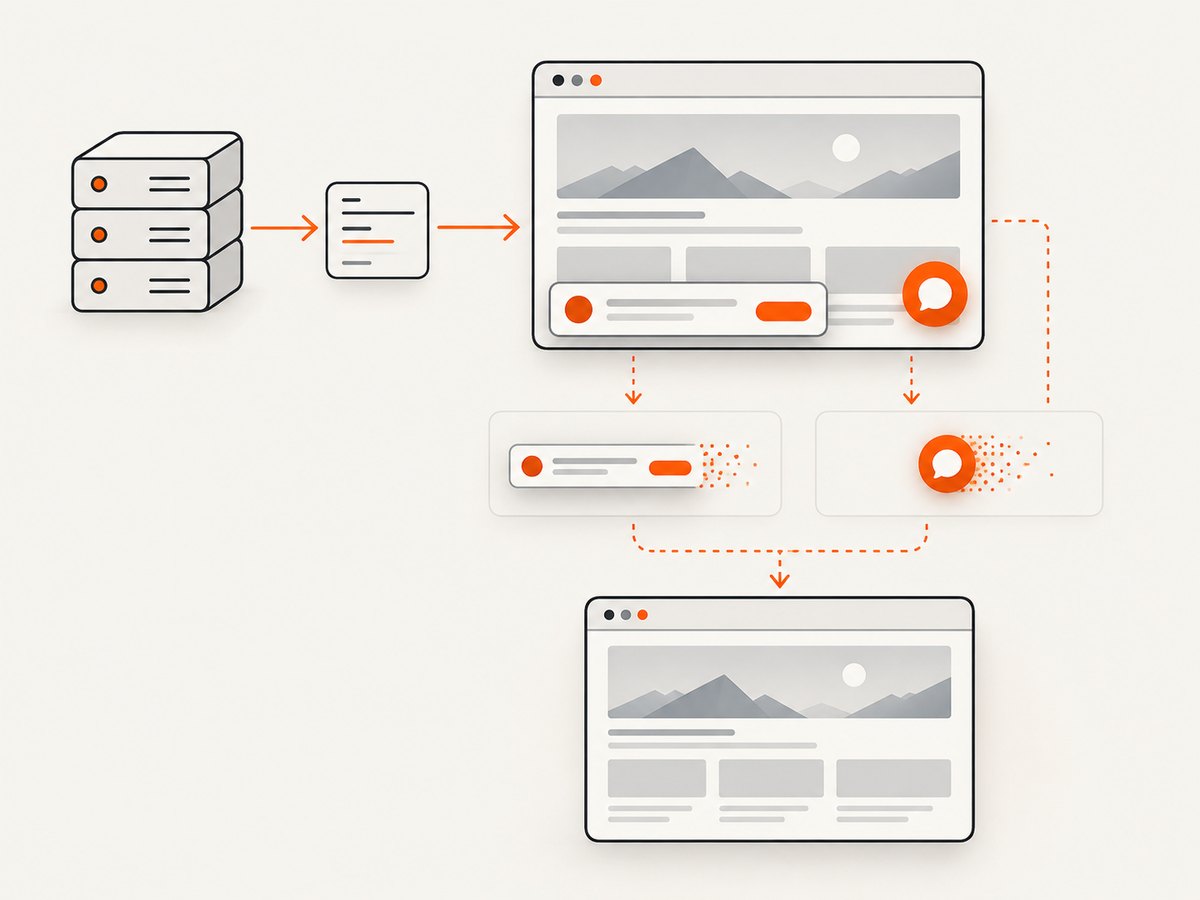
Before capture, it accepts cookie or consent banners like a visitor and removes more than 60 known consent platforms, newsletter popups, and chat widgets; each step can be turned off. Bot checks or CAPTCHAs, blank pages, timeouts, failed loads, and cache hits are not billed. The response identifies the outcome with X-Page-Verdict and X-Billed headers.
Its MCP server exposes take_screenshot, get_page_info, and capture_pdf for Claude, Cursor, and other MCP clients. The Free plan includes 1,000 shots per month with no card; paid plans start at $5 for 3,000 shots. Create a free ScreenshotNeo account.
7. Performance, reliability, and cost notes
Selenium performance
Starting a browser is usually more expensive than capturing another element in an existing session. Reuse a session when tests are isolated safely, but reset state between cases. Reduce waits to the smallest condition that proves readiness, and avoid loading unnecessary resources when the page under test permits it. Parallel sessions improve throughput at the cost of CPU, memory, and more complex artifact naming.
Reliability
Use unique output paths per test and include the test name, browser, viewport, and timestamp in metadata or filenames. Record the URL, selector, viewport, Selenium version, browser version, driver version, and exception text with each artifact. On a failure, preserve the page screenshot, HTML, console log, and network information when your runner supports them.
ScreenshotNeo request cost
With an API, you pay for successful clean shots according to the plan. ScreenshotNeo reports whether a response was billed, and cache hits do not cost anything. A chosen cache TTL can avoid repeating identical captures. Bulk capture, asynchronous jobs, and signed webhooks are useful when a test suite or content pipeline has many URLs.
8. A practical troubleshooting checklist
- Is the receiver the current
WebElement? - Did you import Selenium’s
OutputType? - Does the driver implementation support element screenshots?
- Is the element stale, inside an iframe, or inside a shadow root?
- Did you wait for visibility and application readiness?
- Are you copying the temporary file immediately?
- Does the destination directory exist and allow writes?
- Are you asking for an element screenshot when you actually need a full page or PDF?
- In CI, are browser, driver, Selenium, and remote endpoint versions recorded?
9. FAQ
Does OutputType.FILE save directly to my chosen filename?
No. It returns a temporary file. Copy it to your own destination.
Can I take a screenshot of an invisible element?
Support and rendering vary by driver. Wait for visibility and capture the rendered state you intend to verify.
Should I retry a stale element?
Re-find the element after the DOM update, then capture the new reference. Retrying the same stale object will not repair it.
When should I use bytes instead of a file?
Use BYTES when uploading, hashing, comparing, or transforming the image without an intermediate temporary file.
Can ScreenshotNeo capture one element?
Yes. Pass a CSS selector for element capture, or use full-page and viewport options when the artifact has a wider scope.
Is a browser required for ScreenshotNeo?
No browser setup is required in your application. Send the API request, or use its MCP tools from an MCP client.


