How to Fix WebGL Alpha Differences Between Puppeteer and Chrome
Match WebGL context attributes and browser settings to diagnose alpha differences between Puppeteer screenshots and Chrome.
WebGL alpha differences between Puppeteer and an interactive Chrome window usually come from a mismatch in the rendering contract or browser environment—not from a shader that needs a speculative fix. Create the WebGL context once with explicit alpha and premultipliedAlpha values, verify them with getContextAttributes(), and align Chrome revision, headless mode, GPU path, viewport, and device scale factor. If the discrepancy appears only after drawing, also check when pixels are read: with the default preserveDrawingBuffer: false, reading after presentation may be undefined.
This guide gives you a reproducible Puppeteer and Chrome comparison, a runnable diagnostic page and script, and a way to distinguish buffer readback differences from screenshot compositing differences.
1. The rendering contract to make identical
WebGL context attributes are established on the first successful canvas.getContext('webgl') call. Later calls on that canvas do not reconfigure the context. The WebGL specification defines defaults of alpha: true, premultipliedAlpha: true, and preserveDrawingBuffer: false; explicitly request the values your renderer expects rather than relying on defaults. See the WebGL specification and getContext() reference.
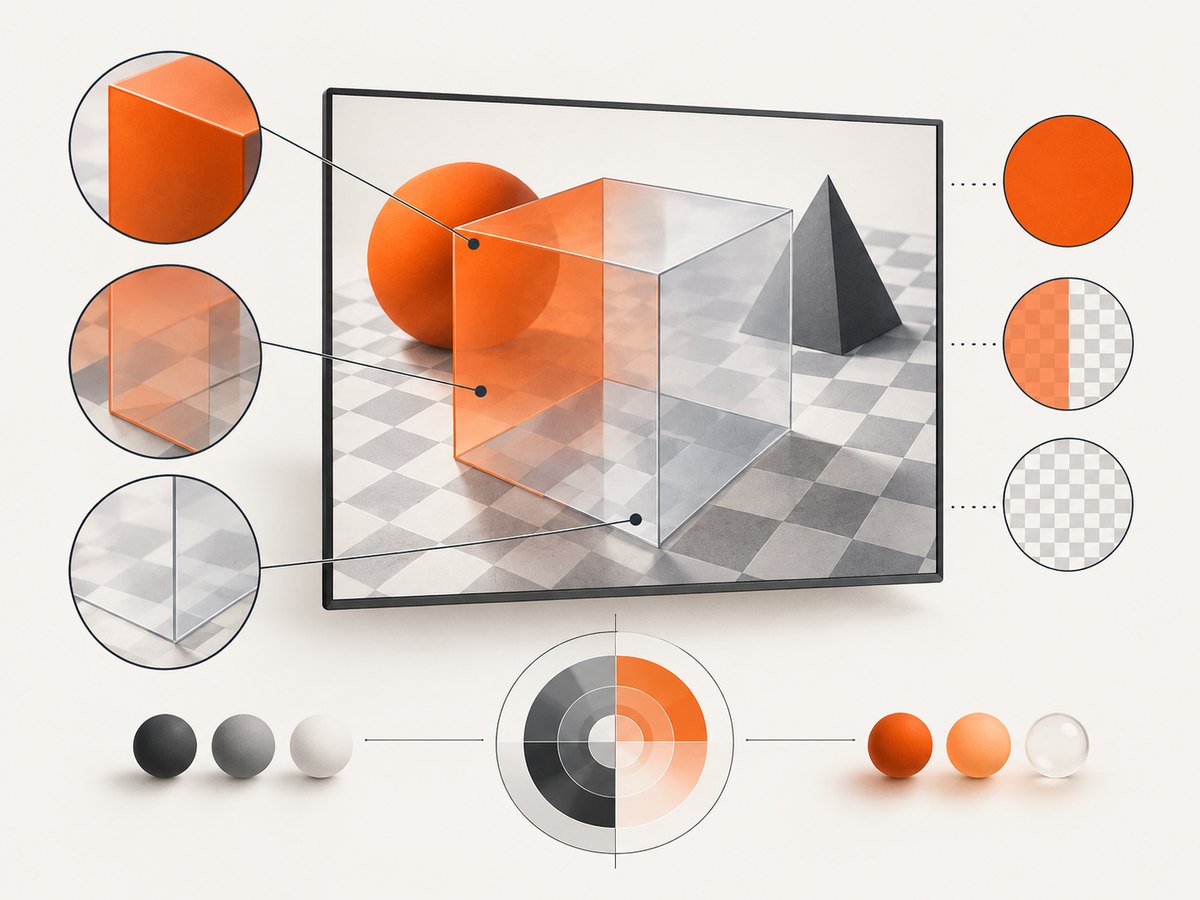
alpha controls whether the drawing buffer has an alpha channel for compositing. premultipliedAlpha tells the page compositor how to interpret the color channels relative to alpha. In straight alpha, RGB is stored independently of alpha; in premultiplied alpha, RGB has already been multiplied by alpha. If your shader emits one representation while the compositor expects the other, translucent edges can appear brighter, darker, or otherwise different in a screenshot.
| Attribute | What it affects | Diagnostic implication |
|---|---|---|
alpha |
Whether the canvas drawing buffer includes alpha for compositing. | Different buffer or compositing setup can change transparency against the page. |
premultipliedAlpha |
How the compositor interprets the canvas color values relative to alpha. | Match the shader output convention to the requested context convention. |
preserveDrawingBuffer |
Whether rendered contents are retained after presentation. | Can affect when screenshot or pixel-readback capture remains valid; it is not a color correction. |
The specification requires implementations to obey these attributes. It also warns that out-of-range color values with premultipliedAlpha: true have undefined compositing results. Keep shader outputs in the intended range and make the alpha convention deliberate.
2. Create and verify the context before any library does
Place explicit context creation before renderer libraries or helpers that might create a WebGL context for you. If a library gets the context first, your later request cannot change its attributes. Chrome’s guidance explains that there can be only one context configuration per canvas. Use one canvas per configuration when you need to compare alternatives.
const canvas = document.querySelector('#gl');
const requested = {
  alpha: true,
  premultipliedAlpha: false,
  preserveDrawingBuffer: true
};

const gl = canvas.getContext('webgl', requested);
if (!gl) throw new Error('WebGL context creation failed');

const actual = gl.getContextAttributes();
console.log({ requested, actual });
if (!actual || Object.keys(requested).some(key => actual[key] !== requested[key])) {
  throw new Error(`WebGL context attributes differ: ${JSON.stringify(actual)}`);
}
The values above are an example contract, not a universal recommendation. If your rendering library expects premultiplied output or does not need the drawing buffer retained, choose the appropriate values for that application and request those same values in both environments. Check the returned attributes rather than assuming every requested option took effect.
For a compact transparent-pixel diagnostic, clear to a known color and read synchronously. A minimal page can establish that the context attributes match and that the clear values are what the application expects:
<!doctype html>
<meta charset="utf-8">
<canvas id="gl" width="4" height="4"></canvas>
<script>
const canvas = document.querySelector('#gl');
const requested = { alpha: true, premultipliedAlpha: false, preserveDrawingBuffer: true };
const gl = canvas.getContext('webgl', requested);
if (!gl) throw new Error('WebGL unavailable');
const actual = gl.getContextAttributes();
console.log('CONTEXT', JSON.stringify(actual));
if (actual.alpha !== requested.alpha ||
    actual.premultipliedAlpha !== requested.premultipliedAlpha ||
    actual.preserveDrawingBuffer !== requested.preserveDrawingBuffer) {
  throw new Error('Context contract mismatch');
}
gl.clearColor(1, 0, 0, 0.5);
gl.clear(gl.COLOR_BUFFER_BIT);
const pixel = new Uint8Array(4);
gl.readPixels(0, 0, 1, 1, gl.RGBA, gl.UNSIGNED_BYTE, pixel);
console.log('PIXEL', JSON.stringify(Array.from(pixel)));
</script>
That page tests a clear, not your shader’s blending or the full compositor path. Extend it with an application scene containing opaque, half-alpha, and fully transparent pixels over a known background. Keep the sample position fixed and read pixels inside the render function immediately after drawing.
3. Run Puppeteer with a controlled browser setup
Puppeteer launches headless Chrome by default. Set headless: false for a visible Chrome window. Puppeteer also documents that its older headless shell implementation does not completely match regular Chrome. If your deployment uses chrome-headless-shell, compare it explicitly and consult Puppeteer’s troubleshooting guide; it states that the shell requires --enable-gpu to enable GPU acceleration in headless mode.
Save the diagnostic page above as webgl-alpha.html. Install Puppeteer in a small Node project with npm install puppeteer, then save and run this script as capture.mjs:
import puppeteer from 'puppeteer';

const headless = process.env.HEADFUL !== '1';
const browser = await puppeteer.launch({
  headless,
  args: process.env.ENABLE_GPU === '1' ? ['--enable-gpu'] : []
});
try {
  const page = await browser.newPage({
    viewport: { width: 800, height: 600 },
    deviceScaleFactor: 1
  });
  page.on('console', message => console.log('PAGE', message.text()));
  page.on('pageerror', error => console.error('PAGE ERROR', error.message));
  await page.goto('file://' + process.cwd() + '/webgl-alpha.html', {
    waitUntil: 'load'
  });
  await page.screenshot({ path: 'puppeteer.png' });
} finally {
  await browser.close();
}
Run node capture.mjs for default headless mode, HEADFUL=1 node capture.mjs for headful mode, and ENABLE_GPU=1 node capture.mjs to test the GPU flag. Use the same Puppeteer-supported Chrome revision for controlled comparisons. A system Chrome opened manually may have different version, flags, GPU backend, profile settings, or operating system environment, so record these before attributing the difference to headless mode itself.
4. Separate pixel readback from screenshot output
A screenshot is the page’s composited output; gl.readPixels() reads from the WebGL drawing buffer. They answer different questions. If synchronous readPixels matches between environments but screenshots differ, focus on canvas-to-page compositing, CSS opacity or filters, screenshot timing, and premultiplication. If the pixel values differ at the same location immediately after rendering, compare context attributes, shader and blend state, GPU path, and browser revision.
With preserveDrawingBuffer: false, the implementation may clear the drawing buffer after it has been presented. The specification says using the canvas as a source after rendering returns, including readPixels or toDataURL, can have undefined behavior. Read synchronously as part of rendering or render into an offscreen framebuffer and copy to the screen. Set preserveDrawingBuffer: true only when the capture path needs pixels to survive presentation; Chrome notes that preserving the buffer can cost performance.
- Log the returned context attributes in both environments.
- Render the same scene and read the same pixel immediately after drawing.
- Capture a screenshot at a known point after rendering completes.
- Compare the pixel arrays separately from the screenshot files.
- Change one environment variable at a time until the mismatch follows a specific setting.
5. Reproducible comparison checklist
- Record Chrome version, Puppeteer version, operating system, GPU vendor and renderer.
- Record headless mode, launch arguments, and whether the process uses regular Chrome or
chrome-headless-shell. - Fix viewport dimensions and device scale factor; confirm the page uses the expected CSS size and drawing-buffer size.
- Create the context before frameworks or libraries can create it implicitly.
- Request explicit
alpha,premultipliedAlpha, andpreserveDrawingBuffersettings, then log actual values. - Use a known background and fixed test pixels; include fully opaque, partially transparent, and transparent samples.
- Compare interactive Chrome, regular headless Chrome, and shell mode separately when all three matter to the target environment.
- Check CSS opacity, filters, transforms, blend modes, and the canvas element’s background when screenshot-only results differ.
Do not change shader math, browser flags, and context attributes all at once. A one-variable-at-a-time comparison makes the first setting that changes the result visible and keeps the diagnosis reproducible.
6. Troubleshooting common symptoms
| Symptom | Likely cause | Fix |
|---|---|---|
getContextAttributes() disagrees with the requested values |
A library or earlier script created the context first, or the request was not honored. | Move explicit context creation earlier, inspect the returned object, and use a fresh canvas for each configuration. |
| Transparent edges look dark or bright | Shader output and premultipliedAlpha convention do not agree, or CSS/page compositing differs. |
Choose one alpha representation, request the matching context behavior in both browsers, and inspect compositing separately from shader output. |
| Pixels are correct immediately after render but wrong later | The drawing buffer was not preserved and was read after presentation. | Read synchronously during rendering, use an offscreen framebuffer, or enable buffer preservation only if capture requires it. |
| Headless shell differs from visible Chrome | Different shell implementation or GPU/compositor path. | Test regular headless Chrome as a separate mode; for shell GPU acceleration, test --enable-gpu and record the actual renderer. |
Screenshot differs but readPixels matches |
The discrepancy occurs after WebGL readback, in page composition, CSS, or capture timing. | Inspect canvas styles and page layers, wait for the frame to render, and compare screenshots against a fixed background. |
| Results change with viewport or scale | Different drawing-buffer dimensions, device-pixel scaling, or sample coordinates. | Match viewport and deviceScaleFactor; calculate the same pixel coordinate in drawing-buffer space. |
| Colors fall outside the expected range | Shader outputs violate the expected compositing range, making results undefined for premultiplied compositing. | Clamp or otherwise constrain output according to the rendering design, then rerun the controlled comparison. |
7. Performance, reliability, and cost tradeoffs
Preserving the drawing buffer can reduce performance, so avoid enabling it globally just to make an intermittent screenshot test pass. Synchronous readback can also constrain how you structure capture; for repeatable diagnostics, a dedicated small test scene or offscreen framebuffer limits the effect on production rendering. GPU and headless mode should be chosen to match the environment you intend to validate: a result from one path does not by itself prove another path behaves identically.
For CI reliability, pin the Puppeteer-supported browser revision through your dependency and deployment setup, log the rendering environment with failures, and keep a deterministic fixture page with fixed dimensions and sample points. Treat small differences as data to investigate: do not assume that screenshots and raw buffer values are interchangeable. Cost depends on your own browser infrastructure and capture frequency; this guide does not claim a benchmark or a universal overhead figure.
8. Or skip the browser setup
If you need a website screenshot rather than WebGL buffer diagnostics, ScreenshotNeo provides a one-request screenshot API and an MCP server for AI agents. Its clean-shot flow accepts cookie or consent banners like a visitor and removes more than 60 known consent platforms, newsletter popups, and chat widgets before capture; each step can be turned off. Bot checks, blank pages, timeouts, failed loads, and cache hits cost nothing, and responses identify the result with X-Page-Verdict and X-Billed headers. It is useful for page capture, but it does not replace WebGL readPixels when you need raw drawing-buffer diagnostics.
Use the [ScreenshotNeo API documentation](https://screenshotneo.com/docs/) for request options. The following cURL request saves a WebP screenshot:
curl -G "https://api.screenshotneo.com/v1/shot" \
  -d access_key=YOUR_API_KEY \
  --data-urlencode url=https://stripe.com \
  -o shot.webp
Python equivalent:
import requests

r = requests.get(
    "https://api.screenshotneo.com/v1/shot",
    params={"access_key": "YOUR_API_KEY", "url": "https://stripe.com"},
    timeout=90,
)
open("shot.webp", "wb").write(r.content)
Node.js equivalent:
const q = new URLSearchParams({
  access_key: 'YOUR_API_KEY',
  url: 'https://stripe.com'
});
const res = await fetch(`https://api.screenshotneo.com/v1/shot?${q}`);
ScreenshotNeo also supports PNG, JPEG, and PDF output; full-page and element capture; custom viewport and device presets; dark mode; CSS and JavaScript; waits; request blocking; headers, cookies, and user agent; resizing; caching; signed public image links; async jobs and signed webhooks; bulk capture of up to 100 URLs per call; and usage reporting. The parameter names used by other screenshot APIs also work. An MCP server exposes take_screenshot, get_page_info, and capture_pdf to Claude, Cursor, and other MCP clients.
The free plan includes 1,000 screenshots per month with no card. Paid plans start at $5 for 3,000; yearly billing gives two months free, and every feature is on every plan. Cookie banners, popups, and chat widgets are removed before the shot; bot checks, blank pages, and failed loads are never billed; an MCP server lets AI agents take screenshots; 1,000 screenshots a month are free with no card and paid plans start at $5 for 3,000. Sign up for the free plan.
9. FAQ
Can I change alpha settings after creating the context?
No. The first context creation establishes the configuration. Create a new canvas when you need to test a different attribute set.
Should every screenshot test use preserveDrawingBuffer: true?
No. It is useful when capture needs the buffer to survive presentation, but it can cost performance. Prefer synchronous readback or an offscreen framebuffer when those fit your capture design.
Does enabling the GPU guarantee Puppeteer matches interactive Chrome?
No. It addresses GPU acceleration in headless shell, but browser build, GPU backend, operating system, compositor, and other settings can still differ.
Why can screenshots differ when my pixel values match?
Because readback and screenshots observe different stages: a screenshot includes page and compositor behavior around the canvas.


