How to Fix WebP Images Not Displaying on Websites
Diagnose WebP display failures by checking responses, fallbacks, WordPress processing, rewrites, CDNs, and browser support.
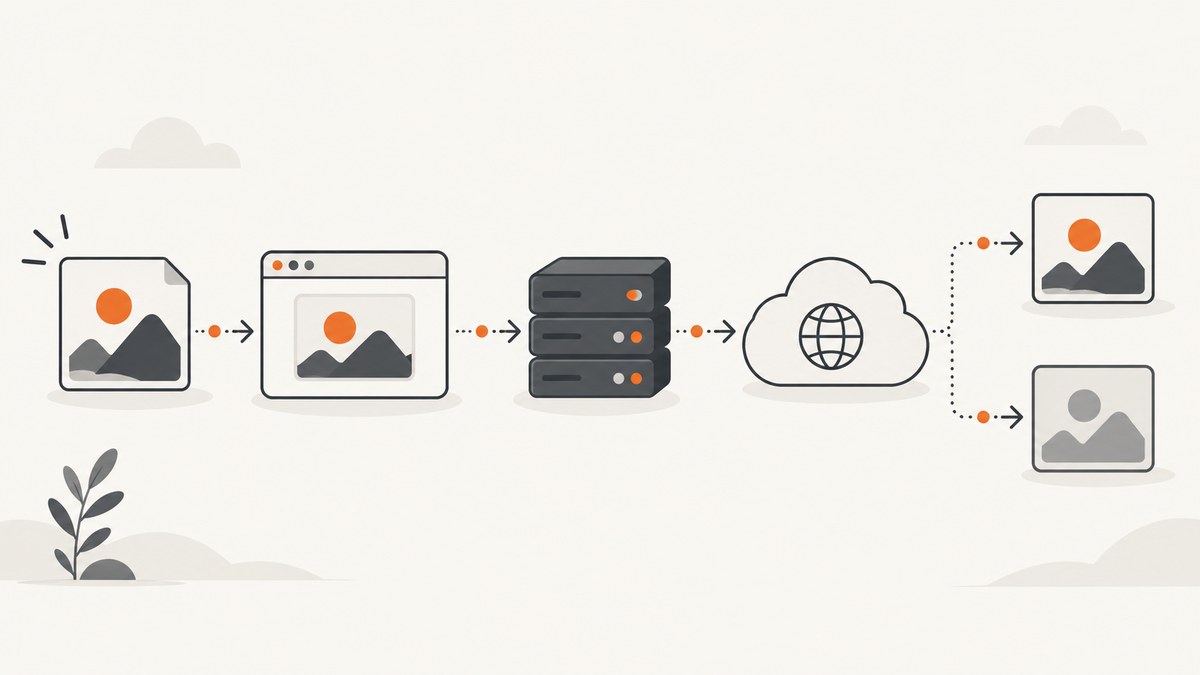
When a WebP image does not appear, first inspect the request in your browser’s Network panel. Record the status code, response Content-Type, request URL, and whether the page actually references the WebP file. A URL ending in .jpg can still return image/webp through content negotiation, so the filename alone does not prove what the browser received. Google documents both content negotiation and <picture> fallbacks for serving formats safely.
1. Inspect the failing request first
Open Developer Tools, select Network, reload the page, and filter by Img. Open the failed image request and check:
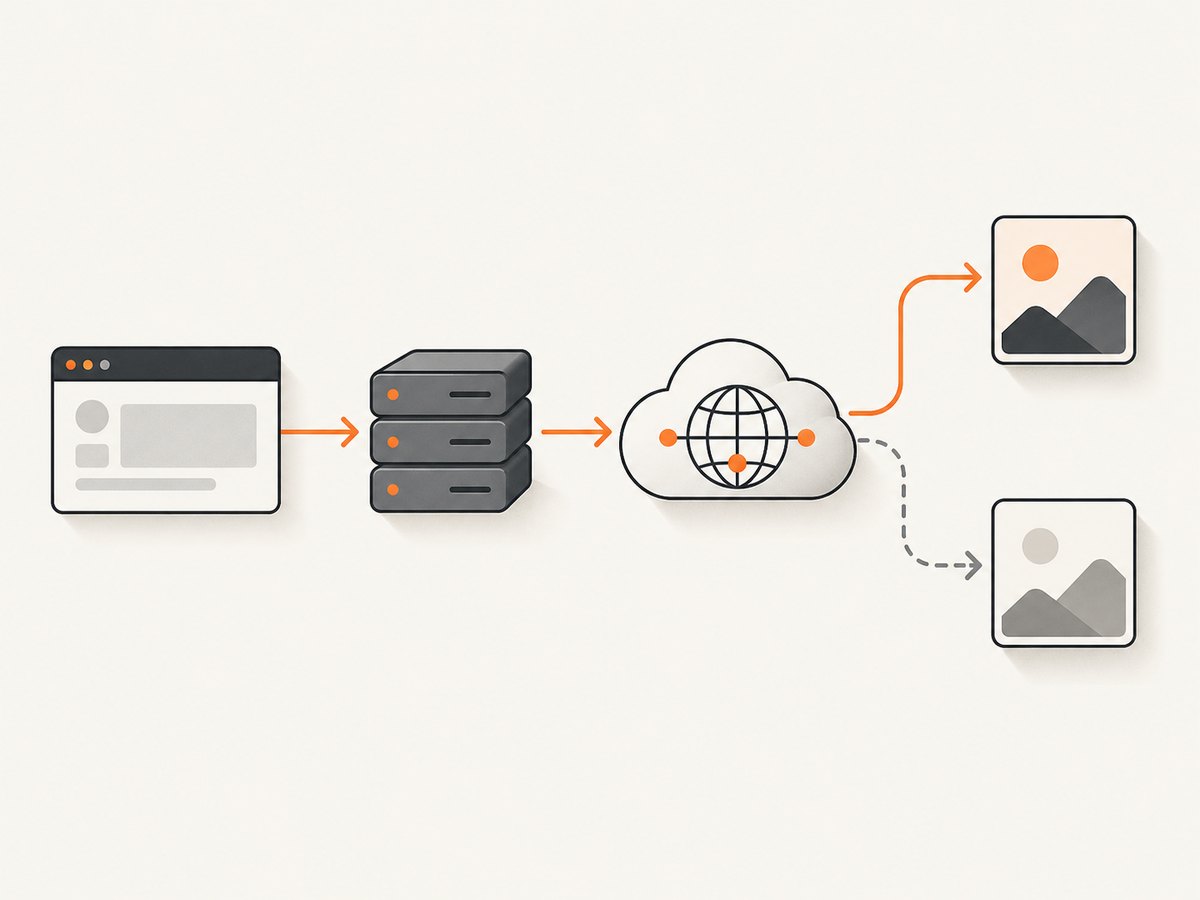
- Status: 200, 304, 404, 403, 500, or a request blocked by the browser.
- Response Content-Type: normally
image/webp,image/jpeg, orimage/png. - Response body: confirm it is an image rather than an HTML error page.
- Request URL: verify the host, path, query string, and protocol.
- Request headers: especially
Acceptwhen format negotiation is enabled. - Response headers: inspect cache, CDN, rewrite, and
Varybehavior.
If the response is image/webp despite a .jpg or .png URL, conversion may already be working. Continue by checking whether the failing client can decode WebP and whether a fallback is present.
Check from the command line with cURL
curl -I -H 'Accept: image/webp,image/apng,image/*,*/*;q=0.8' https://example.com/path/image.jpgLook for the HTTP status and content-type. Repeat without the WebP Accept value to compare responses. This tests one endpoint; authenticated assets, signed URLs, and CDN rules may require additional headers.
Check with Python
import requests

url = "https://example.com/path/image.jpg"
r = requests.get(
    url,
    headers={"Accept": "image/webp,image/*;q=0.8"},
    timeout=30,
)
print("status:", r.status_code)
print("content-type:", r.headers.get("content-type"))
print("bytes:", len(r.content))
print("first bytes:", r.content[:16])
Check with Node.js
const url = 'https://example.com/path/image.jpg';
const res = await fetch(url, {
  headers: { Accept: 'image/webp,image/*;q=0.8' }
});
const body = await res.arrayBuffer();
console.log({
  status: res.status,
  contentType: res.headers.get('content-type'),
  bytes: body.byteLength
});
2. Add a reliable HTML fallback
Use <picture> when some browsers, embedded webviews, crawlers, or other clients cannot display the returned WebP. The browser chooses the first supported source and falls back to the regular <img>.
<picture>
  <source srcset="/images/hero.webp" type="image/webp">
  <img
    src="/images/hero.jpg"
    width="1600"
    height="900"
    alt="Product dashboard"
    loading="lazy"
    decoding="async"
  >
</picture>
Keep the fallback file available, use accurate dimensions to prevent layout shifts, and test the exact client that fails. Google’s WebP FAQ recommends serving WebP only to clients that support it and describes ordered alternatives with <picture>.
3. Confirm the file itself is valid
- Open the WebP URL directly in a new tab.
- Compare the file size and dimensions with the source image.
- Check that the response body is not an HTML login page, access-denied document, or truncated download.
- Verify the file is not zero bytes and that its permissions allow the web server to read it.
- Try a second browser and a private window to separate decoding problems from stale cache.
A generated file can exist on disk while the page continues requesting the original JPEG or PNG. Inspect both the original HTML source and the rendered DOM to see which URL the active element uses.
4. Fix WordPress upload and conversion failures
WordPress can use WebP only when the server-side image library supports it. Learn WordPress explains that the active graphics library and host configuration determine whether WebP files can be processed. If support is missing, ask the host to check the installed library and its WebP capability; changing an upload MIME setting alone does not add image-processing support.
- Open Tools → Site Health → Info and record the active media/image-library details.
- Upload a small known-good WebP and note the exact error.
- Ask the host whether GD or ImageMagick has WebP read/write support enabled.
- Check available memory and maximum upload/post sizes for large source images.
- After support is added, regenerate only the affected thumbnails using the site’s established media workflow.
WordPress core’s WebP behavior depends on server support; when that support is absent, existing image handling continues through the formats the server can process.
5. Check how your site is serving next-generation images
There are three common delivery models. Identify which one your site uses before changing rules.
| Method | What to verify | Typical failure |
|---|---|---|
| HTML markup | <picture>, srcset, and fallback URLs |
Generated WebP exists but no element references it |
| Server negotiation | Accept, Content-Type, and Vary |
Wrong format cached or rewrite does not match the server |
| CDN or image proxy | Origin response, CDN policy, cache key, and transformation settings | CDN serves an error, stale object, or unsupported format |
CSS backgrounds, images inserted after page load, external assets, and markup generated by JavaScript may bypass a plugin that scans ordinary HTML. Check the actual request generated by the browser instead of assuming every image is covered.
6. Diagnose rewrites, Nginx, Apache, and CDN caches
Rewrite mismatch
Confirm the rule is installed on the server handling the request. An Apache-oriented rule will not automatically apply to an Nginx path, and a CDN may never reach the origin rule. Verify the converted file path, permissions, and response headers before editing configuration.
Wrong cache variant
If responses vary by Accept, the cache must distinguish those variants. Purge the affected object only after confirming the origin behavior, then reload with and without WebP support and compare Content-Type. Google notes that CDN providers can detect WebP support; the exact cache configuration is provider-specific.
Stale HTML
A page cache may still contain markup pointing to an old filename. Purge or bypass the page cache, inspect the live HTML, and check whether the browser is receiving a cached redirect or error.
7. Common errors and fixes
| Symptom | Likely cause | Fix |
|---|---|---|
404 for .webp |
Wrong generated path, rewrite, or deployment omission | Open the URL directly, compare it with the filesystem path, and deploy the missing asset. |
| 403 or hotlink error | CDN, origin, or referrer policy blocks the request | Check access rules and signed URLs; test from the same host and protocol as the page. |
| 200 but broken image | HTML returned with an image status, truncated bytes, or incorrect MIME | Inspect the response body and set the correct Content-Type. |
| Works in one browser only | Client support or embedded webview limitation | Serve a JPEG/PNG fallback with <picture> and test the failing client. |
| Upload rejected in WordPress | Server image library lacks WebP processing | Ask the host to enable supported GD/ImageMagick capabilities. |
| File exists but JPEG remains | Markup, CSS, JavaScript, or plugin serving mode still points to the original | Inspect source, DOM, computed styles, and the network request. |
| Intermittent format changes | CDN cache key ignores Accept |
Configure format-aware variation or use explicit <picture> URLs. |
8. Performance, reliability, and cost considerations
- WebP can reduce image transfer size; WordPress Developer Resources describes an approximate average reduction of around 30% compared with JPEG or PNG, but results depend on the source and quality settings.
- Always set width and height (or an aspect-ratio box) so a format conversion does not create layout movement.
- Use long-lived immutable caching for versioned assets. Purge only when the URL or content changes.
- Keep an accessible fallback when clients, crawlers, or integrations have uncertain format support.
- Measure the browser-facing response, not only the origin file. CDN transformations and cache hits can change both bytes and headers.
- Do not convert repeatedly on every request. Generate once, cache the result, and monitor failed transformations.

Or skip the browser setup
For screenshots of pages that contain WebP images, ScreenshotNeo captures the rendered result through one API request. Its cleanup steps accept cookie/consent banners and remove more than 60 known consent platforms, newsletter popups, and chat widgets before capture; each step can be disabled. Bot checks, blank pages, timeouts, failed loads, and cache hits are not billed, and response headers identify the page verdict and billing result.
See the ScreenshotNeo API documentation for all options.
curl -G "https://api.screenshotneo.com/v1/shot" \
  -d access_key=YOUR_API_KEY \
  --data-urlencode url=https://example.com/page-with-webp \
  -o shot.webp
import requests
r = requests.get(
"https://api.screenshotneo.com/v1/shot",
params={"access_key": "YOUR_API_KEY", "url": "https://example.com/page-with-webp"},
timeout=90,
)
open("shot.webp", "wb").write(r.content)const q = new URLSearchParams({
access_key: 'YOUR_API_KEY',
url: 'https://example.com/page-with-webp'
});
const res = await fetch(`https://api.screenshotneo.com/v1/shot?${q}`);ScreenshotNeo also provides an MCP server so Claude, Cursor, and other MCP clients can take screenshots, inspect pages, and capture PDFs. One thousand screenshots per month are free with no card; paid plans start at $5 for 3,000 shots. Create a free ScreenshotNeo account.
FAQ
Does a WebP extension guarantee that the browser received WebP?
No. Content negotiation can return WebP from a URL ending in another extension. Check the response Content-Type.
Should I force every visitor to receive WebP?
Only when the client supports it. Use <picture> or correctly configured negotiation with a fallback.
Why does WordPress upload JPEGs but reject WebP?
The server’s image library may lack WebP read/write support. Ask the host to verify the active library rather than changing MIME settings blindly.
Can a CDN make a working WebP image fail?
Yes. CDN cache keys, transformations, access rules, and Accept-header handling can change the response. Compare the CDN response with the origin.
What should I keep after fixing the issue?
Keep a repeatable Network-panel check, a fallback format, valid dimensions, and monitoring for 4xx/5xx image responses.


