Fixing Cropping Issues in Website Screenshots
Learn why website screenshots are cropped and fix viewport, full-page, element, clip, scale, and dynamic-content problems with runnable examples.
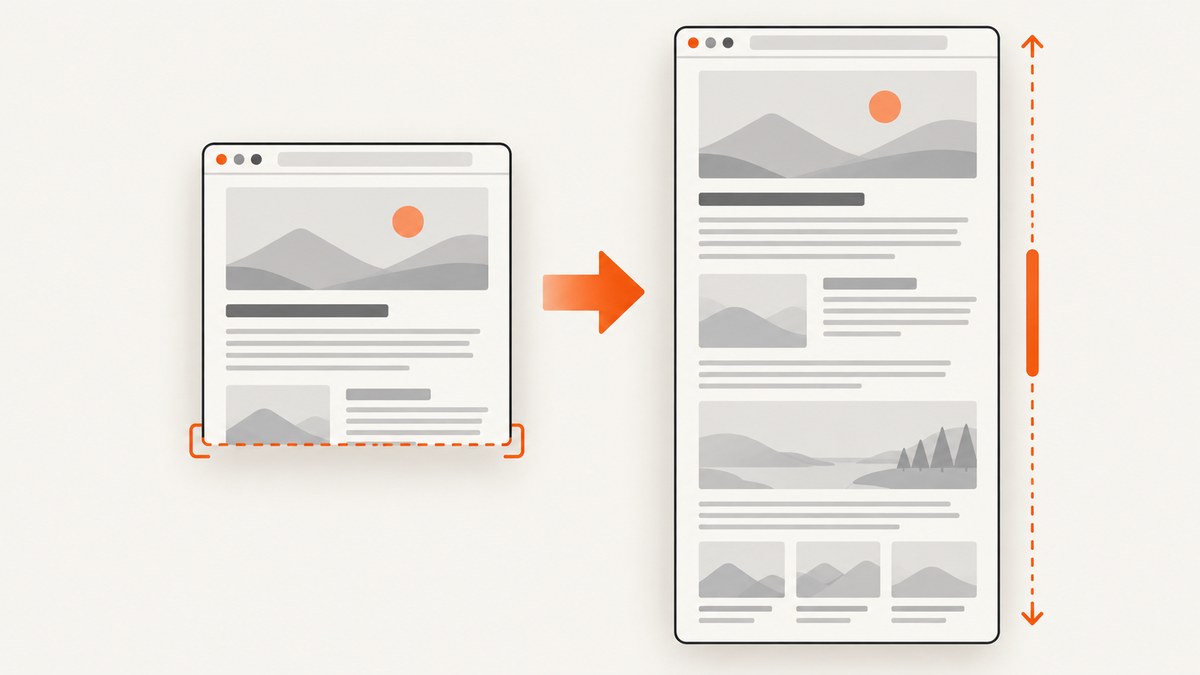
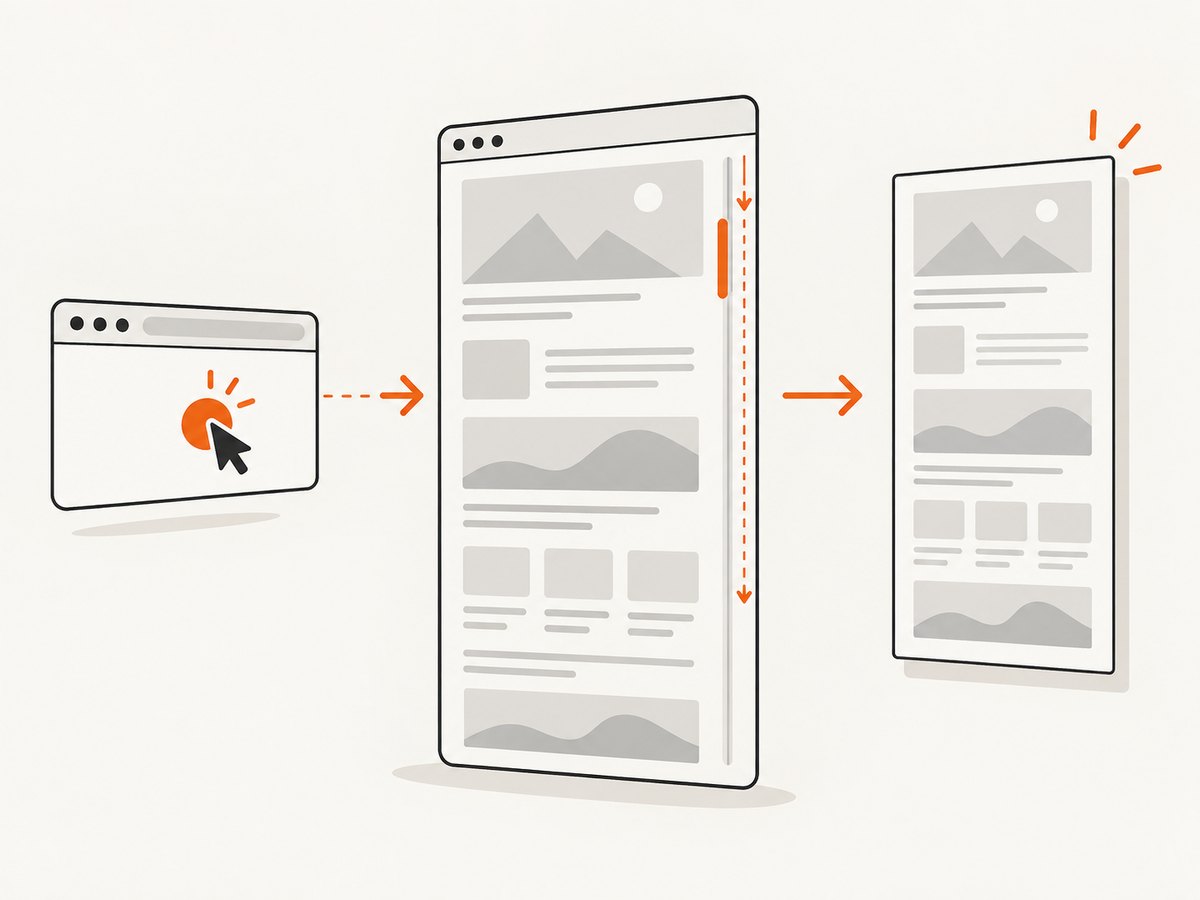
A website screenshot is usually cropped because the capture is limited to the visible browser viewport, an explicit clipping rectangle, or a selected element. The fix is to decide which area you actually need, then configure that capture mode deliberately.
For a complete scrolling page in Playwright, use fullPage: true. For one component, capture the element itself. If an edge cuts into content, inspect the clip rectangle. If the image dimensions look wrong, inspect scale; scale changes pixel density, but it does not normally remove page content.
1. Identify what should be in the screenshot
Before changing code, classify the intended deliverable. These are different capture jobs:
| Goal | Capture mode | Typical symptom when misconfigured |
|---|---|---|
| What a visitor sees without scrolling | Viewport screenshot | Lower page content is absent by design |
| The entire scrollable document | Full-page screenshot | Only the first viewport is captured |
| One card, chart, or component | Element screenshot | Arbitrary page bounds cut off the component |
| A precise region | Clip rectangle | Edges slice into text or images |
Playwright describes a full-page image as the full scrollable page, as if the page were displayed on a very tall screen. Its API option is explicit and defaults to false (Playwright screenshot guide, Page API).
2. Fix viewport-only captures with Playwright
A basic screenshot captures the current viewport. Set fullPage: true when you need all scrollable content.
import { chromium } from 'playwright';

const browser = await chromium.launch();
const page = await browser.newPage({ viewport: { width: 1440, height: 900 } });
await page.goto('https://example.com', { waitUntil: 'networkidle' });

await page.screenshot({
  path: 'page-full.png',
  fullPage: true
});

await browser.close();
Run it with:
npm install playwright
node capture.mjs
Use a normal viewport screenshot when the requirement is a viewport image:
await page.screenshot({ path: 'viewport.png' });Do not infer “full page” from a very tall viewport alone. A tall viewport still represents a viewport and can behave differently from Playwright’s full-page mode.
3. Capture one element instead of guessing coordinates
If the target is a component, select it and call screenshot() on the locator. This avoids hand-calculating page coordinates that become wrong when fonts, responsive layout, or content changes.
const card = page.locator('[data-testid="pricing-card"]').first();
await card.waitFor({ state: 'visible' });
await card.screenshot({ path: 'pricing-card.png' });
A selector can also be used with a CSS class or ID:
await page.locator('#invoice').screenshot({
  path: 'invoice.png',
  animations: 'disabled'
});
Element capture is not a substitute for full-page capture. It intentionally isolates one rendered element, while full-page capture includes the scrollable document.
4. Check the clip rectangle when edges are cut
The clip option defines a rectangle in CSS pixels. x and y are its top-left origin; width and height define its size. A rectangle that starts inside a heading or ends before an image will produce the classic “cropped” result.
await page.screenshot({
  path: 'region.png',
  clip: { x: 120, y: 240, width: 900, height: 600 }
});
Debug clips systematically:
- Temporarily remove
clip. If the content returns, the rectangle is the cause. - Log the element bounding box and compare it with the clip.
- Keep
xandyat or above zero unless you have a specific reason to offset the region. - Increase width and height by a small margin to account for shadows, borders, and fractional layout.
const box = await page.locator('.hero').boundingBox();
if (!box) throw new Error('Hero is not visible');
await page.screenshot({
  path: 'hero.png',
  clip: { x: box.x, y: box.y, width: box.width, height: box.height }
});
5. Understand CSS pixels, device pixels, and scale
Playwright’s scale option controls output resolution. With CSS-pixel output, one output pixel corresponds to one CSS pixel. With device-pixel output, the image can be larger on high-DPI settings. A surprising pixel dimension is therefore not proof that content was omitted.
await page.screenshot({
  path: 'css-pixels.png',
  fullPage: true,
  scale: 'css'
});

await page.screenshot({
  path: 'device-pixels.png',
  fullPage: true,
  scale: 'device'
});
Choose one convention for a pipeline. Mixing CSS-pixel and device-pixel images can make visual diffs appear to be cropping or stretching. Check the image’s actual width and height before changing page layout.
6. Make dynamic and lazy content present before capture
Full-page mode describes the area Playwright asks the browser to capture; it does not guarantee that every dynamic or lazy-rendered item has finished rendering. Verify the page state and the behavior of your capture tool.
Wait for a meaningful selector
await page.goto('https://example.com/catalog', { waitUntil: 'domcontentloaded' });
await page.locator('.catalog-grid').waitFor({ state: 'visible' });
await page.screenshot({ path: 'catalog.png', fullPage: true });
Wait for a short, deliberate delay
await page.waitForTimeout(1000);
await page.screenshot({ path: 'delayed.png', fullPage: true });
Prefer a selector or application-ready signal when possible. A fixed delay is simple but can be too short on a slow run and wasteful on a fast one.
Trigger lazy images when the page requires it
await page.evaluate(async () => {
  const images = Array.from(document.images);
  for (const image of images) image.scrollIntoView({ block: 'center' });
  window.scrollTo(0, 0);
});
await page.waitForTimeout(300);
await page.screenshot({ path: 'lazy-content.png', fullPage: true });
This pattern is page-specific. Confirm that the page actually loads images when scrolled and that your browser version handles the resulting layout before relying on it in production.
7. A complete reusable Playwright script
import { chromium } from 'playwright';

const url = process.argv[2] || 'https://example.com';
const browser = await chromium.launch();
const page = await browser.newPage({
  viewport: { width: 1440, height: 900 },
  deviceScaleFactor: 1
});

try {
  await page.goto(url, { waitUntil: 'domcontentloaded', timeout: 60000 });
  await page.waitForLoadState('networkidle').catch(() => {});
  await page.screenshot({
    path: 'screenshot.png',
    fullPage: true,
    scale: 'css',
    animations: 'disabled'
  });
} finally {
  await browser.close();
}
The script makes the important decisions visible: viewport size, device scale, navigation timeout, full-page mode, output scale, and animation handling.
8. Troubleshooting checklist
| Symptom | Likely cause | Fix |
|---|---|---|
| Only the top section appears | Viewport capture | Set fullPage: true. |
| A card’s left or right edge is missing | Wrong clip or element bounds | Remove clip, inspect boundingBox(), then recalculate. |
| Text is cut at the bottom of a component | Element was measured before layout settled | Wait for the element and fonts/content, then measure again. |
| Image is much larger than expected | Device-pixel scale or high-DPI setting | Use scale: 'css' and choose a consistent deviceScaleFactor. |
| Footer or lower images are blank | Lazy loading or unfinished rendering | Wait for a ready selector, scroll if required, and verify the page state. |
| Capture fails with a timeout | Slow navigation or a page that never reaches idle | Use a bounded timeout, wait for a specific selector, and avoid depending solely on networkidle. |
| Screenshot differs between runs | Animations, changing content, or responsive layout | Disable animations, fix viewport and scale, and capture a stable test fixture. |
| Full-page output still misses an app panel | Panel uses an internal scroll container | Capture the panel element or scroll that container before capture; full-page refers to the page document. |
9. Reliability and performance practices
- Use stable readiness checks. Waiting for the exact content you need is more reliable than guessing with a long sleep.
- Keep capture settings deterministic. Fix viewport, locale, timezone, device scale, and test data when screenshots are compared over time.
- Choose the smallest required area. Element captures are generally cheaper to process than very tall full-page images, and they reduce irrelevant visual differences.
- Control expensive resources where appropriate. Blocking unnecessary ads, trackers, or media can make a page settle sooner, but confirm that blocked resources do not contain the content you need.
- Reuse browser processes in workers. Launching a new browser for every image adds startup overhead; keep concurrency bounded so memory use remains predictable.
- Record failures with the input. Save the URL, viewport, capture mode, clip, scale, and readiness condition with each failed artifact.
10. Or skip the browser setup
ScreenshotNeo provides a website screenshot API when you need a clean image or PDF without maintaining Playwright infrastructure. Its full-page option loads lazy images, and it also supports element selectors, custom CSS and JavaScript, waits, click actions, hiding selectors, viewport and device presets, retina scale, blocking rules, headers, cookies, user agents, timezone, geolocation, transparent backgrounds, resizing, caching, signed links, asynchronous jobs, bulk capture, and PDF settings. See the ScreenshotNeo API documentation for parameter names and examples.

curl -G "https://api.screenshotneo.com/v1/shot" \
  -d access_key=YOUR_API_KEY \
  --data-urlencode url=https://stripe.com \
  -o shot.webp
import requests
r = requests.get(
"https://api.screenshotneo.com/v1/shot",
params={"access_key": "YOUR_API_KEY", "url": "https://stripe.com"},
timeout=90,
)
r.raise_for_status()
open("shot.webp", "wb").write(r.content)const q = new URLSearchParams({ access_key: 'YOUR_API_KEY', url: 'https://stripe.com' });
const res = await fetch(`https://api.screenshotneo.com/v1/shot?${q}`);
if (!res.ok) throw new Error(`Screenshot failed: ${res.status}`);
const image = Buffer.from(await res.arrayBuffer());
require('fs').writeFileSync('shot.webp', image);Cookie banners, newsletter popups, and chat widgets are removed before the shot. Bot checks, blank pages, failed loads, timeouts, and cache hits are not billed, and response headers identify the page verdict and billing result. An MCP server lets Claude, Cursor, and other MCP clients call take_screenshot, get_page_info, and capture_pdf. The Free plan includes 1,000 screenshots a month with no card; paid plans start at $5 for 3,000 shots. Create a free ScreenshotNeo account.
11. Cost and output planning
For self-hosted Playwright, account for browser runtime, memory, storage, and the engineering work to keep browser versions and page-specific waits stable. For an API, estimate image count, full-page height, PDF usage, and cache behavior. ScreenshotNeo bills only clean shots; inspect X-Page-Verdict and X-Billed in logs so your accounting distinguishes successful captures from failed or cached requests.
When screenshots are generated repeatedly, choose a cache TTL that matches how often the source changes. Use element captures for component documentation and full-page captures for complete archives. Keep output format and scale consistent so downstream storage and visual comparisons remain predictable.
12. FAQ
Does increasing the viewport height create a full-page screenshot?
No. It creates a taller viewport. Use the capture tool’s explicit full-page option when you need the complete scrollable document.
Why is my full-page screenshot still missing content?
The missing content may be dynamic, lazy-loaded, inside an internal scroll container, or not rendered when capture started. Verify the page state and wait for the specific content.
Should I use an element screenshot or clip?
Use an element screenshot when a DOM element defines the target. Use a clip when you intentionally need fixed page coordinates or a custom rectangle.
Does device scale fix cropping?
No. Scale changes output pixel dimensions and density. It does not expand the captured area.
Can I capture a PDF instead of an image?
Yes. Playwright and ScreenshotNeo support PDF workflows, but PDF pagination, paper size, margins, orientation, and page ranges must be configured separately from image cropping.
What is the fastest diagnosis?
Remove clip, run with fullPage: true, wait for a known selector, and compare CSS-pixel output. Add element or clip constraints only after the complete page is correct.