How to Fix Weird Characters Returned by Selenium and PhantomJS
Trace mojibake from response bytes to browser DOM, then fix charset, extraction, console, and file-encoding problems in Selenium and PhantomJS.
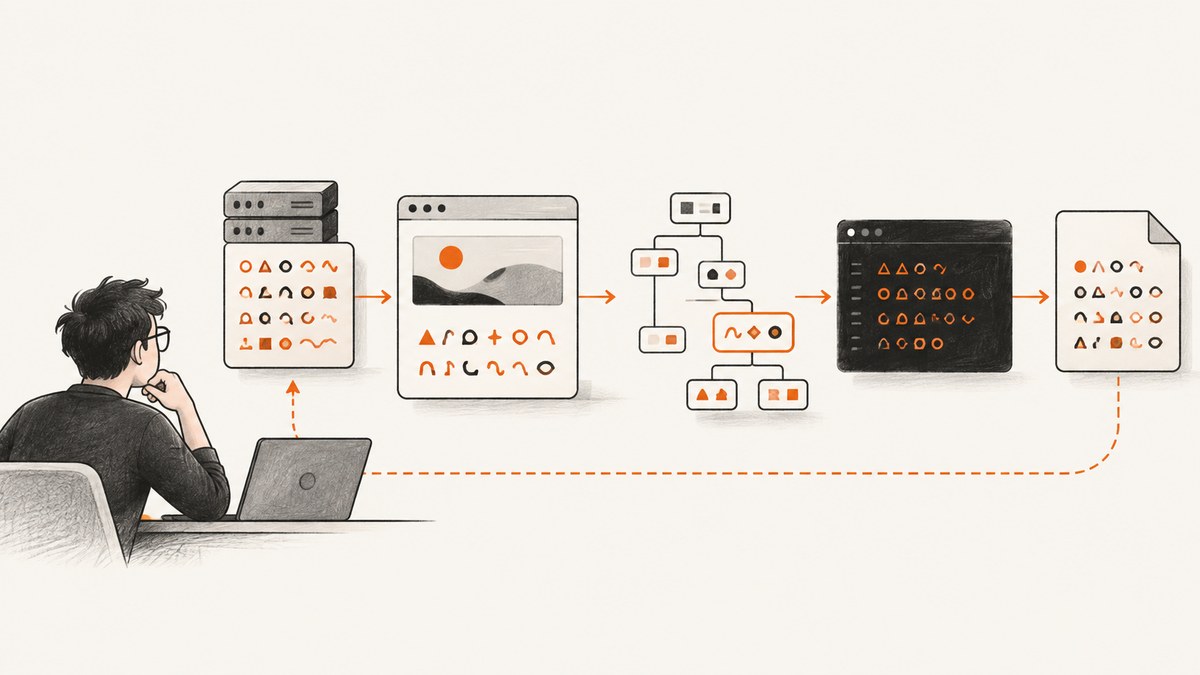
Weird characters such as ’, é, replacement diamonds, or missing non-Latin text are usually mojibake: bytes were decoded with an unintended character encoding. Selenium or PhantomJS may expose the problem, but the mismatch can occur earlier in the HTTP response, inside the browser’s document interpretation, during DOM extraction, or later when your runtime prints or saves the string.
The reliable fix is to locate the first boundary where the text changes. Preserve the original response bytes, inspect the declared charset, compare browser representations, and only then change a decoder or output setting. Repeatedly encoding and decoding an already-corrupted string usually destroys information rather than repairing it.
1. Map the text pipeline before changing code
Use this pipeline as your debugging checklist:
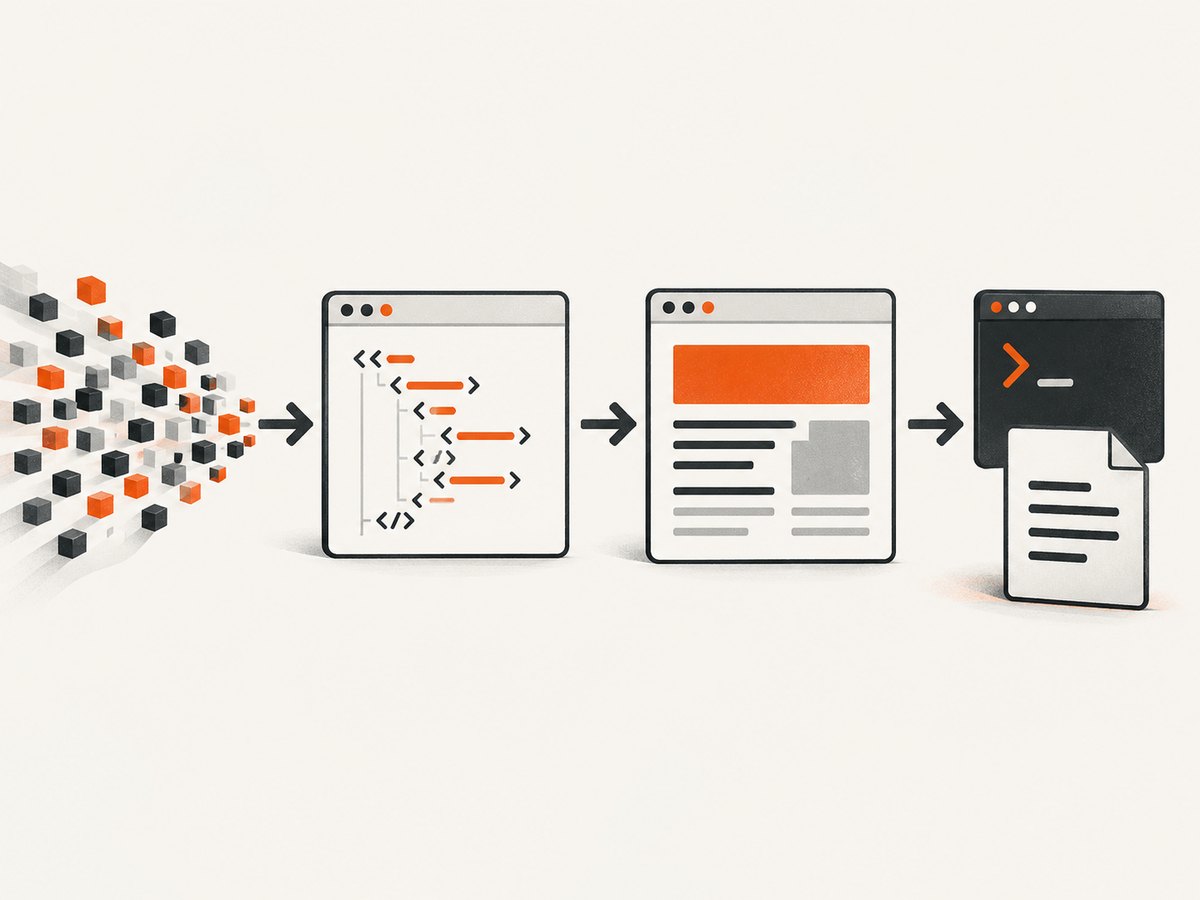
- Transport: HTTP status, headers, response bytes, and the
Content-Typecharset parameter. - Document: an HTML or XML encoding declaration and the browser’s interpretation of it.
- Automation API: page source, rendered text, DOM properties, and values returned across the browser boundary.
- Host runtime: the language string type, parser input mode, terminal encoding, and file encoding.
Reproduce the issue with a short fixture containing ASCII plus the affected characters, for example café — 東京 — 😀. Record the exact value at every boundary. A difference between two representations tells you where to look next.
2. Inspect the HTTP response and declared charset
Start outside Selenium or PhantomJS when possible. Capture the response status, headers, and raw body. Compare the server’s Content-Type, such as text/html; charset=utf-8, with any document-level declaration such as <meta charset="utf-8">. The consumer must decode the bytes using the encoding that actually produced them. Mojibake is the visible result of decoding under an unintended encoding. The mojibake overview describes this general failure mode.
Preserve bytes before converting them to a string. In Python, this means reading response.content before using response.text; in other runtimes, use the equivalent binary response API. If the server declares one charset but the bytes only make sense under another, fix the server or apply a documented, narrowly scoped override. Do not infer the answer from one lucky character.
Minimal Python transport check
import requests

url = "https://example.com/page"
r = requests.get(url, timeout=30)
print("status:", r.status_code)
print("content-type:", r.headers.get("Content-Type"))
raw = r.content
print("first bytes:", raw[:80])
print("requests guess:", r.encoding)
print("decoded sample:", raw.decode(r.encoding or "utf-8", errors="strict")[:200])
If strict decoding fails, that is useful evidence: the selected encoding does not describe the bytes. Save the raw body and inspect it with a known-good decoder or a hex viewer rather than silently replacing invalid bytes.
3. Selenium: compare page source with element text
Selenium exposes separate representations. driver.page_source is the current document markup, while an element’s .text is rendered, visible text after browser layout and script execution. A dynamic page can legitimately make them differ. Selenium’s API documentation lists separate commands for page source and element text; use that distinction to isolate the stage where characters change. See the Selenium API reference.
Runnable Selenium example in Python
from selenium import webdriver
from selenium.webdriver.common.by import By
from selenium.webdriver.chrome.options import Options

options = Options()
options.add_argument("--headless=new")
options.add_argument("--no-sandbox")
options.add_argument("--disable-dev-shm-usage")

driver = webdriver.Chrome(options=options)
try:
    driver.get("https://example.com/page")
    source = driver.page_source
    element = driver.find_element(By.CSS_SELECTOR, "body")
    visible = element.text
    inner_text = element.get_attribute("innerText")
    text_content = element.get_attribute("textContent")

    print("source sample:", repr(source[:300]))
    print(".text sample:", repr(visible[:300]))
    print("innerText sample:", repr(inner_text[:300]))
    print("textContent sample:", repr(text_content[:300]))
finally:
    driver.quit()
Interpret the results:
- If
page_sourcealready contains garbled text, inspect response headers, document declarations, redirects, and the browser version. - If source is correct but
.textis wrong, inspect the selected node, shadow DOM, generated content, and timing. Wait for the page to finish rendering before extraction. - If both browser values are correct but your log or file is wrong, the defect is in the runtime, terminal, parser, or file-writing layer.
Choose the representation that matches your goal. Use markup when you need attributes or structure; use .text for visible text; use innerText when CSS visibility and line breaks matter; use textContent when you need the node’s text without layout semantics. Avoid converting between byte strings and Unicode more than once.
4. PhantomJS: distinguish content, plainText, and evaluate
PhantomJS is legacy software; its development was reported suspended in March 2018. Existing systems should record the exact PhantomJS build, operating system, Selenium or WebDriver client, and runtime version. Verify behavior on that complete stack.
page.content contains the main-frame page content enclosed in an HTML/XML element, while page.plainText contains text without tags. A targeted page.evaluate call reads a DOM value inside the page. The PhantomJS API requires arguments and return values passed through evaluate to be simple serializable values. References: page.content, page.evaluate.
Runnable PhantomJS diagnostic script
var webpage = require('webpage');
var page = webpage.create();
var system = require('system');

var url = system.args[1] || 'https://example.com/page';
page.open(url, function (status) {
  console.log('status:', status);
  console.log('content:', JSON.stringify(page.content.substring(0, 300)));
  console.log('plainText:', JSON.stringify(page.plainText.substring(0, 300)));
  var extracted = page.evaluate(function () {
    var node = document.querySelector('body');
    return node ? {
      innerText: node.innerText,
      textContent: node.textContent
    } : null;
  });
  console.log('evaluate:', JSON.stringify(extracted));
  phantom.exit(status === 'success' ? 0 : 1);
});
If content is correct but plainText or the evaluated value is not, inspect DOM timing and the selector. If all three are correct but a saved output file is not, check PhantomJS’s process output and the consumer that reads the file.
5. Use PhantomJS encoding settings only in their documented scope
The page.open reference documents an encoding key in request settings and shows utf8 for a JSON POST request. That example supports setting the encoding for that request-data use case. It does not establish a universal switch that forces every page response to UTF-8.
var settings = {
  operation: 'post',
  encoding: 'utf8',
  headers: { 'Content-Type': 'application/json' },
  data: JSON.stringify({ message: 'café — 東京' })
};
page.open('https://example.com/endpoint', settings, function (status) {
  console.log(status);
  phantom.exit();
});
For an HTML response, first establish the server’s response encoding and document declaration. Then verify what PhantomJS actually exposes. Do not “fix” a response by labeling arbitrary bytes as UTF-8.
6. Check the host language, console, and files
When the browser representation is correct, the remaining causes are downstream. Confirm that your source file, string literals, and JSON parser use Unicode; configure the terminal or CI log as UTF-8; and specify an encoding when writing files.
Python file and console checks
text = "café — 東京 — 😀"
print(repr(text))
with open("output.txt", "w", encoding="utf-8", newline="") as f:
    f.write(text)
A terminal that cannot display a character may show a replacement glyph even when the string is valid. Compare repr, code points, and the bytes in the saved file before changing browser settings.
Node.js output check
const fs = require('node:fs');
const text = 'café — 東京 — 😀';
console.log(JSON.stringify(text));
fs.writeFileSync('output.txt', text, { encoding: 'utf8' });
For JSON, let the parser decode the input once and keep the result as a Unicode string. If an upstream API supplies bytes without a reliable charset, decode those bytes explicitly at the boundary and document the choice.
7. Inspect the network boundary when simple comparisons fail
PhantomJS troubleshooting recommends monitoring requests and using remote debugging. Add request and response logging where your environment permits it, including URL, status, content type, and redirect chain. Compare the body received over the network with the markup exposed by the browser. A proxy, compression layer, redirect, service worker, or authentication response can change what you think is the page.
Then inspect the running page: wait for navigation and application data to finish, check the selected frame, and verify whether content lives in an iframe or shadow root. A correct response body does not guarantee that the selector you read is the page you intended.
8. Common errors and fixes
| Symptom | Likely cause | Fix |
|---|---|---|
é instead of é |
UTF-8 bytes decoded as a single-byte encoding | Check the response charset and decode the original bytes as UTF-8 once. |
| Black diamonds or question marks | Replacement occurred during an earlier decode or the font/terminal lacks the glyph | Inspect raw bytes and repr before changing the browser. |
| Source is right; element text is wrong | Wrong selector, frame, timing, generated content, or DOM mutation | Wait, select the correct context, and compare innerText with textContent. |
| PhantomJS JSON POST is corrupted | Request data encoding does not match the declared content type | Use the documented encoding: 'utf8' setting for that request and send the matching header. |
| Logs are wrong; saved file is right | Terminal or CI output encoding | Configure the terminal/log collector or inspect escaped output. |
| Saved file is wrong; browser output is right | Implicit file encoding or a second decode by the reader | Write UTF-8 explicitly and ensure the reader decodes it once. |
| Only emoji fails | Old runtime, narrow Unicode handling, font, or transport limitation | Check code points, runtime version, file bytes, and display font separately. |
9. A repeatable diagnostic procedure
- Create a minimal URL or fixture with ASCII, an accented character, a non-Latin sample, and an emoji.
- Capture status, headers, raw bytes, redirects, and the declared charset.
- Compare the document declaration with the response header.
- In Selenium, record
page_source,.text, and a deliberate DOM property. - In PhantomJS, record
page.content,page.plainText, and a smallevaluateresult. - Compare those values with escaped host-language output and the bytes written to disk.
- Change one boundary at a time, rerun the fixture, and keep the version information with the result.
10. Performance, reliability, and maintenance
Browser automation is expensive compared with decoding an HTTP response because it starts a browser, loads resources, executes JavaScript, and waits for a stable DOM. Keep diagnostic captures small, reuse a driver where safe, wait for the specific selector you need, and avoid extracting the entire page when one node answers the question. Network logging and raw-body capture add storage and I/O; enable them for a reproduction window rather than every production request.

For reliability, pin the browser, driver, Selenium client, PhantomJS build, and runtime versions. Record locale, timezone, user agent, proxy, and headless mode. A page can legitimately vary by these settings. PhantomJS requires extra caution because it is discontinued; plan migration when the system allows it, but verify the exact legacy behavior before changing a production pipeline.
Or skip the browser setup
If your goal is a clean image or PDF rather than debugging DOM text, ScreenshotNeo provides a website screenshot API. The direct call is:
curl -G "https://api.screenshotneo.com/v1/shot" -d access_key=YOUR_API_KEY --data-urlencode url=https://stripe.com -o shot.webpPython:
import requests
r = requests.get("https://api.screenshotneo.com/v1/shot", params={"access_key": "YOUR_API_KEY", "url": "https://stripe.com"}, timeout=90)
open("shot.webp", "wb").write(r.content)
Node.js:
const q = new URLSearchParams({ access_key: 'YOUR_API_KEY', url: 'https://stripe.com' });
const res = await fetch(`https://api.screenshotneo.com/v1/shot?${q}`);
See the ScreenshotNeo documentation for request details. Before capture, it accepts cookie or consent banners and removes more than 60 known consent platforms, newsletter popups, and chat widgets; each step can be turned off. Bot checks, blank pages, timeouts, failed loads, and cache hits cost nothing, and response headers identify the page verdict and whether the shot was billed. Its MCP server lets Claude, Cursor, and other MCP clients use take_screenshot, get_page_info, and capture_pdf. The Free plan includes 1,000 shots per month with no card; paid plans start at $5 for 3,000 shots. Create a free ScreenshotNeo account.
FAQ
Should I force every page to UTF-8?
No. Establish the actual response encoding first. Force a decoder only when you know the bytes and the selected encoding match.
Is page_source the same as what a user sees?
No. It is markup exposed by WebDriver. Rendered element text can differ after scripts, layout, and DOM changes.
Can I repair mojibake after it appears?
Sometimes, if you know the exact mistaken decode and still have a reversible string. Re-reading the original bytes is safer; replacement characters may already have discarded information.
Why does only PhantomJS fail?
Its legacy browser engine, build, and runtime may interpret or expose a page differently from modern browsers. Compare network bytes and DOM values on the exact installed versions.
What should I log in a bug report?
Fixture URL or HTML, raw response metadata, browser and driver versions, page source, extracted value, escaped output, file bytes, operating system, locale, and terminal or CI settings.


