Fixing White or Blank Website Screenshots
A practical guide to diagnosing blank screenshots caused by rendering timing, CORS, iframes, MIME types, bot checks, and browser policies.
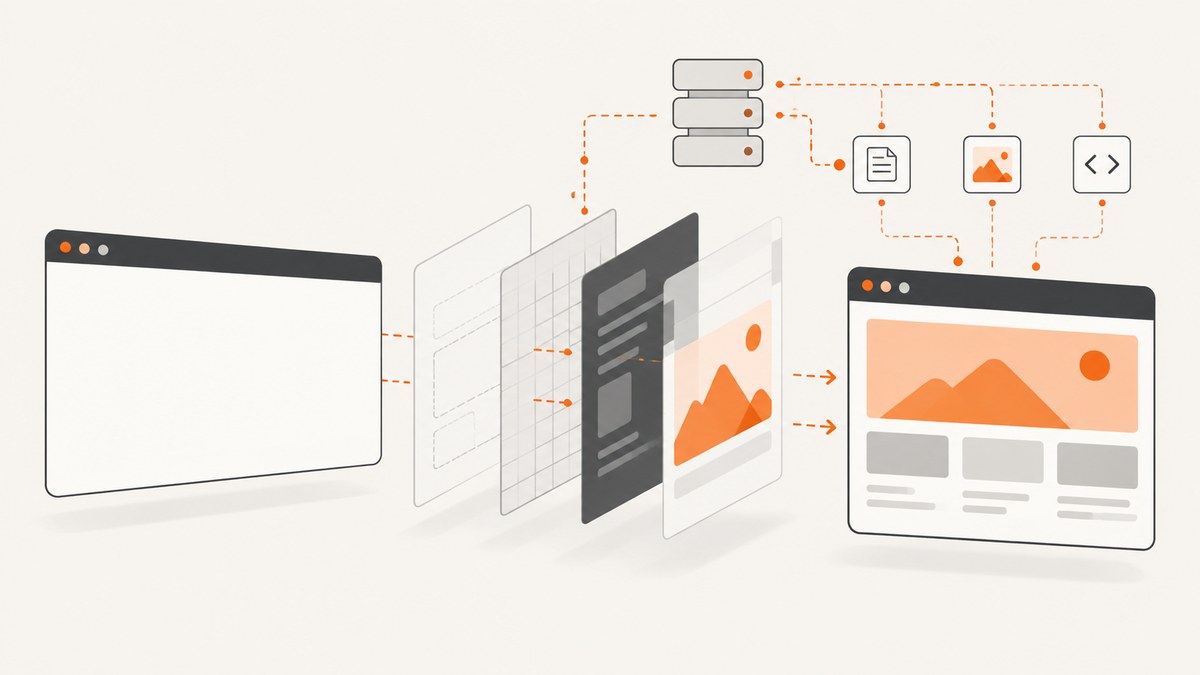
A white or blank screenshot usually means the capture happened before the page painted, the page returned a challenge or error, or the capture method could not read some pixels. Start by opening the URL in a normal browser. If it is blank there too, fix the website. If it works interactively, inspect rendering readiness, console and network errors, cross-origin resources, automation defenses, and managed-browser policies.
1. Identify which kind of blank result you have
Save the image, final URL, response headers, captured HTML (when your tool provides it), browser console, and network log. These clues distinguish a paint timing problem from a security or access problem.
| Symptom | Likely cause | First check |
|---|---|---|
| Entire page is white, but the interactive browser is correct | JavaScript had not rendered before capture | Wait for a meaningful selector or application state |
| Only an embedded map, payment form, or widget is missing | Cross-origin iframe boundary | Capture the embedded origin separately or use native browser capture |
| Images or canvas are missing | CORS, CORB, or an incorrect MIME type | Inspect image responses and security headers |
| A challenge page or empty response is captured | Bot detection, CAPTCHA, or access denial | Inspect final URL and captured HTML |
| Failure occurs only on a company device | Chrome Enterprise screenshot policy | Ask an administrator to inspect screenshot restrictions |
2. Wait for application rendering
A browser’s load event means that the initial document and its load-blocking resources finished. It does not prove that a React, Vue, Angular, or other single-page application has finished fetching data and painting. Cloudflare documents this exact failure mode: the browser can consider a page loaded before JavaScript finishes rendering.
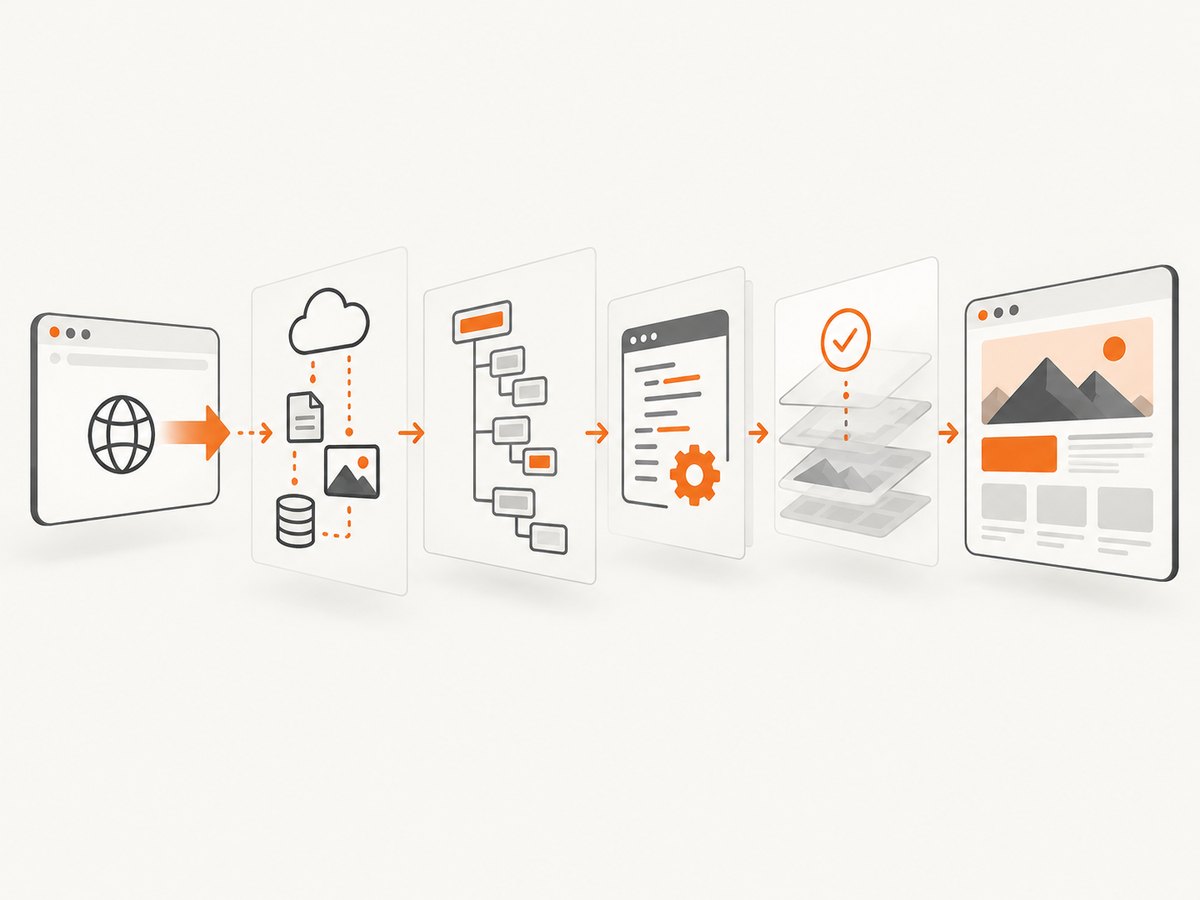
Use a readiness signal owned by the application whenever possible:
- A selector that appears only after data is rendered, such as
[data-rendered="true"]. - A route-specific condition, such as a heading containing the loaded record name.
- A short post-render delay for animations, web fonts, or charts.
- Network idle only when the page genuinely becomes quiet; analytics polling can make it wait forever.
A fixed delay is a fallback, not a guarantee. Keep it long enough for the slowest expected response, then replace it with a selector or state condition.
3. A complete DIY capture with Playwright
The following Node.js script waits for a real readiness selector, records diagnostics, and captures a full-page PNG. Install Playwright with npm install playwright, then run npx playwright install chromium.
import { chromium } from 'playwright';

const target = process.env.TARGET_URL ?? 'https://example.com';
const readySelector = process.env.READY_SELECTOR ?? 'body';
const browser = await chromium.launch({ headless: true });
const page = await browser.newPage({
  viewport: { width: 1440, height: 900 },
  deviceScaleFactor: 1
});

page.on('console', message => console.log('[console]', message.type(), message.text()));
page.on('pageerror', error => console.error('[pageerror]', error.message));
page.on('requestfailed', request => console.error('[requestfailed]', request.url(), request.failure()?.errorText));

try {
  const response = await page.goto(target, { waitUntil: 'domcontentloaded', timeout: 60000 });
  console.log('status:', response?.status(), 'final URL:', page.url());

  await page.waitForSelector(readySelector, { state: 'visible', timeout: 30000 });
  await page.evaluate(() => document.fonts?.ready);
  await page.waitForTimeout(500); // allow a final paint and animation frame

  await page.screenshot({ path: 'shot.png', fullPage: true, animations: 'disabled' });
} finally {
  await browser.close();
}
Replace body with a selector that proves your application is ready. For a dashboard, that might be [data-testid="dashboard-loaded"]. If the page has lazy-loaded images, scroll through it before capture so those images enter the viewport:
await page.evaluate(async () => {
  await new Promise(resolve => {
    let y = 0;
    const step = () => {
      y += 700;
      window.scrollTo(0, y);
      if (y >= document.body.scrollHeight) return resolve();
      setTimeout(step, 100);
    };
    step();
  });
  window.scrollTo(0, 0);
});
4. Read console and network diagnostics
JavaScript exceptions can stop rendering after the shell loads. Look for failed API calls, 4xx/5xx responses, blocked frames, CSP violations, and resources served with the wrong Content-Type. A screenshot that contains only a navigation shell often indicates an API failure rather than a screenshot failure.
Check the HTTP response and final location. A 200 status can still contain an access-denied page. Record redirects, authentication requirements, and whether the capture environment has the same headers, cookies, and locale as a real visitor.
5. Fix CORS and canvas failures
MDN explains that drawing pixels loaded from another origin without CORS approval taints a canvas. Calls such as getImageData(), toBlob(), and toDataURL() then throw a SecurityError. Set the image’s crossorigin attribute before assigning src, and configure the image server to return an appropriate Access-Control-Allow-Origin header:
const image = new Image();
image.crossOrigin = 'anonymous';
image.src = 'https://cdn.example.com/chart.png';
image.onload = () => canvas.getContext('2d').drawImage(image, 0, 0);
The client cannot grant permission that the server does not send. If you do not control the asset server, avoid exporting that canvas or capture the page with a native browser screenshot that does not require reading pixels through a DOM fallback.
6. Treat cross-origin iframes as a separate document
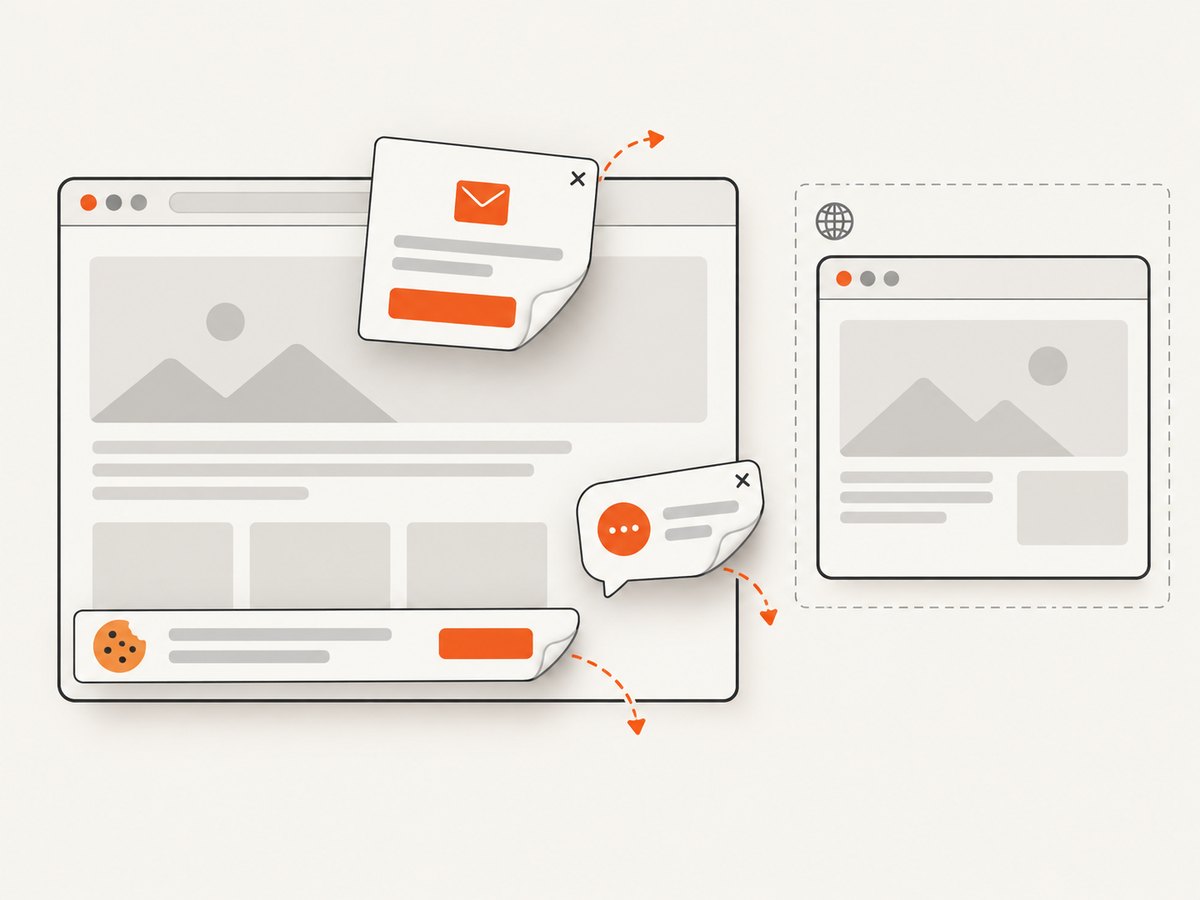
DOM and canvas screenshot libraries cannot read pixels inside a cross-origin <iframe>. Payment forms, maps, chat tools, and embedded analytics may therefore appear blank while the surrounding page is correct. BetterBugs documents this browser boundary. Use a native browser capture for pixels the browser can display, or capture the embedded origin separately when you are authorized to do so. Same-origin frames can be inspected, but still need their own readiness condition.
7. Correct MIME types and CORB blocks
Chromium’s CORB guidance notes that cross-origin HTML, XML, and JSON can be blocked. An image response mislabeled text/html, especially with X-Content-Type-Options: nosniff, may never reach the renderer. Check status, redirects, Content-Type, and security headers at the failing URL. Return image/png, image/jpeg, or the actual format for image bytes, and return valid HTML for documents.
8. Check automation defenses
Browserless lists blank images, CAPTCHA pages, and content that differs from a real browser as signs that a target is blocking automation. Inspect the captured HTML and final URL. If you find a challenge or access-denied document, increasing the wait time will not fix it. Use the provider’s supported browser context, supply required authentication, and comply with the site’s access rules. Do not attempt to defeat a CAPTCHA or access control.
9. Check managed-browser policies
Chrome Enterprise administrators can enable screenshot prevention, allow URL exceptions, or disable screenshots for shortcuts, apps, and extensions. If capture fails only on a work device or particular domains, ask the administrator to inspect the applicable policy and exception list. Test the same URL in an unmanaged environment only for diagnosis and only when your organization permits it.
10. Troubleshooting checklist
| Error or observation | Cause | Fix |
|---|---|---|
White page after goto |
SPA has not painted | Wait for a post-data selector, then fonts and a short paint delay |
Timeout exceeded |
Selector never appears or network never goes idle | Verify the selector in an interactive browser; use a bounded delay or application condition |
SecurityError: canvas is tainted |
Foreign-origin pixels lack CORS | Enable server CORS and set crossorigin before loading; otherwise use native capture |
| Iframe area is blank | Cross-origin frame cannot be read by DOM code | Capture with a browser screenshot or capture the frame’s origin separately |
| Images return HTML or are missing | Wrong MIME type, redirect, or CORB | Correct status, Content-Type, and security headers |
| Only a CAPTCHA appears | Automation blocked | Use an authorized supported context or request access from the site owner |
| Works locally, fails in CI | Different viewport, fonts, credentials, timezone, or network | Pin browser version and settings; log headers, URL, console, and failed requests |
| Capture blocked on corporate Chrome | Enterprise screenshot policy | Have an administrator review policy configuration |
11. Performance, reliability, and cost
- Readiness: selectors and application state finish sooner and more reliably than large fixed sleeps.
- Page size: full-page captures and lazy-image scrolling consume more memory; capture a viewport or element when that is sufficient.
- Concurrency: reuse a browser process, but isolate pages and credentials. Limit parallel captures to avoid CPU, memory, and target rate limits.
- Retries: retry transient DNS, connection, and 5xx failures with exponential backoff. Do not blindly retry a deterministic 4xx, CAPTCHA, or policy denial.
- Reproducibility: pin viewport, device scale, timezone, locale, user agent, fonts, and animation state. Wait for fonts before comparing pixels.
- Cost: cache stable pages, avoid unnecessary full-page work, and record whether a capture was successful. A blank result caused by your readiness logic still consumes your own compute in a DIY system.
12. Or skip the browser setup
ScreenshotNeo is a website screenshot API and MCP server. It accepts one GET request and returns PNG, JPEG, WebP, or PDF. See the API documentation for all parameters.
curl -G "https://api.screenshotneo.com/v1/shot" -d access_key=YOUR_API_KEY --data-urlencode url=https://stripe.com -o shot.webpimport requests
r = requests.get("https://api.screenshotneo.com/v1/shot", params={"access_key": "YOUR_API_KEY", "url": "https://stripe.com"}, timeout=90)
open("shot.webp", "wb").write(r.content)const q = new URLSearchParams({ access_key: 'YOUR_API_KEY', url: 'https://stripe.com' });
const res = await fetch(`https://api.screenshotneo.com/v1/shot?${q}`);Before capture, ScreenshotNeo accepts cookie and consent banners and removes more than 60 known consent platforms, newsletter popups, and chat widgets; each step can be disabled. Bot checks, blank pages, timeouts, failed loads, and cache hits are not billed as clean shots, and the response identifies the result with X-Page-Verdict and X-Billed headers. Its MCP server provides take_screenshot, get_page_info, and capture_pdf tools for Claude, Cursor, and other MCP clients.
For difficult pages, options include full-page capture with lazy images loaded, CSS element capture, dark mode, device presets or custom viewports, retina scale, custom CSS and JavaScript, click actions, selector waits, delays, network-idle waits, blocked ads or resource types, headers, cookies, user agents, authorization, timezone, geolocation, transparent backgrounds, resizing, TTL caching, signed links, asynchronous jobs with signed webhooks, bulk capture of up to 100 URLs, a usage API, and an OpenAPI specification. Parameter names used by other screenshot APIs also work, which simplifies migration.
Create a free ScreenshotNeo account: 1,000 screenshots each month with no card. Paid plans start at $5 for 3,000 screenshots; every feature is included on every plan.
13. Short FAQ
Does increasing the screenshot timeout always solve a white image?
No. It helps only when the page is still rendering. A CAPTCHA, CORS failure, iframe boundary, wrong MIME type, or policy block needs a different fix.
Why does the page look correct manually but fail in CI?
Compare viewport, cookies, authentication, user agent, timezone, fonts, network access, and browser version. CI may also receive a bot challenge or a different redirect.
Can I make a cross-origin iframe readable with JavaScript?
Not from the embedding page. Same-origin policy prevents DOM access. Capture it as its own authorized page or use a native browser screenshot.
Should visual tests wait for network idle?
Only when the application becomes quiet. Polling, analytics, and live updates can prevent network idle indefinitely; a readiness selector is usually more precise.
What evidence should I attach to a bug report?
Include the URL and final URL, status code, headers, screenshot, HTML, console errors, failed requests, viewport, browser version, and the exact readiness condition.