How to Fix White Screenshots When Using Chrome DevTools Protocol Clips
Diagnose white CDP screenshots by checking clip geometry, viewport state, render readiness, and transparent canvas backgrounds.
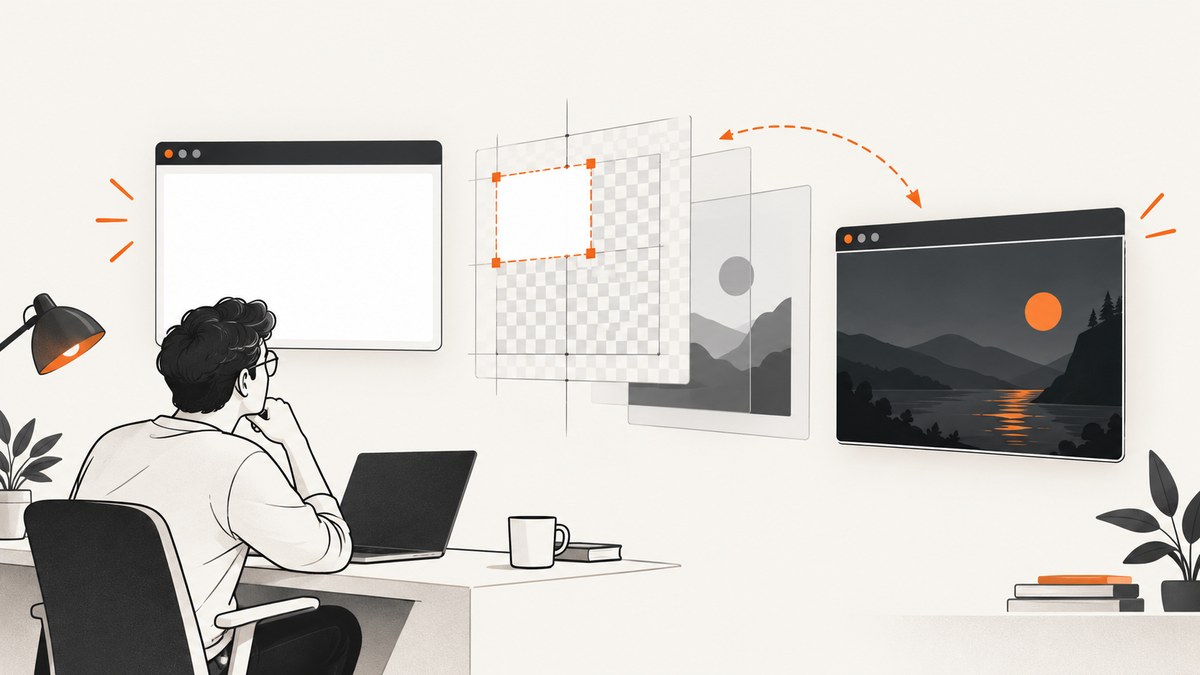
A white result from Page.captureScreenshot with clip usually comes from capture geometry, coordinate scaling, page readiness, or background compositing. Start with a known-good unclipped capture, then validate the clip rectangle in device-independent pixels (DIP), viewport state, and transparent surfaces.
1. Confirm the target and wait for rendering
Attach to the intended page target and verify that it has a live render view. Navigation completion does not guarantee that a canvas, chart, lazy image, or client-rendered component is ready.
Before each diagnostic capture, record:
- Chrome version and operating system
- Target and session identifiers
- Viewport width and height
- Device scale factor and emulation settings
- Scroll position
- Exact
Page.captureScreenshotparameters - Decoded image dimensions
Protocol Monitor can display and send raw CDP commands, which helps detect wrapper libraries that alter or omit parameters. See the Chrome DevTools Protocol landing page.
2. Validate clip geometry and coordinate units
The clip object contains x, y, width, height, and scale. Its rectangle is expressed in device-independent pixels, not necessarily the physical pixels in the output file. Chromium rejects a clip with zero width or height.
{
  "format": "png",
  "clip": { "x": 0, "y": 0, "width": 800, "height": 600, "scale": 1 }
}
Check these common mistakes:
- Using screenshot output pixels while CDP expects DIP coordinates.
- Passing a DOM rectangle measured relative to the document when the capture expects viewport coordinates.
- Keeping coordinates from before a scroll or layout shift.
- Multiplying width and height by device scale factor twice.
- Supplying a negative, zero, NaN, or excessively large dimension.
- Clipping outside the emulated viewport without intentionally enabling beyond-viewport behavior.
Measure the element again immediately before capture, normalize the coordinate system once, and test a small rectangle over a clearly visible region.
3. Compare clipped and unclipped captures
Run the same command without clip, keeping format, target, and timing unchanged.

const baseline = await cdp.send('Page.captureScreenshot', {
  format: 'png',
  fromSurface: true
});

const clipped = await cdp.send('Page.captureScreenshot', {
  format: 'png',
  fromSurface: true,
  clip: { x: 0, y: 0, width: 800, height: 600, scale: 1 }
});| Observation | Check first | Likely interpretation |
|---|---|---|
| Unclipped works; clipped is white | Bounds, origin, DIP conversion, scale, scroll, viewport | Clip geometry or the clipped capture path is implicated. |
| Both are white | Render readiness, transparent surfaces, target, page background | The page or compositing state may be wrong independently of clip. |
| Command fails immediately | Live render view and positive dimensions | Chromium validation rejected the target or rectangle. |
This is an isolation method, not proof of a single root cause. The Page protocol documentation defines the capture arguments, while Chromium’s page handler shows the current validation and capture paths.
4. Understand captureBeyondViewport and fromSurface
captureBeyondViewport defaults to false. fromSurface defaults to true. Chromium’s automatic full-page sizing branch is used when fromSurface is true, captureBeyondViewport is true, and no clip is supplied. A clipped full-page region follows a different path, so an unclipped full-page call and a clipped call are not interchangeable.
{
  "format": "png",
  "fromSurface": true,
  "captureBeyondViewport": true
}
Start with documented defaults. Change one setting at a time and log the resulting viewport and image dimensions. These parameters are marked experimental in the protocol and implementation details can change between Chrome versions.
5. Diagnose transparent canvas and white backgrounds
A transparent canvas can appear white when its pixels are composited against a different frame background than the one visible in the page. Issue #806 reports a similar symptom: a transparent canvas over a dark CSS container appeared white in a screenshot. It was opened January 21, 2026, on Chrome 143.x and Windows 10; treat it as one environment report, not a universal Chromium defect.
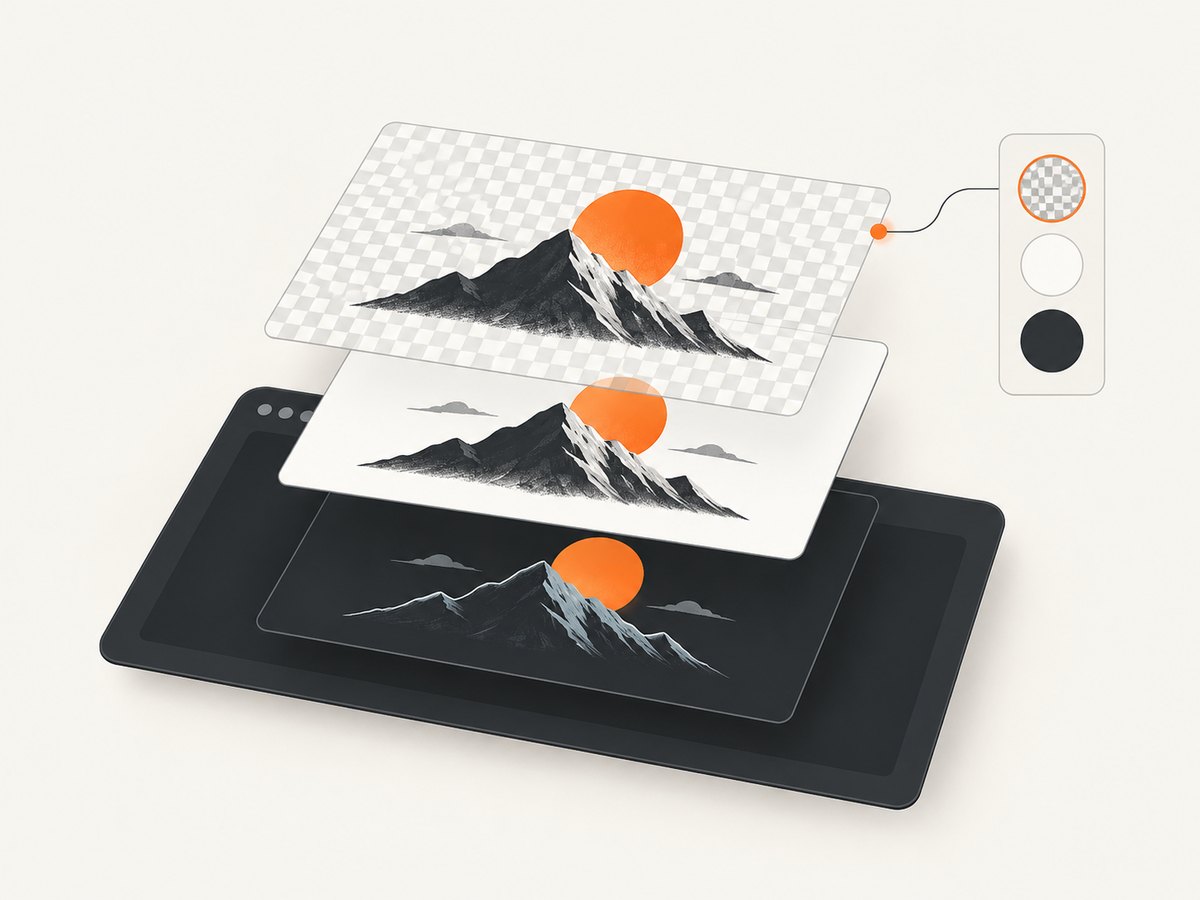
Inspect the canvas pixels, the canvas’s computed background, and the backgrounds of its ancestors. If the frame has no specified background, test the documented default-background override:
{
  "color": { "r": 15, "g": 23, "b": 42, "a": 1 }
}
The Emulation protocol says this override applies when content does not specify a frame background. It does not force an element’s CSS background behind every transparent canvas. Clear it after the diagnostic capture by omitting color:
{}6. A repeatable CDP diagnostic script
import fs from 'node:fs/promises';
import { chromium } from 'playwright';

const browser = await chromium.launch({ headless: true });
const page = await browser.newPage({ viewport: { width: 1280, height: 900 }, deviceScaleFactor: 1 });
await page.goto('https://example.com', { waitUntil: 'networkidle' });
await page.waitForTimeout(250);

const cdp = await page.context().newCDPSession(page);
const version = await cdp.send('Browser.getVersion');
console.log({ browser: version.product });

const baseline = await cdp.send('Page.captureScreenshot', { format: 'png', fromSurface: true });
await fs.writeFile('baseline.png', Buffer.from(baseline.data, 'base64'));

const clip = { x: 0, y: 0, width: 800, height: 600, scale: 1 };
if (clip.width <= 0 || clip.height <= 0) throw new Error('Clip dimensions must be positive');
const result = await cdp.send('Page.captureScreenshot', {
  format: 'png', fromSurface: true, captureBeyondViewport: false, clip
});
await fs.writeFile('clipped.png', Buffer.from(result.data, 'base64'));
await browser.close();
7. Troubleshooting checklist
White image with no protocol error
- Capture without
clip. - Use a visible 100×100 DIP rectangle at
x:0,y:0. - Verify scroll and viewport coordinates.
- Wait for the specific selector, canvas draw, fonts, and lazy images.
- Inspect transparency and test a default background override.
“Invalid parameters” or rejected command
Check that the target has a live render view and that width and height are greater than zero. Ensure your client serializes numbers, not strings or null.
Only the lower or upper part is blank
The rectangle may be outside the current viewport, or the page may not have laid out content yet. Recalculate after layout settles, and compare with a full-page capture.
Canvas is white but ordinary HTML is correct
Check canvas alpha, ancestor backgrounds, compositing, and the frame default background. The override is a diagnostic aid, not a guarantee.
Results differ across machines
Pin or record Chrome versions, viewport metrics, device scale factor, fonts, timezone, and GPU/headless mode. Compare raw CDP payloads through logging or Protocol Monitor.
8. Performance and reliability
- Use the smallest valid clip when you need one component; it reduces encoded image size.
- Wait for a meaningful readiness signal instead of using a long arbitrary delay.
- Reuse a browser and CDP connection for batches, but reset emulation and scroll state between pages.
- Keep format and scale constant while diagnosing so image encoding does not obscure rendering differences.
- Retry navigation or rendering failures with bounded backoff; do not retry invalid clip geometry.
- Store the request, Chrome version, viewport, clip, and decoded dimensions with each failed capture.
9. Or skip the browser setup
ScreenshotNeo provides a website screenshot API and MCP server. It removes cookie and consent banners, newsletter popups, and chat widgets before capture. Bot checks, blank pages, timeouts, failed loads, and cache hits are not billed, and response headers identify the page verdict and billing status. Its MCP server lets Claude, Cursor, and other MCP clients call take_screenshot, get_page_info, and capture_pdf.
See the ScreenshotNeo API documentation for options such as full-page capture, CSS-selector elements, custom CSS and JavaScript, waits, blocking rules, device presets, headers, cookies, geolocation, caching, signed links, async jobs, bulk capture, and PDF output.
curl -G "https://api.screenshotneo.com/v1/shot" -d access_key=YOUR_API_KEY --data-urlencode url=https://stripe.com -o shot.webpimport requests
r = requests.get("https://api.screenshotneo.com/v1/shot", params={"access_key": "YOUR_API_KEY", "url": "https://stripe.com"}, timeout=90)
open("shot.webp", "wb").write(r.content)const q = new URLSearchParams({ access_key: 'YOUR_API_KEY', url: 'https://stripe.com' });
const res = await fetch(`https://api.screenshotneo.com/v1/shot?${q}`);You get 1,000 screenshots per month free with no card. Paid plans start at $5 for 3,000 screenshots, and every feature is included on every plan. Create a free ScreenshotNeo account.
10. FAQ
Does clip use CSS pixels?
The protocol defines the viewport rectangle in device-independent pixels. Convert measurements consistently with your emulation and device scale settings.
Should I always enable captureBeyondViewport?
No. Use documented defaults first. Full-page behavior and clipped behavior use different implementation paths.
Can a background override fix every white canvas?
No. It changes the default frame background when content does not specify one. Transparent canvas composition can still require page-level fixes.
What is the fastest first test?
Capture without clip, then capture a 100×100 rectangle at the top-left with the same target and format. That separates many geometry issues from page rendering issues.


