How to Fix White Screenshots and Missing Elements in Headless Chrome with Selenium
Diagnose white Selenium screenshots and missing elements with reliable waits, viewport checks, version logging, and practical fixes.
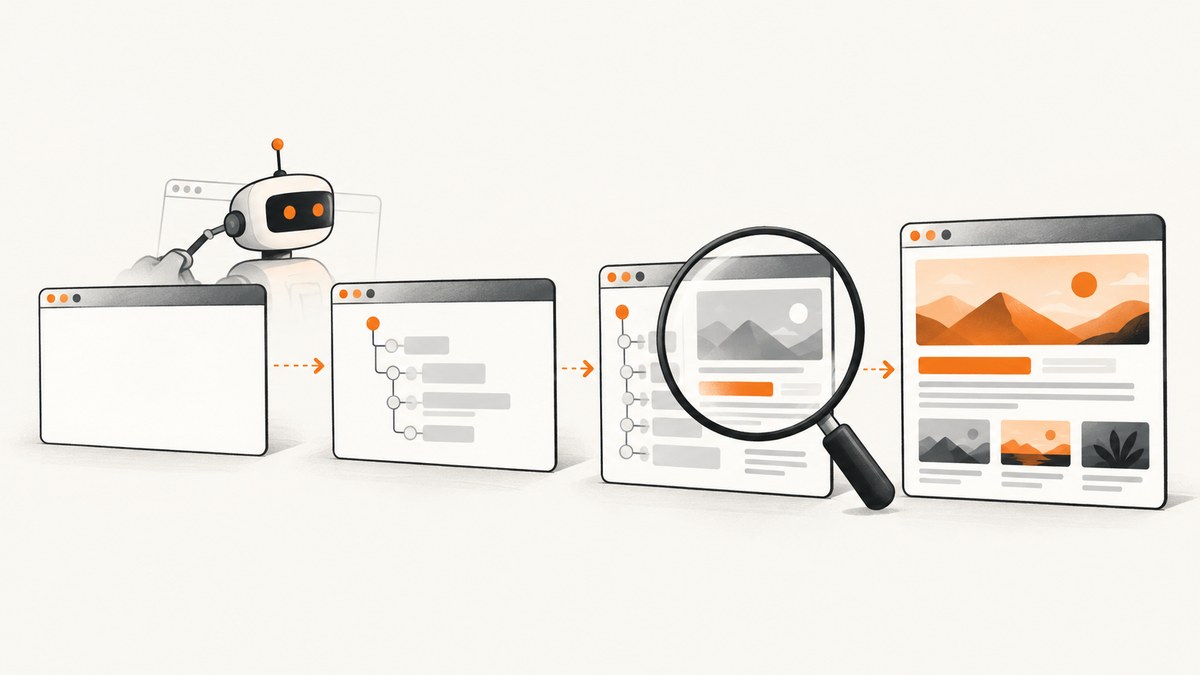
White screenshots and missing elements in headless Chrome usually mean the capture happened before the page reached the state you expected. Selenium’s navigation wait reports document loading progress, but JavaScript can continue rendering, inserting, or revealing content afterward. The dependable fix is to wait for the exact application condition you need, then capture with a deliberate viewport and recorded browser versions.
This guide gives a repeatable diagnostic process, complete Selenium code, configuration guidance, failure fixes, and production notes. It also explains when a screenshot API can remove browser setup from your stack.
1. What causes a white or incomplete screenshot?
A successful navigation call does not prove that the visible page is ready. Selenium documents that readyState covers assets declared in the HTML; scripts loaded by those assets may still change the page, and interactive elements may not exist when the next command runs. Single-page applications commonly render a shell first and fetch the useful content afterward.
Typical causes include:
- Capture timing: the screenshot runs before the target component is inserted or displayed.
- Responsive layout: an unexpected viewport moves content, changes breakpoints, or places the target below the visible area.
- Hidden state: content appears only after a click, consent action, tab switch, or other interaction.
- Version drift: Chrome, ChromeDriver, Selenium, or the operating system differs between a working and failing run.
- Time-dependent code: animations, delayed requests, or timers have not reached the state you intend to capture.
- Application failure: JavaScript errors, blocked requests, authentication redirects, or bot checks leave a blank shell.
Treat a white image as evidence to collect, not as proof that a particular Chrome flag is required. The title alone does not identify an application-specific rendering bug.
2. Capture evidence before changing code
- Record the target URL and the exact timestamp.
- Log Chrome, ChromeDriver, Selenium, operating-system, and container versions.
- Record the requested window size and the image’s actual pixel dimensions.
- Save the page source, a DOM snapshot, browser console output, and a screenshot taken immediately before the failing capture if possible.
- Run the same URL headful and headless with identical viewport, credentials, and wait condition. A difference is a clue to investigate, not a universal diagnosis.
Chrome’s Headless documentation notes that Chrome 112 unified headless and headful implementations. Starting with Chrome 132.0.6793.0, the older implementation is available only as the separate chrome-headless-shell binary. This history matters when reproducing older guides, so include the exact versions in every bug report.
3. Use an explicit wait for the state you will capture
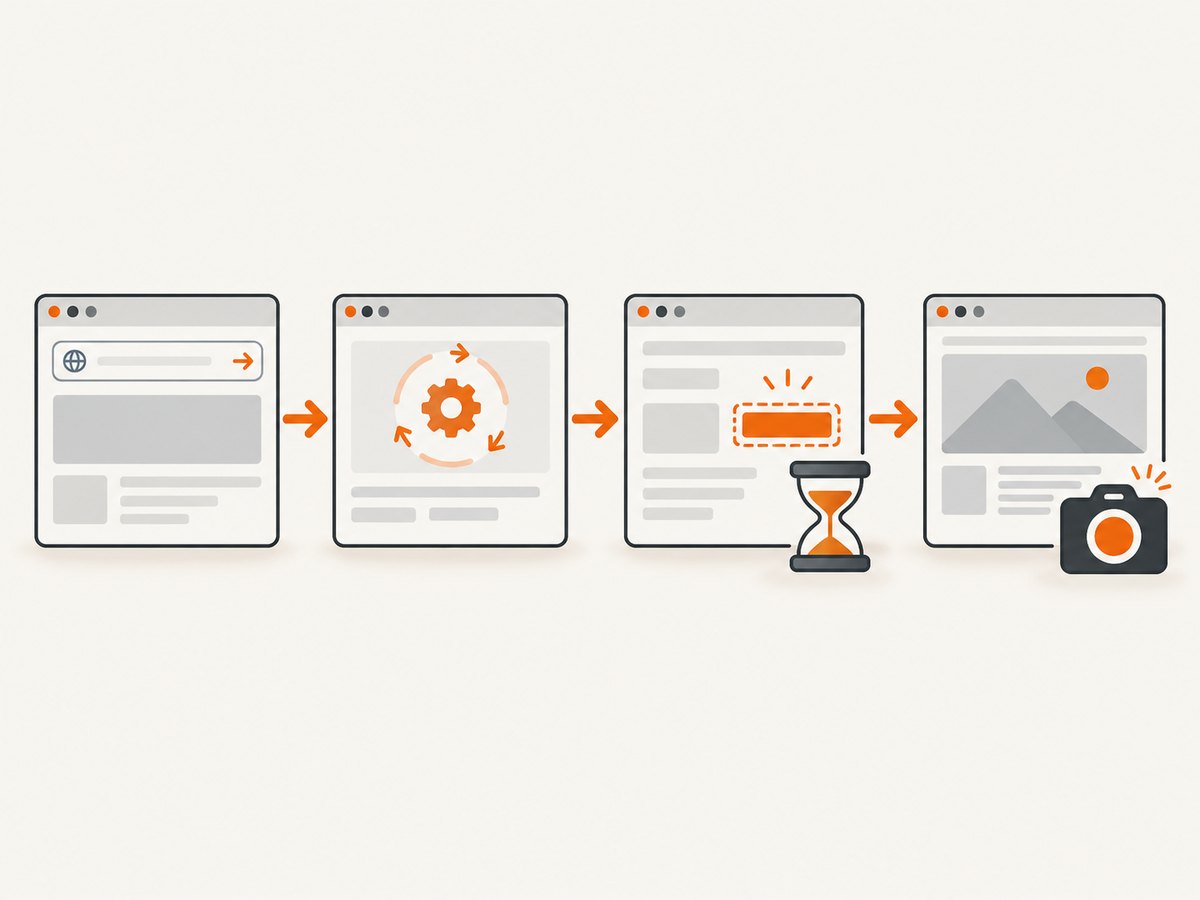
Use a condition-based wait for the element or application state that defines readiness. A fixed sleep can be too short on a slow run and unnecessarily long on a fast one. Selenium also warns that mixing implicit and explicit waits can produce unpredictable total wait times. Keep the implicit wait at zero unless you have a deliberate reason to use it, and make explicit waits your default.
Runnable Python example
from selenium import webdriver
from selenium.webdriver.chrome.options import Options
from selenium.webdriver.common.by import By
from selenium.webdriver.support.ui import WebDriverWait
from selenium.webdriver.support import expected_conditions as EC
from selenium.common.exceptions import TimeoutException

URL = "https://example.com/dashboard"
TARGET = (By.CSS_SELECTOR, "main .report")

options = Options()
options.add_argument("--headless=new")
options.add_argument("--window-size=1440,1000")
options.add_argument("--disable-dev-shm-usage")

driver = webdriver.Chrome(options=options)
driver.set_page_load_timeout(60)
try:
    driver.get(URL)
    wait = WebDriverWait(driver, 30, poll_frequency=0.2)
    element = wait.until(EC.visibility_of_element_located(TARGET))
    driver.save_screenshot("report.png")
    print("captured", element.size, driver.get_window_size())
except TimeoutException:
    driver.save_screenshot("timeout-evidence.png")
    print("Target was not visible. URL:", driver.current_url)
    print("Title:", driver.title)
    print("Ready state:", driver.execute_script("return document.readyState"))
    print("Body text length:", len(driver.find_element(By.TAG_NAME, "body").text))
    raise
finally:
    driver.quit()
Replace main .report with the selector that proves your page is ready. Use presence_of_element_located when existence is enough, visibility_of_element_located when pixels must be visible, and element_to_be_clickable before an interaction. If the page exposes a reliable application flag, wait for it directly:
wait.until(lambda d: d.execute_script(
    "return window.appReady === true"
))
For a target that changes text, wait for the expected value rather than merely for a container:
wait.until(EC.text_to_be_present_in_element(
    (By.CSS_SELECTOR, "[data-testid='status']"),
    "Complete"
))
4. Verify the DOM, visibility, and viewport before capture
When an element is missing, inspect three separate facts: does it exist, is it displayed, and is it inside the intended viewport? A present node can have display:none, zero dimensions, or be covered by another layer.
selector = "main .report"
node = driver.find_elements(By.CSS_SELECTOR, selector)
print("matching nodes:", len(node))
if node:
    print("displayed:", node[0].is_displayed())
    print("rect:", node[0].rect)
    print("viewport:", driver.execute_script(
        "return {w: innerWidth, h: innerHeight, dpr: devicePixelRatio}"
    ))
Set a deliberate window size before navigation and log it afterward. Chrome’s command-line screenshot reference pairs capture with --window-size; an undersized viewport can trigger a different responsive layout. This is a diagnostic inference, so confirm it by comparing DOM and screenshots at two known sizes.
For full-page captures, Selenium’s ordinary screenshot method captures the current viewport. You can scroll and stitch images, use a browser-specific full-page facility, or capture an element whose height represents the page. Do not assume that a tall CSS document automatically becomes a tall PNG.
5. Handle dynamic rendering and interactions
Many missing elements are intentionally deferred. Perform the same interaction a visitor would, then wait for its result:
from selenium.webdriver.common.action_chains import ActionChains

wait.until(EC.element_to_be_clickable((By.CSS_SELECTOR, "button.load-more"))).click()
wait.until(EC.visibility_of_element_located((By.CSS_SELECTOR, ".new-items")))

driver.execute_script("window.scrollTo(0, document.body.scrollHeight)")
wait.until(lambda d: d.execute_script("return document.readyState") == "complete")
If a consent dialog blocks the page, locate and accept it before waiting for the content behind it. If a newsletter or chat widget obscures the target, hide it only when your test or capture policy allows that behavior. Keep these actions explicit so a later page redesign fails at a known step instead of silently producing a misleading image.
6. Understand Chrome timing controls
Chrome’s headless command-line reference documents --timeout, which caps how long command-line capture waits before taking an image, and --virtual-time-budget, which fast-forwards time-dependent JavaScript for command-line capture. These are useful context when comparing tools, but they are not drop-in Selenium wait APIs. In Selenium, wait for the application condition that defines readiness.
Do not use a large timeout as a substitute for a missing readiness signal. A long timeout can hide a failed request or authentication redirect and increase queue time. Prefer a bounded explicit wait, then save diagnostic evidence when it expires.
7. Troubleshooting checklist
| Symptom | Likely cause | Fix |
|---|---|---|
| Entire image is white | Capture ran before app rendering, or the page failed | Wait for a visible target; inspect title, URL, body text, console, and network failures. |
| Header appears, data is absent | XHR/fetch content is still loading | Wait for the data row, chart, or application-ready flag rather than readyState. |
| Element exists but is not visible | Hidden tab, collapsed panel, CSS state, or overlay | Perform the required click, wait for visibility, and inspect computed style and dimensions. |
| Works headful, fails headless | Different versions, viewport, timing, or environment | Align versions and window size; compare DOM, console, and network evidence before changing flags. |
| Wrong responsive layout | Window size was not set or was changed | Set and log --window-size; verify innerWidth and image dimensions. |
| Timeout despite a visible page | Selector is wrong or visibility condition never becomes true | Check the live DOM, shadow roots, frames, and selector spelling. |
| Content appears only after scrolling | Lazy loading is tied to intersection or scroll events | Scroll in controlled steps and wait for each batch of content. |
| Screenshot shows a login or bot page | Authentication expired or a bot check interrupted navigation | Validate the final URL and page text; provide valid session state and treat bot checks as an application dependency. |
8. Frames, shadow DOM, and lazy content
An element inside an iframe is not in the top-level document. Wait for and switch to the frame before locating its contents:
frame = wait.until(EC.frame_to_be_available_and_switch_to_it(
    (By.CSS_SELECTOR, "iframe.report")
))
wait.until(EC.visibility_of_element_located((By.CSS_SELECTOR, ".chart")))
driver.switch_to.default_content()
For open shadow roots, query through the shadow host:
host = wait.until(EC.presence_of_element_located((By.CSS_SELECTOR, "report-widget")))
chart = wait.until(lambda d: host.shadow_root.find_element(By.CSS_SELECTOR, ".chart"))
Lazy images may have empty src values until they approach the viewport. Scroll them into view, wait for the image’s complete property and natural width, then capture:
img = wait.until(EC.presence_of_element_located((By.CSS_SELECTOR, "img.hero")))
driver.execute_script("arguments[0].scrollIntoView({block:'center'});", img)
wait.until(lambda d: d.execute_script(
    "return arguments[0].complete && arguments[0].naturalWidth > 0", img
))
9. Reliability, performance, and cost
Reliability improves when each capture has a deterministic viewport, explicit readiness condition, bounded timeout, and saved failure evidence. Reuse a driver only when sessions are isolated and page state is reset; otherwise, create a fresh session for independent jobs. Keep screenshots and logs correlated with a job identifier.
Performance depends on page weight, network latency, browser startup, and your wait condition. Waiting for one meaningful selector is usually faster and more stable than sleeping for a large fixed interval. Avoid capturing before fonts, images, or charts are ready if visual fidelity matters; avoid waiting for every optional request when the target is already complete.
Chrome’s command-line timeout is a maximum, not a guarantee that all application work finished. Measure your own workload and set queue and request timeouts around observed page behavior. Selenium itself does not define a screenshot price; your infrastructure cost includes browser CPU, memory, storage, and engineering time.
10. Or skip the browser setup
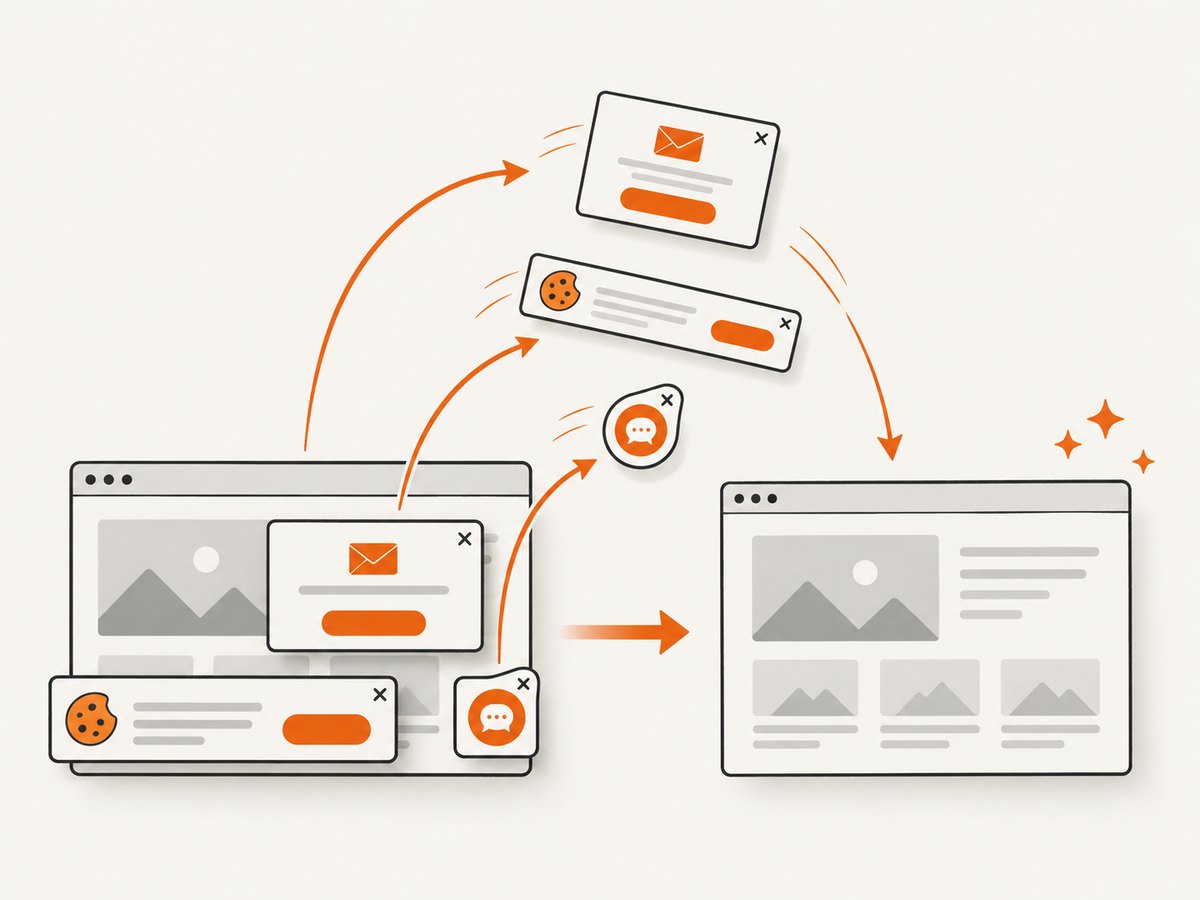
ScreenshotNeo provides a website screenshot API and MCP server. One GET request returns PNG, JPEG, WebP, or PDF. It accepts consent banners before capture and removes more than 60 known consent platforms, newsletter popups, and chat widgets; each step can be turned off. Bot checks, blank pages, timeouts, failed loads, and cache hits are not billed, and the response identifies the result with X-Page-Verdict and X-Billed headers.
See the ScreenshotNeo API documentation for all options, including full-page capture with lazy images loaded, CSS-selector element capture, dark mode, device presets and custom viewports, retina scale, PDF paper and page settings, custom CSS and JavaScript, clicks, selector or network-idle waits, request blocking, headers, cookies, user agents, authorization, timezone, geolocation, transparent backgrounds, resizing, TTL caching, signed links, asynchronous jobs with signed webhooks, bulk capture of up to 100 URLs per call, usage reporting, and the OpenAPI specification.
cURL
curl -G "https://api.screenshotneo.com/v1/shot" \
  -d access_key=YOUR_API_KEY \
  --data-urlencode url=https://stripe.com \
  -o shot.webp
Python
import requests
r = requests.get(
    "https://api.screenshotneo.com/v1/shot",
    params={"access_key": "YOUR_API_KEY", "url": "https://stripe.com"},
    timeout=90,
)
open("shot.webp", "wb").write(r.content)
Node.js
const q = new URLSearchParams({ access_key: 'YOUR_API_KEY', url: 'https://stripe.com' });
const res = await fetch(`https://api.screenshotneo.com/v1/shot?${q}`);
const data = Buffer.from(await res.arrayBuffer());
require('fs').writeFileSync('shot.webp', data);
An MCP server provides take_screenshot, get_page_info, and capture_pdf tools for Claude, Cursor, and other MCP clients. The Free plan includes 1,000 shots per month with no card; paid plans start at $5 for 3,000 shots. Create a free ScreenshotNeo account.
11. Frequently asked questions
Should I add a five-second sleep?
Use an explicit wait for the target state. A fixed sleep has no relationship to actual rendering time and can still fail on a slower run.
Does document.readyState == 'complete' guarantee a usable screenshot?
No. It describes document loading, while JavaScript may still fetch data, insert nodes, or reveal content.
Do I need GPU or sandbox flags?
No universal flag is established by this diagnosis. Compare versions, viewport, DOM state, console output, and environment before changing those settings.
Why is the PNG smaller than expected?
Check the browser viewport, device pixel ratio, screenshot method, and whether you captured the viewport or an element. Log both requested and actual dimensions.
When should I use an API instead of Selenium?
Use an API when you want a managed capture path, built-in cleanup of common overlays, predictable request semantics, and no browser process to operate. Selenium remains useful when your workflow needs custom in-browser interactions or test assertions.
12. Final diagnostic checklist
- Versions and environment are recorded.
- Viewport size is set and verified.
- The final URL and page title are correct.
- The target exists, is displayed, and has non-zero dimensions.
- Frames, shadow roots, lazy images, and required clicks are handled.
- An explicit wait defines readiness.
- Timeouts save DOM, console, and screenshot evidence.
- Headful and headless comparisons use the same inputs.
Once these checks pass, a white screenshot is usually traceable to a specific application state or environment difference instead of an unexplained headless-browser failure.


