How to Fix Unknown Characters in Wicked PDF Unicode Output
Fix missing or garbled Unicode in Wicked PDF by checking HTML encoding, fonts, wkhtmltopdf settings, and header/footer rendering.

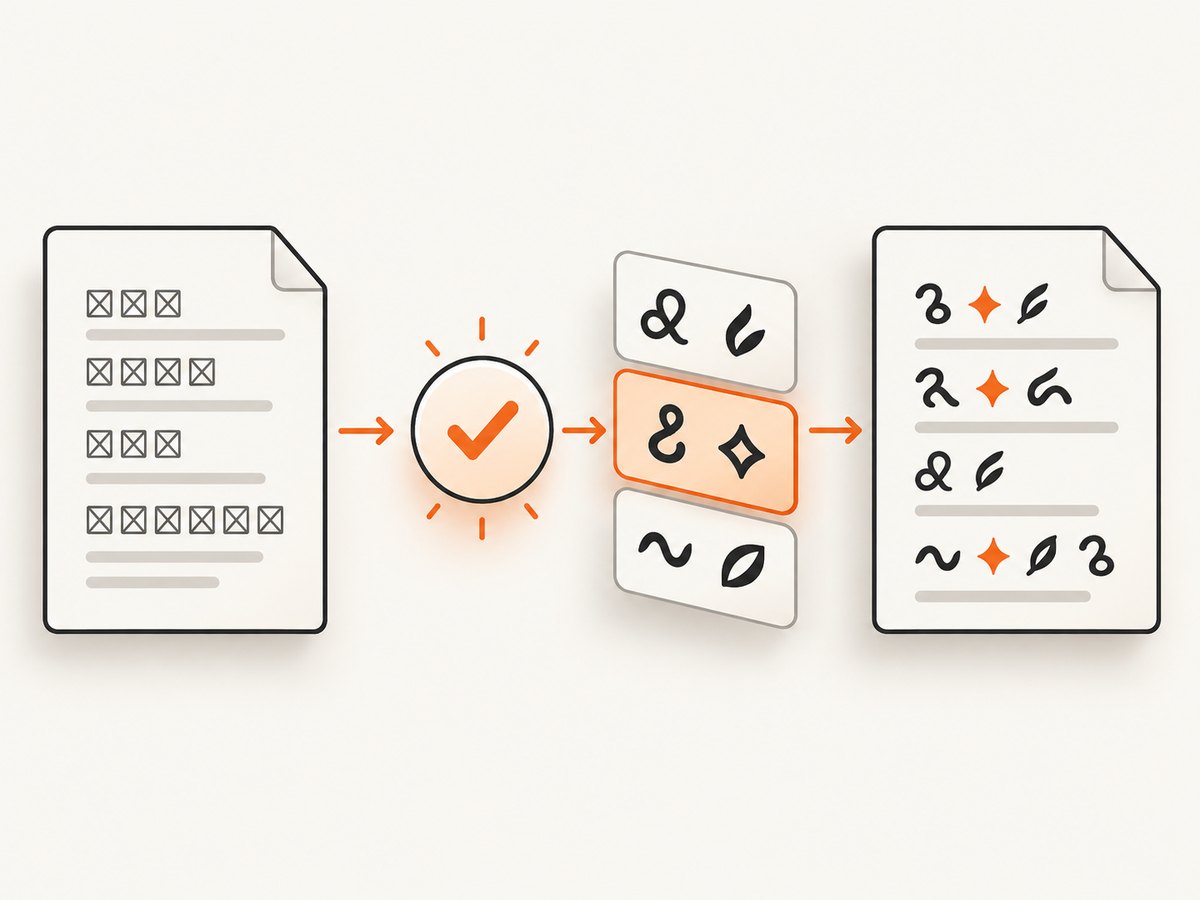
Unknown characters, empty boxes, and missing accents in a Wicked PDF document usually come from one of four places: the Rails input string, HTML encoding detection, missing font glyphs, or header and footer rendering. Fix them in that order. A UTF-8 declaration is necessary, but it cannot create glyphs that are absent from the renderer’s installed fonts.
Wicked PDF is a Rails wrapper around the wkhtmltopdf command-line utility. Your PDF can therefore fail before Wicked PDF receives the content, while wkhtmltopdf is parsing the HTML, or while its fontconfig and FreeType runtime selects a font. The procedure below isolates each layer with small, repeatable tests.
Quick diagnosis
- Inspect the HTML or Ruby string immediately before conversion. Confirm that it contains the intended characters, not already-corrupted bytes.
- Add
<meta charset="utf-8" />inside the PDF view or layout’s<head>. - Pass
encoding: "UTF-8"through Wicked PDF when rendering content whose encoding is not otherwise obvious. - Check that the configured font is installed on the same machine or container that runs
wkhtmltopdf, and that it contains the required glyphs. - Render the same characters in the body, header, and footer separately. Header/footer command-line text follows a different path and can fail even when body HTML works.
- Record the exact wkhtmltopdf version, package, operating system, font family, and input mode (URL, file, or string) before comparing results.
How Wicked PDF and wkhtmltopdf handle text
Wicked PDF builds options for wkhtmltopdf and invokes that binary. The HTML document supplies character data and CSS; the renderer guesses an encoding when one is not declared; fontconfig locates installed font files; FreeType loads those files and supplies glyphs. A failure in any step can look like “Unicode is broken.”
The Wicked PDF README shows a UTF-8 meta tag and an encoding: "UTF-8" render option. The wkhtmltopdf usage documentation describes web.defaultEncoding as the encoding to guess when the content does not specify one. That setting helps the renderer interpret undecorated input; it does not add missing font glyphs.
Step 1: verify the characters before conversion
Start with the value that your controller, mailer, or service passes to the view. Log a safe representation in development, inspect the rendered HTML, or write the HTML to a temporary file. Include characters that exercise your target script, such as:
sample = "Turkish: İ ı Ş ş Ğ ğ Ç ç Ö ö Ü ü"
puts sample
puts sample.encoding
puts sample.bytes.inspect
Ruby strings should normally be UTF-8, but an incorrectly decoded database value can contain replacement characters before Wicked PDF starts. Look for mojibake such as é where you expected é, or a literal replacement character (�). If the HTML already contains the wrong value, fix the source encoding, database connection, CSV import, or API decoder first.
When reading a file yourself, declare the expected encoding rather than relying on a guess:
html = File.read("invoice.html", encoding: "UTF-8")
raise "unexpected encoding" unless html.encoding == Encoding::UTF_8
render pdf: "invoice", template: "invoices/show", locals: { html: html }
Step 2: declare UTF-8 in the PDF HTML
Put the declaration as early as practical in the document head. Do this in the layout used by the PDF, not only in an unrelated browser layout.
<!doctype html>
<html>
  <head>
    <meta charset="utf-8" />
    <meta name="viewport" content="width=device-width, initial-scale=1" />
    <%= wicked_pdf_stylesheet_link_tag "pdf" %>
  </head>
  <body>
    <%= yield %>
  </body>
</html>
A meta declaration tells the HTML parser how to interpret the document. It cannot repair bytes that were decoded incorrectly upstream, and it cannot make a font display a script it does not support.
Step 3: set Wicked PDF’s encoding option
Use the render option when the source is a string, comes from a file with ambiguous metadata, or behaves differently between environments.
render pdf: "receipt",
       template: "receipts/show",
       encoding: "UTF-8",
       disposition: "inline"
For a URL or HTML string, keep the same declaration in the document itself:
html = render_to_string(
  template: "receipts/show",
  formats: [:html],
  locals: { receipt: @receipt }
)

render pdf: "receipt", html: html, encoding: "UTF-8"
If you call the binary directly while isolating a problem, the equivalent option is:
wkhtmltopdf --encoding utf-8 input.html output.pdfTreat this as a diagnostic comparison. Wicked PDF’s option names and configuration should remain the source of truth for your Rails application.
Step 4: distinguish encoding from missing glyphs
Correct Unicode code points still need a font glyph. A browser on your laptop may silently fall back to another installed font, while a production container may have only a minimal Latin font. The result is often a square box, a blank space, or a dropped character rather than mojibake.
Choose a known glyph-capable font
Set an explicit family in the PDF stylesheet and test with a font known to contain the script you need. The exact choice depends on your deployment and licensing. The important checks are:
- The font file is installed in the production image or host.
- The CSS family name matches the installed font’s internal name.
- The font contains every script and symbol in the document.
- Fontconfig can discover it for the user running the renderer.
@font-face {
  font-family: "PdfSans";
  src: url("file:///app/fonts/PdfSans-Regular.ttf") format("truetype");
  font-weight: 400;
  font-style: normal;
}

body {
  font-family: "PdfSans", sans-serif;
}
For a packaged font, verify discovery as the same user and inside the same container:
fc-match "PdfSans"
fc-list | grep -i "PdfSans"
fc-cache -f -v
Do not assume that installing a font on a development workstation changes a server image. The wkhtmltopdf project documents fontconfig and FreeType as runtime dependencies, and its downloads page notes that packaging and runtime configuration vary by distribution. The current stable series listed by the project is 0.12.6, released June 11, 2020; verify the binary actually installed in your environment.
Use a minimal glyph test
Create a page containing only the failing characters and one explicit font. This removes CSS, images, JavaScript, and application data from the experiment.
<meta charset="utf-8" />
<style>body { font-family: "PdfSans", sans-serif; font-size: 24px; }</style>
<p>İ ı Ş ş Ğ ğ Ç ç Ö ö Ü ü — € 中文 العربية 日本語</p>
If this page fails, investigate font installation and renderer packaging. If it succeeds, compare the production template’s CSS and input data with the minimal page.
Step 5: test body, header, and footer independently
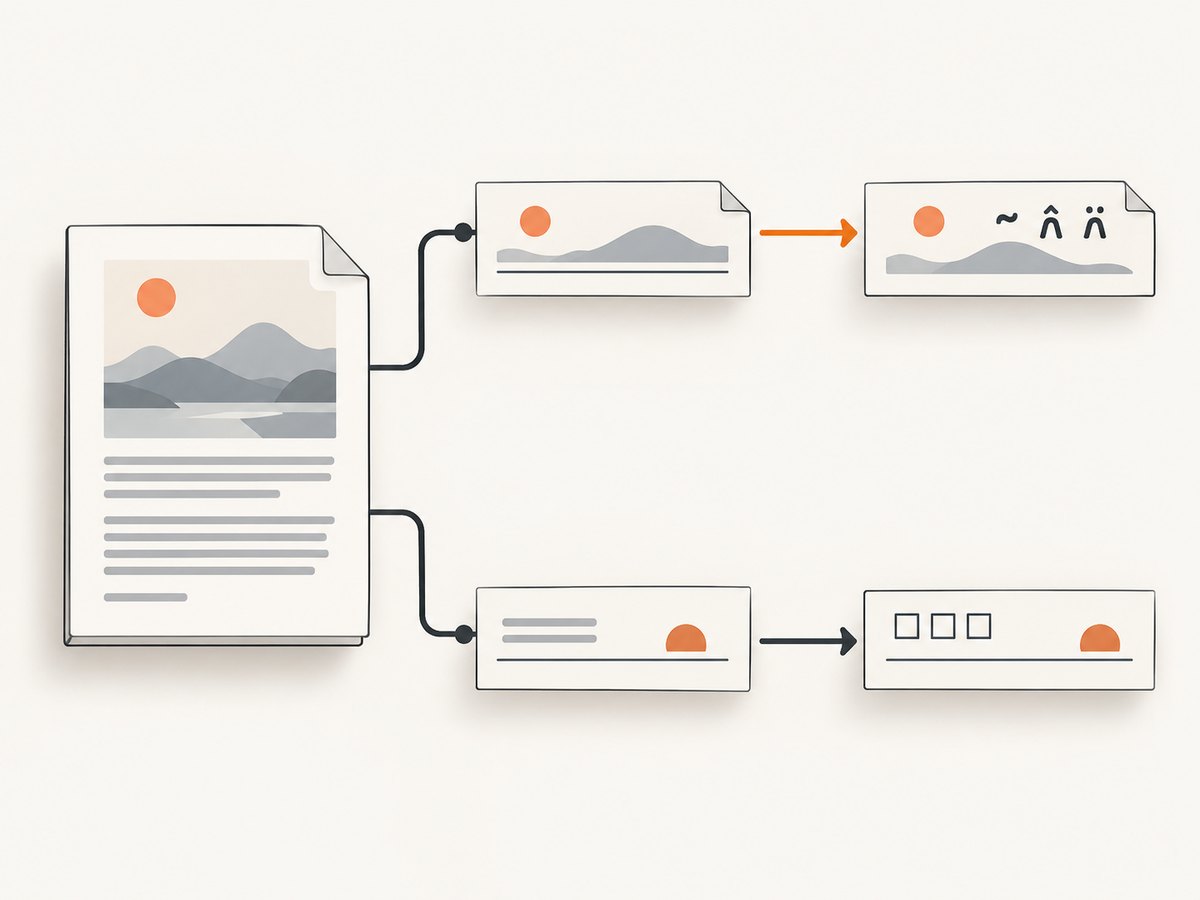
Header and footer content can travel through separate Wicked PDF options and, in some cases, command-line arguments. A historical report describes accented footer text being dropped with Wicked PDF and wkhtmltopdf 0.12.3 on RHEL 7.3 even though UTF-8 arguments and locale settings appeared correct. Treat that report as a configuration-specific failure mode, not a universal fix.
First put the diagnostic string in the body:
render pdf: "unicode-body",
       template: "pdf/unicode_test",
       encoding: "UTF-8"
Then render a header and footer containing the same characters. If body text works but footer text fails, simplify the header/footer template, ensure it has its own UTF-8 declaration, and pass a local file or URL rather than a complex interpolated command-line value. Compare the output with a footer containing only ASCII to confirm that the failure is specific to Unicode transport.
Configuration checklist for containers and CI
- Print
wkhtmltopdf --versionin the image used by the job. - Confirm the binary is the expected build and architecture.
- Install the font packages required by your scripts.
- Run
fc-matchas the same account that executes the Rails process. - Set the locale deliberately, while remembering that locale settings do not supply glyphs.
- Keep a minimal Unicode fixture in the PDF regression suite.
- Inspect the generated PDF itself; a successful process exit does not prove that every character rendered.
Common errors and fixes
| Symptom | Likely cause | Fix |
|---|---|---|
Text appears as é |
Bytes decoded with the wrong encoding before rendering | Fix the source decoder or database value; inspect the Ruby string before conversion. |
| Square boxes or blank glyphs | Selected font lacks the glyph, or is unavailable at runtime | Install a glyph-capable font, verify with fc-match, and set an explicit CSS family. |
| Body works, footer does not | Header/footer transport or template path differs from body HTML | Test the footer separately, simplify it, add UTF-8 metadata, and compare a local template or URL. |
| Works locally, fails in Docker | Different wkhtmltopdf build, fonts, fontconfig cache, or user | Compare versions and packages; install fonts in the image and rebuild the cache. |
encoding: "UTF-8" changes nothing |
Input is already corrupted or the font has no glyph | Inspect bytes and run the minimal font test; encoding cannot repair either condition. |
| Only some symbols fail | Font covers letters but not currency, emoji, CJK, or combining marks | Choose a font with coverage for the complete character set or define a deliberate fallback. |
Performance, reliability, and maintenance
Large font files and multiple fallback families increase startup and layout work. Keep the PDF stylesheet focused, avoid loading unnecessary font weights, and prefer local assets when network access is unreliable. Rendering a minimal fixture during deployment catches missing packages before users encounter broken invoices.
Pin and document the wkhtmltopdf package used by each environment. The project repository is archived read-only, and historical issue advice may target older builds. Record the operating system, binary version, font package versions, and CSS family whenever a Unicode regression is diagnosed.
For reliability, save a representative PDF artifact from CI and inspect it with a PDF text extractor or visual review. Check both extracted text and the visible glyphs: a character can exist in the text layer while still displaying with an unsuitable font, or appear visually through fallback while extraction differs.
Or skip the browser setup
If your goal is a clean image or PDF of a web page rather than Rails-managed document generation, ScreenshotNeo provides a single HTTP endpoint. Its capture pipeline accepts consent banners like a visitor and removes more than 60 known consent platforms, newsletter popups, and chat widgets before the shot; each step can be disabled. Bot checks, blank pages, timeouts, failed loads, and cache hits are not billed, and the response identifies the result with X-Page-Verdict and X-Billed headers. An MCP server also lets Claude, Cursor, and other MCP clients call take_screenshot, get_page_info, and capture_pdf.
See the ScreenshotNeo documentation for all options. The basic request is:
curl -G "https://api.screenshotneo.com/v1/shot" -d access_key=YOUR_API_KEY --data-urlencode url=https://stripe.com -o shot.webpimport requests
r = requests.get(
"https://api.screenshotneo.com/v1/shot",
params={"access_key": "YOUR_API_KEY", "url": "https://stripe.com"},
timeout=90,
)
r.raise_for_status()
open("shot.webp", "wb").write(r.content)const q = new URLSearchParams({ access_key: 'YOUR_API_KEY', url: 'https://stripe.com' });
const res = await fetch(`https://api.screenshotneo.com/v1/shot?${q}`);
if (!res.ok) throw new Error(`HTTP ${res.status}`);
const data = Buffer.from(await res.arrayBuffer());
require('fs').writeFileSync('shot.webp', data);ScreenshotNeo supports full-page capture with lazy images loaded, CSS element capture, dark mode, device presets, custom viewports, retina scale, PDF paper size and margins, custom CSS and JavaScript, clicks, selector or network-idle waits, blocked resources, headers, cookies, user agents, authorization, timezone, geolocation, transparent backgrounds, resizing, selectable cache TTLs, signed image links, asynchronous jobs with signed webhooks, bulk capture of up to 100 URLs per call, usage reporting, and an OpenAPI specification. Parameter names used by other screenshot APIs also work, which can simplify migration.
There is a free plan with 1,000 screenshots per month and no card. Paid plans start at $5 for 3,000 shots; yearly billing gives two months free, and every feature is available on every plan. Create a free ScreenshotNeo account.
FAQ
Does a UTF-8 meta tag solve every Wicked PDF Unicode problem?
No. It tells the HTML parser how to decode the document. You must also provide correctly decoded input and a runtime font containing the required glyphs.
Should I change the server locale?
Record and standardize the locale when diagnosing differences, but do not treat it as a font installation method. Locale settings cannot add missing glyphs.
Why do accented body characters work while the footer fails?
Wicked PDF can send header and footer content through a separate template or command-line path. Test those regions independently and reduce the footer to a minimal UTF-8 case.
Which wkhtmltopdf version should I use?
Use the version supported and packaged for your application, document it, and verify the actual binary in production. Historical issue reports are tied to particular builds and operating systems.
Can a fallback font fix emoji?
Only if the fallback font and renderer support the emoji’s glyphs. Test the exact characters in the target environment; letter coverage does not imply symbol or emoji coverage.


