How to Fix Windows Screenshots That Don’t Appear
A Windows screenshot may be copied to the clipboard without becoming a file. Find it, check Snipping Tool’s save folder, and troubleshoot OneDrive sync.
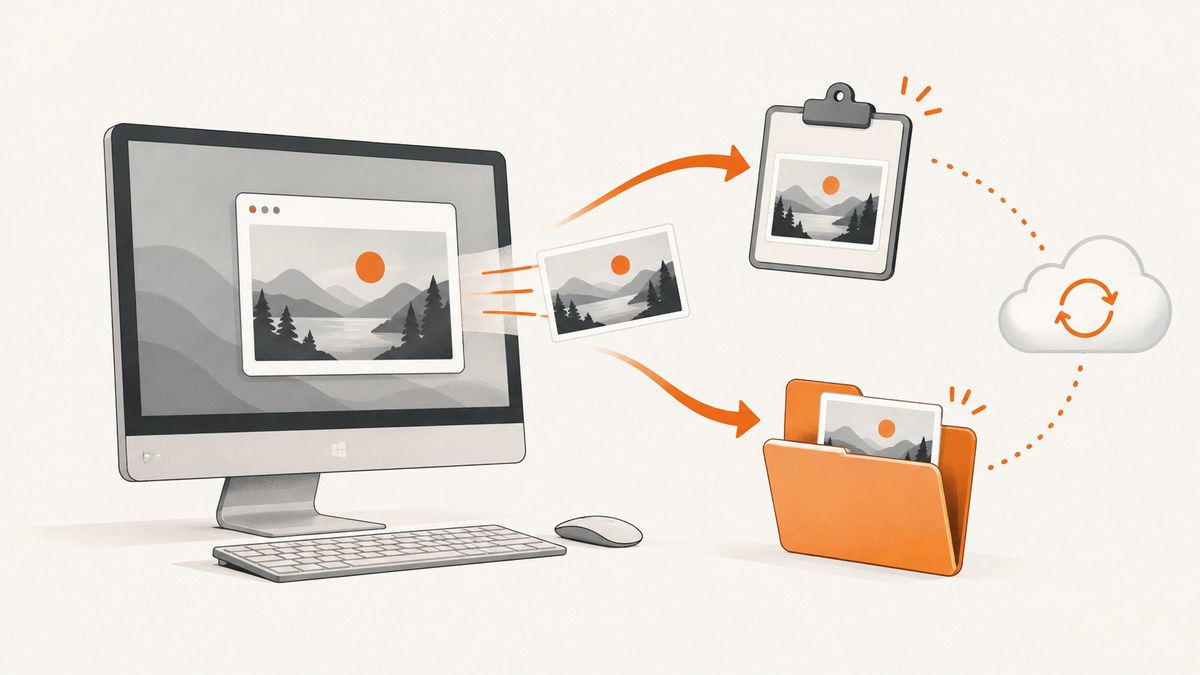
A screenshot can be captured successfully without being saved as a file. The first thing to check is how you took it: Print Screen usually copies an image to the clipboard, while Snipping Tool provides a save workflow and a configurable Screenshots folder. If you expected a cloud copy, check whether the relevant folder is included in OneDrive backup and syncing.
This guide covers Windows 10 and Windows 11. Start with the section matching what you did, then follow the checks in order. Microsoft’s instructions and interface can change over time, so use the linked support pages for the latest menu names.
1. Why did my screenshot not save?
Often, nothing is broken: the shortcut copied the image to the clipboard, which is temporary, rather than creating a file on disk. Microsoft documents that Print Screen copies the full screen to the clipboard; Alt+Print Screen copies the active window. Neither action by itself means a file will appear in Pictures or on the Desktop. Microsoft’s Windows keyboard shortcuts reference describes this clipboard behavior.
- Press Ctrl+V in Paint, a document, or another app that accepts pasted images.
- If the image appears, save it from that app using Save or Save as. Choose a folder you can find again, such as Desktop, and give it a recognizable name.
- If nothing pastes, try the capture again and watch for a notification or editing window. Continue to the Snipping Tool checks below if you used that tool.
If you used Alt+Print Screen, the result is the active window only, not the whole desktop. If you need a region or want a clear save step, use Snipping Tool instead.
2. Where do Windows screenshots go?
There is no single guaranteed destination for every screenshot. The shortcut, app, configured folder, and save dialog all matter. A file saved through a dialog goes wherever that dialog was pointed. Windows may use a OneDrive location or local storage as a default, and the dialog lets you choose a different destination. Microsoft’s file-location guidance explains how to find files and apps.
Check the configured Snipping Tool folder
- Open Snipping Tool from the Start menu.
- Open Settings in the app and look for automatic saving and the default Screenshots folder.
- Check whether automatic saving is enabled, and note the folder shown. Open that folder in File Explorer.
- If the capture is still open in Snipping Tool, use Save as Image and choose a known location and filename.
Microsoft’s current Snipping Tool guidance applies to Windows 10 and Windows 11. It describes the Win+Shift+S capture overlay, the capture being copied into Snipping Tool for editing, automatic saving to Screenshots, and settings for automatic saving and the default folder. Follow the current [Snipping Tool instructions](https://support.microsoft.com/en-us/windows/use-snipping-tool-to-capture-screenshots-00246869-1843-655f-f220-97299b865f6b) if your app’s labels differ.
Search likely destinations
- Open the folder displayed in Snipping Tool settings first; it may have been customized or redirected.
- Check Pictures, Screenshots, Desktop, and the OneDrive Pictures folder if those are plausible destinations.
- In File Explorer, search for a distinctive part of the filename if you remember it. If not, sort likely folders by date modified and inspect recent image files.
- When using any Save dialog, read the location shown in the dialog before saving. Do not assume it defaults to Desktop or local Pictures.
3. Why is my screenshot only in the clipboard?
That is the expected result for the standard Print Screen workflow: it copies an image for immediate pasting. The clipboard is not a folder, and clipboard contents do not appear as a PNG or JPEG file until an application saves them.
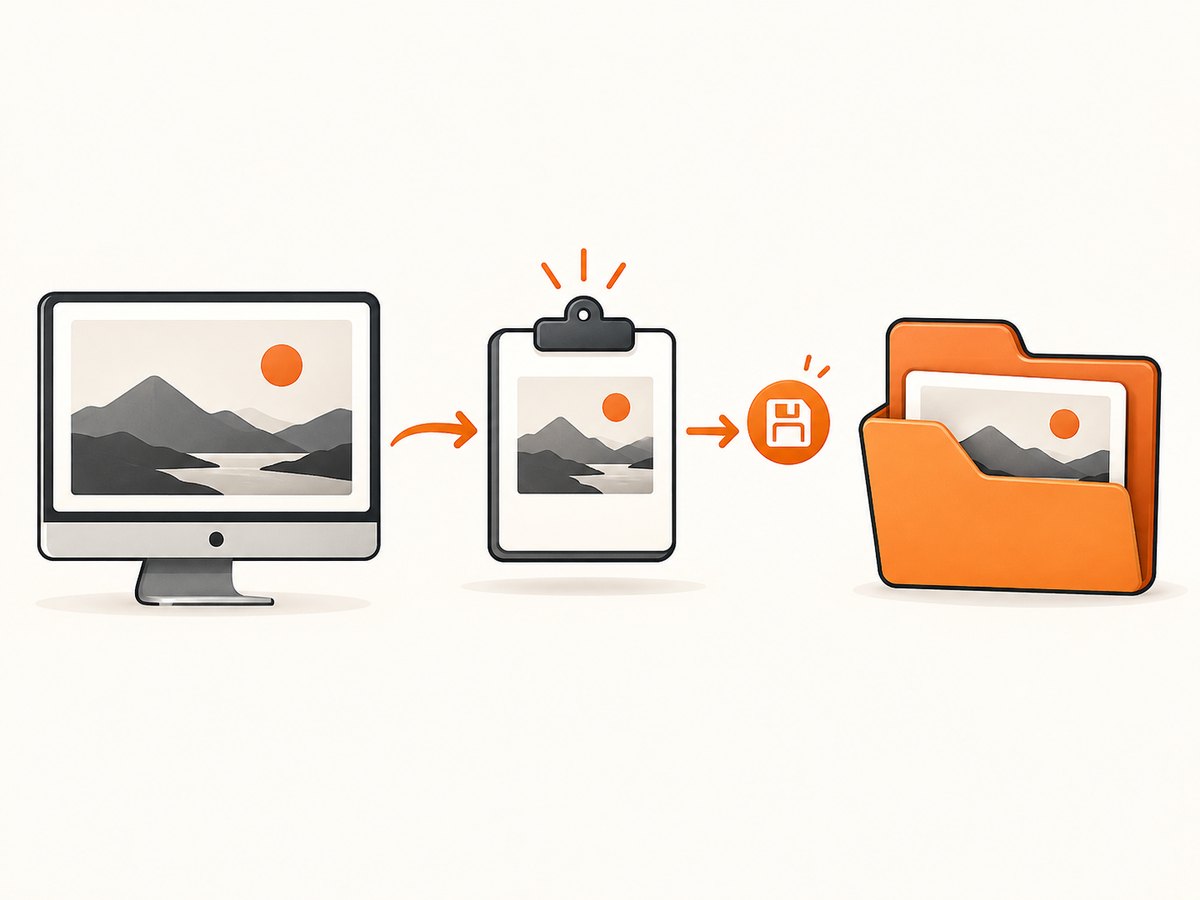
Turn a clipboard screenshot into a file
- Take the screenshot with Print Screen, or capture the active window with Alt+Print Screen.
- Open Paint or another image editor and press Ctrl+V.
- Choose File → Save as, select an image format, and choose the destination folder.
- Give the file a name you can search for later, then confirm the save.
For Snipping Tool, press Win+Shift+S, make the selection, then open the capture notification or Snipping Tool to edit and save. The exact notification behavior may depend on your Windows settings; if you do not see it, open Snipping Tool directly and check whether the capture is available there.
4. Why are my screenshots not appearing in OneDrive?
Do not look for the old dedicated “Save screenshots to OneDrive” switch: Microsoft says that feature is no longer available in OneDrive settings. Screenshot backup instead depends on whether the relevant Pictures folder is included in OneDrive. Microsoft’s OneDrive screenshot guidance explains the change.
- First locate the screenshot on the PC. If it does not exist as a file, OneDrive cannot sync it; save it from the clipboard or Snipping Tool first.
- Check whether the file is inside the Pictures folder that is backed up by OneDrive. A local Pictures folder outside OneDrive will not necessarily appear in your cloud files.
- Open OneDrive’s settings and inspect which folders are selected for backup or syncing. Make sure the relevant Pictures folder is included.
- Check OneDrive’s sync status for errors. Microsoft’s folder backup guidance specifically calls out Pictures and Screenshots in connection with Pictures sync issues. See [Microsoft’s OneDrive folder backup guidance](https://support.microsoft.com/en-us/office/back-up-your-folders-with-onedrive-622b2d9b-1cb0-4e3b-9a8a-9c7e4d8f9a7f).
When the file exists but OneDrive reports a sync error, use Microsoft’s error-specific steps. One documented troubleshooting path is to save your work, close the app using the file, and temporarily move the file outside the OneDrive folder. That applies to a reported sync problem; it is not a general fix for a screenshot that was never saved. See [Microsoft’s OneDrive sync troubleshooting](https://support.microsoft.com/en-us/office/fix-onedrive-sync-problems-0899b115-05f7-45ec-95b2-e4cc8c4670b2).
5. Check Save As destination and app access
If the screenshot appears in an editor but is missing from the folder you expected, repeat the save and inspect the destination shown in the dialog. Windows may default to OneDrive or local storage, and the save dialog allows another location. After saving, use Open file location where available, or navigate to the selected folder yourself.
If a third-party image editor cannot open or save images in a library, check Windows privacy controls for that app’s access to Pictures. This is a targeted check for an app-access problem; it is not the usual explanation for a built-in screenshot failing to create a file. Microsoft documents these controls under [Windows app permissions](https://support.microsoft.com/en-us/windows/manage-app-permissions-for-your-camera-microphone-and-more-628d3d5a-3c5a-4f79-9f9e-9c7b0c5a4c5c).
6. Troubleshooting: common symptoms, causes, and fixes
| Symptom | Likely cause | What to do |
|---|---|---|
| Nothing appears in Pictures after Print Screen | The image was copied to the clipboard, not saved as a file. | Paste into Paint or another app, then save to a chosen folder. |
| Only one application window was captured | You used Alt+Print Screen, which captures the active window. | Use Print Screen for the full screen, or Snipping Tool for a selected region. |
| Snipping Tool shows the capture, but the expected folder is empty | The automatic-save setting or default folder differs from what you expected. | Check Snipping Tool Settings and use Save as Image to select a known destination. |
| Screenshot exists on the PC but not on OneDrive | It is outside the backed-up Pictures folder, that folder is not selected, or sync has an error. | Check the file path, OneDrive folder selection, and sync status. |
| OneDrive asks to resolve a file sync issue | The file or an app using it may be preventing the reported sync operation. | Follow the specific Microsoft error guidance; where applicable, save work, close the app, and temporarily move the file out of OneDrive. |
| A third-party app cannot access Pictures | Windows privacy permissions may restrict that app. | Review that app’s Pictures access in Windows settings. |
| Neither clipboard paste nor Snipping Tool captures anything | The cause may be device-, shortcut-, app-, or policy-specific. | Record the shortcut used, keyboard model, Windows build, and whether the device is managed before narrowing the diagnosis. |
The available guidance does not establish a universal fix for a faulty Print Screen key, function-layer combinations, capture restrictions inside a particular app, or organization-managed policies. Avoid registry changes or replacing hardware without evidence. If both clipboard and Snipping Tool checks fail, the shortcut, keyboard model, Windows build, and management status are useful details for targeted support.
7. Save screenshots reliably: practical checklist
- Know the workflow: clipboard capture and file saving are different steps.
- Confirm the destination: inspect Snipping Tool’s configured folder or the Save dialog.
- Use a predictable location: save to a folder you can reopen and search.
- Verify before closing: confirm the file appears in File Explorer and opens.
- For cloud backup: make sure the file is in a folder OneDrive backs up, and check sync status.
- For app-specific failures: inspect Pictures access only when a third-party app cannot reach the library.
8. Capture a website screenshot without managing a browser
The Windows steps above are for screenshots of your desktop. If what you need is a screenshot of a web page for a report, issue, or automated workflow, a website screenshot API can capture the page directly. ScreenshotNeo is a website screenshot API and MCP server for developers. Its [website](https://screenshotneo.com) explains the service, and the [API documentation](https://screenshotneo.com/docs/) covers request options.
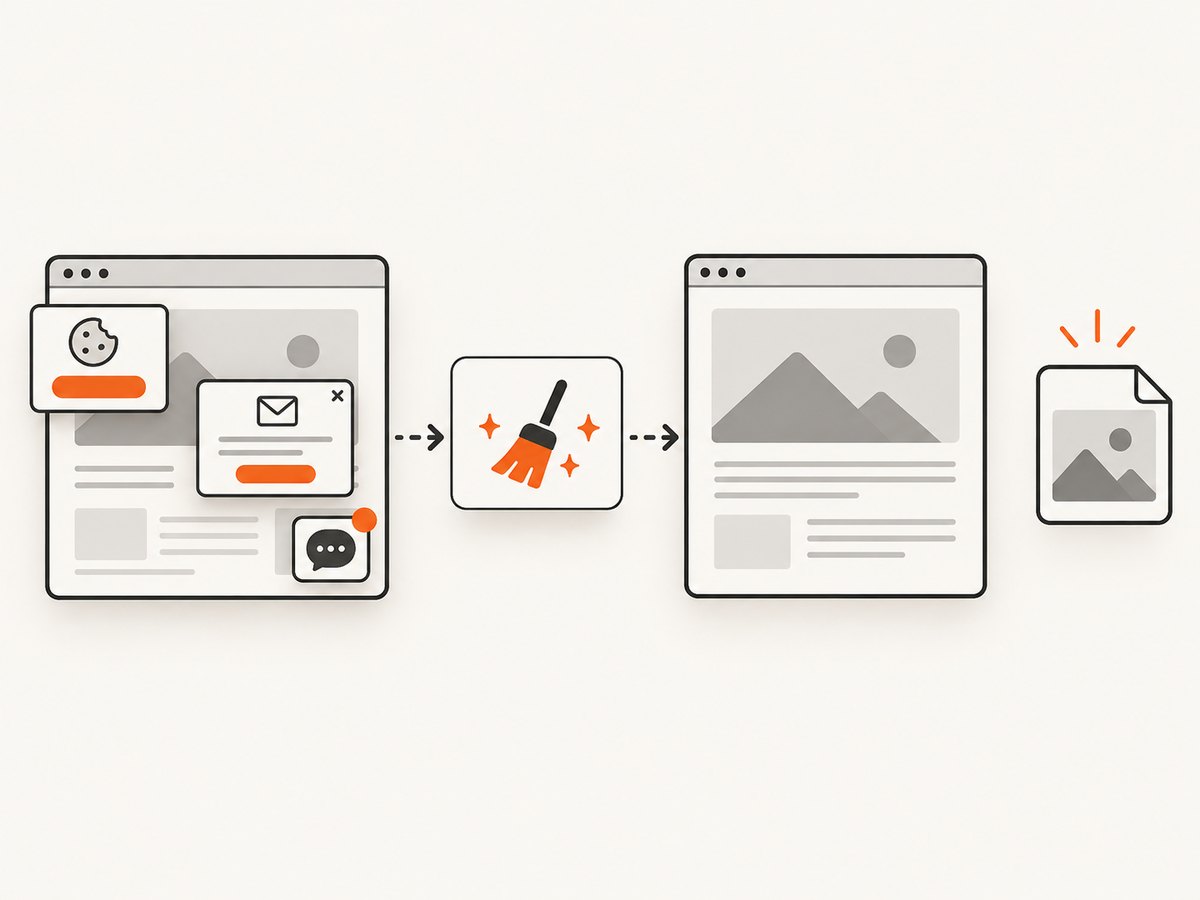
Or skip the browser setup
Send one GET request with the page URL. This cURL example saves a WebP response to a file:
curl -G "https://api.screenshotneo.com/v1/shot" -d access_key=YOUR_API_KEY --data-urlencode url=https://stripe.com -o shot.webpThe equivalent Python request:
import requests

r = requests.get(
    "https://api.screenshotneo.com/v1/shot",
    params={"access_key": "YOUR_API_KEY", "url": "https://stripe.com"},
    timeout=90,
)
r.raise_for_status()
open("shot.webp", "wb").write(r.content)
And Node.js using built-in fetch:
const q = new URLSearchParams({ access_key: 'YOUR_API_KEY', url: 'https://stripe.com' });
const res = await fetch(`https://api.screenshotneo.com/v1/shot?${q}`);
if (!res.ok) throw new Error(`Screenshot request failed: ${res.status}`);
await import('node:fs/promises').then(fs => fs.writeFile('shot.webp', Buffer.from(await res.arrayBuffer())));- Cookie banners are accepted and removed before the capture; more than 60 known consent platforms, newsletter popups, and chat widgets are handled, and each step can be turned off.
- Bot checks, blank pages, timeouts, failed loads, and cache hits cost nothing. Response headers report the page verdict and whether the request was billed.
- An MCP server provides
take_screenshot,get_page_info, andcapture_pdftools for Claude, Cursor, and other MCP clients. - The Free plan includes 1,000 shots per month with no card. Paid plans start at $5 for 3,000 shots; every feature is on every plan.
Create a free ScreenshotNeo account for 1,000 screenshots a month with no card.
9. Performance, reliability, and cost
For occasional desktop captures, the built-in clipboard and Snipping Tool workflows need no screenshot service. The main reliability step is verifying persistence: a clipboard image is temporary, while a saved file has a chosen path. OneDrive adds a separate sync stage, so confirm both the local file and cloud sync status.
For programmatic website captures, ScreenshotNeo’s per-request model avoids setting up and maintaining a browser environment. Select image or PDF output and capture options to fit the job; the API also supports full-page capture, element selectors, viewport and device choices, wait conditions, custom CSS or JavaScript, request controls, caching, async jobs, and bulk capture. These capabilities can change the work required by a pipeline, so consult the [documentation](https://screenshotneo.com/docs/) for the relevant parameters. Do not assume a capture succeeded solely because an HTTP request returned: inspect the result and the X-Page-Verdict and X-Billed headers.
Published plan allowances are Free: 1,000 shots/month; Starter: $5 for 3,000; Growth: $15 for 15,000; Pro: $39 for 60,000; Scale: $99 for 250,000; and Business: $249 for 1,000,000. Yearly billing gives two months free. Only clean shots are billed; bot checks, CAPTCHAs, blank pages, timeouts, failed loads, and cache hits are not billed. Confirm current details on the product site before choosing a plan.
10. Frequently asked questions
Does Print Screen automatically save a PNG?
Print Screen copies a screenshot to the clipboard. Paste it into an image-capable app and save it to create a file.
Where does Win+Shift+S save screenshots?
Snipping Tool’s automatic-save behavior and default Screenshots folder are configurable. Check the app’s Settings, or save the open capture with Save as Image.
Can OneDrive still save screenshots automatically?
The old dedicated screenshot setting is no longer available. Backup depends on the Pictures folder being included in OneDrive.
Why does OneDrive show an older screenshot but not the new one?
The new file may have been saved outside the backed-up folder, the folder may not be selected, or sync may have an error. Compare the local file path with OneDrive’s selected folders and status.
Should I install another screenshot app?
Not for the common clipboard-versus-file or save-folder issue. Windows includes Snipping Tool capture, editing, and save controls. For capturing web pages in developer workflows, ScreenshotNeo offers an API and MCP server.


