How to Fix wkhtmltopdf’s –disable-smart-shrinking Option
Learn what --disable-smart-shrinking does, why it fails, and how to fix scaling, clipping, and build issues in wkhtmltopdf.
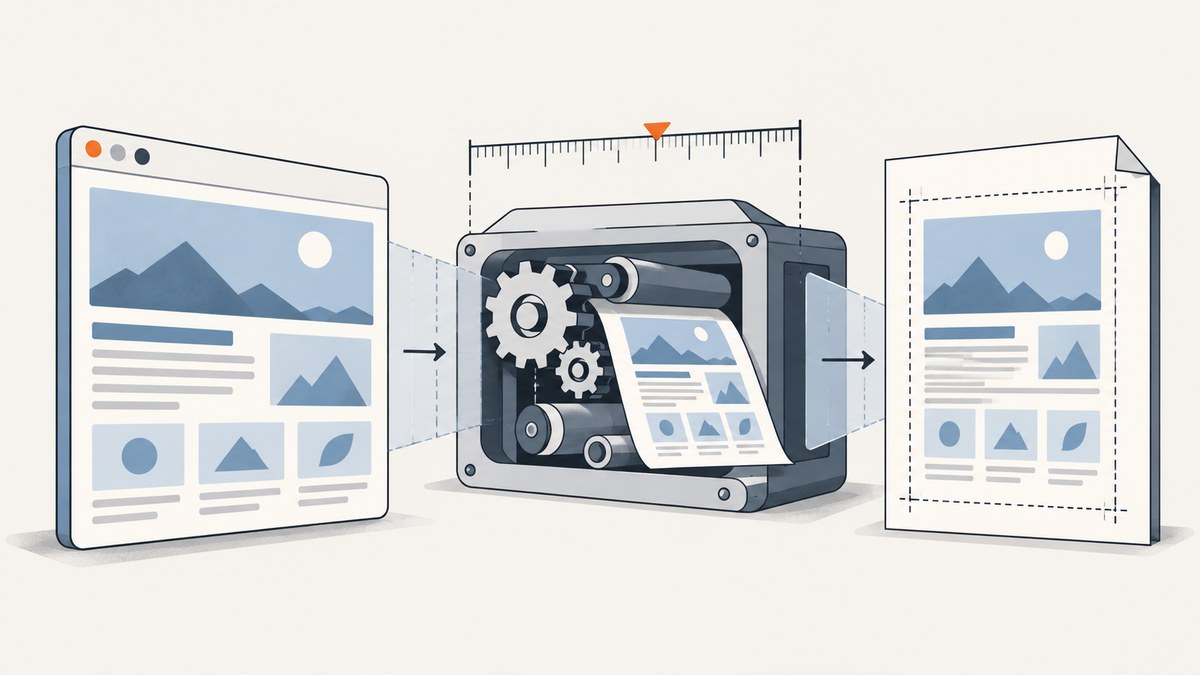
Short answer: --disable-smart-shrinking tells wkhtmltopdf to stop WebKit from automatically reducing the page scale to make more content fit on a PDF page. Use it when preserving a predictable pixel-to-DPI relationship matters. It does not repair arbitrary CSS layout problems. With shrinking disabled, content that is wider or taller than the selected page can extend beyond the edge or be clipped.
The option is supported by the command-line interface in wkhtmltopdf 0.12.6 and the equivalent library setting is web.enableIntelligentShrinking=false. Before changing HTML or CSS, verify which binary and build you are running. Different operating systems, package builds, versions, and Qt patch sets can produce different results.
What smart shrinking does
wkhtmltopdf renders HTML through a WebKit-based engine, then maps the rendered page onto a physical PDF page. Smart shrinking is WebKit’s intelligent shrinking strategy. The official usage documentation describes it as a strategy that makes the pixel-to-DPI ratio non-constant. In practice, the renderer may reduce the effective scale when the layout would otherwise exceed the printable width.
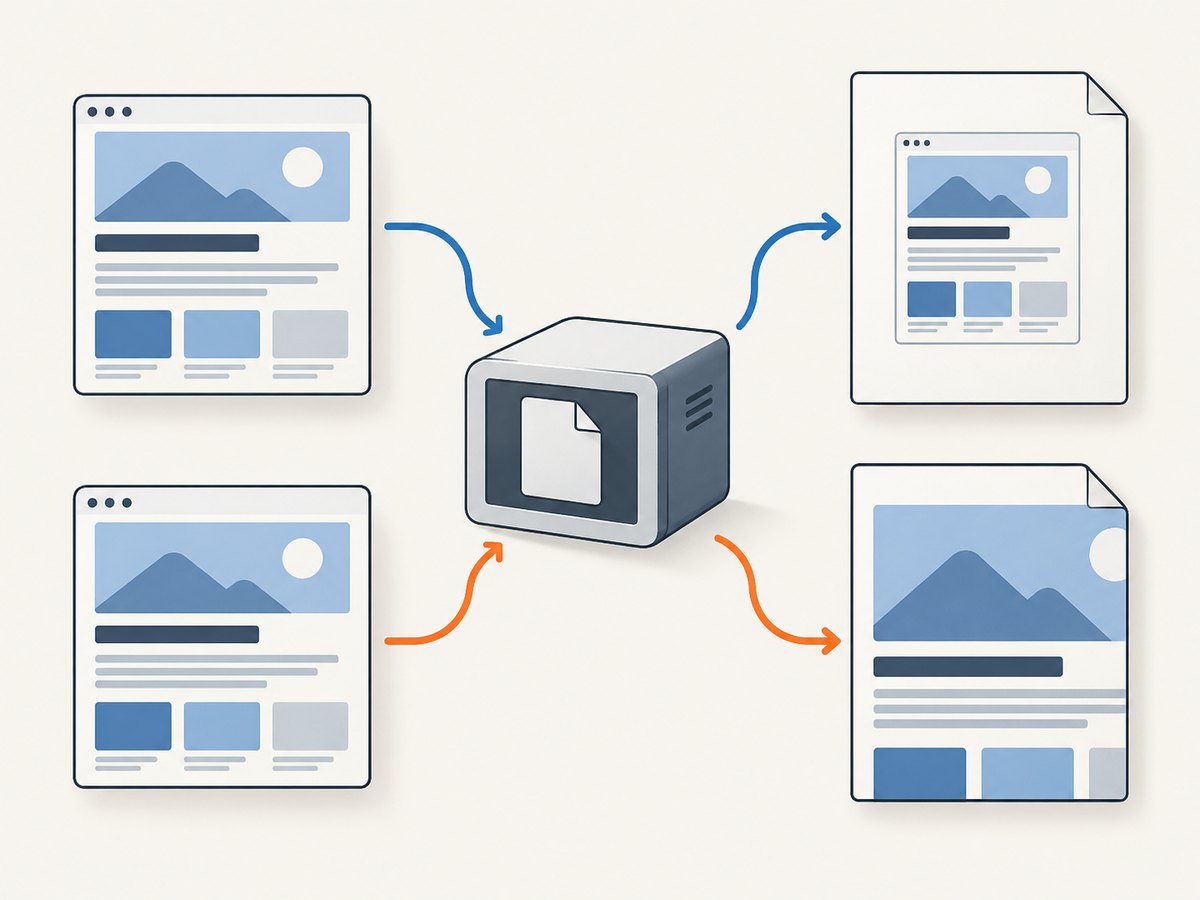
The default is to enable intelligent shrinking. The command-line switch changes that behavior:
wkhtmltopdf --disable-smart-shrinking input.html output.pdfTo explicitly use the default behavior, use the paired option:
wkhtmltopdf --enable-smart-shrinking input.html output.pdfThese flags affect scaling. They do not change your CSS box model, remove margins, rewrite media queries, or make a page responsive.
First check the binary and build
A frequent cause of an “ignored” option is an unexpected executable. Package repositories and downloaded installers can differ in version, platform support, and whether they include the project’s patched Qt build. Some wkhtmltopdf functionality depends on those Qt patches.
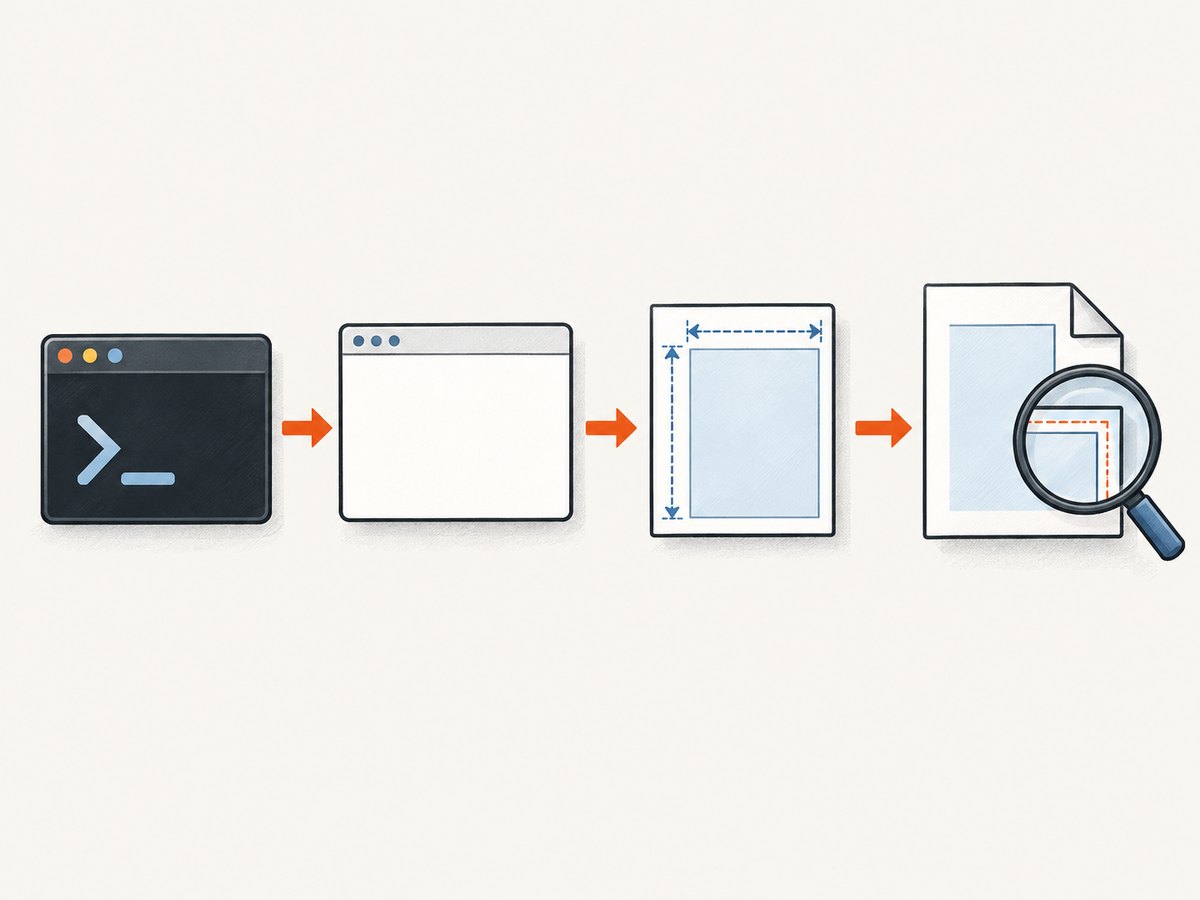
- Find the executable that is actually being invoked.
- Print its version and build description.
- Record the operating system, architecture, installation source, and package version.
- Check whether the output identifies a patched-Qt build.
command -v wkhtmltopdf
wkhtmltopdf --version
wkhtmltopdf --extended-help | grep -i shrinking
On Windows, run the executable by its full path in PowerShell:
& 'C:\Program Files\wkhtmltopdf\bin\wkhtmltopdf.exe' --versionThe official downloads and security page documents the stable series and warns that build characteristics matter. It also warns against rendering untrusted HTML without sanitizing it, because HTML and JavaScript can compromise the converter host.
Reproduce the problem with a minimal file
Do not begin with a large production page. Create a small document that represents the width, fonts, tables, and long content that are failing.
<!doctype html>
<html>
<head>
  <meta charset='utf-8'>
  <style>
    @page { size: A4; margin: 12mm; }
    * { box-sizing: border-box; }
    body { margin: 0; font: 14px/1.4 Arial, sans-serif; }
    .sheet { width: 180mm; }
    .wide-table { width: 180mm; border-collapse: collapse; }
    th, td { border: 1px solid #999; padding: 4mm; }
  </style>
</head>
<body>
  <main class='sheet'>
    <h1>Representative document</h1>
    <table class='wide-table'>
      <tr><th>Column one</th><th>Column two</th><th>Column three</th></tr>
      <tr><td>Content</td><td>Content</td><td>Content</td></tr>
    </table>
  </main>
</body>
</html>
Render it twice, changing only the shrinking flag:
wkhtmltopdf --enable-smart-shrinking representative.html shrinking-on.pdf
wkhtmltopdf --disable-smart-shrinking representative.html shrinking-off.pdf
Compare the right and bottom edges, text size, table width, page count, and whitespace. Record the page size, orientation, margins, zoom, DPI, and any custom stylesheet. Historical issue reports show that the same-looking command can behave differently across versions and environments, so a reproducible record is more useful than a universal recipe.
Choose the right fix for the symptom
| Symptom | Likely cause | First action |
|---|---|---|
| Everything is unexpectedly small | Smart shrinking reduced the scale | Try --disable-smart-shrinking, then inspect overflow |
| Right side is clipped | Content is wider than the printable page | Reduce CSS width, margins, or choose landscape |
| Bottom content is missing | Fixed-height content or page overflow | Remove fixed heights and test pagination |
| Flag is unknown | Different binary, build, or wrapper | Check command -v, version, and package source |
| Flag appears to do nothing | The page already fits, or the build ignores the setting | Use the minimal reproduction and verify the binary |
| Output differs between machines | Fonts, Qt patches, versions, or DPI differ | Pin the executable and rendering environment |
Control page dimensions before changing zoom
With shrinking disabled, page geometry becomes your responsibility. A4 portrait has less printable width than A4 landscape. Margins consume width before your HTML is laid out. A CSS width that looks reasonable in a browser can exceed the PDF content area once margins and print units are applied.
Use explicit page settings when appropriate:
wkhtmltopdf \
  --disable-smart-shrinking \
  --page-size A4 \
  --orientation Portrait \
  --margin-top 12mm \
  --margin-right 12mm \
  --margin-bottom 12mm \
  --margin-left 12mm \
  representative.html output.pdf
For a wide report, test landscape:
wkhtmltopdf \
  --disable-smart-shrinking \
  --page-size A4 \
  --orientation Landscape \
  --margin-left 8mm \
  --margin-right 8mm \
  representative.html landscape.pdf
Keep the relationship between CSS dimensions and the printable area explicit. Avoid relying on a fixed pixel width unless you have validated it against the exact page size and build. Prefer fluid widths such as width: 100% for content that must stay inside the page, and reserve fixed widths for diagrams or tables that genuinely require them.
Zoom and DPI: use measurements, not folklore
There is no evidence-based universal zoom or DPI value that fixes this problem. Issue discussions contain environment-specific suggestions, but those values depend on the wkhtmltopdf version, operating system, page size, margins, fonts, and HTML.
If disabling shrinking preserves the desired scale but creates a small overflow, change one variable at a time:
- Keep the page size and margins fixed.
- Measure the overflow at the right or bottom edge.
- Adjust the HTML width, padding, or font size if the design allows it.
- Only then test a deliberately chosen zoom factor.
- Render again and inspect every page, including tables and footers.
wkhtmltopdf \
  --disable-smart-shrinking \
  --zoom 0.95 \
  representative.html tuned.pdf
Treat the value as a setting for your controlled environment, not a portable rule. Keep it in configuration and document why it is needed.
Use the library setting
Applications using libwkhtmltox do not pass the command-line flag. Set the page-specific WebKit option web.enableIntelligentShrinking to false. The official library settings reference lists this property and explains that it controls intelligent shrinking.
/* Pseudocode around the libwkhtmltox C API */
wkhtmltopdf_object_settings *object = wkhtmltopdf_create_object_settings();
wkhtmltopdf_set_object_setting(
    object,
    "web.enableIntelligentShrinking",
    "false"
);
Confirm that the setting is applied to the page object that is converted. A setting assigned to the wrong object, after conversion starts, or through an unsupported wrapper may have no visible effect. Check the return value from the setter and log the complete configuration.
Pagination and clipping edge cases
Fixed-width tables
A table with a fixed width, large cell padding, or long unbreakable strings can exceed the printable area. Use smaller padding, controlled word breaking, or landscape orientation. Do not assume disabling shrinking will make the table fit; it can make clipping more obvious.
Fixed heights
Elements with height or min-height can hide content when text wraps differently in the PDF engine. Replace fixed heights with min-height only where necessary, and let normal flow determine the document height.
Images and fonts
Missing fonts change line breaks and therefore page count. Missing images can change layout after the initial load. Wait for assets to load, use accessible font files, and test on the same host that produces the final PDF.
Print styles
wkhtmltopdf can use print media rules. A browser preview using screen styles is not an equivalent test. Review @media print, page breaks, and hidden elements in the generated PDF.
Troubleshooting checklist
“Unknown long argument” or “option not found”
Cause: the executable is not the expected wkhtmltopdf build, a wrapper rejects the option, or the package was compiled without the relevant functionality.
Fix: run the full path with --version, inspect the installation source, compare it with the project’s documented downloads, and test the command directly instead of through the wrapper.
The PDF is still scaled down
Cause: the flag was not passed, the page already triggers another scaling behavior, or the selected build handles the option differently.
Fix: reproduce with a minimal file, log the exact command, compare both explicit flags, and verify the output dimensions. Check CSS width, page size, margins, and zoom before changing anything else.
The right edge is clipped after disabling shrinking
Cause: the content is wider than the printable page. This is an expected tradeoff when automatic scale reduction is removed.
Fix: reduce the content width, reduce horizontal margins, use landscape orientation, split a wide table, or choose a page size that matches the design. Validate every page edge.
Pagination changes unexpectedly
Cause: a different scale changes line wrapping, font metrics, or the space available for page breaks.
Fix: pin the version and fonts, remove unnecessary fixed heights, make page-break rules explicit, and compare the generated PDFs from the same environment.
Rendering is unsafe for user HTML
Cause: wkhtmltopdf executes HTML and JavaScript during conversion.
Fix: sanitize untrusted input, isolate the converter, restrict filesystem and network access where possible, and follow the project’s security guidance. The smart-shrinking flag is not a security control.
Performance and reliability
Disabling shrinking does not provide a general performance improvement. Rendering time is more affected by page complexity, JavaScript, images, fonts, network access, and the number of pages. For repeatable output:
- Pin the wkhtmltopdf version and executable path.
- Run conversion in a consistent container or virtual machine.
- Bundle or cache fonts and static assets.
- Set explicit page size, margins, orientation, and zoom.
- Capture the command, HTML revision, OS, and output metadata with build artifacts.
- Compare PDFs visually and by page count when changing the renderer.
There is no universal benchmark in the project documentation for this option. Measure your own representative documents if conversion time or output size is part of a service-level requirement.
Or skip the browser setup
If your real goal is a reliable screenshot or PDF of a live URL, ScreenshotNeo provides a hosted capture API and MCP server. It removes cookie and consent banners, newsletter popups, and chat widgets before capture. Bot checks, blank pages, timeouts, failed loads, and cache hits are not billed, and responses identify the result with X-Page-Verdict and X-Billed headers. Its MCP server works with Claude, Cursor, and other MCP clients through take_screenshot, get_page_info, and capture_pdf.
See the ScreenshotNeo API documentation for all options. The basic request is:
curl -G "https://api.screenshotneo.com/v1/shot" -d access_key=YOUR_API_KEY --data-urlencode url=https://stripe.com -o shot.webpimport requests
r = requests.get("https://api.screenshotneo.com/v1/shot", params={"access_key": "YOUR_API_KEY", "url": "https://stripe.com"}, timeout=90)
open("shot.webp", "wb").write(r.content)const q = new URLSearchParams({ access_key: 'YOUR_API_KEY', url: 'https://stripe.com' });
const res = await fetch(`https://api.screenshotneo.com/v1/shot?${q}`);You can request PNG, JPEG, WebP, or PDF output and configure full-page capture, element selectors, dark mode, device presets, custom viewports, retina scale, CSS and JavaScript, waits, request blocking, cookies, headers, geolocation, caching, signed links, async jobs, webhooks, bulk capture, and PDF page settings. Every feature is available on every plan. The free plan includes 1,000 screenshots per month with no card; paid plans start at $5 for 3,000 screenshots. Create a free ScreenshotNeo account.
FAQ
Is disabling smart shrinking always better?
No. It is better when predictable scale matters and the content fits. If page fit matters more than a constant scale, the default can be appropriate.
Does the option change CSS pixels?
It changes the renderer’s scaling strategy. It does not rewrite CSS or alter your source HTML.
Can I fix clipping with a universal DPI value?
No. The correct value depends on the binary, page geometry, CSS, fonts, and target output. Validate any zoom or DPI adjustment against your own document.
Why does the library name differ from the CLI name?
The CLI flag is --disable-smart-shrinking. The library exposes the underlying setting as web.enableIntelligentShrinking=false.
What should I record for a bug report?
Include the exact command, wkhtmltopdf version, patched-Qt status, OS, architecture, page size, margins, zoom and DPI settings, a minimal HTML file, and screenshots showing the clipping or scaling.


