How to Fix wkhtmltopdf Error Code -8 in Odoo 12
Odoo 12’s “Wkhtmltopdf failed (error code: -8). Message: b''” can have several causes. Trace the selected binary, build, fonts, report URL, and workload before changing your deployment.
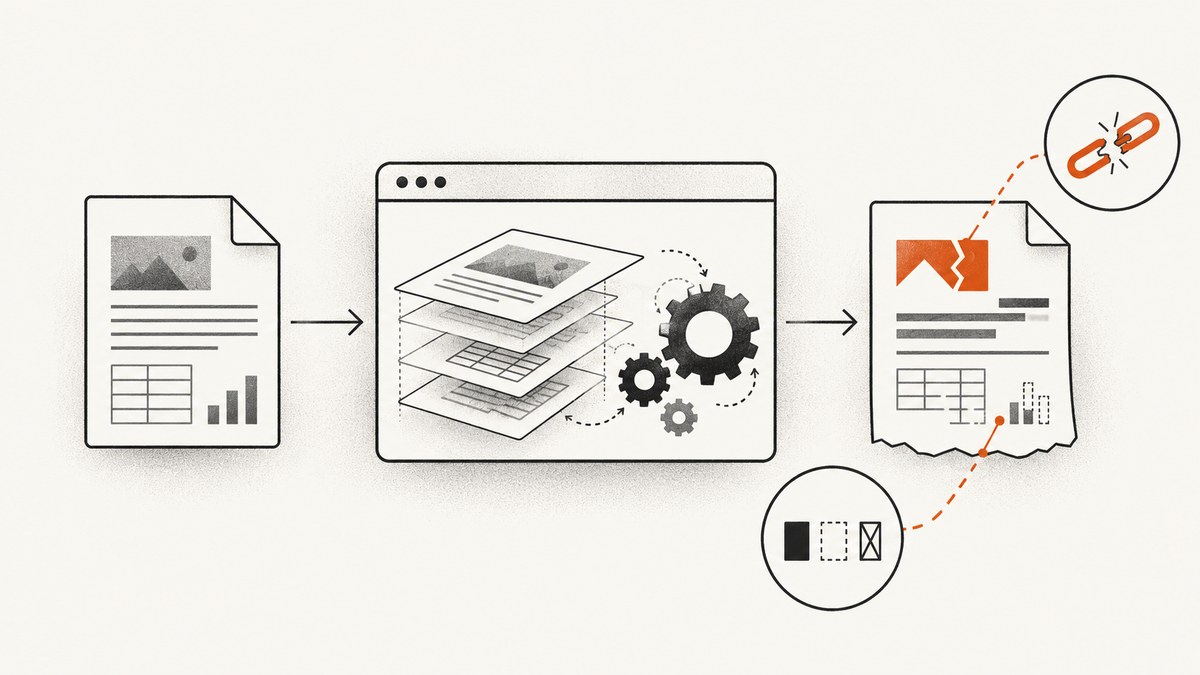
When Odoo 12 reports Wkhtmltopdf failed (error code: -8). Message: b'', the empty message does not identify one confirmed cause. Start by recording the exact wkhtmltopdf path and version/build Odoo selected in its startup log. Then check that executable, build compatibility, fonts, report URL and assets, and whether the failure only occurs on large reports. Change one thing at a time and rerun the same report so you can tell whether the change helped.
The reported fixes for this error come from different Odoo 12 and Ubuntu environments. A font-cache refresh or binary-path correction fixed particular cases; neither is a universal remedy. Odoo’s compatibility guidance also says Debian and Ubuntu repository builds lack the patched Qt needed for headers and footers. The steps below separate these diagnostic branches instead of treating error -8 as a diagnosis.
1. Capture the failure and deployment details
Before changing packages or configuration, collect enough information to compare the failure with the cases that have been reported. Record:
- Odoo version and deployment type: package install, source install, container, or another setup.
- Operating system and release, plus whether Odoo and wkhtmltopdf run in the same container or host.
- The complete Odoo log around startup and the failed report, including the selected wkhtmltopdf path.
- The version and build reported by that exact binary.
- Whether every PDF report fails or only one report, and whether that report’s HTML renders correctly.
- Whether the failure appears only with headers and footers, specific fonts, barcodes, images, or a very long report.
Keep a copy of the original configuration and use one representative report as a repeatable check. If only one report fails, compare its HTML, assets, and size with a report that works. If all reports fail, prioritize the shared executable and service environment before editing a single report template.
2. Verify the binary Odoo actually invokes
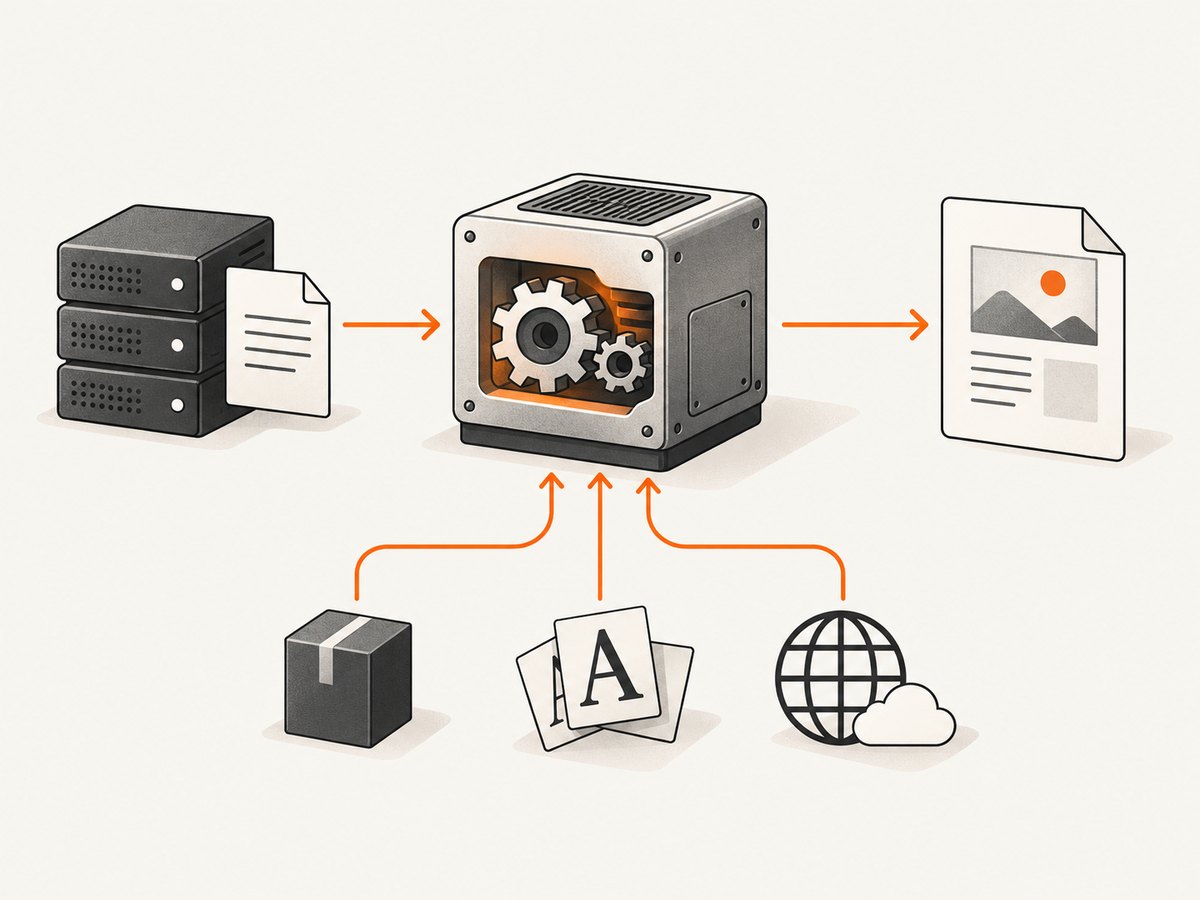
Find the startup-log entry that says which wkhtmltopdf path Odoo will use. Check that exact path from the environment where the Odoo service runs. A shell on the host may see a different filesystem or PATH from a service inside a container.
# Substitute the exact path shown in the Odoo startup log.
ls -l /usr/bin/wkhtmltopdf
/usr/bin/wkhtmltopdf --version

# Check which executable an interactive shell would find.
command -v wkhtmltopdf
wkhtmltopdf --version
Run the checks as the Odoo service user where possible. Confirm that the file exists, is executable, and reports the build you intended to install. The path found by command -v is only a clue: Odoo may be configured to use another path, and the service can have a different PATH.
An Odoo 12 issue report describes a case where the logged /usr/bin/wkhtmltopdf path did not contain the binary; the reporter said placing it there resolved that case. Treat this as evidence to inspect the selected path, not as an instruction to copy an arbitrary binary into /usr/bin. Confirm the correct package or build for the deployed release first. If the selected path is wrong, correct the deployment or service configuration using the installation method you already maintain, restart Odoo if needed, and check the startup log again.
3. Check wkhtmltopdf version and build compatibility
Version strings alone do not tell the whole story. The build and its Qt patches matter, especially when the report uses headers or footers. Odoo’s wkhtmltopdf guidance states that Debian and Ubuntu repository versions lack patched Qt, which is needed for headers and footers. If those elements fail or disappear, verify the build against Odoo’s guidance for your release and platform before changing templates.
Forum reports mention different results with 0.12.1, 0.12.4, and 0.12.5. Those reports do not establish one version as the fix for every Odoo 12 deployment. Check the actual executable Odoo selected, compare its build with the documented compatibility requirements, and make any replacement through a controlled deployment change. Then rerun the same report and check both its content and headers or footers.
4. Test fonts and font-cache state when symptoms fit
A specific Odoo issue concerns Odoo 12 on Ubuntu Desktop with certain system font combinations. Forum users also report installing ttf-mscorefonts-installer and refreshing the font cache with fc-cache. These reports make fonts a reasonable branch to investigate when output or failures correlate with fonts or a particular Ubuntu environment; they do not prove that missing Microsoft core fonts explain every error -8.
First inspect installed fonts and the font cache visible to the Odoo service. On a distribution where the package is available and appropriate, check its installation prompts and licensing terms before installing it. A cache refresh can be run as follows:
sudo fc-cache -f -vUse the font environment that the service actually sees. In a container, refreshing the host’s cache may not affect the container. After a targeted font or cache change, restart or reload the relevant service if required by your setup, then render the same report and compare the result. If there is no symptom linking the failure to fonts and the environment differs from the reported case, investigate the binary and report resources first.
5. Check the report URL and asset retrieval
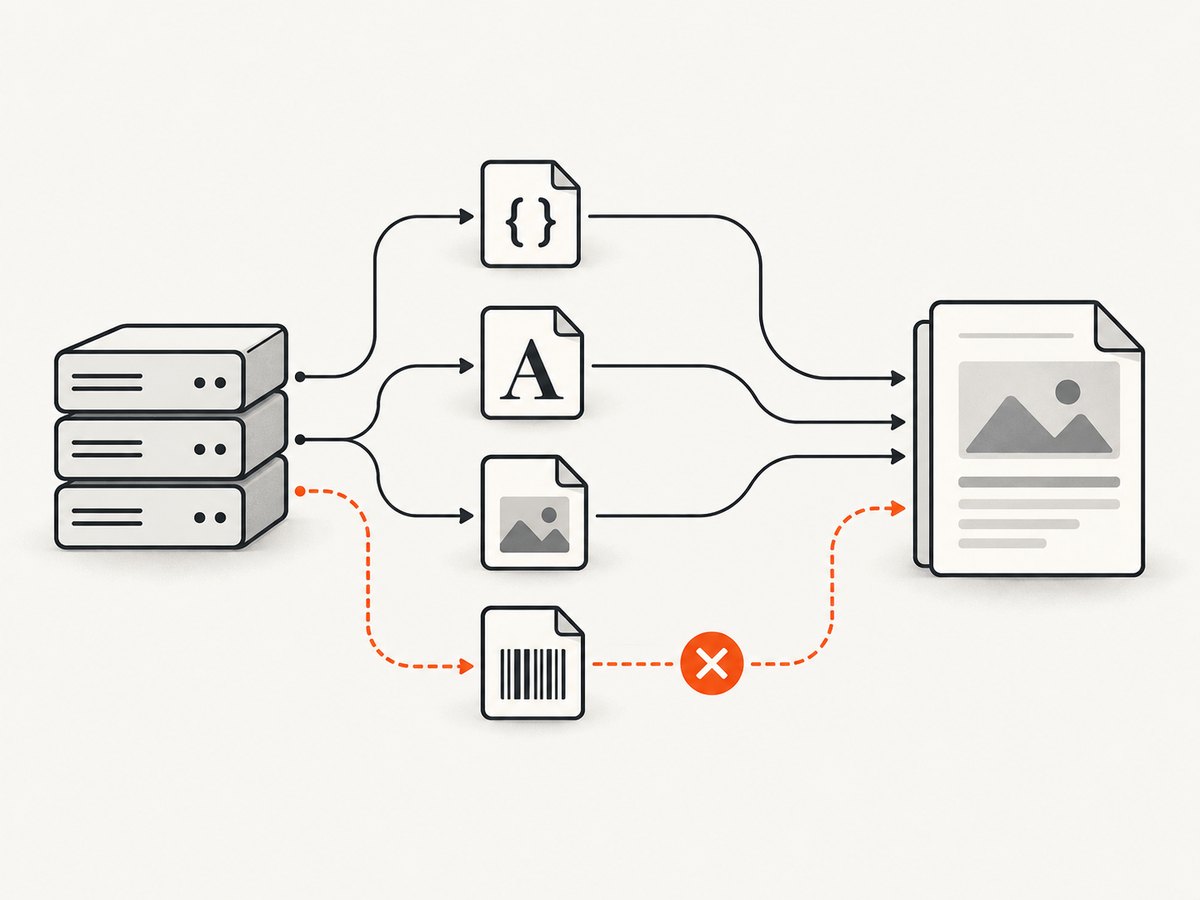
PDF generation depends on wkhtmltopdf loading the report and its resources. If the HTML looks right but the PDF loses styles, images, fonts, or barcodes, test whether the URL Odoo supplies can be reached from the process running wkhtmltopdf. Check CSS, font, image, and barcode routes from the same host or container and network namespace. A browser on your workstation reaching the site does not prove the report renderer can reach it.
Review the Odoo report.url setting and the configured host, scheme, port, DNS, and any authentication or proxy requirements. An Odoo 12 report describes setting report.url as making printing work while leaving alignment problems; a separate barcode discussion reports explicit network errors. Those are useful clues for a network or asset branch, distinct from reports that show an empty-message -8.
Make one reversible configuration adjustment at a time. Confirm that the URL resolves and each required resource returns successfully from the renderer’s environment. Then compare the PDF with the HTML output. If the report still fails with all resources reachable, return to the binary, build, and font checks.
6. Isolate failures on large reports
If short reports render and only long PDFs fail, compare the failing report’s page count, images, tables, and data volume with a working one. Check the Odoo service’s available memory and other resource limits, and inspect logs for process termination or resource exhaustion. Avoid diagnosing a workload problem from the code alone; confirm that report size is the distinguishing condition.
The Odoo Apps Store lists a third-party module called fix_wkhtmltopdf for Odoo 12, described for large PDFs, buffer overflow, and error -8. This is a vendor listing for a narrower use case, not Odoo’s general fix. Before adopting it, check its current support, compatibility with your Odoo build, source and maintenance details, and whether your observed failure actually matches the large-report scenario. Test it in a staging environment against the same report before changing production.
7. Use a controlled retest
- Save the complete error, startup log, and current report output.
- Choose a report that reproduces the failure and note whether its HTML is correct.
- Identify the likely branch: selected executable, build compatibility, fonts, resource URL, or report size.
- Change only the setting, package, or environment relevant to that branch.
- Restart the affected service if the change requires it, then verify Odoo’s startup log again.
- Rerun the same report and compare content, layout, headers, footers, and assets.
- If the error remains, revert an unsuccessful change where practical and continue to the next branch.
This sequence preserves the evidence needed to distinguish a real fix from a change that merely coincided with a successful retry. It also avoids applying a forum workaround from a different operating system or build without checking whether its cause matches your deployment.
8. Common errors and what to do
| Symptom | Likely branch to investigate | Next check |
|---|---|---|
Wkhtmltopdf failed (error code: -8). Message: b'' on every report |
Shared executable or environment | Read Odoo’s selected path in the startup log; run that binary as the service user and inspect its version/build. |
| Binary works in a terminal, but Odoo still fails | Service path or execution environment | Compare the service’s configured path, permissions, container filesystem, and environment with the interactive shell. |
| Headers or footers are missing or broken | Qt build compatibility | Verify whether the selected Debian/Ubuntu package build has the patched Qt Odoo requires for headers and footers. |
| Failure or layout changes appear tied to fonts | Font availability or cache | Inspect fonts visible to the service; consider a targeted cache refresh or package change only if the environment and symptoms fit. |
| HTML is correct, but PDF styling, images, or barcodes are absent | Report URL or resource retrieval | Test report, CSS, font, image, and barcode URLs from the renderer’s host or container; review report.url. |
| Short reports work, long reports fail | Workload or resource limits | Compare report size and inspect service resource limits; assess any specialized module only for this matching use case. |
An empty message is not proof of a font problem, a bad path, or a network failure. Match the proposed remedy to a symptom or environment clue, and verify it with a repeatable report.
9. Reliability, performance, and operational cost
For reliability, keep the wkhtmltopdf build consistent across Odoo workers and deployments. Record the chosen path and version in deployment notes, and include a representative PDF report in release checks when changing the operating system image, package source, fonts, or report configuration. In containers, make sure the binary and font assets are part of the image used by the service, rather than relying on an administrator’s shell environment.
For performance, measure the report that is actually slow or failing. Large reports, numerous assets, and unreachable resources can make rendering take longer; first establish which condition applies in your environment. Avoid increasing timeouts or resource limits as a blind fix for a missing executable or incompatible build. If only long reports fail, reduce unnecessary report weight where possible and evaluate resource limits with the same input before and after the change.
For cost, prioritize checks that use the current deployment: read logs, inspect the binary, and test one report before installing packages or buying third-party modules. Font packages and specialized modules can bring platform, licensing, compatibility, or maintenance considerations. The available evidence does not provide controlled performance comparisons, success rates, or a universally best remedy.
Or skip the browser setup
If the task is to capture a web page as an image or PDF rather than repair Odoo’s report pipeline, ScreenshotNeo is a website screenshot API and MCP server. One GET request returns a PNG, JPEG, WebP, or PDF. For an image capture, the cURL example is:
curl -G "https://api.screenshotneo.com/v1/shot" -d access_key=YOUR_API_KEY --data-urlencode url=https://stripe.com -o shot.webpSee the ScreenshotNeo API documentation for configuration and available options. Cookie banners, newsletter popups, and chat widgets are removed before the shot. Bot checks, blank pages, timeouts, failed loads, and cache hits are not billed; response headers say which outcome occurred. Its MCP server gives AI agents tools to take screenshots, inspect page information, and capture PDFs. The free plan includes 1,000 screenshots a month with no card; paid plans start at $5 for 3,000. Sign up for 1,000 free screenshots a month, with no card required.
FAQ
Does error code -8 always mean wkhtmltopdf is missing?
No. A missing or unintended binary is one reported possibility, but the error and empty message alone do not establish that cause. Verify the path Odoo selected and continue through the other branches.
Should I install Microsoft core fonts on every Odoo 12 server?
No. Font installation and cache refresh are reported workarounds for particular environments. Use them as targeted diagnostics when the symptoms and platform make fonts plausible.
Can I use the Debian or Ubuntu repository wkhtmltopdf package?
Check the required features and Odoo’s guidance for your release. Odoo’s wiki says those repository builds lack patched Qt needed for headers and footers.
Will changing report.url fix error -8?
It may help when the renderer cannot retrieve a report or its assets, but it is a separate network/configuration branch and is not a general explanation for an empty-message failure.
Is the third-party large-PDF module the default fix?
No. Its listing describes a large-report use case. Confirm that report size matches your failure and check current compatibility before adopting it.


