How to Fix wkhtmltopdf Failures on Azure Websites
Diagnose wkhtmltopdf failures on Azure App Service by separating deployment, startup, platform, and rendering problems.

Direct answer: there is no single wkhtmltopdf command that fixes every Azure Website failure. “Azure Websites” is now Azure App Service, and the correct remedy depends on where the failure occurs (deployment, application startup, or PDF conversion), whether the app runs on Windows or Linux, how it was deployed, and the exact exception or process exit code. Start by collecting that evidence, then verify the deployed executable and files, confirm OS compatibility, inspect App Service diagnostics and logs, and test external resources only when the error points to them.
Microsoft’s App Service guidance distinguishes deployment problems from runtime problems, stresses that dependencies must exist on the target operating system, and recommends the portal’s Diagnose and solve problems experience plus deployment and application logs. The guidance does not establish a universal wkhtmltopdf package list, Azure-specific native libraries, or one definitive installation recipe. Treat any proposed binary or dependency change as environment-specific and validate it against your app’s OS and error message.
1. Classify the failure before changing anything
Record these details from one failing request:
- The complete exception text and process exit code.
- Whether the failure happens during deployment, application startup, or only when conversion is invoked.
- Whether the same input succeeds on the developer machine.
- App Service operating system: Windows, Linux, or a custom container.
- Deployment method (ZIP, CI/CD, container, or another mechanism).
- The exact executable path your code invokes and the current working directory.
- Whether the HTML references remote CSS, images, fonts, JavaScript, or APIs.
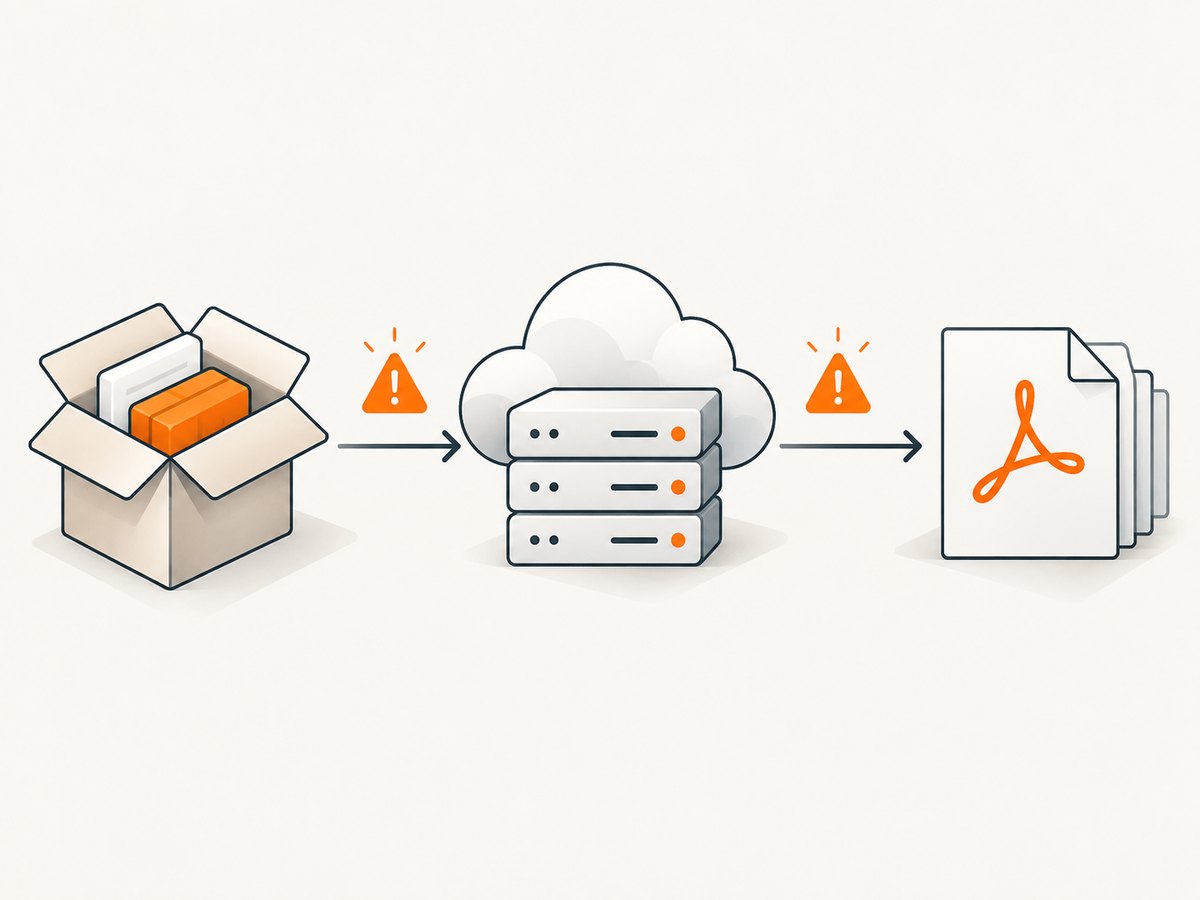
This split is useful because each class has different evidence:
| Failure stage | Typical evidence | First place to look |
|---|---|---|
| Deployment | Missing file after publish, deployment rejection, incomplete package | Deployment logs and deployed file tree |
| Startup | App fails to boot, worker exits, import or initialization error | Application logs and App Service diagnostics |
| Invocation/rendering | Process timeout, non-zero exit, blank PDF, missing assets | Captured command, stderr, input URL, and network checks |
Do not “fix” a rendering error by changing deployment settings until you know the process is actually present and executable.
2. Verify what reached App Service
For a ZIP deployment, Microsoft documents different paths by platform: Windows content is unpacked under D:\home\site\wwwroot; Linux content is under /home/site/wwwroot. Confirm the path that matches your operating system and deployment model. The Kudu ZIP deploy UI endpoint is not available for App Service on Linux, so do not use Windows-only deployment instructions for a Linux app. See Microsoft’s ZIP deployment documentation for the platform-specific behavior.
Deployment checklist
- Open the deployment record and confirm it completed successfully.
- Inspect the deployed directory in the Kudu console or your deployment tooling.
- Confirm the application files and the wkhtmltopdf executable (if you deploy one) are present.
- Check that any adjacent files your build expects were copied as well.
- Compare the deployed path with the path used by your application configuration.
- Redeploy a known-good artifact after correcting the package, then verify the new deployment ID in logs.
A common cause of “works locally” reports is that the executable exists on the developer workstation but was excluded by a publish rule, ignored by source control, or placed in a different directory in the deployed artifact. The fix is to correct the artifact and path, not to add random runtime packages.
3. Confirm operating-system compatibility
Check the App Service OS in the portal before selecting a binary or dependency. Microsoft notes generally that code dependencies and components must be available on the target OS and that Windows-specific features can differ on Linux. A Windows executable cannot be assumed to run on Linux, and a Linux deployment must not rely on Windows paths or tools.
For a Linux app, use the Kudu debug console or an equivalent diagnostic shell to inspect the environment. For a Windows app, use the corresponding Windows console and paths. The following checks only report facts; they do not install anything:
# Linux-style checks
pwd
ls -la
command -v wkhtmltopdf || true
wkhtmltopdf --version || true

# Windows-style checks (run in a Windows diagnostic shell)
where wkhtmltopdf
wkhtmltopdf.exe --version
If the command is not found, first determine whether it was supposed to be packaged with the application or supplied by the hosting image. If it is present but cannot start, capture the complete stderr output and exit code. The research available for this article does not validate a particular Azure image, native-library list, sandbox flag, or installation command, so those details must come from your exact runtime and vendor-supported package.
4. Use App Service diagnostics and logs
In the Azure portal, open your app and select Diagnose and solve problems. Microsoft’s diagnostics experience covers Windows, Linux, built-in runtimes, custom containers, App Service Environments, and Functions. Review both deployment and application categories, then correlate the timestamp with your failed conversion. The App Service diagnostics overview explains the workflow.
Enable or inspect application logging for the failing request. Log:
- The sanitized executable path and arguments (never secrets).
- The input file or URL identifier.
- Start and end timestamps.
- Exit code, stdout, and stderr.
- Timeout duration and whether the worker was restarted.
- App Service instance information when the app is scaled out.
Microsoft’s deployment troubleshooting guidance recommends separating deployment and runtime investigations. Use the deployment troubleshooting documentation when files or startup are wrong, then move to application logs for conversion-time failures.
5. Test external resources only when indicated
wkhtmltopdf can be asked to render a local file or a page that loads remote resources. If stderr identifies a URL, stylesheet, image, font, or API as the failing input, test that dependency separately. For Linux App Service, Microsoft documents using nslookup for DNS checks and curl for connectivity checks through the Kudu debug console:
nslookup example.com
curl -I -L --max-time 20 https://example.com/
Replace the host and URL with the actual resource from your document. A successful DNS lookup does not prove that authentication, TLS, redirects, or application-level responses are correct. Conversely, a failed request may explain a missing image or stylesheet without indicating a wkhtmltopdf binary problem. This is general network guidance, not proof of a wkhtmltopdf-specific defect.
6. Apply the smallest evidence-based fix
Deployment file or path failure
Correct the publish artifact, deployment rule, or configuration value so the expected executable and application files are present at runtime. Recheck the deployed tree and log the resolved path before invoking conversion.
OS or executable mismatch
Use a build that is supported for the App Service OS and runtime image you selected, or change the hosting approach to one that supports your required component. Do not copy a Windows binary into a Linux app or assume a package built for one distribution works on another without validation.
Startup failure
Fix the initialization error shown in application logs first. A worker that never starts cannot generate a PDF, regardless of wkhtmltopdf arguments.
Remote resource failure
Repair DNS, routing, authentication, TLS, redirects, or the resource itself. If the document must be self-contained, package assets with the application and use paths appropriate to the target OS.
Timeout or worker termination
Capture the exact timeout and whether App Service restarted the worker. Reduce the input to a minimal document, then add assets back one at a time. This isolates a slow or unreachable resource from a process-start problem.
7. A repeatable diagnostic runbook
- Reproduce one failure and save the complete error, exit code, and timestamp.
- Label the stage: deployment, startup, or invocation.
- Record OS, runtime stack, deployment method, instance, and executable path.
- Inspect the deployed file tree and verify the executable is present.
- Run the version check from the App Service environment.
- Review Diagnose and solve problems, deployment logs, and application logs.
- If a remote resource is named, run DNS and HTTP checks from the App Service environment.
- Change one thing that directly addresses the evidence.
- Retest with a minimal HTML document, then with the original document.
- Keep the successful deployment artifact and diagnostic output for rollback and comparison.
8. Performance, reliability, and cost considerations
Measure conversion time separately from page-fetch time. A document with many remote assets can appear to be a renderer failure when the delay is network-related. Set an application-level timeout that leaves room for logging and cleanup, and avoid launching unbounded concurrent processes. Queueing jobs can protect the web worker when conversions are expensive, but the queue design must match your application’s retry and idempotency behavior.
For reliability, make failures observable: persist the exit code, stderr, input identifier, and deployment version. Retry only errors that are plausibly transient, such as a short-lived network failure; do not repeatedly retry a missing executable or an incompatible binary. When scaling out, verify that every instance uses the same artifact and configuration.
App Service cost is separate from any PDF conversion component. Validate the complete deployment and resource usage against your chosen plan. If your requirement is simply to obtain a clean screenshot or PDF from a URL, a managed screenshot API can remove browser-process and dependency management from your application.
9. Or skip the browser setup
ScreenshotNeo provides a website screenshot API and MCP server. One GET request returns a PNG, JPEG, WebP, or PDF. Cookie and consent banners are accepted and more than 60 known consent platforms, newsletter popups, and chat widgets are removed before capture; each cleanup step can be disabled. Bot checks, blank pages, timeouts, failed loads, and cache hits are not billed, and the response identifies the result with X-Page-Verdict and X-Billed headers.

See the ScreenshotNeo API documentation for all options. A minimal call is:
curl -G "https://api.screenshotneo.com/v1/shot" -d access_key=YOUR_API_KEY --data-urlencode url=https://stripe.com -o shot.webpimport requests
r = requests.get("https://api.screenshotneo.com/v1/shot", params={"access_key": "YOUR_API_KEY", "url": "https://stripe.com"}, timeout=90)
open("shot.webp", "wb").write(r.content)const q = new URLSearchParams({ access_key: 'YOUR_API_KEY', url: 'https://stripe.com' });
const res = await fetch(`https://api.screenshotneo.com/v1/shot?${q}`);Options include full-page capture with lazy images loaded, CSS-selector element capture, dark mode, 12 device presets or a custom viewport, retina scale, PDF paper size/margins/landscape/page ranges, HTML or CSS to image, custom CSS and JavaScript, clicks, waits, blocked ads or requests, headers, cookies, user agents, Authorization, timezone, geolocation, transparent backgrounds, resizing, chosen cache TTL, signed image links, asynchronous jobs with signed webhooks, bulk capture of up to 100 URLs per call, a usage API, and an OpenAPI specification. An MCP server exposes take_screenshot, get_page_info, and capture_pdf to Claude, Cursor, and other MCP clients.
The Free plan includes 1,000 shots per month without a card. Paid plans start at $5 for 3,000 shots; yearly billing gives two months free, and every feature is available on every plan. Create a free ScreenshotNeo account to try it.
10. Troubleshooting common symptoms
| Symptom | Likely class | What to check |
|---|---|---|
| Executable not found | Deployment or path | Published files, resolved path, OS-specific command lookup |
| Permission or start error | OS or executable | Binary compatibility, runtime image, stderr, file metadata |
| Works locally, fails after deploy | Environment difference | OS, environment variables, deployed assets, outbound access |
| Blank PDF | Input or external resource | Minimal HTML, redirects, authentication, JavaScript/resource waits |
| Timeout | Slow render or network | Remote URLs, DNS, response time, process and App Service logs |
| Deployment succeeds, app will not start | Startup | Application startup logs and dependency initialization |
11. FAQ
Why does wkhtmltopdf fail only on Azure App Service?
The deployed OS, filesystem, network access, environment variables, and packaged files differ from a local workstation. Compare those facts before changing renderer arguments.
How do I install wkhtmltopdf on Azure?
First identify the OS, hosting model, and supported deployment approach. The available Microsoft material does not validate one universal installation command or dependency list, so follow the package guidance for your exact environment.
Why does PDF generation work locally but fail after deployment?
Most often, the deployed artifact lacks the executable or an input dependency, or the target OS cannot run the local binary. Verify files, paths, OS compatibility, and logs.
Which log matters most?
Use the log closest to the failure stage: deployment logs for missing files, startup logs for worker failures, and captured stderr plus application logs for conversion failures.
Can I avoid managing wkhtmltopdf on App Service?
Yes. ScreenshotNeo can return a screenshot or PDF through its API and can be called from an MCP client, removing browser executable packaging from your application.


