How to Fix Font Size Differences Between Windows and Linux in wkhtmltopdf
Fix cross-platform font size differences in wkhtmltopdf by pinning the binary, fonts, DPI, and rendering environment, then validating with a minimal fixture.
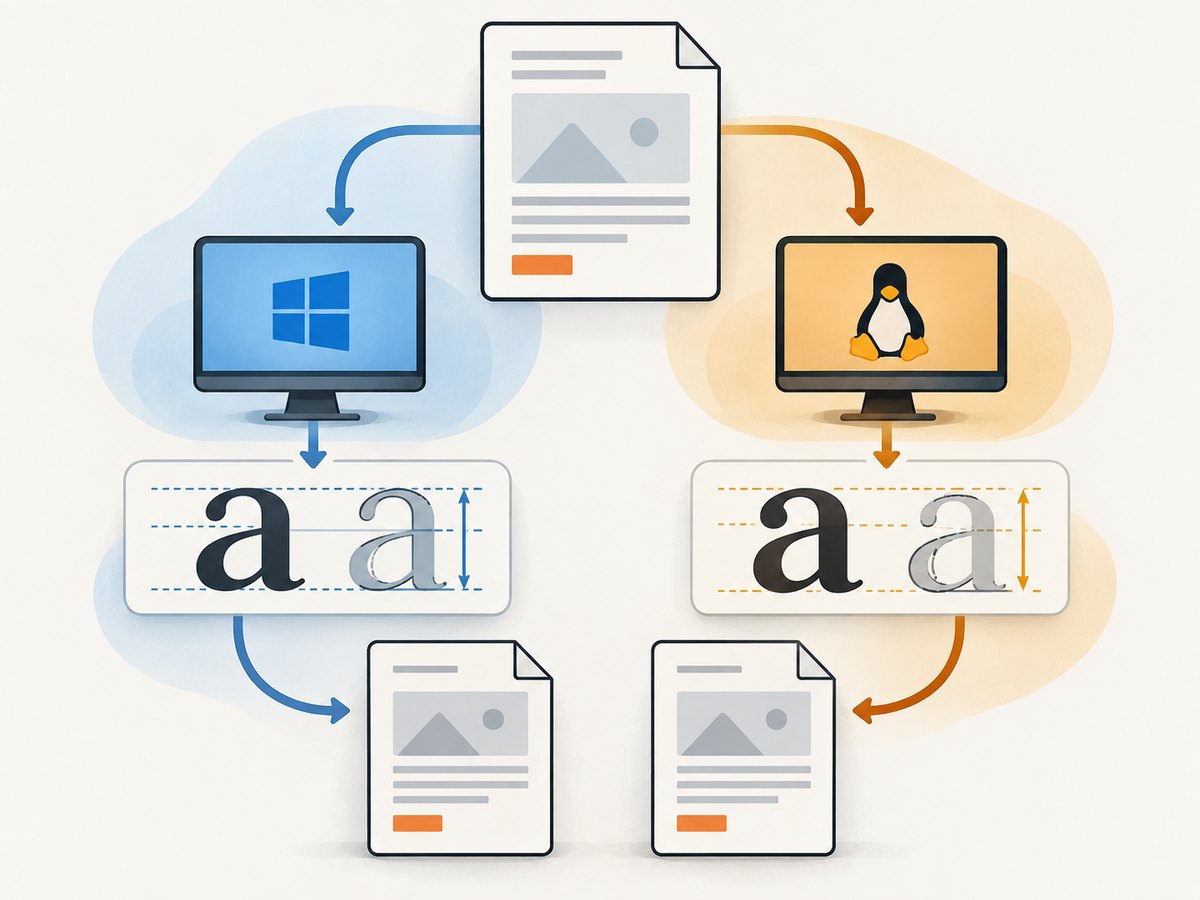
wkhtmltopdf can render the same CSS at different apparent sizes on Windows and Linux because CSS units pass through a platform-specific rendering stack. The binary and Qt/WebKit build, effective DPI, fonts, Linux fontconfig and Freetype libraries, display state, and PDF viewer can all affect the result. To make output reproducible, use the same wkhtmltopdf build, install the same font files, set and validate scaling options, and compare a small fixture in the same PDF viewer.
Start by recording your current environment, then change one variable at a time. The command below is a diagnostic starting point, not a universal cross-platform setting: wkhtmltopdf --zoom 1.33 --dpi 96 --minimum-font-size 0 input.html output.pdf. Validate it against your content before pinning the options in a service or CI job.
1. Capture a reproducible baseline
Before adjusting CSS or adding a zoom factor, record enough information to repeat the conversion. wkhtmltopdf’s support guidance asks for the version and a reproducible HTML, CSS, and JavaScript case. A screenshot or a vague report that text “looks smaller” is not enough to distinguish PDF geometry from display scaling.
- Record the complete output of
wkhtmltopdf --version, including any build or patched Qt details. - Save the exact command and all input files, including stylesheets, scripts, and local fonts.
- Record OS version, Linux distribution, container or VM image, and whether the conversion runs headless or under X11.
- List the font files available to the process and the Linux fontconfig/Freetype configuration.
- Open both PDFs in the same viewer on the same machine and compare them at the same zoom.
Make a minimal HTML file with labeled samples for 8px, 9pt, 10pt, and 12px, plus one sample using the font from your real document. Give each sample enough surrounding space to reveal line-height and wrapping changes. Keep page size, margins, and content identical between runs. This fixture makes it easier to identify which change caused a difference.
<!doctype html>
<html>
<head>
  <meta charset="utf-8">
  <style>
    @font-face {
      font-family: "FixtureFont";
      src: url("./FixtureFont.woff2") format("woff2");
    }
    body { font-family: Arial, sans-serif; }
    .custom { font-family: "FixtureFont", sans-serif; }
    .sample { margin: 12px 0; }
    .px8 { font-size: 8px; }
    .pt9 { font-size: 9pt; }
    .px10 { font-size: 10px; }
    .px12 { font-size: 12px; }
  </style>
</head>
<body>
  <p class="sample px8">8px sample — The quick brown fox 0123456789</p>
  <p class="sample pt9">9pt sample — The quick brown fox 0123456789</p>
  <p class="sample px10">10px sample — The quick brown fox 0123456789</p>
  <p class="sample px12">12px sample — The quick brown fox 0123456789</p>
  <p class="sample custom">Custom font sample — The quick brown fox 0123456789</p>
</body>
</html>
Use a font file you are allowed to distribute with the fixture; if you omit the custom font, the fixture still helps diagnose unit and scaling differences. Check the generated PDF’s page dimensions and text placement as well as its appearance. If geometry matches but one screen preview looks different, investigate viewer or monitor scaling before changing the conversion.
2. Pin the wkhtmltopdf binary and build
Use the same wkhtmltopdf version and build on both systems. The project download page lists the 0.12.6 stable series, released June 11, 2020. Matching the version string is a useful first control, but build details matter too: distributions may package different Qt/WebKit variants or patches. Record the package or binary source and deploy that same tested artifact wherever PDFs are generated.
Version changes can alter apparent text size even when the HTML and CSS stay fixed. In a maintainer discussion, the DPI behavior was standardized at 96 DPI; an earlier Linux default had been 72 DPI. That history is one reason a PDF can change after an upgrade. If a change appeared after updating wkhtmltopdf, render the fixture with the old and new binaries under otherwise identical conditions before editing the document styles.
Do not assume that a wrapper library selects the same executable or options in each environment. Log the resolved binary path and the complete arguments passed to it. In containers, pin the image by version and keep the wkhtmltopdf package version explicit rather than installing the newest available package on every build.
3. Install and verify identical fonts
CSS font declarations only request a family; the renderer still has to find a usable font file. If Windows has a font that Linux lacks, the renderer may substitute another family with different glyph widths, x-height, weight, or line metrics. The result can look like a font-size change even when the CSS value is unchanged, and text wrapping can change as a consequence.
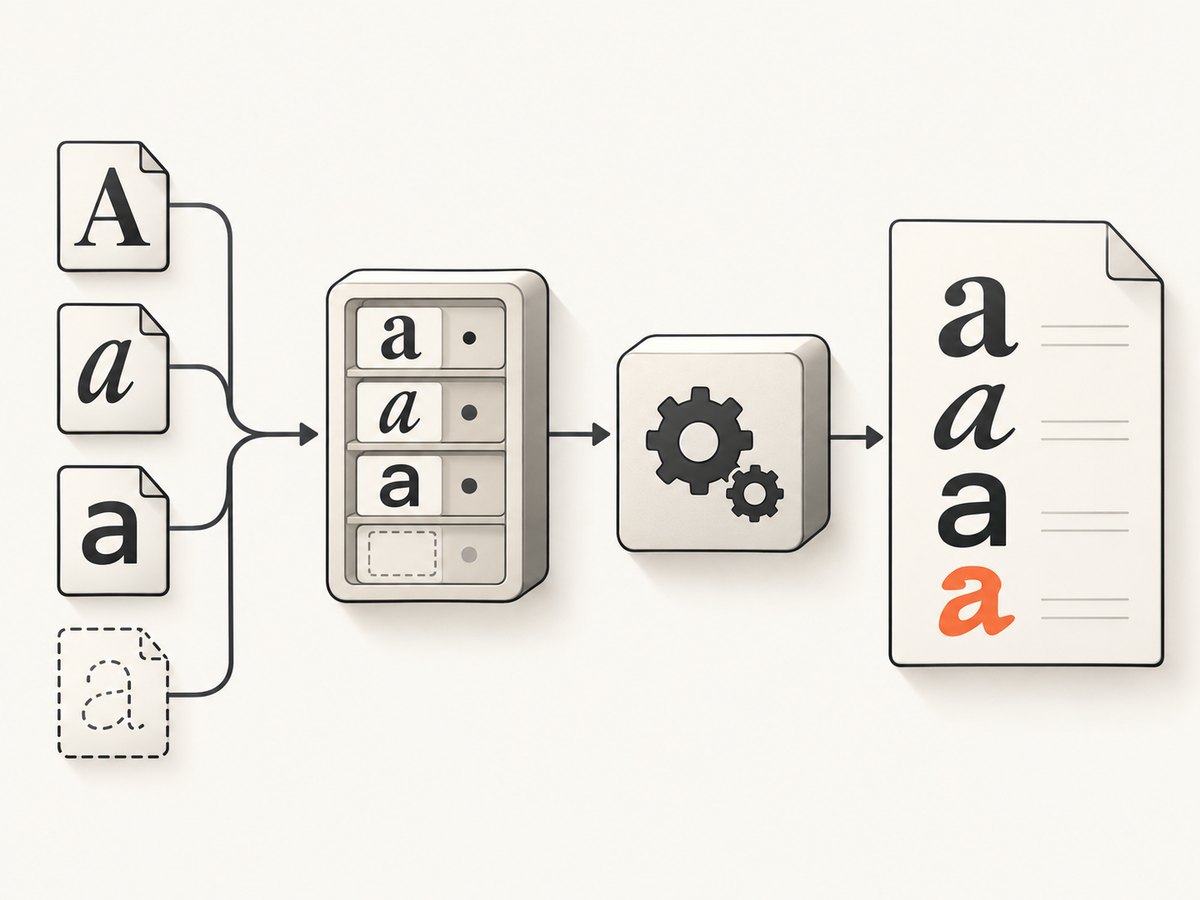
- Copy the exact font files used by the document to both environments, subject to their licenses.
- Use matching versions and formats. Do not rely on a Windows-installed font being present in a minimal Linux image.
- On Linux, verify font discovery under the same user account that runs wkhtmltopdf. A developer shell can see fonts unavailable to a system service.
- For packaged deployments, check the fontconfig configuration and set
FONTCONFIG_PATHto the intended configuration directory when needed. - Include the required fontconfig and Freetype runtime libraries in the image. Test the actual production image, not only a full desktop workstation.
A web font that loads on Windows but not Linux can be investigated with a small self-contained @font-face fixture and a known-good format. One issue report describes converting a problematic font to OTF and referencing it through @font-face as a workaround in that case. Treat that as a diagnostic possibility, not a guarantee: font compatibility depends on the file and runtime.
When the font is missing, fix font installation and discovery instead of compensating with --zoom. A scale adjustment may make one sample look closer while leaving the wrong glyph widths and line breaks behind.
4. Make DPI and zoom explicit
The wkhtmltopdf usage documentation lists --dpi with a default of 96 and notes that changing it has no effect on X11-based systems. It also provides --zoom and --minimum-font-size. DPI and zoom are related to rendered size, but changing them can also affect page geometry, line wrapping, and pagination. Validate with the fixture rather than applying a number by intuition.
wkhtmltopdf --zoom 1.33 --dpi 96 --minimum-font-size 0 \
  --page-size A4 --margin-top 10mm --margin-right 10mm \
  --margin-bottom 10mm --margin-left 10mm \
  input.html output.pdf
The --zoom 1.33 value is maintainer guidance for fitting a particular Windows 96-DPI condition. It is a starting point to test, not a universal conversion factor or a guarantee that Windows and Linux output will match. Try controlled values while keeping the binary, fonts, page size, margins, and viewer constant. Record the chosen value with the exact build and execution environment.
Set --minimum-font-size deliberately. It imposes a floor on small rendered text and can be useful when a document policy requires one. It cannot correct a missing font, a different font metric, or a DPI mismatch. Setting it too high can enlarge small labels or footnotes and disrupt layout. For library users, the corresponding setting is web.minimumFontSize; confirm the option is passed through by your wrapper.
5. Control Windows display and headless state
Windows display DPI and UI scaling can affect wkhtmltopdf’s effective rendering behavior. Remote desktop sessions and service accounts can have a different DPI state from an interactive desktop, even if the visible display setting appears unchanged. Headless Linux typically runs with a different fixed environment from a user’s desktop.
For a conversion service, run under a controlled account and VM or container configuration. Avoid making production output depend on whichever monitor or remote session happens to be attached. If Windows is part of the pipeline, test the service account itself; an administrator’s interactive session is not a substitute. On Linux, record whether an X11 display is involved because the documented --dpi behavior differs on X11-based systems.
6. Compare the PDFs correctly
Open both files in the same viewer and compare at the same zoom. Different PDF viewers and display scaling can make identical PDF geometry look different on screen. First compare page dimensions, text positions, line breaks, and pagination; then assess visual glyph size. If page geometry and line breaks match but the previews differ, suspect viewing or display scale. If geometry differs, continue checking the binary, fonts, DPI and zoom options, and page settings.
Use the comparison axes below to isolate differences rather than changing several settings at once.
| Axis | What to hold constant or record | Typical clue |
|---|---|---|
| wkhtmltopdf build | Version, package source, Qt/WebKit patch level | Difference began after an upgrade |
| Operating environment | OS, distribution, container image, headless or X11 | Only service or container output differs |
| Scaling | Effective DPI, --zoom, minimum font size |
Most text appears uniformly scaled |
| Fonts | Exact font files, formats, fontconfig, Freetype | Widths, weight, or wrapping differs |
| Document geometry | Page size, margins, CSS, input assets | Pagination or placement differs |
| Inspection | Same viewer and preview zoom | PDF dimensions match but screen appearance does not |
7. Troubleshooting common failures
Linux text is uniformly smaller or larger
Likely cause: Different effective DPI, zoom, binary behavior, or Windows display state. Fix: Compare the exact build and command, test explicit DPI and zoom values against the fixture, and run Windows conversion in a controlled service environment. Remember that --dpi has no effect on X11-based systems.
Only one family or weight changes
Likely cause: A font is missing, a different version is installed, or the requested web font failed to load. Fix: Verify the exact files and fontconfig discovery under the conversion account. Test a minimal @font-face case and a known-good font format before changing global scaling.
Output changed after a wkhtmltopdf upgrade
Likely cause: The new version or build uses different rendering behavior or DPI assumptions. Fix: Render the fixture with both binaries using identical inputs and options, then pin the chosen tested binary in deployment. Review the historical DPI standardization when comparing older Linux builds.
Changing --dpi has no visible effect
Likely cause: The conversion is running on an X11-based system, where the usage documentation says the option has no effect, or a wrapper is not forwarding the option. Fix: Check the runtime mode and log the actual command line. Test zoom separately and retain the same fixture.
Font-size floor fixes labels but breaks layout
Likely cause: --minimum-font-size is forcing text above its intended size. Fix: Set it only when a minimum is required by document policy. Remove it when diagnosing platform differences, and correct font availability or scaling at the source.
The PDF looks different only on screen
Likely cause: Viewer zoom, display scaling, or preview rendering. Fix: Compare the two PDFs in the same viewer at the same zoom, and inspect page dimensions and text positions before adjusting wkhtmltopdf.
8. Keep the output reliable and affordable to maintain
Reproducibility is an operational property: the binary, fonts, runtime libraries, command options, inputs, and execution environment need to be controlled together. Put the fixture in the same build or deployment process as the PDF generator and retain a known-good output for comparison when updating the image. A small fixture can catch font substitution or scaling changes before they affect full documents.
Font files and runtime dependencies increase container size and require license and update management. Pinning a binary reduces surprise changes but means upgrades need deliberate validation. Keep changes narrow: update the binary, font set, or scale options one at a time, render the fixture, and inspect both geometry and appearance. There is no single zoom value that is guaranteed to make every Windows/Linux setup identical.
Or skip the browser setup
If your task is to capture a web page as an image or PDF rather than render your own HTML document, ScreenshotNeo offers a website screenshot API and MCP server. One GET request returns a PNG, JPEG, WebP, or PDF. Its capture flow accepts cookie and consent banners before capture and removes more than 60 known consent platforms, newsletter popups, and chat widgets; each step can be turned off. Bot checks and CAPTCHAs, blank pages, timeouts, failed loads, and cache hits cost nothing, and response headers report the page verdict and billing status. AI agents can use its MCP tools for screenshots, page info, and PDF capture.
For reproducible page capture, use the same URL and explicit output options from your integration. ScreenshotNeo also supports full-page capture with lazy images loaded, CSS selector element capture, device presets or custom viewport, dark mode, retina scale, PDF paper size and margins, custom CSS and JavaScript, waits, request blocking, headers, cookies, user agent, authorization, timezone, geolocation, caching, signed image links, async jobs, bulk capture, and a usage API. See the ScreenshotNeo API documentation for parameter names and configuration.
curl -G "https://api.screenshotneo.com/v1/shot" \
  -d access_key=YOUR_API_KEY \
  --data-urlencode url=https://stripe.com \
  -o shot.webp
import requests
r = requests.get(
"https://api.screenshotneo.com/v1/shot",
params={"access_key": "YOUR_API_KEY", "url": "https://stripe.com"},
timeout=90,
)
open("shot.webp", "wb").write(r.content)const q = new URLSearchParams({ access_key: 'YOUR_API_KEY', url: 'https://stripe.com' });
const res = await fetch(`https://api.screenshotneo.com/v1/shot?${q}`);
if (!res.ok) throw new Error(`Screenshot request failed: ${res.status}`);
const bytes = new Uint8Array(await res.arrayBuffer());
await import('node:fs/promises').then(fs => fs.writeFile('shot.webp', bytes));ScreenshotNeo includes 1,000 screenshots per month free with no card; paid plans start at $5 for 3,000 screenshots, and every feature is available on every plan. Create a free ScreenshotNeo account for 1,000 screenshots a month, no card required.
FAQ
Does CSS font-size mean the same thing in every wkhtmltopdf build?
The CSS value is interpreted through a renderer and platform environment. Matching the CSS alone does not ensure matching output when DPI behavior, fonts, or build details differ.
Should I always use --zoom 1.33?
No. Maintainer guidance presents it for a specific Windows 96-DPI condition. Validate it against your fixture and page layout before adopting it.
Can --minimum-font-size make the two PDFs identical?
It can enforce a floor for small text, but it does not align font metrics, missing fonts, or platform scaling.
What should I check first if the PDF changed after an upgrade?
Record and compare the old and new binaries, then render the same minimal fixture with identical fonts, options, and viewer.
Primary references
- wkhtmltopdf downloads — stable release information.
- wkhtmltopdf usage documentation — DPI, zoom, and minimum font size options.
- wkhtmltopdf issue 1782 — maintainer discussion of zoom and Windows DPI.
- wkhtmltopdf issue 3241 — DPI standardization discussion.


