How to Fix wkhtmltopdf Failing to Load HTTPS Images in Laravel
When Laravel Snappy PDFs omit HTTPS images, trace the request from the wkhtmltopdf process, inspect renderer errors, then check loading options and file access.
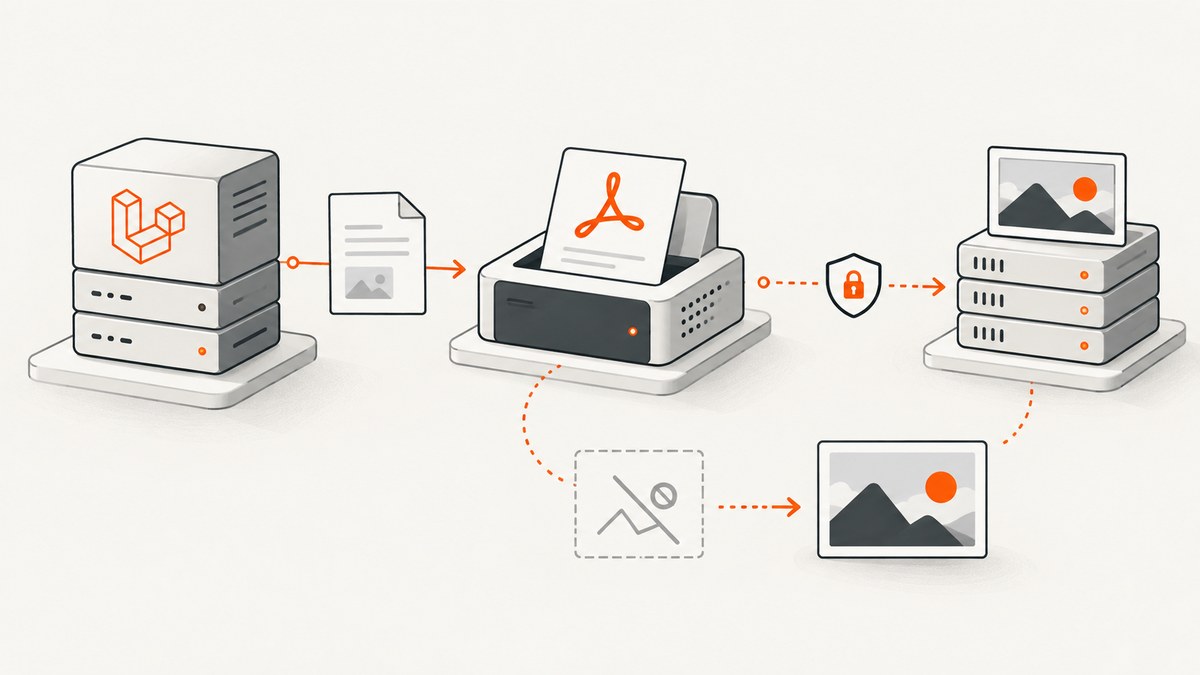
When an HTTPS image appears in a browser but is missing from a PDF generated with Laravel Snappy, test the image from the same host or container and service account that runs wkhtmltopdf. Laravel Snappy wraps a separately installed renderer binary; the browser on your laptop and that renderer can have different DNS, network access, TLS trust, authentication, and filesystem permissions. There is no universal HTTPS flag that fixes every cause.
Save the exact HTML sent to the renderer, run it through the configured binary, and read its standard error. Then check the image URL’s response and the renderer’s image-loading and resource-error settings. This sequence identifies which layer failed before you change configuration.
1. Confirm what Laravel actually sends to wkhtmltopdf
Snappy’s Laravel integration loads a view and invokes the configured binary. The final HTML may differ from what you expect: a view can render a different URL by environment, generate an expired signed URL, or use a relative image path that resolves differently outside a browser. Inspect the rendered src in the HTML passed to PDF generation.
use Barryvdh\Snappy\Facades\SnappyPdf as PDF;

$html = view('reports.invoice', ['invoice' => $invoice])->render();
file_put_contents(storage_path('app/debug-invoice.html'), $html);

return PDF::loadHTML($html)->download('invoice.pdf');
The exact facade name and setup can vary with the installed package version. Laravel Snappy documents the loadView(...)->download(...) pattern; its configuration includes a path to the wkhtmltopdf binary. Check your deployed configuration and confirm which binary the Laravel process uses. Laravel Snappy documentation and the Snappy wrapper documentation describe package setup and renderer options.
Record the operating system and version, binary version, installation method, architecture, configured binary path, and service account. If local development succeeds and production fails, compare those details before changing HTML or application code.
2. Test the image from the renderer’s environment
A browser test from a workstation only proves that the workstation can load the image. Run a request from the server or container where wkhtmltopdf runs; when practical, use the same service account. Check DNS, outbound access, TLS certificate trust, HTTP status, redirects, authorization, and the response content type and bytes.
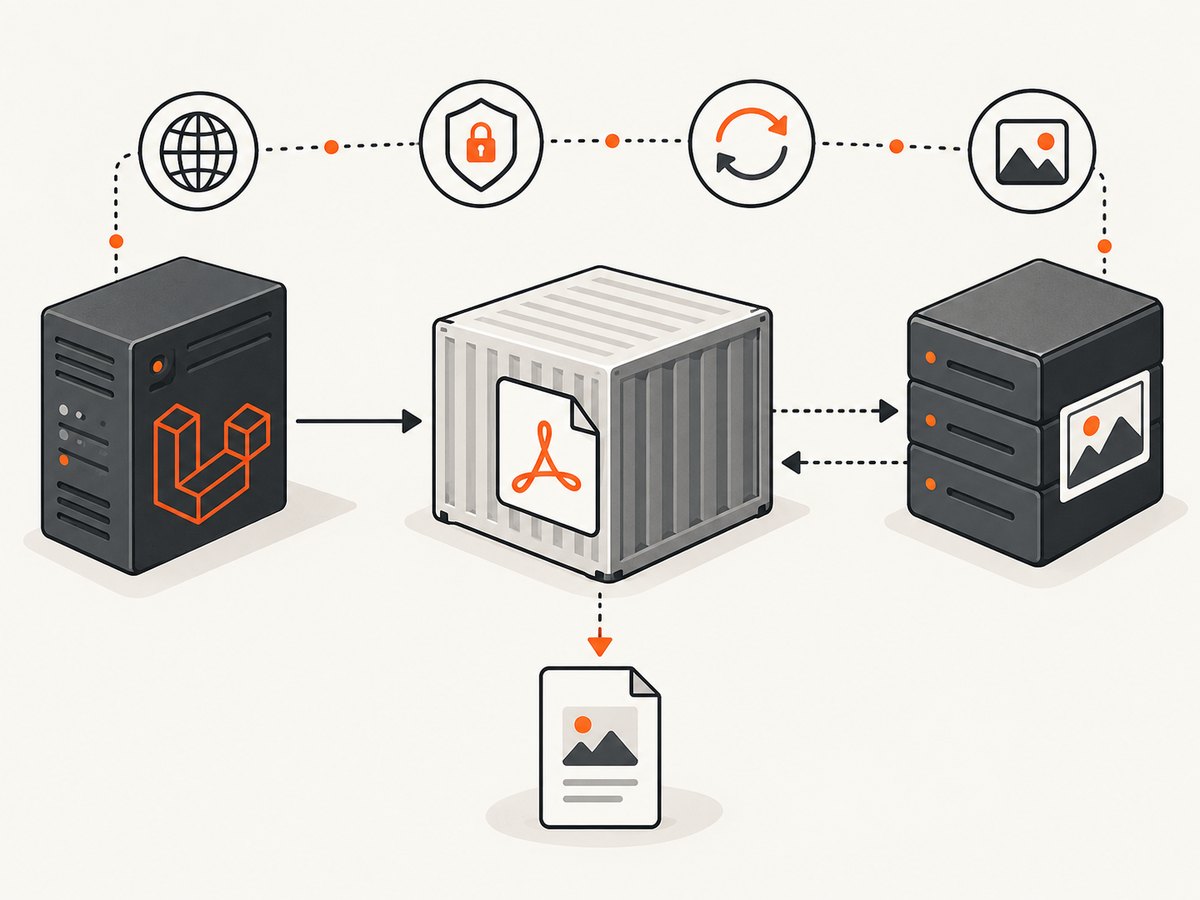
# Run these from the renderer host/container, substituting the exact image URL.
curl -v -L 'https://example.com/path/image.png' -o /tmp/image-check.png
file /tmp/image-check.png
Look for an unexpected redirect to a login page, a 403 response, an expired signed URL, or an HTML error page returned with a misleading status. A browser may also use a logged-in session, proxy, or certificate store that the renderer does not have. Avoid putting long-lived credentials directly into shell history while diagnosing authenticated endpoints.
DNS or host resolution errors are one possible failure mode: a Laravel Snappy issue report includes a “Host not found” resource error. That report is an example, not evidence that your problem has the same cause. Classify the failure using the error from your own runtime.
3. Reproduce with the exact configured binary
Reduce the input to one image and minimal markup. Run the saved HTML using the same binary path Laravel uses, then retain both the PDF and complete standard error output. A minimal case separates renderer and network behavior from view logic, CSS, and application data.
# Replace the path with the binary configured for your Laravel deployment.
/path/to/wkhtmltopdf --version
/path/to/wkhtmltopdf /path/to/debug-invoice.html /tmp/debug-invoice.pdf 2>/tmp/wkhtmltopdf.stderr
cat /tmp/wkhtmltopdf.stderr
Use your deployed binary’s supported syntax; paths and shell commands vary by operating system. The project’s issue guidance asks reporters to include the operating system/version, wkhtmltopdf version and installation method, and a minimal HTML/CSS/JavaScript reproducer. Those details also make an internal diagnosis reproducible. See the wkhtmltopdf issue reporting guidance.
Group the evidence before editing settings:
- Host/DNS error: verify name resolution and network policy in the renderer runtime.
- TLS error: check the certificate chain and trust store available to that runtime.
- HTTP or redirect issue: inspect status, final URL, authentication, and whether the response is actually an image.
- Image disabled or load behavior: inspect renderer options and the exact installed version.
- Local path issue: verify file visibility and permissions from the renderer process.
4. Check image loading and resource-error settings
The wkhtmltopdf settings reference documents web.loadImages to control image loading and load.loadErrorHandling to choose what happens when a resource fails: abort, skip, or ignore. Check that image loading is enabled. Choose error handling based on the PDF’s requirements: skipping or ignoring a failed image can let generation continue, but neither setting repairs the request or guarantees a complete PDF.
Snappy passes wkhtmltopdf options through its documented option mechanism. For example, if your installed wrapper and binary accept the corresponding settings, a configuration may look like this:
// Illustrative Laravel Snappy configuration; confirm option names and support
// against the installed Snappy package and wkhtmltopdf binary.
return [
    'pdf' => [
        'enabled' => true,
        'binary' => env('WKHTMLTOPDF_BINARY', '/usr/local/bin/wkhtmltopdf'),
        'options' => [
            'load-error-handling' => 'abort',
        ],
    ],
];
Option naming and accepted values can vary with the wrapper and binary. Consult the official wkhtmltopdf settings reference and verify the deployed binary’s help output. Do not assume a particular SSL-related command-line switch is a general cure: first establish that certificate validation is the failing layer.
5. If you switch to a local image file
Local files avoid a remote fetch but introduce a filesystem access requirement. The renderer must see the file at the path supplied and have permission to read it. A path that exists on the web server may not exist inside a container, and a temporary file can be removed before PDF generation finishes.
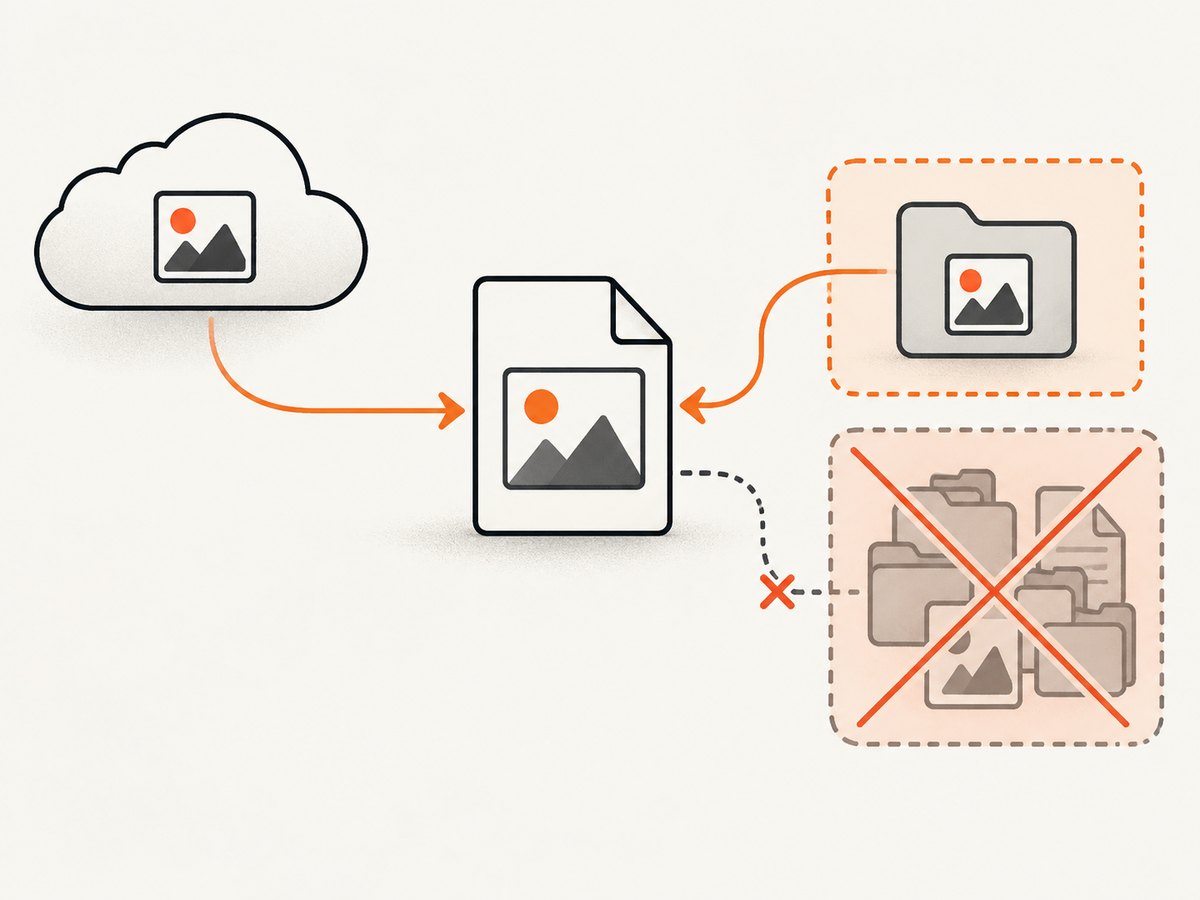
The settings reference documents local-file access controls, and Snappy supports passing options, including allowed paths where supported. Grant access only to the directory needed by the report if your binary supports scoped access. Do not enable broad local-file access as a blanket response to a remote HTTPS failure.
This is a security boundary. The wkhtmltopdf project warns against processing untrusted HTML or JavaScript. If user-controlled content enters the document, broad filesystem access can expose files available to the renderer. Review the project status and security guidance and wrapper documentation before enabling local access.
6. Troubleshooting checklist
| Symptom | Likely layer to inspect | Next check |
|---|---|---|
| “Host not found” or name-resolution message | DNS or network environment | Resolve the host from the renderer container/account; compare resolver and outbound network policy. |
| TLS or certificate error | Certificate trust or TLS compatibility | Request the URL from the same runtime; inspect its trust store and certificate chain. |
| Image missing with no obvious exception | HTTP response, redirect, or image loading options | Check final status and content; verify web.loadImages and renderer stderr. |
| Works locally, fails in production | Different binary, OS, permissions, network, or configuration | Compare version, path, install source, service account, container networking, and trust configuration. |
| Local file cannot be opened | Path visibility or access controls | Check the path inside the renderer runtime and grant only the required access. |
| PDF completes but image is absent | Error handling may be skipping/ignoring a failed resource | Capture stderr and correct the underlying resource failure; error handling alone does not fetch it. |
- Inspect the final rendered HTML and image URL.
- Request that URL from the renderer’s host/container and service context.
- Run the minimal HTML through the exact configured binary and save stderr.
- Check image loading and resource-error options against the deployed version.
- If using a local path, verify access and review the security implications.
- Record the OS, binary version/install method, and reproducer before escalating or evaluating a renderer change.
7. Performance, reliability, and cost considerations
Remote images add network requests to PDF generation. A slow origin, redirect chain, or unavailable host can delay or interrupt rendering depending on the configured error behavior. Reduce avoidable work by using stable image URLs, keeping report assets reasonably sized, and diagnosing slow origins separately from renderer startup. If images are private, make the authentication mechanism explicit and ensure its lifetime covers the render.
Reliability depends on the entire path: Laravel process, installed binary, runtime libraries, network and DNS, remote image service, and file permissions. Capture stderr and the renderer version with failures so environment changes are visible. A successful browser fetch is not a health check for that full path.
There is no source-backed universal cost estimate for these failures. Operational cost comes from investigating and maintaining the renderer environment, handling retries and incomplete output, and any migration effort. Avoid automatic retries for every error: a persistent DNS, TLS, or authorization failure will repeat without improving the result. Retry only errors your application classifies as transient, and ensure duplicate PDF work is acceptable.
8. Should you upgrade or replace wkhtmltopdf?
The official downloads page identifies 0.12.6 as the stable series and gives its release date as June 11, 2020. The project status page describes the aging Qt/WebKit foundation and names WeasyPrint or Prince for report generation and Puppeteer for dynamic JavaScript sites. These pages can lag current packaging, so check release and package status for the exact distribution you deploy. An upgrade may be part of diagnosis, but the reviewed documentation does not establish that upgrading fixes every HTTPS image failure.
Evaluate a renderer change against your actual documents: CSS and JavaScript behavior, deployment requirements, security posture, and migration and operating cost. The project’s mention of alternatives is not a feature comparison or proof of drop-in compatibility. Review the primary sources: wkhtmltopdf downloads and project status.
Or skip the browser setup
If the task is capturing a web page as an image for documentation or review, ScreenshotNeo provides a screenshot API and MCP server. It is a different workflow from rendering your Laravel report as a PDF, so use it when a website capture meets the need. See the API documentation.
curl -G "https://api.screenshotneo.com/v1/shot" -d access_key=YOUR_API_KEY --data-urlencode url=https://stripe.com -o shot.webpimport requests
r = requests.get(
"https://api.screenshotneo.com/v1/shot",
params={"access_key": "YOUR_API_KEY", "url": "https://stripe.com"},
timeout=90,
)
open("shot.webp", "wb").write(r.content)const q = new URLSearchParams({ access_key: 'YOUR_API_KEY', url: 'https://stripe.com' });
const res = await fetch(`https://api.screenshotneo.com/v1/shot?${q}`);
if (!res.ok) throw new Error(`Screenshot request failed: ${res.status}`);
await Bun.write('shot.webp', res);Replace the target URL and provide your API key. ScreenshotNeo removes cookie banners, newsletter popups, and chat widgets before capture; failed loads, bot checks, blank pages, and cache hits are not billed. Its MCP server lets AI agents take screenshots. The free plan includes 1,000 screenshots per month with no card; paid plans start at $5 for 3,000. Sign up for 1,000 free screenshots a month, no card required.
FAQ
Why can an HTTPS image render in a browser but fail in a PDF generated by Laravel Snappy?
The browser and wkhtmltopdf run in different contexts. The renderer may have different DNS, network access, certificate trust, cookies, credentials, or file permissions. Test from the renderer’s runtime to find which differs.
Should I ignore image load errors so PDF generation succeeds?
Only if a PDF without that image is acceptable. Ignore or skip behavior can let generation proceed, but it does not repair the image fetch. For required images, fix the underlying error and keep failures visible.
Does enabling local-file access fix HTTPS images?
No. It changes access to local files; it does not fix DNS, TLS, redirects, or authentication for remote HTTPS resources. Enable local access only when you intentionally use local assets and have reviewed the security boundary.
Will upgrading wkhtmltopdf solve the problem?
Not necessarily. The available project sources establish the age of the stable series and renderer foundation, not a universal fix for HTTPS failures. Diagnose the failing layer first, then evaluate upgrades or migration against your document requirements.


