How to Fix the wkhtmltopdf “Specified in Incorrect Location” Error
Fix wkhtmltopdf’s “specified in incorrect location” error by correcting option scope, argument order, and wrapper-generated commands.
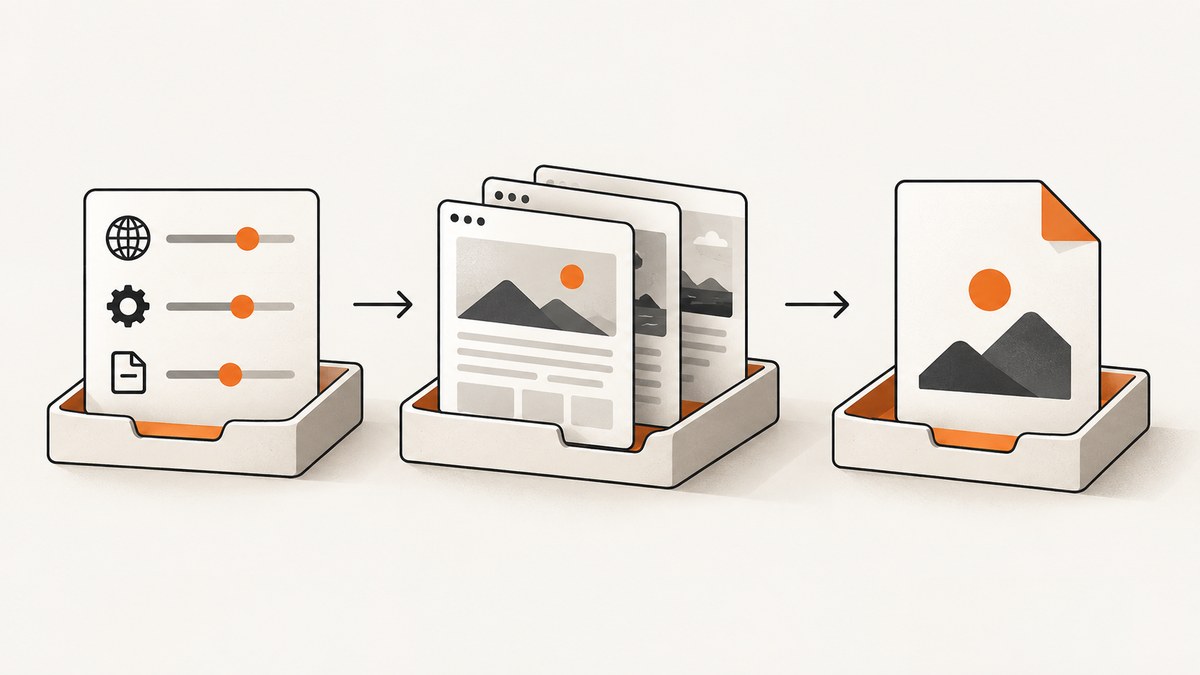
Direct fix: put wkhtmltopdf global options before the input page and output file. The documented command shape is wkhtmltopdf [GLOBAL OPTION]... [OBJECT]... <output file>. For example:
wkhtmltopdf --page-size letter --dpi 150 --margin-top 0.2in --margin-bottom 0.2in --margin-left 0.2in --margin-right 0.2in input.html output.pdfThe error means the parser found an option outside the scope where that option is allowed. It usually indicates command structure or argument ordering, not a PDF layout, permissions, or font problem. The wkhtmltopdf usage documentation states: “Options from the Global Options section can only be placed in the global options area.” See the official usage text.
What “specified in incorrect location” means
wkhtmltopdf parses a command as a sequence of global options, document objects, object-level options, and finally an output path. A single command can contain more than one input object, but the parser still needs to know which tokens configure the whole conversion and which belong to one page.
A global switch placed after an input object can be rejected with an error such as:
--page-size specified in incorrect location
--margin-left specified in incorrect location
The option named in the message is the clue. Check where that option appears in the final argument sequence. A working command copied from a terminal can fail when a wrapper, framework, or configuration file emits the same values in a different order.
Correct command structure
Use this mental model:
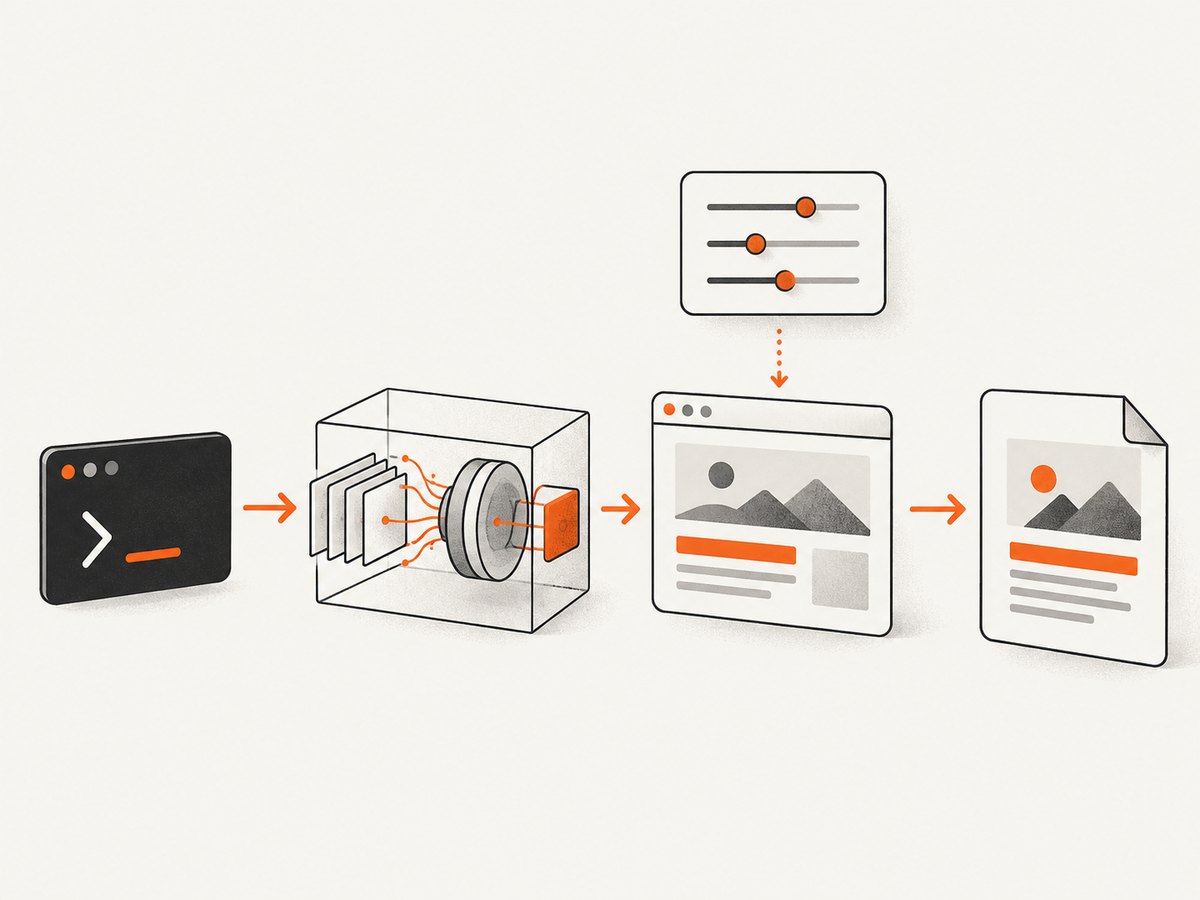
- Global options: settings that apply to the complete conversion, such as page size, margins, DPI, orientation, and global loading behavior.
- Document objects: one or more input URLs or HTML files.
- Object options: switches associated with a particular page object, placed in that object’s option area.
- Output: the final PDF path, or
-for standard output where supported.
For one HTML file, the safe baseline is:
wkhtmltopdf [global options] input.html output.pdfFor a URL:
wkhtmltopdf [global options] https://example.com output.pdfFor multiple objects:
wkhtmltopdf [global options] cover cover.html page1.html page2.html output.pdfDo not append a global switch after output.pdf. Do not assume that an option accepted by another HTML-to-PDF tool has the same scope in wkhtmltopdf.
Step-by-step diagnosis
1. Capture the exact executable and version
wkhtmltopdf --versionRecord the complete output, including whether it says “with patched Qt.” The official usage text names wkhtmltopdf 0.12.6 with patched Qt, but your machine, container, package manager, or CI image may contain another build. Syntax and supported switches must be checked against the binary actually being invoked.
2. Reproduce with the smallest command
wkhtmltopdf input.html output.pdfIf this succeeds, add global options one at a time:
wkhtmltopdf --page-size letter input.html output.pdf
wkhtmltopdf --page-size letter --margin-left 0.2in input.html output.pdf
wkhtmltopdf --page-size letter --margin-left 0.2in --dpi 150 input.html output.pdf
The first command that fails identifies the option or combination to investigate. This also distinguishes a location error from a page-loading or rendering error.
3. Compare the failing and working order
This malformed example puts global options after the input:
wkhtmltopdf input.html output.pdf --page-size letter --margin-left 0.2inMove them before the document object and output:
wkhtmltopdf --page-size letter --margin-left 0.2in input.html output.pdfA Stack Overflow report described this same pattern with wkhtmltopdf 0.12.0 final; moving the options before the input and output resolved that reported command. Treat that as a reproduction example, not a promise that every version or command has identical behavior.
4. Read the installed help
wkhtmltopdf --help
wkhtmltopdf --extended-help
The extended help is useful for less common switches and for checking whether an option is global or object-specific in your installed build. If the option is absent, misspelled, or listed in another section, correct the configuration instead of forcing it into the command.
Common option-placement mistakes
| Mistake | Why it fails | Fix |
|---|---|---|
Global options after input.html |
The parser has entered an object and rejects a global switch. | Move the switch before every input object. |
Options after output.pdf |
The output path terminates the command’s normal option area. | Place options before the input and output arguments. |
| Wrapper emits a shell string | Quoting or tokenization changes the argument boundaries. | Pass an argument array directly to the process. |
| Wrong binary on PATH | Your terminal and application may invoke different installations. | Log the absolute executable path and run its --version. |
| Unsupported switch | Builds differ in available features and patched-Qt behavior. | Check --help or --extended-help for that binary. |
Using wrappers safely
Wrappers such as Python pdfkit construct the final process arguments for you. A configuration dictionary can look correct while the emitted sequence is wrong. Enable the wrapper’s verbose or debug logging, or temporarily print the exact argument list before execution.
Python with pdfkit
import pdfkit

options = {
    'page-size': 'Letter',
    'dpi': 150,
    'margin-top': '0.2in',
    'margin-bottom': '0.2in',
    'margin-left': '0.2in',
    'margin-right': '0.2in',
}

pdfkit.from_file('input.html', 'output.pdf', options=options)
If this raises an incorrect-location error, inspect the command generated by your pdfkit version and the wkhtmltopdf executable it discovers. An issue report against python-pdfkit mentions --margin-left specified in incorrect location with wkhtmltopdf 0.12.4 and patched Qt, but that report does not establish a verified universal workaround. Use it as a reason to inspect the emitted argument sequence, not as proof that a particular pdfkit setting fixes every installation.
When invoking a process yourself, prefer an argument array:
import subprocess

args = [
    'wkhtmltopdf',
    '--page-size', 'letter',
    '--dpi', '150',
    '--margin-left', '0.2in',
    'input.html',
    'output.pdf',
]
subprocess.run(args, check=True)
This preserves paths containing spaces and avoids shell quoting errors.
Node.js with child_process
import { spawn } from 'node:child_process';

const args = [
  '--page-size', 'letter',
  '--dpi', '150',
  '--margin-left', '0.2in',
  '--margin-right', '0.2in',
  'input.html',
  'output.pdf'
];

const child = spawn('wkhtmltopdf', args, { stdio: 'inherit' });
child.on('exit', code => {
  if (code !== 0) process.exit(code ?? 1);
});
Do not concatenate the array into one string unless you also implement platform-specific shell escaping. An array makes each option and value an explicit token.
Quoting, paths, and argument boundaries
A path with spaces must remain one argument:
wkhtmltopdf --page-size letter 'docs/invoices April/input.html' 'build/invoice April/output.pdf'In a wrapper, pass those paths as separate array entries rather than adding literal quote characters. Also check values containing a leading dash, ampersands, URLs with query strings, or JSON headers. A shell can reinterpret these characters before wkhtmltopdf receives them.
When the error is not option placement
Most cases are ordering problems, but the message can also result from an option that is not supported by the installed build or belongs to a different scope. After correcting order:
- Confirm the option appears in the installed binary’s help output.
- Check capitalization and spelling.
- Remove duplicate options generated by a wrapper and a global configuration file.
- Verify that a page option is attached to the intended object when converting multiple inputs.
- Run the exact command under the same user, environment, container, and PATH as the application.
If the parser accepts the command but the PDF is blank, times out, or has missing assets, you have moved beyond this syntax error. Investigate network access, JavaScript timing, local-file permissions, authentication, and the page’s own rendering behavior separately.
Reliability and operational checks
- Log the wkhtmltopdf version, executable path, complete argument array, exit code, and stderr for each failed conversion.
- Keep a minimal fixture HTML file in CI so parser regressions are distinguishable from application pages.
- Pin the package or container image after checking its provenance. The upstream GitHub repository has been archived and read-only since January 2, 2023, so verify current package maintenance and support expectations in your environment.
- Set process timeouts in the calling application and clean up partial output files after failures.
- When upgrading a wrapper, compare its generated command with the previous release; wrapper changes can alter option ordering.
Performance and cost considerations
Option placement itself has negligible runtime impact. Rendering time is usually dominated by page loading, JavaScript execution, fonts, images, and network access. Reduce unnecessary work by using a stable local fixture for diagnosis, avoiding repeated conversions, and selecting only the options you need. Do not treat a parser error as evidence that increasing a timeout or changing DPI will help; those settings are evaluated after command parsing.

For a self-hosted wkhtmltopdf pipeline, account for the cost of maintaining the executable, patched-Qt compatibility, fonts, sandbox permissions, and reproducible package versions. If your primary need is a clean screenshot or PDF of a URL rather than control of a local browser process, a hosted capture API can remove that setup.
Or skip the browser setup
ScreenshotNeo provides a one-call website screenshot API and PDF capture service. Cookie and consent banners, newsletter popups, and chat widgets are removed before the shot. Bot checks, blank pages, timeouts, failed loads, and cache hits are not billed, and each response identifies the result with X-Page-Verdict and X-Billed headers. Its MCP server lets Claude, Cursor, and other MCP clients use take_screenshot, get_page_info, and capture_pdf.
See the ScreenshotNeo API documentation for all options. A PDF request can use the same endpoint:
curl -G 'https://api.screenshotneo.com/v1/shot' \
  -d access_key=YOUR_API_KEY \
  --data-urlencode url=https://stripe.com \
  -d format=pdf \
  -o page.pdf
For a screenshot:
curl -G 'https://api.screenshotneo.com/v1/shot' -d access_key=YOUR_API_KEY --data-urlencode url=https://stripe.com -o shot.webpimport requests
r = requests.get(
'https://api.screenshotneo.com/v1/shot',
params={'access_key': 'YOUR_API_KEY', 'url': 'https://stripe.com'},
timeout=90,
)
r.raise_for_status()
open('shot.webp', 'wb').write(r.content)const q = new URLSearchParams({ access_key: 'YOUR_API_KEY', url: 'https://stripe.com' });
const res = await fetch(`https://api.screenshotneo.com/v1/shot?${q}`);
if (!res.ok) throw new Error(`HTTP ${res.status}`);
const body = Buffer.from(await res.arrayBuffer());
await import('node:fs/promises').then(fs => fs.writeFile('shot.webp', body));Available controls include full-page capture with lazy images loaded, CSS-selector element capture, dark mode, device presets or custom viewports, retina scale, PDF paper size, margins, landscape mode and page ranges. You can also provide custom CSS or JavaScript, click an element, wait for a selector, delay or network idle, hide selectors, block ads, trackers, requests or resource types, set headers, cookies, user agent, authorization, timezone and geolocation, use transparent backgrounds, resize images, cache with a chosen TTL, create signed links, run asynchronous jobs with signed webhooks, capture up to 100 URLs per bulk call, and query usage. Every feature is on every plan. The free plan includes 1,000 screenshots per month with no card; paid plans start at $5 for 3,000.
Create a free ScreenshotNeo account and start with 1,000 screenshots per month at no charge.
Troubleshooting checklist
- Run
wkhtmltopdf --versionusing the same account and environment as the failing application. - Print the exact final argument array, not only the wrapper configuration.
- Move every global option before the first input object.
- Keep the output path last.
- Check
--helpand--extended-helpfor scope and support. - Test with a minimal local HTML file, then add the real URL and options incrementally.
- Check quoting, spaces, URL query characters, duplicate settings, and the executable path.
- Separate parser errors from later rendering, network, font, and permission failures.
FAQ
Can I put every option before the URL?
Global options should go there. Options that belong to a specific document object must follow that object according to the installed binary’s help text.
Why does the command work in my terminal but fail in Python?
The wrapper may invoke another wkhtmltopdf binary or emit different tokens. Compare the absolute executable path, version, and final argument array.
Does changing page size fix the error?
No. Page size is a valid setting only when placed in the correct option area. Reordering is the first fix.
Should I upgrade wkhtmltopdf?
Check the installed version and package provenance first. Do not assume a newer package universally fixes incorrect-location errors.
Can ScreenshotNeo replace wkhtmltopdf?
For URL screenshots and PDFs, it can provide a hosted one-call workflow with cleanup, billing verdicts, and MCP access. A local wkhtmltopdf pipeline remains appropriate when you require its specific executable and self-hosted rendering process.


