How to Fix Page Breaks and Multi-Column Layouts in wkhtmltopdf
Fix awkward wkhtmltopdf page breaks by checking your Qt build, testing print CSS on representative content, and validating columns in the generated PDF.
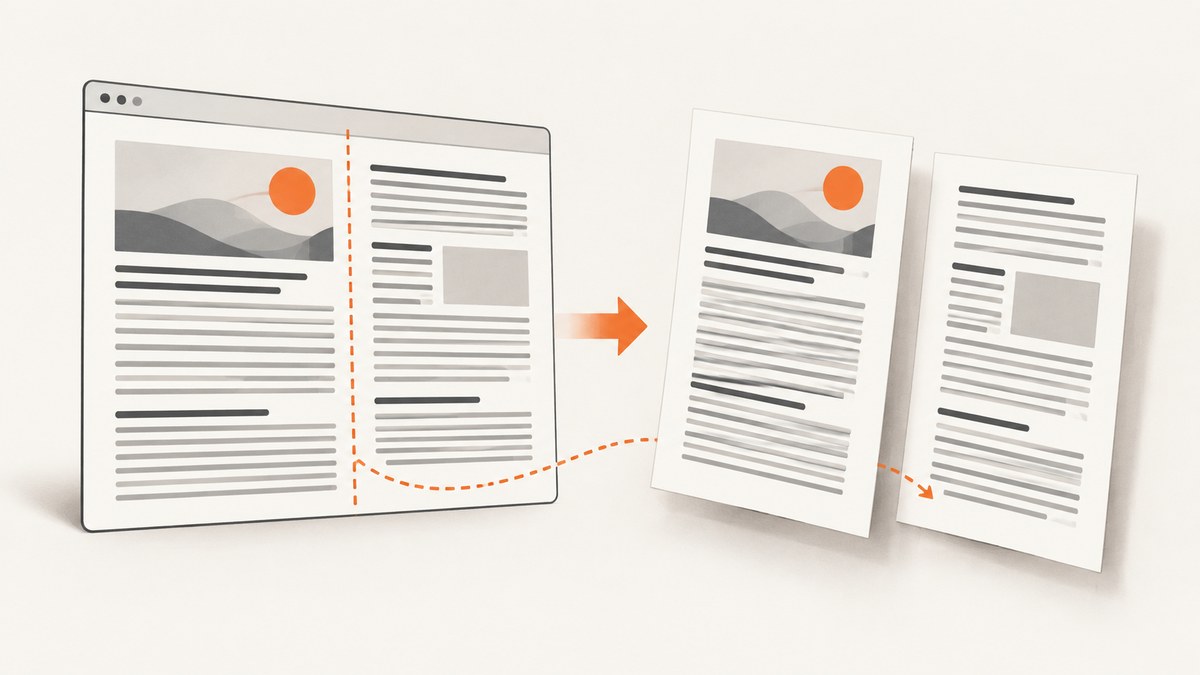
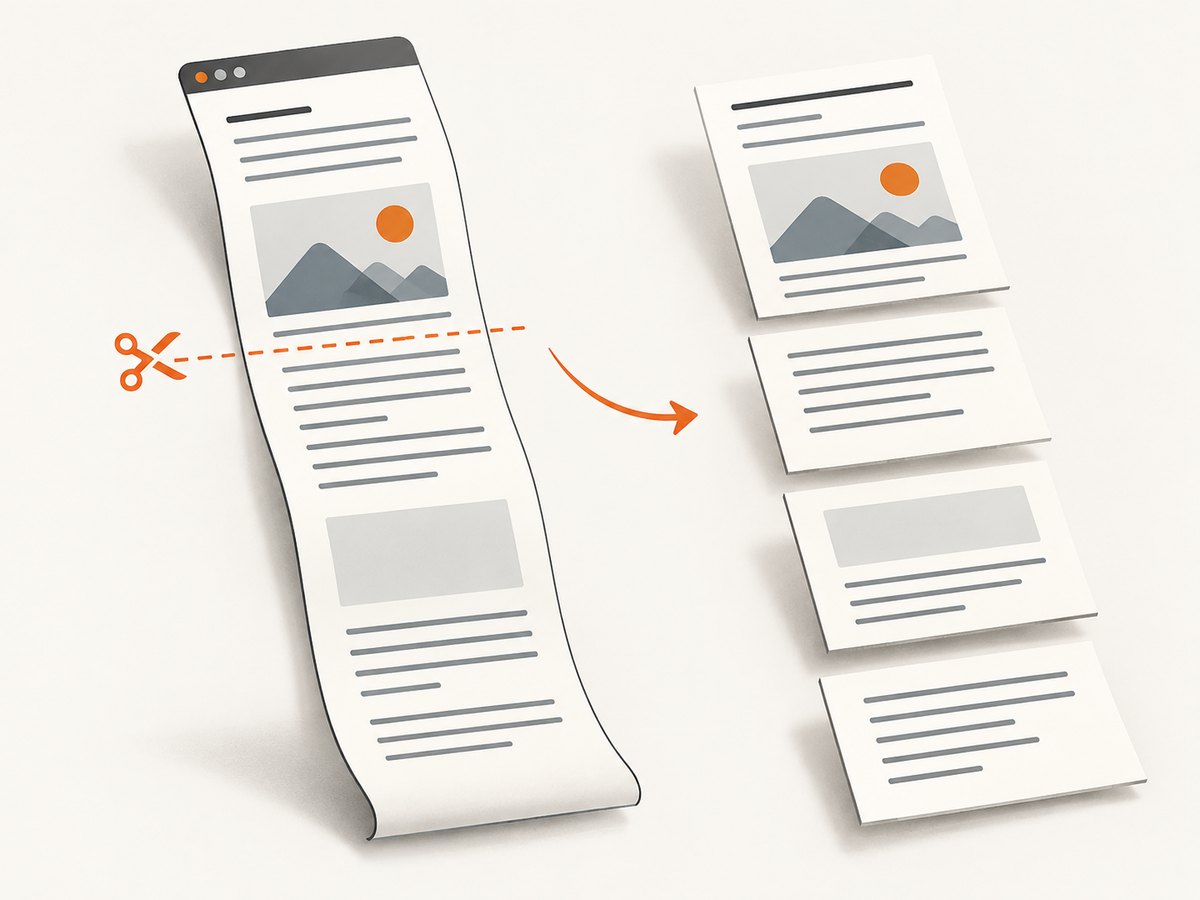
wkhtmltopdf page breaks are difficult because WebKit lays out the document as one long page and then cuts that page into PDF pages. The official manual warns that this can split lines and images. Its suggested CSS remedy, page-break-inside, is explicitly partial and depends on a patched Qt build. There is no single CSS declaration that reliably fixes every table, long block, or multi-column layout.
Start by identifying the exact wkhtmltopdf binary used in production. Reduce the failing page to a small representative document, apply break rules to content that can fit on a page, and inspect the resulting PDF at the real page size and margins. Treat CSS columns as a separate compatibility question: validate your installed build rather than assuming modern column fragmentation works.
This guide covers How to Fix Page Breaks and Multi-Column Layouts in wkhtmltopdf. The examples use wkhtmltopdf HTML/CSS and shell commands, plus Python and Node.js ways to run the converter. Documentation claims are linked to the Debian Bookworm wkhtmltopdf manual and the project usage documentation.
1. Identify the wkhtmltopdf and Qt build
Before changing CSS, record the version and build information on the machine or container that generates the PDF:
wkhtmltopdf --version
wkhtmltopdf --extended-help
Compare the output with your local development environment. wkhtmltopdf packages can differ in whether they include the project’s Qt patches. The Debian Bookworm manpage identifies its package as 0.12.6-2+b1 and says it was compiled against Qt without the wkhtmltopdf patches; the project’s usage page describes 0.12.6 with patched Qt. Those are different builds, so do not infer production behavior from a version number alone.
The manual’s page-breaking guidance says page-break-inside can help “somewhat” when using patched Qt. That qualification matters: if the property appears ignored, the build may lack the relevant patches, or the content may not be splittable in the way you expect. Verify the binary inside the production image, not only on a developer laptop.
2. Build a minimal reproduction
Keep the smallest document that preserves the failure: page size, margins, relevant table or column markup, fonts, image dimensions, and any print stylesheet. Remove unrelated JavaScript and layout rules. Render with the exact command and binary used in production.
Save this as breaks.html and use it as a baseline. The box is deliberately bounded and modest enough to fit on a page; an item taller than the printable area cannot be kept together by a break rule.
<!doctype html>
<html>
<head>
  <meta charset="utf-8">
  <style>
    @media print {
      .keep-together {
        page-break-inside: avoid;
        break-inside: avoid;
      }
      .new-page {
        page-break-before: always;
        break-before: page;
      }
    }
    .card { border: 1px solid #888; padding: 12px; margin: 12px 0; }
  </style>
</head>
<body>
  <section class="card keep-together">
    <h2>A bounded section</h2>
    <p>Replace this paragraph with the shortest content that still reproduces
       the unwanted page split. Check the box height against the printable area.</p>
  </section>
  <section class="new-page">
    <h2>A section intended to start on a new page</h2>
    <p>Use this on a section wrapper when the design calls for a new page.</p>
  </section>
</body>
</html>
Render it with fixed page settings so results are comparable:
wkhtmltopdf --page-size A4 --margin-top 15mm --margin-bottom 15mm \
  --margin-left 15mm --margin-right 15mm breaks.html breaks.pdf
Open the PDF and inspect the actual page boundary. A successful command only means a PDF was produced; it does not prove the text, images, or columns landed as intended.
3. Keep suitable blocks together and force page starts selectively
For content that should stay in one piece, try page-break-inside: avoid on a bounded wrapper such as a short card, subsection, or small group of rows. Keep the modern break-inside declaration if other print engines also consume the stylesheet, but do not assume wkhtmltopdf supports it consistently. The legacy property is the one cited by the wkhtmltopdf manual.
For a deliberate new page, put page-break-before: always on the section wrapper. Modern break-before: page can be included as a companion declaration, but verify its effect with the actual binary. Avoid putting all your expectations on row-level break directives: a reported issue for a 0.12.3-dev build describes break-before/after on table rows being ignored. That report is evidence to test, not a rule for every package.
Do not apply “keep together” indiscriminately to a long table, a document-sized container, or an element taller than the printable page. There may be no valid place to honor the request. Instead, identify the smallest unit that should remain intact. If a row itself is too tall, split or redesign its content so that it can flow.
4. Make long tables less fragile
Tables are a common source of page-boundary artifacts because rows, cells, borders, and repeated headings interact with the pagination step. One issue report for wkhtmltopdf 0.12.2.4 with patched Qt records differing results for td versus tr, along with border and header artifacts when avoiding row breaks. This is a version- and document-specific report, but it illustrates why a small reproduction matters.
- Keep headers and rows structurally valid: use a
theadfor headings andtbodyfor data. - Try
page-break-inside: avoidon a short row or modest row group, then render and inspect. Do not assume the same rule works identically ontr,td, and a wrapper. - If a large table keeps splitting at harmful points, consider dividing it into shorter tables at meaningful boundaries or redesigning exceptionally tall rows.
- Check borders and header appearance on both the page before and after a break. A visually intact row can still leave doubled borders or an awkward heading.
Do not treat “Cannot force page breaks after or before large table rows” as proof that one special selector fixes all large tables. The useful diagnosis is that row-level pagination can vary by build and markup, so isolate the table and validate the output.
5. Diagnose CSS multi-column layouts separately
A document with CSS columns is not simply a normal block with a more complicated page break. Column layout introduces another flow boundary. The supplied primary sources describe wkhtmltopdf’s page cutting behavior, but do not establish reliable support for CSS multi-column pagination or column-break properties across builds. In particular, do not rely on column-break-before, column-break-after, break-before, or modern CSS multicol behavior without a reproduction rendered by your target binary.
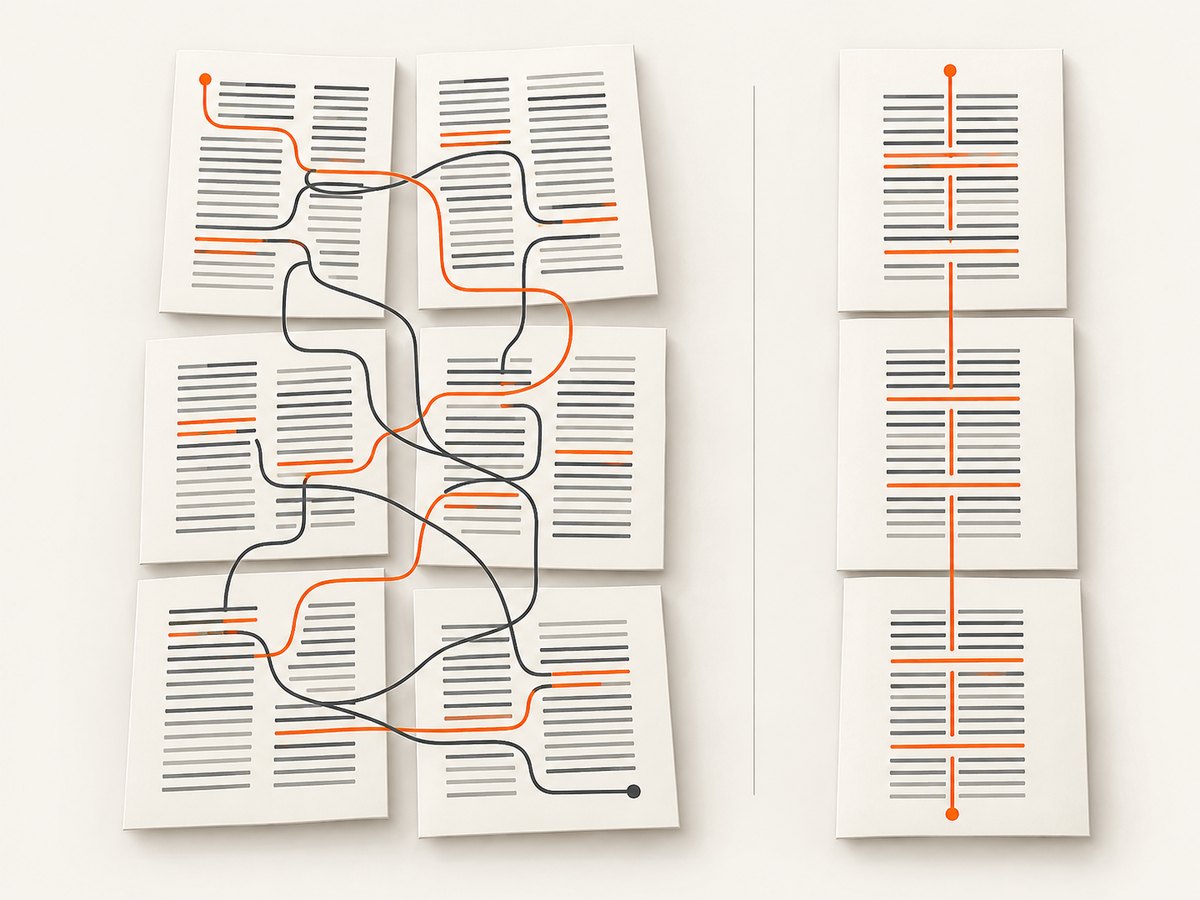
Start by testing the smallest multi-column case that still fails. Keep the same column count, gap, content length, font, page size, and margins as the production version. Check whether the issue occurs inside a single page, at the page boundary, or both. Then test these options:
- Keep columns and reduce complexity. Remove nested floats, fixed heights, overflow clipping, and unrelated positioning one at a time. This is a diagnostic process, not a guaranteed wkhtmltopdf fix.
- Author separate column containers. If each column has a known content group, separate those groups in the HTML so the layout does not depend on automatic column fragmentation. Validate the resulting page flow.
- Use a simpler print layout. Consider switching to a single-column print stylesheet if the screen design’s columns paginate unpredictably. Preserve the multi-column screen view and choose the print rule with
@media print. - Test every target build. A change that works on a patched local binary may not work on an unpatched production package.
CSS columns are useful for screen presentation, but if the PDF must preserve a strict reading order, explicit document sections or a simpler single-column print flow are easier to inspect. Do not label a workaround as dependable until the generated PDF confirms it for the documents you actually produce.
6. Hold page settings and scaling constant
Page size, orientation, margins, zoom, and smart shrinking all affect available space and apparent scale. If output suddenly wraps differently, compare these settings before concluding that a break rule changed behavior. The project usage documentation says smart shrinking changes WebKit’s pixel/DPI ratio and documents --disable-smart-shrinking as a way to disable that strategy. It is a scaling variable, not a universal pagination fix.
Compare two renders with the same input and settings except for this flag:
wkhtmltopdf --page-size A4 --margin-top 15mm --margin-bottom 15mm \
  breaks.html default-scaling.pdf

wkhtmltopdf --disable-smart-shrinking --page-size A4 \
  --margin-top 15mm --margin-bottom 15mm breaks.html fixed-scaling.pdf
Keep margins, orientation, zoom, and page size constant while comparing. If you change several at once, you will not know which setting changed line wrapping. The manual documents A4 as the default page size and supports alternatives such as Letter, as well as explicit page width and height. Use the actual target format in both the reproduction and production.
7. Python and Node.js ways to run the converter
The layout is still controlled by the HTML, CSS, and wkhtmltopdf binary. These examples show how to invoke that binary from application code; they do not add a separate pagination engine. They assume wkhtmltopdf is installed and available on PATH.
Python
import subprocess

command = [
    "wkhtmltopdf",
    "--page-size", "A4",
    "--margin-top", "15mm",
    "--margin-bottom", "15mm",
    "--margin-left", "15mm",
    "--margin-right", "15mm",
    "breaks.html",
    "breaks.pdf",
]
result = subprocess.run(command, capture_output=True, text=True)
if result.returncode != 0:
    raise RuntimeError(
        f"wkhtmltopdf failed ({result.returncode}): {result.stderr}"
    )
print("Created breaks.pdf")
Node.js
import { spawn } from "node:child_process";

const args = [
  "--page-size", "A4",
  "--margin-top", "15mm",
  "--margin-bottom", "15mm",
  "--margin-left", "15mm",
  "--margin-right", "15mm",
  "breaks.html",
  "breaks.pdf",
];

const child = spawn("wkhtmltopdf", args, { stdio: ["ignore", "ignore", "pipe"] });
let stderr = "";
child.stderr.setEncoding("utf8");
child.stderr.on("data", chunk => { stderr += chunk; });
child.on("error", error => { throw error; });
child.on("close", code => {
  if (code !== 0) throw new Error(`wkhtmltopdf exited ${code}: ${stderr}`);
  console.log("Created breaks.pdf");
});
Passing an argument array avoids shell quoting problems when paths contain spaces. In a service, capture stderr and the exit status; a missing input asset, load error, or unavailable binary should be visible in logs rather than mistaken for a CSS issue.
8. Options that affect rendering
| Option or setting | When to inspect it | What it changes |
|---|---|---|
--page-size, --page-width, --page-height |
Wrapping or page count differs | Physical page dimensions and available content area |
--margin-top, --margin-bottom, --margin-left, --margin-right |
Content clips or breaks too early | Printable area |
--orientation |
Wide tables or columns overflow | Portrait or landscape page geometry |
--disable-smart-shrinking |
Scale or wrapping changes unexpectedly | Disables the WebKit shrinking strategy; compare output separately |
--print-media-type |
Print CSS does not appear to apply | Requests print media styles instead of the default screen media type |
--javascript-delay, --window-status |
Rendered content is incomplete | Waits for a delay or a specified window status before rendering |
--load-error-handling, --load-media-error-handling |
Resources fail during loading | Controls handling of page and media load errors |
These options are documented in the wkhtmltopdf usage reference. Change one layout variable at a time. JavaScript waits can help when the HTML is populated dynamically, but waiting longer does not repair a pagination rule or guarantee all scripts have completed.
9. Troubleshooting common symptoms
| Symptom | Likely cause | Next step |
|---|---|---|
page-break-inside: avoid seems ignored |
Unpatched Qt build, unsupported case, or an element too tall for the printable page | Check --version; reduce to a bounded element; test with the target binary. |
| A table row splits or its border is damaged | Row/cell behavior varies with markup and build | Test the rule on row, cell, and a small row group separately; split or redesign long tables if needed. |
page-break-before on a row has no effect |
Row-level directives may not be honored by that build | Move the forced break to a section wrapper and inspect the PDF. |
| Columns flow in an unexpected order or break awkwardly | Column fragmentation behavior is not established across wkhtmltopdf builds | Build a minimal column case; consider explicit groups or a single-column print stylesheet. |
| Text fits locally but wraps in production | Different binary, fonts, page size, margins, zoom, or shrinking behavior | Record the production build and hold geometry and scale settings constant during comparison. |
| Images or dynamic content are missing | Resource load failure, JavaScript timing, local-file access, or incorrect path | Check stderr and resource URLs; use the documented loading and JavaScript options where applicable. |
| PDF is created but wrong pages appear | Successful process exit does not validate visual output | Open the resulting PDF and inspect page boundaries at the intended paper size. |
10. Performance, reliability, and cost
For reliable document output, keep a small representative set of HTML fixtures and render them with the same binary, fonts, page settings, and runtime image used in production. Compare the generated PDFs after changes to CSS or wkhtmltopdf packaging. Include a long table, a bounded keep-together block, and the actual column case if your documents use columns. This catches regressions that a successful process exit cannot detect.
Rendering time depends on the document and its resources; this research does not establish a benchmark or universal throughput figure. Avoid adding long JavaScript delays by default. If you batch many pages and process startup is a bottleneck, the usage documentation describes --read-args-from-stdin for multiple invocations through one process. Measure with your own workload before changing the job architecture.
Cost depends on how you run wkhtmltopdf and maintain its runtime; the sources here provide no cost benchmark. Reliability work should focus on pinning the exact binary, preserving the stderr and exit status, making input assets available, and reviewing the PDFs. If a layout requirement remains unreliable after target-build testing, simplify the print markup or use a renderer whose documented behavior matches that requirement.
11. Or skip the browser setup
For a website screenshot rather than a paginated PDF, ScreenshotNeo can capture a page with one API request. It does not replace wkhtmltopdf for producing a multi-page PDF with controlled paper size, margins, and page breaks. Its documentation is at ScreenshotNeo docs.
curl -G "https://api.screenshotneo.com/v1/shot" -d access_key=YOUR_API_KEY --data-urlencode url=https://stripe.com -o shot.webpimport requests
r = requests.get("https://api.screenshotneo.com/v1/shot", params={"access_key": "YOUR_API_KEY", "url": "https://stripe.com"}, timeout=90)
open("shot.webp", "wb").write(r.content)const q = new URLSearchParams({ access_key: 'YOUR_API_KEY', url: 'https://stripe.com' });
const res = await fetch(`https://api.screenshotneo.com/v1/shot?${q}`);ScreenshotNeo removes cookie banners, popups, and chat widgets before the shot. Bot checks, blank pages, and failed loads are never billed. Its MCP server lets AI agents take screenshots. The free plan includes 1,000 screenshots a month with no card; paid plans start at $5 for 3,000. Sign up for 1,000 free screenshots a month, no card required.
12. FAQ
Does page-break-inside: avoid always keep a section intact?
No. The manual describes it as a partial remedy for patched Qt. It cannot make an element taller than the printable page fit on one page.
Can I depend on CSS columns in wkhtmltopdf?
The cited documentation does not establish reliable CSS multi-column pagination across builds. Test the actual binary and consider a simpler print layout if the output is unpredictable.
Should I disable smart shrinking to fix page breaks?
Use it as a controlled scaling comparison. The option changes WebKit’s shrinking behavior; the documentation does not say it fixes pagination.
Will ScreenshotNeo produce a wkhtmltopdf-style paginated PDF?
ScreenshotNeo’s supplied product facts describe website screenshots and PDF capture. For this article’s one-call example, use it for a website screenshot; use wkhtmltopdf when you need the CSS page-break workflow described above.
Sources
- Debian Bookworm wkhtmltopdf manual: pagination approach, partial
page-break-insideremedy, build details, and page-breaking caveat. - wkhtmltopdf usage documentation: command-line options, page geometry, JavaScript loading, smart shrinking, and batch argument input.
- Issue report: page-break-inside behavior and issue report: forcing breaks around large table rows. These are version-specific user reports, not guarantees across builds.


