How to Fix Borders Appearing Unexpectedly in wkhtmltopdf PDFs
Diagnose page-edge, table, and pagination borders in wkhtmltopdf with reproducible tests, CSS checks, workarounds, and renderer alternatives.
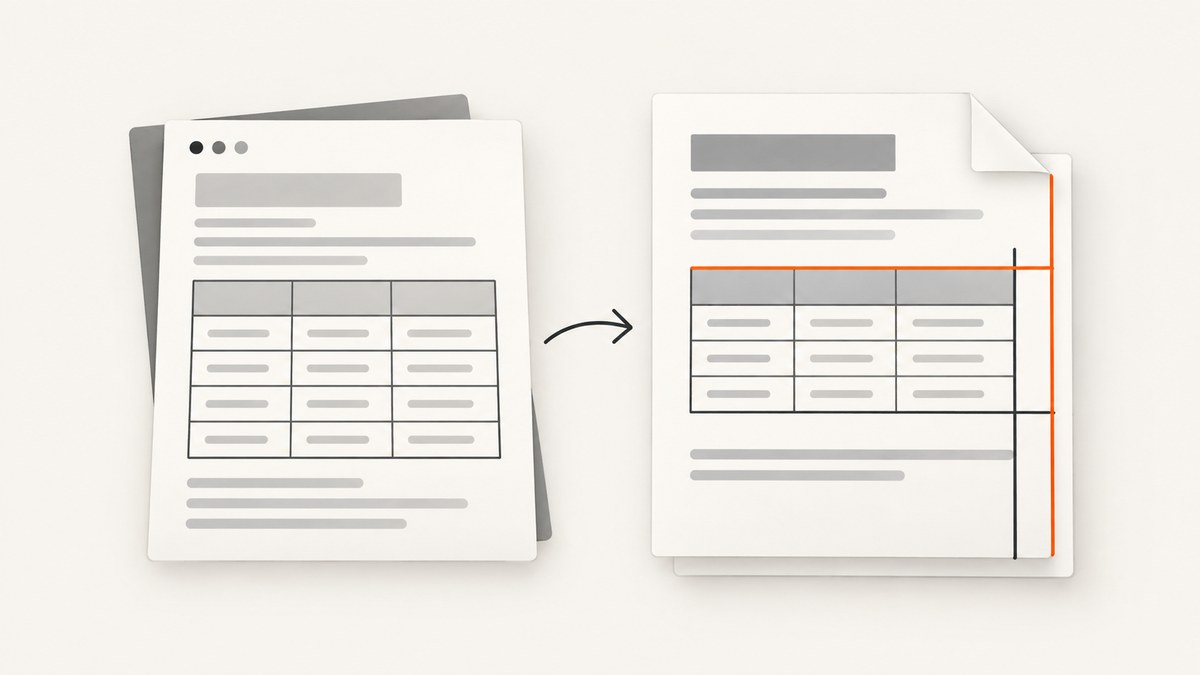
Unexpected borders in a wkhtmltopdf PDF do not have one universal cause. The line may be a real CSS border, a table wrapper artifact, a page-break interaction, or a viewer display effect. Start by identifying exactly where it appears, then reduce the HTML until the behavior is reproducible.
This guide covers page-edge lines, table borders that continue into blank space, duplicated borders across page breaks, responsive-table wrappers, CSS resets that do not help, and when to evaluate another renderer.
1. Identify the border before changing CSS
Save the generated PDF and inspect it at several zoom levels in more than one PDF viewer. Record whether the line is:
- At the physical page edge, usually along the bottom or right side.
- Around the complete table, a row, or one cell.
- Visible only when a table crosses a page boundary.
- Present around every element after a stylesheet is loaded.
- Visible only in one viewer or at one zoom level.
A line that changes with zoom may be a viewer rendering artifact. A line that remains in printed output or in multiple viewers is more likely embedded in the PDF content. Do not assume that a zero page margin removes every visible line: an issue report describes bottom and right lines even after zero PDF margins and a global * { margin: 0; padding: 0; } reset. That report is marked for verification and does not establish a general fix (issue #3154).
2. Capture the exact rendering environment
Before changing the template, record:
- The complete wkhtmltopdf version output.
- Operating system and version.
- Whether the binary reports patched Qt.
- The complete command line, including page size, margins, zoom, DPI, and print options.
- The source HTML, all CSS, and JavaScript that can modify the document.
- Whether the border appears in every environment or only in production.
The project’s reporting guidance asks for the version, operating system, and a detailed reproducible HTML/CSS/JS test case (reporting guidance). A minimal case is more useful than a large application export because it lets you test one rendering behavior at a time.
3. Build a minimal reproduction
Create a short document with one suspected element. Remove application JavaScript, external fonts, images, and unrelated styles. Then render the same file repeatedly while changing one variable.
<!doctype html>
<html>
<head>
  <meta charset='utf-8'>
  <style>
    @page { margin: 0; }
    html, body { margin: 0; padding: 0; }
    table { width: 100%; border-collapse: collapse; }
    th, td { border: 1px solid #888; padding: 8px; }
  </style>
</head>
<body>
  <table>
    <thead><tr><th>Name</th><th>Value</th></tr></thead>
    <tbody>
      <tr><td>One</td><td>A</td></tr>
      <tr><td>Two</td><td>B</td></tr>
    </tbody>
  </table>
</body>
</html>
Render a version that fits on one page and another with enough rows to cross a page boundary. Keep both PDFs. This immediately separates ordinary CSS borders from pagination behavior.
4. Inspect computed styles and ancestor wrappers
Temporarily disable stylesheet blocks and re-enable them one at a time. Inspect the suspected element and its ancestors for:
border,outline, and background colors that resemble lines.- Table attributes such as
border,cellspacing, andcellpadding. - Pseudo-elements with borders or positioned backgrounds.
- Negative margins, fixed widths, transforms, and overflow rules.
- Print-specific rules inside
@media print.
Check the outer wrapper as well as the table. A border can belong to a container whose width extends beyond the page, making the line appear unrelated to the visible table.
5. Diagnose table pagination separately
Table splitting creates a different class of symptoms. A report against wkhtmltopdf 0.12.2.4 with patched Qt found that applying page-break-inside: avoid to tr prevented rows from splitting, but left left and right borders running to the bottom of the page and could duplicate the first header (issue #2486).
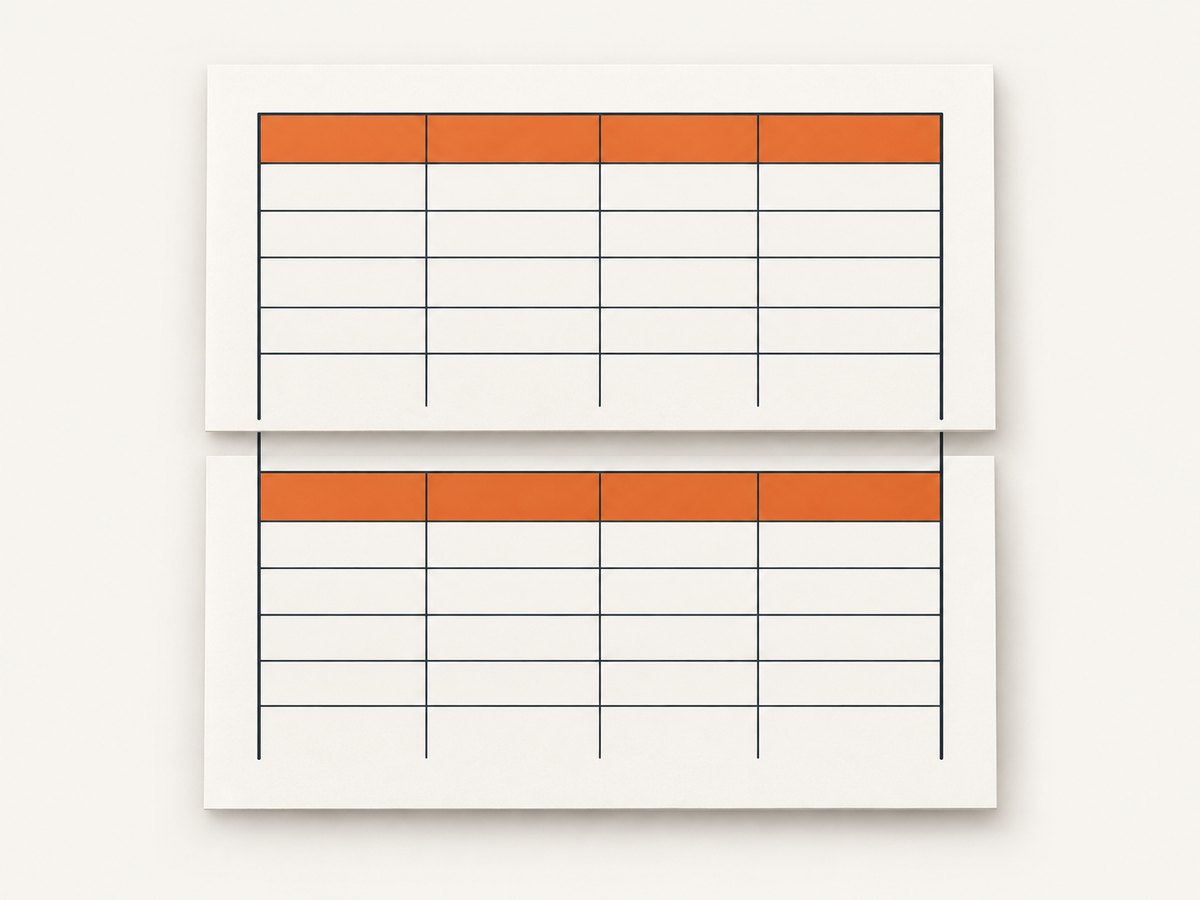
Use a controlled matrix:
| Test | What it tells you |
|---|---|
| Short table, no page break | Whether the border exists without pagination. |
| Long table, default rules | Baseline split behavior. |
Long table with page-break-inside: avoid on rows |
Whether row avoidance changes the artifact or creates new borders. |
With and without thead |
Whether repeated headers are involved. |
| With and without row spans | Whether complex table geometry triggers it. |
Do not apply page-break-inside: avoid globally and assume the output is safer. It can move large rows, increase blank space, and expose side-border behavior such as the report above.
6. Check responsive-table overflow
Responsive frameworks commonly wrap a table in a container with horizontal scrolling. A later comment on wkhtmltopdf issue #2141 reported that a Bootstrap 4.2.1 table problem disappeared when the wrapper changed from overflow-x: auto to overflow-x: visible while using wkhtmltopdf 0.12.6 with patched Qt (issue #2141).
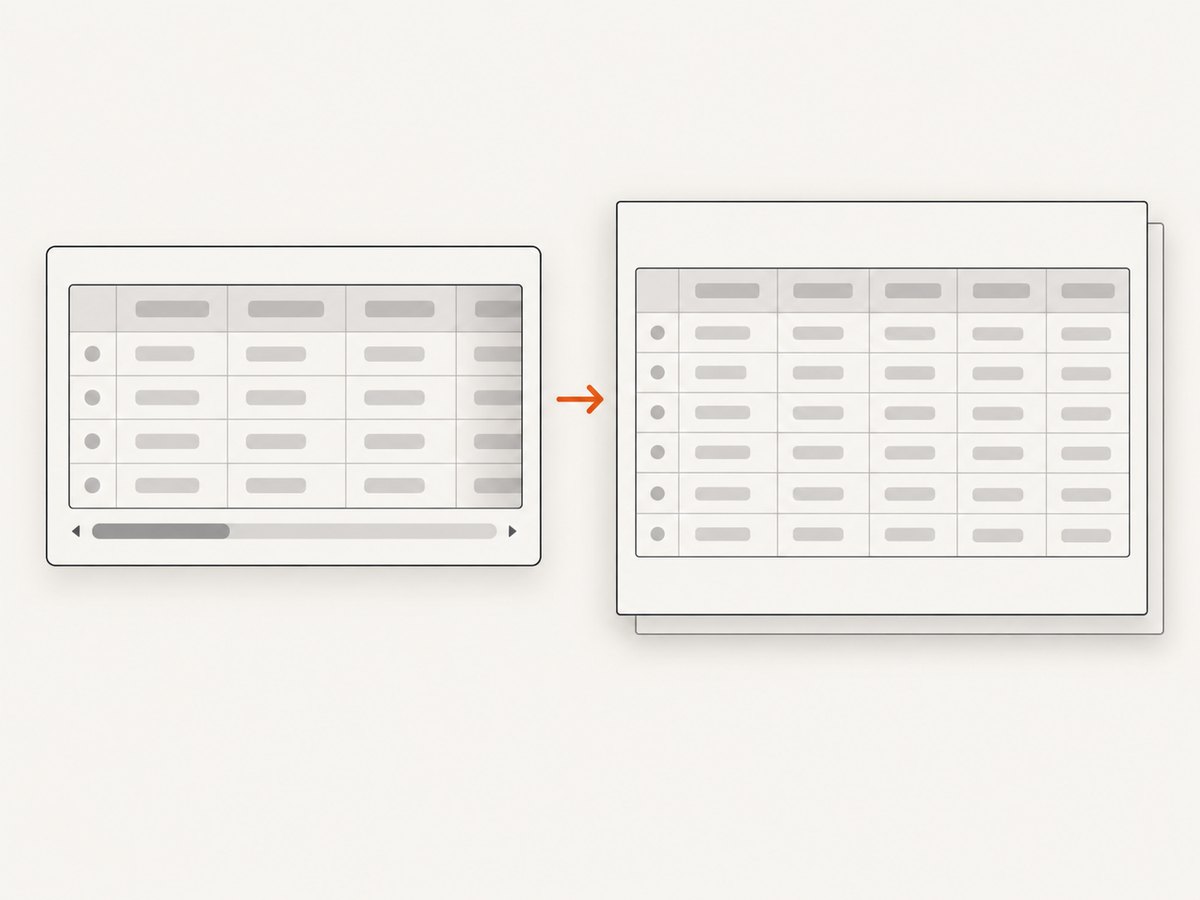
Test the workaround only when your reproduction contains the same kind of wrapper:
@media print {
  .table-responsive {
    overflow-x: visible !important;
  }
}
Compare PDFs with and without the rule. This is a case-specific report, not a validated fix for page-edge lines, cell borders, or unrelated overflow problems. If the table genuinely needs horizontal scrolling on screen, keep the override inside print CSS.
7. Test page geometry and CSS deliberately
Change one geometry setting at a time:
- Set explicit page size and margins.
- Use a wrapper width that is smaller than the printable area.
- Remove transforms and fractional pixel widths.
- Try integer pixel borders and widths.
- Compare
border-collapse: collapsewithborder-collapse: separate. - Remove backgrounds and outlines temporarily to distinguish a line from a border.
A global reset is still useful for removing browser defaults, but it is not proof that a line cannot come from pagination or the renderer. Keep the reset as one controlled test, not as the conclusion.
8. Use a reproducible command
Keep the command in your bug report and in local scripts. For example:
wkhtmltopdf --page-size A4 --margin-top 0 --margin-right 0 --margin-bottom 0 --margin-left 0 input.html output.pdfRun the same command against the minimal file, then against the full template. If only the full template fails, reintroduce external styles, wrappers, and scripts in stages.
9. Common errors and fixes
| Symptom | Likely diagnostic path | Action |
|---|---|---|
| Line at bottom or right page edge | Unverified renderer or geometry behavior | Confirm in multiple viewers, remove all styles, test explicit page geometry, and provide a minimal case. The report in issue #3154 has no confirmed fix. |
| Side borders continue to page bottom | Table pagination | Compare short and long tables; test row page-break rules and header repetition. |
| Header appears twice or overlaps | thead repetition combined with row avoidance |
Remove page-break-inside: avoid temporarily and test a simple header. |
| Bootstrap responsive table renders unexpected lines | Overflow wrapper | Try print-only overflow-x: visible when the wrapper matches issue #2141. |
| Reset did not help | Line is not a default margin or padding | Inspect ancestors, pseudo-elements, table attributes, pagination, and viewer behavior. |
| Only production fails | Different binary, Qt patch, fonts, or OS | Compare version and command output exactly; package the same renderer for all environments. |
10. Reliability, performance, and security
For repeatable PDFs, pin the wkhtmltopdf binary and operating system image, keep fonts available locally, and store the command-line options with the template. Run a small smoke document and a multi-page table document after upgrades. Compare PDFs by rendering pages to images or by checking page count and geometry.
Large tables, web fonts, remote images, and JavaScript increase render time and introduce network variability. Prefer local assets where possible, set explicit dimensions, and avoid waiting on resources that are not needed in the PDF. If a page depends on dynamic JavaScript, verify that the data is present before capture rather than assuming the renderer waited for it.
Do not run wkhtmltopdf against untrusted HTML without isolation. The project status guidance recommends sanitization and mandatory access controls. Treat user-provided URLs, HTML, CSS, and JavaScript as hostile input and restrict network access, filesystem access, and process privileges.
11. When to evaluate another renderer
The wkhtmltopdf repository is archived and read-only, so its issue comments are historical reports rather than current support commitments. If controlled report generation remains unreliable, the project status page suggests evaluating WeasyPrint or Prince. For documents that require dynamic JavaScript, it suggests Puppeteer (project status).
Compare candidates against your actual templates:
- CSS support for paged tables, page breaks, and generated content.
- Dynamic JavaScript and asset loading requirements.
- Compatibility with existing HTML and deployment images.
- Isolation and sanitization for untrusted input.
- Maintenance, licensing, and operational cost.
Render the same minimal reproduction and a representative production document with each candidate. A different engine may avoid one artifact while introducing layout differences elsewhere.
12. Or skip the browser setup
If you need a clean capture of a rendered page or PDF without maintaining a browser and wkhtmltopdf environment, ScreenshotNeo provides a single HTTP endpoint. Its capture flow accepts consent banners and removes more than 60 known consent platforms, newsletter popups, and chat widgets before the shot; each step can be disabled. Bot checks, blank pages, timeouts, failed loads, and cache hits are not billed, and the response identifies the result with X-Page-Verdict and X-Billed headers. An MCP server provides take_screenshot, get_page_info, and capture_pdf tools for Claude, Cursor, and other MCP clients.
See the ScreenshotNeo API documentation for all options, including PDF paper size, margins, landscape mode, page ranges, custom CSS and JavaScript, selector captures, waiting conditions, request blocking, headers, cookies, user agents, geolocation, caching, signed links, asynchronous jobs, bulk capture, and usage reporting.
curl -G 'https://api.screenshotneo.com/v1/shot' -d access_key=YOUR_API_KEY --data-urlencode 'url=https://example.com' -o shot.webpimport requests
r = requests.get('https://api.screenshotneo.com/v1/shot', params={'access_key': 'YOUR_API_KEY', 'url': 'https://example.com'}, timeout=90)
open('shot.webp', 'wb').write(r.content)const q = new URLSearchParams({ access_key: 'YOUR_API_KEY', url: 'https://example.com' });
const res = await fetch(`https://api.screenshotneo.com/v1/shot?${q}`);Free accounts include 1,000 screenshots each month with no card. Paid plans start at $5 for 3,000 shots, and every feature is available on every plan. Create a free ScreenshotNeo account.
13. A practical checklist
- Describe the line’s exact location and whether it survives multiple viewers.
- Record wkhtmltopdf version, OS, patched-Qt status, and full command.
- Create a minimal HTML/CSS/JS reproduction.
- Compare one-page and multi-page tables.
- Inspect borders, outlines, pseudo-elements, widths, and overflow on ancestors.
- Test row page-break rules and repeated headers independently.
- Try print-only overflow changes only for matching responsive wrappers.
- Pin the renderer and add smoke PDFs to upgrade checks.
- Escalate with the complete reproduction or evaluate another engine.
FAQ
Will setting all PDF margins to zero remove the border?
No. A reported case retained bottom and right lines after zero margins and a global reset, and the report has no verified explanation.
Should every table row use page-break-inside: avoid?
No. It may prevent row splitting but can leave side borders or duplicate headers. Test it only against a reduced reproduction.
Is overflow-x: visible a universal fix?
No. It helped one responsive-table report using wkhtmltopdf 0.12.6 and Bootstrap 4.2.1. Use it as a print-only experiment when your structure matches.
What information should an issue report contain?
Include the exact version, operating system, command options, and a minimal HTML/CSS/JS case that reproduces the output.
Which alternative should I try for JavaScript-heavy pages?
The project status page names Puppeteer for dynamic JavaScript. Evaluate it against your templates and security requirements rather than assuming identical pagination.


