How to Fix wkhtmltopdf PDFs That Shrink When Text Is Too Long
Find out whether smart shrinking, page width, long unbroken text, or pagination is making your wkhtmltopdf output too small—and how to diagnose it safely.
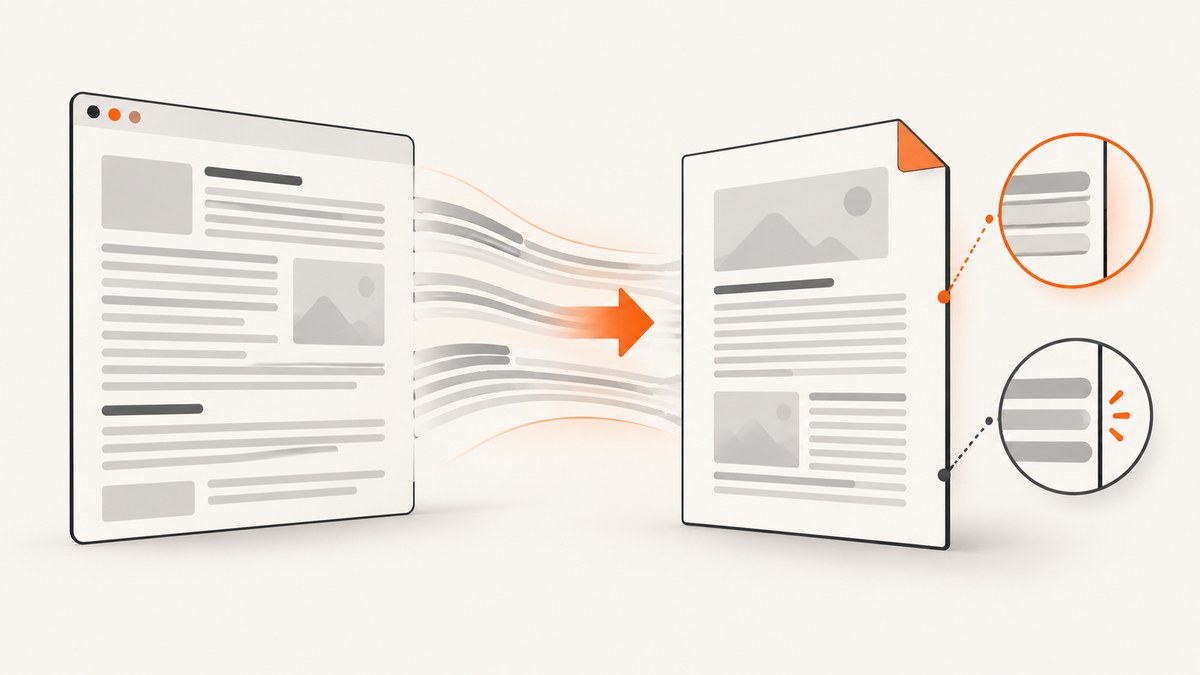
If all the text in a wkhtmltopdf PDF looks smaller than expected, test whether WebKit smart shrinking is responsible: render the same input with and without --disable-smart-shrinking. If only a long word, URL, table cell, or line is clipped, fix wrapping or overflow in print CSS instead. Disabling smart shrinking can make content wider than the page and clip it, so it is a diagnostic, not a universal fix. The documented default is smart shrinking enabled; no single zoom or DPI value fixes every layout. wkhtmltopdf command-line documentation.
1. Identify what “too long” means
Before changing options, look at the generated PDF and classify the symptom. Several different problems can look like “shrinking” in a browser preview or a printed page.
| What you see | Likely area to investigate |
|---|---|
| All content is uniformly smaller | Smart shrinking, page dimensions, margins, zoom, or DPI. |
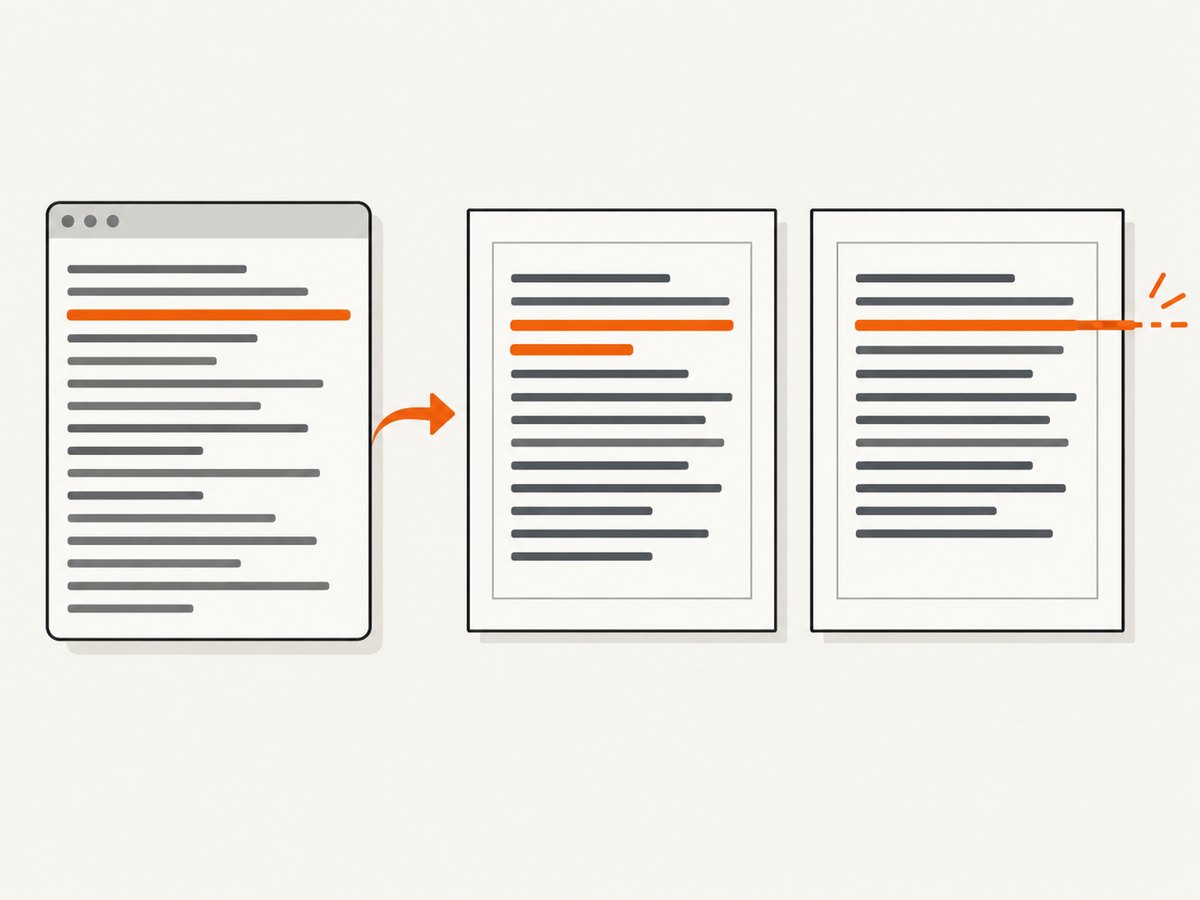
| Only a long word or URL runs off the right edge | Line wrapping and overflow in print CSS. |
| A table or one cell is too wide | Table layout, fixed widths, long cell values, or print-specific sizing. |
| Text is readable, but the document spans many pages | Pagination and page-break behavior, not global scaling. |
| HTML looks right in a browser, PDF is cut off | Reproduce using the exact renderer, input, build, and options; browser and PDF output may differ. |
A historical report describes right-side truncation even though the reporter said the HTML looked correct in a browser. It documents a possible failure mode, not a cause that applies to all builds. Judge the PDF itself and preserve the exact HTML and CSS that produced it.
2. Record the renderer and make a reproducer
Record the environment before tuning. wkhtmltopdf behavior can depend on the installed binary, its Qt build, the operating system, wrapper settings, and document styles.
- Save the HTML, CSS, and any JavaScript or assets needed to reproduce the output. Reduce the case while keeping the problem: a single long URL or table row can be enough.
- Record the output of
wkhtmltopdf --version, the operating system and version, and whether the version output reports patched Qt. - Write down the page size, left and right margins, zoom, DPI, print-media setting, and all command-line options.
- If using a wrapper, record its version and the exact options passed to it.
- Keep a copy of the generated PDF from each run so you can compare scale, wrapping, clipping, and page count.
The project’s support guidance requests the wkhtmltopdf version, operating system and version, and a detailed reproducible test case. These details also make a local comparison useful if you need to report a problem.
3. Compare smart shrinking with a controlled test
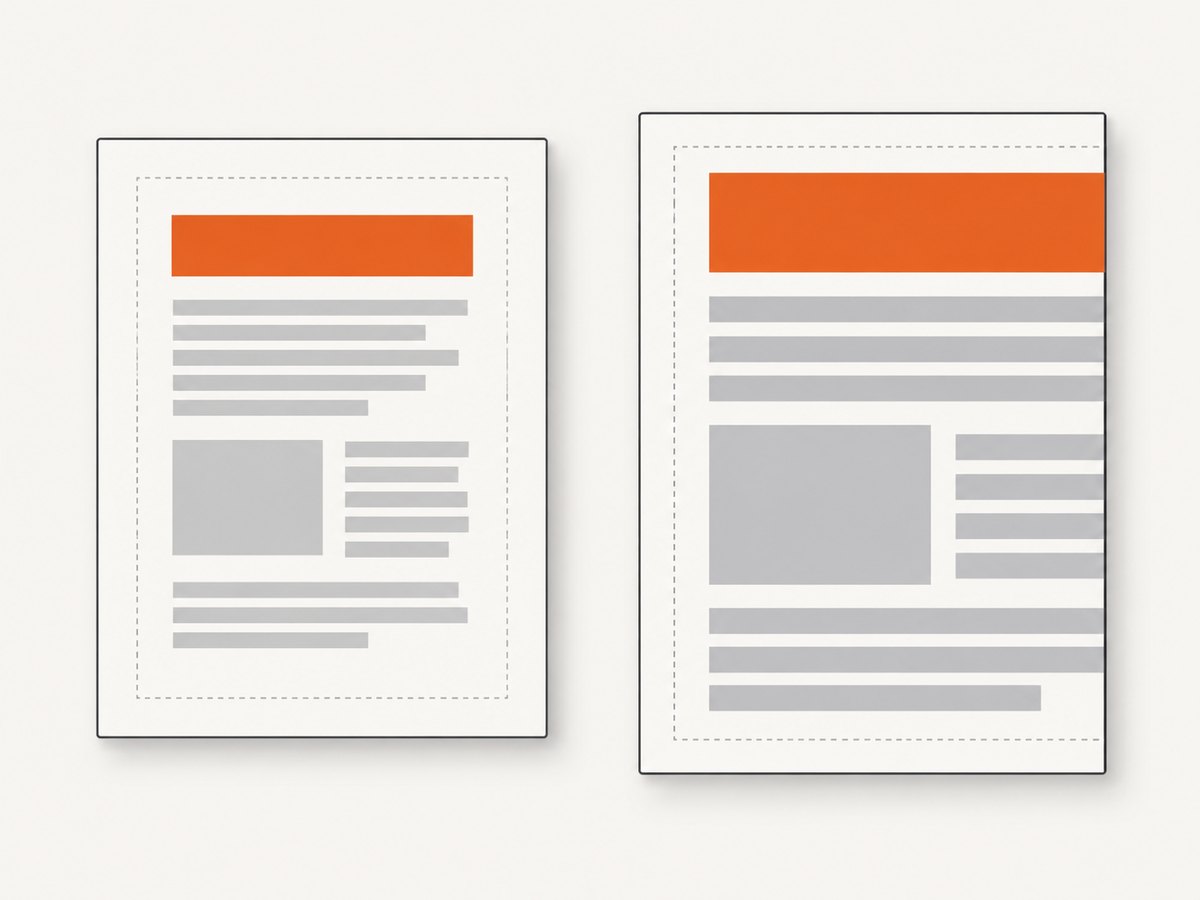
The wkhtmltopdf command-line documentation says smart shrinking is enabled by default. Its --disable-smart-shrinking option disables WebKit’s strategy that makes the pixel-to-DPI ratio non-constant. Render identical input twice, changing only that flag:
wkhtmltopdf input.html default.pdf
wkhtmltopdf --disable-smart-shrinking input.html no-smart-shrinking.pdf
Use the same binary, operating system, HTML, paper size, margins, and other options for both runs. Then compare the PDFs at the same zoom level. Ask:
- Did all text grow together, or did only one overflowing element change?
- Does the rightmost content still fit inside the page?
- Did line wrapping or the page count change?
- Does the output now better match the intended physical text size?
If the second PDF is larger but clips at the right edge, the flag exposed a fit problem; it did not solve it. Correct the print layout or available page width before keeping that setting. A report involving wkhtmltopdf 0.12.4 with patched Qt on Windows Server 2012 R2 describes clipping after disabling smart shrinking. Treat that as an example of a tradeoff, not a prediction for every version.
4. Check printable width and page geometry
The content must fit the usable page width: page width minus left and right margins. The command-line reference documents A4 as the default paper size and supports named sizes such as Letter and Legal, explicit width and height, and margin options. First confirm that the selected dimensions match the paper or output size you actually want.
For a deliberately chosen page size and margins, an invocation can look like this:
wkhtmltopdf \
  --page-size Letter \
  --margin-left 12mm \
  --margin-right 12mm \
  input.html output.pdf
These are example settings, not a universal recommendation. Choose dimensions for the intended document, then confirm that the HTML’s print layout fits inside them. If the content is intrinsically wider, reducing margins may help only if the resulting printable area is appropriate. Widening the page may suit a wide report, but changes the output format. Avoid stacking several changes at once, or you will not know which one affected the result.
5. Fix long strings, tables, and print overflow
If the problem is local to a long URL, identifier, or table cell, inspect print CSS rather than shrinking the whole document. A long unbroken string may have no natural wrap point. Add a wrap opportunity where appropriate, allow long content to break, or constrain the element to the available width. For example:
@media print {
  .long-value {
    overflow-wrap: anywhere;
  }

  table {
    width: 100%;
    table-layout: fixed;
  }

  td, th {
    overflow-wrap: anywhere;
  }
}
Apply rules narrowly and inspect the result: breaking an identifier may make it harder to read, and fixed table layout can change column widths. For wide tables, decide whether the document should use a wider page, landscape orientation, smaller table-specific type, or a deliberate split. Do not respond to one overlong cell by scaling down every page unless global scaling is what you actually want.
Check for fixed pixel widths, minimum widths, large images, and elements with white-space: nowrap. These can create a layout wider than the printable area. In print styles, adjust the offending element to fit, permit wrapping where suitable, or choose a page size and orientation intended for that content. Confirm behavior in the generated PDF, because a browser preview does not guarantee identical print rendering.
6. Separate page length from text scale
A long document normally creates more pages; that alone is not evidence that text has shrunk. If font size appears normal but content breaks awkwardly, inspect print pagination and page-break styles. Look for headings or table rows that split badly, forced breaks that create excess pages, and blocks whose height pushes nearby content to the next page.
Make pagination changes separately from width and scaling changes. Re-render and compare page count, breaks, and legibility. A fix that makes one table fit by making all text too small has traded one symptom for another.
7. Tune scale controls only after diagnosis
The manuals document zoom (default 1 in the command-line reference), DPI, minimum font size, print-media selection, page dimensions, and margins. The library API also exposes corresponding settings, including intelligent shrinking, zoom factor, DPI, margins, page size, and print-media use. These controls interact with layout; none is a source-backed universal recipe for long text.
| Control | When it may be relevant | What to verify |
|---|---|---|
--disable-smart-shrinking |
Testing whether automatic fitting causes globally small output | Right-edge fit, scale consistency, wrapping, and page count. |
| Zoom | Adjusting overall output scale after confirming page geometry | Whether content still fits and text has the intended size. |
| DPI | Diagnosing output scale or renderer configuration | Actual PDF dimensions and legibility; change one value at a time. |
| Minimum font size | Investigating a renderer’s lower font-size constraint | Whether text styling changes as intended without overflow. |
| Print-media selection | When screen and print styles differ | Which CSS rules are applied in the PDF output. |
| Page size and margins | When available width or height does not match the document | Usable dimensions and content fit on every page. |
Change one setting at a time, keep a before-and-after PDF, and note the exact version and options. The command-line manual and library settings reference are the primary references for available controls.
8. Check wrappers separately
If an option appears ineffective through Python/pdfkit or another integration, invoke the installed wkhtmltopdf binary with the same input and corresponding options. Compare the output. Then check that the wrapper is passing the expected option name and value, and verify which binary and version it actually launches.
A historical issue report mentions difficulty passing the flag through a pdfkit script alongside a direct invocation. That is one report, not evidence of a general pdfkit defect. Isolate the binary from the wrapper before concluding where the mismatch occurs.
Or skip the browser setup
If the goal is a clean screenshot of a web page rather than diagnosing a local wkhtmltopdf installation, ScreenshotNeo offers a one-request website screenshot API. It is not a wkhtmltopdf flag or a remedy for PDF text layout; it is an alternative when you need a rendered page image or PDF without setting up a browser capture stack. See the ScreenshotNeo API documentation.
curl -G "https://api.screenshotneo.com/v1/shot" -d access_key=YOUR_API_KEY --data-urlencode url=https://stripe.com -o shot.webpimport requests
r = requests.get("https://api.screenshotneo.com/v1/shot", params={"access_key": "YOUR_API_KEY", "url": "https://stripe.com"}, timeout=90)
open("shot.webp", "wb").write(r.content)const q = new URLSearchParams({ access_key: 'YOUR_API_KEY', url: 'https://stripe.com' });
const res = await fetch(`https://api.screenshotneo.com/v1/shot?${q}`);ScreenshotNeo removes cookie banners, popups, and chat widgets before the shot. Bot checks, blank pages, and failed loads are never billed. Its MCP server lets AI agents take screenshots. The free plan includes 1,000 screenshots a month with no card; paid plans start at $5 for 3,000. Sign up for free and get 1,000 screenshots a month with no card.
Troubleshooting checklist
| Symptom | Possible cause | Next step |
|---|---|---|
| Every page is too small | Smart shrinking or page geometry is fitting oversized content | Run the controlled flag comparison; check width, margins, and fixed-width elements. |
| Right side clips after disabling shrinking | The content exceeds printable width without automatic fitting | Correct print CSS or deliberately adjust page size and margins; verify the PDF. |
| Only a long URL or value clips | No wrap opportunity or a no-wrap/fixed-width style | Inspect that element’s print rules and test a suitable wrap strategy. |
| Browser preview differs from PDF | Renderer, print styles, assets, or options differ | Reproduce with the exact HTML and installed binary; inspect generated output. |
| Wrapper ignores an option | Option mapping or binary/version mismatch | Try the binary directly with the same input, then inspect wrapper configuration. |
| Document has many pages but normal type size | Pagination rather than global shrinking | Inspect page breaks, block sizes, and print flow separately from scale. |
Performance, reliability, and cost notes
For this issue, the key reliability practice is reproducibility: preserve the input, renderer version, operating system, paper geometry, and options for every comparison. A result from an older build or a different Qt package may not transfer to your environment. Keep generated PDFs so visual changes can be reviewed, especially when a scale adjustment can introduce clipping or alter pagination.
The dossier documents command-line and library controls and historical issue reports; it provides no controlled performance measurements, universal tuning values, or cost comparison. Do not infer a speed or cost benefit from changing zoom, DPI, or smart shrinking. If conversion is part of a larger pipeline, track the exact build and configuration used for each output so a later change can be tied to a renderer or stylesheet update.
FAQ
Does --disable-smart-shrinking preserve a 1:1 HTML-to-PDF scale?
It disables WebKit’s smart-shrinking strategy, but does not guarantee a particular physical scale or that content fits. Page geometry, CSS, and other settings still matter; inspect the resulting PDF.
What is the best zoom or DPI value for long text?
The cited documentation does not provide a universal value. Use a controlled comparison after identifying whether the issue is global scale, overflow, or pagination.
Why does my HTML look right in a browser but not in the PDF?
The browser preview does not establish how the exact wkhtmltopdf binary will lay out the same document. Reproduce the issue with the exact HTML, print styles, assets, binary, and options, then diagnose the PDF output.
What should I include in a wkhtmltopdf support report?
Include the wkhtmltopdf version, operating system and version, and a detailed reproducible test case, along with the relevant options and a description of the PDF symptom.


