How to Fix File Updating Issues in the WordPress Editor
Fix “Update File” and WordPress update errors safely: permissions, ownership, WP-Cron, .maintenance files, backups, and recovery steps.
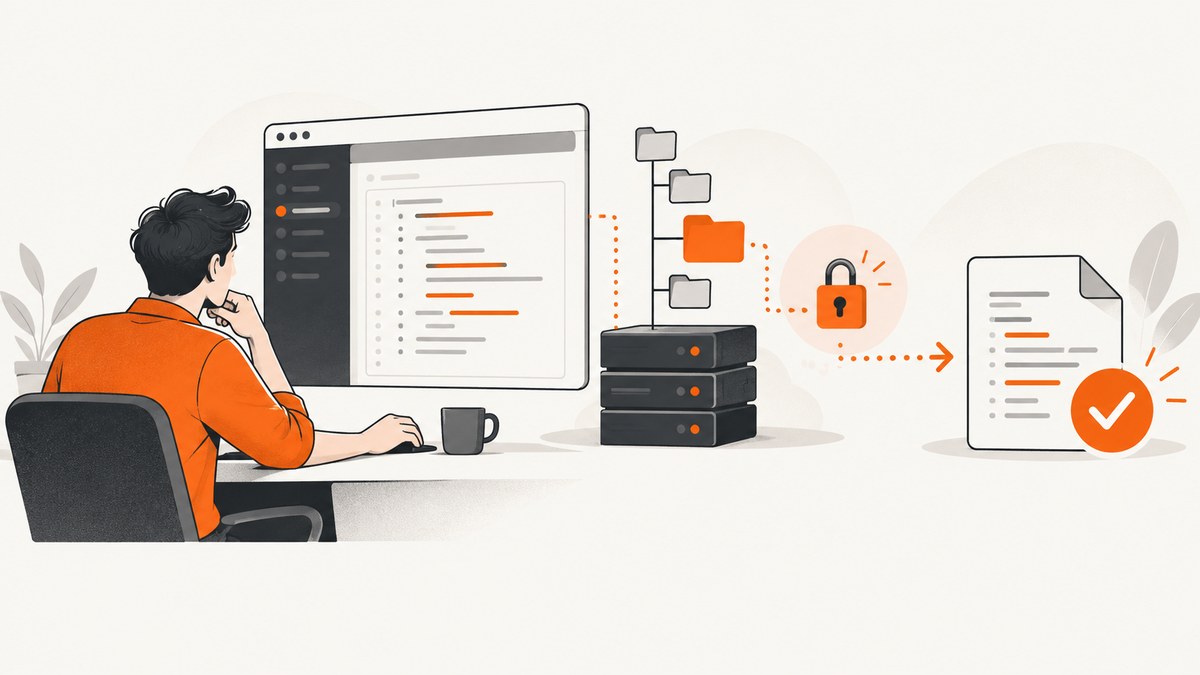
Start by identifying which update is failing. WordPress has two different workflows: saving code in the built-in theme or plugin editor, and installing a WordPress, plugin, or theme update. A file-editor failure usually means the target file is not writable. A software-update failure can involve filesystem ownership, credentials, network access, a failed scheduled task, or a stale maintenance file. Follow the matching section below and make a backup before changing anything.
1. Decide which WordPress update problem you have
| What you see | Likely workflow | First action |
|---|---|---|
| “If this file were writable, you could edit it” | Theme/plugin file editor | Check filesystem permissions and ownership |
| The Update File button is unavailable | Theme/plugin file editor | Open Site Health and inspect filesystem access |
| “File edited successfully” never appears | Theme/plugin file editor | Check the selected file, logs, and host configuration |
| “Update failed: Could not copy file” | Core, plugin, or theme update | Check writable directories and ownership |
| WordPress asks for “Connection Information” | Filesystem method or ownership issue | Use the host’s documented credentials or ask the host |
| A failed-update notice remains | Core update interrupted | Back up, then follow the official .maintenance recovery procedure |
| Automatic updates do not run | Plugin/theme auto-update task | Check Site Health for WP-Cron errors |
| “Unable to communicate back with site to check for fatal errors” | Editor recovery check | Inspect hosting logs and test for plugin interference |
WordPress documents these distinctions in its file-editing guide, updating guide, and Site Health documentation.
2. Back up before editing or updating
A dashboard edit changes the live file on the server. The built-in editor does not create a backup copy for you, and a syntax error can make the site unavailable. Before proceeding:
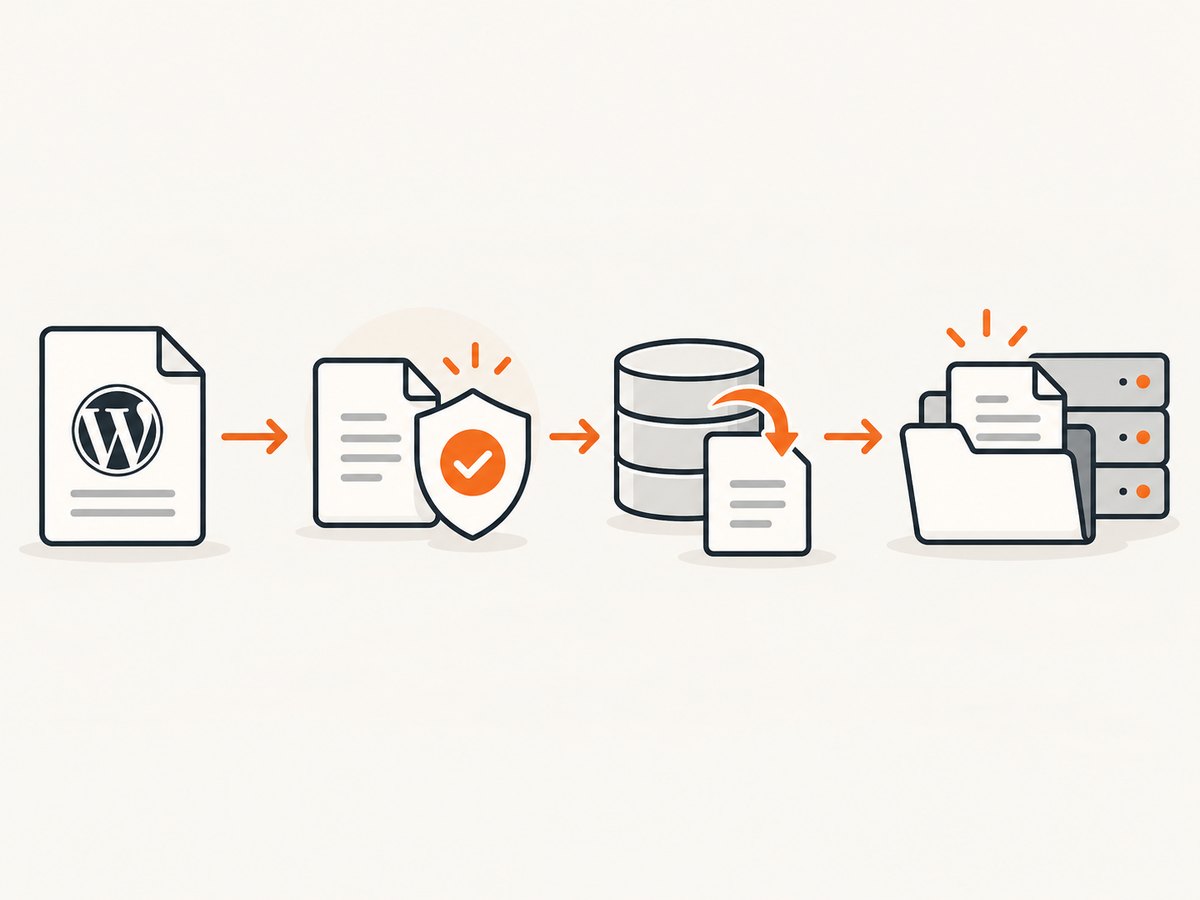
- Export a copy of the database.
- Download the affected theme or plugin files, or create a host snapshot if your provider offers one.
- Save the exact original file path and filename.
- Keep a working copy outside WordPress so you can restore it through SFTP, FTP, a web file manager, or SSH.
For upgrades, back up both files and the database. WordPress recommends this before updates in its troubleshooting guidance. An external drive can hold an additional copy, but it should not be your only recovery location.
3. Fix a theme or plugin file that will not save
Step 1: Confirm the editor and target file
Open Appearance → Theme File Editor or Plugins → Plugin File Editor. Select the intended theme or plugin, then select the exact file from the file list. These dashboard editors modify server files; they are different from editing a local file and uploading it.
Step 2: Read the write-access message
If WordPress says the file is not writable or hides Update File, the web process cannot write that file. WordPress’s editor documentation describes a minimum writable permission of 604 for files in this context. Treat that as a diagnostic reference, not a command to recursively change every file and directory on the installation. Correct values depend on ownership, the host, and the server’s security model.
Step 3: Inspect Site Health
Go to Tools → Site Health → Info and review the filesystem-permission information. Site Health checks whether WordPress can write to the main directory and important wp-content subdirectories. If required paths are not writable, WordPress advises contacting the hosting provider because the fix may involve server ownership or managed settings.
Step 4: Choose a safer file-management method
| Method | Use it when | Recovery considerations |
|---|---|---|
| Host web file manager | Your host provides one and you need a browser-based fix | Download the original before editing; use the host’s restore tools if available |
| FTP/SFTP | Your host supplies account details and you need upload/download access | Keep a local backup and upload only the intended file |
| SSH | Your hosting plan permits shell access and you are comfortable with command-line tools | Verify paths carefully before replacing files |
| Dashboard editor | The file is writable and the change is small and reversible | A bad PHP edit can trigger a fatal error; have a restore path ready |
Use a plain-text editor for PHP, CSS, JavaScript, and JSON. Do not paste formatted content from a word processor into source files.
Step 5: Check ownership with your host
WordPress chooses a filesystem method based on who owns its files. If the web server cannot create files with the expected owner, it may request connection details instead of writing directly. Do not guess credentials or apply broad permission changes. Ask the host to verify the owner and group of the WordPress directory, the web-server user, and the relevant wp-content paths.
Optional: disable the built-in editor
If administrators should not edit PHP from the dashboard, add this line to wp-config.php above the “That’s all, stop editing” line:
<?php
define( 'DISALLOW_FILE_EDIT', true );
Make this change through your host’s file manager, SFTP, or SSH after backing up wp-config.php. WordPress documents this constant as the way to disable the built-in file-editing facility.
4. Fix a failed WordPress, plugin, or theme update
Filesystem and ownership checks
For “Update failed: Could not copy file,” open Site Health and check whether WordPress can write to the relevant directories. A plugin or theme update needs to download an archive, unpack it, replace files, and remove temporary data. Any directory in that chain can fail. If the permissions look correct but the update still fails, ownership, PHP configuration, disk space, or host security rules may be involved; ask the host to inspect server logs.
Connection Information prompts
A prompt for FTP or other connection information does not automatically mean the password is wrong. It can indicate that WordPress cannot use its direct filesystem method with the current ownership. Use only credentials supplied by your host, and ask the host which filesystem method is supported for your account.
Automatic plugin and theme updates
Automatic updates depend on scheduled WP-Cron tasks. If an update never runs, check Tools → Site Health for loopback or cron errors. A host, security plugin, or configuration may disable auto-update controls. Resolve the underlying cron or loopback issue before repeatedly enabling the update.
Failed core update and the .maintenance file
An interrupted core update can leave WordPress showing a maintenance or failed-update notice. WordPress’s official procedure documents removing the stale .maintenance file with FTP, then using the manual update process if the one-click update does not work. Back up first, preserve wp-content, and follow the current instructions at Updating WordPress. Do not delete unrelated files or improvise a recursive cleanup.
Download, DNS, and timeout errors
If WordPress cannot download an update or reports a name-lookup timeout, confirm that the server has outbound internet access and retry. Persistent failures should go to the hosting provider, who can check DNS resolution, firewall policy, TLS certificates, and network logs.
5. PHP-only save failures
PHP being the file type does not identify the cause. A save can fail because of write access, ownership, a security rule, a fatal-error recovery check, or a plugin conflict. A WordPress support discussion reports checking hosting error logs and testing plugin interference, but that is an anecdotal case rather than a universal diagnosis. Preserve the original file, reproduce the failure once, record the timestamp, and give the host the relevant log entry.
6. Troubleshooting checklist
- Identify whether you are saving a file or installing an update.
- Back up the database and affected files.
- Record the exact error text and time.
- Check Tools → Site Health for filesystem, loopback, and cron errors.
- Confirm the selected theme/plugin and file path.
- Ask the host to verify ownership, groups, disk space, and server logs.
- Use SFTP, FTP, a web file manager, or SSH to restore a known-good file if the site is broken.
- For core failures, follow the official maintenance-file and manual-update procedure.
7. Or skip the browser setup
If your goal is to capture a page after fixing the site, ScreenshotNeo provides a single website screenshot API request. See the API documentation for all options.

curl -G "https://api.screenshotneo.com/v1/shot" -d access_key=YOUR_API_KEY --data-urlencode url=https://stripe.com -o shot.webpimport requests
r = requests.get("https://api.screenshotneo.com/v1/shot", params={"access_key": "YOUR_API_KEY", "url": "https://stripe.com"}, timeout=90)
open("shot.webp", "wb").write(r.content)const q = new URLSearchParams({ access_key: 'YOUR_API_KEY', url: 'https://stripe.com' });
const res = await fetch(`https://api.screenshotneo.com/v1/shot?${q}`);ScreenshotNeo accepts cookie and consent banners like a visitor, then removes more than 60 known consent platforms plus newsletter popups and chat widgets before capture; each step can be disabled. Bot checks, blank pages, timeouts, failed loads, and cache hits are not billed, and response headers identify the page verdict and billing result. Its MCP server exposes take_screenshot, get_page_info, and capture_pdf for Claude, Cursor, and other MCP clients.
The Free plan includes 1,000 screenshots per month with no card. Paid plans start at $5 for 3,000 shots; every feature is available on every plan. Create a free ScreenshotNeo account.
8. Performance, reliability, and cost notes
- Reduce repeated work: cache stable captures with a TTL you choose, and use async jobs for long pages or batch work.
- Control page readiness: wait for a selector, a delay, or network idle when JavaScript content is not ready immediately.
- Limit capture scope: capture one CSS-selected element instead of a full page when a thumbnail is all you need.
- Handle failures explicitly: inspect
X-Page-VerdictandX-Billedrather than assuming every HTTP response represents a clean, billable screenshot. - Protect credentials: keep the access key server-side, use custom headers or cookies only when required, and avoid placing secrets in public page URLs.
- Control spend: use bulk capture for up to 100 URLs per call, caching, image resizing, and the usage API to monitor consumption.
9. WordPress editor update FAQ
Why is Update File missing?
The selected file is not writable for the web process. Check Site Health and ask the host to verify permissions and ownership.
Should I chmod every WordPress file?
No. The documented 604 value applies to the editor’s file context and is not a universal recursive setting. Hosting ownership and security rules differ.
Can I fix this by entering FTP credentials?
Only use credentials supplied by your host. The prompt may reflect the filesystem method or ownership, not an incorrect password.
What should I do if the site is down after a PHP edit?
Restore the backed-up file through SFTP, FTP, a host file manager, or SSH, then inspect the PHP and server logs.
Why do automatic updates stay pending?
They rely on WP-Cron. Check Site Health for cron and loopback errors and ask the host whether scheduled tasks are disabled.
Does a screenshot service fix WordPress permissions?
No. ScreenshotNeo captures the resulting page. Filesystem permissions, ownership, backups, and updates still need to be fixed in WordPress or through your host.


