How to Fix Zoomed Images in canvas2html and jsPDF Exports
Stop 2× canvas exports: control html2canvas scale, map pixels to jsPDF units, handle CORS, long pages, and reliable PDF sizing.
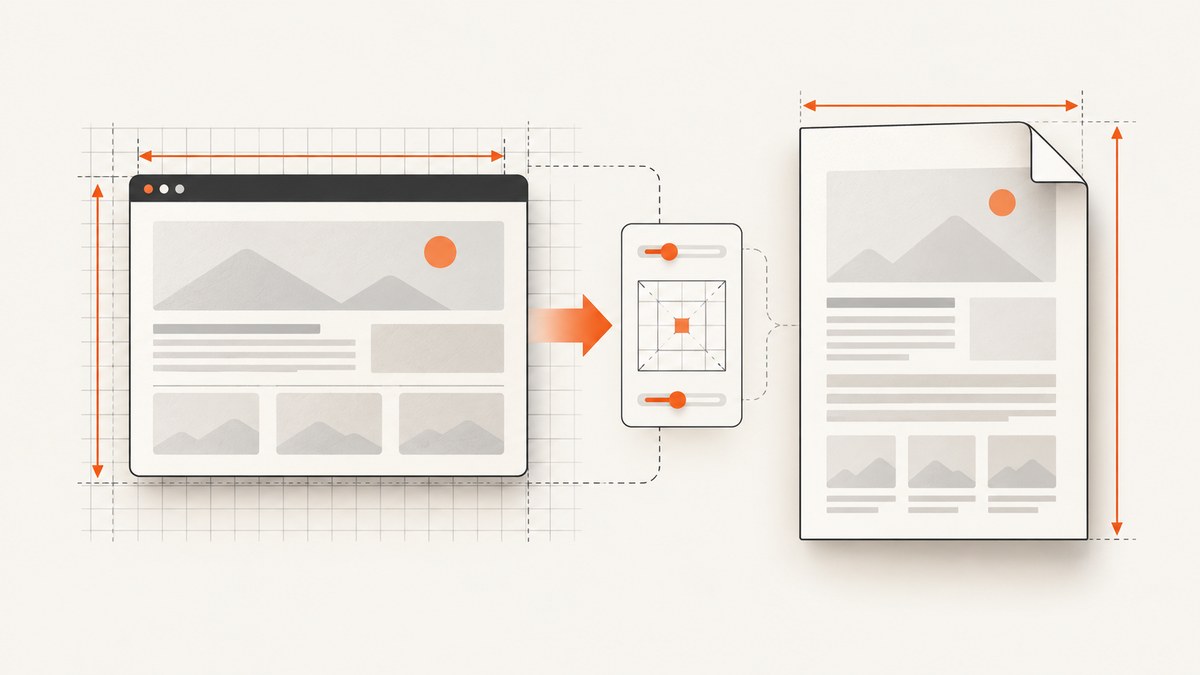
If an exported image is twice as large, separate four measurements: the element’s CSS size, the canvas bitmap size, window.devicePixelRatio, and the PDF placement size. html2canvas defaults its render scale to window.devicePixelRatio, so a Retina display can produce a bitmap at twice the expected dimensions. Set scale: 1 first, then place the image in jsPDF using PDF units while preserving its aspect ratio.
The title says canvas2html. No canonical package with that exact name appears in the primary documentation used here; the APIs below target html2canvas, or a wrapper that passes html2canvas options through. Check your wrapper’s option names before applying the code.
1. Diagnose the zoom before changing layout
Run this in the page that performs the export. It shows whether enlargement starts during rasterization or PDF placement.
const cssWidth = element.getBoundingClientRect().width;
const cssHeight = element.getBoundingClientRect().height;
const canvas = await html2canvas(element, { scale: 1 });
console.log({ cssWidth, cssHeight, bitmapWidth: canvas.width, bitmapHeight: canvas.height, devicePixelRatio: window.devicePixelRatio });
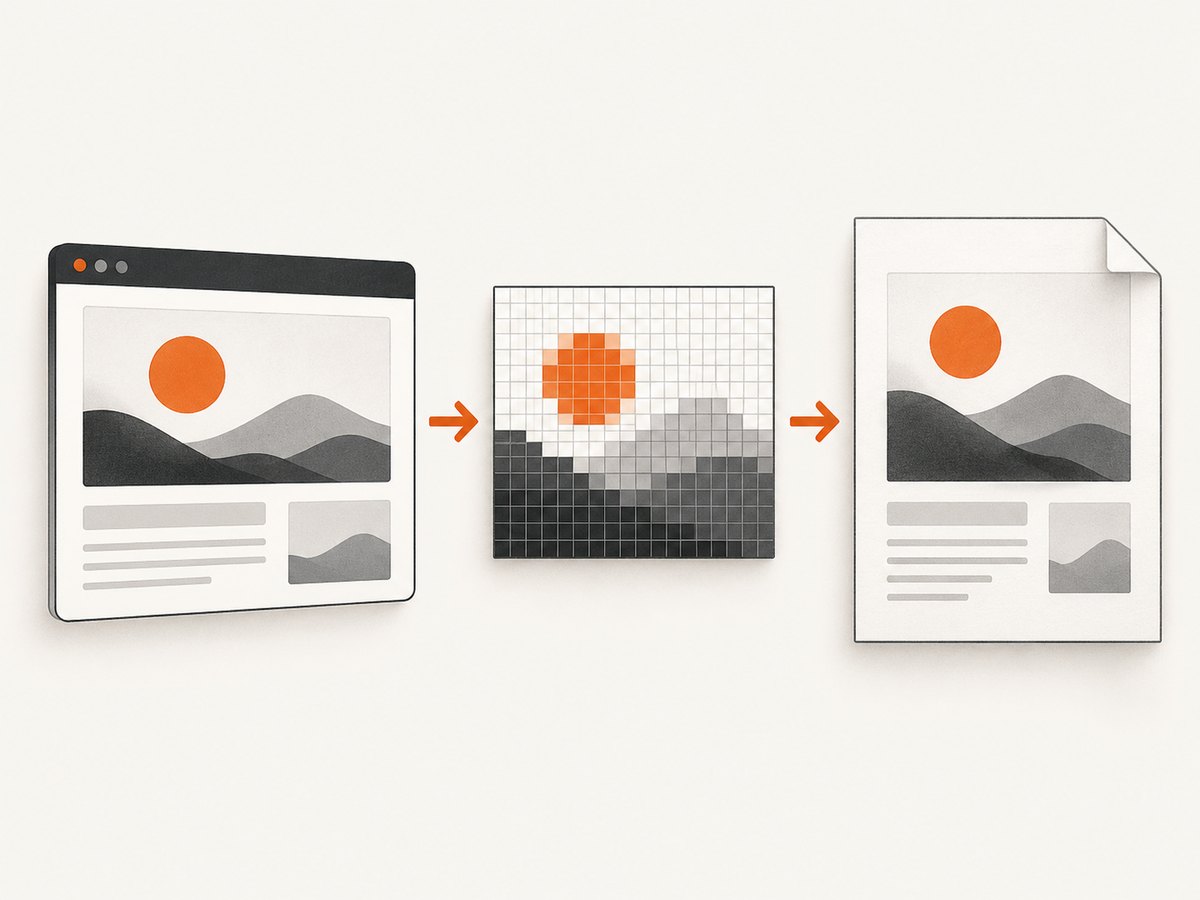
Bitmap dimensions should track CSS dimensions closely enough for the intended layout. If they jump by the same factor as devicePixelRatio, the default scale is the cause. If the bitmap is correct but the PDF looks enlarged, inspect addImage dimensions and units.
2. Fix html2canvas scaling
Make the scale explicit:
const canvas = await html2canvas(element, { scale: 1, backgroundColor: '#ffffff' });The html2canvas configuration documents scale as defaulting to window.devicePixelRatio. Use a value above 1 only when you intentionally need more raster detail; it increases bitmap dimensions and memory use.
If a wrapper hides html2canvas options, find the call that creates the canvas and pass scale: 1 there. If it exposes a resolution, density, or pixel-ratio setting, set that to 1 too. Do not shrink CSS dimensions to compensate.
3. Place the bitmap in jsPDF using PDF units
Canvas pixels are not millimetres, points, or inches. jsPDF’s addImage width and height use the units selected when the PDF was created. Compute one dimension from the other.
const imgData = canvas.toDataURL('image/png');
const props = doc.getImageProperties(imgData);
const pdfWidth = doc.internal.pageSize.getWidth() - 20;
const pdfHeight = (props.height * pdfWidth) / props.width;
doc.addImage(imgData, 'PNG', 10, 10, pdfWidth, pdfHeight);
With new jsPDF({ unit: 'mm', format: 'a4' }), the 10 and 20 values are millimetres, not canvas pixels. The official addImage documentation specifies that width and height use the PDF’s declared units.
4. Complete browser example
<button id='export'>Export PDF</button>
<section id='report' style='width:800px;padding:24px;background:white'>
  <h1>Monthly report</h1>
  <p>Content to export.</p>
</section>
<script src='https://cdn.jsdelivr.net/npm/html2canvas@1.4.1/dist/html2canvas.min.js'></script>
<script src='https://cdn.jsdelivr.net/npm/jspdf@latest/dist/jspdf.umd.min.js'></script>
<script>
const { jsPDF } = window.jspdf;
document.getElementById('export').addEventListener('click', async () => {
  const element = document.getElementById('report');
  const canvas = await html2canvas(element, {
    scale: 1,
    useCORS: true,
    windowWidth: element.scrollWidth,
    windowHeight: element.scrollHeight
  });
  console.log({ css: [element.getBoundingClientRect().width, element.getBoundingClientRect().height], bitmap: [canvas.width, canvas.height], devicePixelRatio: window.devicePixelRatio });
  const doc = new jsPDF({ unit: 'mm', format: 'a4' });
  const data = canvas.toDataURL('image/png');
  const image = doc.getImageProperties(data);
  const margin = 10;
  const width = doc.internal.pageSize.getWidth() - margin * 2;
  const height = image.height * width / image.width;
  doc.addImage(data, 'PNG', margin, margin, width, height);
  doc.save('report.pdf');
});
</script>
5. Using doc.html without mixing width and scale
jsPDF’s HTML API exposes html2canvas options and a PDF target width. Treat them as separate controls: html2canvas.scale controls raster resolution, while width controls the rendered element’s fit in PDF units. The jsPDF documentation notes that target width has no effect when html2canvas.scale is explicitly specified.
const doc = new jsPDF({ unit: 'mm', format: 'a4' });
doc.html(document.getElementById('report'), {
  margin: 10,
  width: 190,
  html2canvas: { scale: 1, useCORS: true },
  callback: pdf => pdf.save('report.pdf')
});
6. Remote images and canvas security
For images on another origin, useCORS: true works only when that server sends the required CORS headers. Otherwise the image may be skipped or the canvas may become unreadable. The html2canvas FAQ describes this restriction.
- Prefer same-origin image URLs.
- Configure the image host with an appropriate
Access-Control-Allow-Originheader. - Use a same-origin proxy when you control neither the image host nor its headers.
- Wait for fonts and images to finish loading before capture.
7. Long pages, clipping, and page breaks
Set windowWidth and windowHeight to the element’s scroll dimensions. Browser canvas limits still apply, so very large captures can be cut off or fail. Render page-sized sections separately for long reports.
const sections = [...document.querySelectorAll('.pdf-page')];
const doc = new jsPDF({ unit: 'mm', format: 'a4' });
for (let i = 0; i < sections.length; i++) {
  const canvas = await html2canvas(sections[i], { scale: 1, useCORS: true });
  const data = canvas.toDataURL('image/png');
  const image = doc.getImageProperties(data);
  const width = 190;
  const height = image.height * width / image.width;
  if (i) doc.addPage();
  doc.addImage(data, 'PNG', 10, 10, width, height);
}
doc.save('pages.pdf');
8. Audit drawImage source rectangles
If code supplies sx, sy, sWidth, and sHeight, verify that those source values describe the intended bitmap region. Destination width and height must use the coordinate system you expect. Mismatched rectangles can enlarge or crop content.
9. Troubleshooting checklist
| Symptom | Cause | Fix |
|---|---|---|
| Exactly 2× bitmap dimensions | Retina devicePixelRatio |
Set scale: 1. |
| Bitmap looks right, PDF is too large | Pixels passed as PDF units | Use getImageProperties and aspect-ratio math. |
| Image is stretched | Independent width and height values | Derive height from image dimensions. |
| Remote images missing | CORS headers absent | Enable CORS, use same-origin URLs, or proxy. |
| Bottom of page missing | Canvas or viewport limit | Set scroll dimensions and split pages. |
| Only one wrapper fails | Wrapper overrides options | Inspect its html2canvas call. |
| Output changes with browser zoom | Implicit device-pixel scaling | Use explicit scale and viewport dimensions. |
10. Performance, reliability, and cost
- Resolution: scale 1 minimizes memory. Higher scales multiply pixel count.
- Network: wait for fonts and images, and cache stable assets.
- Reliability: log CSS dimensions, bitmap dimensions, device pixel ratio, and PDF units.
- Pagination: split long documents before capture.
- Security: keep protected asset credentials server-side.
Or skip the browser setup
ScreenshotNeo captures a URL with one request and returns PNG, JPEG, WebP, or PDF. Its options include full-page capture, CSS selectors, custom CSS and JavaScript, waits, headers, cookies, user agents, timezone, geolocation, PDF settings, caching, async jobs, bulk capture, and more. See the ScreenshotNeo API documentation.
curl -G "https://api.screenshotneo.com/v1/shot" -d access_key=YOUR_API_KEY --data-urlencode url=https://stripe.com -o shot.webpimport requests
r = requests.get("https://api.screenshotneo.com/v1/shot", params={"access_key": "YOUR_API_KEY", "url": "https://stripe.com"}, timeout=90)
open("shot.webp", "wb").write(r.content)const q = new URLSearchParams({ access_key: 'YOUR_API_KEY', url: 'https://stripe.com' });
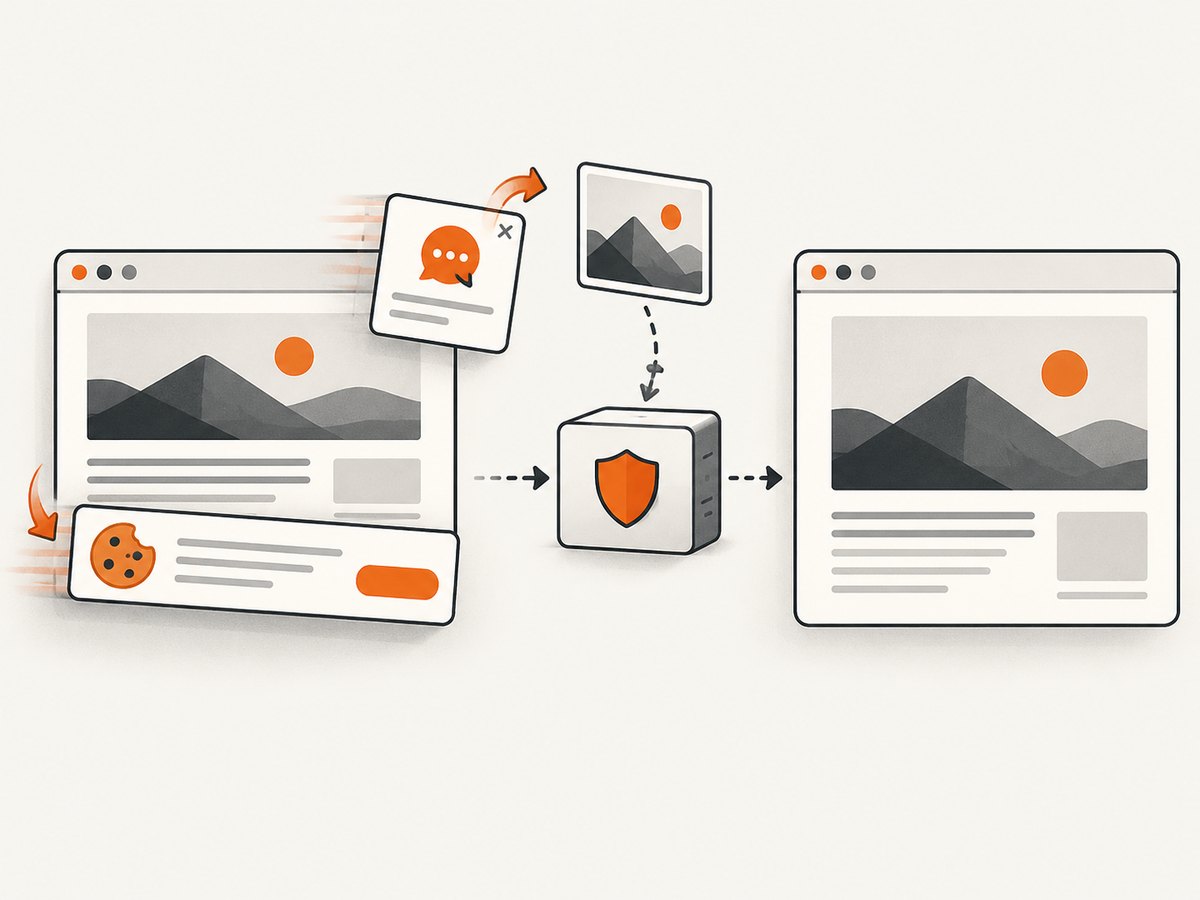
const res = await fetch(`https://api.screenshotneo.com/v1/shot?${q}`);Cookie and consent banners are accepted and removed before the shot, along with 60+ known consent platforms, newsletter popups, and chat widgets; each step can be turned off. Bot checks, blank pages, timeouts, failed loads, and cache hits are not billed, and responses identify the result with X-Page-Verdict and X-Billed headers. Its MCP server provides take_screenshot, get_page_info, and capture_pdf for Claude, Cursor, and other MCP clients. The Free plan includes 1,000 screenshots each month without a card; paid plans start at $5 for 3,000 shots. Create a free ScreenshotNeo account.
FAQ
Should I always use scale: 1?
Use it as the predictable baseline. Increase it when you need more detail and can accept larger bitmaps.
Does PDF zoom mean the canvas is wrong?
No. Compare canvas dimensions first. A correct bitmap can still be enlarged by passing pixel dimensions where jsPDF expects PDF units.
Why does a cross-origin image disappear?
The image host likely does not permit CORS. Use same-origin hosting, correct headers, or a proxy.


