How to Add Fixed Headers and Footers to HTML-to-PDF Output
Add repeating headers, footers, and page numbers to HTML-to-PDF files with Puppeteer, WeasyPrint, or wkhtmltopdf.
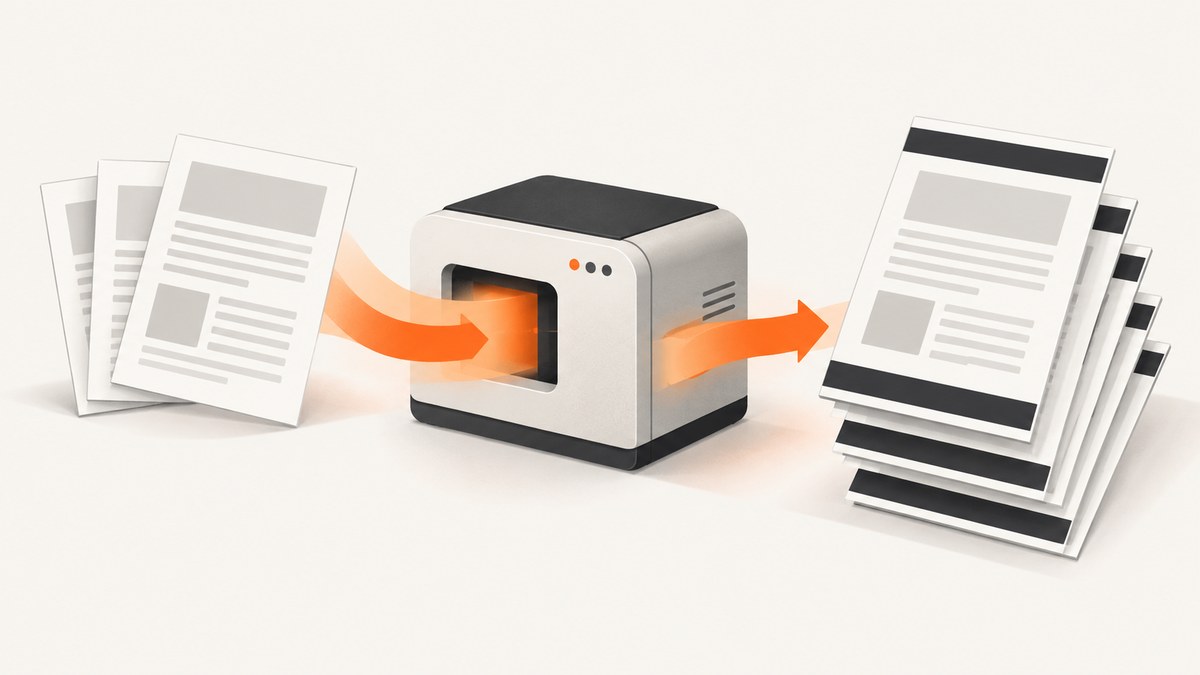
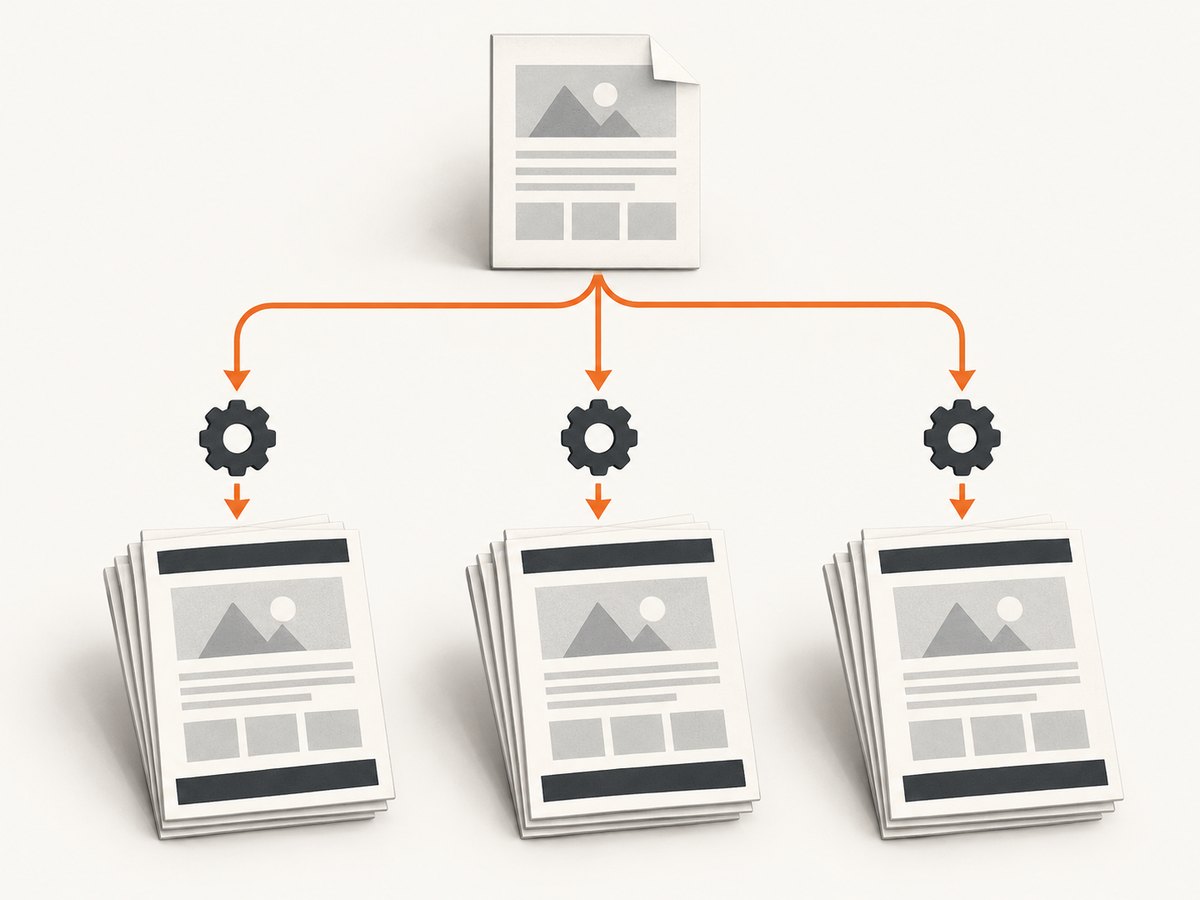
Direct answer: a fixed header or footer in a multi-page PDF is renderer-specific. First identify the engine that creates the PDF, then use its page-margin mechanism: Puppeteer provides PDF header/footer templates, WeasyPrint uses CSS paged-media margin boxes and running elements, and wkhtmltopdf provides header/footer options and page-number tokens. A browser element with position: fixed is not a universal solution for paginated output.
Reserve enough top and bottom page margin for the recurring content, generate a PDF, and inspect the first, a middle, and the final page. Pagination, page breaks, and renderer versions can change the result.
1. Choose the PDF renderer before writing CSS
These engines expose different controls:
| Renderer | Recommended mechanism | Page numbers | Primary concern |
|---|---|---|---|
| Puppeteer / Chromium | displayHeaderFooter, headerTemplate, footerTemplate, and PDF margins |
Template classes such as pageNumber and totalPages in supported versions |
Page.pdf() uses print media by default |
| WeasyPrint | CSS @page margin boxes, page counters, running elements, and named strings |
counter(page) and related paged-media features |
Feature support and documented counter limitations vary by version |
| wkhtmltopdf | CLI header/footer switches or an HTML header/footer document | [page] and [topage] |
Margins and header spacing must be configured together |
Read the API reference for the exact version installed in production: Puppeteer documentation, WeasyPrint documentation, and wkhtmltopdf documentation.
2. Puppeteer: repeating HTML templates on every page
Puppeteer renders the header and footer separately from the document body. Set displayHeaderFooter to true, provide templates, and reserve space with PDF margins.
import puppeteer from 'puppeteer';

const browser = await puppeteer.launch({headless: true});
const page = await browser.newPage();

await page.setContent(`
  <!doctype html>
  <html>
    <head>
      <style>
        @page { margin: 0; }
        body {
          font-family: Arial, sans-serif;
          margin: 0;
          color: #222;
        }
        .report { padding: 0; }
        h1 { page-break-after: avoid; }
      </style>
    </head>
    <body>
      <main class="report">
        <h1>Quarterly report</h1>
        ${'<p>Report content repeated to demonstrate pagination.</p>'.repeat(80)}
      </main>
    </body>
  </html>`, {waitUntil: 'networkidle0'});

// Page.pdf() uses print CSS by default. Use screen media only when required.
// await page.emulateMediaType('screen');

await page.pdf({
  path: 'report.pdf',
  format: 'A4',
  printBackground: true,
  displayHeaderFooter: true,
  headerTemplate: `
    <div style="width:100%; font-size:9px; padding:0 18mm; color:#555;">
      Quarterly report
    </div>`,
  footerTemplate: `
    <div style="width:100%; font-size:9px; padding:0 18mm; color:#555; text-align:right;">
      Page <span class="pageNumber"></span> of <span class="totalPages"></span>
    </div>`,
  margin: {
    top: '22mm',
    bottom: '18mm',
    left: '18mm',
    right: '18mm'
  }
});

await browser.close();
The template area is not automatically allowed to overlap body content. Increase margin.top or margin.bottom when a header or footer is clipped. Puppeteer’s PDF method uses the print CSS media type by default; call page.emulateMediaType('screen') before page.pdf() only when screen styles are intended. Chromium may alter printed colors; use -webkit-print-color-adjust: exact when exact colors are required.
Puppeteer options that affect recurring regions
displayHeaderFooter: enables the template regions.headerTemplateandfooterTemplate: small HTML fragments rendered on each page.margin.topandmargin.bottom: reserve physical space.format,paperWidth,paperHeight, andlandscape: change available width and pagination.printBackground: keeps background fills and images in printed output.preferCSSPageSize: lets CSS@pagesize take precedence where supported by your version.pageRanges: exports selected pages; verify how your installed version numbers the resulting document.
Keep templates self-contained. Inline the styles they need, avoid relying on body selectors, and use a font size that fits inside the reserved margin.
3. WeasyPrint: CSS paged media, margin boxes, and running elements
WeasyPrint supports CSS paged-media features including @page, page margin boxes, page-based counters, named pages, page selectors, running elements, and named strings. This makes the recurring content part of the document’s page model rather than a fixed element in normal flow.
<!doctype html>
<html>
<head>
  <meta charset="utf-8">
  <style>
    @page {
      size: A4;
      margin: 24mm 18mm 20mm;
      @top-center {
        content: element(report-header);
      }
      @bottom-center {
        content: element(report-footer) "  |  Page " counter(page);
      }
    }

    .running-header {
      position: running(report-header);
      font: 9pt Arial, sans-serif;
      color: #555;
      border-bottom: 0.3mm solid #ccc;
      padding-bottom: 2mm;
    }

    .running-footer {
      position: running(report-footer);
      font: 9pt Arial, sans-serif;
      color: #555;
    }

    body { font: 11pt Arial, sans-serif; }
    h1, h2 { break-after: avoid; }
  </style>
</head>
<body>
  <header class="running-header">Quarterly report</header>
  <footer class="running-footer">Internal</footer>
  <h1>Quarterly report</h1>
  <p>Your report content goes here.</p>
</body>
</html>
from weasyprint import HTML
HTML('report.html').write_pdf('report.pdf')The start parameter of element() is not supported in the documented WeasyPrint API. Page counters also have known limitations, so verify page-number behavior with the version deployed rather than assuming browser CSS behavior.
Changing headers by chapter
Named strings can place the current heading in a page margin:
h2 {
  string-set: chapter content();
}

@page {
  @top-center {
    content: string(chapter);
  }
}
Use this when each section needs a different running title. Test pages around chapter breaks because the heading that becomes current depends on pagination.
4. wkhtmltopdf: command-line headers, footers, and tokens
wkhtmltopdf exposes recurring content through command-line options. Its documented replacement variables include [page] for the current page and [topage] for the last page.
wkhtmltopdf \
  --margin-top 22mm \
  --margin-bottom 18mm \
  --header-left "Quarterly report" \
  --header-font-size 9 \
  --footer-right "Page [page] of [topage]" \
  --footer-font-size 9 \
  report.html report.pdf
Other documented tokens include [frompage], [webpage], [section], and [doctitle]. Header spacing and top/bottom margins are separate settings; reserve enough room for both.
Using an HTML header or footer document
For more control, provide an HTML document with elements whose classes receive page values:
<!doctype html>
<html>
<body>
  <div>Quarterly report</div>
  <div>Page <span class="page"></span> of <span class="topage"></span></div>
</body>
</html>
wkhtmltopdf \
--margin-top 25mm \
--margin-bottom 20mm \
--header-html header.html \
--footer-html footer.html \
report.html report.pdfKeep scripts, external assets, and CSS compatible with the exact wkhtmltopdf build. If the header document loads resources, make those resources available to the renderer process.
5. Layout rules that prevent overlap and blank space
- Measure the recurring content. A two-line footer needs more bottom margin than a one-line footer.
- Reserve margins in the renderer. Use PDF margins in Puppeteer,
@page marginin WeasyPrint, and wkhtmltopdf margin and spacing options. - Keep body padding separate. Body padding changes content flow but does not always reserve template space.
- Avoid forced breaks immediately before headings. A break can leave a large empty region while the header still repeats.
- Check long unbreakable content. Wide tables, code lines, and images can push content under a footer or outside the page.
- Use explicit image dimensions. Late image layout changes can move a page break after the footer was calculated.
6. Page numbers and “1 of 2” labels
| Engine | Typical mechanism | What to verify |
|---|---|---|
| Puppeteer | pageNumber and totalPages spans in the footer template |
Template classes and PDF options in the installed Puppeteer version |
| WeasyPrint | counter(page) in a page margin box |
Total-page support and known counter limitations in your version |
| wkhtmltopdf | [page] and [topage] |
Final-page value after all content and JavaScript finish |
Always inspect the first, a middle, and the final page. A document that fits on one page can hide a broken total-page implementation.
7. Troubleshooting
Header or footer overlaps body text
Cause: the reserved margin is smaller than the template. Fix: increase the top or bottom margin and reduce template padding or font size.
The footer appears only on the first page
Cause: it is a normal-flow element, or the renderer’s recurring mechanism was not enabled. Fix: use Puppeteer’s displayHeaderFooter, WeasyPrint running elements or margin boxes, or wkhtmltopdf header/footer options.
Page numbers are blank
Cause: unsupported placeholder names, an incorrect template context, or a renderer version mismatch. Fix: confirm the documented placeholders for the installed version and inspect a multi-page PDF.
Colors or backgrounds changed
Cause: print media styles or print color adjustment. Fix: in Puppeteer, choose print or screen media deliberately and use -webkit-print-color-adjust: exact where appropriate; enable background printing.
Content starts too low or pages contain excessive blank space
Cause: both page margins and body padding reserve space. Fix: keep one clear source of spacing and remove redundant top or bottom padding.
Images move the footer after rendering
Cause: images loaded without intrinsic dimensions or after pagination. Fix: set width and height, wait for images and fonts, and only then generate the PDF.
Different machines produce different breaks
Cause: renderer, browser, font, or operating-system differences. Fix: pin the renderer version, package required fonts, and compare generated PDFs after upgrades.
8. Reliability and performance checklist
- Pin Puppeteer/Chromium, WeasyPrint, or wkhtmltopdf versions.
- Bundle or preload fonts and wait for web fonts before capture.
- Use deterministic asset URLs and explicit image dimensions.
- Set a navigation and rendering timeout appropriate for the document.
- Generate a representative short document and a worst-case long document in CI.
- Compare first, middle, and last pages after dependency upgrades.
- Log the renderer version, input identifier, page count, and failure reason.
- For large batches, reuse a browser process carefully while isolating pages and clearing per-document state.
There is no universal speed or cost ranking among these engines. Measure your own workload: HTML size, image count, font loading, JavaScript, page count, and concurrency determine the result.
9. Or skip the browser setup
If you only need a rendered PDF or image from a URL, ScreenshotNeo provides a single GET request. Its PDF options include paper size, margins, landscape mode, and page ranges, so you can keep recurring-page configuration in the capture request instead of maintaining a browser service.

See the ScreenshotNeo API documentation for the complete option list.
curl -G "https://api.screenshotneo.com/v1/shot" -d access_key=YOUR_API_KEY --data-urlencode url=https://stripe.com -o shot.webpimport requests
r = requests.get("https://api.screenshotneo.com/v1/shot", params={"access_key": "YOUR_API_KEY", "url": "https://stripe.com"}, timeout=90)
open("shot.webp", "wb").write(r.content)const q = new URLSearchParams({ access_key: 'YOUR_API_KEY', url: 'https://stripe.com' });
const res = await fetch(`https://api.screenshotneo.com/v1/shot?${q}`);- Cookie banners, newsletter popups, and chat widgets are removed before the shot.
- Bot checks, blank pages, failed loads, timeouts, and cache hits are never billed; response headers identify the page verdict and billing status.
- An MCP server lets Claude, Cursor, and other MCP clients call
take_screenshot,get_page_info, andcapture_pdf. - 1,000 screenshots per month are free with no card; paid plans start at $5 for 3,000 shots.
Create a free ScreenshotNeo account and start with 1,000 screenshots per month without adding a card.
10. FAQ
Can I use position: fixed for a PDF footer?
Sometimes, but it is renderer-dependent. Use the engine’s paged-media or PDF-template feature when you need predictable repetition.
How much margin should I reserve?
Reserve more than the rendered height of the header or footer, including padding, borders, and the font’s line height. Validate with a multi-page sample.
How do I show the total number of pages?
Use Puppeteer’s supported page-number template classes, WeasyPrint’s documented counters where they work for your version, or wkhtmltopdf’s [topage] token.
Which renderer should I choose?
Choose the renderer already required by your application or whose page-margin features match your layout. Do not choose by an assumed speed or fidelity ranking without measuring your own documents.
Why does a final-page footer fail after adding one paragraph?
Pagination is recalculated whenever content length changes. Recheck page breaks, available margin, and the renderer’s total-page mechanism after any content change.


