How to Print Font Awesome Icons in PDFs with wkhtmltopdf
Fix missing Font Awesome icons in wkhtmltopdf PDFs by keeping the right CSS and webfonts together, checking asset paths, and testing what the renderer can load.

To print Font Awesome icons in a PDF with wkhtmltopdf, use Font Awesome’s Web Fonts + CSS files and make sure wkhtmltopdf can read both the stylesheet and the font files it references. Keep the matching css and webfonts directories together, load fontawesome.css plus the style sheet for the icon (for example, solid.css or brands.css), and verify every relative font URL resolves in the environment running the conversion. The HTML class alone cannot draw an icon: the CSS maps the icon name to a Unicode value, and the webfont supplies the corresponding glyph. Font Awesome’s self-hosting guide emphasizes that paths must point to the files’ actual locations.
This guide gives you a local-file setup and an HTTP-served setup, complete commands, a reliable diagnostic sequence, and fixes for common blank-square or missing-icon problems. It also covers the renderer’s local-file access policy, version conflicts, and a fallback when a PDF engine cannot consume one of the supplied font formats.
1. How the icon gets into the PDF
There are three linked pieces: an icon element in the HTML, CSS that selects and maps that icon, and a font file containing the mapped glyph. Font Awesome’s Web Fonts method uses CSS and font files as a pair. If the CSS loads but its @font-face font does not, the browser or renderer has no glyph to show and may display an empty square, a fallback character, or nothing. If the font loads but the icon’s class or style prefix is wrong for the installed version, the intended mapping is not applied. Font Awesome’s troubleshooting guide calls out version, prefix, file, and path mismatches as common causes.
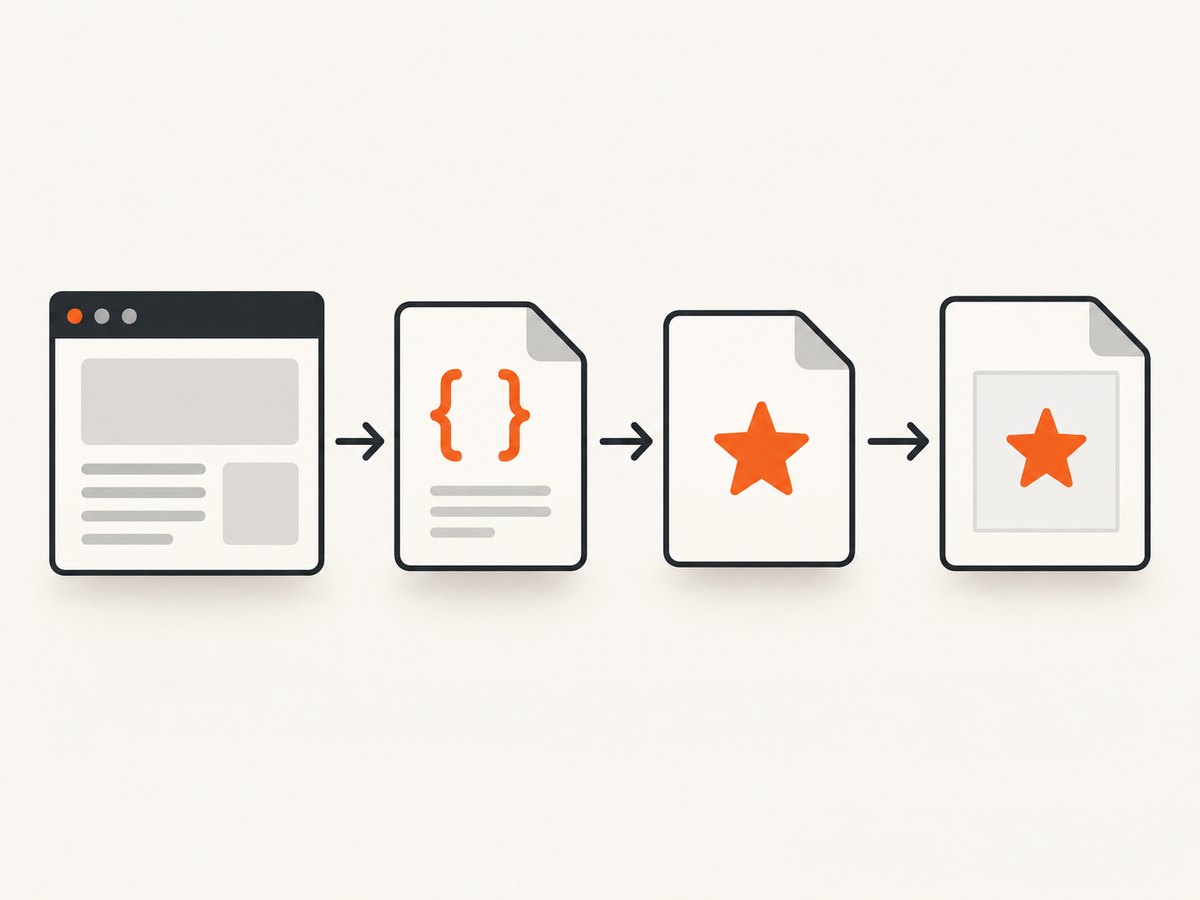
The dependency chain is:
- The HTML uses the correct icon name and style prefix for the installed Font Awesome release.
- The HTML loads the matching Font Awesome base CSS and style CSS.
- The style CSS’s font URL points to the matching webfont file.
- wkhtmltopdf is permitted to access that URL and supports the selected font source.
Debug from the top down. First confirm the HTML works in a browser, then confirm the exact font request succeeds, and finally check wkhtmltopdf’s access and format behavior. This separates an icon naming problem from an asset-delivery or renderer problem.
2. Install and organize the files
Download or otherwise obtain the Font Awesome Web Fonts files for the version you intend to use. Preserve the package’s relative layout. A typical arrangement is:
project/
  report.html
  assets/
    fontawesome/
      css/
        fontawesome.css
        solid.css
        brands.css
      webfonts/
        fa-solid-900.woff2
        fa-brands-400.woff2
Exact filenames vary by Font Awesome release and package. Use the files that came together in your installed version; do not copy a CSS file from one version and fonts from another. The url(...) values in the CSS are usually relative to the CSS file itself. If the CSS is at assets/fontawesome/css/solid.css and it refers to ../webfonts/..., that relationship resolves to assets/fontawesome/webfonts/.... Moving just the stylesheet or just the font directory breaks that relationship unless you update the URLs.
Load only the base stylesheet and the styles your document needs. For example, a solid PDF icon requires the core CSS plus the solid stylesheet. A brand icon requires the corresponding brands stylesheet. Do not load several Font Awesome versions through a site template, a component library, and the report HTML at the same time; competing font-face declarations and class definitions make results unpredictable.
3. Minimal runnable HTML and conversion
Save the following as report.html next to the assets directory above. Confirm the icon name and prefix against the installed release. This example uses the solid file icon class shown in the Font Awesome Web Fonts setup pattern.
<!doctype html>
<html lang="en">
<head>
  <meta charset="utf-8">
  <title>PDF icon check</title>
  <link rel="stylesheet" href="assets/fontawesome/css/fontawesome.css">
  <link rel="stylesheet" href="assets/fontawesome/css/solid.css">
  <style>
    body { font-family: sans-serif; padding: 2rem; }
    .icon { font-size: 2rem; color: #243b53; }
  </style>
</head>
<body>
  <h1>Invoice</h1>
  <p><i class="fa-solid fa-file-pdf icon" aria-hidden="true"></i> PDF copy</p>
</body>
</html>
Run wkhtmltopdf against the file. Use the local-file access option supported by your installed wkhtmltopdf build when the HTML must load local CSS and fonts. Its documented setting is load.blockLocalFileAccess; builds expose the corresponding command-line option as --enable-local-file-access. Check the command’s help or the documentation for the exact option spelling available in your version.
wkhtmltopdf --enable-local-file-access report.html report.pdfWhen the setting is disabled, the HTML may still open in a browser while the PDF conversion cannot read file:// assets. The renderer’s usage documentation describes the local-file access behavior. Treat enabling local file access as a decision about which files the conversion input can read: run conversion with controlled input and avoid pointing it at untrusted HTML that could reference sensitive local paths.
4. Prefer an HTTP asset origin when practical
Local paths often fail when a job runs from a different working directory, inside a container, or on a worker that does not have the same asset tree. An HTTP(S) origin makes the location explicit and lets you inspect ordinary request responses. Put the report and assets on an origin reachable by the machine executing wkhtmltopdf, then use root-relative or absolute links:
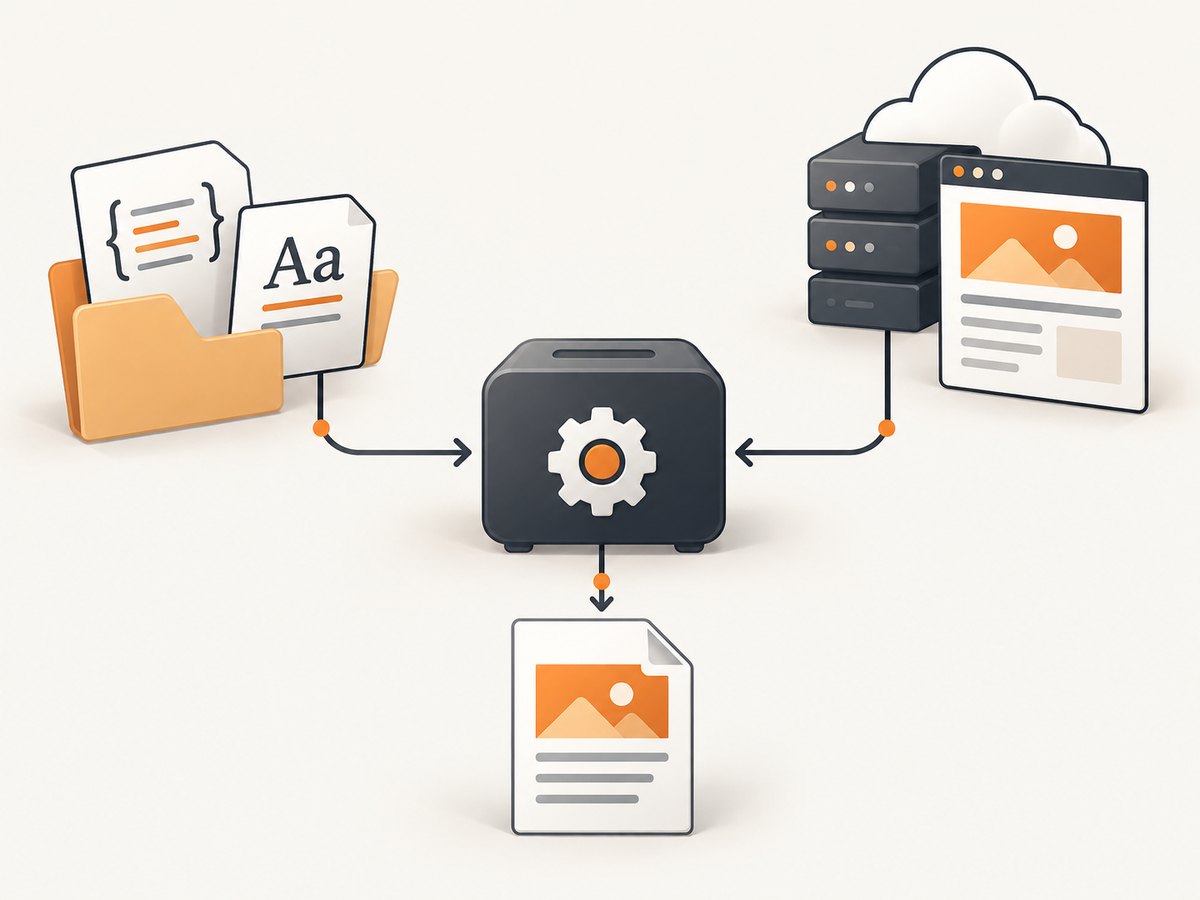
<link rel="stylesheet" href="https://reports.example.test/assets/fontawesome/css/fontawesome.css">
<link rel="stylesheet" href="https://reports.example.test/assets/fontawesome/css/solid.css">
The domain above is illustrative; replace it with a host you control and that the renderer can reach. If a report is generated from a temporary HTML file, use an absolute URL for the CSS and ensure its font URLs resolve from that stylesheet location. A URL that works on your laptop may not work in a container or hosted worker with different DNS, network rules, TLS certificates, or authentication requirements.
For a file-based job, retain the CSS-to-webfonts directory relationship or rewrite the relevant @font-face URLs to an accessible location. Do not assume that the HTML document’s directory is the base for font URLs: relative font URLs in a stylesheet resolve from the stylesheet URL.
5. Check Font Awesome version, prefix, and files
- Identify the installed release. Check the package or downloaded asset set, not a remembered code sample. Icon availability and class conventions can differ between releases.
- Match the style prefix. Use the prefix associated with the chosen style sheet and release. A solid icon and a brand icon do not necessarily use the same prefix or font file.
- Match the icon name. Verify that the named icon exists in that release. A valid-looking class that is absent from the loaded version cannot resolve to the desired glyph.
- Load one copy. Inspect the final HTML, including template and bundle output, for duplicate Font Awesome CSS. Remove stale or competing versions.
- Check the font response. In browser developer tools or server logs, inspect the stylesheet and each font request. A 404, blocked request, or permission error means the renderer cannot draw the intended glyph.
Use the Font Awesome troubleshooting page for release-specific naming and hosting problems. Its advice is especially useful when the icon works on a page that has a different bundle than the HTML sent to wkhtmltopdf.
6. Diagnose wkhtmltopdf font loading
Run the smallest possible fixture first: one heading, one icon, and only the two required stylesheets. Open that exact HTML in a browser before converting. If the icon is absent there, fix the HTML, CSS, version, or paths before investigating wkhtmltopdf.
If the browser renders it but the PDF does not:
- Check whether the conversion uses the same HTML file and asset version as the browser preview.
- Check whether local-file access is blocked when assets use
file://URLs. - Check that all HTTP(S) requests are reachable from the conversion host, not merely from your desktop browser.
- Inspect CSS-relative
@font-faceURLs and confirm the actual font files exist at those paths. - Check renderer output and server logs for denied local paths, failed network requests, TLS errors, or missing files.
- Try a compatible TrueType font source if the renderer rejects the package’s webfont source. Remove unsupported
@font-facesources from a copy of the stylesheet while retaining the source the renderer can consume.
PDF engines do not all handle webfont CSS identically. OpenHTMLtoPDF’s guide, for example, notes that Font Awesome symbol fonts may require removing font-face sources other than TrueType. That is evidence of a renderer compatibility issue in that engine; it is not a claim that every wkhtmltopdf build needs the same CSS edit. Keep an unmodified copy of the vendor CSS and make any compatibility-specific changes in a controlled derived stylesheet.
7. Common errors and fixes
| Symptom | Likely cause | What to do |
|---|---|---|
| Empty square or fallback character | The font file failed to load, or the selected font lacks the mapped glyph. | Inspect the @font-face URL and network/file permissions. Confirm the matching webfont exists and is paired with the CSS. |
| No icon, but surrounding text prints | Wrong icon name, wrong prefix, or icon unavailable in the installed release. | Verify the exact icon and style against the version you ship; load that style’s CSS. |
| Works in browser, missing in PDF | wkhtmltopdf cannot access local assets or cannot reach remote assets. | Check local-file access settings or serve assets from a reachable HTTP(S) origin. Review renderer logs. |
| Works on one machine only | Relative paths depend on the current directory or a local asset copy absent from another worker. | Use stable absolute paths or a common reachable asset origin; include the files in the deployment artifact. |
| Some icons work, others are blank | The wrong style sheet is loaded, the icon is from another release, or the relevant font file is missing. | Check the style prefix, stylesheet, icon availability, and that style’s font request individually. |
| Font request succeeds but glyph is wrong | CSS and font files come from different Font Awesome versions, or multiple versions override one another. | Deploy one matched package and remove duplicate CSS/font declarations. |
| Conversion log reports denied file access | The renderer’s local-file policy blocks a referenced CSS or font file. | Use the documented local-file access configuration for a controlled input, or move assets to a reachable HTTP(S) origin. |
| Font loads in browser but not PDF renderer | The renderer may reject a font source or handle its CSS differently. | Try a compatible TrueType asset and remove unsupported font-face sources from a derived CSS file; verify with a one-icon fixture. |
8. Make the setup reliable in production
Keep assets deterministic
Bundle the exact CSS and webfonts with the application or publish them to a stable asset host. Pin a Font Awesome release and upgrade the CSS and fonts together. Avoid relying on an unversioned path or an incidental stylesheet inherited from a page template. This prevents a deployment from silently changing the glyph map while leaving old font files in place.
Make conversion input explicit
Set a known working directory or use absolute asset URLs. In containerized jobs, verify that the fonts are copied into the image or that outbound access to the asset origin is allowed. If the PDF is produced asynchronously, log the HTML input location, asset origin, renderer exit status, and relevant load errors so a blank icon can be traced to a missing request.
Use a regression fixture
Keep a minimal HTML page with one solid icon and, if needed, one brand icon. Convert it when changing Font Awesome releases, wkhtmltopdf builds, container images, CSS processing, or network policy. Compare the resulting PDF visually or inspect it in the same PDF viewer used downstream. This small fixture isolates font regressions without requiring a full report to fail first.
9. Performance, reliability, and cost
Font files add asset requests and bytes to the conversion input. Load only the styles your document uses, and prefer one stable source so the renderer does not fetch duplicate CSS or fonts. Local bundled files avoid a network dependency but require correct local access and packaging. HTTP(S) delivery centralizes the assets but makes conversion depend on DNS, TLS, network reachability, and the availability of the host. Neither approach is universally faster: measure in the actual worker environment if conversion latency matters.
For reliable output, wait for the renderer to finish loading assets before treating the PDF as complete, and treat missing-font warnings or failed requests as conversion errors in your own job flow. wkhtmltopdf does not make a missing webfont correct merely because it produced a PDF file. Keep the icon fixture as an operational check when changing deployment configuration.
Font Awesome’s downloadable/self-hosted assets give you control over files and versioning. A hosted Font Awesome Kit can reduce asset-path maintenance for environments that can reach it; consult the current Font Awesome setup documentation for available distribution choices. This article does not assume a current Pro entitlement or referral offer. The direct cost of this configuration depends on the Font Awesome distribution you choose and your existing rendering infrastructure; the dossier provides no wkhtmltopdf hosting or execution prices to quote.
10. Or skip the browser setup
If your actual goal is a screenshot of a web page rather than a PDF rendered from your own HTML report, ScreenshotNeo provides a website screenshot API and MCP server. A single GET request returns PNG, JPEG, WebP, or PDF. For example, this cURL request saves a screenshot of Stripe as WebP:
curl -G "https://api.screenshotneo.com/v1/shot" -d access_key=YOUR_API_KEY --data-urlencode url=https://stripe.com -o shot.webpSee the ScreenshotNeo API documentation for request options. Cookie banners, newsletter popups, and chat widgets are removed before the shot; those steps can be turned off individually. Bot checks, blank pages, failed loads, timeouts, and cache hits are not billed, and response headers say which outcome occurred. Its MCP server lets AI agents use take_screenshot, get_page_info, and capture_pdf. The free plan includes 1,000 screenshots a month with no card; paid plans start at $5 for 3,000 shots.
Sign up free for 1,000 screenshots a month with no card.
11. FAQ
Can I copy only the Font Awesome CSS file?
No. The stylesheet’s mappings depend on the corresponding font files. Copy the CSS and webfonts together, or rewrite the font URLs to files the renderer can access.
Why does the icon show in a browser but not in the PDF?
The browser and conversion process may not share the same file permissions, working directory, network access, or font format support. Inspect the exact font request from the conversion environment.
Should I use a hosted kit or self-host?
Use self-hosted files when you want control over the exact assets and version. A hosted kit can reduce path maintenance when the renderer can reliably reach the hosted resources.
Can I use this method for every PDF renderer?
The CSS-to-font principle applies broadly, but font formats and CSS support vary by renderer. Test the target engine with a small fixture and use a compatible font source if needed.
12. Final checklist
- The icon appears in the exact HTML in a browser.
- The core CSS and correct style CSS are loaded.
- The icon name, prefix, and Font Awesome release match.
- The CSS-relative font URLs resolve to the matching webfonts.
- wkhtmltopdf can access local files or reach the HTTP(S) asset host.
- Only one intended Font Awesome version is present.
- A one-icon PDF fixture renders in the production environment.


