How to Add a Footer Only to the Last Page of an HTML Printout
Learn portable CSS techniques for a last-page print footer, page-margin limits, PDF workflows, troubleshooting, and automated capture options.
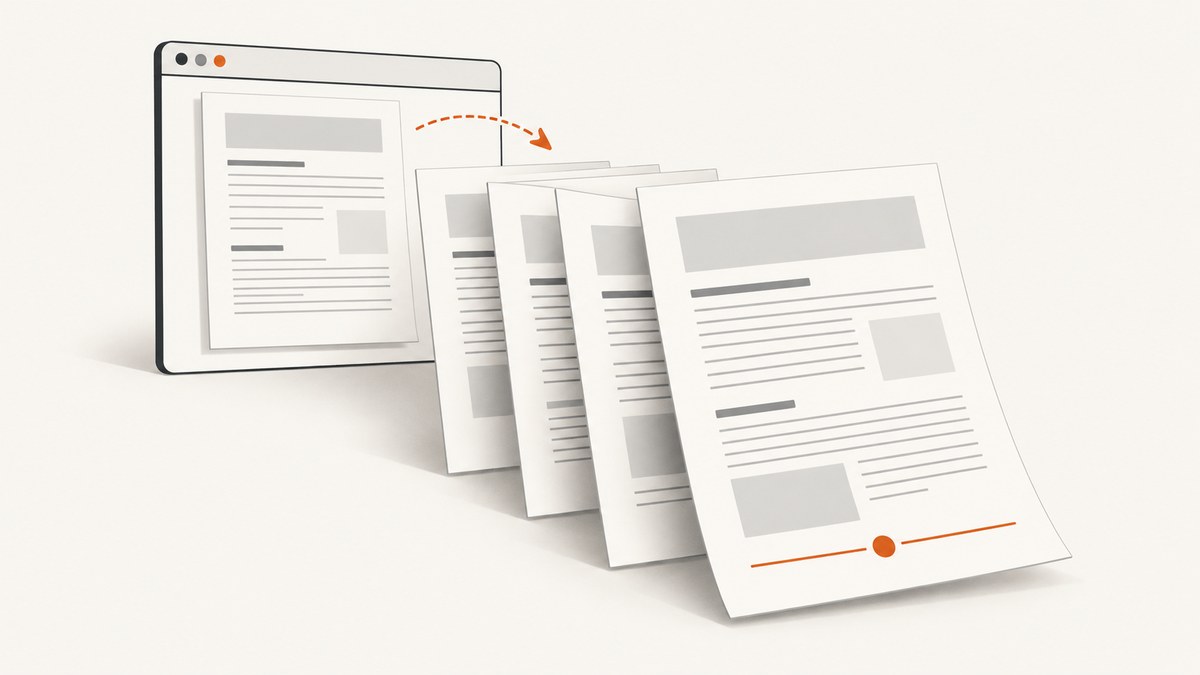
Direct answer: Put the footer after the printable content in the HTML and reveal it inside @media print. This is the most portable browser approach and places the footer after the flowing content. It does not guarantee that the footer touches the bottom edge of the final physical page. CSS Paged Media provides page-margin boxes, but the standard page selectors do not include a portable :last page selector. If edge placement on only the final page is mandatory, use a page-aware PDF renderer or post-process the generated PDF after pagination.
This guide shows the practical options, complete code, browser and PDF differences, diagnostics, and an automated ScreenshotNeo workflow for checking the resulting printout.
1. The portable solution: footer after the content
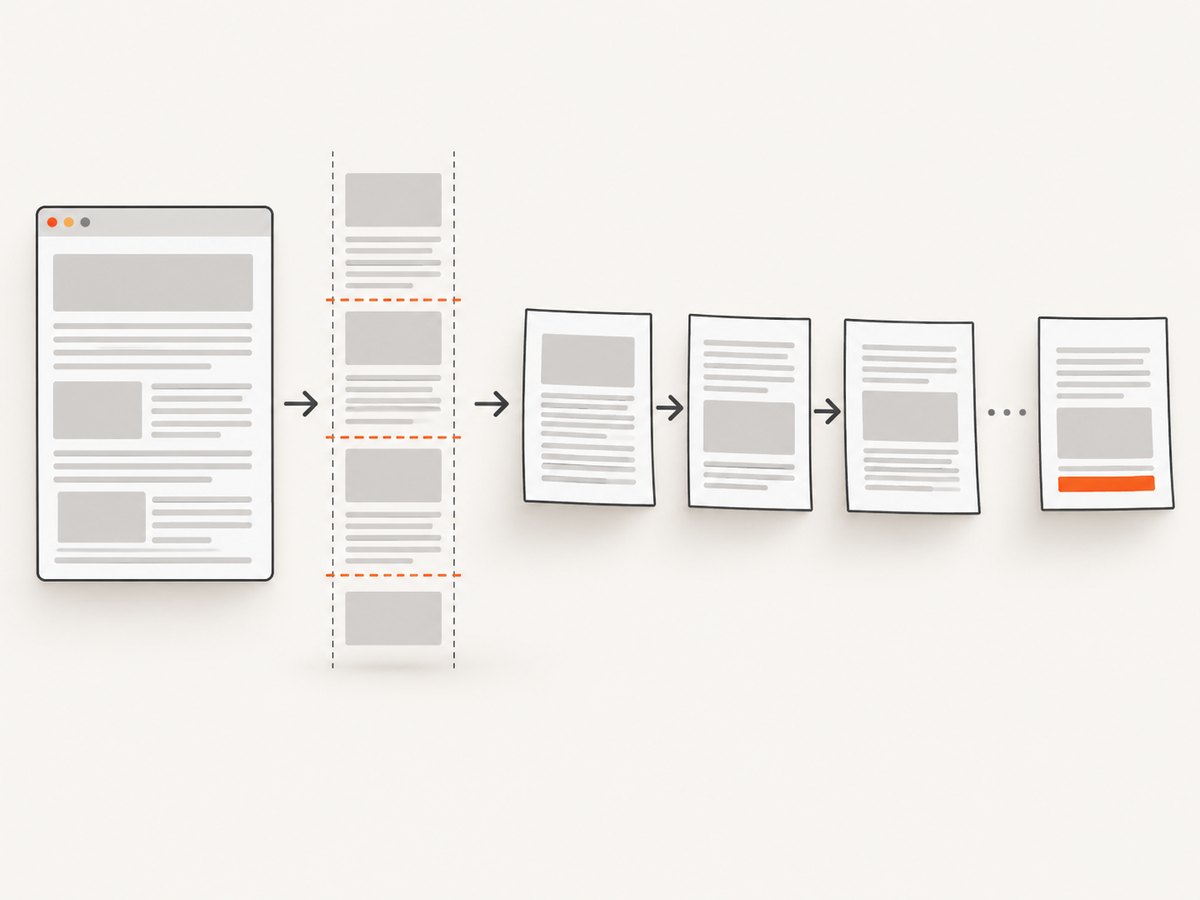
Keep the footer as the last element in the printable document. Hide it on screen and display it for print. Because it remains in normal flow, it follows all content and is emitted after the final content fragment.
<!doctype html>
<html lang="en">
<head>
  <meta charset="utf-8">
  <title>Invoice</title>
  <style>
    .print-only-footer {
      display: none;
    }

    @media print {
      /* Remove browser-added whitespace if your print target permits it. */
      @page {
        size: A4;
        margin: 18mm 16mm 20mm;
      }

      .print-only-footer {
        display: block;
        break-inside: avoid;
        margin-top: 1rem;
        padding-top: 0.5rem;
        border-top: 1px solid #888;
        font-size: 10pt;
      }

      /* Optional screen-only controls. */
      .screen-only {
        display: none !important;
      }
    }
  </style>
</head>
<body>
  <main class="print-document">
    <h1>Invoice 2026-0042</h1>
    <p>Your printable content goes here.</p>
    <!-- tables, sections, and other content -->
  </main>

  <footer class="print-only-footer">
    End of document · Thank you
  </footer>
</body>
</html>
The print media type is the standard switch for print presentation. MDN documents using print styles and @page to control printed output (MDN printing guide). The footer is part of normal content flow, so it appears after the content rather than being anchored to a sheet edge.
Why this works
- The footer is after
<main>in the DOM. - It is hidden during normal screen rendering.
@media printchanges it to a block when the browser creates print pages.break-inside: avoidasks the renderer not to split the footer box across pages.
If the final paragraph ends near a page boundary, the footer can move to a new page. That is expected pagination behavior. Keep the footer short, and avoid placing it inside a container with overflow: hidden, fixed heights, or transforms that can interfere with fragmentation.
2. Controlling page size, margins, and breaks
Page dimensions and margins determine where the last content fragment lands. The @page rule can set paper size, orientation, and margins. The CSS Paged Media specification defines page boxes, page selectors, and margin boxes (W3C CSS Paged Media Level 3).
@media print {
  @page {
    size: Letter portrait;
    margin: 0.65in 0.7in 0.8in;
  }

  .chapter {
    break-before: page;
  }

  .avoid-split,
  table,
  figure {
    break-inside: avoid;
  }

  h2, h3 {
    break-after: avoid;
  }

  .print-only-footer {
    break-before: auto;
    break-inside: avoid;
  }
}
Use break-before, break-after, and break-inside to reduce awkward splits, but do not assume they can force every browser to honor an impossible layout. Large tables, images, and unbreakable code blocks can still move surrounding content.
Preventing a footer from being stranded
A footer that contains several lines may be pushed to a fresh page when only a small amount of space remains. You can keep it with a preceding summary block:
@media print {
  .final-summary {
    break-inside: avoid;
    page-break-inside: avoid; /* legacy alias for older engines */
  }

  .final-summary + .print-only-footer {
    margin-top: 0.5rem;
  }
}
Do not use position: fixed for a last-page-only footer. In many print engines, fixed content is repeated on every page or treated as a viewport overlay. Fixed positioning is useful for repeated headers or footers only when that repetition is intentional.
3. Why @page :last is not a portable answer
It is tempting to write:
@page :last {
  @bottom-center {
    content: "End of document";
  }
}
The problem is that the standard page selectors cover cases such as :first, :left, :right, and :blank; they do not define a broadly portable :last selector. The selector syntax and compatibility notes are summarized in MDN’s @page reference. Treat an @page :last rule as renderer-specific unless the exact engine documents support for it.
Chrome for Developers reports that Chrome 131 added support for CSS page-margin content. That can help with repeated page-edge content in supported environments, but it does not create a cross-browser last-page-only mechanism (Chrome: Add content to the margins of web pages when printed using CSS). Test the specific browser version and PDF renderer you ship.
4. Page-margin boxes for controlled renderers
When your renderer supports margin boxes, a page-level footer can be declared in an @page rule:
@page {
  margin: 18mm 16mm 22mm;

  @bottom-center {
    content: "Confidential";
    font-size: 9pt;
    color: #666;
  }
}
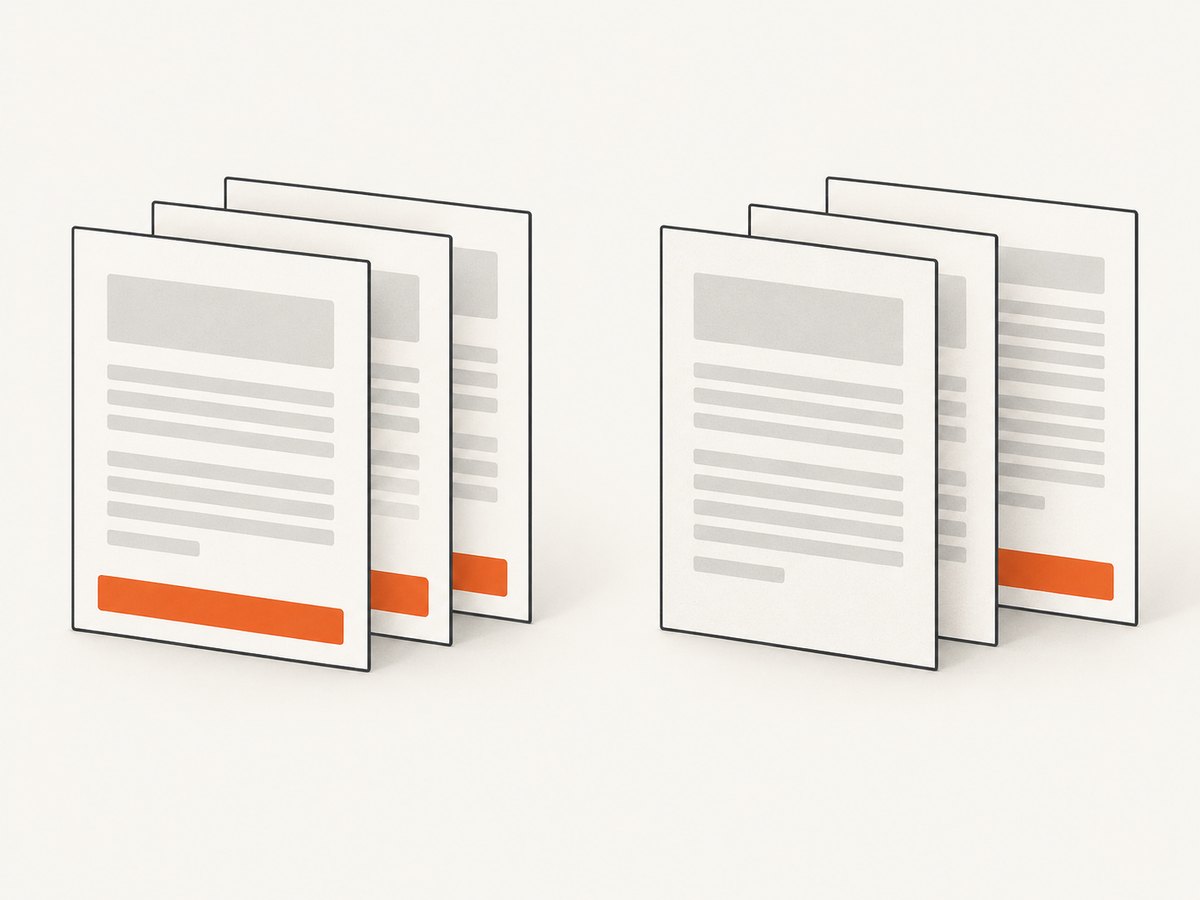
This normally repeats on pages because the margin box belongs to each page. It is appropriate for page numbers, document titles, or legal text that must appear everywhere. It does not solve “only the final page” unless your chosen renderer provides a proprietary final-page selector or an API that exposes pagination events.
Use this approach when you control the rendering engine, can pin its version, and are willing to maintain an engine-specific stylesheet. Keep a fallback footer in normal flow for browsers that ignore nested margin-box rules.
5. When the footer must touch the bottom edge of the final sheet
There is no universal browser-only CSS switch that both detects the final paginated page and places content at its bottom edge. A reliable workflow has three stages:
- Render HTML with a controlled browser or PDF engine.
- Determine the number of pages after layout.
- Insert or overlay the footer on that final page, or generate it with a renderer API designed for final-page content.
The implementation is renderer-dependent. Some PDF libraries can merge an overlay onto a known final page; others expose page templates or callbacks. If you post-process, preserve the original page dimensions, coordinate system, rotation, and fonts. Re-run visual checks after adding the overlay because a footer can cover existing content if the bottom margin is too small.
Server-side decision example
// Pseudocode: the exact calls depend on your PDF library.
const pdf = await renderHtmlToPdf(html, {
  format: 'A4',
  margin: { top: '18mm', right: '16mm', bottom: '22mm', left: '16mm' }
});

const pageCount = pdf.pageCount();
pdf.drawTextOnPage(pageCount, 'End of document', {
  x: 40,
  y: pdf.pageHeight(pageCount) - 28
});

await pdf.save('invoice-with-last-page-footer.pdf');
Use this only when your PDF tool documents equivalent operations. The code illustrates the sequence, not a universal library API.
6. Complete browser-print checklist
- Put the footer after all printable content in the DOM.
- Hide it by default and enable it in
@media print. - Set
@pagesize and margins explicitly when output consistency matters. - Keep the footer short and use
break-inside: avoid. - Hide navigation, buttons, cookie controls, and other screen-only elements.
- Check table headers, images, links, backgrounds, and color-adjust behavior.
- Turn off browser print-dialog headers and footers if they duplicate your design.
- Inspect both print preview and the saved PDF.
7. Testing pagination and edge cases
Test at least these documents:
| Case | What to verify |
|---|---|
| Very short content | The footer follows content and does not overlap the page edge. |
| Content ending exactly at a break | The footer does not create an unexpected blank page. |
| Long tables | Rows and the footer remain readable when tables fragment. |
| Large images or code | Unbreakable blocks do not push the footer outside the printable area. |
| Different paper sizes | Letter, A4, portrait, and landscape use the intended margins. |
| Fonts unavailable | Fallback fonts do not change line wrapping enough to alter page count. |
| Dynamic content | Late-loading data is present before printing starts. |
Pagination can change when fonts, viewport width, zoom, device scale, margins, or browser versions change. Capture a PDF from the same engine and version used in production when you need reproducible page counts.
8. Troubleshooting common failures
Footer appears on screen
Cause: The default rule is missing or overridden. Fix: Set .print-only-footer { display: none; } outside the print media block and check selector specificity.
Footer is missing from the PDF
Cause: The renderer never applies print media, the footer is inside a hidden ancestor, or the PDF was generated before content finished loading. Fix: Confirm print media emulation, move the footer outside hidden containers, wait for the required selector or network idle, and inspect the generated HTML.
Footer repeats on every page
Cause: It uses position: fixed or a page-margin box. Fix: Use normal flow for a single final footer; reserve fixed and margin-box content for intentionally repeated elements.
The footer starts a new blank page
Cause: The remaining space is smaller than the footer’s complete box, or a preceding element has a forced break. Fix: Reduce footer height, remove unnecessary break-before, reduce bottom margins, or allow the preceding summary and footer to move together.
Footer is clipped at the bottom
Cause: The page bottom margin is too small, the print dialog applies non-printable hardware margins, or an overlay uses the wrong coordinate origin. Fix: Increase the bottom margin, disable dialog-added headers and footers, and validate coordinates against the PDF page box.
Different browsers produce different page counts
Cause: Font metrics, fragmentation support, margin-box support, and print defaults vary. Fix: Pin a production renderer for automated PDFs, provide a tolerance for visual differences, and test the exact browser versions you support.
9. Or skip the browser setup
If your goal is to inspect or archive the rendered result rather than maintain a print pipeline, ScreenshotNeo can capture a page or produce a PDF through one request. Its capture options include PDF paper size, margins, landscape mode, and page ranges, plus custom CSS and JavaScript for print-specific adjustments. See the ScreenshotNeo API documentation for request parameters.
curl -G "https://api.screenshotneo.com/v1/shot" -d access_key=YOUR_API_KEY --data-urlencode url=https://stripe.com -o shot.webpimport requests
r = requests.get("https://api.screenshotneo.com/v1/shot", params={"access_key": "YOUR_API_KEY", "url": "https://stripe.com"}, timeout=90)
open("shot.webp", "wb").write(r.content)const q = new URLSearchParams({ access_key: 'YOUR_API_KEY', url: 'https://stripe.com' });
const res = await fetch(`https://api.screenshotneo.com/v1/shot?${q}`);Cookie banners, popups, and chat widgets are removed before the shot. Bot checks, blank pages, timeouts, failed loads, and cache hits are not billed, and response headers identify the page verdict and billing status. An MCP server lets AI agents use take_screenshot, get_page_info, and capture_pdf. The Free plan includes 1,000 screenshots a month with no card; paid plans start at $5 for 3,000 shots. Create a free ScreenshotNeo account.
10. Performance, reliability, and cost notes
- Client-side printing: Fast for interactive users, but output depends on their browser, fonts, print settings, and installed resources.
- Controlled PDF rendering: More repeatable for invoices and reports, with server CPU and memory costs proportional to page complexity.
- Dynamic pages: Wait for data and images before capture; otherwise page count and footer position can change after layout.
- Caching: Cache stable documents, but invalidate when content, CSS, locale, or print settings change.
- Reliability: Record renderer version, paper settings, page count, and errors so a changed footer can be diagnosed.
- ScreenshotNeo: Use a chosen cache TTL for repeat captures and inspect
X-Page-VerdictandX-Billedheaders when accounting for requests.
11. FAQ
Can CSS detect the last printed page?
Portable CSS does not provide a standard :last page selector. Use normal flow or a renderer that exposes page-aware APIs.
Can I pin the footer to the bottom with flexbox?
Flexbox can push a footer to the bottom of a short screen layout, but printed pagination can fragment the flex container. It does not reliably identify the final physical page.
Should I use position: fixed?
Only for a footer that should repeat. For one final footer, keep it in normal document flow.
Why does print preview differ from my downloaded PDF?
They may use different engines, margins, fonts, or print settings. Compare outputs from the exact production renderer and explicitly set page size and margins.
What is the safest default for a public website?
Use a print-only footer after the content, validate short and long documents, and document that bottom-edge placement is renderer-dependent.


