How to Force CSS Page Breaks When PDF Content Overflows
Use modern CSS fragmentation rules to force clean PDF page breaks, keep blocks together, and troubleshoot overflow across browser PDF pipelines.
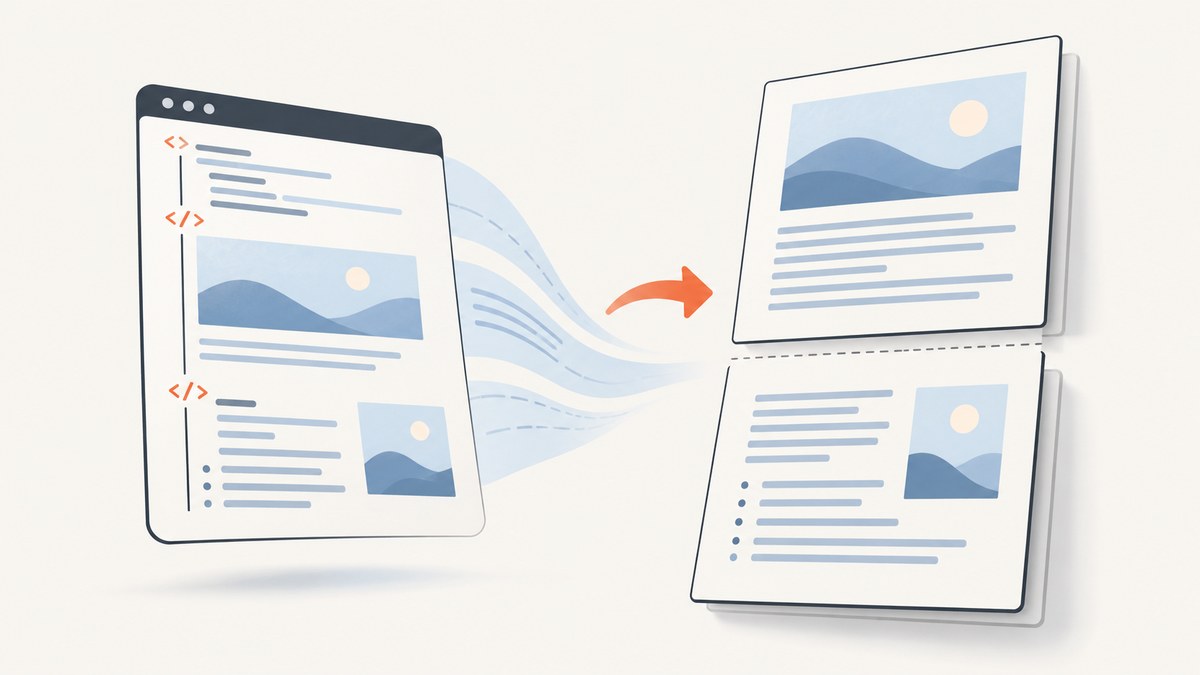
When HTML content spills onto an unwanted PDF page, use CSS Fragmentation properties in your print stylesheet. Put break-before: page on the block that should start a new page, or break-after: page on the block that should end before one. To keep a suitable block intact, add break-inside: avoid-page.
@media print {
  .new-page {
    break-before: page;
  }

  .keep-together {
    break-inside: avoid-page;
  }
}
These rules affect paged output such as browser print previews and HTML-to-PDF renderers. They do not create a visible boundary in the normal continuous screen layout. The renderer, page size, margins, and layout system still determine the final result.
1. Force a new PDF page before a section
The most direct pattern is to mark the section that must begin on a fresh page:
    Annual report
    Summary and introduction.


    Financial results
    This section begins on the next PDF page.
@media print {
  .new-page {
    break-before: page;
  }
}
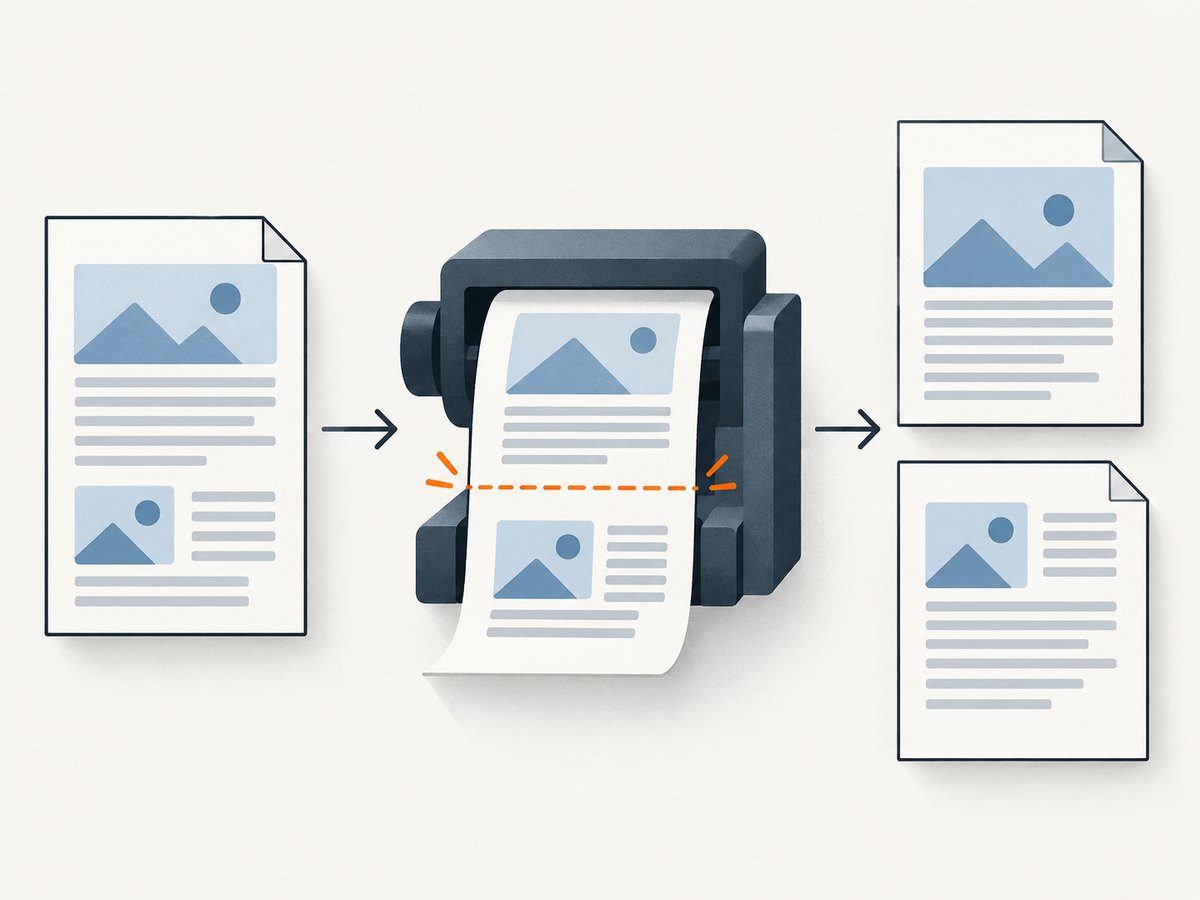
break-before: page asks the pagination engine to insert a page break before the selected block. Apply it to a real block box in normal print flow. If the element is not generated, is hidden, or is not the element you expect, the declaration has no useful place to apply.
2. Put the break after the preceding block
You can express the same boundary from the other side:
@media print {
  .chapter {
    break-after: page;
  }
}
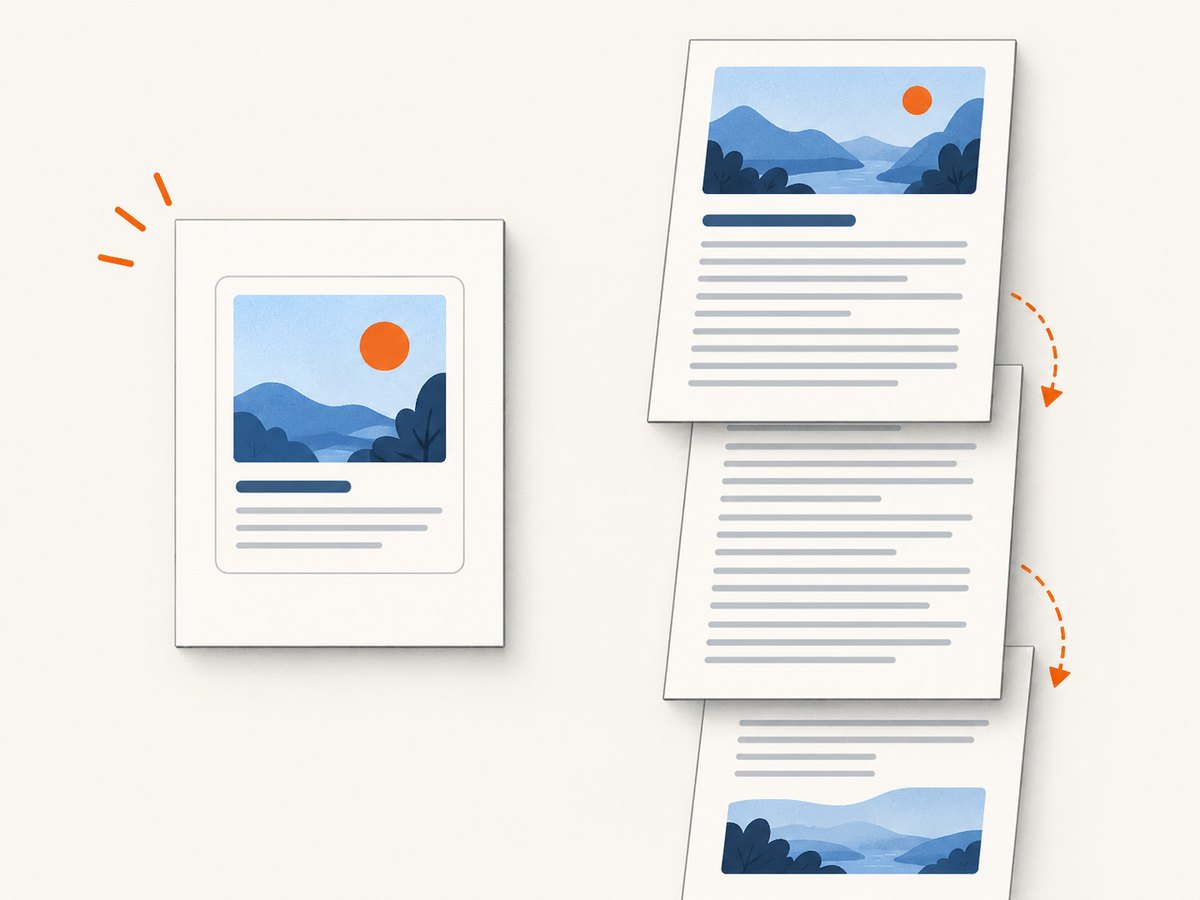
Use break-before when the next section owns the semantic boundary, such as a chapter or appendix. Use break-after when the preceding block always represents a complete unit. During debugging, choose one location instead of placing forced breaks on both adjacent elements. Redundant rules can produce blank pages or make the source of a break difficult to identify.
At a boundary, the previous element’s break-after, the next element’s break-before, and the containing element’s break-inside all participate. A forced break takes precedence over an avoidance value. If forced values meet, the later-in-flow rule wins; a following element’s break-before takes precedence over the preceding element’s break-after. See the MDN break-before reference and MDN break-after reference.
3. Keep a short block from splitting
A page break and an avoidance rule solve different problems. Use break-inside: avoid-page when a small block should remain together:
@media print {
  .summary-card,
  .figure-with-caption,
  .invoice-total {
    break-inside: avoid-page;
  }
}
This is a preference to the fragmentation engine, not a command to shrink content. If the block is taller than the printable page area, it cannot fit intact. The renderer must split it, move it, or otherwise resolve the overflow. Applying avoidance to an entire long article or a very large table often creates poor pagination because no intact placement exists.
Choose groups that are small enough to fit on one page: a heading with its introductory paragraph, a card with its metadata, or a figure and caption. Allow long prose, code listings, and oversized tables to split when necessary.
4. Use print media and page geometry together
Keep PDF-only rules inside @media print so your screen layout remains unchanged. Define page geometry separately with @page:
@page {
  size: A4;
  margin: 18mm 16mm 20mm;
}

@media print {
  body {
    color: #111;
    background: #fff;
  }

  .new-page {
    break-before: page;
  }

  .keep-together {
    break-inside: avoid-page;
  }

  .screen-only {
    display: none;
  }
}
@page controls the page setup, including size and margins. Fragmentation rules control where content flows within that usable area. A section may appear to ignore a break when the selected paper size, margins, header, footer, or browser print settings leave less room than expected. The MDN paged-media documentation describes the relationship between page setup and paginated output.
5. Complete working example
The following document creates a cover, forces a chapter boundary, keeps a callout together, and hides navigation in the PDF.
Print layout example
Project report
Prepared for print and PDF export.
Results
The results chapter starts on a new page.
Save it as report.html, open it in the browser or renderer that produces your real PDF, and inspect both print preview and the downloaded file. Always validate with the same runtime used in production.
6. Legacy page-break properties
Older code commonly uses:
@media print {
  .new-page {
    page-break-before: always;
  }

  .chapter {
    page-break-after: always;
  }

  .keep-together {
    page-break-inside: avoid;
  }
}
MDN documents page-break-before, page-break-after, and page-break-inside as legacy aliases. For new stylesheets, prefer break-before, break-after, and break-inside. The legacy value always maps to the page-specific behavior represented by break-*: page, preserving the historical meaning.
7. Why a page break appears not to work
The rule is outside print media
Check that the stylesheet is loaded and that the selector is active in print. A later rule, a more specific selector, or an inline declaration may override it.
The selector targets the wrong box
Confirm that the element exists in the printed DOM, is not display: none, and participates in normal flow. A declaration on an element with no generated box cannot create a boundary.
An ancestor changes the fragmentation context
Flex, grid, table, positioned, transformed, and oversized elements can paginate differently from ordinary block flow. Reduce the document to a small reproduction, then add the complex layout back one part at a time. Chromium’s LayoutNG work documents milestones for flex and grid fragmentation in Chrome 103, table fragmentation in Chrome 106, and block fragmentation for printing in Chrome 108; those milestones do not guarantee identical behavior in every PDF engine. See Chrome’s RenderingNG documentation.
Avoidance is being mistaken for a forced break
break-inside: avoid-page does not start a new page. It only discourages a split inside the selected box. Add break-before: page or break-after: page when a definite boundary is required.
The content is taller than a page
No CSS rule can make a block containing more content than the printable area fit without changing its size or allowing it to split. Break the content into smaller semantic sections, reduce margins, change page geometry, or permit pagination.
The preview and PDF differ
Browser preview and server-side HTML-to-PDF generation may use different browser versions, flags, fonts, default margins, or print settings. Compare the actual generated file from the target runtime. Log the renderer version and keep page size, margins, font loading, and CSS assets consistent.
8. Tables, code, images, and long content
Tables should usually be allowed to flow across pages. Keep headings visible with the table-specific print rules supported by your renderer:
@media print {
  thead {
    display: table-header-group;
  }

  tfoot {
    display: table-footer-group;
  }

  tr {
    break-inside: avoid-page;
  }
}
This can keep a row intact when it fits, but an oversized row still cannot fit on one page. For code, avoid applying break-inside: avoid-page to an entire multi-page listing. For images, set a maximum size so the replaced element fits within the printable area:
@media print {
  img,
  svg,
  pre {
    max-width: 100%;
  }

  img {
    height: auto;
  }
}
Large images, unbreakable strings, fixed heights, and absolute positioning are common causes of unexpected overflow. Remove fixed heights from print styles unless the physical size is intentional.
9. Renderer, performance, and reliability checklist
- Use
break-before: pageon the next semantic section. - Use
break-after: pagewhen the preceding unit owns the boundary. - Use
break-inside: avoid-pageonly for blocks that can fit. - Define
@pagesize and margins explicitly. - Wait for web fonts, images, and asynchronous content before PDF capture.
- Generate a PDF with the same browser version and flags used in deployment.
- Inspect page count, blank pages, clipped content, and orphaned headings in the final file.
- Keep print CSS small and deterministic; remove animations and time-dependent content.
Pagination performance is usually dominated by document size, font and image loading, JavaScript, and the renderer’s layout work. Forced breaks themselves are inexpensive. Reliability improves when content is fully loaded before capture and when the page geometry is fixed rather than inherited from a user’s print dialog.
10. Or skip the browser setup
If you need a rendered page image or PDF without maintaining browser automation, ScreenshotNeo provides a GET endpoint for website screenshots and PDF capture. Its clean-shot flow accepts cookie and consent banners as a visitor, then removes more than 60 known consent platforms, newsletter popups, and chat widgets; each step can be disabled. Bot checks, CAPTCHAs, blank pages, timeouts, failed loads, and cache hits are not billed, and response headers report the page verdict and billing status.
For PDF options such as paper size, margins, landscape mode, and page ranges, see the ScreenshotNeo documentation. A basic request is:
curl -G "https://api.screenshotneo.com/v1/shot" \
  -d access_key=YOUR_API_KEY \
  --data-urlencode url=https://stripe.com \
  -o shot.webp
import requests
r = requests.get(
"https://api.screenshotneo.com/v1/shot",
params={"access_key": "YOUR_API_KEY", "url": "https://stripe.com"},
timeout=90,
)
r.raise_for_status()
open("shot.webp", "wb").write(r.content)const q = new URLSearchParams({
access_key: 'YOUR_API_KEY',
url: 'https://stripe.com'
});
const res = await fetch(`https://api.screenshotneo.com/v1/shot?${q}`);
if (!res.ok) throw new Error(`HTTP ${res.status}`);
const body = await res.arrayBuffer();
// Save body using your runtime's file API.ScreenshotNeo also supports full-page capture with lazy images loaded, CSS-selector element capture, custom CSS and JavaScript, click and wait actions, blocking ads or selected resource types, custom headers and cookies, device presets, retina scale, transparent backgrounds, resizing, configurable caching, signed links, asynchronous jobs with signed webhooks, bulk capture for up to 100 URLs per call, a usage API, and an OpenAPI specification. Its MCP server exposes take_screenshot, get_page_info, and capture_pdf for Claude, Cursor, and other MCP clients.
There are 1,000 screenshots per month on the free plan with no card required. Paid plans start at $5 for 3,000 shots, and every feature is available on every plan. Create a free ScreenshotNeo account.
11. Frequently asked questions
Should I use break-before or break-after?
Use the one that best matches your document structure. A chapter element commonly owns break-before; a completed report section commonly owns break-after.
Can CSS force a break inside a paragraph?
Apply forced breaks to block-level elements that represent meaningful sections. Split the paragraph into separate blocks if a boundary is semantically required.
Does break-inside: avoid-page guarantee no split?
No. It is an avoidance preference. A block taller than the printable page cannot remain intact.
Why do I get a blank page?
Look for forced breaks on adjacent elements, an empty block with a break rule, large margins, and page-sized cover elements. Remove duplicate boundaries and inspect the computed print styles.
Is page-break-before: always obsolete?
It is a legacy alias retained for compatibility. New code should use break-before: page.
What standard defines these rules?
The CSS Fragmentation model defines pagination and break behavior. The W3C CSS Fragmentation Module Level 3 is the standards reference, with practical property guidance in MDN’s CSS fragmentation overview.


