How to Capture Website Screenshots With a Free AI Browser Extension
Capture visible, selected, or full webpages with a free AI browser extension, then fix common failures and automate screenshots with ScreenshotNeo.
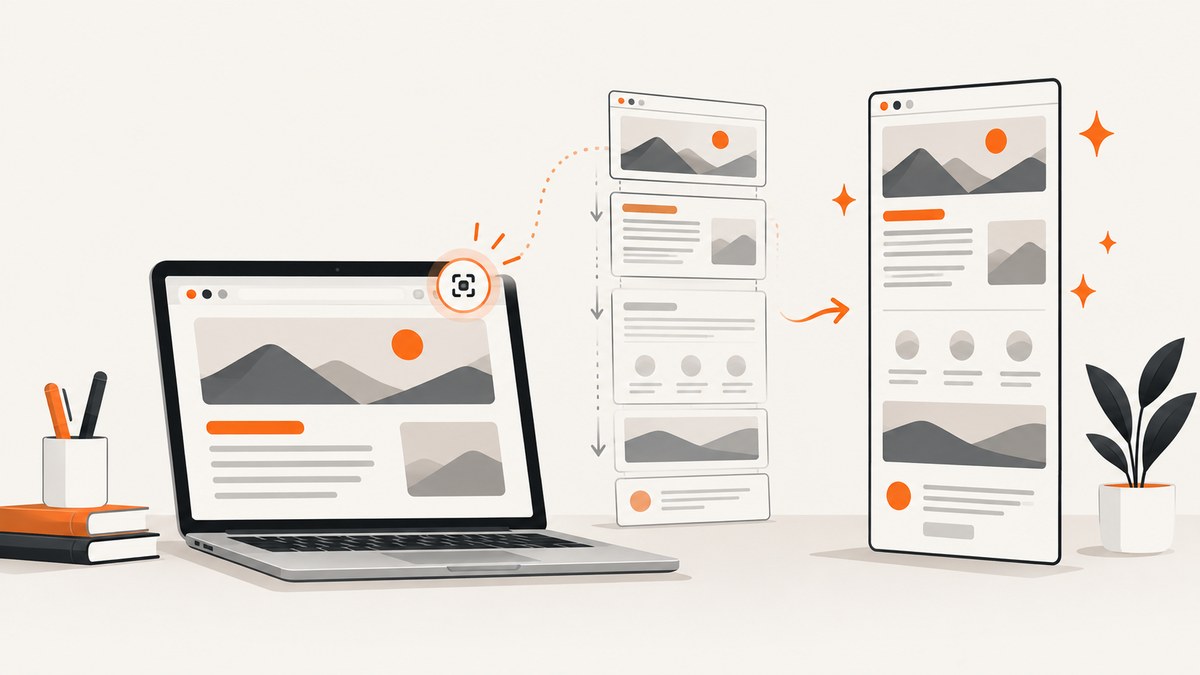
Short answer: install an extension from your browser’s official store or the vendor’s official page, review its permissions, open the target URL, choose visible-area, selected-area, or full-page capture, wait for rendering to finish, inspect the result, redact private data, and export it as PNG, JPG, or PDF when supported. AI features can help with capture or editing, but “AI” on a listing does not prove better accuracy or explain how your page data is handled.
This guide covers a practical free-extension workflow, what to check before installing, why full-page captures fail, and when an API is a better fit for repeatable work.
1. Choose an extension carefully
Start with the official Chrome, Edge, Brave, or Firefox store, or a vendor’s official distribution page. Store listings and free tiers change, so check the current description, update date, requested permissions, account requirement, and privacy policy immediately before installation.
| Capability | Questions to check |
|---|---|
| Capture mode | Does it capture the visible tab, a selected rectangle, a page element, or the entire scrollable page? |
| Editing | Are arrows, text, crop, blur, redaction, or OCR included, and are they free? |
| Export | Can you save PNG, JPG, or PDF, or copy the image directly? |
| Access | Does it require an account, broad page access, or permission to read all websites? |
| Limits | Is the free tier limited by captures, AI actions, storage, sharing, or resolution? |
| Privacy | Does the policy explain whether page content leaves your browser and how long it is retained? |
Examples in current listings illustrate the range. Full Page Screen Capture describes annotation, OCR, redaction, and PNG/JPG/PDF export. Snapp describes full-page capture and annotations for Chrome, Edge, and Brave. AI SNAP advertises AI-assisted interactions and an unlimited free tier. GoFullPage publishes a detailed change log, including fixes for Chromium URL changes. PageCap lists visible, selected, element, and full-page modes but also names browser-protected pages it cannot capture. OpenCapture describes local editing, crop, annotation, privacy blur, and PNG/PDF export. Recordio describes capture, annotation, copying, downloading, and sharing and says a free account is required. Treat each statement as a store or vendor claim; verify the current terms yourself.
2. Capture a visible or selected area
- Install the extension and pin its icon so it is easy to find.
- Open the webpage and wait until the content you need is visible.
- Click the extension icon or use its context-menu command.
- Choose Visible area for the current viewport, or Selected area if you need only a rectangle.
- Drag the selection when prompted, then release it.
- Review the preview for clipped text, hidden overlays, and sensitive information.
- Annotate, crop, blur, or redact if those controls are provided.
- Export or copy the result in the available format.
Visible capture is usually the most predictable mode. It preserves exactly what is on screen, including the current zoom and responsive layout. Selected capture is useful for a component, error message, or chart, but it can omit context that a reader needs. Before sharing, open the exported file and confirm that blur or redaction is opaque; a translucent mark may still reveal text.
3. Capture a full webpage
- Open the page at the viewport width you want readers to see.
- Dismiss dialogs that should not appear, or leave them in place if documenting the actual user experience.
- Start the extension and choose Full page or its equivalent.
- Keep the tab active while the extension scrolls and stitches the page.
- Wait for the editor or preview to finish loading.
- Inspect the entire image, especially lazy-loaded sections, sticky headers, animations, and the bottom edge.
- Crop or annotate, then export the final file.
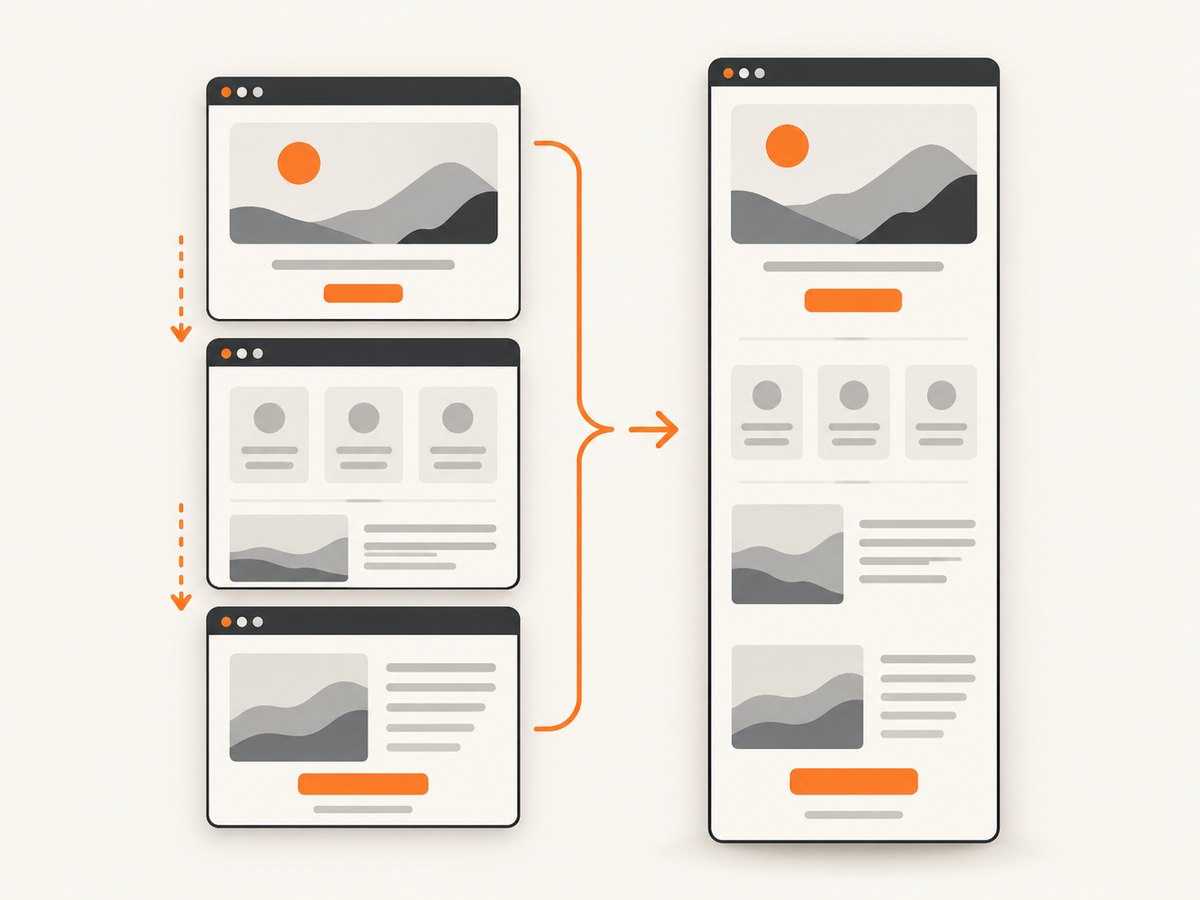
Full-page tools generally scroll the document, capture multiple viewport images, and stitch them together. Pages with infinite scroll, virtualized lists, sticky elements, video, or transitions can produce duplicated, missing, or misaligned content. If the result is wrong, try a visible capture, pause animations, close floating widgets, or use a page-element mode for the specific section.
4. Handle browser restrictions and private data
Browser security rules can block extensions from capturing internal or protected pages. PageCap’s listing specifically names Chrome Web Store pages, browser settings pages, extension pages, and local files as restricted. Other extensions can have different restrictions. A login wall, cross-origin frame, bot check, or corporate policy can also prevent a useful capture.
Capture the minimum data needed. Avoid placing passwords, access tokens, customer records, or private support conversations in a screenshot. If you must document a private page, check the extension’s privacy disclosure first, then redact before uploading or sharing. Do not assume that an extension processes everything locally unless its current policy clearly says so.
5. Make AI-assisted screenshots useful
An AI label may refer to commands, element selection, OCR, cleanup, or annotation. Ask four practical questions before relying on it:
- What does the AI actually change: framing, editing, OCR, or sharing?
- Can you review and undo its result?
- Does the feature send page content to a service?
- Is the AI action included in the free tier?
Use AI assistance for repetitive selection or annotation, then verify the pixels yourself. It should not replace a visual check of text, layout, and redactions.
6. Troubleshooting checklist
| Symptom | Likely cause | Fix |
|---|---|---|
| Toolbar button is disabled | Protected browser page, local file, or missing permission | Try a normal HTTPS page, review the requested permission, or use a permitted tab. |
| Only the viewport is saved | Full-page mode was not selected or the page prevents scrolling | Choose full-page explicitly; otherwise capture sections or use an element mode. |
| Lazy images are blank | Images load only after scrolling or need more time | Scroll through the page first, wait for images, then recapture. |
| Sticky header appears repeatedly | The header is captured in every stitched viewport | Hide it temporarily if the extension supports selectors, or crop repeated bands. |
| Content is duplicated or missing | Infinite scroll, virtualized content, animation, or a stitch timing issue | Pause animation, load all content, reduce page activity, or capture the needed element. |
| Screenshot is blurry | Browser zoom, device scale, or export compression | Use 100% zoom, increase the extension’s scale setting, and choose PNG when available. |
| Redaction can be read | Blur is reversible or the overlay is translucent | Use an opaque fill, export, close, and reopen the file to verify. |
| AI action fails | Feature limit, account requirement, or unsupported page structure | Check the current tier, sign in if required, and perform manual capture. |
7. Performance, reliability, and cost
Visible captures are fastest because they need one viewport. Full-page captures take longer as the document grows and can fail when the page keeps changing. For repeatable results, set a consistent viewport and zoom, wait for a stable page state, disable unnecessary animation, and save the original export before editing.
“Free” can mean free installation, a limited number of captures, or a free tier with account and storage conditions. Confirm whether AI actions, PDF export, sharing, and high-resolution output consume a quota. For sensitive work, compare permissions and data handling before comparing convenience.
8. Or skip the browser setup
For automated jobs, CI pipelines, bulk URLs, or consistent output, ScreenshotNeo provides a website screenshot API and MCP server. One GET request returns PNG, JPEG, WebP, or PDF. The API accepts options for full-page capture with lazy images, CSS-selector elements, dark mode, device presets or custom viewports, retina scale, custom CSS and JavaScript, clicks, hide selectors, selector or network-idle waits, blocked ads and resource types, headers, cookies, user agents, Authorization, timezone, geolocation, transparent backgrounds, resizing, caching, signed links, async webhooks, bulk capture, usage, and OpenAPI.
Use the ScreenshotNeo API documentation for the complete parameter list. These runnable examples capture Stripe:
curl -G "https://api.screenshotneo.com/v1/shot" \
  -d access_key=YOUR_API_KEY \
  --data-urlencode url=https://stripe.com \
  -o shot.webp
import requests
r = requests.get(
"https://api.screenshotneo.com/v1/shot",
params={"access_key": "YOUR_API_KEY", "url": "https://stripe.com"},
timeout=90,
)
r.raise_for_status()
open("shot.webp", "wb").write(r.content)const q = new URLSearchParams({
access_key: 'YOUR_API_KEY',
url: 'https://stripe.com'
});
const res = await fetch(`https://api.screenshotneo.com/v1/shot?${q}`);
if (!res.ok) throw new Error(`HTTP ${res.status}`);
const image = Buffer.from(await res.arrayBuffer());
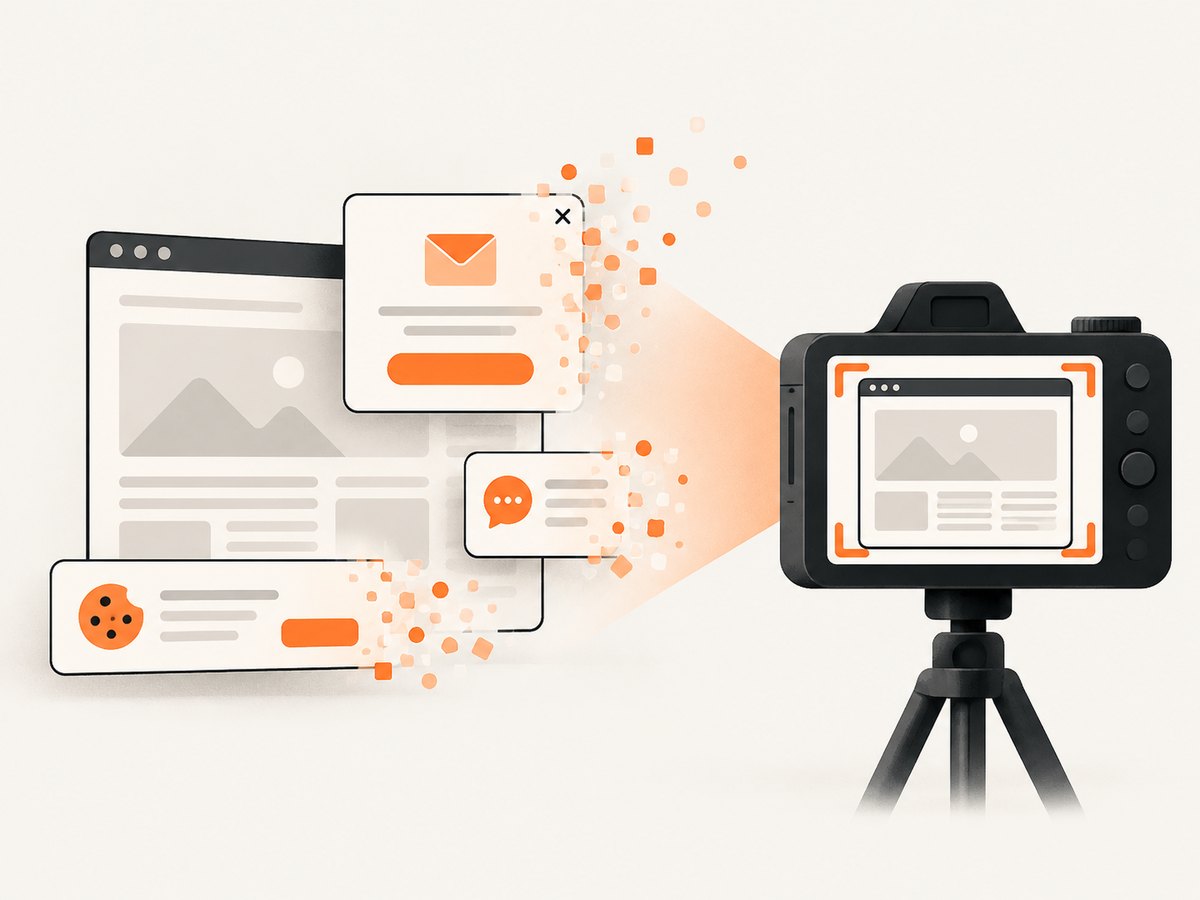
require('fs').writeFileSync('shot.webp', image);ScreenshotNeo removes cookie and consent banners, newsletter popups, and chat widgets before capture; each step can be disabled. Bot checks, blank pages, timeouts, failed loads, and cache hits cost nothing, and response headers report the page verdict and billing status. Its MCP server lets Claude, Cursor, and other MCP clients call take_screenshot, get_page_info, and capture_pdf. The Free plan includes 1,000 shots per month with no card; paid plans start at $5 for 3,000 shots. Create a free ScreenshotNeo account.
9. FAQ
Can a free extension capture an entire page?
Often, yes, when it offers full-page scrolling and stitching. Dynamic pages, protected pages, and infinite scroll can still prevent a complete result.
What format should I choose?
PNG preserves crisp text and is useful for documentation. JPG is smaller for photographic pages. PDF is convenient for a document-style handoff when the extension supports it.
Why does the screenshot differ from what I see?
Responsive breakpoints, browser zoom, lazy loading, animations, cookie dialogs, and sticky elements can change during capture. Fix the page state and inspect the export.
Is an AI extension automatically private?
No. Check its current privacy policy and store disclosures. The AI label alone does not describe processing or retention.
When should I use an API instead?
Use an API when captures must run on a schedule, in CI, across many URLs, or with repeatable headers, cookies, waits, and output settings.


