How to Generate YouTube Thumbnails with Free AI Tools
Create a readable 1280×720 YouTube thumbnail with free AI tools using Canva or Adobe Express, then export and check it in YouTube Studio.
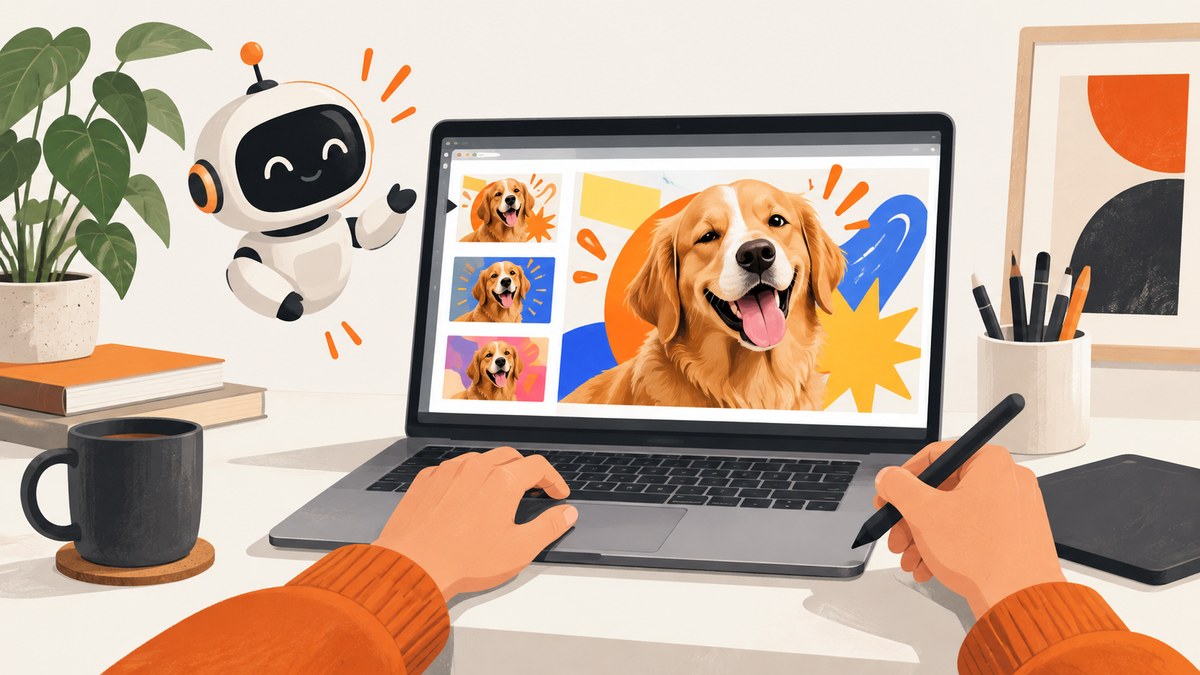
Use a 1280×720 canvas, generate or choose one clear subject, add a short high-contrast promise, check it at mobile size, and export as JPG or PNG. Canva and Adobe Express both provide free YouTube thumbnail workflows with templates and AI-assisted features. Free AI quotas, assets, and export limits can change, so verify the current plan before starting.
1. Set the correct thumbnail canvas
Create the file at 1280×720 pixels, a 16:9 ratio. Canva recommends 1280×720 and a minimum width of 640 pixels; Adobe Express provides a 1280×720 YouTube thumbnail preset. YouTube generally recommends 16:9 thumbnails. See the YouTube Help thumbnail guidance, Canva’s YouTube thumbnail guide, and Adobe Express’s thumbnail maker.
- Keep the main face, object, or product inside a safe central area.
- Leave the bottom-left corner relatively quiet because YouTube’s duration badge can cover it.
- Design at full size, then inspect a much smaller preview before exporting.
2. Choose a free AI thumbnail workflow
Canva
- Open Canva and search for YouTube Thumbnail.
- Start with a blank 1280×720 design or a template.
- Use available Magic Studio AI tools to generate or modify an image, then replace generic elements with a video still, creator photo, or relevant stock image.
- Set a consistent background, accent color, and type treatment.
Canva is a useful starting point when you want a template-first workflow and reusable brand elements. Check which AI assets and exports are included in your current account.
Adobe Express
- Open the free YouTube thumbnail maker and choose the 1280×720 preset.
- Select a template or start with a blank canvas.
- Upload a photo or video still, remove its background when useful, and arrange it around one focal subject.
- Add a short headline and adjust contrast, spacing, and color.
Adobe Express documents photo upload, background removal, templates, and core editing tools in its free workflow. Confirm current AI actions and asset limits in your account.
3. Generate the visual with AI
Ask for one subject and a simple composition. A practical prompt is:
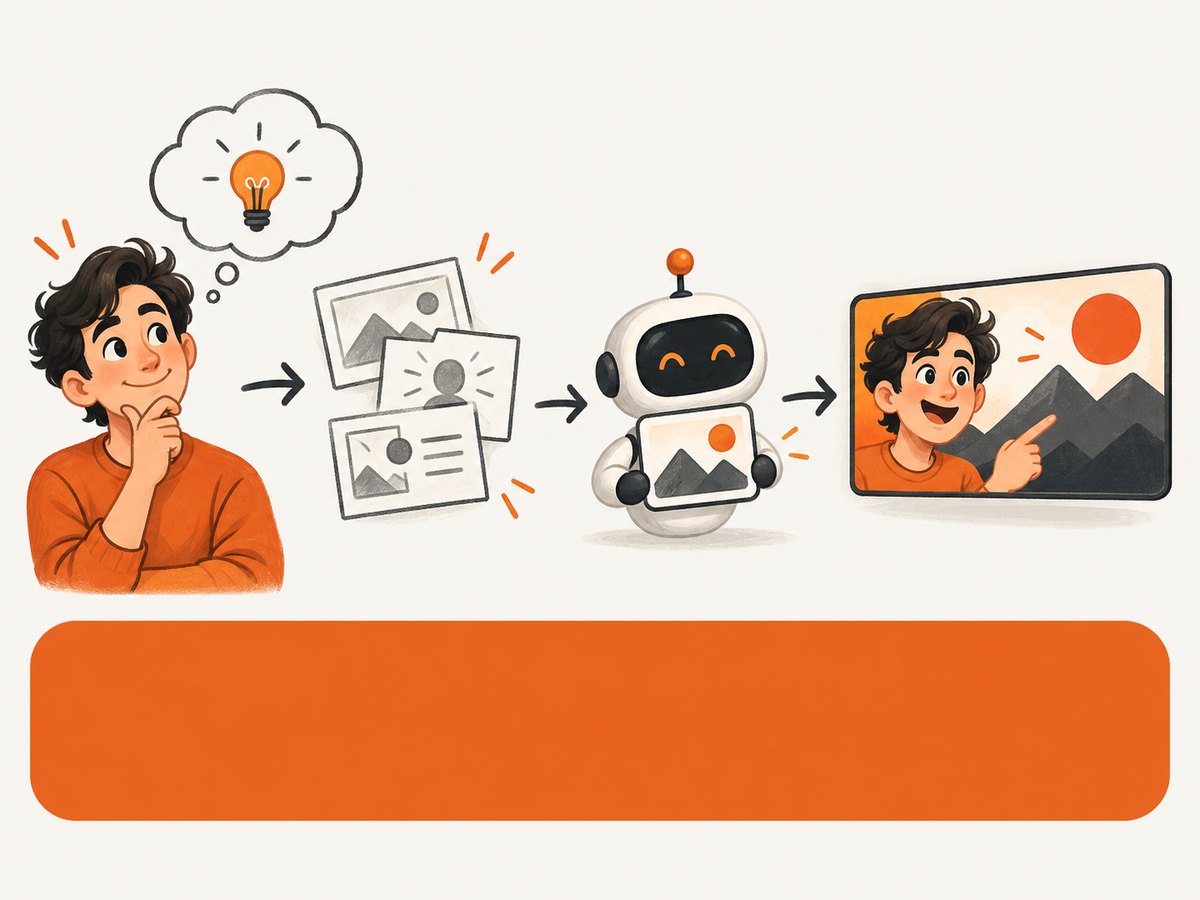
Energetic close-up of a home studio microphone beside a laptop, dramatic blue and orange lighting, clean uncluttered background, strong separation between subject and background, realistic editorial photography, landscape 16:9 composition, leave open space on the right for a short headlineGenerate several variations, then choose the one that remains recognizable when small. AI images often produce distorted hands, unreadable lettering, or irrelevant details. Generate the artwork without text and add the headline in Canva or Express so it stays legible and editable.
When to use a real image instead
Use a creator photo, product shot, or video still when the video depends on a real person, place, result, or object. AI is useful for backgrounds, concepts, and visual metaphors, but a truthful frame can explain the video’s subject faster.
4. Write the thumbnail promise
Use a short phrase that states the video’s payoff. Adobe Express recommends bold text limited to roughly 3–5 words, high contrast, and a strong focal point.
- Prefer “EDIT FASTER” to “My Complete Video Editing Workflow”.
- Use one large typeface and one accent color.
- Keep text away from the bottom-left duration badge.
- Do not repeat the entire video title; add information or emotion that complements it.
At small size, viewers should identify the subject and promise almost instantly. Remove any word that does not help that decision.
5. Compare Canva and Adobe Express
| Need | Canva | Adobe Express |
|---|---|---|
| Fastest starting point | YouTube Thumbnail design type and template library | Preset 1280×720 canvas and templates |
| AI role | Magic Studio generation and media features | AI and photo-editing tools, including background removal |
| Brand workflow | Brand colors, logos, reusable designs, and team collaboration are described on its product page | Brand Kit and reusable templates are described on its product page |
| Export | JPG or PNG | Download from the thumbnail project; check current plan limits |
Choose Canva if you want a template-led design system. Choose Adobe Express if its preset, photo tools, or existing Adobe workflow fit you better. Neither tool guarantees more views or clicks; treat layout advice as design guidance, not a performance promise.
6. Check the thumbnail before export
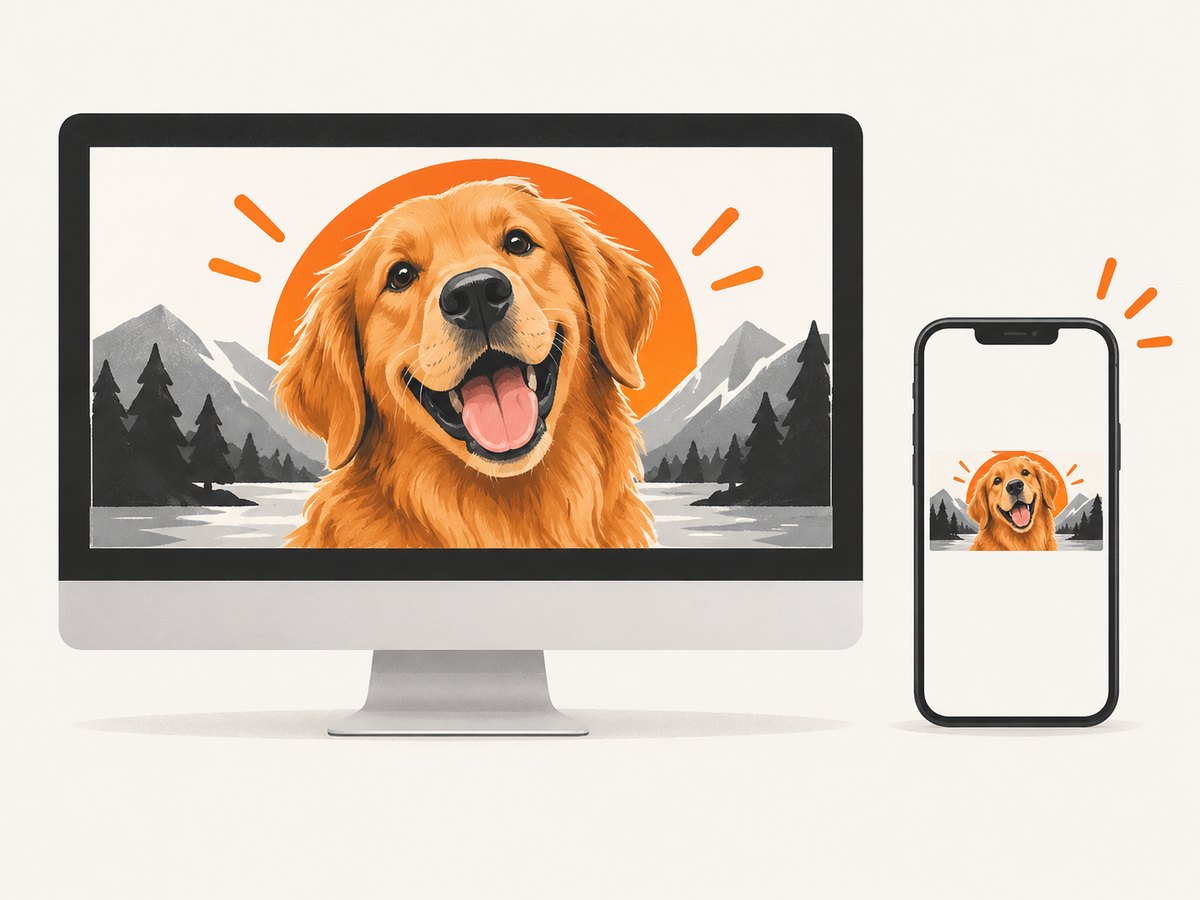
- Zoom out until the design is approximately mobile-feed size.
- Cover the text briefly. The image should still reveal the subject and topic.
- Check contrast for dark and light screens.
- Look for AI artifacts, accidental logos, incorrect hands, and misleading imagery.
- Confirm the design represents the actual video and follows YouTube Community Guidelines.
YouTube lists nudity or sexually provocative content, hate speech, and violence among examples of prohibited thumbnail content. Verify the final image in YouTube Studio after upload; thumbnail changes can take time to appear.
7. Export and upload
Download a JPG when a smaller file is sufficient, or a PNG when you need lossless text and graphic edges. YouTube accepts image formats such as JPG and PNG, with size limits that can depend on the device or current upload rules. Upload the file in YouTube Studio, save the video, and inspect the rendered thumbnail on desktop and mobile.
8. Troubleshooting
| Problem | Likely cause | Fix |
|---|---|---|
| Text is unreadable on a phone | Too many words, low contrast, or thin type | Reduce the headline to 3–5 words, enlarge it, and add a solid contrast area. |
| Important text is hidden | It sits in the bottom-left duration-badge area | Move it toward the center or upper third. |
| The AI subject looks wrong | Generation artifacts or an overcomplicated prompt | Use one subject, simplify the prompt, regenerate, and inspect hands, faces, and edges. |
| The image feels generic | Template or stock image does not match the video | Replace it with a truthful frame, creator photo, or specific visual from the episode. |
| Export options are unavailable | The selected asset, AI action, or format is restricted on the current plan | Swap the asset or check the vendor’s current pricing and export rules. |
| Thumbnail does not update immediately | YouTube propagation delay | Wait, refresh YouTube Studio, and check the public watch page later. |
9. Performance, reliability, and cost notes
- Keep a reusable 1280×720 master with guides for subject, headline, and safe margins.
- Generate several visual candidates in one session, then edit the strongest one instead of rebuilding layouts.
- Save an editable project as well as the exported JPG or PNG.
- Free plans and AI quotas change. Check Canva and Adobe Express pricing pages before planning a high-volume workflow.
- Do not infer click-through or view lift from design advice; the research sources found no controlled comparative result.
10. Or skip the browser setup
If your workflow needs a clean screenshot of a web page, product demo, or landing page to use as thumbnail source material, ScreenshotNeo can capture it with one request. It is a screenshot API, not an AI thumbnail generator.
It removes cookie and consent banners, newsletter popups, and chat widgets before capture. Bot checks, blank pages, failed loads, timeouts, and cache hits are not billed, and response headers report the page verdict and billing status. Its MCP server lets Claude, Cursor, and other MCP clients call screenshot tools. The free plan includes 1,000 screenshots per month without a card; paid plans start at $5 for 3,000 shots.
curl -G "https://api.screenshotneo.com/v1/shot" -d access_key=YOUR_API_KEY --data-urlencode url=https://stripe.com -o shot.webpimport requests
r = requests.get("https://api.screenshotneo.com/v1/shot", params={"access_key": "YOUR_API_KEY", "url": "https://stripe.com"}, timeout=90)
open("shot.webp", "wb").write(r.content)const q = new URLSearchParams({ access_key: 'YOUR_API_KEY', url: 'https://stripe.com' });
const res = await fetch(`https://api.screenshotneo.com/v1/shot?${q}`);See the ScreenshotNeo API documentation for capture options. Sign up free to get 1,000 screenshots a month with no card.
FAQ
What size should a YouTube thumbnail be?
Use 1280×720 pixels at a 16:9 ratio. Canva lists 640 pixels as a minimum width.
Can AI create the text inside the thumbnail?
It can attempt to, but generated lettering is often unreliable. Add the final headline in Canva or Adobe Express.
Should I export JPG or PNG?
Use JPG for a smaller file and PNG when crisp text or graphics matter more.
Are free AI thumbnail tools unlimited?
No. AI actions, assets, and exports depend on the current account and plan. Check each vendor’s current limits.
Does a better-looking thumbnail guarantee more views?
No. A clear, truthful thumbnail can communicate the video faster, but the research provides no controlled click-through or view-lift guarantee.


