Free App Store Screenshot Templates: How to Use Them
Use a free App Store screenshot template correctly: choose device sizes, replace sample screens, export compliant files, and verify them in App Store Connect.

Short answer: A free App Store screenshot template gives you an editable layout for presenting real app screens. Choose a template that matches your target device class, replace every sample screen and headline, export opaque JPEG, JPG, or PNG files at Apple’s current dimensions, then inspect the result in App Store Connect. A template helps with composition; it does not guarantee that the upload meets Apple’s requirements.
Apple’s screenshot rules change by platform and device class. Check the live Screenshot specifications table immediately before exporting your final set.
1. What a free App Store screenshot template does
A template is an editable design file containing one or more screenshot frames, device mockups, backgrounds, and text areas. It can speed up consistent layouts across a launch set, but the final files still need genuine screens from your app and must satisfy Apple’s technical rules.
| Workflow | Best for | Watch for |
|---|---|---|
| Free editable Community template | Starting quickly with an established composition | Unknown device size, stale dimensions, or restrictive license terms |
| Custom design in a layout editor | Repeated exports, many localizations, or a distinctive brand system | More setup work before the first export |
| Direct image/layout workflow | A small set with minimal decoration | Manual consistency checks across files |
2. Confirm Apple’s requirements first
- List your targets. Record each platform, device class, orientation, and localization you will submit: iPhone, iPad, Mac, Apple TV, Apple Vision Pro, or Apple Watch.
- Read the current dimensions. Apple lists multiple accepted portrait and landscape dimensions for different classes, including separate iPhone and iPad requirements. Do not treat one iPhone size as universal.
- Plan the number of files. Apple allows one to ten screenshots per localization in
.jpeg,.jpg, or.png. - Remove transparency. Screenshots cannot include an alpha channel or transparent pixels. Flatten overlays and backgrounds before export.
- Decide whether to provide custom sets. When the interface is the same across device sizes and localizations, Apple says you can provide the highest-resolution screenshots required and let them scale down. Add custom assets when the UI, copy, or composition differs.
Use Apple’s upload guide and asset best practices with the specification table. Requirements are applied at upload time, so a template’s frame size is not proof of compliance.
3. Find a usable free template
- Search a design resource such as Figma Community for “App Store screenshot” plus the target device class.
- Open the individual file and verify its canvas dimensions, orientation, editable layers, export settings, and license.
- Check that the layout leaves enough room for real app UI and readable explanatory copy. A decorative phone frame should not cover important interface details.
- Duplicate the source file before editing so the original remains available for another localization or device set.
Figma’s general template gallery describes a broad catalog, not a verified list of App Store screenshot files. Treat each Community listing as an individual resource. Figma says Community files are generally published under CC BY 4.0 by default, but creators can apply additional terms; inspect the file’s own license before reuse.
4. Replace the sample content
Capture genuine app screens
Use production UI or a stable release candidate. Remove debug banners, test accounts, placeholder data, and personal information. Keep the same app state in every language and device class unless the UI genuinely differs.
Write copy that survives store-size viewing
Use one clear message per frame. Preview the export at a reduced size and check that headlines, labels, and key controls remain readable. Apple recommends checking how assets appear in its App Store Connect Preview tool because the same image can be displayed in several placements.
Keep the layout honest
- Do not show features that are unavailable in the submitted build.
- Do not let a device bezel or decorative crop hide the principal workflow.
- Use consistent margins, type scale, and color treatment across the set.
- Keep localized copy inside the same safe area, allowing for longer translations.
5. Export compliant files
- Set the frame or artboard to an accepted pixel dimension for the exact platform and device class.
- Export as JPEG, JPG, or PNG. Choose an opaque background and confirm that the exported file has no alpha channel.
- Open the exported file outside the design editor and inspect its pixel dimensions, orientation, and visual sharpness.
- Repeat for every localization and custom device set you intend to upload.
Apple can scale a highest-resolution set down when the app UI is the same, but custom assets may be appropriate when text, layout, or feature availability changes. Never assume that scaling will preserve the readability of a highly decorated template.
6. Upload and preview in App Store Connect
- Open the app version in App Store Connect and select the platform section.
- Upload the screenshot set for each localization and device context.
- Use the Preview tool to inspect cropping, text size, and the order in which screenshots appear.
- Fix validation errors or legibility problems, export again, and re-upload.
- Remember that app previews are optional while screenshots are required. After screenshots for a version are approved, Apple says you must create a new version to update them.
7. A repeatable checklist
- Target platforms, device classes, orientations, and localizations are listed.
- The current Apple specification table was checked at export time.
- Every sample screen was replaced with a genuine app screen.
- Headlines and UI details remain readable at reduced viewing size.
- Files are JPEG, JPG, or PNG with no transparency.
- Pixel dimensions and orientation match the selected class.
- Template and font licenses permit the intended use and attribution is included when required.
- Assets were previewed in App Store Connect before submission.
8. Troubleshooting
| Symptom | Likely cause | Fix |
|---|---|---|
| Dimension validation error | The template uses an old or different device class. | Read Apple’s live table, resize the artboard to an accepted dimension, and export again. |
| Upload rejects the file for transparency | The PNG contains an alpha channel from a device frame or shadow. | Flatten onto an opaque background and verify the exported file’s color mode. |
| Text looks tiny in the store | Copy was designed at editor zoom or is competing with decoration. | Preview at reduced size, shorten the message, enlarge the type, and simplify the frame. |
| Important UI is cut off | A mockup crop or scaling operation hides the app screen. | Keep the full focal area inside the safe region and inspect the actual exported pixels. |
| Localized version overflows | The source copy was sized only for English. | Allow more space, shorten the translation with a native reviewer, or create a localization-specific layout. |
| Template cannot be edited | The file is flattened, view-only, or depends on unavailable fonts. | Choose an editable duplicate, request access, replace fonts, or rebuild the frame in your own file. |
| License is unclear | The Community file has creator-specific terms. | Read the individual listing, keep attribution where required, and select another resource if commercial reuse is not granted. |
9. Capture source screens without maintaining browser automation
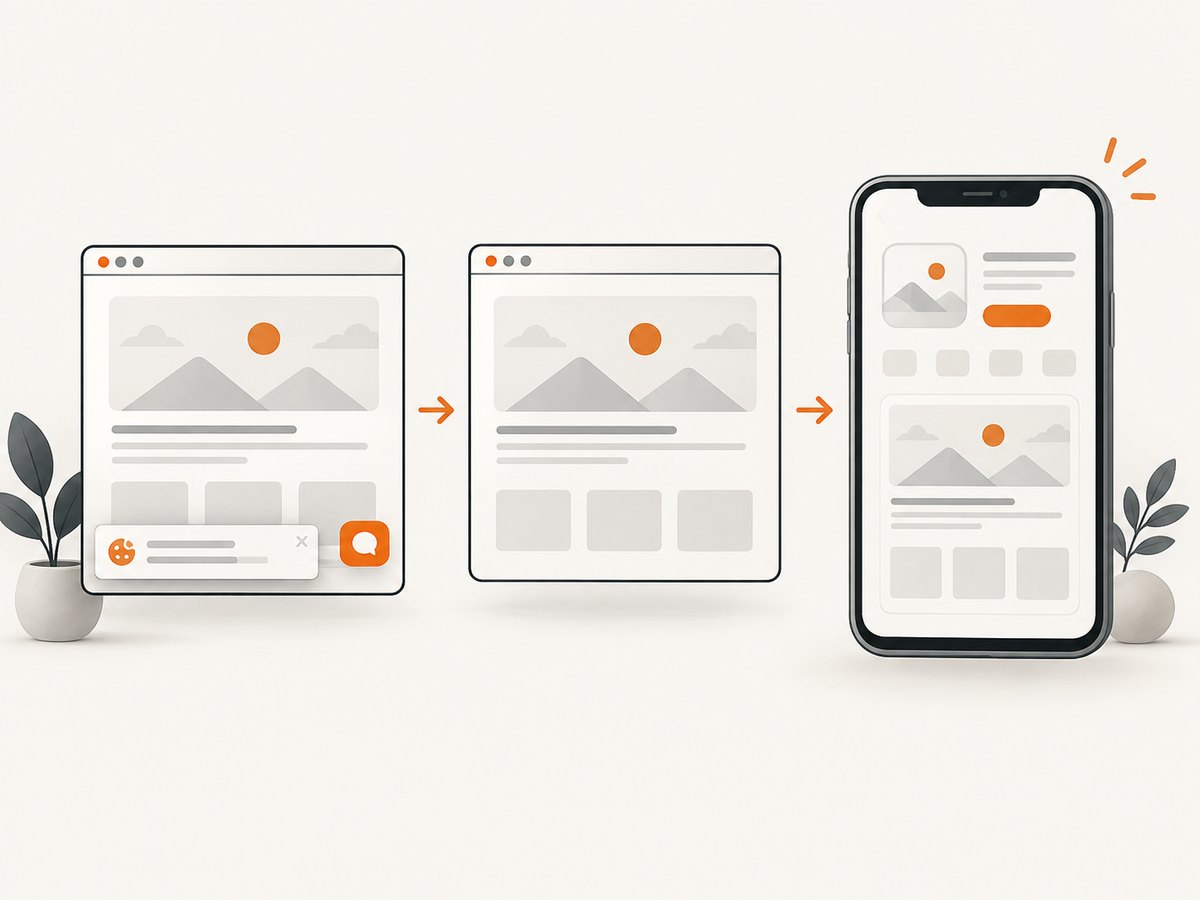
If the screens in your template come from a web app, you can capture them with a browser automation stack and then place the resulting images in the design file. That approach requires browser binaries, page-load waits, cookie handling, viewport configuration, and cleanup for popups or chat widgets.
Or skip the browser setup
ScreenshotNeo is a website screenshot API and MCP server. Its capture pipeline accepts cookie and consent banners as a visitor and removes more than 60 known consent platforms, newsletter popups, and chat widgets before the shot; each step can be turned off. Bot checks, blank pages, timeouts, failed loads, and cache hits are not billed, and the response identifies the result with X-Page-Verdict and X-Billed headers. An MCP server provides take_screenshot, get_page_info, and capture_pdf tools for Claude, Cursor, and other MCP clients.
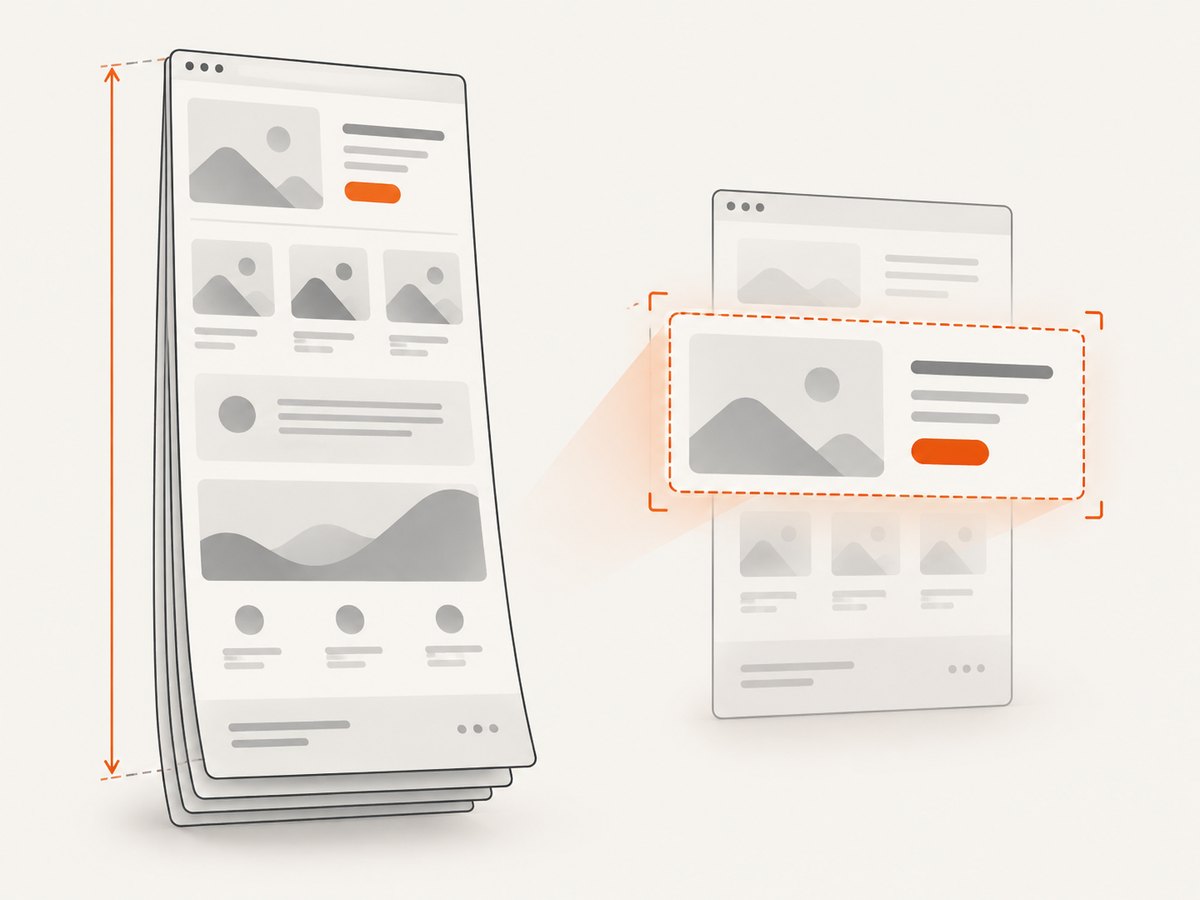
The API supports full-page captures with lazy images loaded, CSS-element capture, dark mode, device presets or custom viewports, retina scale, custom CSS and JavaScript, clicks, selector waits, delays, network-idle waits, request and resource blocking, headers, cookies, user agents, Authorization, timezone, geolocation, transparent backgrounds, resizing, TTL caching, signed image links, asynchronous jobs with signed webhooks, bulk capture of up to 100 URLs per call, usage reporting, and an OpenAPI specification. See the ScreenshotNeo documentation for parameter details.
curl -G "https://api.screenshotneo.com/v1/shot" -d access_key=YOUR_API_KEY --data-urlencode url=https://example.com -o shot.webpimport requests
r = requests.get("https://api.screenshotneo.com/v1/shot", params={"access_key": "YOUR_API_KEY", "url": "https://example.com"}, timeout=90)
open("shot.webp", "wb").write(r.content)const q = new URLSearchParams({ access_key: 'YOUR_API_KEY', url: 'https://example.com' });
const res = await fetch(`https://api.screenshotneo.com/v1/shot?${q}`);Free use includes 1,000 screenshots a month with no card. Paid plans start at $5 for 3,000 shots; every feature is on every plan. Create a free ScreenshotNeo account.
10. Performance, reliability, and cost notes
- Design performance: Keep the first screenshot focused on the strongest workflow and avoid oversized decorative assets that make text harder to read.
- Capture performance: Full-page pages with lazy images, network-idle waits, custom scripts, or blocked resources can take longer than a simple viewport capture. Use the smallest wait and resource scope that still produces a complete screen.
- Reliability: For repeatable exports, pin viewport, timezone, geolocation, user agent, cookies, and application state. Re-capture after meaningful UI changes.
- Cost: A free template has no design-file cost, but check licensing and font terms. ScreenshotNeo bills only clean shots; failed loads, bot checks, blank pages, timeouts, and cache hits are free, with verdict and billing headers on each response.
- Scale: Use caching with a chosen TTL for unchanged pages, asynchronous jobs and signed webhooks for long batches, or bulk capture for up to 100 URLs per call.
11. FAQ
Is there one universal iPhone screenshot size?
No. Apple lists multiple dimensions by device class and orientation. Use the live specification table for the target submission.
Can I upload a template with a transparent device frame?
No. Apple’s screenshot files cannot include alpha channels or transparency. Flatten the composition onto an opaque background.
Do free templates improve downloads?
No source in this research establishes a conversion or download lift. A template is a layout aid; readability and truthful product presentation still determine the asset quality.
Can Apple scale one set for every device?
Apple says the highest-resolution set can scale down when the app UI is the same across sizes and localizations. Provide custom assets when those contexts differ.
When can I change approved screenshots?
Apple’s upload guidance says you must create a new app version to update screenshots after the current version’s set is approved.
Do I need a physical device to create screenshots?
No. You need genuine app screens at accepted dimensions. Capture them from a simulator, device, or a controlled web workflow, then verify the exported files and App Store Connect preview.


