Free Ways to Convert DOC Files to PNG
Convert legacy DOC files to PNG for free with LibreOffice, PDF rendering, and practical quality checks for pages, privacy, and output size.
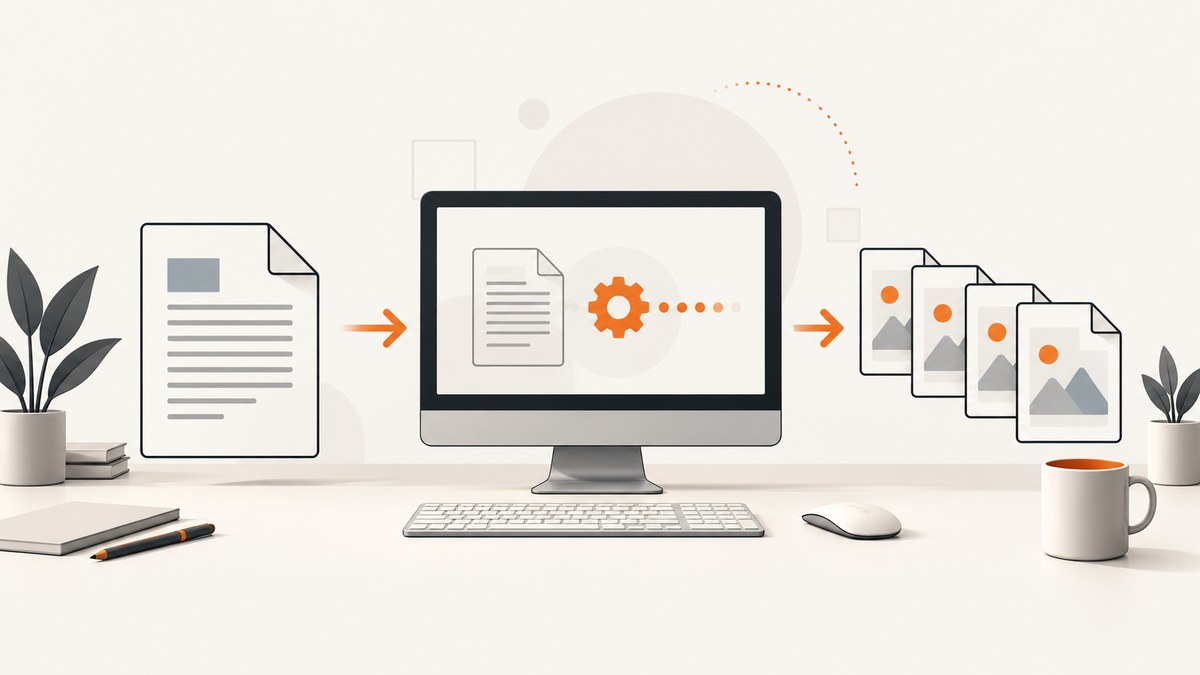
For a free desktop workflow, open the DOC file in LibreOffice Writer, export it as a PDF, then render each PDF page as a PNG. This route is documented for legacy Microsoft Word 97–2003 DOC files and lets you choose page ranges during PDF export. LibreOffice also documents PNG export filters and pixel-dimension controls, but direct DOC-to-PNG export can vary by version, so test it on a copy first.
1. Choose the right conversion goal
“Convert DOC to PNG” can mean two different things:
- Render pages: create one PNG image for each document page. This is the workflow below.
- Extract an embedded image: pull out a photo or graphic already stored inside the DOC. That does not create a screenshot of the page and requires a document or archive extraction workflow.
Before converting, decide whether you need every page or only selected pages, what pixel dimensions the images need, and whether the document can be uploaded to an online service.
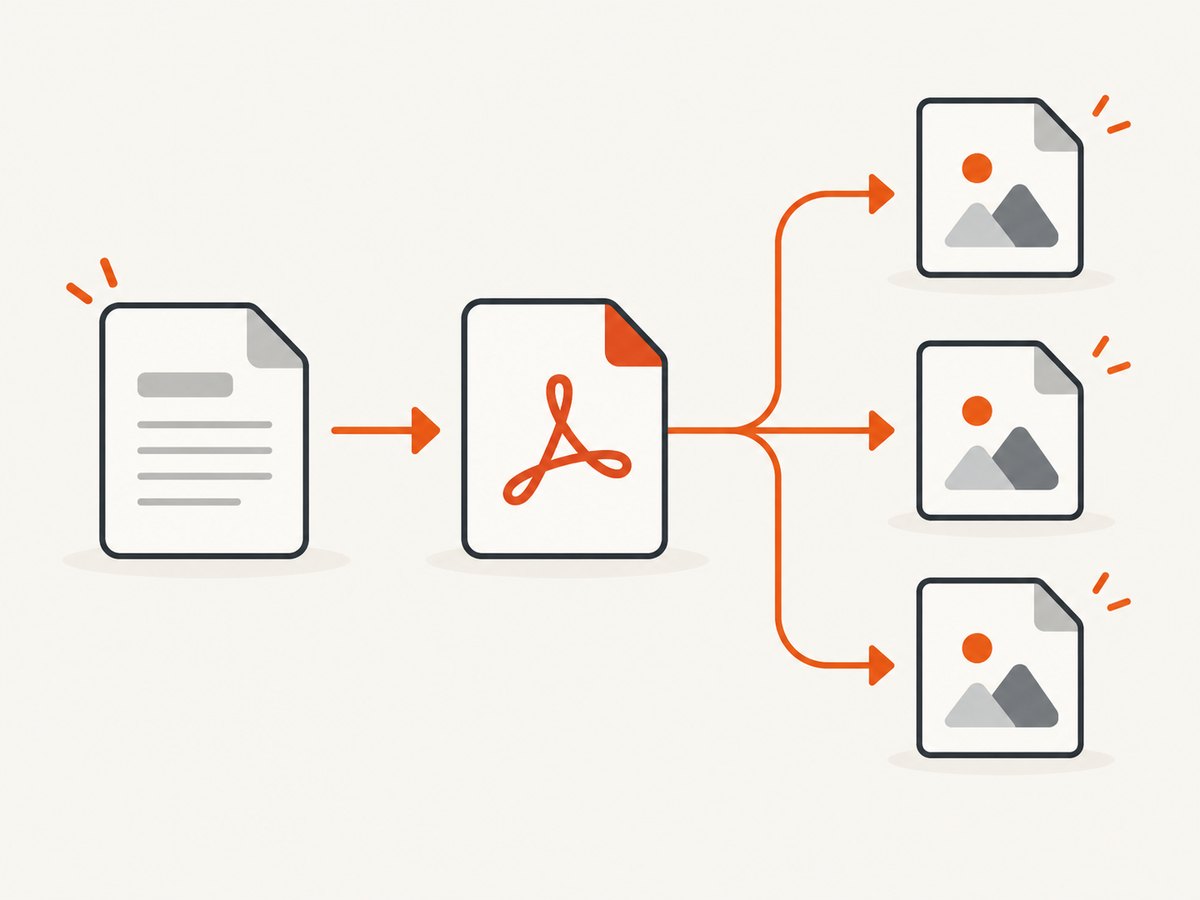
2. Best free desktop method: DOC → PDF → PNG
Step 1: Install LibreOffice
LibreOffice is a free, open-source office suite. Its Writer documentation lists Microsoft Word 97–2003 .doc as a supported format.
Step 2: Open the DOC in Writer
- Start LibreOffice Writer.
- Choose File → Open and select the
.docfile. - Review the document for missing fonts, shifted tables, broken page breaks, or changed images.
- Save a working copy before exporting.
Step 3: Export a PDF
- Choose File → Export As → Export as PDF.
- In the PDF options, select all pages or a page range.
- Choose a resolution appropriate for the final use. Higher resolution generally increases image quality and file size.
- Save the PDF beside the working DOC copy.
LibreOffice’s official help documents PDF export and page-range selection. See the LibreOffice Help for the options available in your installed version.
Step 4: Render PDF pages as PNG
Use a PDF-to-image renderer available on your computer to convert each PDF page into a PNG. The renderer should support page selection and output dimensions if you need a specific size. Because the exact renderer and command differ by operating system, check its own documentation before processing a large batch.
A typical result is a numbered sequence such as page-001.png, page-002.png, and so on. Open several pages and compare them with the original DOC before publishing or sending them.
3. Direct PNG export from Writer
LibreOffice lists a Writer PNG export filter named writer_png_Export and parameters for pixel width and height. The documented examples do not establish that every DOC file can be exported directly to a correctly paginated PNG sequence. Availability and behavior can depend on the LibreOffice version and document type.
- Duplicate the DOC file.
- Open the copy in Writer.
- Try File → Export and select PNG if it is offered.
- Set pixel width and height when the export dialog provides those controls.
- Open every generated image and check page breaks, fonts, transparency, and cropping.
If direct export produces one image, omits pages, or changes the layout, return to the PDF intermediary workflow.
4. Output settings that affect quality
| Decision | What to check | Practical guidance |
|---|---|---|
| Pages | All pages or a range | Use PDF export page ranges when only selected pages are required. |
| Pixel size | Width and height of each PNG | Choose dimensions for the target screen, document viewer, or downstream API. |
| Resolution | Sharpness versus file size | Higher output resolution improves detail but creates larger files. |
| Color | Color, grayscale, or transparency | Inspect logos, shaded tables, and scanned pages after conversion. |
| Fonts | Fonts installed locally | Missing fonts can change line wrapping and pagination. |
| Layout | Margins, tables, headers, footers | Compare representative pages with the DOC before relying on the output. |
5. A repeatable local workflow
For occasional files, the Writer interface is the simplest route. For repeated work, standardize these checkpoints:
- Keep the original DOC unchanged.
- Record the LibreOffice version and installed fonts.
- Export to PDF with a named output directory.
- Render the PDF pages with consistent dimensions and naming.
- Inspect the first, middle, and last page of each document.
- Keep the PDF as an audit copy until the PNGs are accepted.
Do not delete the source until you have confirmed that page count, orientation, text, images, and file names are correct.
6. Privacy and online conversion
Local conversion keeps the document on your computer and avoids uploading it to a hosted converter. An online route can be useful when software installation is impossible, but verify the service’s current limits, privacy policy, file-retention period, pricing, and availability before uploading sensitive documents.
LibreOffice Online documentation describes an HTTP conversion endpoint and names PNG and PDF as possible output formats. That documentation describes developer-facing infrastructure; it does not establish that a particular consumer converter is free or available.
7. Troubleshooting
The DOC opens with a warning
Cause: Legacy DOC formatting or an unsupported feature.
Fix: Open a copy, inspect the layout, and export that copy. Check tables, fields, tracked changes, and embedded objects before rendering.
Fonts or line breaks changed
Cause: A required font is not installed locally.
Fix: Install the licensed font if you have permission, or replace it in the working copy and recheck pagination.
Only one PNG is produced
Cause: The direct export path treated the document as one graphic or did not paginate it.
Fix: Export a PDF first, then render each PDF page separately.
Pages are cropped or rotated
Cause: Page size, orientation, or renderer settings differ from the DOC.
Fix: Confirm page orientation and margins in Writer, regenerate the PDF, and set the renderer to preserve the PDF page box.
Images look blurry
Cause: The output dimensions or PDF resolution are too low.
Fix: Increase the export resolution or target pixel dimensions, then compare file size with the intended use.
The output files are too large
Cause: High pixel dimensions, many pages, or detailed scans.
Fix: Render only required pages, reduce dimensions for screen use, and use PNG only when lossless detail or transparency is needed.
Conversion works on one computer but not another
Cause: Different LibreOffice versions, fonts, or PDF renderers.
Fix: Pin the application version for a workflow and include the required fonts and renderer settings in the process notes.
8. Performance, reliability, and cost
- Performance: Page count, scans, embedded images, and output dimensions usually determine processing time and storage use.
- Reliability: The PDF intermediary provides a reviewable checkpoint. Keep it until PNG validation is complete.
- Cost: LibreOffice is free and open source. Local processing avoids hosted conversion charges, but you supply the computer storage and setup.
- Batch work: Test a representative file first. No batch limit or consumer online-service limit is established by the cited research.
9. Or skip the browser setup
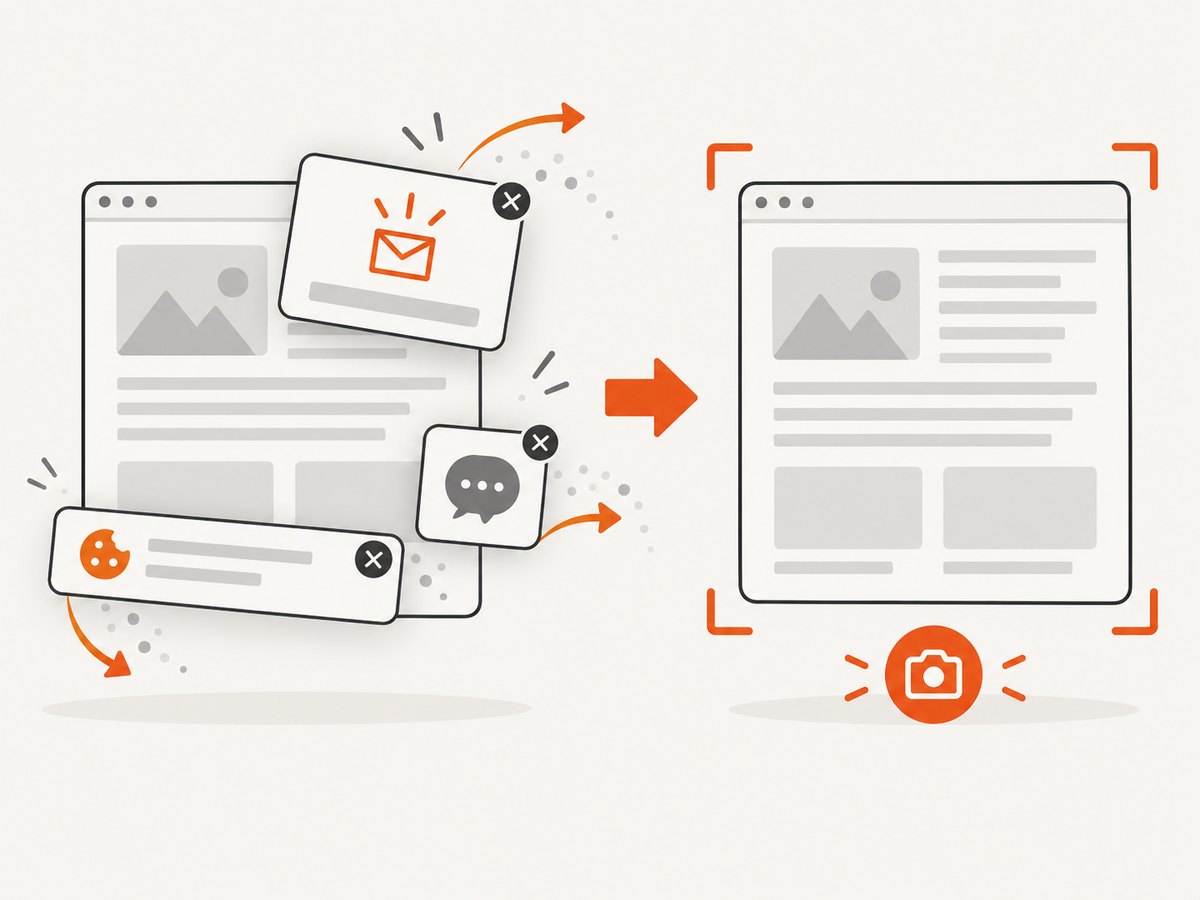
If what you actually need is a clean image of a web page rather than a DOC file, ScreenshotNeo returns a PNG, JPEG, WebP, or PDF from one request. Its capture pipeline accepts consent banners and removes more than 60 known consent platforms, newsletter popups, and chat widgets before the shot. Bot checks, blank pages, failed loads, timeouts, and cache hits are not billed, and the response identifies the result with X-Page-Verdict and X-Billed headers.
See the ScreenshotNeo API documentation for authentication and options.
curl -G "https://api.screenshotneo.com/v1/shot" -d access_key=YOUR_API_KEY --data-urlencode url=https://stripe.com -o shot.webpimport requests
r = requests.get("https://api.screenshotneo.com/v1/shot", params={"access_key": "YOUR_API_KEY", "url": "https://stripe.com"}, timeout=90)
open("shot.webp", "wb").write(r.content)const q = new URLSearchParams({ access_key: 'YOUR_API_KEY', url: 'https://stripe.com' });
const res = await fetch(`https://api.screenshotneo.com/v1/shot?${q}`);ScreenshotNeo also provides an MCP server so Claude, Cursor, and other MCP clients can call take_screenshot, get_page_info, and capture_pdf. The free plan includes 1,000 screenshots per month with no card; paid plans start at $5 for 3,000 shots. Create a free ScreenshotNeo account.
10. Frequently asked questions
Can Word for the web convert DOC directly to PNG?
Microsoft’s support guidance says a legacy DOC opens view-only in Word for the web and that Convert creates a DOCX copy for editing. That guidance does not establish a direct DOC-to-PNG workflow.
Should I use PDF or direct PNG export?
Use PDF as the dependable review checkpoint. Try direct PNG export only on a copy and verify that every page is present and correctly sized.
Can I convert only certain pages?
Yes. LibreOffice’s PDF export options support page selections and ranges; render only those PDF pages afterward.
Is PNG always better than JPEG?
No. PNG is useful for text, line art, and transparency. For photographic pages, another format may produce smaller files, but the requested output here is PNG.
What should I do with a DOC that contains scanned pages?
Render the pages and inspect them at the intended display size. Scans can become very large, so choose dimensions deliberately and keep the original PDF for verification.
Sources
- LibreOffice project — free, open-source office suite.
- LibreOffice Help — Writer formats, PDF export, PNG export filters, and output options.
- Microsoft Support — behavior of legacy DOC files in Word for the web.


