Free Markdown to PDF Converters
Compare free ways to turn Markdown into PDF, from Pandoc’s browser app to a repeatable local workflow, with setup steps and fixes for common issues.
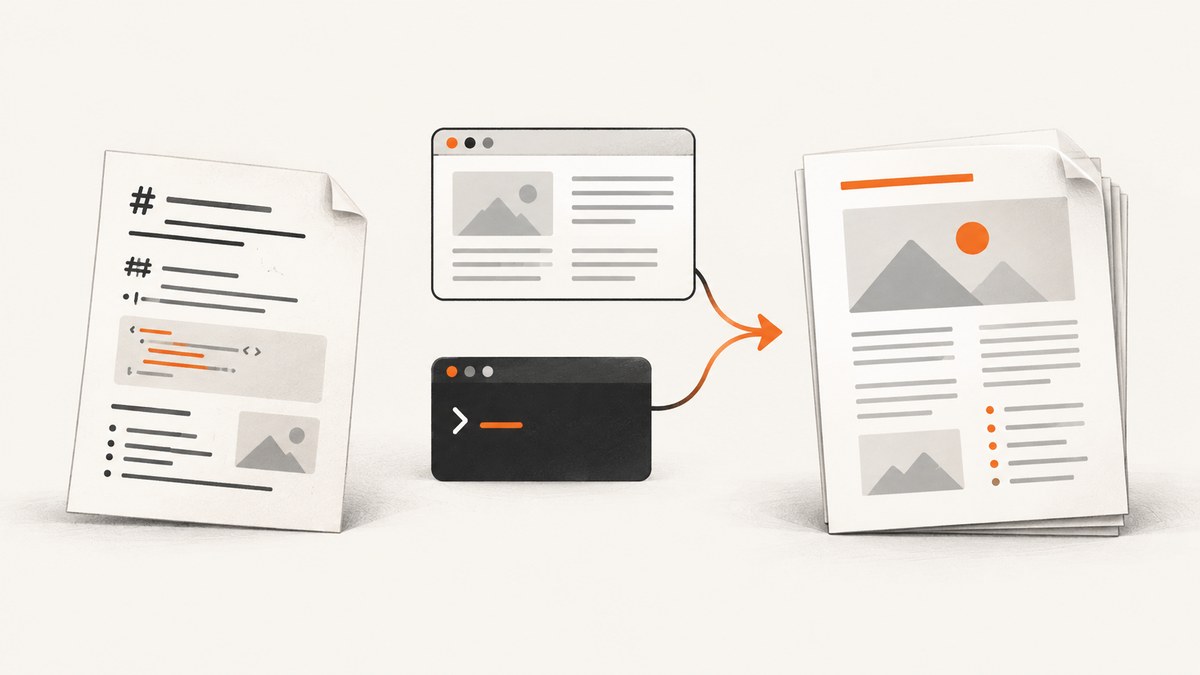
For a one-off Markdown-to-PDF conversion, start with the official Pandoc browser app: upload a Markdown file or paste text, choose PDF, convert, and inspect the result. For recurring conversions or scripts, use Pandoc locally with a PDF engine installed. The browser demo is the quickest no-install option; the command line gives you more control and repeatability. Typora also documents built-in PDF export, but its export documentation does not establish that the editor is free, so check its current pricing before treating it as a free choice.
This guide covers those options, how to run local conversions, how to choose settings and PDF engines, and what to check when the output is wrong. A Markdown converter is for turning text files into documents. If your goal is instead to capture a web page as an image or PDF, ScreenshotNeo is a separate website screenshot API; its quick example appears below.
1. Convert in a browser with the official Pandoc app
The official Pandoc app is the most direct starting point when you have one file and do not want to install a toolchain. The Pandoc project describes the app as a browser interface running pandoc.wasm; its page says conversion happens in the browser and nothing is transmitted to the server. It can generate PDF through a browser-based Typst path. See the app and Pandoc’s demos page.
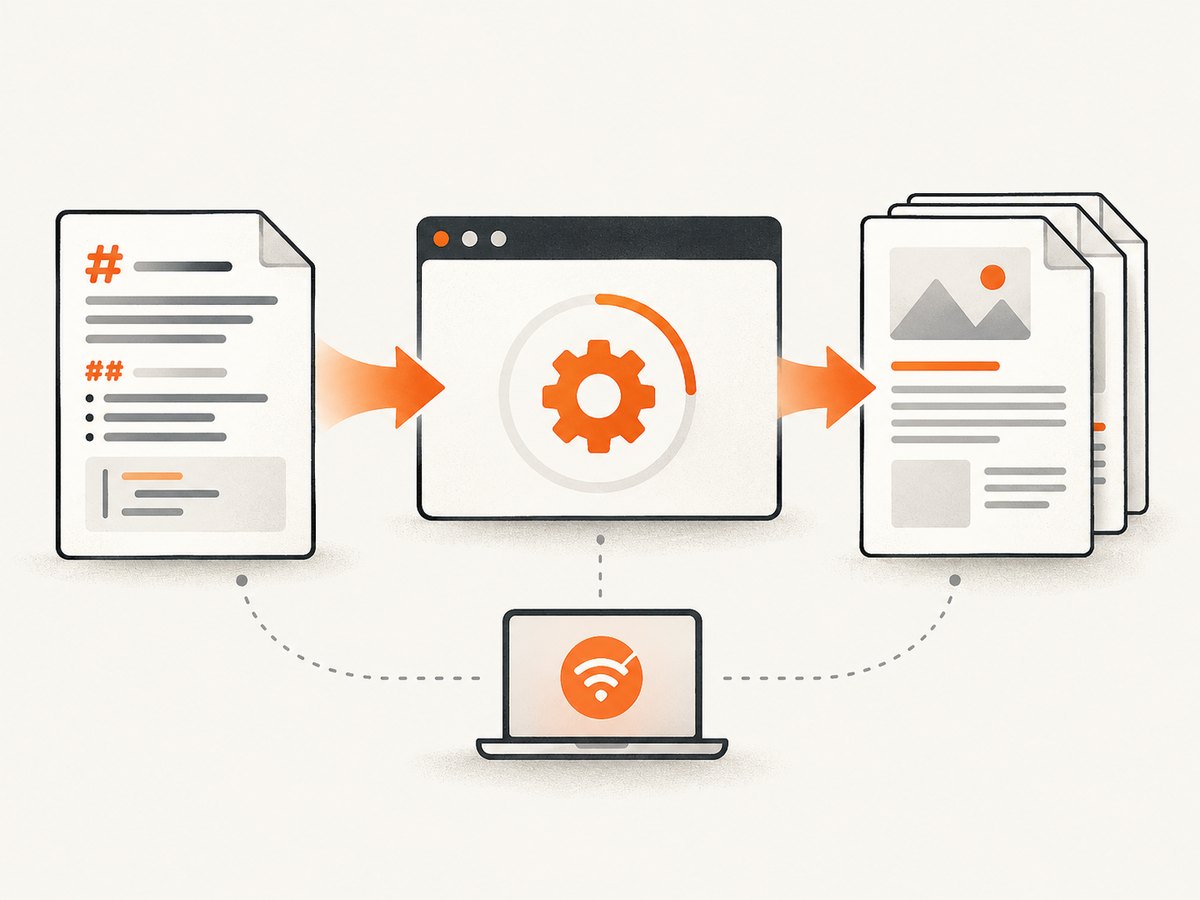
- Open the Pandoc app and select Markdown as the input format if it is not detected.
- Upload your
.mdfile, or paste Markdown into the editor. - Choose PDF as the output. The app generates Typst markup and compiles it to PDF in the browser.
- Download the result, then inspect it at normal reading size and in print preview.
Use the app for a quick first pass, not as an assumption that every command-line Pandoc feature is exposed. Its interface and available controls determine what can be configured there. Test documents with complex tables, diagrams, citations, unusual fonts, or strict layout requirements before depending on the output. The conversion demo may also need to load its web assets before use.
Privacy and sensitive files
The official app page explicitly says that processing occurs in the browser and content is not sent to its server. That statement describes this particular Pandoc app; do not generalize it to other browser converters. If you choose a different service, read its current privacy terms before uploading confidential source files.
2. Convert Markdown with Pandoc on your computer
For repeat work, a local command is easy to put in a script, build task, or documentation pipeline. Install Pandoc and a PDF engine, then run:
pandoc notes.md -o notes.pdfThe output extension selects PDF. Pandoc’s documented default PDF workflow uses LaTeX, so a suitable LaTeX installation or engine must be available. The Pandoc getting-started guide and PDF creation section of the user guide explain the setup. If the command reports that an engine is missing, installing Pandoc alone has not completed the PDF toolchain.
A more controlled runnable command
This example selects XeLaTeX, includes a table of contents, sets a paper size, and uses one-inch margins:
pandoc notes.md \
  --standalone \
  --toc \
  --pdf-engine=xelatex \
  -V papersize=a4 \
  -V geometry:margin=1in \
  -o notes.pdf
Install XeLaTeX as part of a TeX distribution before using this command. The --standalone option requests a complete document rather than a fragment; the table of contents is useful when the source has headings. To use the default engine, remove --pdf-engine=xelatex, but keep in mind the default engine and installed dependencies matter. Check your Pandoc version and the selected engine’s documentation when a command-line option behaves differently in your environment.
Convert standard input or several files
For generated content, pipe Markdown on standard input and give the PDF an output path:
cat README.md | pandoc -f markdown -o README.pdfTo combine chapters, provide the files in the desired order:
pandoc intro.md setup.md reference.md -o guide.pdfKeep images and other referenced assets where the Markdown can resolve them. If a file uses a non-default Markdown flavor, name it explicitly, for example -f gfm for GitHub-flavored Markdown. Pandoc supports format variants and extensions; use the Pandoc user guide to check the exact reader and writer options you need.
3. Choose the right converter for your job
| Option | Best for | Setup | Cost status from the reviewed sources |
|---|---|---|---|
| Official Pandoc browser app | A one-off conversion without a local install | Browser; upload or paste, then convert | Presented as a free demo |
| Pandoc command line | Repeat conversions, scripts, and configurable workflows | Install Pandoc and a PDF engine | Pandoc is open-source software |
| Typora export | Exporting from inside a Markdown editor | Install the editor and use its PDF export | Not established by the reviewed export docs; verify current pricing |
Typora’s documentation says it can export directly to PDF and that PDF export does not require Pandoc. Read its export guide and PDF export support notes for its workflow and settings. Those pages support calling it an editor-export alternative, not calling it a confirmed free product.
4. Tune layout, fonts, and document features
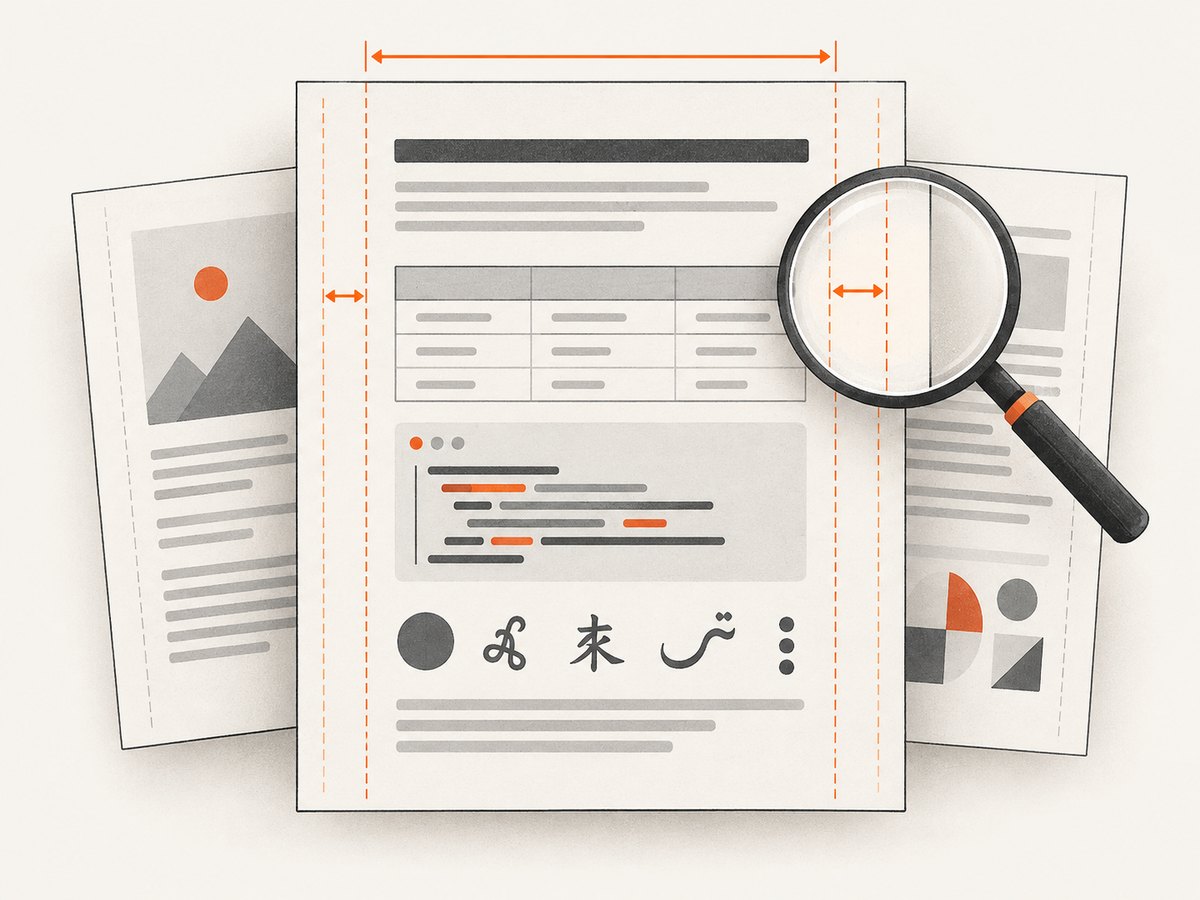
PDF is a fixed-page format, so page size, margins, fonts, and the PDF engine affect the result. Start with a representative file rather than tuning against a tiny sample that has no tables, images, or long code blocks.
Paper size and margins
Set a paper size and margins with Pandoc variables supported by the chosen engine. For the LaTeX route, for example:
pandoc report.md --pdf-engine=xelatex \
  -V papersize=letter \
  -V geometry:"top=2cm,bottom=2cm,left=2.5cm,right=2.5cm" \
  -o report.pdf
Pandoc’s FAQ documents the geometry margin variable. Engine-specific variables can differ, so consult the relevant part of the user guide if you switch to HTML, Typst, or another engine.
Unicode and non-Latin scripts
If Chinese characters are missing, the default pdflatex path may be the cause. Pandoc’s FAQ recommends changing to XeLaTeX and selecting a font with the required glyphs:
pandoc chinese.md -o chinese.pdf \
  --pdf-engine=xelatex \
  -V mainfont="A font installed on your system"
Replace the example font name with one installed on your computer that supports the document’s script. A different engine does not supply missing fonts by itself. Check mixed-language text, punctuation, and right-to-left text in the generated PDF.
Headings, tables, code, images, and links
- Table of contents: use
--tocwith heading structure. Give sections clear, nested headings. - Tables: wide or complex tables may need smaller text, landscape layout, or a different source structure. Inspect for overflow and awkward page breaks.
- Code blocks: verify long lines wrap as intended and that symbols render in the selected font.
- Images: preserve paths relative to the Markdown file or make assets available to the converter. Check that images are not missing or unexpectedly oversized.
- Links and footnotes: click a sample of links in the PDF and confirm footnotes and references appear as intended.
The official browser app and local CLI do not necessarily expose identical controls. If a document depends on a custom template, filter, font, or precise layout, use the workflow that gives you access to those settings and inspect the result.
5. Troubleshoot common conversion problems
| Symptom | Likely cause | Fix |
|---|---|---|
| “pdflatex not found” or another engine error | Pandoc is installed but the PDF engine is missing or not on PATH. | Install the selected engine or TeX distribution, reopen the terminal if PATH changed, and check --pdf-engine. |
| Blank output or missing Chinese characters | The default PDF route uses pdflatex, which does not handle Chinese characters as Pandoc’s FAQ describes; the chosen font may also lack glyphs. |
Use XeLaTeX and specify an installed font with the needed glyphs. Verify the output with representative text. |
| Images are missing | Image paths are relative to a different directory, or referenced files were not provided to the browser app. | Run Pandoc from a directory where paths resolve, correct the Markdown paths, and include image files when using the app. |
| Table or code runs off the page | Content exceeds the page width or the selected template’s layout. | Shorten or restructure wide content, adjust margins or font sizing where supported, or test another engine/layout. |
| PDF differs from the Markdown preview | Markdown renderers and PDF engines apply different layout rules; a browser demo may not expose all CLI options. | Inspect the actual PDF and use a local workflow if you need engine or template control. |
| Conversion is slow or hangs | Large images, a large TeX installation’s first-run setup, or complex content can add work; a browser app must also load its runtime. | Try a smaller representative file, check the engine output, and isolate problematic assets or sections. |
6. Performance, reliability, privacy, and cost
For a short file, the browser app avoids local installation and is usually the fewest-step route. Local Pandoc avoids uploading files to a conversion service, but you are responsible for the installation, engine, fonts, and reproducible settings. The official Pandoc browser app says its conversion runs locally in the browser; confirm the current page’s disclosure if privacy is material, and do not assume another online converter handles data the same way.
For reliable recurring output, pin or record the Pandoc and engine versions, keep templates and fonts with the project, and convert a sample document when changing the toolchain. Inspect the PDF after conversion: the sources document capabilities and workflows, not comparative quality benchmarks. Build pipelines should surface nonzero exit codes and preserve conversion logs so an engine failure does not silently produce a missing artifact.
Pandoc is open source, and the official browser app is presented as a demo. Local conversion still has setup and maintenance costs: disk space for an engine, installation time, and responsibility for updates. Typora’s export feature is documented, but the cited export pages do not settle its current price. Confirm current licensing before choosing it on cost grounds.
7. Or skip the browser setup
If your task is capturing a web page as an image or PDF, ScreenshotNeo is a website screenshot API and MCP server from ScreenshotNeo. It does not convert a local Markdown file into a typeset PDF. For URL-to-screenshot capture, one GET request returns an image or PDF. See the ScreenshotNeo API documentation.
curl -G "https://api.screenshotneo.com/v1/shot" -d access_key=YOUR_API_KEY --data-urlencode url=https://stripe.com -o shot.webpimport requests
r = requests.get(
"https://api.screenshotneo.com/v1/shot",
params={"access_key": "YOUR_API_KEY", "url": "https://stripe.com"},
timeout=90,
)
open("shot.webp", "wb").write(r.content)const q = new URLSearchParams({ access_key: 'YOUR_API_KEY', url: 'https://stripe.com' });
const res = await fetch(`https://api.screenshotneo.com/v1/shot?${q}`);ScreenshotNeo removes cookie banners, popups, and chat widgets before the shot. Bot checks, blank pages, and failed loads are never billed. An MCP server lets AI agents take screenshots. The free plan includes 1,000 screenshots a month with no card; paid plans start at $5 for 3,000. Sign up for 1,000 free screenshots a month, no card required.
Frequently asked questions
Can I convert Markdown to PDF without installing anything?
Yes. Try the official Pandoc browser app: it accepts Markdown in a web interface and generates PDF using a browser-based Typst path. Inspect the output for layout issues.
Does Typora require Pandoc to export PDF?
Typora’s support documentation says its PDF export is built in and does not require Pandoc. Its export documentation does not establish that Typora is currently free.
Why do I need a PDF engine if Pandoc is installed?
Pandoc converts the document, while a PDF engine produces the PDF. The documented default route uses LaTeX, so the engine must also be installed and available.
Which option is best for a one-time conversion?
Begin with the official Pandoc browser app. If its controls or output do not meet your document’s requirements, use local Pandoc with an engine and settings you can control.
Can ScreenshotNeo turn my Markdown file into a PDF?
No. ScreenshotNeo captures web pages by URL as screenshots or PDFs; it is not a Markdown document converter.


