Free Online Tools for Web Developers
A practical guide to free online tools for validation, debugging, formatting, encoding, regex testing, color work, and screenshots.

The best free online tool depends on the exact job: use W3C tools for standards checks, Chrome DevTools for browser inspection, and small browser utilities for formatting, encoding, regular expressions, and color conversion. Before pasting source code, tokens, credentials, or customer data into any online service, check whether processing happens locally or on a remote server and read the provider’s data-handling explanation.
Choose the tool by task
| Task | Good starting point | What to verify |
|---|---|---|
| HTML or CSS conformance | W3C Nu HTML Checker or CSS Validator | Language version, parser behavior, and whether the result matches your project’s browser targets |
| Broken links | W3C link checker | Redirect handling, authentication requirements, rate limits, and crawl scope |
| Internationalization | W3C internationalization checker | Character encoding, language metadata, directionality, and locale assumptions |
| EPUB validation | W3C-listed EPUBCheck | EPUB version, package structure, and the validator version used by your release process |
| Inspecting a live page | Chrome DevTools | Browser version, device emulation, network conditions, and reproducibility |
| JSON formatting | A formatter or validator that states its processing model | Maximum input size, duplicate-key behavior, and whether data leaves the browser |
| Encoding and decoding | Base64 or URL encoder/decoder | Unicode handling, padding, URL-safe variants, and privacy policy |
| Regular expressions | A regex tester with an explicit engine | JavaScript, PCRE, Python, or another dialect; flags and multiline semantics |
| Color conversion | RGB, HSL, HEX, or other color converter | Color space, alpha support, rounding, and output format |
| Repeatable page screenshots | ScreenshotNeo | Cookie banners, dynamic content, billing rules, output format, and capture options |
Standards and content checks
W3C maintains a developer tools page with the Nu HTML Checker, link checker, internationalization checker, EPUBCheck, and CSS Validator. These are useful starting points when you need an authoritative, standards-oriented check. They do not guarantee that a page is accessible, fast, secure, or identical across every browser. Treat a validator result as one signal in a broader review.
Start with the W3C developer tools page. Select the checker that matches the artifact:
- Run the HTML checker against the document or URL you can legally submit.
- Use the CSS Validator for stylesheet syntax and conformance questions.
- Run the link checker when references may be stale or redirected.
- Use the internationalization checker for language, encoding, directionality, and locale-related issues.
- Use EPUBCheck for EPUB packaging and structural validation.
For CI, reproduce the same check with a pinned tool version or a project-owned script where possible. Record the input, tool version, and configuration so a later result can be compared fairly.
Browser inspection with Chrome DevTools
Chrome includes developer tools for inspecting and debugging web pages. The official Chrome DevTools documentation covers feature-specific workflows. The main panels map to common debugging questions:
- Elements: inspect the DOM and computed styles, test changes, and identify which rule wins in the cascade.
- Console: investigate JavaScript exceptions, warnings, logs, and failed API calls.
- Network: inspect request URLs, status codes, headers, payloads, timing, caching, and blocked requests.
- Sources: set breakpoints, step through code, and inspect scopes.
- Application: inspect cookies, storage, service workers, manifests, and cache data.
- Performance: record a trace to find long tasks, layout work, scripting cost, and rendering delays.
- Accessibility: inspect the accessibility tree and related computed information.
Use an incognito window for a clean session, disable extensions when a problem appears only on one machine, and test at the viewport and network conditions that match the report. A DevTools screenshot is useful for a person reviewing a bug; an automated capture service is better when the same image must be generated repeatedly.
Quick online utilities
Directories currently list browser utilities for recurring tasks such as formatting JSON, Base64 and URL encoding, testing regular expressions, and converting colors. These listings are discovery aids, not independent security audits. A directory’s claim that a tool is free or client-side is a vendor statement until you confirm it on the individual tool.
JSON formatter and validator
Use a formatter to make nested data readable and a validator to catch malformed syntax. Check how it handles duplicate object keys, very large inputs, Unicode escapes, and trailing commas. JSON does not permit comments or trailing commas in standard form.
const input = '{"name":"Ada","roles":["admin","reviewer"]}';
const value = JSON.parse(input);
console.log(JSON.stringify(value, null, 2));
For confidential payloads, run an equivalent local command or editor extension. A web form may transmit the entire document even when the page looks like a simple formatter.
Base64 and URL encoding
Base64 is an encoding, not encryption. URL encoding is for placing data safely in a URL component; it does not make secrets safe. Verify whether the utility supports UTF-8, URL-safe Base64, padding, and decoding errors. Never paste API keys, session cookies, private certificates, or production access tokens into an unverified page.
const text = 'hello, web';
const encoded = encodeURIComponent(text);
console.log(encoded);
console.log(decodeURIComponent(encoded));
Regular-expression testing
A regex tester is only useful when its engine matches your application. JavaScript, Python, PCRE, and other engines differ in lookbehind support, named groups, Unicode behavior, and flags. Test both matching and non-matching examples, including empty strings, newlines, very long input, and characters outside ASCII.
const pattern = /^(?[a-z0-9._%+-]+)@(?[a-z0-9.-]+\.[a-z]{2,})$/i;
for (const value of ['dev@example.com', 'not-an-email']) {
  console.log(value, pattern.exec(value)?.groups ?? null);
}
Do not use a browser regex tester to claim that a pattern is safe from catastrophic backtracking. Load testing and engine-specific analysis are still required.
Color conversion
Color converters help translate HEX, RGB, HSL, and related representations. Confirm whether the tool treats alpha as a separate channel and which color space it assumes. Rounding can produce visibly different results, especially for near-gray colors. Check the result in the same CSS property and browser rendering path used by your product.
How to evaluate any free online tool
- Task fit: confirm that it formats, validates, converts, inspects, or tests the exact input you have.
- Standards and formats: check supported language versions, file types, schemas, regex engines, and browser behaviors.
- Processing model: determine whether code runs locally in the browser or is sent to a remote service. Read the individual tool’s privacy statement and, when possible, inspect the network panel.
- Limits: check input size, URL length, file size, rate limits, export options, browser support, and authentication requirements.
- Reproducibility: save the input, configuration, tool version, and result. A one-off online result is difficult to audit later.
- Authority: for standards conformance, prefer tools maintained or listed by the relevant standards organization.
Automate a website screenshot
For a single image, open the page in Chrome, wait for the content to settle, and use DevTools or the browser’s capture command. For a repeatable workflow, you need a browser automation script or an API that controls the viewport, waits for dynamic content, and returns a stable file.
A DIY browser script must account for navigation failures, lazy-loaded images, cookie dialogs, popups, chat widgets, authentication, and pages that never become idle. Keep screenshots deterministic by fixing the viewport, device scale, timezone, locale, and user data. Store the exact URL and options with each artifact.
Or skip the browser setup
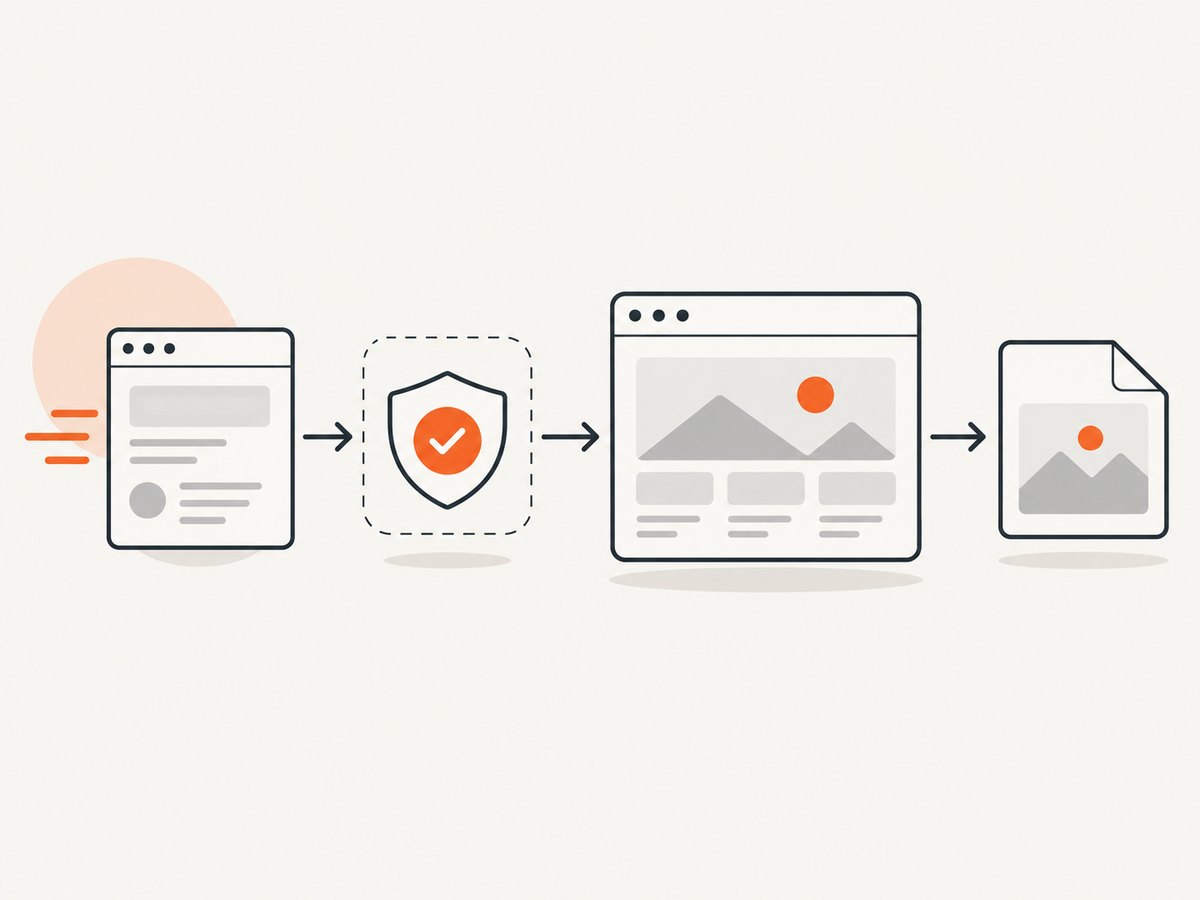
ScreenshotNeo is a website screenshot API and MCP server. One GET request returns a PNG, JPEG, WebP, or PDF. Before capture it can accept cookie or consent banners and remove more than 60 known consent platforms, newsletter popups, and chat widgets; each cleanup step can be turned off.
Only clean shots are billed. Bot checks or CAPTCHAs, blank pages, timeouts, failed loads, and cache hits cost nothing, and the response identifies the result with X-Page-Verdict and X-Billed headers.
See the complete option reference in the ScreenshotNeo documentation. Available controls include:
- Full-page capture with lazy images loaded, or one element selected by CSS selector.
- Dark mode, 12 device presets, arbitrary viewport sizes, and retina scale.
- PDF paper size, margins, landscape mode, and page ranges.
- HTML/CSS to image, custom CSS and JavaScript, and clicking an element before capture.
- Hiding selectors; waiting for a selector, delay, or network idle.
- Blocking ads, trackers, requests, or resource types.
- Custom headers, cookies, user agent, and Authorization.
- Timezone and geolocation, transparent backgrounds, and image resizing.
- Caching with a TTL you choose, signed links for public
<img>tags, asynchronous jobs with signed webhooks, bulk capture of up to 100 URLs per call, a usage API, and an OpenAPI specification. - Parameter names used by other screenshot APIs also work, which helps when migrating.
cURL
curl -G 'https://api.screenshotneo.com/v1/shot' -d access_key=YOUR_API_KEY --data-urlencode url=https://stripe.com -o shot.webpPython
import requests

r = requests.get(
    'https://api.screenshotneo.com/v1/shot',
    params={'access_key': 'YOUR_API_KEY', 'url': 'https://stripe.com'},
    timeout=90,
)
r.raise_for_status()
open('shot.webp', 'wb').write(r.content)
Node.js
const q = new URLSearchParams({ access_key: 'YOUR_API_KEY', url: 'https://stripe.com' });
const res = await fetch(`https://api.screenshotneo.com/v1/shot?${q}`);
if (!res.ok) throw new Error(`Screenshot failed: ${res.status}`);
const body = Buffer.from(await res.arrayBuffer());
require('fs').writeFileSync('shot.webp', body);
Use a short cache TTL for pages that change frequently and a longer TTL for documentation or release artifacts. For many URLs, use bulk capture; for long-running work, use asynchronous jobs and verify signed webhook requests. Keep API keys server-side and pass authentication headers or cookies only when the target page requires them.
Troubleshooting
| Symptom | Likely cause | Fix |
|---|---|---|
| Validator reports errors that browsers ignore | Browser error recovery is more permissive than the standard | Fix the document to the declared standard, then test the actual browser behavior separately. |
| Regex works online but fails in production | Different regex engine or flags | Use the production engine, copy its flags, and add engine-specific tests. |
| Formatter exposes sensitive data | Remote processing or retained request logs | Use a local formatter, inspect network requests, and remove secrets before sharing. |
| DevTools shows stale content | Browser cache, service worker, or extension | Use an incognito window, disable cache while DevTools is open, unregister the service worker, and retry. |
| Screenshot contains a cookie banner | The consent platform was not accepted or cleanup was disabled | Enable consent handling, wait for the banner selector, or click the consent element before capture. |
| Screenshot is blank or incomplete | Navigation timeout, blocked resource, lazy content, or a page that requires authentication | Increase the wait strategy, enable full-page lazy loading, supply required headers or cookies, and inspect the page verdict. |
| API response is not an image | The request failed or returned a diagnostic response | Check HTTP status and response headers before writing the body to a file; keep the X-Page-Verdict and X-Billed values for debugging. |

Performance, reliability, and cost
Local browser tools avoid a network upload for the input, but they still consume CPU and memory and can vary with browser version, fonts, extensions, and machine load. Remote tools add request latency but provide a consistent capture environment and make scheduled or bulk work easier.
Reduce capture time by blocking unnecessary ads, trackers, and resource types; waiting for a meaningful selector instead of an excessive fixed delay; choosing a viewport that matches the output; and using caching when the page can be reused. For reliability, retry transient navigation failures with a bounded backoff, record verdict headers, and make downstream jobs idempotent so a retry does not publish duplicate artifacts.
ScreenshotNeo has a free plan with 1,000 shots per month and no card. Paid plans are Starter at $5 for 3,000 shots, Growth at $15 for 15,000, Pro at $39 for 60,000, Scale at $99 for 250,000, and Business at $249 for 1,000,000. Yearly billing gives two months free, and every feature is included on every plan. Cache hits and failed or unusable captures are not billed when ScreenshotNeo identifies them as such.
Create a free ScreenshotNeo account to get 1,000 screenshots a month with no card. Cookie banners, popups, and chat widgets are removed before the shot; bot checks, blank pages, and failed loads are never billed; and the MCP server lets Claude, Cursor, or another MCP client call take_screenshot, get_page_info, and capture_pdf. Paid plans start at $5 for 3,000 shots.
FAQ
Which free tool should I use for HTML validation?
Start with the W3C Nu HTML Checker, then verify the result against your supported browsers and accessibility requirements.
Are online formatters automatically private?
No. Confirm whether processing is local, inspect the network activity, and read the individual provider’s data-handling policy.
Can Chrome DevTools replace automated screenshots?
It is excellent for interactive inspection and one-off captures. Automated scripts or ScreenshotNeo are better for repeatable, scheduled, or bulk output.
What should I save with a generated screenshot?
Save the URL, viewport or device preset, output format, wait and cleanup settings, timestamp, and any verdict or billing headers.
When should I use a standards tool instead of a directory utility?
Use a standards-oriented tool when conformance matters. Use a directory utility for convenience after checking its limits, processing model, and supported format.


