How to Get a Free SSL Certificate for Your Website (HTTPS)
Get HTTPS for free with your host, Let’s Encrypt and Certbot, or Cloudflare. Follow setup, renewal, redirects, verification and troubleshooting steps.
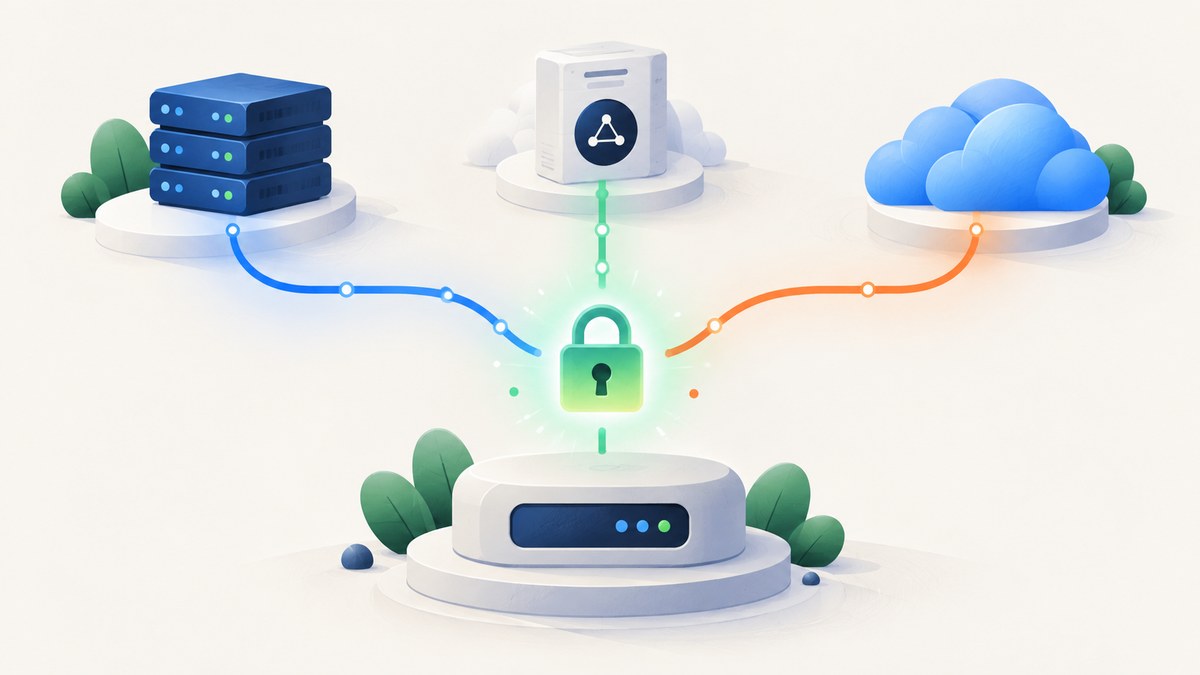
Direct answer: first check whether your hosting provider can issue and renew HTTPS automatically. If it cannot, use Let’s Encrypt through an ACME client such as Certbot, or put the site behind Cloudflare Universal SSL. In every route, prove control of the domain, install or activate the certificate, redirect HTTP to HTTPS, fix mixed content, and verify renewal and the connection between the proxy and your origin.
The free certificates covered here are Domain Validation (DV) certificates. They authenticate control of a domain and encrypt the HTTPS connection; they do not validate an organization’s legal identity.
What you need before starting
- A domain name that you control.
- DNS access, or access to the hosting dashboard that manages your DNS and web server.
- The exact hostnames you will serve, such as
example.com,www.example.com, and any required subdomains. - A plan for HTTP-to-HTTPS redirects and certificate renewal.
Write down every hostname before requesting a certificate. A certificate for the apex domain does not automatically cover every subdomain, and a certificate for www.example.com does not necessarily cover example.com.
Choose the right free HTTPS route
| Route | Best for | Main setup work | Key limitation |
|---|---|---|---|
| Hosting-provider HTTPS | Beginners and managed sites | Enable the host’s SSL or HTTPS setting | Automation and hostname coverage vary by host |
| Let’s Encrypt plus Certbot | VPS and server operators | Install an ACME client, validate the domain, configure the web server, automate renewal | Requires server privileges and correct validation and network access |
| Cloudflare Universal SSL | Sites willing to proxy DNS traffic through Cloudflare | Activate the zone, proxy hostnames, choose an encryption mode, enforce HTTPS | Edge and origin are separate connections; coverage depends on the setup |

Route 1: let your hosting provider manage HTTPS
Many hosting providers obtain and manage certificates for customers automatically or expose a setting that enables it. Let’s Encrypt’s Getting Started guide and the Certbot site both recommend checking for this option before running an ACME client yourself.
- Open your hosting control panel and find SSL, HTTPS, TLS, or Security.
- Enable the free certificate option. Some hosts call this Let’s Encrypt, Automatic SSL, or Managed HTTPS.
- Select every hostname you intend to serve, including the apex domain and
www. - Wait for DNS validation and issuance to complete.
- Visit both
https://example.comandhttps://www.example.com(or your chosen hostnames). - Enable the host’s HTTP-to-HTTPS redirect after the HTTPS endpoint works.
- Confirm that automatic renewal is enabled and identify where the host reports renewal failures.
This is usually the lowest-maintenance option. You do not need Certbot when the host handles certificate issuance, installation, and renewal for you.
Route 2: Let’s Encrypt with Certbot on your server
Let’s Encrypt is a certificate authority operated by the Internet Security Research Group. It issues free TLS certificates through ACME. You must demonstrate control of the domain before a certificate is issued. An ACME client such as Certbot performs that exchange, obtains the certificate and private key, and can configure supported Apache or Nginx servers.
Step 1: check DNS and firewall access
Make sure DNS points the hostname to the intended server. For an HTTP-based challenge, the public site must be reachable on port 80. Port 443 must be reachable for the final HTTPS service. If another service or load balancer terminates TLS, install the certificate there or use a DNS challenge instead.
Step 2: install Certbot
Use your operating system’s current Certbot instructions. On a Debian or Ubuntu server, the package names commonly used for an Nginx deployment are:
sudo apt update
sudo apt install certbot python3-certbot-nginx
For Apache, install the Apache plugin instead:
sudo apt update
sudo apt install certbot python3-certbot-apache
Step 3: obtain and configure a certificate
For Nginx, replace the example names with the names served by your site:
sudo certbot --nginx -d example.com -d www.example.comFor Apache:
sudo certbot --apache -d example.com -d www.example.comCertbot asks for an email address, agreement to the terms, and whether HTTP should redirect to HTTPS. Choose the redirect option when the site is ready for HTTPS. If you need to inspect or edit the web-server configuration yourself, obtain only the certificate first:
sudo certbot certonly --nginx -d example.com -d www.example.comCertificate files are normally stored under /etc/letsencrypt/live/example.com/. The exact path is shown by Certbot; use that output rather than guessing when configuring a server.
Step 4: use DNS validation when HTTP validation cannot work
HTTP-01 validation generally needs inbound port 80. DNS validation proves control by asking you to publish a TXT record, so it can work when the origin is private, port 80 is blocked, or a wildcard certificate is required. Use a Certbot DNS plugin or another ACME client that supports your DNS provider, then follow that client’s instructions to create and remove the TXT record. Do not leave obsolete validation records or credentials exposed in scripts.
Step 5: confirm renewal automation
Certbot installations commonly add a scheduled systemd timer or cron job. Inspect the schedule and run a dry run before the first expiration:
sudo systemctl list-timers | grep certbot
sudo certbot renew --dry-run
A dry run exercises the renewal path without replacing the production certificate. Treat a failed dry run as an operational issue to fix immediately.
Minimal Nginx configuration when configuring manually
server {
    listen 80;
    server_name example.com www.example.com;
    return 301 https://$host$request_uri;
}

server {
    listen 443 ssl http2;
    server_name example.com www.example.com;

    ssl_certificate /etc/letsencrypt/live/example.com/fullchain.pem;
    ssl_certificate_key /etc/letsencrypt/live/example.com/privkey.pem;

    root /var/www/example;
    index index.html;
}
Reload only after checking the configuration:
sudo nginx -t
sudo systemctl reload nginx
Apache users should use Certbot’s generated virtual-host configuration or configure the equivalent certificate and key directives in the TLS virtual host, then run sudo apachectl configtest before reloading.
Route 3: Cloudflare Universal SSL
Cloudflare documents that it issues and renews free, unshared, publicly trusted SSL certificates for domains added to and activated on Cloudflare. Its Universal SSL documentation explains that the certificate is presented when a hostname is proxied. Universal SSL is a DV certificate.

- Add the domain to Cloudflare and change the domain’s nameservers as instructed.
- Confirm the DNS records for the apex and required subdomains are present.
- Turn on the orange-cloud proxy for hostnames that should receive the edge certificate.
- Choose an SSL/TLS encryption mode. Full (strict) requires a valid, unexpired certificate on the origin server as well as the visitor-to-Cloudflare certificate.
- Install a publicly trusted origin certificate or a Cloudflare Origin CA certificate for the Cloudflare-to-origin connection.
- Enable an HTTPS redirect in Cloudflare or your origin after testing HTTPS.
- Check that application assets, scripts, APIs, fonts, and redirects all use HTTPS.
Cloudflare creates two connections: the visitor to Cloudflare and Cloudflare to your origin. Turning on an edge certificate alone does not encrypt or validate the origin leg. In Full (strict) mode, an invalid, expired, hostname-mismatched, or missing origin certificate causes errors even when the edge certificate is healthy.
Make HTTPS complete: redirects and mixed content
Redirect every HTTP request
Test the HTTPS endpoint first, then redirect HTTP. A 301 or 308 redirect preserves the canonical HTTPS URL for most clients. Avoid redirect loops by checking whether your reverse proxy already terminates TLS and passes the original scheme in a header.
curl -I http://example.com
curl -I https://example.com
The HTTP response should point to an HTTPS Location. The HTTPS response should serve the page without redirecting repeatedly.
Remove mixed content
Browsers can block scripts, stylesheets, fonts, images, and API calls loaded with absolute http:// URLs from an HTTPS page. Search templates, CSS, JavaScript, database content, webhooks, and third-party integrations. Change those URLs to HTTPS or protocol-relative application paths, and check browser developer tools for blocked mixed-content requests.
Verify the certificate and the origin
Use several checks because a browser can hide details that matter to automation and other hostnames.
curl -Iv https://example.com
openssl s_client -connect example.com:443 -servername example.com - Check that the certificate is not expired.
- Check that the Subject Alternative Name list contains every hostname you use.
- Check that the server sends the complete intermediate chain.
- Check that DNS resolves to the server or proxy where the certificate is installed.
- Check port 443 from outside the network.
- If using Cloudflare, test the origin separately and confirm the selected encryption mode matches the origin certificate.
Common errors and fixes
| Error or symptom | Likely cause | Fix |
|---|---|---|
| ACME challenge timeout | Port 80 is blocked, DNS points elsewhere, or a proxy does not route the challenge | Point DNS to the correct server, allow port 80, route /.well-known/acme-challenge/, or use DNS validation. |
| Unauthorized or invalid response | The challenge reached the wrong virtual host or a redirect/application rule changed the response | Verify the hostname’s web-server block and temporarily simplify challenge routing; then retry. |
| Certificate name mismatch | The requested hostname is missing from the certificate | Request a certificate containing the apex, www, and every required subdomain, then install it on the active listener. |
| Incomplete certificate chain | Only the leaf certificate was configured | Configure the full chain file, such as Certbot’s fullchain.pem, and reload the server. |
| Too many redirects | Both the proxy and origin force HTTPS without agreeing on the original scheme | Inspect forwarded-protocol headers and configure one consistent redirect path. |
| Cloudflare 525 | Cloudflare could not complete the TLS handshake with the origin | Ensure port 443 is open, the origin serves TLS, and the certificate and key match. |
| Cloudflare 526 | Full (strict) cannot validate the origin certificate | Install a valid, unexpired certificate for the requested hostname or change the mode only while correcting the origin. |
| Browser reports mixed content | Page resources still use HTTP URLs | Update asset and API URLs, caches, templates, and third-party integrations to HTTPS. |
| Renewal dry run fails | DNS, credentials, port access, or web-server configuration changed | Read the Certbot error, restore the validation path, test the relevant DNS plugin or port, and rerun certbot renew --dry-run. |
| Works in a browser but fails in a client | The client validates the hostname or chain more strictly, or the server requires SNI | Serve the complete chain, use the correct hostname, and test with SNI as shown in the OpenSSL command above. |
Performance, reliability, and cost considerations
- Performance: HTTPS adds a TLS handshake, but persistent connections and HTTP/2 reuse the connection. Keep redirects to one hop and avoid redirecting between multiple canonical hostnames.
- Reliability: Renewal is part of production operations. Monitor scheduled jobs, keep DNS and validation credentials current, and perform a dry run before an expiry incident.
- Origin protection: With a reverse proxy such as Cloudflare, secure the proxy-to-origin connection as well as the visitor-facing connection. Full (strict) provides certificate validation on that leg.
- Coverage: Include every production hostname and confirm wildcard requirements before issuance. A certificate does not automatically cover a hostname that was not requested.
- Cost: Let’s Encrypt certificates, Certbot, and Cloudflare Universal SSL are free. You still pay for domain registration, hosting, DNS, or optional managed services.
Or skip the browser setup
If your next task is capturing the HTTPS page after it is live, ScreenshotNeo provides a website screenshot API. It accepts a URL in one GET request and returns PNG, JPEG, WebP, or PDF. Before capture, it accepts cookie or consent banners like a visitor and removes more than 60 known consent platforms, newsletter popups, and chat widgets; each step can be turned off.
Only clean shots are billed. Bot checks, blank pages, timeouts, failed loads, and cache hits cost nothing, and each response reports the result with X-Page-Verdict and X-Billed headers. ScreenshotNeo also has an MCP server with take_screenshot, get_page_info, and capture_pdf tools for Claude, Cursor, and other MCP clients.
See the ScreenshotNeo API documentation for all options. This one-call example captures the page at the URL you provide:
curl -G "https://api.screenshotneo.com/v1/shot" -d access_key=YOUR_API_KEY --data-urlencode url=https://example.com -o shot.webpimport requests
r = requests.get("https://api.screenshotneo.com/v1/shot", params={"access_key": "YOUR_API_KEY", "url": "https://example.com"}, timeout=90)
open("shot.webp", "wb").write(r.content)const q = new URLSearchParams({ access_key: 'YOUR_API_KEY', url: 'https://example.com' });
const res = await fetch(`https://api.screenshotneo.com/v1/shot?${q}`);You get 1,000 screenshots a month free with no card. Paid plans start at $5 for 3,000 screenshots, and every feature is included on every plan. Create a free ScreenshotNeo account.
FAQ
Do I need Certbot?
No. Use Certbot when you operate a server that does not manage certificates for you. A managed host can issue, install, and renew HTTPS without command-line access.
Is Cloudflare Universal SSL enough?
It is enough for the visitor-to-Cloudflare connection when the hostname is proxied, but the origin connection is separate. Full (strict) mode also requires a valid origin certificate.
Can I get a free certificate for a subdomain?
Yes, provided you demonstrate control of that hostname and request it in the certificate. Check the certificate names after issuance.
Should I use HTTP-01 or DNS validation?
Use HTTP-01 when the site can receive the challenge on port 80. Use DNS validation when the origin is private, port 80 cannot be opened, or you need a wildcard certificate.
What happens when a certificate expires?
Clients will reject the HTTPS connection or show a security warning. Keep renewal automation enabled, monitor it, and run a dry-run renewal test before expiry.


