Free Websites to Compress Image Size
Compare free image compressors by format, limits, privacy and quality, then choose the right site for your upload.

For a free online image compressor, start with the file you have and the limit you must meet. Adobe Express documents JPEG/JPG and PNG compression for files up to 40 MB, with an adjustable compression slider and preview. TinyPNG (Tinify) lists JXL, AVIF, WebP, JPG, PNG and APNG support, but its free web optimizer allows up to 20 files per batch, 5 MB per file and three free conversions.
Neither provider’s feature documentation establishes an independent quality winner. Choose by format, file size, batch needs, privacy requirements and how much quality loss you can accept.
Quick comparison
| Service | Documented formats | Free limits | Controls | Privacy information |
|---|---|---|---|---|
| Adobe Express | JPEG/JPG, PNG | Up to 40 MB per input on the compressor page | Choose JPG or PNG output; adjustable slider with preview | Terms and privacy policy are linked; the compressor page does not state a retention period |
| TinyPNG / Tinify | JXL, AVIF, WebP, JPG, PNG, APNG | Up to 20 files per batch; 5 MB each; three free conversions | Compression and conversion in the web optimizer | Tinify says uploads are accessible only to the uploader and retained for a maximum of 48 hours |
How to compress an image online
- Check the destination requirement. Note the required format, maximum bytes and whether transparency must remain.
- Keep the original file. Compression can reduce visible quality, especially at stronger settings.
- Choose a service that accepts your input. Adobe’s stated compressor limit is 40 MB for JPEG/JPG and PNG; TinyPNG’s free web limit is 5 MB per file.
- Upload the image or batch. For sensitive images, review the current privacy terms before uploading.
- Adjust the compression setting when a preview is available. Start with a moderate setting and inspect edges, text, gradients and transparent areas at the size your audience will see.
- Download the result and verify its extension, dimensions, transparency and byte size. Upload it to the destination only after it meets the requirement.
Adobe Express: best fit for a large JPG or PNG with visual control
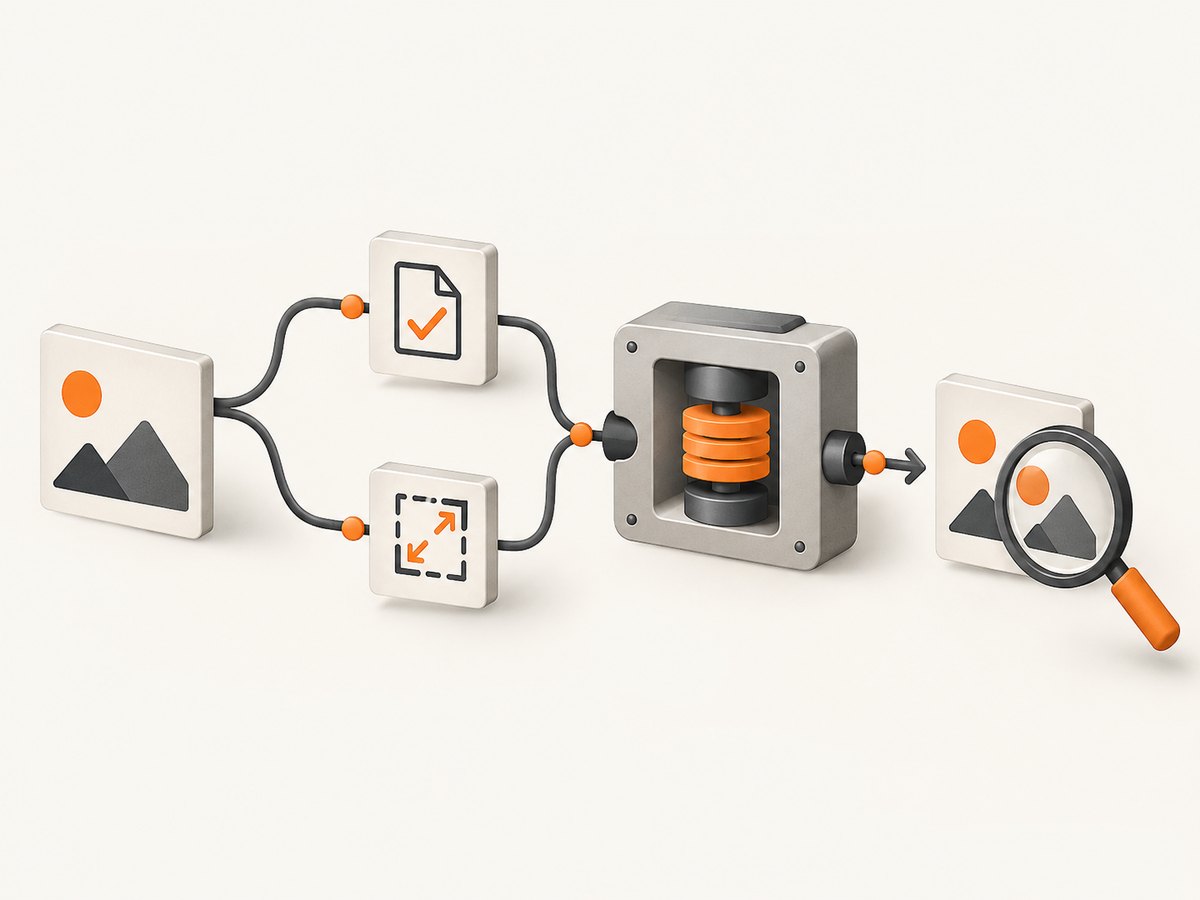
Adobe’s compressor page describes a free workflow for JPEG/JPG and PNG files up to 40 MB. You select JPG or PNG output, move a compression slider and use the changing preview to judge the result. This is useful when you need to trade file size against visible detail.
Step-by-step
- Open the Adobe Express compressor.
- Upload a JPEG, JPG or PNG no larger than the documented 40 MB input limit.
- Select the output format required by the destination.
- Move the slider until the file is small enough while important details remain clear.
- Download the result and check it in the application where it will be used.
Adobe warns that heavier compression may reduce quality and recommends avoiding aggressive settings for work requiring perfect quality, such as professional printing or detailed design. Adobe’s separate editor import page has different limits; do not substitute its general 80 MB desktop or 40 MB mobile import figures for the compressor’s 40 MB claim.
TinyPNG: best fit for supported formats and small batches
Tinify lists JPEG XL (JXL), AVIF, WebP, JPG, PNG and APNG support. Its free web optimizer accepts up to 20 images at once, with each file no larger than 5 MB, and allows three free conversions. The service combines compression and conversion, so confirm that the downloaded file is the exact format your destination accepts.
Step-by-step
- Open TinyPNG and select files in one of its listed formats.
- Keep every file at or below 5 MB and select no more than 20 files for a batch.
- Download the converted files after processing.
- Check format, transparency, dimensions and file size before publishing.
Tinify says its optimizer removes unnecessary metadata. That can leave default DPI or color-profile values when metadata is absent. Do not assume the free web workflow preserves copyright, location or creation-date metadata; Tinify documents metadata-retention options for its Developer API instead.
Which site should you choose?
| Your situation | Starting point | Reason |
|---|---|---|
| JPEG or PNG larger than 5 MB, up to 40 MB | Adobe Express | Its compressor page documents a 40 MB input limit. |
| WebP, AVIF, JXL or APNG | TinyPNG | These formats appear in Tinify’s documented list. |
| Several files under 5 MB | TinyPNG | Its free page documents 20 files per batch. |
| You need an adjustable visual preview | Adobe Express | The compressor page describes a slider and preview. |
| You must minimize upload exposure | Review both policies first | Both workflows upload files; Tinify states a maximum 48-hour retention, while Adobe’s compressor page links its policies without a stated retention period. |
Quality, metadata and privacy checks
- Quality: Compare the output at its intended display size. Inspect small text, sharp edges, skin tones, gradients and transparent boundaries.
- Keep originals: Treat the compressed file as a derivative so you can try another setting later.
- Format: Compression and conversion are separate decisions. A smaller file is not useful if the destination rejects its format.
- Metadata: Tinify says unnecessary metadata is removed by its optimizer. Preserve metadata only when the chosen workflow explicitly supports it.
- Privacy: Upload-based tools are unsuitable for some confidential material. Read the current vendor terms before submitting sensitive photos or documents.
Common errors and fixes
| Problem | Likely cause | Fix |
|---|---|---|
| Upload rejected by Adobe | Wrong format or file exceeds the compressor’s 40 MB limit | Export as JPEG/JPG or PNG and reduce the source below 40 MB before retrying. |
| Upload rejected by TinyPNG | File exceeds 5 MB, batch exceeds 20 files or the free conversion allowance is exhausted | Split the batch, reduce each source below 5 MB, or use another documented workflow. |
| Output looks blurry | Compression setting is too strong for the detail | Use a lighter setting, inspect at display size and keep the original. |
| Transparency disappeared | Output was changed to a format or setting that does not retain the required alpha channel | Keep PNG or another transparency-capable format and verify the downloaded file. |
| Colors or DPI changed | Metadata or color-profile information was removed | Check the output in the target application; use a workflow that explicitly preserves required metadata. |
| File is still too large | Dimensions or format are unsuitable even after compression | Confirm the destination’s byte and dimension limits, then choose a more suitable output format or resize before compressing. |
Performance, reliability and cost considerations
For a one-off image, browser upload and download time usually depends on the source size and your connection. For batches, stay within the provider’s documented limits and verify every downloaded file. Free allowances and limits can change, so recheck the provider pages before building a recurring workflow.
Neither source in this comparison supplies an independent benchmark of compression ratio, visual quality or processing speed. Treat the documented limits as capabilities, not as a quality ranking. If a file is business-critical, keep a copy of the original and verify the compressed result in the publishing system.
Or skip the browser setup
If your actual task is generating optimized website screenshots for a developer workflow, ScreenshotNeo is the alternative to try first. It returns PNG, JPEG or WebP screenshots from one GET request and can produce PDFs. Before capture, it accepts cookie or consent banners and removes more than 60 known consent platforms, newsletter popups and chat widgets. Bot checks, blank pages, timeouts, failed loads and cache hits are not billed, and response headers report the page verdict and billing status.
See the ScreenshotNeo API documentation for the full option list. This runnable cURL example captures a WebP image:
curl -G "https://api.screenshotneo.com/v1/shot" -d access_key=YOUR_API_KEY --data-urlencode url=https://stripe.com -o shot.webpPython:
import requests
r = requests.get("https://api.screenshotneo.com/v1/shot", params={"access_key": "YOUR_API_KEY", "url": "https://stripe.com"}, timeout=90)
open("shot.webp", "wb").write(r.content)
Node.js:
const q = new URLSearchParams({ access_key: 'YOUR_API_KEY', url: 'https://stripe.com' });
const res = await fetch(`https://api.screenshotneo.com/v1/shot?${q}`);
ScreenshotNeo also provides an MCP server for AI agents, including Claude and Cursor. Every plan includes all features; 1,000 screenshots per month are free with no card, and paid plans start at $5 for 3,000 shots. Create a free ScreenshotNeo account.
FAQ
Can I compress an image without losing any quality?
Not reliably with every format and setting. Use the lightest compression that meets your size target, inspect the result and retain the original.
Is TinyPNG free?
Tinify documents a free web optimizer with up to 20 files per batch, a 5 MB limit per file and three free conversions. Check the current page for changes.
Does Adobe Express compress PNG files?
Yes. Adobe’s compressor page documents JPEG/JPG and PNG input and lets you choose JPG or PNG output.
Will compression remove metadata?
It can. Tinify says its optimizer removes unnecessary metadata; Adobe’s compressor page does not promise metadata preservation. Verify the output when metadata matters.
What is the safest choice for private images?
Review the current privacy terms of any upload service and decide whether uploading is appropriate. Tinify states a maximum 48-hour retention; Adobe’s compressor page links its privacy policy without stating a retention period there.


