How to Capture a Full-Height Screenshot of a Mobile Form Factor
Capture a long mobile webpage or form as one image on iPhone, Android, or Galaxy, and learn what to do when scrolling capture is unavailable.
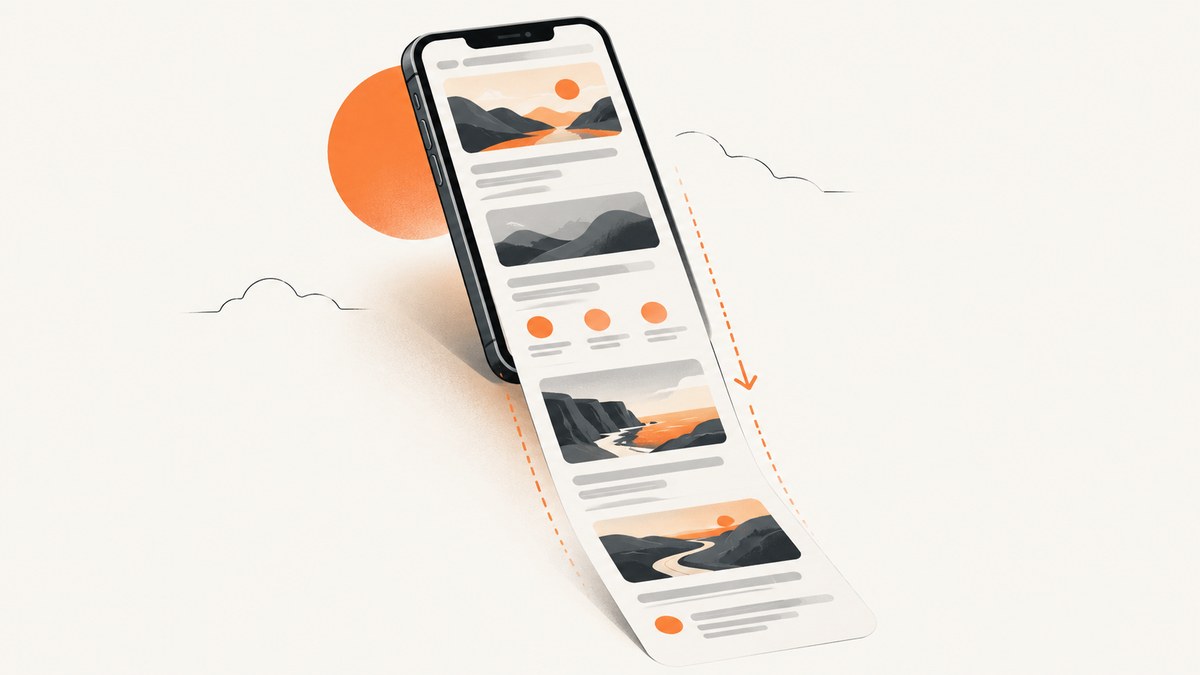
A full-height screenshot captures content below the phone’s visible screen in one long image. On iPhone, take a screenshot and tap Full Page in its preview; Apple gives an entire webpage in Safari as an example. On Android 12 and later, take a screenshot and tap Capture more on most screens that allow scrolling. On Samsung Galaxy phones, tap Scroll capture in the screenshot toolbar. Availability depends on the app, screen, phone model, and software version, so a regular screenshot may be the only built-in option for some forms.
“Mobile form factor” can mean a webpage shown at phone width, an embedded web form, or a native app. The steps below cover the phone’s built-in capture tools first, then explain a browser-based option for developers who need a repeatable screenshot at a chosen mobile viewport.
1. Choose the capture method for your phone
| Device | Long capture control | Documented scope | Typical save location |
|---|---|---|---|
| iPhone | Full Page in screenshot preview | Apple describes capturing content longer than the screen, such as a webpage in Safari | Photos for an image, or Files for a PDF |
| Android 12+ | Capture more after a screenshot | Most screens that allow scrolling | Photos > Collections > On this device > Screenshots; older setups may use Gallery |
| Samsung Galaxy | Scroll capture in the screenshot toolbar | Scrollable content, depending on device, software, carrier, and app | Gallery |
These are built-in phone features; no extra accessory is needed. The control appears after taking a normal screenshot, but the resulting file can include content below the visible screen. The manufacturer instructions do not promise that every app or form can be captured this way.
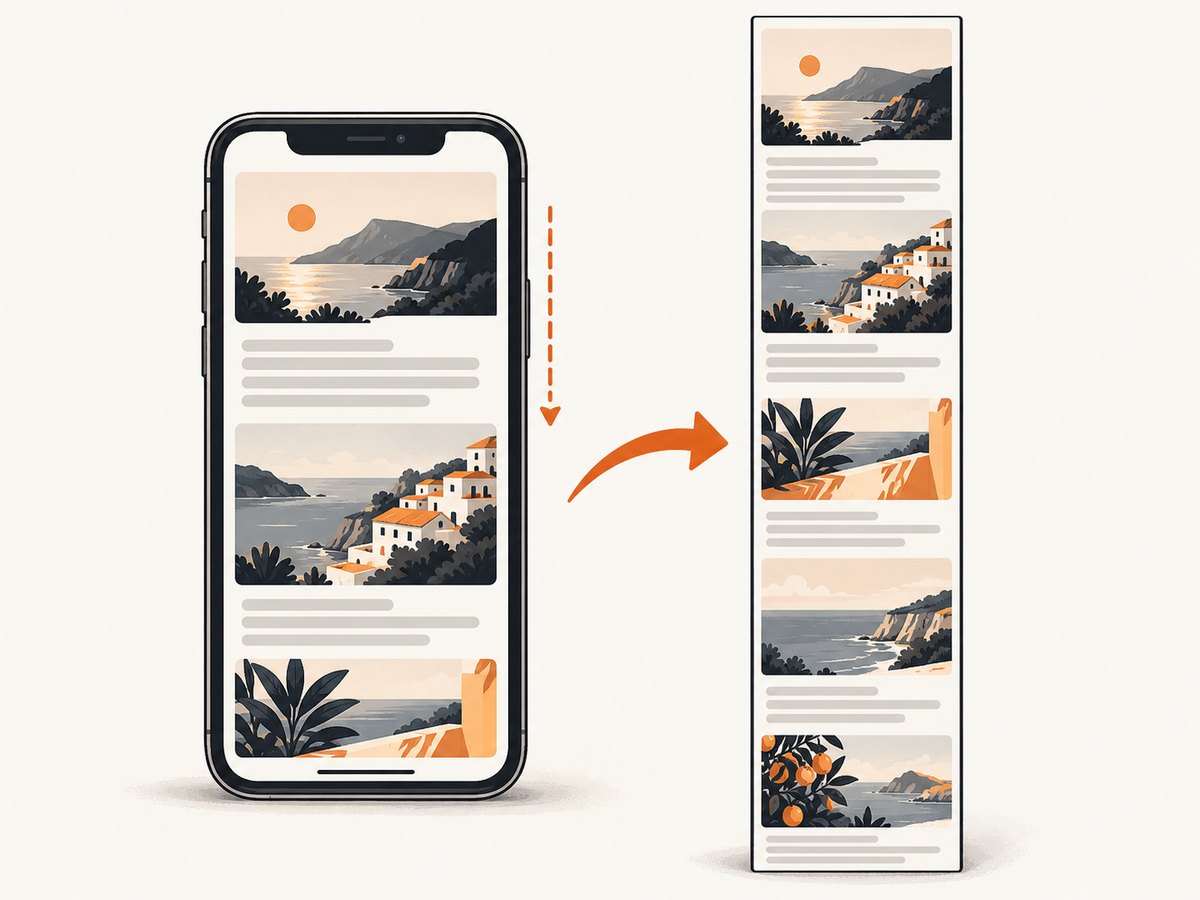
2. Capture a full page on iPhone
- Open the page or form in the app where you want to capture it. For Apple’s documented example, open a webpage in Safari.
- Take a screenshot: quickly press and release the Side button and Volume Up together on a Face ID iPhone. On an iPhone with a Home button, quickly press and release Side and Home together.
- Tap the screenshot preview, then tap Full Page.
- Drag on the preview to inspect the longer capture. Crop or annotate if needed.
- Choose the save option. Save as an image to Photos, or choose Save PDF to Files if you need a document.
If Full Page does not appear, the current screen or app may not offer that capture mode. Apple’s guide uses a webpage in Safari as its example; it does not establish universal support across apps. Try opening the form’s webpage in Safari if appropriate, or use the fallback methods below. [Apple’s iPhone screenshot guide]
3. Capture a scrolling screenshot on Android
- Open the scrollable page or form.
- Press Power and Volume Down together.
- In the screenshot controls at the bottom, tap Capture more.
- Adjust the crop guides to include the portion you want, then save.
Google documents these steps for devices running Android 12 and up, on most screens that allow scrolling. To find the saved image, open Photos and choose Collections > On this device > Screenshots. If your device does not have Photos, check its Gallery app under Albums or Screenshots. The button combination and controls can vary by manufacturer; consult the phone maker’s instructions if the standard combination does not work. [Google’s Android screenshot guide]
4. Capture a long screenshot on Samsung Galaxy
- Open the scrollable page. If the screenshot toolbar does not appear after a capture, check Settings > Advanced features > Screenshots and screen recorder and enable Show toolbar after capturing. On some devices without a screen recorder, the setting may be called Screen capture.
- Press Power/Side and Volume Down together.
- Tap Scroll capture in the toolbar. Tap again or press and hold the control to extend the capture, then tap outside the toolbar to finish.
- Open Gallery to review the saved screenshot.
Samsung says the captured length can vary with the content. Model, software version, carrier, and app can affect which controls are available; some apps or screens may block screenshots for privacy or security reasons. See Samsung’s Scroll Capture instructions and check the support guidance for your specific Galaxy device.
5. Get a clean capture of a mobile web form
Before capturing, prepare the page so the result shows the state you need. This matters for both built-in phone captures and automated browser screenshots.
- Set the form state. Decide whether the image should show an empty form, validation messages, selected choices, or a confirmation state. Do not submit a live form just to create a screenshot unless that submission is intended.
- Check the whole page. Scroll through once first. A page may load images, help text, or form sections only as you move down.
- Handle overlays. Close menus or dialogs that obscure the form. On automated captures, a cookie prompt, chat bubble, or newsletter overlay can cover content.
- Review personal data. Inspect the result before sharing it. Form screenshots may include names, email addresses, addresses, or other information entered during testing.
- Keep the capture in context. A tall screenshot is useful for visual review, but it does not prove that every field is usable, correctly labeled, or accessible. Test form behavior separately.
For repeatable browser testing, a developer can load the page at a mobile viewport and capture the full document. This is useful when you need consistent dimensions, a saved file, or an image from a URL rather than a capture made by hand on a phone. It is a browser workflow; it does not make every native app screen capturable.
6. Automate a mobile viewport screenshot with Playwright
The following Node.js example opens a page in a mobile-sized browser context, waits for the document to load, and saves a full-page PNG. It uses Playwright’s device descriptors to apply a mobile viewport and device scale settings. The example assumes Node.js is installed and uses Chromium; it captures a webpage, not a native phone app.
npm init -y
npm install playwright
npx playwright install chromium
// save as capture-mobile.js
const { chromium, devices } = require('playwright');
(async () => {
const browser = await chromium.launch({ headless: true });
const context = await browser.newContext({
...devices['iPhone 13'],
// Use a device descriptor as a viewport preset; change it to suit your target.
});
const page = await context.newPage();
try {
await page.goto('https://example.com/form', {
waitUntil: 'domcontentloaded',
timeout: 30000,
});
await page.locator('form').waitFor({ state: 'visible', timeout: 15000 });
await page.screenshot({ path: 'mobile-form.png', fullPage: true });
} finally {
await browser.close();
}
})();node capture-mobile.jsReplace the example URL with a page you are authorized to access. If the form renders asynchronously, wait for a reliable selector that appears when its content is ready. For a page without a form element, replace form with a selector for the main content. For a particular element rather than the whole document, use a locator screenshot instead of fullPage, for example await page.locator('#checkout').screenshot({ path: 'form.png' }).
Browser capture options to consider
- Viewport and device preset: Set the viewport to the width and height you want to inspect. A device preset can also configure scale and touch behavior. The exact viewport is part of the test setup, so record it when comparing captures.
- Full page versus element: Full-page capture includes the page beyond the viewport. Element capture targets a specific form or container and avoids unrelated page content.
- Readiness: Wait for a selector, a short delay, or an appropriate network condition when content is dynamic. Network idle can be unsuitable for pages with persistent connections; prefer a selector that represents the content you need.
- Lazy content: Some pages load images or sections only after scrolling. A full-page screenshot does not guarantee every lazy-loaded item has loaded. Scroll through the page or wait for the specific images and content before saving.
- Output: PNG is useful for sharp UI details. Consider image dimensions and file size when capturing very long documents.
7. Troubleshooting missing or incomplete captures
| Symptom | Likely cause | What to try |
|---|---|---|
| No Full Page or Capture more option | The app or screen may not support scrolling capture; device or OS version may differ | Try a scrollable webpage in the browser, check OS and manufacturer guidance, or capture separate sections |
| Galaxy toolbar is missing | The screenshot toolbar setting may be off or named differently | Check Advanced features and enable the toolbar or Screen capture option if present |
| Capture ends too early | The chosen crop does not include the full range, or the device limits the capture | Extend the capture control where available; inspect the resulting image before sharing |
| Form fields are blank or missing in browser automation | Content has not rendered yet or depends on a user action | Wait for the form selector, set the intended state, then capture |
| Images or sections are absent | Lazy loading has not been triggered, or the page is still loading | Scroll to the relevant area or wait for those specific resources before capture |
| Screenshot is blocked | The app or screen may prevent capture for privacy or security reasons | Use an approved test environment or the app’s supported export function; do not attempt to bypass a protection |
| Output looks too small or blurry | Device scale, output resizing, or image viewer scaling changes apparent detail | Use an appropriate device scale, keep the original image, and zoom in to review at native resolution |
If no native long-capture option is available, take consecutive screenshots with enough overlap to show where one ends and the next begins, then combine them with an image editor. Treat this as a workaround: it creates a stitched result rather than a single continuous device capture and can introduce alignment errors. A screen recording can document the interaction, but it is a video rather than one full-height image.
8. Performance, reliability, and file handling
Long captures are larger than ordinary screen grabs because they include more pixels. A very long page can take longer to capture, consume more memory, or produce a file that is awkward to send. Trim the capture to the relevant form area when a full page is unnecessary, and choose an image format that suits the destination. Keep an unmodified original if you need a clear record of the submitted state.
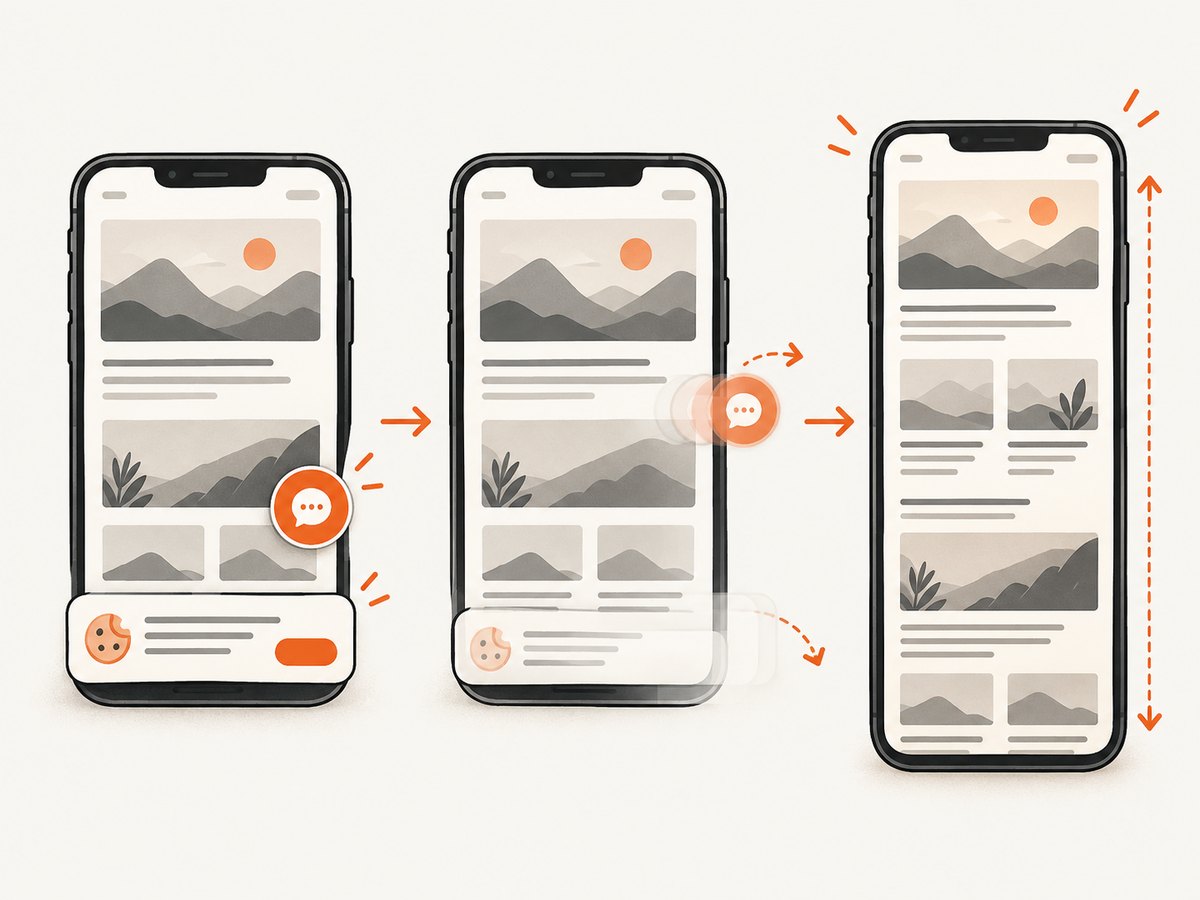
For manual capture, verify the saved result rather than assuming the action included the full page. For browser automation, use a stable page state and a meaningful readiness check. A timeout may mean a selector never appeared, the page was slow, or the target URL was unavailable; increasing the timeout alone will not fix an incorrect selector or an inaccessible page.
When capturing forms, avoid putting real customer data into screenshots used in bug reports or documentation. Use synthetic test values where possible, and review images before adding them to tickets or publishing them.
Or skip the browser setup
For a webpage, ScreenshotNeo can capture a mobile viewport from one API request. It is a website screenshot API and MCP server by Yorker Media. Its capture options include mobile device presets and custom viewports, full-page capture with lazy images loaded, CSS selector element capture, and output as PNG, JPEG, WebP, or PDF. See the ScreenshotNeo API documentation for request options.
curl -G "https://api.screenshotneo.com/v1/shot" \
  -d access_key=YOUR_API_KEY \
  --data-urlencode url=https://example.com/form \
  -d device=iphone-15 \
  -d full_page=true \
  -o mobile-form.webp
Replace YOUR_API_KEY with your key and the example URL with the page to capture. The query supports device presets and full-page capture; consult the docs for exact parameter values and other options. For a basic URL capture, these equivalent examples use the documented API pattern:
import requests

r = requests.get(
    "https://api.screenshotneo.com/v1/shot",
    params={"access_key": "YOUR_API_KEY", "url": "https://example.com/form"},
    timeout=90,
)
r.raise_for_status()
open("mobile-form.webp", "wb").write(r.content)
const q = new URLSearchParams({
access_key: 'YOUR_API_KEY',
url: 'https://example.com/form',
});
const res = await fetch(`https://api.screenshotneo.com/v1/shot?${q}`);
if (!res.ok) throw new Error(`Screenshot request failed: ${res.status}`);
const fs = await import('node:fs/promises');
await fs.writeFile('mobile-form.webp', Buffer.from(await res.arrayBuffer()));ScreenshotNeo accepts cookie and consent banners like a visitor and removes more than 60 known consent platforms, newsletter popups, and chat widgets before capture; each of those steps can be turned off. Bot checks and CAPTCHAs, blank pages, timeouts, failed loads, and cache hits cost nothing, and responses identify the page verdict and billing status in headers. Its MCP server provides take_screenshot, get_page_info, and capture_pdf tools for Claude, Cursor, and other MCP clients.
The free plan includes 1,000 screenshots per month with no card. Paid plans start at $5 for 3,000 screenshots; every feature is available on every plan. For a phone-native app, use the device’s built-in capture instructions above: the API captures websites, not native app screens. Create a free ScreenshotNeo account and get 1,000 screenshots a month with no card.
Frequently asked questions
Can I make a full-height screenshot of any mobile form?
No universal workflow is guaranteed. Built-in long capture depends on whether the specific app or screen supports it, and web automation applies to webpages rather than native app interfaces.
Can an iPhone save a full-page screenshot as a PDF?
Yes. In the Full Page screenshot view, choose the save option and select Save PDF to Files.
Does a full-page screenshot show that a form works?
No. It records appearance. Validate field behavior, submission handling, and accessibility separately.
What if I only need the form and not the rest of the page?
Crop the phone capture, or use element capture in a browser workflow/API with a selector for the form container.


