Generate a Full-Height PDF in Python with aiohttp
Build a full-height PDF endpoint with aiohttp and Playwright, handle fonts and images, avoid pagination bugs, and return reliable PDF bytes.

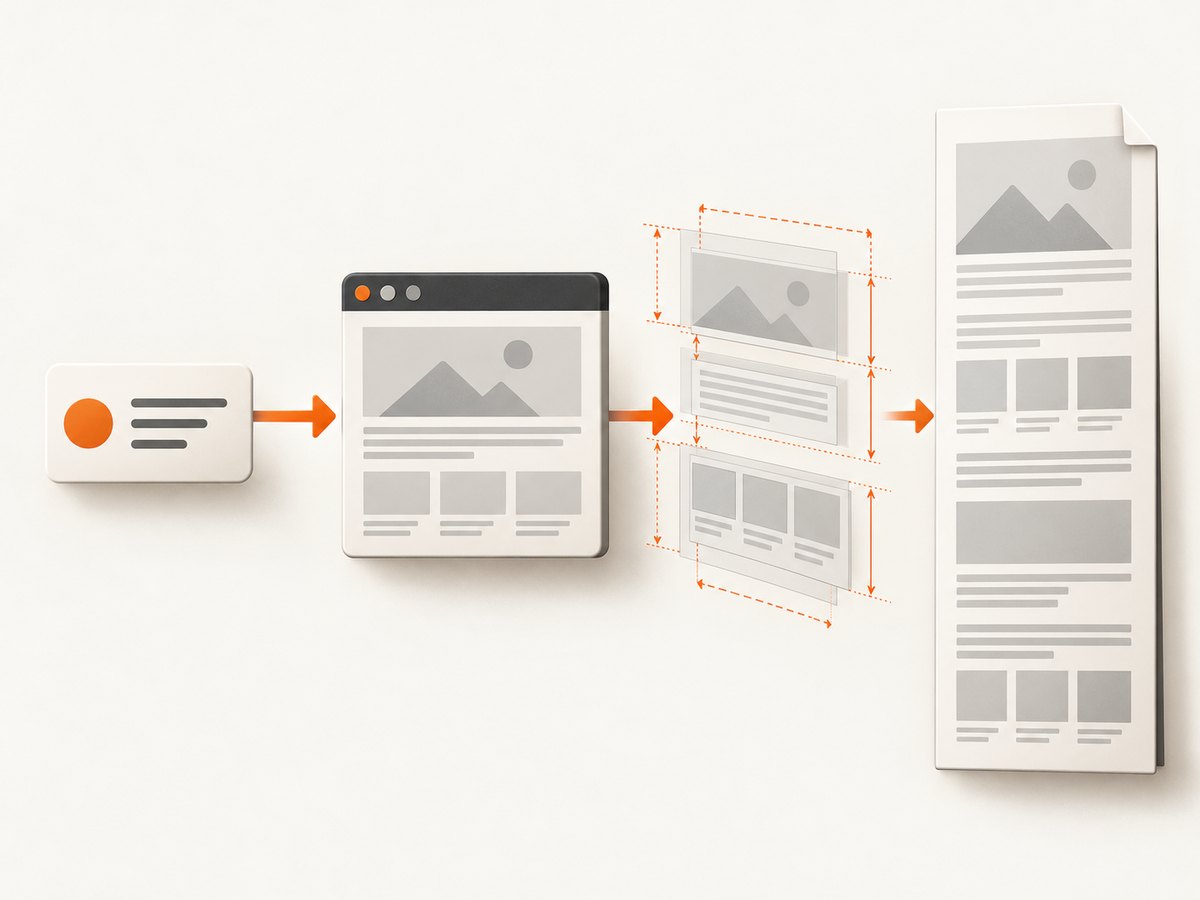
A full-height PDF is a document whose page height matches the rendered HTML instead of breaking the content across normal A4 or Letter pages. In Python, a dependable way to build one is to use Playwright to render the HTML, wait until its assets are ready, measure the document height in CSS pixels, and pass that height to page.pdf(). Use aiohttp as the asynchronous HTTP layer that returns the PDF bytes.
The key sequence is:
- Start or reuse a Chromium browser.
- Create a page with a known CSS width.
- Load the HTML and wait for the milestone your template needs.
- Wait for fonts, images, and application data that may load after that milestone.
- Read
document.documentElement.scrollHeight(or a measured root element). - Call
page.pdf()with explicit width, height, zero margins, and print backgrounds. - Return the resulting bytes with
Content-Type: application/pdf.
Complete aiohttp and Playwright implementation
The following endpoint accepts a document identifier, renders trusted server-side content, and returns one tall PDF page. It uses an explicit 800 CSS-pixel width. The height is converted to inches because CSS print pixels are defined at 96 pixels per inch. The cap prevents an unexpectedly large document from consuming unbounded memory.
from aiohttp import web
from playwright.async_api import async_playwright

HTML = '''<!doctype html>
<html>
<head>
  <meta charset="utf-8">
  <style>
    @page { margin: 0; }
    html, body { margin: 0; padding: 0; }
    body {
      width: 800px;
      font-family: Arial, sans-serif;
      color: #111;
      background: white;
    }
    main { padding: 32px; box-sizing: border-box; }
    img { max-width: 100%; height: auto; }
  </style>
</head>
<body><main>{content}</main></body>
</html>'''

MAX_HEIGHT_PX = 200000

async def wait_for_assets(page):
    await page.evaluate('''async () => {
      if (document.fonts) await document.fonts.ready;
      const images = Array.from(document.images);
      await Promise.all(images.map(img => {
        if (img.complete) return Promise.resolve();
        return new Promise(resolve => {
          img.addEventListener('load', resolve, { once: true });
          img.addEventListener('error', resolve, { once: true });
        });
      }));
    }''')

async def pdf_handler(request: web.Request) -> web.Response:
    # Replace this with content loaded from your own database or template.
    content = '<h1>Example report</h1><p>Rendered HTML content.</p>'
    html = HTML.format(content=content)

    async with async_playwright() as p:
        browser = await p.chromium.launch()
        page = await browser.new_page(viewport={'width': 800, 'height': 1000})
        try:
            await page.set_content(html, wait_until='networkidle', timeout=30000)
            await wait_for_assets(page)
            height_px = await page.evaluate(
                'document.documentElement.scrollHeight'
            )
            height_px = max(1, min(int(height_px) + 2, MAX_HEIGHT_PX))
            height_in = height_px / 96
            pdf_bytes = await page.pdf(
                width='800px',
                height=f'{height_in:.4f}in',
                margin={'top': '0px', 'right': '0px',
                        'bottom': '0px', 'left': '0px'},
                print_background=True,
                prefer_css_page_size=False,
            )
        finally:
            await page.close()
            await browser.close()

    return web.Response(body=pdf_bytes, content_type='application/pdf')

app = web.Application()
app.router.add_get('/document.pdf', pdf_handler)
web.run_app(app, host='127.0.0.1', port=8080)
Install the runtime with pip install aiohttp playwright, then install the browser binaries with playwright install chromium. In production, keep a browser process alive and create isolated contexts or pages per request; launching Chromium for every request is simple but adds startup cost.
Why the measurement step matters
page.pdf() generates a PDF using print CSS by default. It accepts width, height, margins, scale, page ranges, and background options, and its dimensional values accept units such as px, in, cm, and mm. Measuring after layout lets the PDF page match the actual document instead of guessing a height.
Use document.documentElement.scrollHeight for ordinary documents. If your page contains a positioned application shell, measure a known root element instead:
const height = await page.locator('#report').evaluate(el => el.scrollHeight);Add a small allowance, such as two pixels, for fractional layout rounding. Clamp the result to a limit appropriate for your service. A very tall page can produce large PDF buffers and may be rejected by downstream viewers or printers.
CSS and page-size choices
One continuous page
Set @page { margin: 0; }, remove the browser’s default body margin, and pass explicit width and height. Keep the content width fixed so line wrapping does not change between measurement and PDF generation.
Normal A4 or Letter pagination
If the goal is a printable report, do not force one tall page. Omit the custom height and select format='A4' or format='Letter'. Use CSS rules such as break-inside: avoid for cards and tables, while accepting that a long table row may still need to move to the next page.
Screen styling and backgrounds
Playwright uses print media for PDF output. If your screen stylesheet is the intended design, call:
await page.emulate_media(media='screen')Set print_background=True when colored panels, gradients, or background images must appear. Check both modes because print CSS can alter display, widths, and visibility.
Waiting for HTML, fonts, images, and data
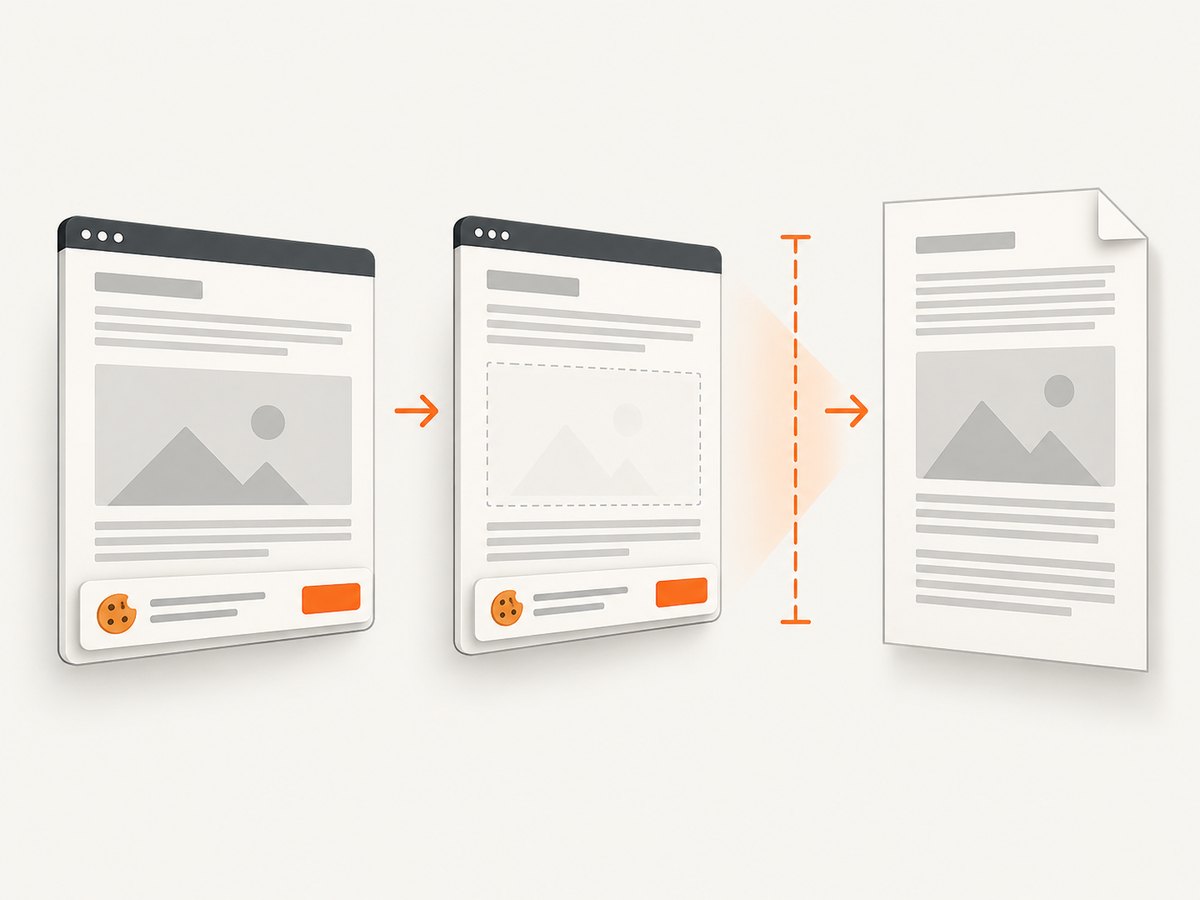
set_content() supports milestones including commit, domcontentloaded, load, and networkidle. Choose the earliest milestone that guarantees the assets your template requires. Network idle is not a universal “everything is ready” signal: analytics, sockets, or polling can keep a page active, while a font or image may still be changing layout.
- Await
document.fonts.readybefore measuring. A late font swap changes line breaks and therefore height. - Await every important image’s load or error event. Decide whether a failed image should abort the request or render a placeholder.
- For client-rendered data, wait for a selector such as
#report-readyor a template-specific promise. - Use a finite timeout for each wait and return a useful 504 response when the document cannot become ready.
await page.wait_for_selector('#report-ready', state='visible', timeout=15000)
await page.wait_for_timeout(100)  # allow final layout and animation frames
Disable animations and transitions in print CSS when deterministic layout matters. Otherwise the measured height can differ from the final captured state.
Returning a PDF from an aiohttp endpoint
Aiohttp can return an in-memory buffer directly with web.Response. Set the content type explicitly. Add a download disposition only when you want attachment behavior:
return web.Response(
    body=pdf_bytes,
    headers={
        'Content-Type': 'application/pdf',
        'Content-Disposition': 'inline; filename="report.pdf"',
    },
)
For very large documents, use a streaming response or write to a temporary file, but remember that Playwright still has to generate the PDF before you can send its bytes. Set request, navigation, and rendering timeouts separately so a stuck page does not occupy a worker forever.
Handling untrusted HTML and URLs
Rendering user-supplied HTML is a security boundary. Sanitize HTML if it is not fully trusted, restrict which URLs the browser may visit, and consider blocking private network ranges to reduce server-side request forgery risk. Limit HTML size, the number of external resources, JavaScript execution time, and the computed page height. Do not place secrets in page-visible HTML or expose internal headers to arbitrary navigation.
When rendering a URL rather than a string, validate its scheme and hostname before calling page.goto(). Use a browser context with a controlled user agent, cookies, and permissions. Close pages and contexts in finally blocks even when navigation or PDF generation raises an exception.
Choosing a PDF renderer
| Renderer | Best fit | Trade-offs |
|---|---|---|
| Playwright | Modern HTML, CSS, and JavaScript | Browser startup and resource management; high browser fidelity |
| WeasyPrint | Mostly static HTML and CSS | No browser JavaScript; CSS support differs from Chromium |
| ReportLab | Programmatic text, tables, and drawings | You place content yourself instead of relying on HTML layout |
WeasyPrint can return bytes with HTML(...).write_pdf(...), and CSS @page rules control its paper size and margins. ReportLab is a better fit when pagination and positioning are business rules rather than browser layout. None of these choices has a universal speed advantage; benchmark your templates, fonts, images, and concurrency.
Or skip the browser setup
ScreenshotNeo provides a website capture API with PDF output, so your service can make one HTTPS request instead of managing Chromium. Its capture pipeline accepts cookie and consent banners like a visitor and removes more than 60 known consent platforms, newsletter popups, and chat widgets before the shot. Bot checks, blank pages, timeouts, failed loads, and cache hits are not billed, and the response identifies the result with X-Page-Verdict and X-Billed headers. It also has an MCP server with take_screenshot, get_page_info, and capture_pdf tools for Claude, Cursor, and other MCP clients. One thousand screenshots per month are free with no card; paid plans start at $5 for 3,000 shots.
See the ScreenshotNeo API documentation for authentication and PDF options.
curl -G 'https://api.screenshotneo.com/v1/shot' \
  -d access_key=YOUR_API_KEY \
  --data-urlencode url=https://stripe.com \
  -o shot.webp
import requests
r = requests.get(
'https://api.screenshotneo.com/v1/shot',
params={'access_key': 'YOUR_API_KEY', 'url': 'https://stripe.com'},
timeout=90,
)
r.raise_for_status()
open('shot.webp', 'wb').write(r.content)const q = new URLSearchParams({
access_key: 'YOUR_API_KEY',
url: 'https://stripe.com'
});
const res = await fetch(`https://api.screenshotneo.com/v1/shot?${q}`);
if (!res.ok) throw new Error(`HTTP ${res.status}`);
const pdfOrImage = await res.arrayBuffer();For a PDF, select the PDF parameters described in the documentation, including paper size, margins, landscape mode, and page ranges. The same API also supports full-page capture with lazy images loaded, element selectors, custom CSS and JavaScript, waits, request blocking, cookies, headers, geolocation, caching, signed links, asynchronous jobs, webhooks, bulk capture, and usage reporting.
Create a free ScreenshotNeo account to use 1,000 shots each month without a card.
Troubleshooting common failures
| Symptom | Likely cause | Fix |
|---|---|---|
| Content is cut off | Height measured before late content arrived | Await fonts, images, data selectors, and a final layout frame before measuring. |
| Unexpected white margins | Browser body margin or @page margin |
Set both to zero and control spacing inside your root container. |
| Background colors missing | Print backgrounds disabled | Pass print_background=True. |
| Screen layout changes | Print media CSS is active | Call emulate_media('screen') or write explicit print rules. |
| Fonts wrap differently | Font not loaded at measurement time | Await document.fonts.ready and ensure the font URL is reachable. |
| Request hangs | Polling, WebSockets, or a third-party resource | Use a finite navigation timeout and wait for an application selector instead of global network idle. |
| Chromium launch fails | Browser binary missing or sandbox restrictions | Run playwright install chromium, verify the runtime image, and follow your deployment platform’s browser requirements. |
| Huge memory usage | Unbounded HTML, images, or page height | Validate input, cap height and resource counts, compress images, and limit concurrency. |
Performance, reliability, and cost notes
- Reuse browsers: keep one browser process or a small pool, then create isolated contexts and pages. Always close per-request objects.
- Control concurrency: a semaphore prevents simultaneous Chromium pages from exhausting CPU and memory.
- Measure realistic templates: include web fonts, charts, images, and the largest expected data set in load tests.
- Cache safely: cache only when the URL and document inputs are stable. Include content version, locale, and authorization context in the cache key.
- Make retries deliberate: retry transient navigation failures, but avoid duplicating expensive work when the page is deterministic and the first render may have succeeded.
- Track outcomes: record render duration, HTML size, measured height, browser errors, and PDF byte size without logging private document content.
- Budget resources: set maximum page height, request duration, and output size. Reject documents that exceed them with a clear 413 or 422 response.
Playwright itself does not define a universal throughput number for this endpoint. Your cost is driven by browser CPU and memory, font and asset transfer, concurrency, and the complexity of JavaScript on each page. If you use ScreenshotNeo, failed loads and cache hits are not billed, while successful clean captures are billed according to the selected plan.
FAQ
Can I make a tall PDF selectable?
Yes. Playwright’s PDF output preserves browser-rendered text as PDF text in normal cases. A screenshot image would not provide the same selectable-text behavior.
Should I use a tall page for printing?
Usually no. Continuous pages are useful for previews, archives, and feeds. Choose A4 or Letter when readers need ordinary printed pages.
Why does a full-page screenshot not replace a PDF?
page.screenshot(full_page=True) returns an image buffer. It does not provide PDF pagination, selectable text, or PDF metadata.
Can I use this endpoint with arbitrary remote URLs?
Only after adding URL validation, network restrictions, timeouts, and resource limits. Treat remote navigation as untrusted input.
What is the smallest useful readiness signal?
Use the earliest signal that guarantees your own template is complete: often a ready selector plus font and image checks. Global network idle is not required when the page has ongoing background traffic.


