Generate a Full-Height Website Screenshot in Java
Capture an entire scrollable webpage in Java with Playwright, configure image output, handle lazy-loaded content, and troubleshoot common issues.
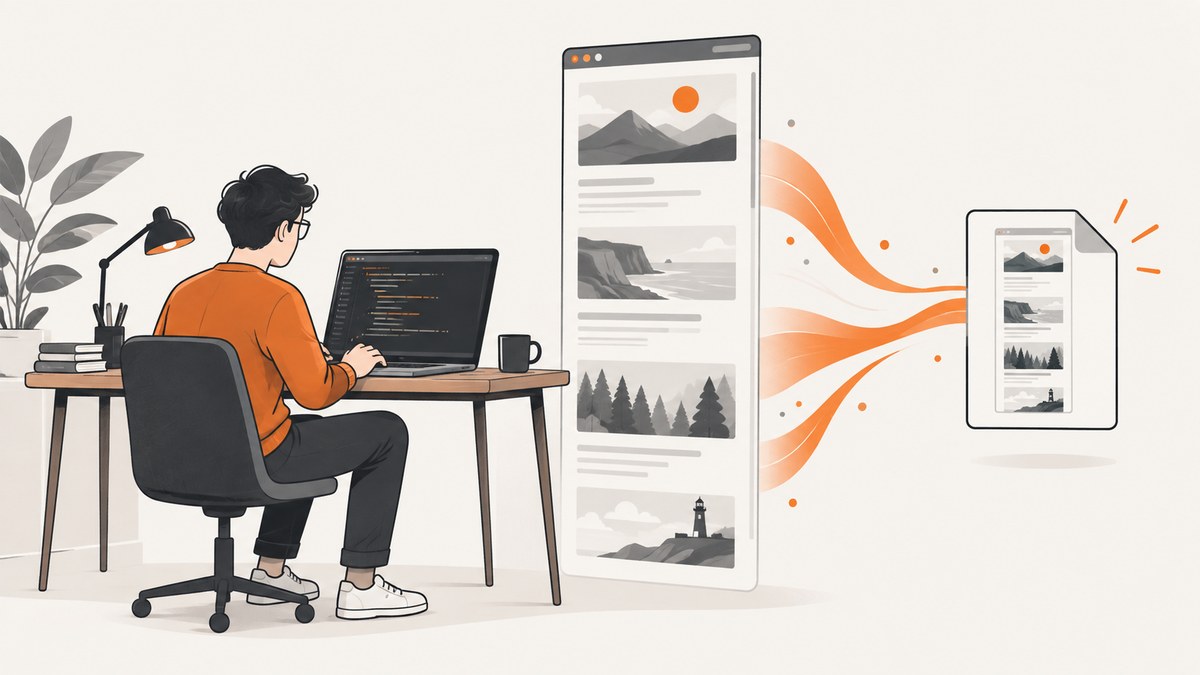
To capture a full-height website screenshot in Java, use Playwright Java and set fullPage to true in Page.ScreenshotOptions. Playwright captures the full scrollable page as though it fit on one very tall screen. The essential call is:
page.screenshot(new Page.ScreenshotOptions()
    .setPath(Paths.get("screenshot.png"))
    .setFullPage(true));
This guide shows the browser setup, a complete Java example, output options, ways to handle dynamic pages, and alternatives. It also explains when a screenshot API can save you from managing a browser.
1. Set up Playwright Java
Playwright runs a real browser controlled from Java. Add the Playwright Java dependency using the installation instructions for your project’s build tool, then install the browser binaries using the commands documented for your chosen Playwright version. Dependency coordinates and installation commands can change, so use the current Playwright Java installation guide rather than copying a possibly stale version into a build file.
Once Playwright and Chromium are installed, the example below navigates to a URL and writes the complete page screenshot to a PNG file. Save it as FullPageScreenshot.java in a project that has the Playwright Java dependency configured.
import com.microsoft.playwright.Browser;
import com.microsoft.playwright.BrowserType;
import com.microsoft.playwright.Page;
import com.microsoft.playwright.Playwright;
import java.nio.file.Paths;

public class FullPageScreenshot {
  public static void main(String[] args) {
    String url = args.length > 0 ? args[0] : "https://example.com";

    try (Playwright playwright = Playwright.create()) {
      Browser browser = playwright.chromium().launch(
          new BrowserType.LaunchOptions().setHeadless(true));
      try {
        Page page = browser.newPage();
        page.setViewportSize(1440, 900);
        page.navigate(url);
        page.screenshot(new Page.ScreenshotOptions()
            .setPath(Paths.get("screenshot.png"))
            .setFullPage(true));
      } finally {
        browser.close();
      }
    }
  }
}
Run it with the URL as its first argument, or omit the argument to use the example domain. The output file is written to the process’s current working directory. The code uses the documented Playwright Java API pattern; it assumes the dependency and browser are already installed.
2. How full-page capture works
A normal viewport screenshot records only the browser’s visible area. With setFullPage(true), Playwright captures the full scrollable document in a single image. This is useful for page archives, visual reviews, documentation, and image-based comparisons.

Full-page capture does not mean Playwright automatically interacts with the page as a visitor would. It does not guarantee that content loaded only after scrolling has appeared, that animations have settled, or that sticky elements will look the same as they do during a normal scroll. Those behaviors depend on the site, so inspect dynamic pages and add suitable preparation steps.
3. Configure screenshot output
Page.ScreenshotOptions provides controls for the file path, format, quality where supported, scale, timeout, clipping, background transparency, masking, caret visibility, and animation handling. Check the current Java API reference for the exact method names and defaults in your installed version. The API reference describes a 30-second screenshot timeout by default and device-pixel scale by default; set values deliberately when those defaults do not suit your workflow.
Choose an image format
- PNG: a lossless choice for visual inspection or pixel comparison.
- JPEG: a lossy choice that supports a quality setting and can reduce image size.
- WebP: an available option when your consumers support it; check the current API reference for format and quality behavior.
For example, set a JPEG output path and quality using the screenshot options supported by your installed version:
page.screenshot(new Page.ScreenshotOptions()
    .setPath(Paths.get("screenshot.jpg"))
    .setType(com.microsoft.playwright.options.ScreenshotType.JPEG)
    .setQuality(80)
    .setFullPage(true));
Quality applies to lossy image output, not PNG. Avoid assuming the same quality value produces the same file size across different pages; photographs, gradients, text, and page dimensions all affect the result.
Scale and viewport
Set a consistent viewport before navigation when screenshots need to be comparable. The viewport affects responsive layout: a page captured at mobile width may have a different document structure and height than one captured at desktop width. Screenshot scale affects output resolution and file size. Use CSS scale for a compact output when device-pixel dimensions are unnecessarily large; use device scale when you need a higher-density image.
page.setViewportSize(1280, 800);
page.screenshot(new Page.ScreenshotOptions()
    .setPath(Paths.get("desktop-full.png"))
    .setScale(com.microsoft.playwright.options.ScreenshotScale.CSS)
    .setFullPage(true));
Clip, mask, and background
Use a clip rectangle when you need only a region rather than the whole page; clipping and full-page capture serve different output goals. Mask genuinely variable elements when visual checks should ignore them. Background transparency can help when compositing an image, but it depends on the page and screenshot options. Hiding the caret and disabling animations can make repeated captures more stable. These settings reduce sources of variation; they cannot make a dynamic page deterministic by themselves.
4. Prepare pages with delayed or lazy content
Some sites load images and sections only when they enter the viewport. A full-page screenshot option captures the document, but it does not provide a universal guarantee that every lazy image or delayed component has loaded. Wait for a site-specific readiness signal where possible. For a simple page, wait for navigation to reach an appropriate load state and then wait for a selector that identifies the content you need.
page.navigate(url, new Page.NavigateOptions()
    .setWaitUntil(com.microsoft.playwright.options.WaitUntilState.DOMCONTENTLOADED));
page.locator("main").waitFor();
page.screenshot(new Page.ScreenshotOptions()
    .setPath(Paths.get("ready.png"))
    .setFullPage(true));
For pages with scroll-triggered loading, use a page-specific preparation routine: scroll through the document in increments, wait for content to appear, then capture. There is no universal scrolling recipe that works for every site. Infinite-scroll pages may continue adding content indefinitely, so define a stopping rule such as a maximum scroll position, item count, or elapsed time before taking the screenshot.
5. Save screenshot bytes instead of a file
When another part of your Java program should store or upload the image, omit setPath. Playwright returns the screenshot as a byte array:
byte[] image = page.screenshot(new Page.ScreenshotOptions()
    .setFullPage(true));

// Pass image to your storage, upload, or response-writing code.
This avoids writing a temporary file, but the image bytes still occupy memory. Very tall pages at high resolution can create large images. If the consumer accepts a file, saving directly to a path can simplify memory handling.
6. Other Java approaches
Selenium
Selenium Java exposes screenshots through TakesScreenshot. Its official API notes that conformant drivers follow the WebDriver specification; for non-conformant drivers, the interface makes a best effort, preferring the entire page, then the current window, the visible portion of the current frame, and finally the display containing the browser. A generic Selenium screenshot call therefore does not promise the same full-document behavior in every driver. Verify the actual browser and driver you deploy. See the Selenium TakesScreenshot API.
Chrome DevTools Protocol
The Chrome DevTools Protocol provides Page.captureScreenshot for Chromium-based browsers. It is appropriate when you need protocol-level control and can accept a Chromium-specific implementation. The protocol is not a browser-portable replacement for Playwright’s explicit Java full-page option. See the CDP Page.captureScreenshot reference.
7. Or skip the browser setup
If your job is simply to turn a URL into a full-page image, ScreenshotNeo provides a website screenshot API and MCP server. One GET request returns a screenshot or PDF. See the API documentation for request options.

curl -G "https://api.screenshotneo.com/v1/shot" \
  -d access_key=YOUR_API_KEY \
  --data-urlencode url=https://stripe.com \
  -d full_page=true \
  -o shot.webp
ScreenshotNeo removes cookie and consent banners, newsletter popups, and chat widgets before capture; each cleanup step can be turned off. Bot checks and CAPTCHAs, blank pages, timeouts, failed loads, and cache hits are not billed, and the response includes X-Page-Verdict and X-Billed headers. Its MCP server lets AI agents use take_screenshot, get_page_info, and capture_pdf. The Free plan includes 1,000 shots per month without a card; paid plans start at $5 for 3,000 shots.
Create a free account for 1,000 screenshots a month, with no card required.
8. Troubleshooting
| Symptom | Likely cause | What to do |
|---|---|---|
| Only the visible viewport is captured | setFullPage(true) is missing, or a different API path is in use. |
Pass .setFullPage(true) to Page.ScreenshotOptions. Confirm the driver’s behavior if using Selenium. |
| Images or lower sections are blank | Lazy loading, delayed rendering, or scroll-triggered content. | Wait for a meaningful selector or readiness signal. For scroll-triggered pages, scroll deliberately before capture and set a stopping rule. |
| The screenshot differs between runs | Animations, timestamps, rotating content, ads, personalization, or network timing. | Use a stable viewport, wait for page-specific readiness, disable animations where appropriate, and mask variable regions in visual comparisons. |
| Capture times out | The page or screenshot operation exceeds its timeout, often due to slow resources or an exceptionally tall page. | Check navigation and screenshot timeout settings in the installed API version. Wait for a narrower readiness condition instead of waiting for every network request indefinitely. |
| Output is unexpectedly huge | Full-page dimensions, device-pixel scale, or image format produce more pixels or bytes than expected. | Use CSS scale, reduce the viewport width only if the layout still matches your goal, or choose JPEG/WebP when lossy output is acceptable. |
| Browser executable is missing | The Playwright library is installed but its browser binary is not. | Follow the current Playwright Java installation guide to install the browser for your project and environment. |
| Sticky header appears oddly | Full-page capture and normal scrolling do not necessarily render sticky elements as expected. | Inspect the result. For a specific design, adjust page state with CSS or capture sections separately. |
9. Performance, reliability, and cost
With Playwright, your application manages browser processes, browser installation, page navigation, and image output. Capture time depends on the target site, its assets, the readiness condition, and the full-page image dimensions. Extremely tall pages consume more time and memory than viewport-sized captures. Reuse browser processes for batches where your application architecture permits it, while keeping page state isolated per capture.
For repeatable work, pin the Playwright dependency version in your build, install the corresponding browser in deployment, and use explicit viewport and readiness settings. Treat remote pages as unreliable inputs: they may change, respond slowly, require interaction, or block automated traffic. Decide how your job should handle timeouts and partial failures, and record the URL and capture settings with each result.
Playwright itself is an open-source browser automation library; operating cost comes from the infrastructure and engineering needed to run browsers and store or transfer images. A hosted screenshot API trades browser operations you manage for per-plan usage. ScreenshotNeo’s listed plans are Free: 1,000 monthly shots; Starter: $5 for 3,000; Growth: $15 for 15,000; Pro: $39 for 60,000; Scale: $99 for 250,000; and Business: $249 for 1,000,000. Yearly billing gives two months free. Every feature is on every plan. Select based on expected successful captures and confirm current plan details on the product site.
10. FAQ
Does setFullPage(true) scroll the page?
It captures the full scrollable document as one screenshot. It does not replace site-specific interaction needed to trigger lazy content.
Can I take a full-page screenshot without saving a file?
Yes. Call page.screenshot(...) without a path; it returns the image as byte[].
Will the same Java code work with every browser?
The shown method is Playwright’s Java API and the example launches Chromium. Selenium and CDP have different portability and full-page behavior considerations.
Can I capture an infinitely scrolling page in full?
There is no finite full page until the content stops growing. Choose a maximum depth or item count, load content to that point, then capture the resulting document.