How to Save an Entire Webpage
Save a webpage with its pictures for offline reading using Firefox, Chrome, SingleFile, or ScreenshotNeo’s screenshot API.
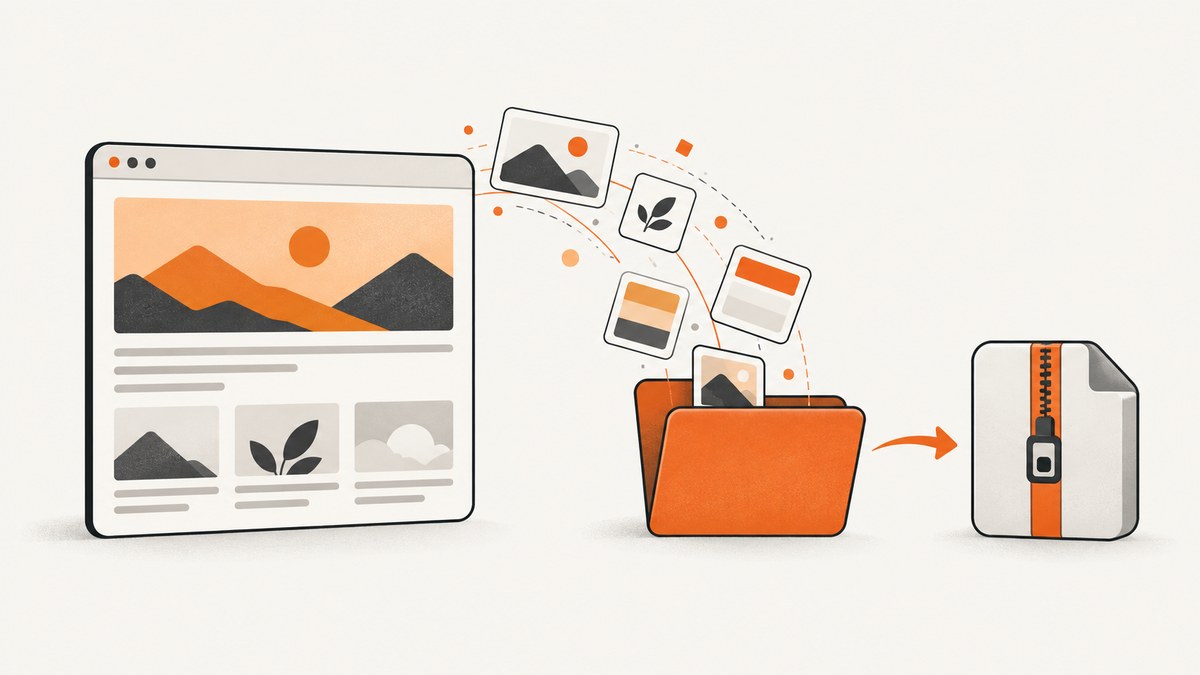
To save one webpage with its pictures, use your browser’s complete-page option. In Firefox, choose Save Page As and select Web page, complete; Firefox creates an HTML file and a companion folder containing pictures and other required files. Keep both together when you move or open the saved page.
If you need one portable HTML file, use the SingleFile extension. If you need a rendered image or PDF for archiving or automation, use ScreenshotNeo after the browser workflows below.
Choose the right saving method
| Need | Best method | What you get | Main trade-off |
|---|---|---|---|
| Page plus pictures in Firefox | Web page, complete | HTML file and companion directory | Keep the file and directory together; original link structure may change |
| Only the HTML structure | Web page, HTML only | One HTML file | Pictures are not included |
| One self-contained HTML archive | SingleFile extension | Resources packaged into one HTML file | Requires an extension and may not preserve every dynamic feature |
| Offline reading in Chrome | Chrome’s Save page as workflow | A local copy suitable for offline access | Menu labels vary by platform and version |
| Pixel-accurate image or PDF | ScreenshotNeo | PNG, JPEG, WebP, or PDF from one request | It captures a rendition, not editable source HTML |
Firefox: save a webpage with all pictures
- Open the page you want to keep and wait until its visible content has loaded.
- Open the Firefox menu and choose Save Page As.
- Choose a filename and destination.
- In the format list, select Web page, complete.
- Click Save.
Firefox writes the HTML document and a companion directory containing pictures and other files needed to display the page. Move or share them together. Mozilla documents this workflow in How to save a web page.
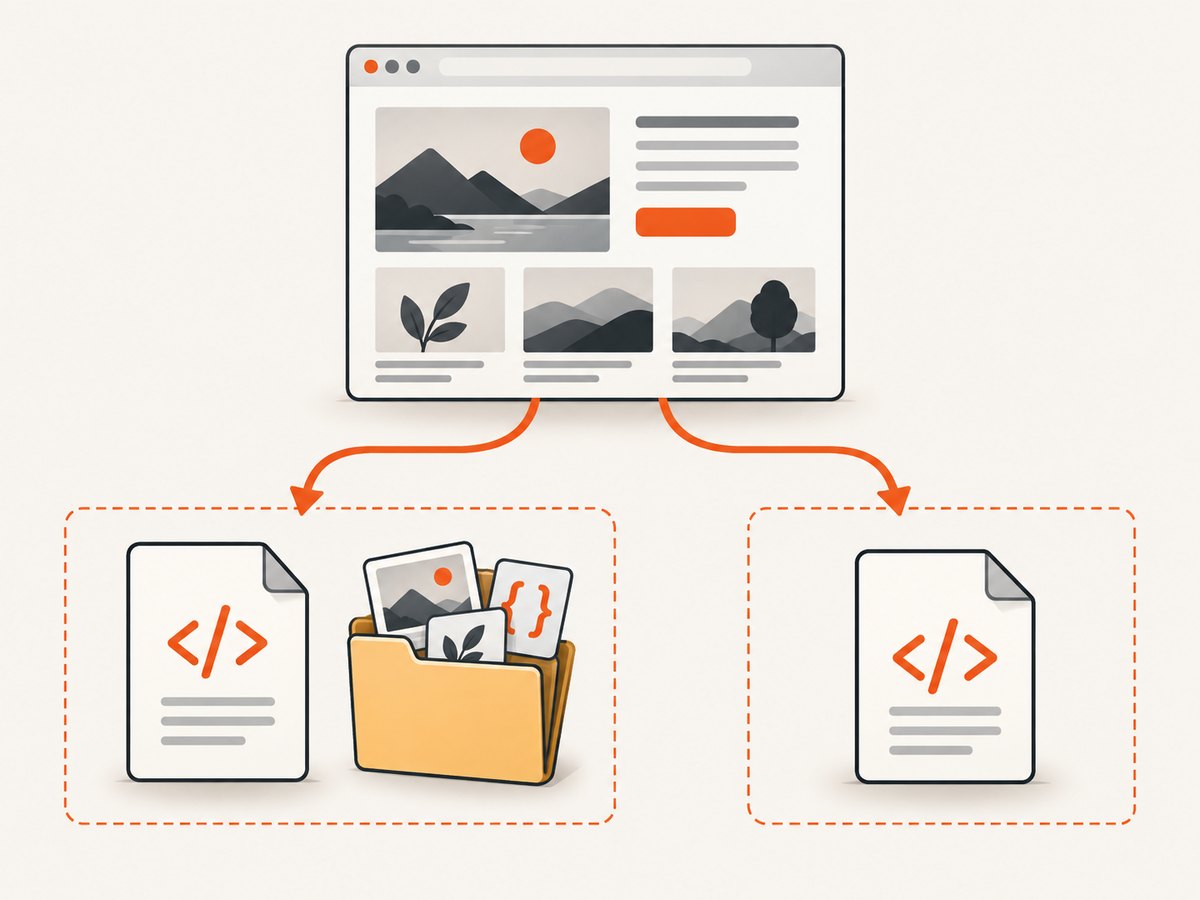
When to choose “HTML only”
Select Web page, HTML only when you need the markup in a single file and do not need its pictures. This is useful for inspecting structure or storing a lightweight text copy, but images and other linked resources will not be available offline.
Chrome: save a page for offline reading
Chrome Help describes using Save page as to download a page for later offline reading. Open the page, use the browser’s save command, select a destination and retain the generated files. Exact menu placement and format names can vary by operating system and Chrome version; follow the current labels shown in your browser. See Google’s offline reading instructions.
Save everything into one HTML file with SingleFile
SingleFile is an extension for Chrome, Firefox, Edge, Safari and other browsers. Its documentation says to wait until the page is loaded, then click the SingleFile toolbar button. The extension can package resources such as images, stylesheets, fonts and frames into one HTML file. The SingleFile project site explains the supported workflow.
- Install SingleFile from your browser’s extension store.
- Open the target page and wait for images and other lazy-loaded content to appear.
- Click the SingleFile toolbar button.
- Choose where to save the generated HTML archive.
- Open the saved file locally to verify that important images and layout are present.
Saving after the page finishes loading matters. A page can contain lazy images, frames or resources that are not requested until you scroll or interact with it.
What a local webpage save preserves—and what it does not
- Usually preserved: the captured HTML and resources that were available to the browser when you saved.
- May be incomplete: lazy-loaded images, content behind tabs, iframes, web fonts, videos, canvas output and resources blocked by login or network policy.
- Usually not preserved as a working application: server-backed forms, comments, shopping carts, live search, authenticated actions, streaming media and content that changes after the save.
- Not a website backup: saving one page does not download every page on a site. Website-wide crawling requires a separate process and its own permissions and rate controls.
A local save is a copy of one rendered state. It does not guarantee that scripts, links, authentication or future updates will work offline. Mozilla also notes that Firefox’s complete format may not preserve the original HTML link structure.
Or skip the browser setup
For an image or PDF of the rendered page, ScreenshotNeo provides a website screenshot API and MCP server. One GET request returns PNG, JPEG, WebP or PDF. Its capture can load lazy images, wait for a selector, delay or network idle, and use full-page or element capture.
Before capture, ScreenshotNeo accepts cookie or consent banners and removes more than 60 known consent platforms, newsletter popups and chat widgets; each step can be turned off. Bot checks, blank pages, timeouts, failed loads and cache hits are not billed, and the response reports the result in X-Page-Verdict and X-Billed headers. Its MCP server provides take_screenshot, get_page_info and capture_pdf for Claude, Cursor and other MCP clients.
Read the ScreenshotNeo API documentation for all options. The examples below save the returned image to a file.
cURL
curl -G "https://api.screenshotneo.com/v1/shot" -d access_key=YOUR_API_KEY --data-urlencode url=https://stripe.com -o shot.webpPython
import requests

r = requests.get(
    "https://api.screenshotneo.com/v1/shot",
    params={"access_key": "YOUR_API_KEY", "url": "https://stripe.com"},
    timeout=90,
)
r.raise_for_status()
open("shot.webp", "wb").write(r.content)
Node.js
const q = new URLSearchParams({ access_key: 'YOUR_API_KEY', url: 'https://stripe.com' });
const res = await fetch(`https://api.screenshotneo.com/v1/shot?${q}`);
if (!res.ok) throw new Error(`Screenshot failed: ${res.status}`);
const data = Buffer.from(await res.arrayBuffer());
require('node:fs').writeFileSync('shot.webp', data);
You can add options for full-page capture, CSS selectors, dark mode, device presets, viewport size, retina scale, PDF paper size and margins, custom CSS or JavaScript, clicks, hidden selectors, blocked resource types, headers, cookies, user agent, timezone, geolocation, transparent backgrounds, resizing, caching, signed links, asynchronous jobs, webhooks and bulk capture. The parameter names used by other screenshot APIs also work, which simplifies migration.
ScreenshotNeo has 1,000 free shots per month with no card. Paid plans start at $5 for 3,000 shots; yearly billing provides two months free, and every feature is available on every plan. Create a free ScreenshotNeo account.
Troubleshooting
The saved page has no images
You may have selected HTML only, saved before images loaded, or encountered images loaded lazily after scrolling. Use Firefox’s complete format, wait for the page to finish loading, scroll through important sections, then save again. SingleFile should also be triggered after loading completes.

The HTML file opens with a broken layout
Check that Firefox’s companion directory is beside the HTML file and has not been renamed separately. For a single-file archive, reopen the file in the same browser used to create it and verify that blocked or authenticated resources were available during capture.
Interactive controls do not work offline
Forms, search, comments, login areas and other server-backed features need a live server. A local save preserves available content, not the application’s backend.
Some content is missing
Expand tabs, scroll to trigger lazy loading, dismiss overlays and wait for network activity to settle before saving. Content requiring a login, a bot challenge or a user action may not be downloadable.
The ScreenshotNeo response is not an image
Inspect the HTTP status and response headers. Handle non-2xx responses before writing the body to disk, keep the access key private, and check X-Page-Verdict and X-Billed to understand whether the page was cleanly captured, rejected or served from cache.
The API request times out
Use a client timeout long enough for the target page, reduce unnecessary waits, or use ScreenshotNeo’s asynchronous jobs and signed webhooks for longer captures. A page with slow third-party resources, bot checks or heavy scripts may take longer than a static page.
Performance, reliability and cost notes
- Browser saves: are convenient for one-off pages and have no API usage cost, but they depend on the current browser session and local files.
- SingleFile: reduces file management to one HTML archive, but the archive can become large when it embeds many images, fonts or frames.
- ScreenshotNeo: is suited to repeatable captures and automation. Use caching with a TTL when the page does not change often, bulk capture for up to 100 URLs per call, and asynchronous jobs with signed webhooks when work should run outside a request timeout.
- Billing: only clean shots are billed. Bot checks or CAPTCHAs, blank pages, timeouts, failed loads and cache hits cost nothing; verify the verdict and billing headers in your pipeline.
- Reliability: save important local copies in a stable directory and retain Firefox’s companion folder. For automated archives, record the URL, capture time, options and response verdict alongside each output.
FAQ
Does saving a webpage download the whole website?
No. The browser workflows save one page and its available resources. A full site needs a separate crawler and a defined scope.
Which format is best for a single file?
Use SingleFile when you want resources packaged into one HTML file. Use Firefox’s complete format when a companion folder is acceptable.
Can I preserve a page that requires login?
Only content available to the browser or capture service at save time can be preserved. Login sessions, private resources and server actions may not work offline.
Should I save HTML or a screenshot?
Save HTML when you need selectable structure or links. Save a screenshot or PDF when visual fidelity and a fixed record matter more than editable markup.
Can I automate webpage archiving?
Yes. Browser automation can drive a local save, while ScreenshotNeo provides an API, async jobs, webhooks, bulk capture and an MCP server for agent workflows.


